This demo shows how to make an AWS CloudFormation template reusable by parameterizing the S3 bucket name. Instead of hard-coding values in the template, use CloudFormation parameters so you can supply inputs when creating or updating a stack.
  • What you’ll learn: how to add a parameter for a bucket name, reference it from a resource using !Ref, validate the template locally, and update a stack in the console.
  • Useful reference: CloudFormation parameters documentation.
Why use parameters?
  • Parameters let you provide input at stack creation or update time.
  • They improve template reusability and avoid embedding environment-specific values.
Example: template with a hard-coded bucket name
Resources:
  MyS3Bucket:
    Type: AWS::S3::Bucket
    Properties:
      BucketName: eden-kodekloud-xcvt-bkt
      Tags:
        - Key: Developer
          Value: "Arno Pretorius"
        - Key: Environment
          Value: "Development"

Metadata: {}
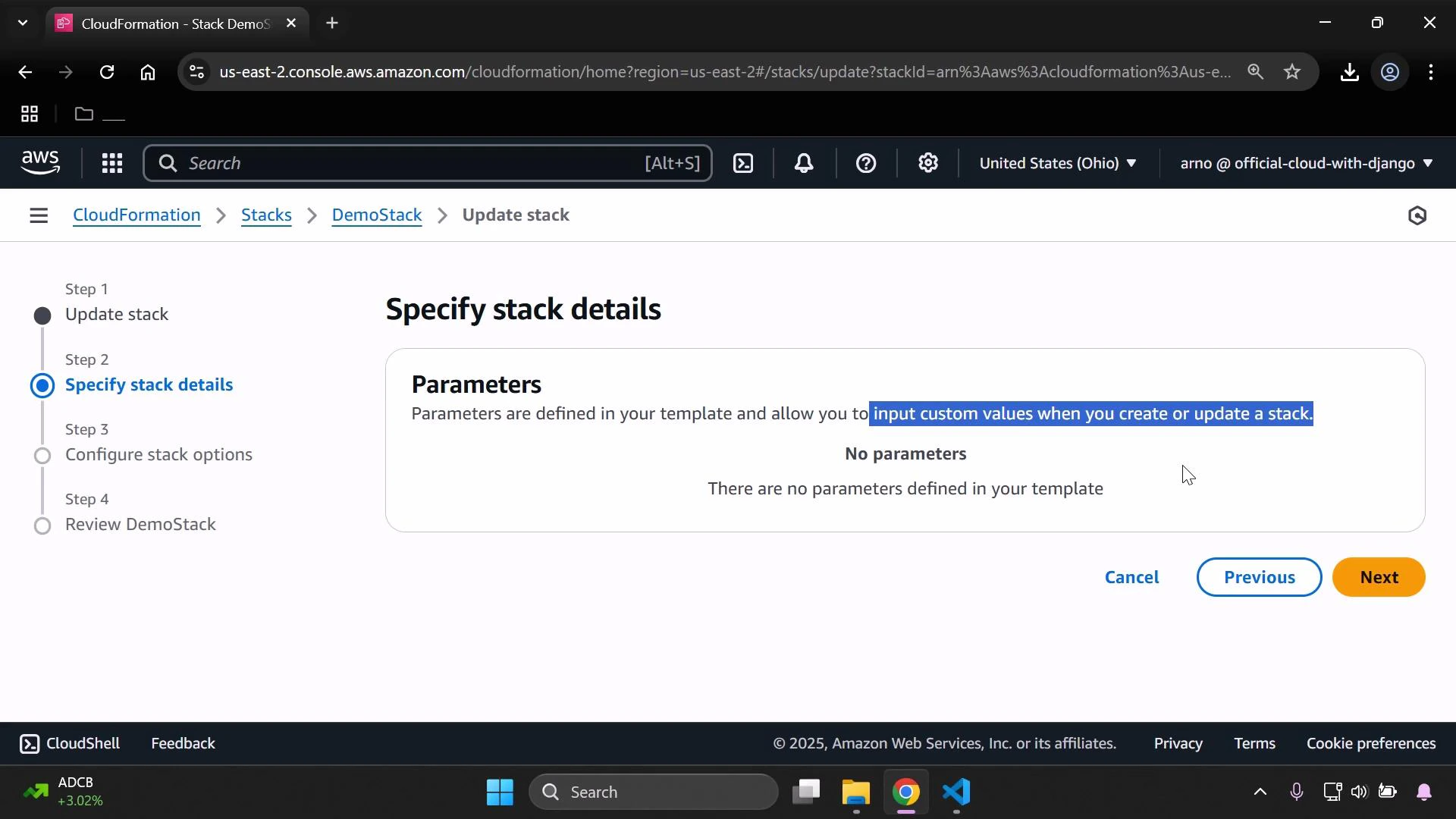
If a template defines no parameters, the CloudFormation console will not show any input fields when updating a stack.
A screenshot of the AWS CloudFormation console on the "Specify stack details" step for updating a stack named DemoStack, showing the Parameters panel which says "No parameters." Navigation buttons "Cancel," "Previous," and "Next" are visible at the bottom.
Where to place the Parameters block
  • Best practice: place the Parameters section near the top of the template (above Resources) for readability and maintainability.
Add a parameter for the bucket name
  • Define a parameter named InputBucketName that accepts a string and provides a helpful description.
Parameters:
  InputBucketName:
    Type: String
    Description: Please enter your desired S3 bucket name

Resources:
  MyS3Bucket:
    Type: AWS::S3::Bucket
    Properties:
      BucketName: eden-kodekloud-xcvt-bkt
Reference the parameter in the resource
  • Replace the hard-coded bucket name with a reference to the InputBucketName parameter using !Ref:
Parameters:
  InputBucketName:
    Type: String
    Description: Please enter your desired S3 bucket name

Resources:
  MyS3Bucket:
    Type: AWS::S3::Bucket
    Properties:
      BucketName: !Ref InputBucketName
      Tags:
        - Key: Developer
          Value: "Arno Pretorius"
        - Key: Environment
          Value: "Development"
S3 bucket naming constraints
S3 bucket names must be globally unique and conform to naming rules. Typical constraints include:
  • 3–63 characters
  • Lowercase letters, numbers, hyphens, and dots allowed (no underscores)
  • Cannot be formatted as an IP address
  • Must begin and end with a letter or number
If your bucket name contains dots, be aware of virtual-hosted–style endpoint and TLS certificate restrictions.
Changing BucketName in your template causes CloudFormation to replace the S3 bucket resource (CloudFormation cannot rename an existing bucket). Replacement deletes the old resource and creates a new one; deletion can fail if the original bucket is not empty. Take care when updating bucket names in an existing stack.
Validate your template locally (recommended)
  • Use cfn-lint to validate the YAML template before uploading:
cfn-lint S3-bucket.yaml
If validation passes, update the CloudFormation stack:
  1. In the console select the stack and choose Update stack → Replace current template → Upload a template file.
  2. Upload your updated template and click Next.
During the update flow, the Parameters panel will display the InputBucketName field and its description. This is where you provide the value that gets substituted into the template via !Ref.
Parameters:
  InputBucketName:
    Type: String
    Description: Please enter your desired S3 bucket name

Resources:
  MyS3Bucket:
    Type: AWS::S3::Bucket
    Properties:
      BucketName: !Ref InputBucketName
      Tags:
        - Key: Developer
          Value: "Arno Pretorius"
        - Key: Environment
          Value: "Development"
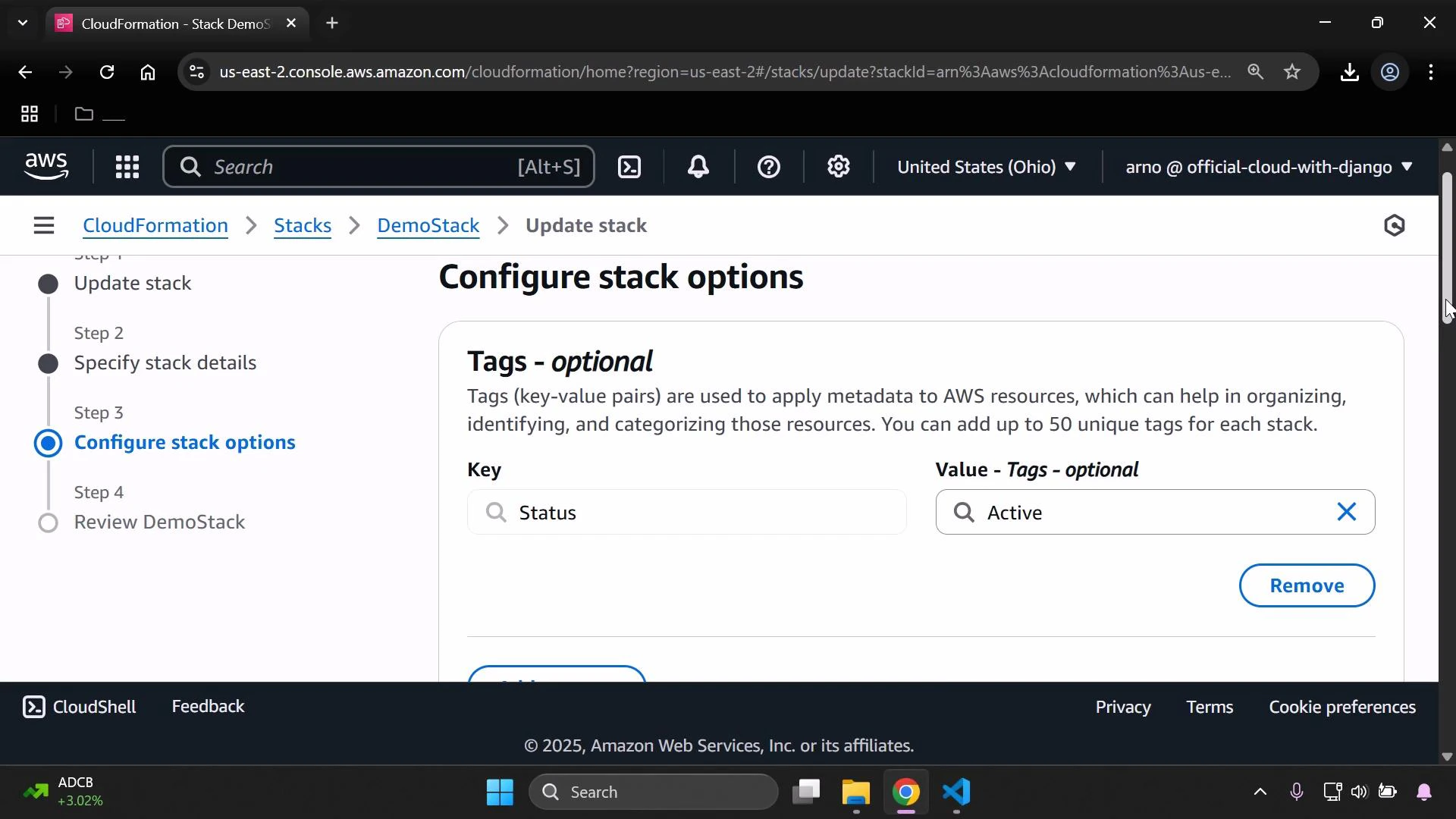
You can also add or override tags in the console during the Configure stack options step—here’s an example of adding a tag.
A screenshot of the AWS CloudFormation console on the "Configure stack options" step, showing the Tags section with a tag key "Status" and value "Active." The left sidebar shows the update stack workflow steps and the top bar displays the AWS navigation/header.
Submit the update and monitor progress
  • After submitting the update, wait for the stack to complete. On success, the stack status will show UPDATE_COMPLETE.
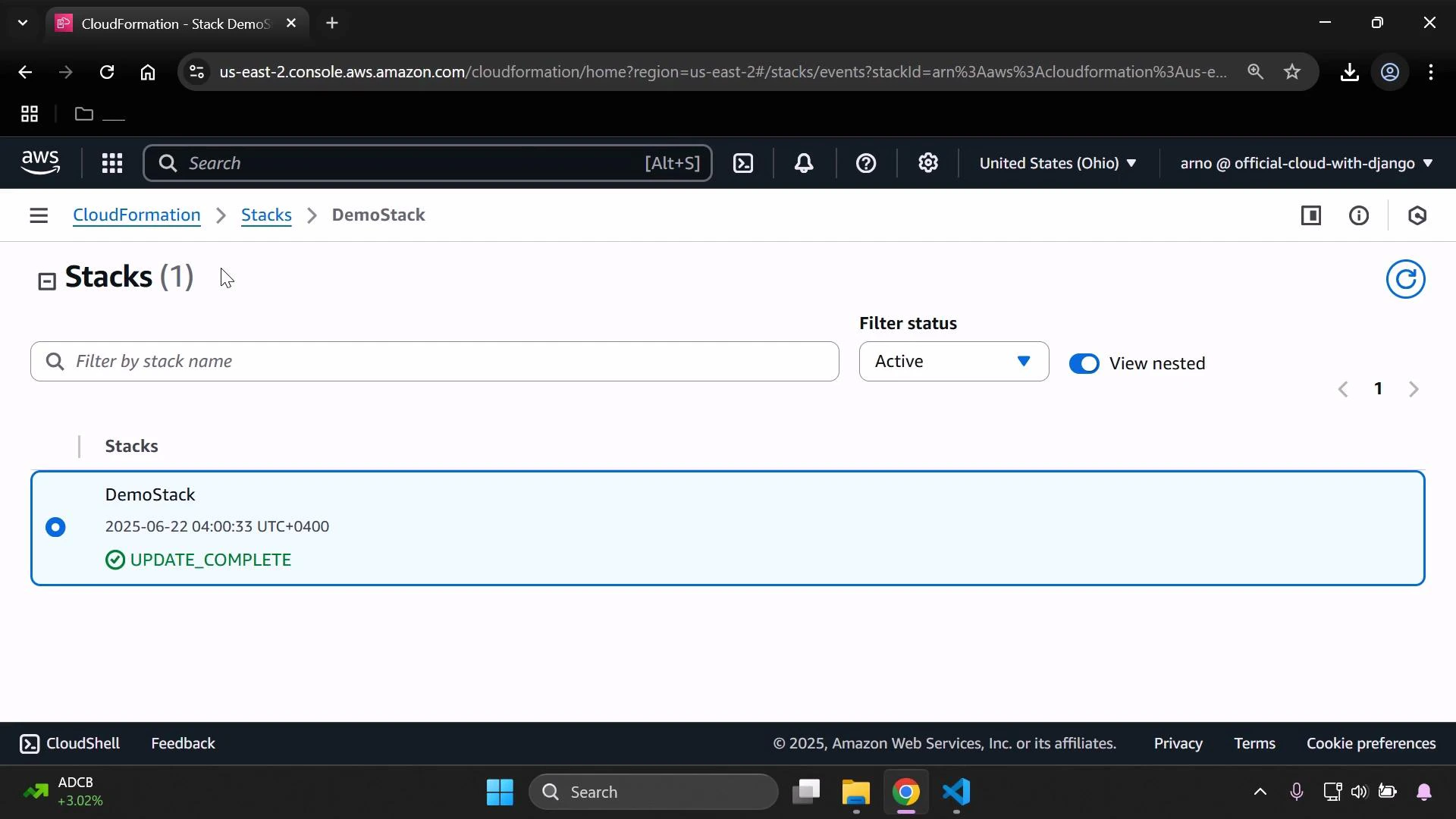
A screenshot of the AWS CloudFormation Stacks console showing one stack named "DemoStack." The stack entry shows a timestamp and a green "UPDATE_COMPLETE" status.
Verify the bucket in S3
  • Open the S3 console and refresh the bucket list. The bucket name you entered via the parameter will appear, and the tags defined in the template will be applied.
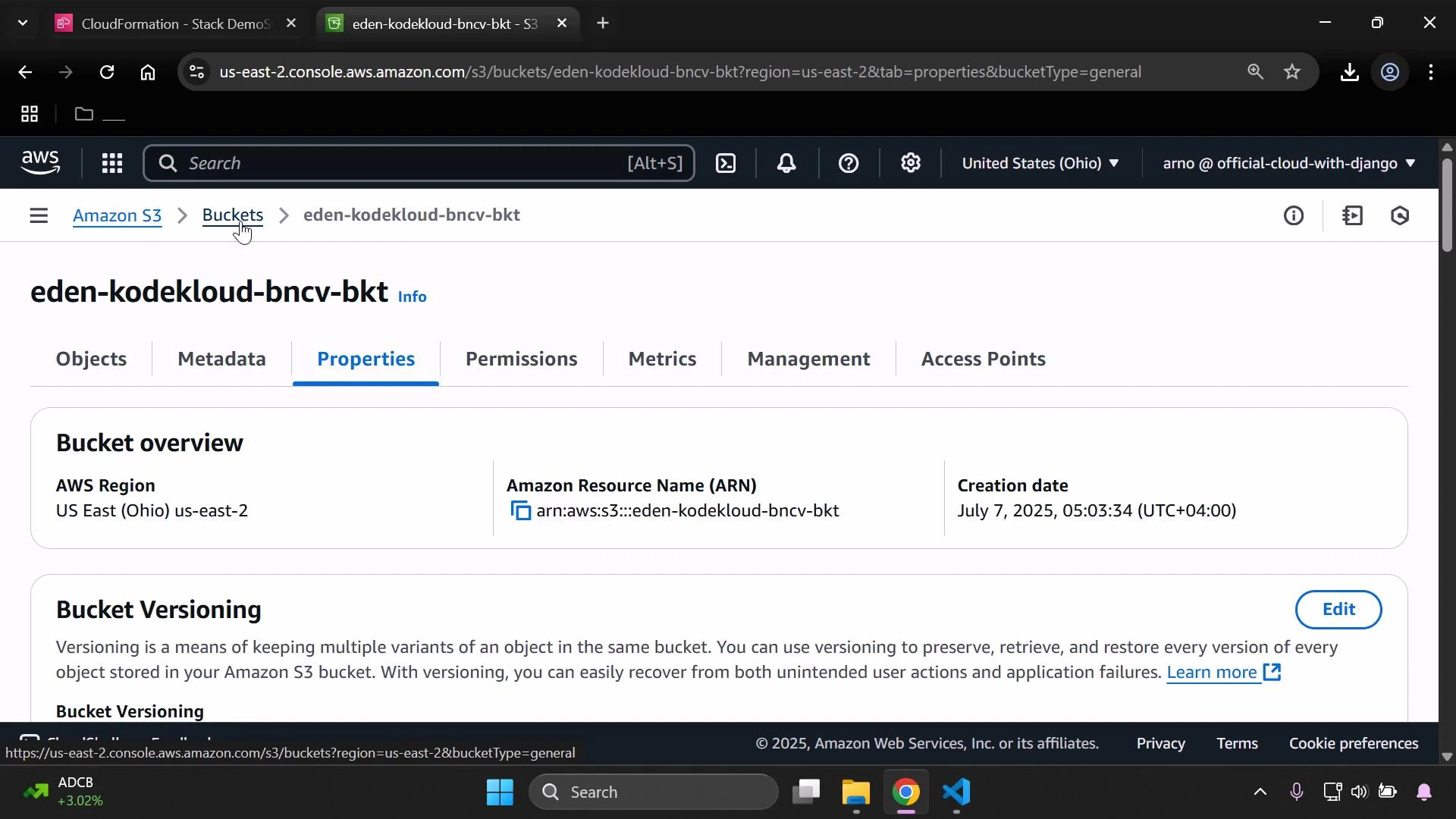
A screenshot of the AWS S3 console showing the Properties tab for the bucket "eden-kodekloud-bncv-bkt," including the bucket overview (ARN, AWS Region: US East (Ohio)) and the creation date. The lower part shows the Bucket Versioning section with an Edit button.
Summary
  • Use CloudFormation Parameters to supply values at stack creation or update time instead of hard-coding them.
  • Place Parameters at the top of your template (above Resources) for readability.
  • Use !Ref to reference parameter values inside Resources.
  • Validate templates locally with cfn-lint before deploying.
  • Ensure S3 bucket names meet naming constraints and be careful: changing a bucket name forces resource replacement.
Links and references
ResourcePurposeLink
CloudFormation parametersReference and detailshttps://docs.aws.amazon.com/AWSCloudFormation/latest/UserGuide/parameters-section-structure.html
S3 bucket naming rulesNaming constraints and guidancehttps://docs.aws.amazon.com/AmazonS3/latest/userguide/bucketnamingrules.html
cfn-lintTemplate validation toolhttps://github.com/aws-cloudformation/cfn-lint
Updating stacksUpdate stack workflow in CloudFormationhttps://docs.aws.amazon.com/AWSCloudFormation/latest/UserGuide/updating-stacks.html
Extending this pattern
  • Use parameters for tags, versioning settings, or names of other resources to make templates flexible and environment-agnostic.

Watch Video