

Before you begin
- Verify your Mac is up to date and meets VS Code system requirements.
- Have an administrator account or the ability to approve app installs.
- Recommended: an internet connection for downloading the installer and extensions.
- Open the Visual Studio Code download page in your browser and scroll to the macOS section. Choose the installer that matches your Mac architecture (Intel x64 or Apple Silicon / Arm64).
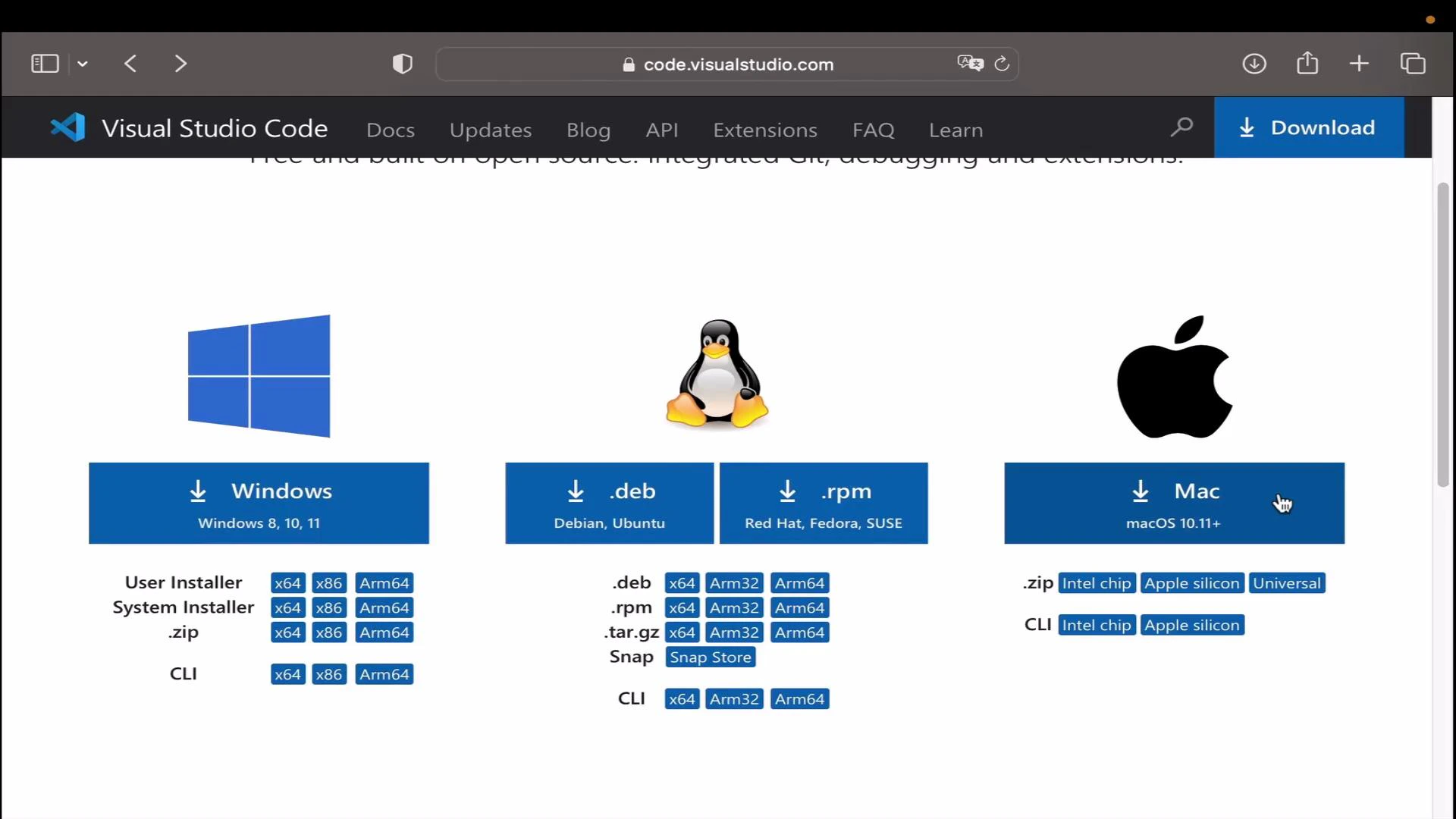
- Click the macOS download button. The download is typically a .dmg or a .zip file and will be saved to your Downloads folder.
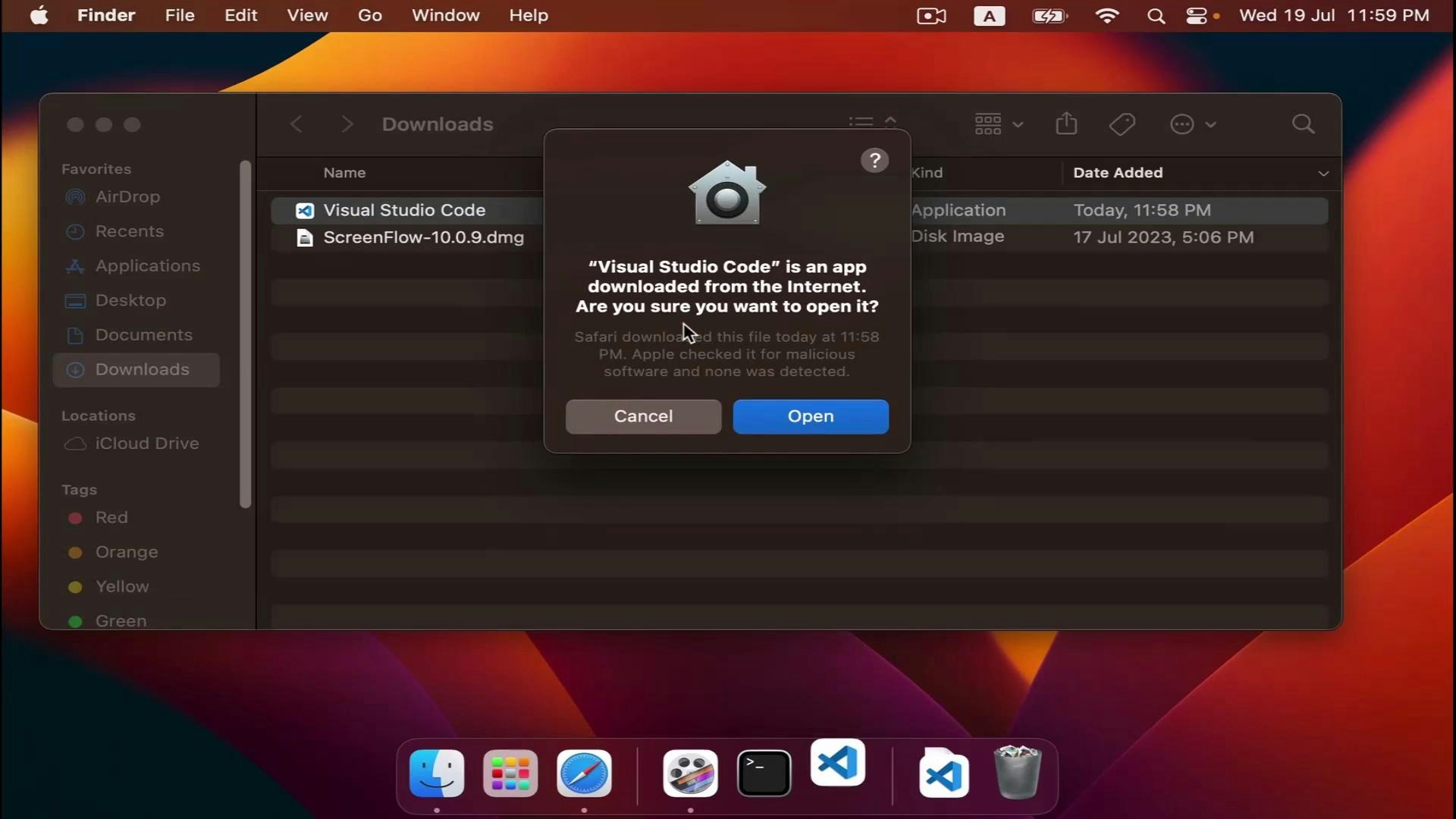
- Open Finder → Downloads and locate the Visual Studio Code download. Double-click the file to open it. If macOS shows a security prompt saying the app was downloaded from the Internet, click Open to continue.
- Install VS Code
- If you downloaded a .dmg: open the mounted image and drag the Visual Studio Code icon into the Applications folder.
- If you downloaded a .zip: double‑click the zip to extract the .app, then move Visual Studio Code.app to Applications.
- Launch VS Code
- Open Visual Studio Code from the Applications folder or use Spotlight (⌘Space → type “Visual Studio Code”).
- If you want easy access, right‑click the app in the Dock → Options → Keep in Dock.
Tip: After moving VS Code to your Applications folder, right-click the app and choose Options → Keep in Dock to pin it for quick access.
Enable the command-line launcher
To open files or folders from Terminal with the convenient code command:- Open the Command Palette: ⇧⌘P (Shift + Command + P)
- Type and select:
- Shell Command: Install ‘code’ command in PATH
Quick reference: macOS installer types and common actions
Useful editing shortcuts (macOS)
Links and references
- Visual Studio Code download: https://code.visualstudio.com/download
- VS Code documentation: https://code.visualstudio.com/docs