In this lesson you’ll learn how to use AWS CloudFormation drift detection to determine whether the actual state of stack resources has diverged from the CloudFormation template (out-of-band changes). This helps keep infrastructure aligned with declared templates and speeds troubleshooting when unexpected configuration changes occur.

Create the template

Create a file named drift.yaml in your project and paste the following CloudFormation template. It defines a single EC2 instance and a small region-to-AMI mapping. Save the file before creating the stack.
AWSTemplateFormatVersion: '2010-09-09'
Description: Basic EC2 instance used to demonstrate CloudFormation drift detection.

Mappings:
  RegionMap:
    us-east-2:
      AMI: ami-0eb9d6f1c9fab44d24
    eu-west-1:
      AMI: ami-0b3e7dd7b2a99b08d
    us-east-1:
      AMI: ami-0150ccaf51ab55a51

Resources:
  MyInstance:
    Type: AWS::EC2::Instance
    Properties:
      InstanceType: t3.micro
      ImageId: !FindInMap [RegionMap, !Ref 'AWS::Region', AMI]

Create the CloudFormation stack (Console)

  1. Open the AWS CloudFormation console and choose Create stack.
  2. Select Upload a template file and pick your drift.yaml.
  3. Continue through the wizard, give the stack a name (for example DemoStack), and create the stack.
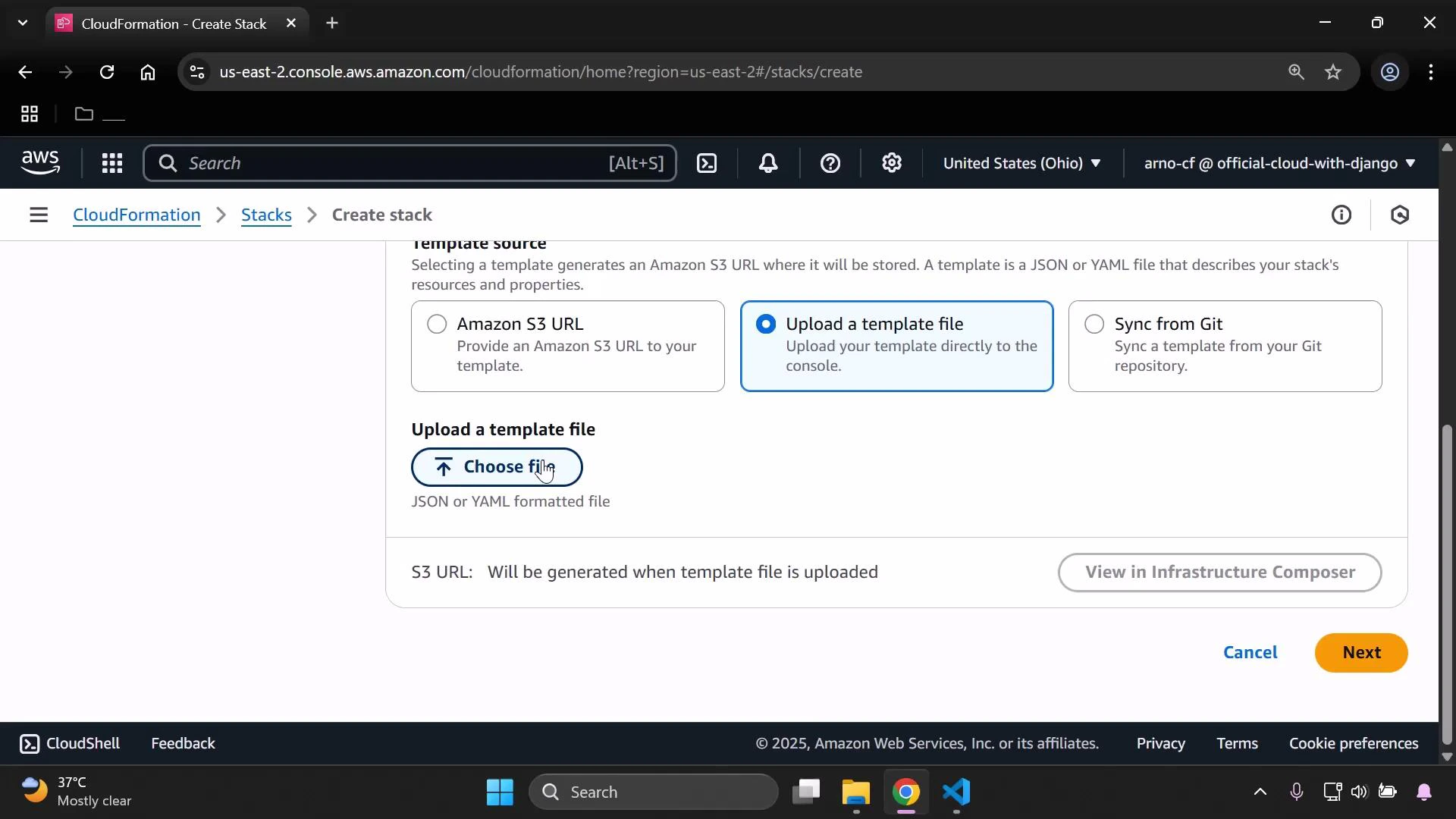
A screenshot of the AWS CloudFormation "Create stack" console with the "Upload a template file" option selected and a "Choose file" button for uploading a JSON or YAML template. The page shows navigation breadcrumbs and the Cancel/Next buttons at the bottom right.
Complete the wizard and wait for CloudFormation to provision the EC2 instance in your chosen region (the example uses us-east-2 / Ohio).

View and detect drift

After the stack reaches CREATE_COMPLETE:
  • Select the stack (for example DemoStack) in the CloudFormation console.
  • From Stack actions (or Stack options), choose View drift results and then click Detect stack drift to start the comparison.
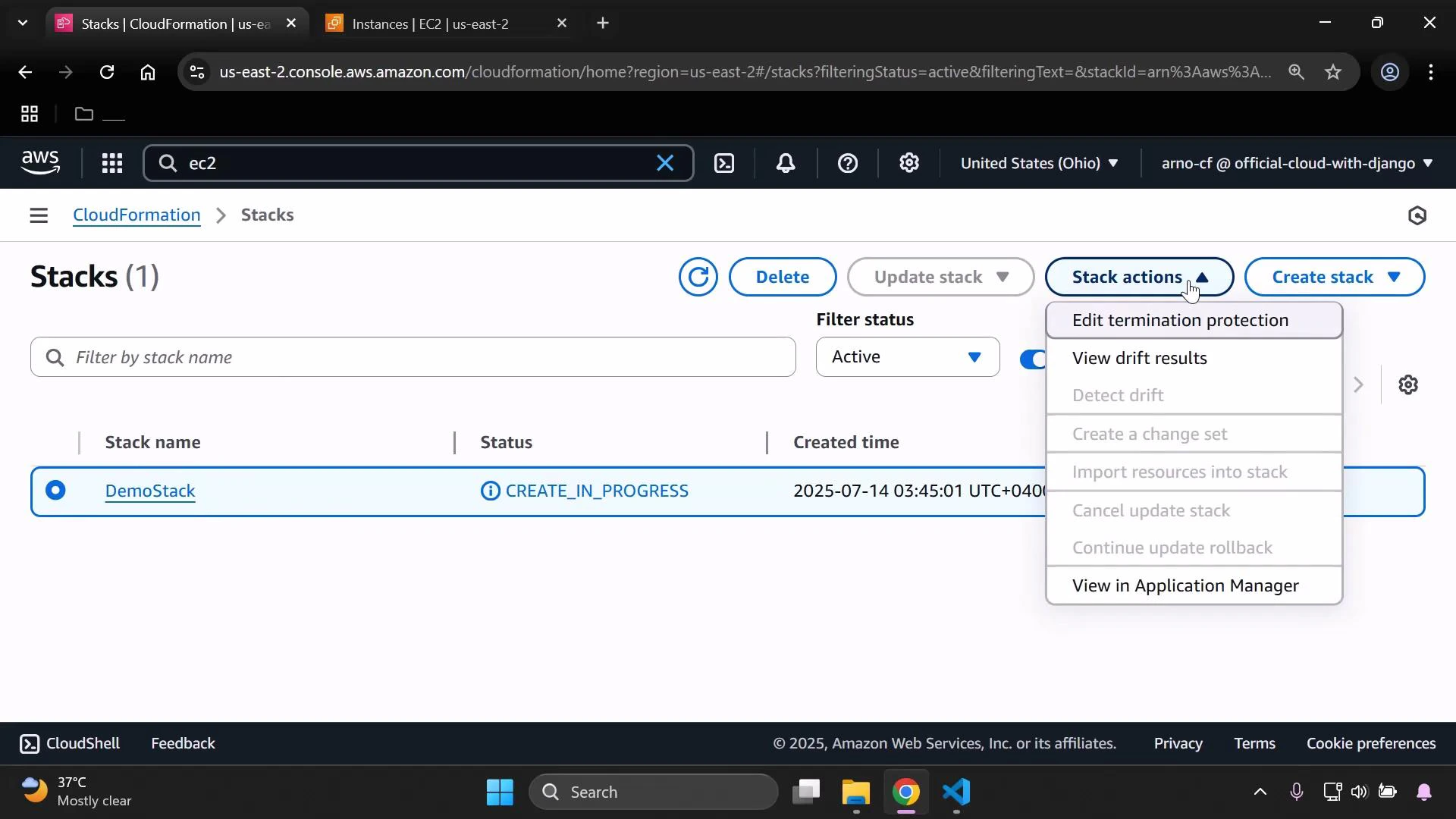
Screenshot of the AWS CloudFormation console listing one stack named "DemoStack" with status CREATE_IN_PROGRESS. The "Stack actions" dropdown is open and the region shown is US East (Ohio).
CloudFormation compares the resource properties defined in the template with the live resource configuration. For the template above, the expected InstanceType is t3.micro, and the AMI is chosen from the mapping for the selected region. When detection completes you should see each resource’s drift status. If you haven’t changed the instance outside CloudFormation, the EC2 resource will show IN_SYNC.
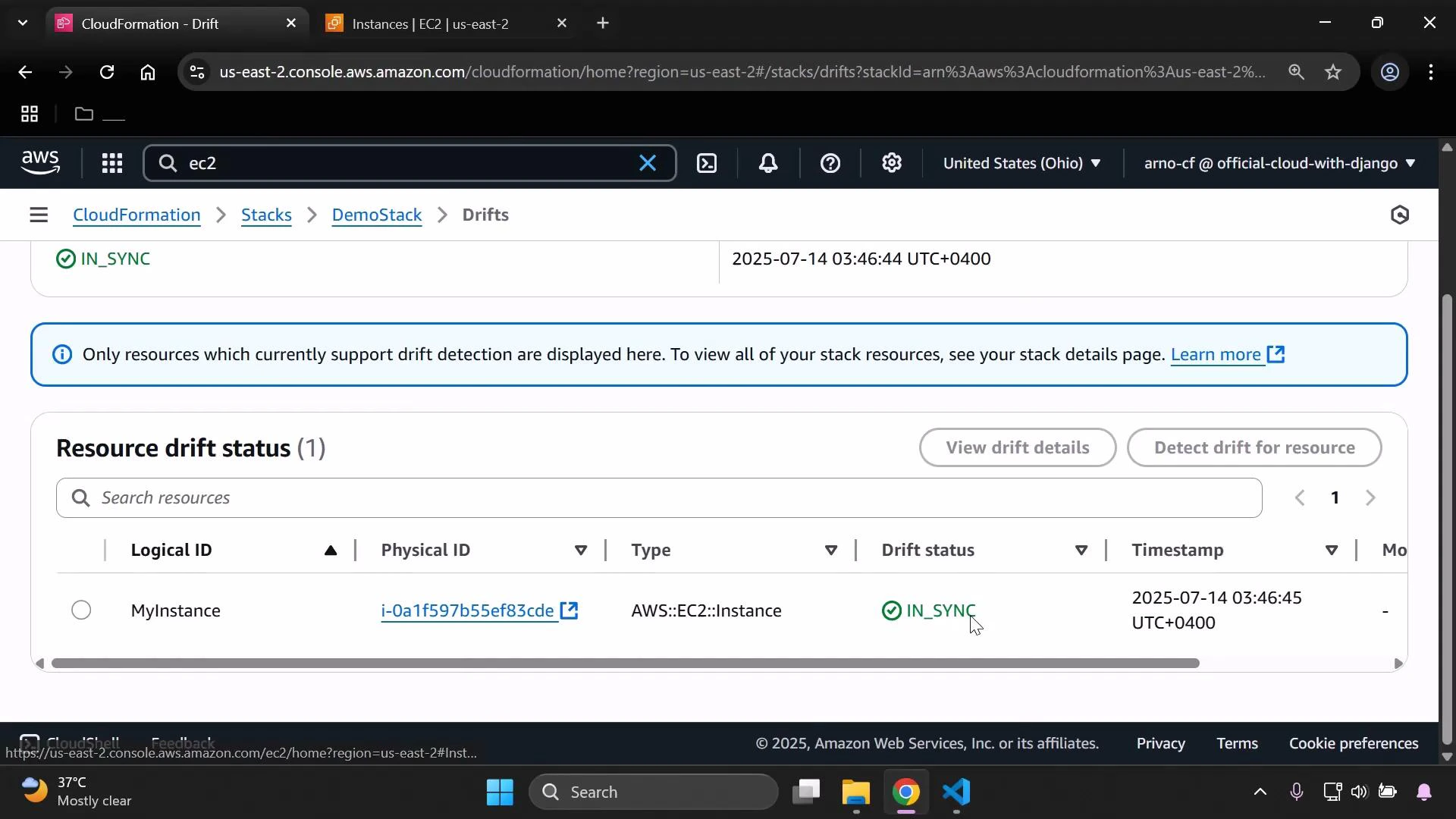
A screenshot of the AWS CloudFormation "Drifts" page showing one resource (Logical ID "MyInstance") which is an AWS::EC2::Instance with physical ID i-0a1f597b55ef83cde and a drift status of IN_SYNC. The timestamp and region (us-east-2 / United States (Ohio)) are also visible.

Make an out-of-band change (EC2 console)

To demonstrate drift, modify the EC2 instance directly in the EC2 console (outside CloudFormation). For example, change the instance type:
  1. Open the EC2 Instances page and select the instance created by the stack.
  2. Choose Instance state → Stop and wait for the instance to stop.
  3. With the instance selected, go to Actions → Instance settings → Change instance type and select a new type (e.g., t3.small).
  4. Apply the change and start the instance again if needed.
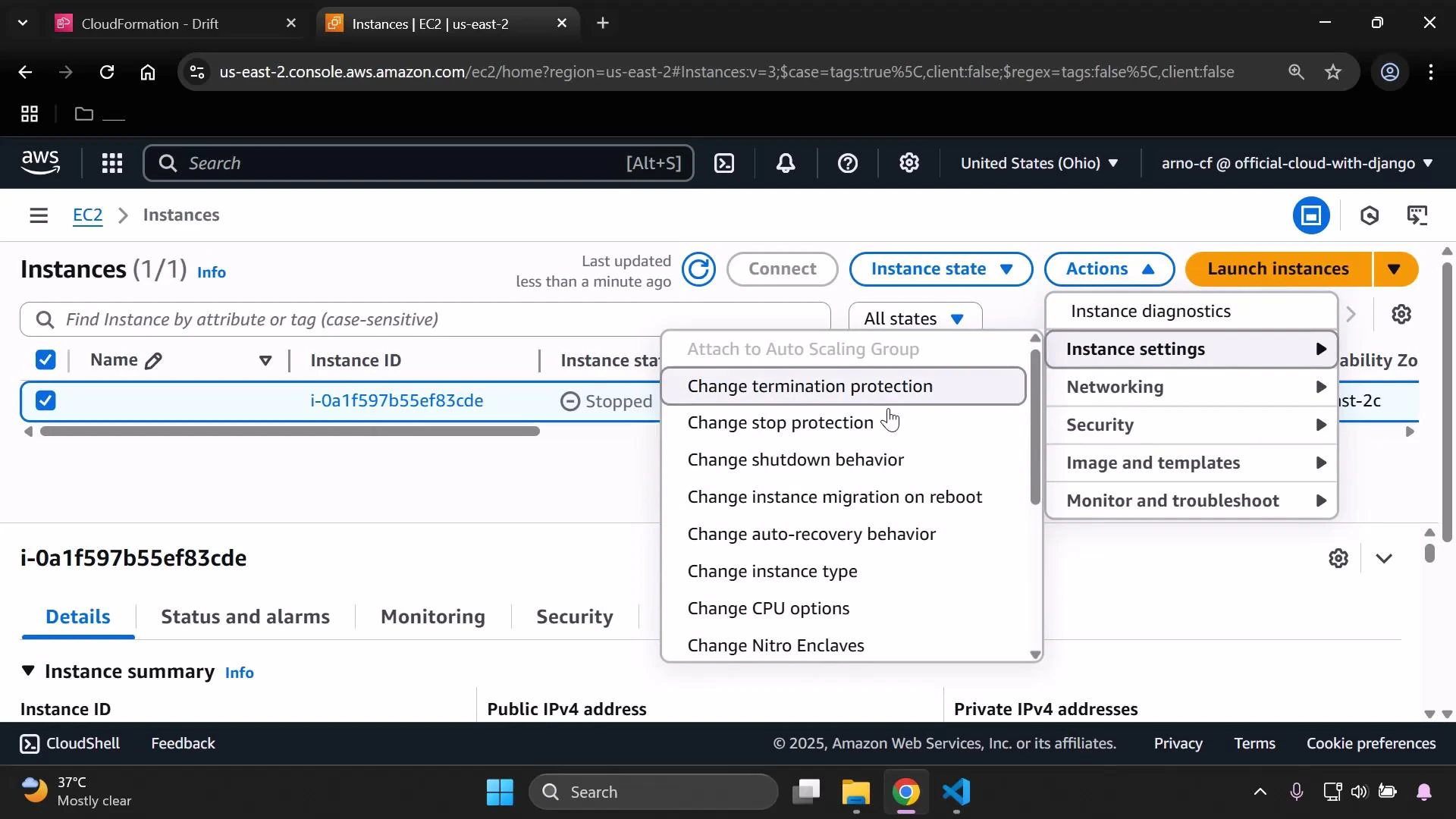
A screenshot of the AWS EC2 Instances console with one instance (i-0a1f597b55ef83cde) selected and shown as stopped. The Actions menu is open to "Instance settings," listing options like Change termination protection, stop protection, shutdown behavior, and more.
After making this out-of-band change, run Detect stack drift again. CloudFormation will report the EC2 resource as DRIFTED because its InstanceType no longer matches the template (t3.micro vs. t3.small). If you revert the instance type back to t3.micro and detect drift again, the resource will return to IN_SYNC.

Drift detection workflow (summary)

StepActionConsole / Example
1Create resource with CloudFormationUpload template and create stack (e.g., DemoStack)
2Modify resource out-of-bandChange instance type from EC2 console to t3.small
3Detect stack driftCloudFormation → View drift results → Detect stack drift
4ReconcileUpdate resource to match template or update template and perform stack update
Drift detection helps identify configuration differences but not every resource property is supported for drift detection. Always consult the CloudFormation documentation on Resources that support drift detection for details on which properties are checked: https://docs.aws.amazon.com/AWSCloudFormation/latest/UserGuide/using-cfn-stack-drift.html

Clean up

When you finish the demo, delete the stack from the CloudFormation console. Deleting the stack will remove the EC2 instance and any other resources created by the template.
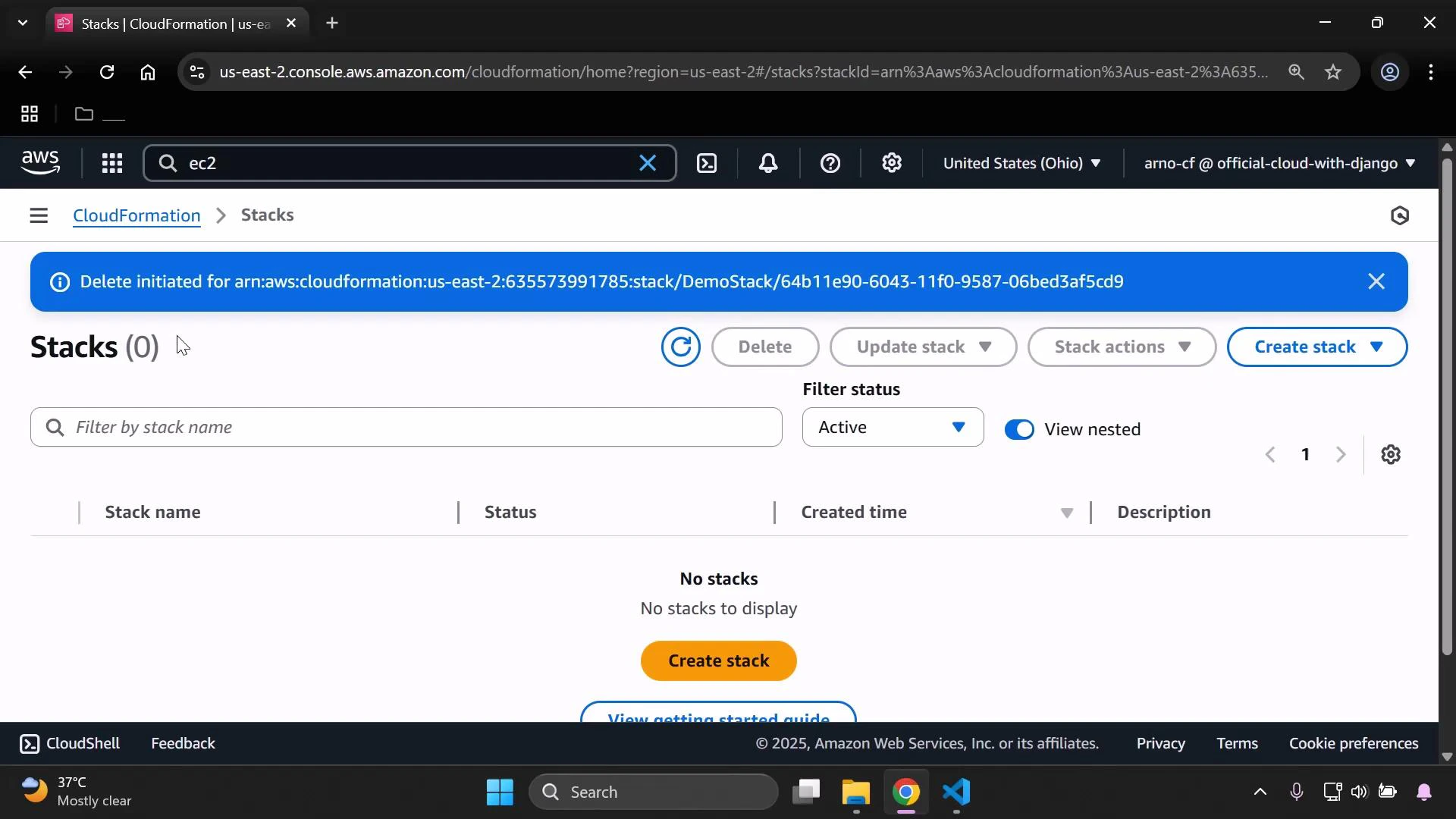
A screenshot of the AWS CloudFormation "Stacks" console showing no stacks to display. A blue banner says "Delete initiated..." for a stack, and there's a prominent "Create stack" button.

References

That concludes the demo on using CloudFormation drift detection to find and reconcile out-of-band changes so your infrastructure remains aligned with your templates.

Watch Video