

- The first bucket was created when we uploaded the initial AWS CloudFormation template; it contains the templates we’ve been using.
- The second bucket was created by a different tool used to compose the infrastructure.
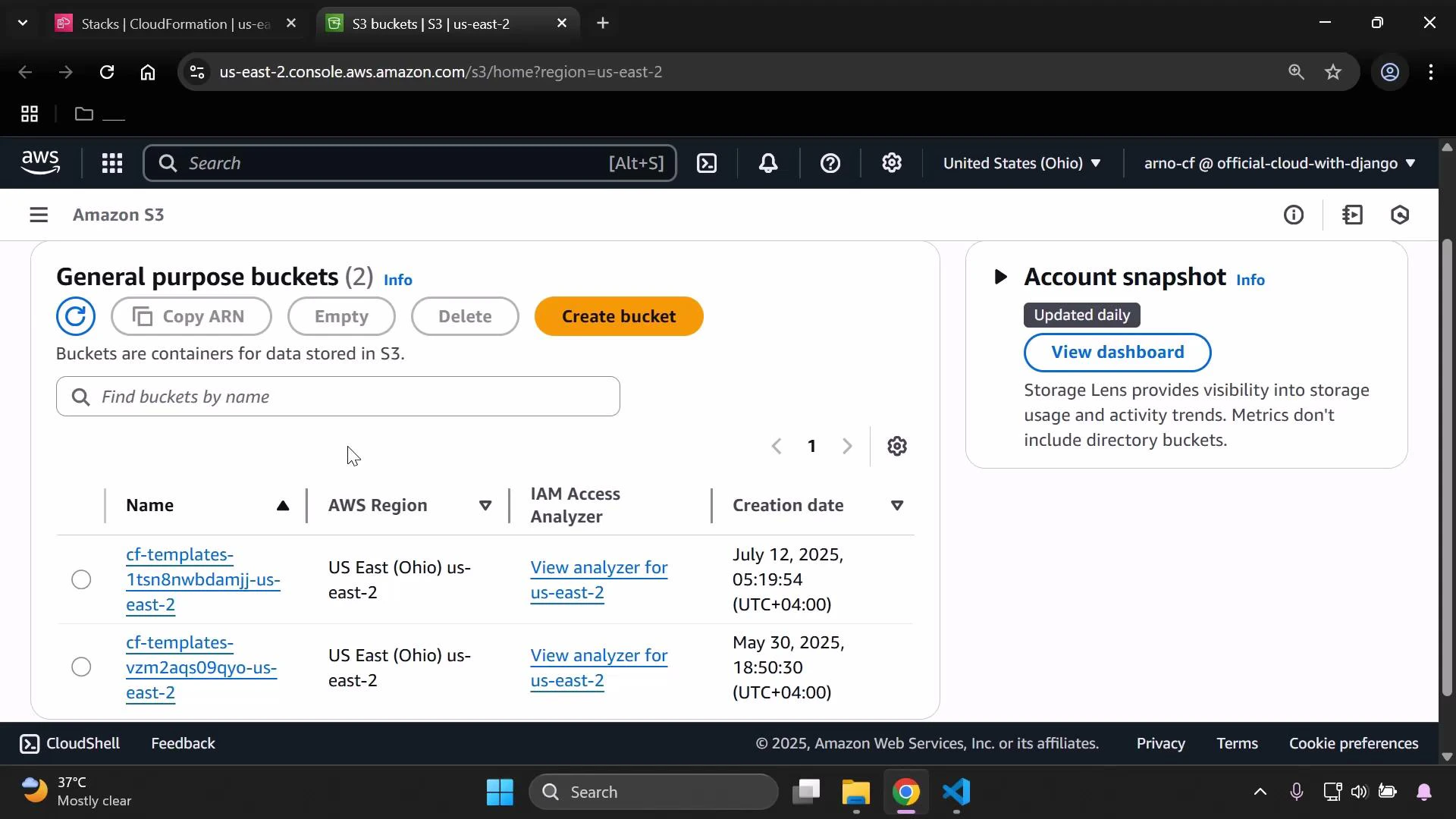
Tip: Use a dedicated S3 bucket for CloudFormation templates and enable lifecycle rules to archive or delete old templates automatically. This reduces clutter and simplifies cleanup of temporary resources.
- Select the first bucket in the S3 console.
- Choose the Empty action to remove all objects from the bucket, then confirm the operation.
- If the bucket has versioning enabled, ensure object versions and delete markers are removed before attempting to delete the bucket.
- After the bucket is empty, choose Delete and enter the confirmation text if prompted to permanently remove the bucket.
- Reload the bucket list to confirm the bucket no longer appears.
- Repeat the same Empty and Delete steps for the second bucket.
Deleting an S3 bucket and its contents is irreversible. Confirm the bucket does not contain any data you will need before using Empty or Delete. If versioning is enabled, remember to delete object versions and delete markers first.
- Amazon S3 Documentation
- AWS CloudFormation Documentation
- Managing CloudFormation templates in S3 (best practices)