In this lesson you’ll learn how to structure and deploy nested AWS CloudFormation stacks. We create three templates:
  • simple-s3.yaml — child template that provisions an S3 bucket
  • simple-ec2.yaml — child template that provisions an EC2 instance
  • parent.yaml — parent template that references the two child templates as nested stacks
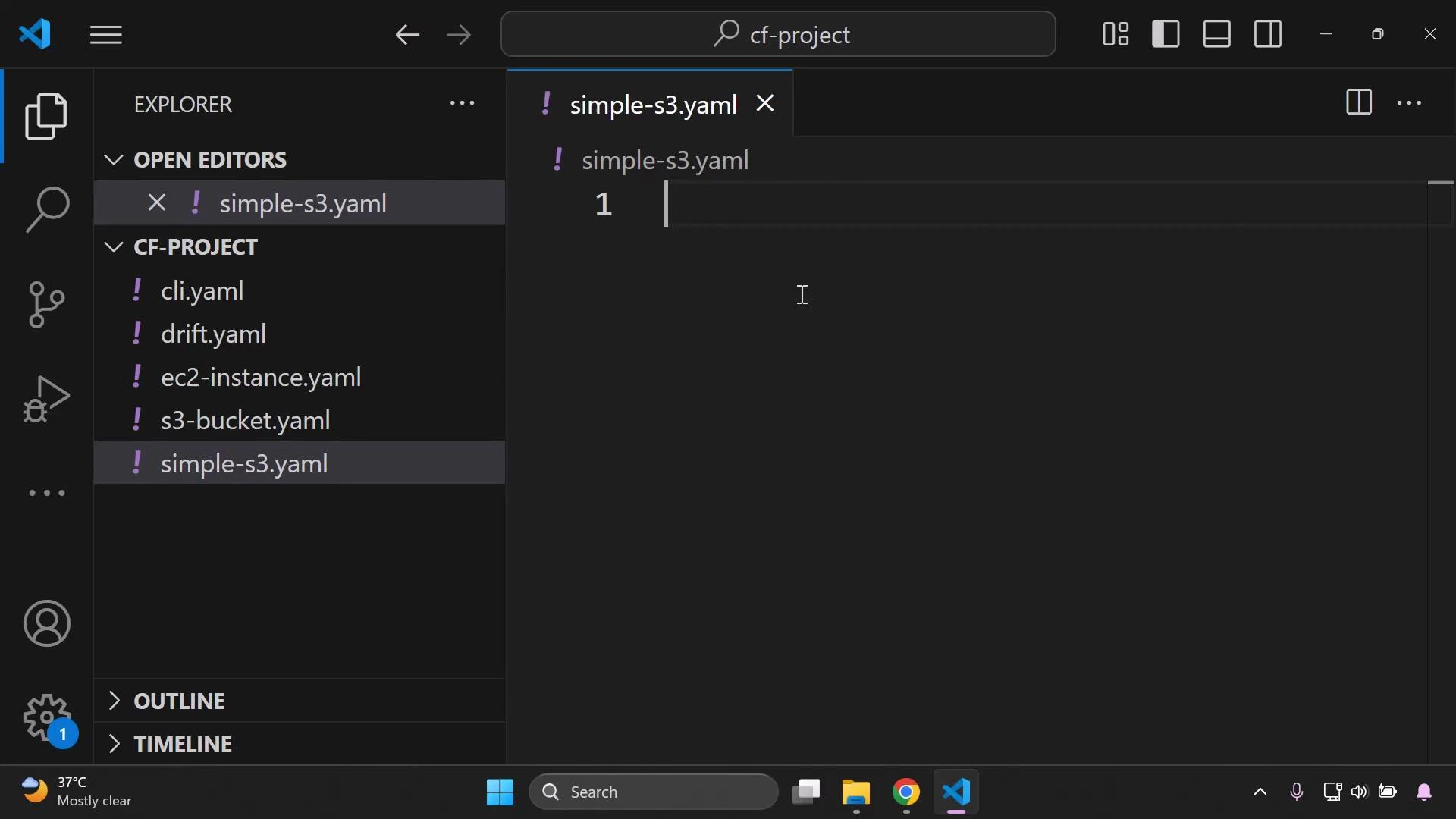
Create the three files in a project folder using your editor (e.g., Visual Studio Code).
A dark-themed Visual Studio Code window showing a CF-PROJECT folder with several YAML files (cli.yaml, drift.yaml, ec2-instance.yaml, s3-bucket.yaml, simple-s3.yaml) in the explorer and an open, empty simple-s3.yaml editor tab.
Summary of files
Template filePurposeCloudFormation resource type
simple-s3.yamlCreate a simple S3 bucketAWS::S3::Bucket
simple-ec2.yamlLaunch a single EC2 instanceAWS::EC2::Instance
parent.yamlReference child templates as nested stacksAWS::CloudFormation::Stack

Child template: simple-s3.yaml

Create a minimal child template containing a Resources block defining an S3 bucket. The resource Type must be AWS::S3::Bucket:
Resources:
  MyBucket:
    Type: AWS::S3::Bucket
Save this file as simple-s3.yaml. You can add additional bucket properties later (versioning, encryption, tags), but this minimal example shows the nested stack pattern.

Child template: simple-ec2.yaml

Create a child template that provisions a single EC2 instance. Use an AMI ID valid for your region — the example uses a sample AMI ID; replace it with one appropriate for your account/region:
Resources:
  MyInstance:
    Type: AWS::EC2::Instance
    Properties:
      InstanceType: t3.micro
      ImageId: ami-0eb9d6fc9fab44d24
Save this file as simple-ec2.yaml.
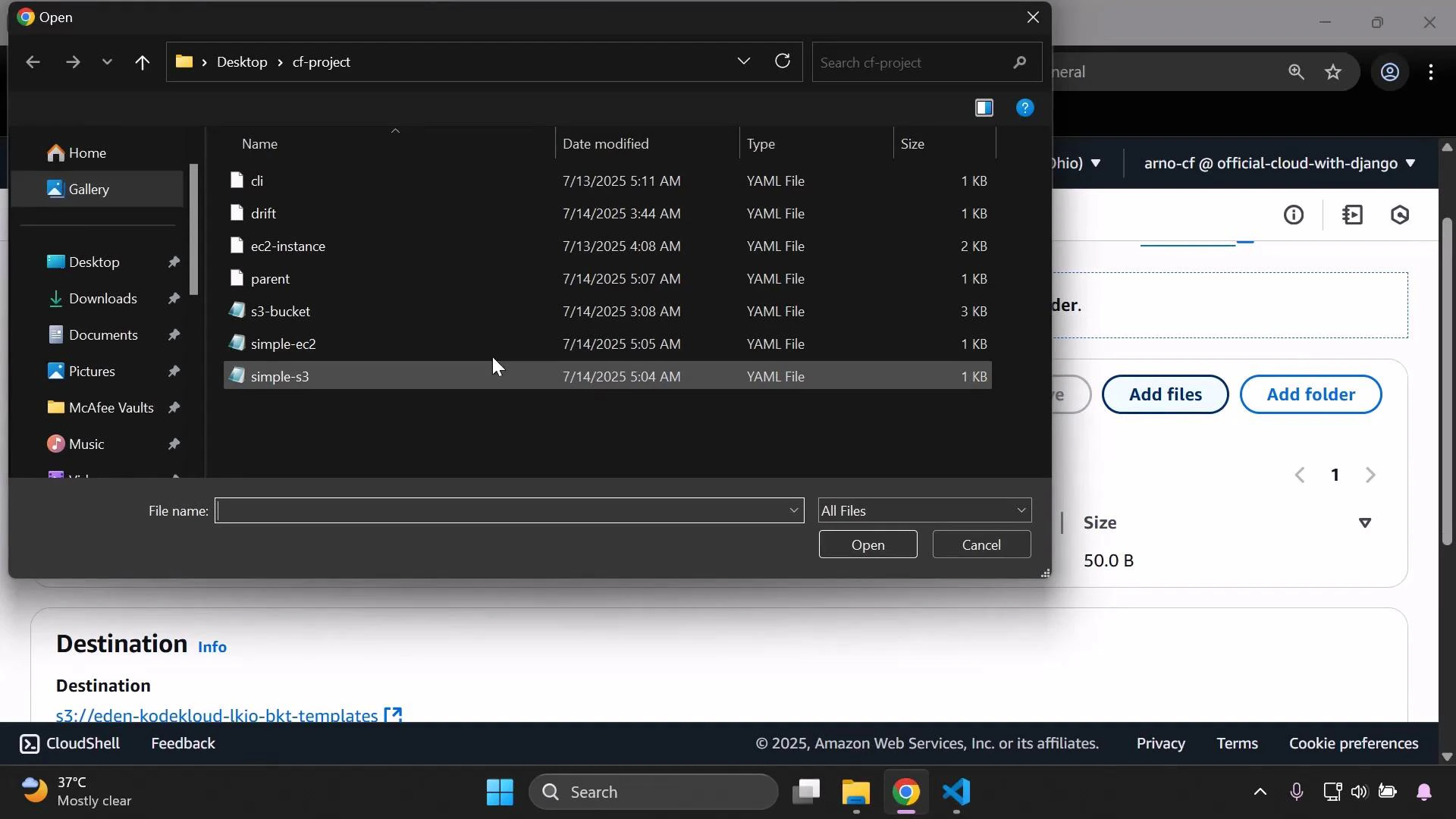
A dark-themed file-open dialog is shown listing YAML files (cli, drift, ec2-instance, s3-bucket, simple-ec2, simple-s3) with "simple-s3" highlighted. The dialog overlays an AWS web console page (showing "Destination" and "Add files/Add folder" controls) and the Windows taskbar.

Parent template: parent.yaml

The parent template references the child templates using AWS::CloudFormation::Stack resources. Each nested stack requires a TemplateURL that points to the child template object hosted in S3 (the HTTP(s) object URL):
Resources:
  S3Stack:
    Type: AWS::CloudFormation::Stack
    Properties:
      TemplateURL: https://eden-kodekloud-lkjo-bkt-templates.s3.us-east-2.amazonaws.com/simple-s3.yaml

  EC2Stack:
    Type: AWS::CloudFormation::Stack
    Properties:
      TemplateURL: https://eden-kodekloud-lkjo-bkt-templates.s3.us-east-2.amazonaws.com/simple-ec2.yaml
Important: TemplateURL must be the S3 object URL (https://…), not an s3:// URI or an ARN, and CloudFormation must be able to read the object (same account/region or appropriate permissions).
Ensure the TemplateURL uses the S3 object URL (https://…). Verify the object exists, is in the correct region, and CloudFormation has read access to it (bucket policies or cross-account restrictions can block access).
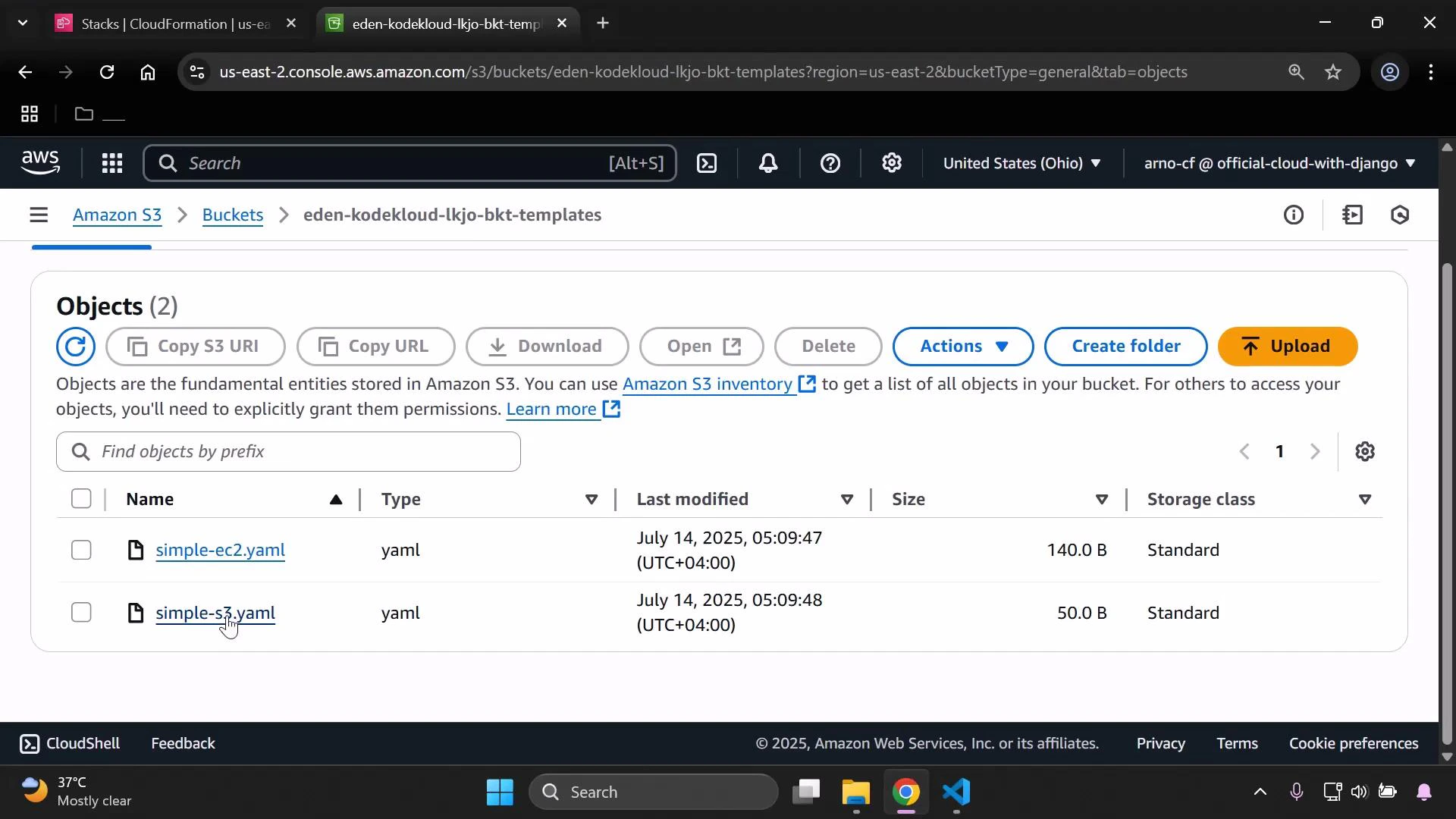
A screenshot of the AWS S3 console showing the bucket "eden-kodekloud-lkjo-bkt-templates" with two YAML objects listed: simple-ec2.yaml and simple-s3.yaml. The toolbar shows actions like Copy S3 URI, Download, Create folder, and Upload.

Upload the child templates to S3

  1. Create (or choose) an S3 bucket to host your templates. Bucket names must be globally unique.
  2. Upload simple-s3.yaml and simple-ec2.yaml to the bucket.
  3. Copy each object’s object URL from the S3 console and paste it into the TemplateURL fields in parent.yaml (or use the URLs when creating the parent stack).
S3 bucket names are globally unique — choose a distinct name. Double-check the object URLs are correct and that CloudFormation can access the files (region and permissions matter).
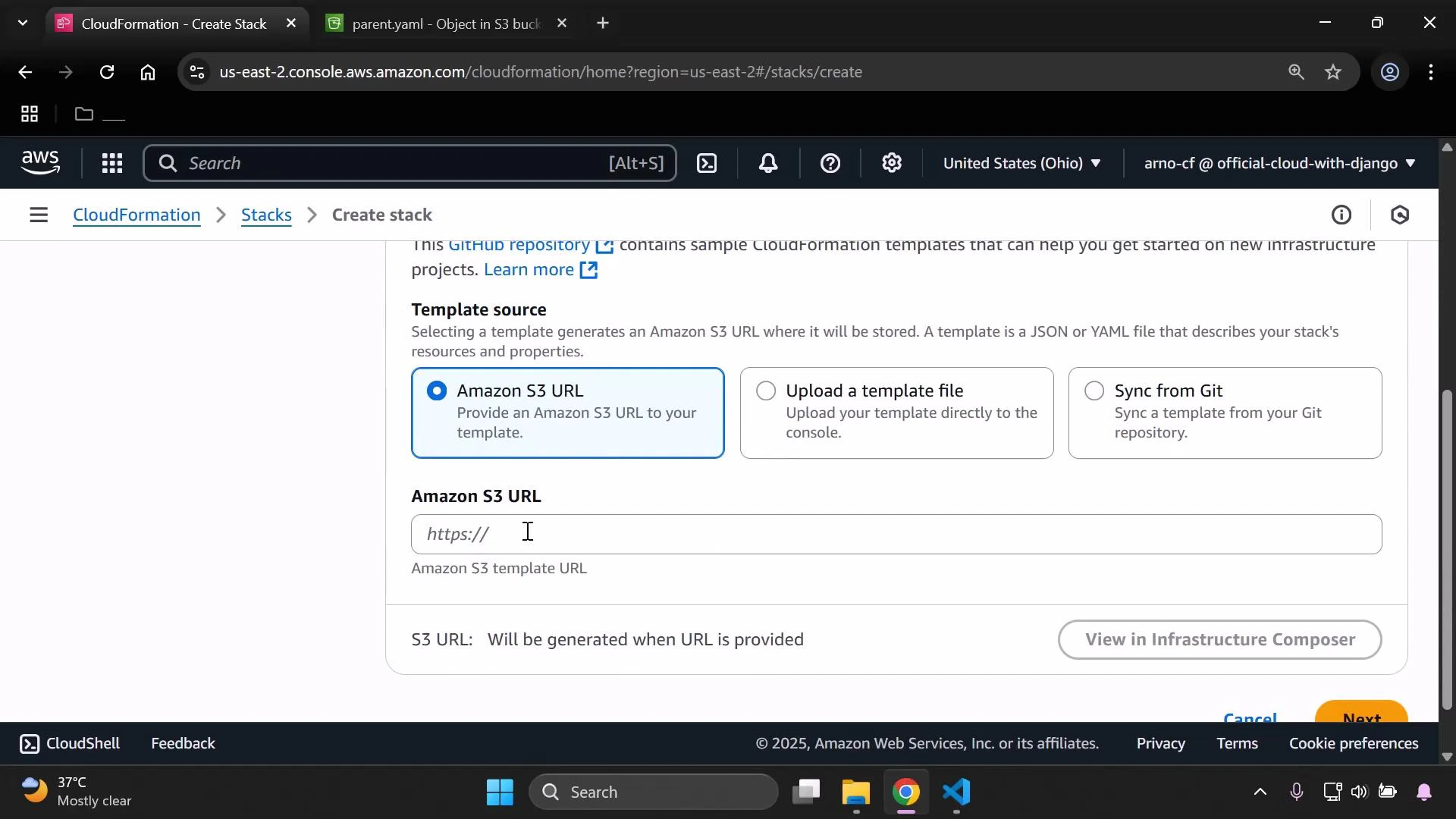
A screenshot of the AWS CloudFormation "Create stack" console showing the Template source options with "Amazon S3 URL" selected and an input field for the S3 template URL. The browser window (including tabs) and a Windows taskbar are visible at the bottom.

Create the parent stack in CloudFormation

  1. In the AWS CloudFormation console choose “Create stack” and select “Amazon S3 URL”.
  2. Paste the S3 object URL for parent.yaml (this parent template references both child templates).
  3. Provide a stack name (for example, demo-stack) and complete the remaining steps (parameters, tags, IAM permissions) as applicable.
  4. Submit to create the stack.
When CloudFormation executes the parent stack it will create each nested stack defined by the parent. In the console the nested stack logical IDs are shown under the parent stack, typically named using the pattern <parent-stack-name>-<logical-id> (for example, demo-stack-S3Stack and demo-stack-EC2Stack).
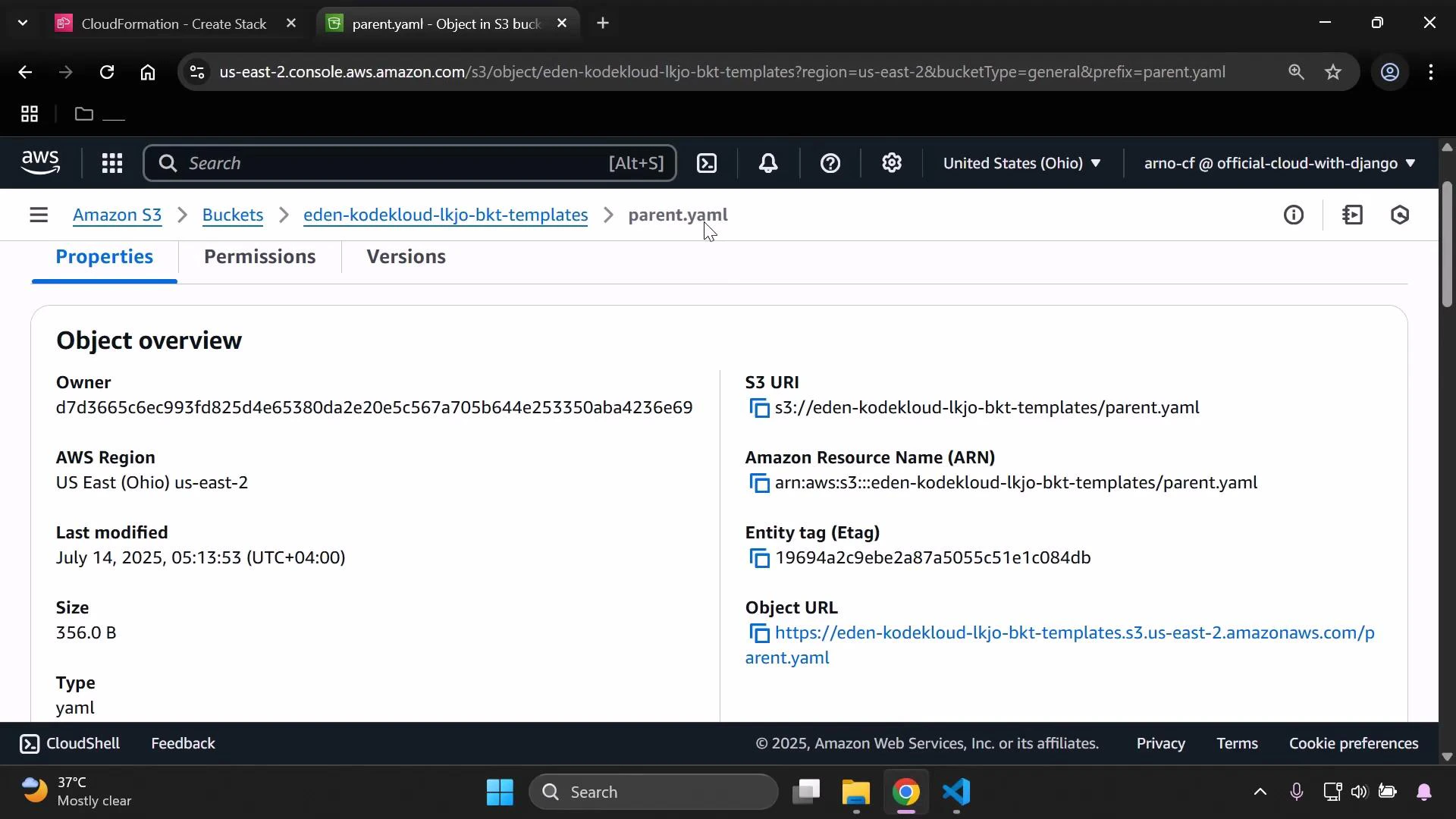
A screenshot of the Amazon S3 console showing the Object overview for "parent.yaml" in the eden-kodekloud-lkjo-bkt-templates bucket. It displays details like owner ID, AWS region (US East Ohio), last modified timestamp, size (356 B), type (yaml), S3 URI/ARN, ETag and the object URL.
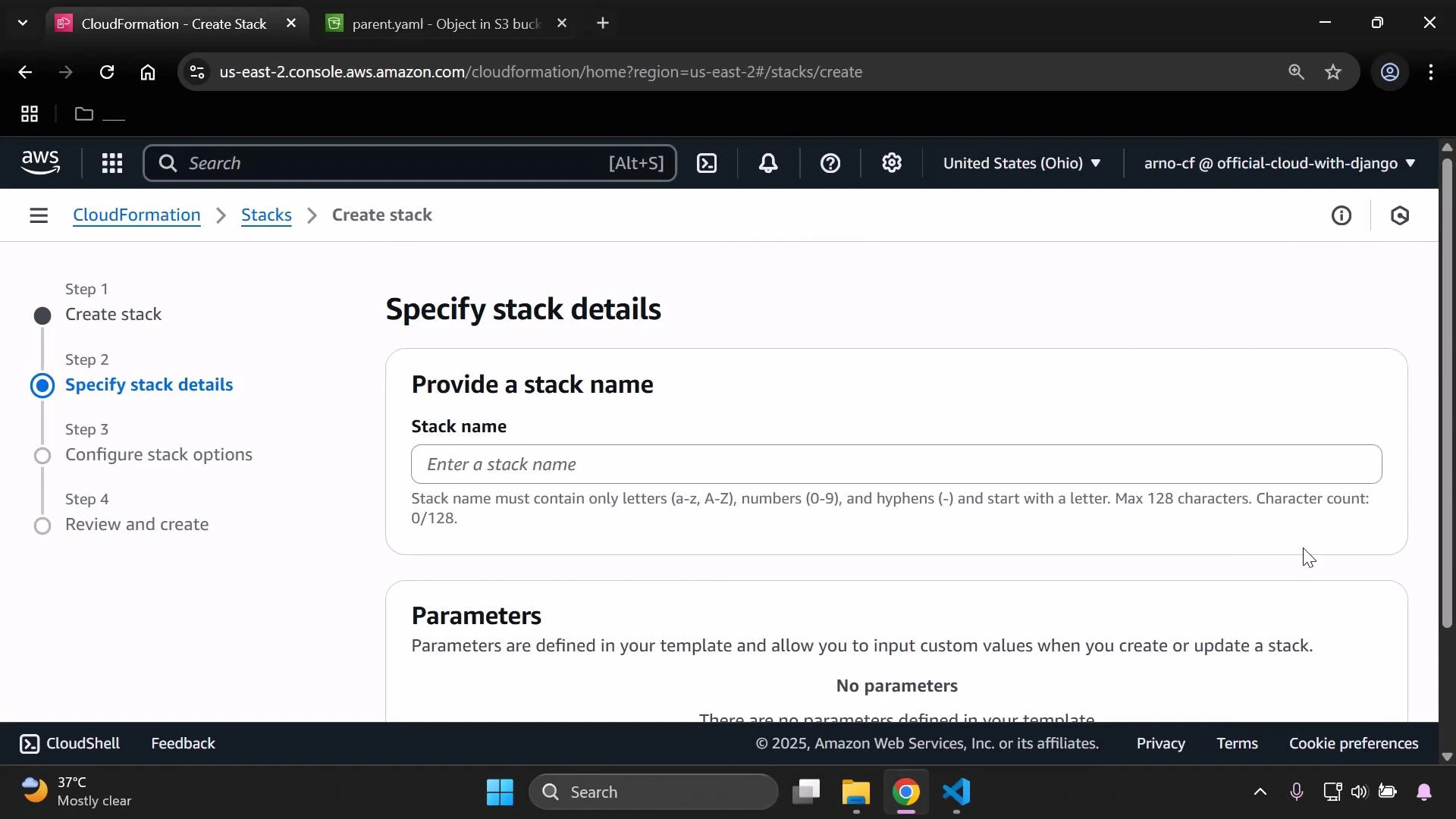
A screenshot of the AWS CloudFormation console on the "Specify stack details" step, showing a form to enter a stack name and parameters. The left panel shows the step progress and the browser window with tabs and the address bar is visible at the top.

Verify resources

  • CloudFormation console: confirm the parent stack and its nested stacks are listed and have successfully created resources.
  • S3 console: confirm the bucket created by the S3 child template exists.
  • EC2 console: confirm the instance created by the EC2 child template is running (check AMI, instance type, and security group as needed).
Quick reference (EC2 child snippet):
Resources:
  MyInstance:
    Type: AWS::EC2::Instance
    Properties:
      InstanceType: t3.micro
      ImageId: ami-0eb9d6fc9fab44d24
This pattern demonstrates how a parent template orchestrates nested stacks and delegates resource creation to each child template.

Next steps and best practices

  • Learn how to pass Parameters and capture Outputs between parent and child templates to enable modular, reusable stacks.
  • Version and store templates in a secure, centralized S3 bucket with appropriate lifecycle and access controls.
  • Consider StackSets or AWS CloudFormation modules for more advanced deployment patterns.
Links and references That concludes this lesson on creating nested CloudFormation stacks. Later lessons will cover updating nested stacks, parameter passing, outputs, and best practices for modular templates.

Watch Video