

- AWS Identity and Access Management (IAM) documentation
- AWS CloudFormation documentation
- AWS multi-factor authentication (MFA) guidance
- Open the AWS Management Console and go to IAM
- In the services search, type “IAM” and select the IAM service.
- Create a new user
- In the IAM console navigation, choose Users → Create user.
- Enter a username (in this demo we use
mono-cfn). - Under “Select AWS access type,” enable AWS Management Console access.
- For Console password, choose “Custom password” and enter a secure password you will save.
- If you do not want the user to be required to change the password on first sign-in, uncheck “Require password reset.”
- Assign permissions
- Click Next to reach the Permissions step.
- You can attach policies directly to the user or create and use an IAM group (group-based permissions are recommended for production).
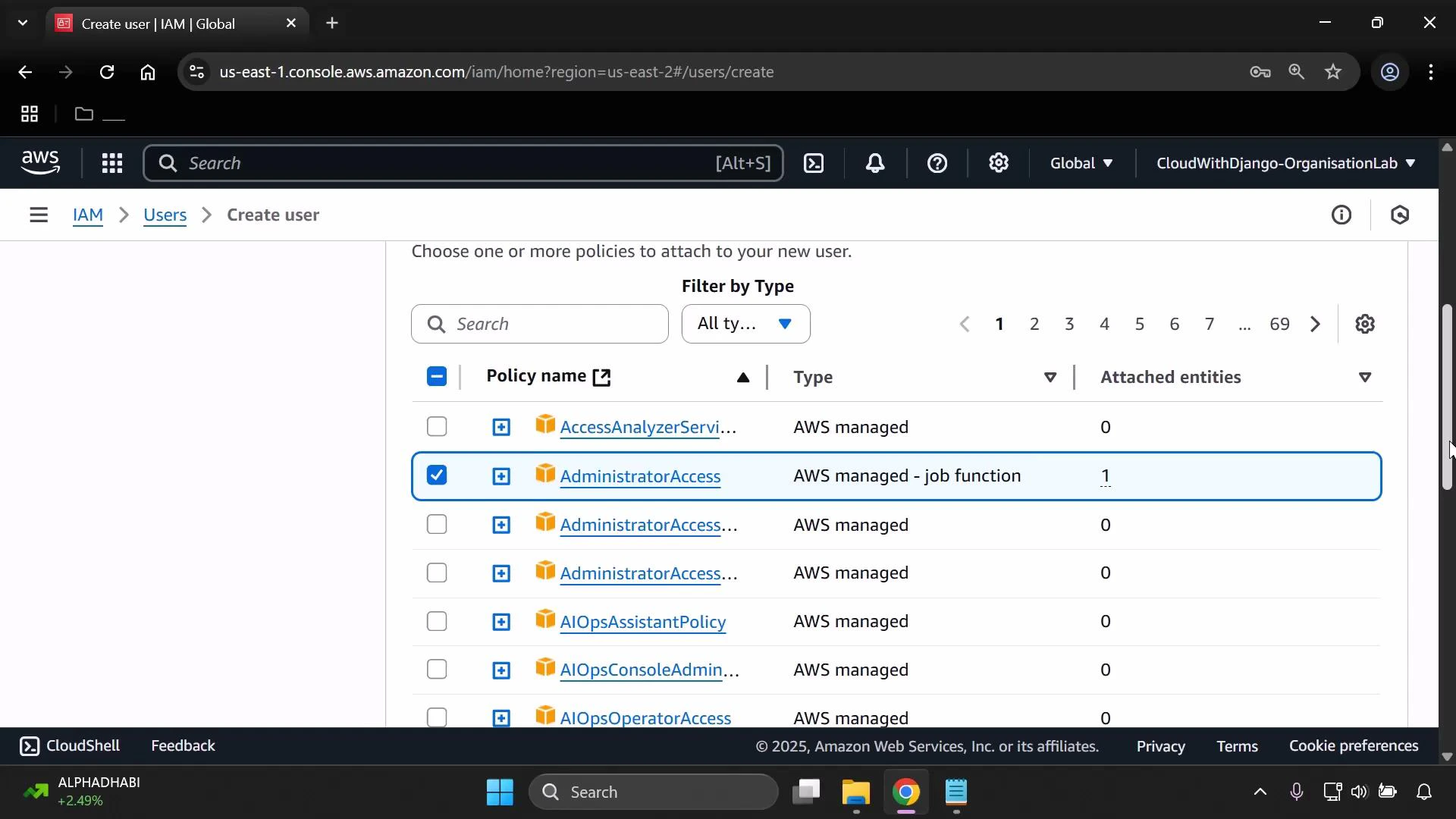
- For a quick start in this demo, attach the managed policy
AdministratorAccessto the user so the account can run CloudFormation and related services. You should later replace this with a least-privilege policy tailored to your CloudFormation templates.
- Create the user and save credentials
- Click Next, review the settings, then click Create user.
- Save the password or download the CSV from the console when prompted — you will need these credentials to sign in as the new user.
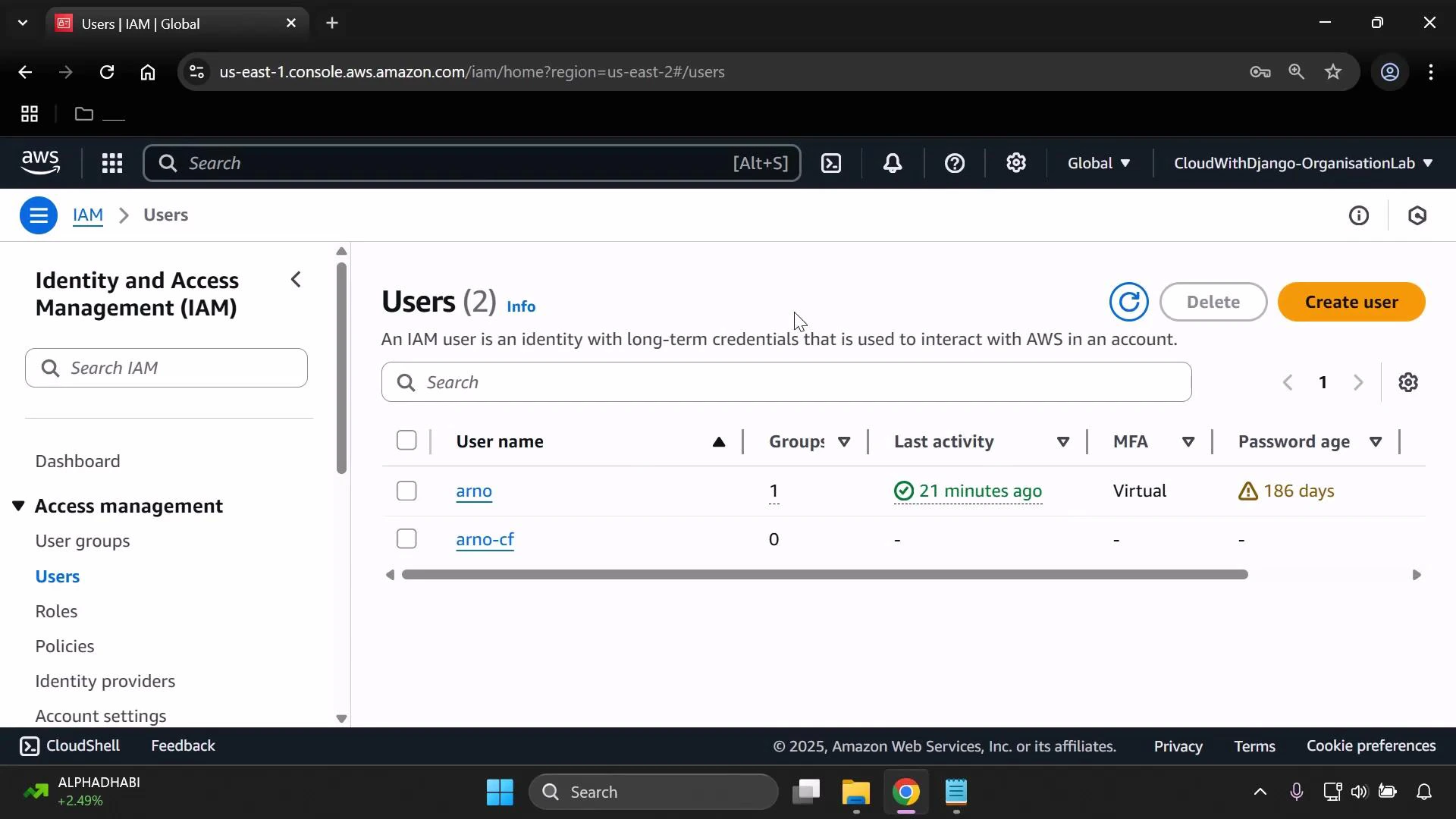
- After creation, choose Return to users list (or Continue) to view your users.
- Get the IAM user sign-in URL
- From the IAM dashboard, copy the “IAM user sign-in link” — it’s unique to your AWS account.
- Save or open this link in a new tab so you can sign in as the IAM user.
- Sign in as the IAM user
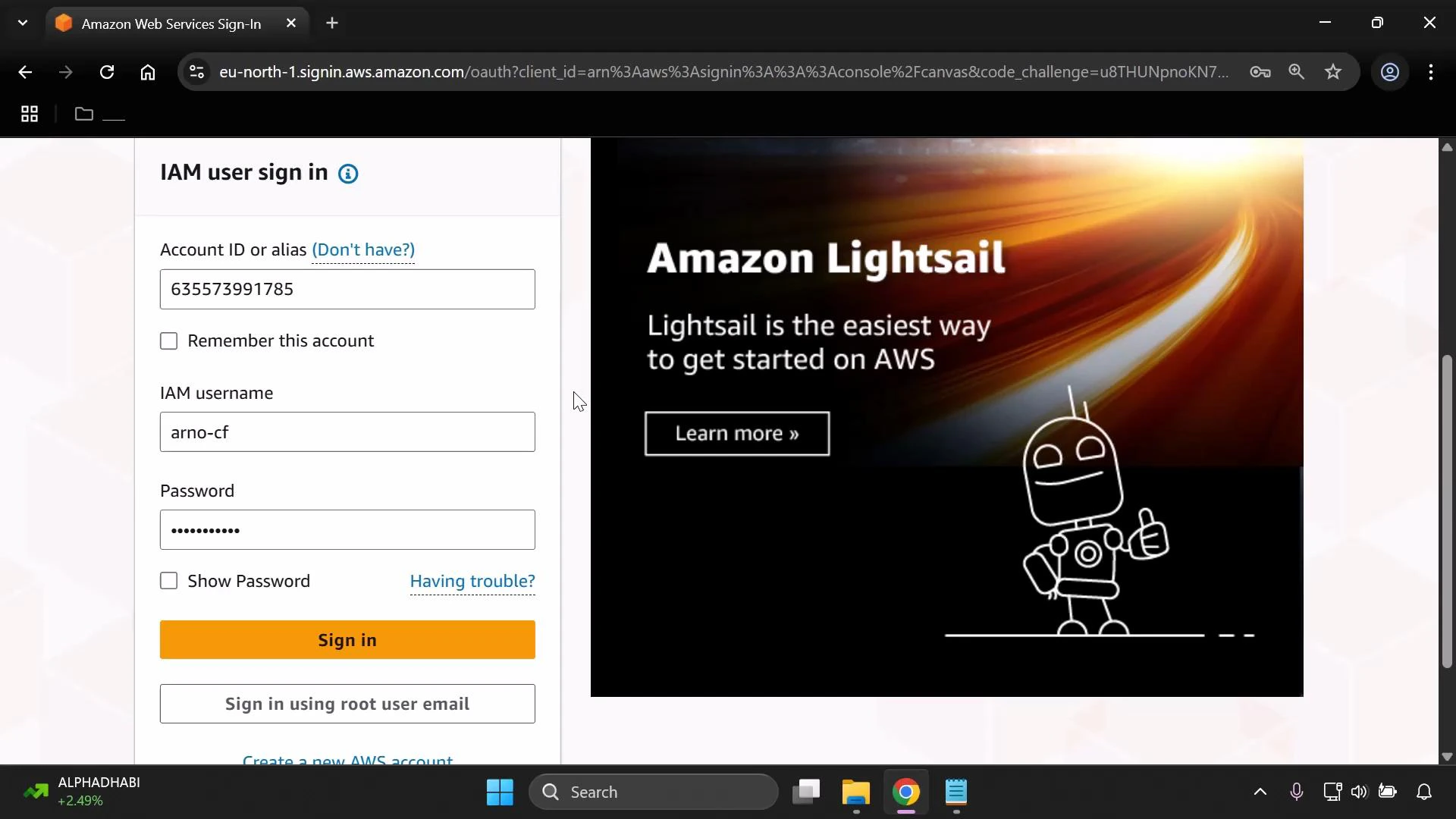
- Sign out of the root account, then open the IAM user sign-in URL.
- Sign in with the IAM username (e.g.,
mono-cfn) and the password you saved.
- Set your preferred region
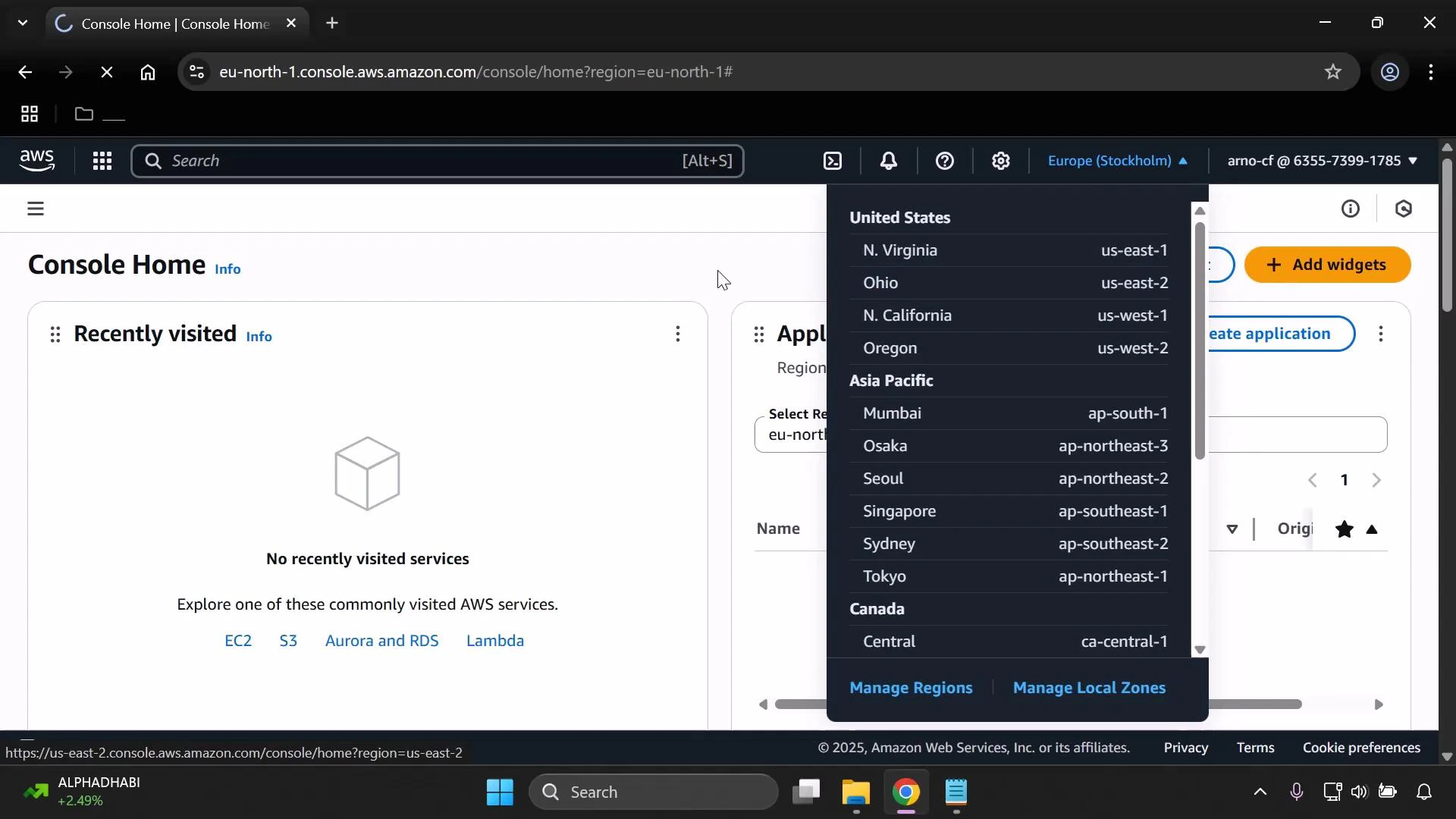
- After signing in, set the AWS region in the console (top-right).
- For consistency across this tutorial, set the region to US East (N. Virginia). Using a single region avoids region-related differences in resource availability and pricing.
- Enable multi-factor authentication (MFA)
- For security, enable MFA on the IAM user from the IAM dashboard or the user’s Security credentials tab.
- Follow the console’s MFA setup flow (use a virtual MFA app such as Google Authenticator or Authy).
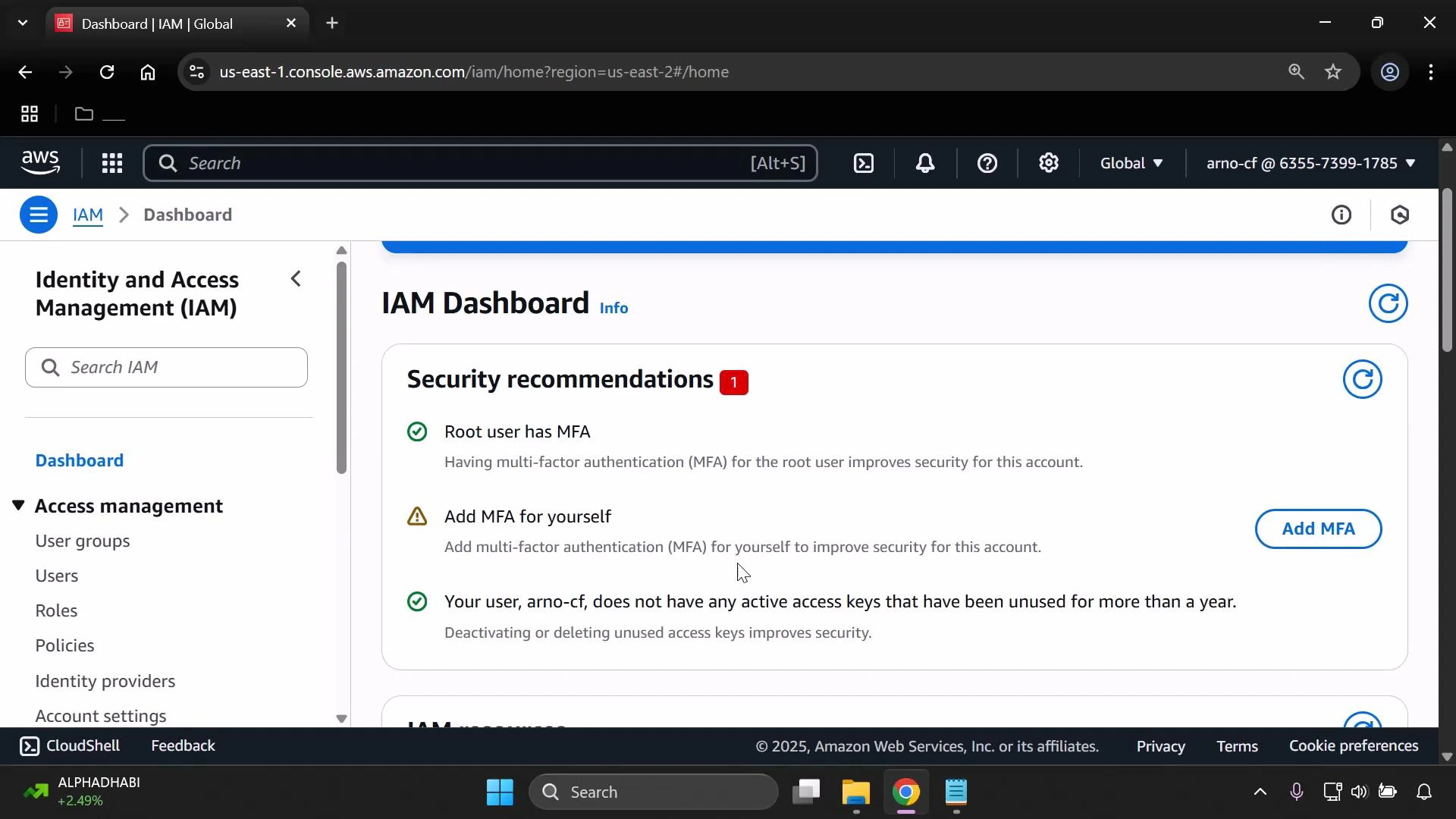
Best practice: use IAM groups for assigning permissions to multiple users, enable MFA for all privileged identities, and apply the principle of least privilege. AdministratorAccess is used here only to simplify getting started — tighten permissions before using this user for production workloads.
What you have after completing these steps
- A dedicated IAM user capable of running CloudFormation with administrative permissions (for this demo).
- Console access via the account-specific IAM sign-in URL.
- MFA enabled to protect the account (if you completed step 8).
- Replace AdministratorAccess with a least-privilege policy scoped to the CloudFormation templates and resources you will deploy.
- Consider creating an IAM group for CloudFormation operators and adding users to that group.
- For CI/CD systems, create an IAM role with narrowly scoped permissions and use temporary credentials.