Explore how Azure Virtual WAN operates in real-world networking scenarios, including cross-tenant connectivity, hub routing, point-to-site (P2S) user VPNs, and hub-to-VNet connections. This guide explains key concepts, step-by-step portal workflows, and example outputs to help you design, deploy, and verify Virtual WAN deployments. Learn more: Azure Virtual WAN documentation.

Cross-tenant VNet connectivity with a shared Virtual WAN hub

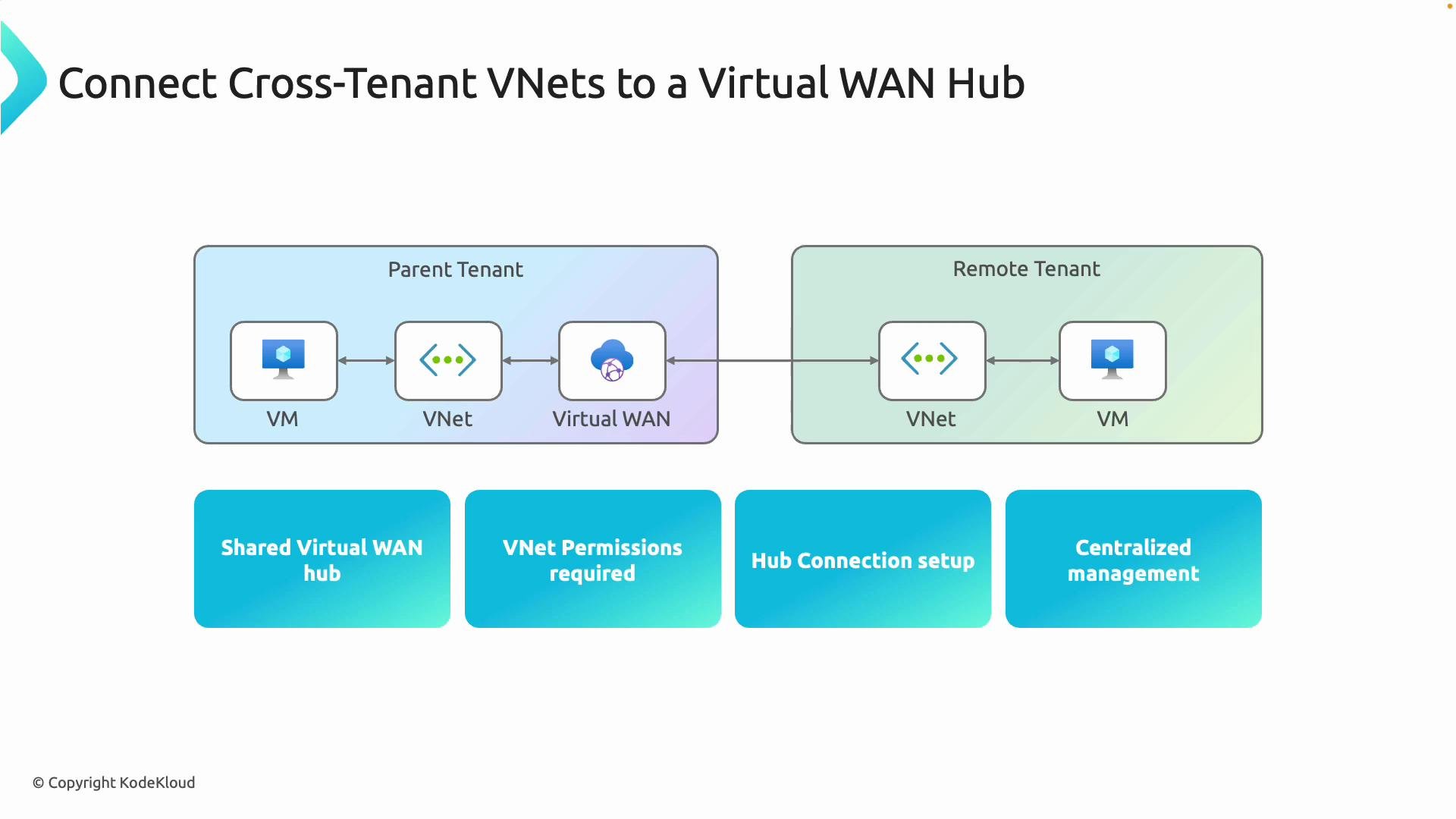
One of the primary benefits of Azure Virtual WAN is the ability to connect VNets from different Azure tenants to a single managed Virtual WAN hub. This centralizes routing, security controls, and operational management while avoiding complex peering topologies. To connect a VNet from another tenant you must have at least the Contributor (or Network Contributor) role on that VNet. To establish the connection, create a new hub connection and provide the resource ID of the target VNet — cross-tenant resource IDs are supported. This pattern is useful for shared services, mergers and acquisitions, and multi-tenant governance scenarios.
Ensure you have at least Contributor or Network Contributor role on the target VNet before attempting cross-tenant connections, otherwise the hub connection cannot be established.
A network diagram showing how cross-tenant VNets and VMs connect through a shared Virtual WAN hub, with a Parent Tenant on the left and a Remote Tenant on the right. Four callouts below list: Shared Virtual WAN hub, VNet permissions required, Hub connection setup, and Centralized management.

Routing, route tables, and policies in Virtual WAN

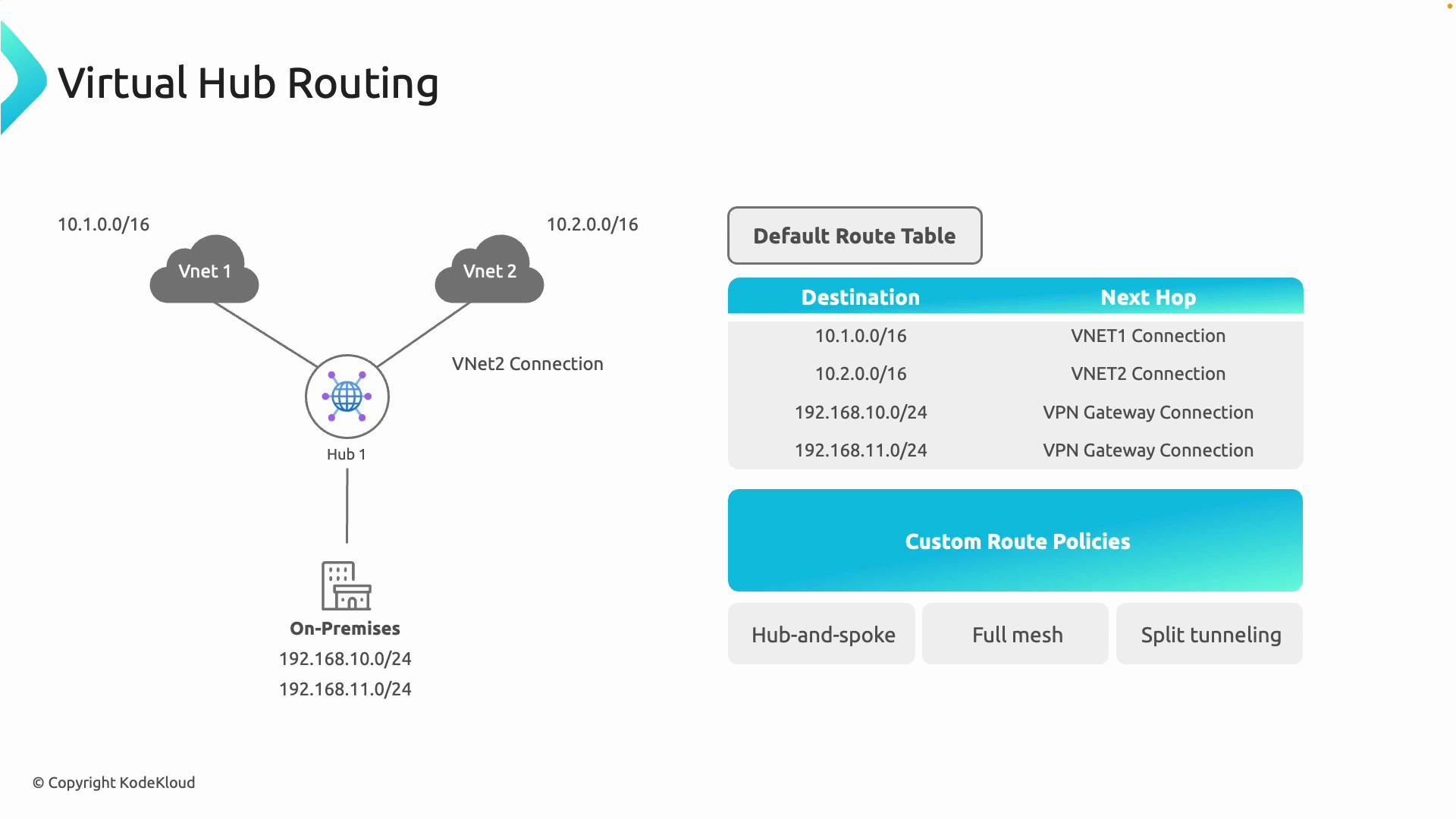
Azure Virtual WAN uses hub-level route tables to define how traffic flows between VNets, branch sites, and external networks. Understanding association, propagation, labels, and custom route policies is essential for predictable routing.
  • Association: Assign a connection (VNet, VPN site, ExpressRoute circuit) to a route table so traffic from that connection follows the table’s routes.
  • Propagation: Allow connections to advertise their routes into other route tables, enabling dynamic route sharing.
  • Labels: Group routes and control which routes propagate by tagging them with labels (for example: default, internet, none).
  • Custom route policies: Implement detailed routing behaviors for hub-and-spoke, full mesh, split-tunnel scenarios, or to integrate NVAs and Route Server.
A diagram titled "Virtual Hub Routing" showing a central Hub1 connected to VNet1 (10.1.0.0/16), VNet2 (10.2.0.0/16) and on‑premises networks (192.168.10.0/24, 192.168.11.0/24) via VPN. To the right is a default route table with next hops and a section for custom route policies (hub-and-spoke, full mesh, split tunneling).
Example routing scenario: associate each VNet and gateway connection to an appropriate route table (for example, the default route table). Proper association and propagation ensure spoke VNets and on-premises networks can reach one another per the defined policies and labels. This scales well for complex, multi-region topologies.

Virtual WAN vs. traditional hub-and-spoke

Use this quick comparison to decide when Virtual WAN makes sense versus building a manual hub-and-spoke architecture.
FeatureAzure Virtual WANTraditional Hub-and-Spoke
Management modelManaged service with built-in routing, scaling, and Microsoft backbone optimizationsSelf-managed: you configure route tables, gateways, and NVAs
Connectivity typesConsolidates site-to-site VPN, point-to-site VPN, and ExpressRoute in one serviceRequires separate gateways and configurations per connectivity type
Routing controlCentral route tables, propagation, labels, and custom route policiesManual route tables, peering, and NVA-based routing
Cross-tenant supportNative — hub connections accept VNets from other tenantsComplex: requires peering, delegated permissions, or workarounds
Scalability & performanceDesigned for global scale; optimized over Azure backboneDependent on design, peering, and gateway placement
Deployment speedFaster via Portal/ARM/CLI templatesSlower — many manual steps and verifications
NVA integrationSupports Azure Route Server and integrates with NVAsOften necessary; depends on vendor appliances and BGP
Cost modelPay-per-connection + data transfer through managed hubResource-based billing (gateways, NVAs, peering)
Best forGlobal multi-branch, multi-tenant, centralized governanceSmall deployments or highly customized networks with specific appliances
A slide showing a comparison table titled "Virtual WAN vs Traditional Hub-and-Spoke" that contrasts Azure Virtual WAN and Traditional Hub-and-Spoke across features like management, connectivity types, routing control, scalability, latency, deployment speed, NVA integration, cost structure, and best use cases. The table uses three columns (Feature, Azure Virtual WAN, Traditional Hub-and-Spoke) with brief descriptions for each.

Portal walkthrough — create a Virtual WAN and hub

Follow these steps in the Azure portal to create a Virtual WAN, add a virtual hub (and optional gateway), configure a User VPN (P2S), and attach VNets.
  1. Create the Virtual WAN resource
    • Navigate to Azure Virtual WAN → Create.
    • Provide Subscription, Resource group, Region, and Name.
    • Select Type (use Standard if you need point-to-site).
    • Review settings and create.
A screenshot of the Microsoft Azure portal on the "Create WAN" page, showing form fields for project details and Virtual WAN details (Subscription, Resource group, Region, Name, Type). Navigation buttons like "Review + create" and "Next: Review + create" appear at the bottom.
After deployment, open the Virtual WAN resource; the overview shows a world map and lists any hubs (initially none).
A screenshot of the Microsoft Azure portal showing the "vwan-az700-eus" Virtual WAN overview with essentials (resource group, location, status = Succeeded) and a "Deployment succeeded" notification. The Virtual hubs section is empty and shows "No results."
  1. Create a Virtual Hub (and gateway if required)
    • Click New hub.
    • Provide subscription, resource group, region, hub name, and hub private address space (for example 10.140.0.0/16).
    • Choose capacity (infrastructure routing units) according to throughput and client counts.
    • Select routing preference and whether you need a gateway for P2S or S2S.
    • Note: hub + gateway provisioning can take ~30 minutes.
Creating a hub with a gateway may take ~20–30 minutes. Ensure you plan for this provisioning time and that you have the required subscription permissions (Network Contributor or higher) before deployment.
Screenshot of the Microsoft Azure portal showing the "Create virtual hub" setup page. The form displays fields for subscription, resource group, region, name, hub private address space and routing preferences, with "Review + create" and navigation buttons at the bottom.

Point-to-site (User VPN) configuration

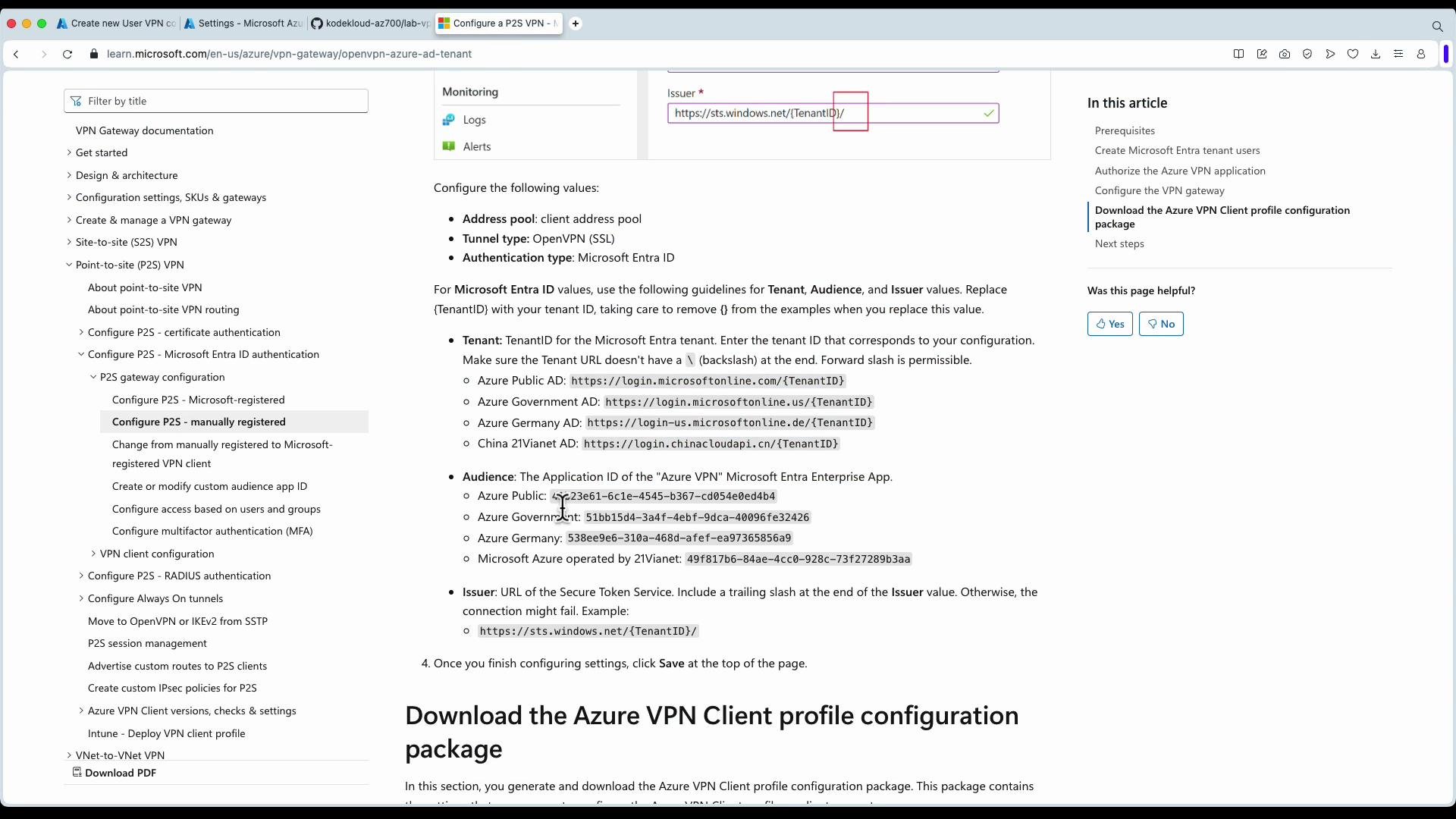
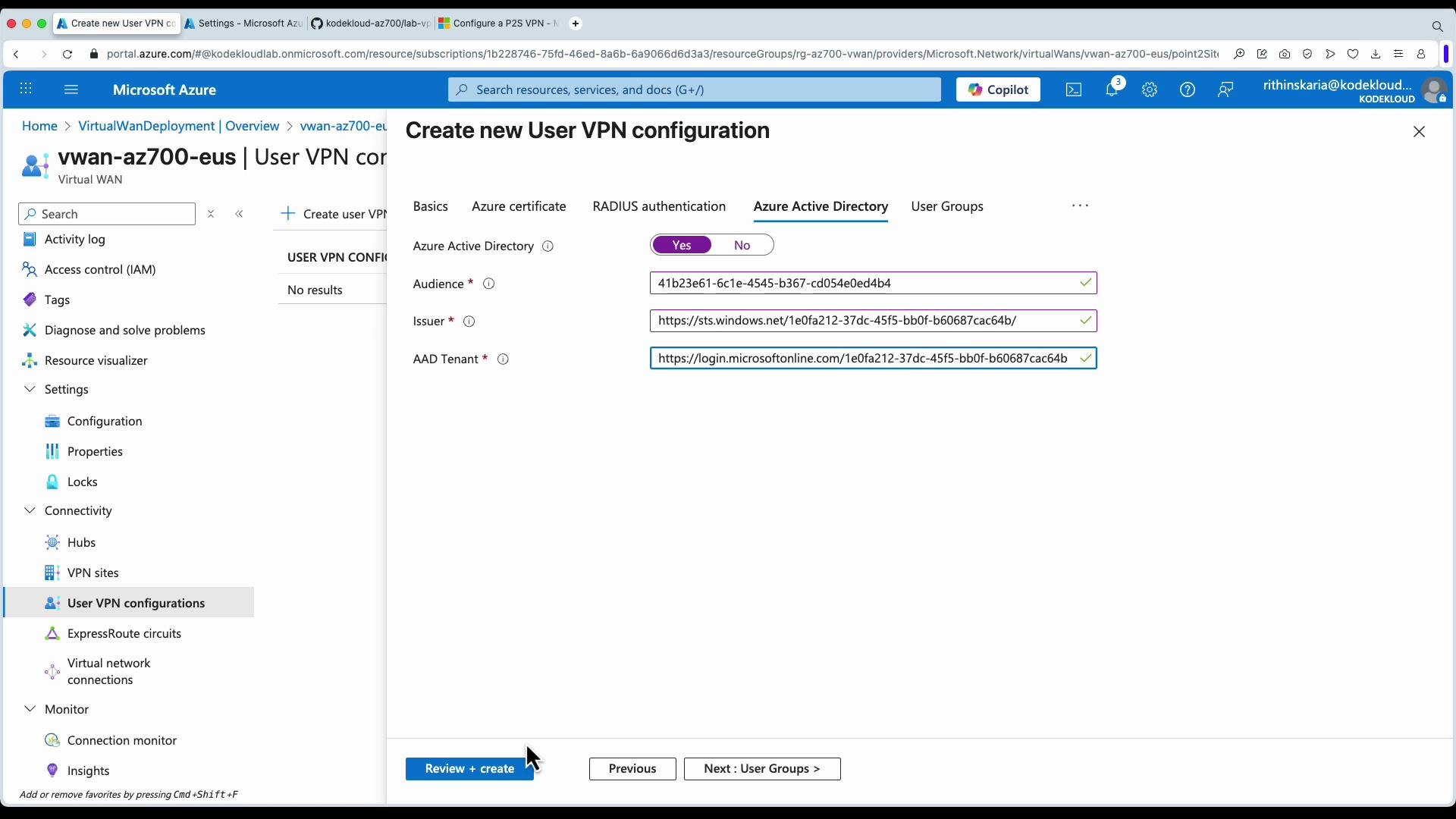
You can configure a User VPN (P2S) from the Virtual WAN resource or while creating the hub. For OpenVPN + Microsoft Entra ID (Azure AD) authentication you need the audience (issuer) and tenant ID values from your Azure AD application. Example issuer/audience URLs (replace with your tenant GUID):
https://login.microsoftonline.com/{TenantID}
https://login.microsoftonline.us/{TenantID}
https://login-us.microsoftonline.de/{TenantID}
https://login.chinacloudapi.cn/{TenantID}
https://sts.windows.net/{TenantID}/
Example tenant GUIDs (replace with your own tenant ID in production):
41b23e61-6c1e-4545-b367-cd054e0ed4b4
51bb15d4-3a4f-4ebf-9dca-40996fe32426
538ee9e6-310a-468d-afef-ea97365856a9
49f817b6-84ae-4cc0-928c-73f27289b3aa
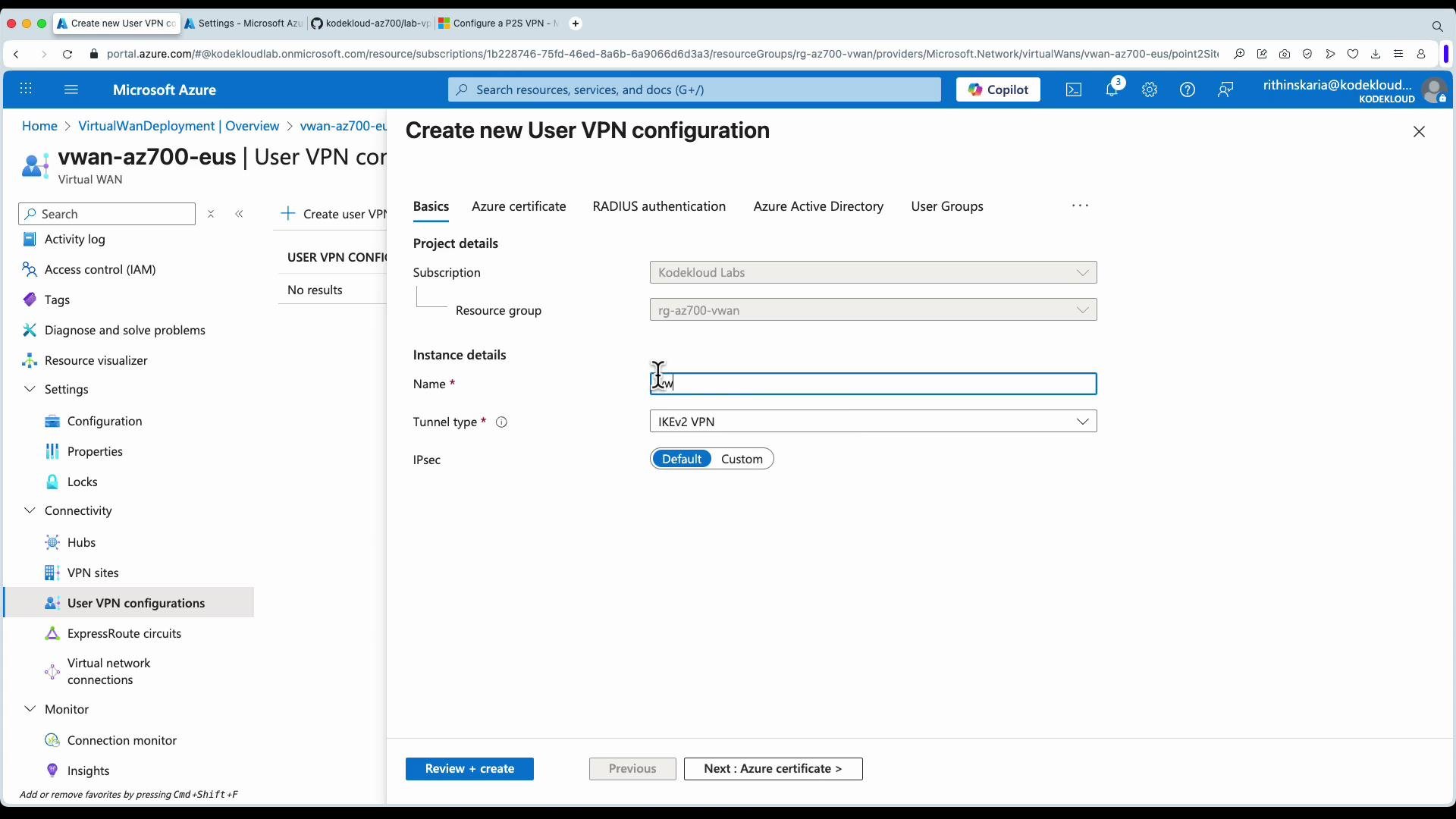
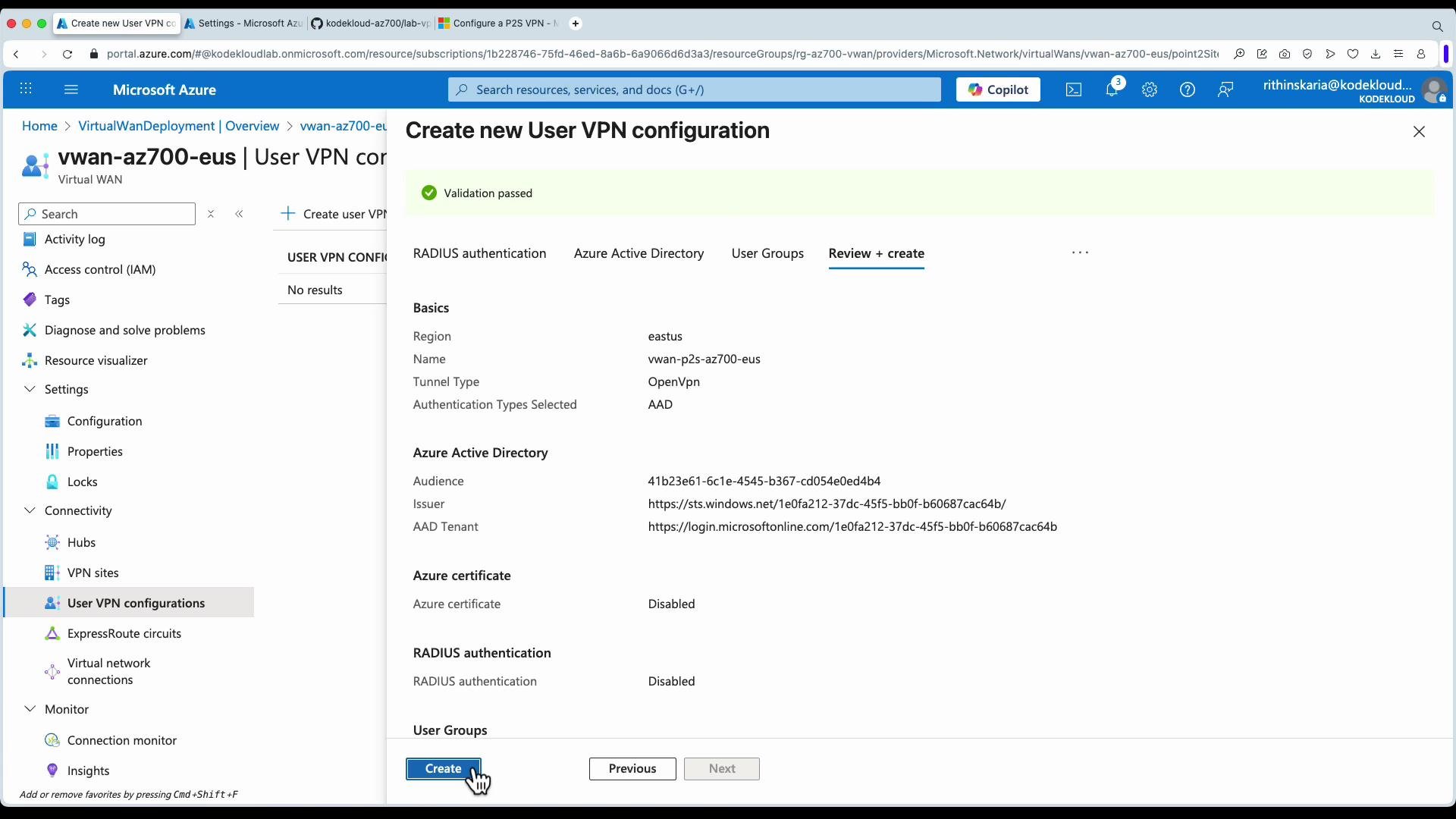
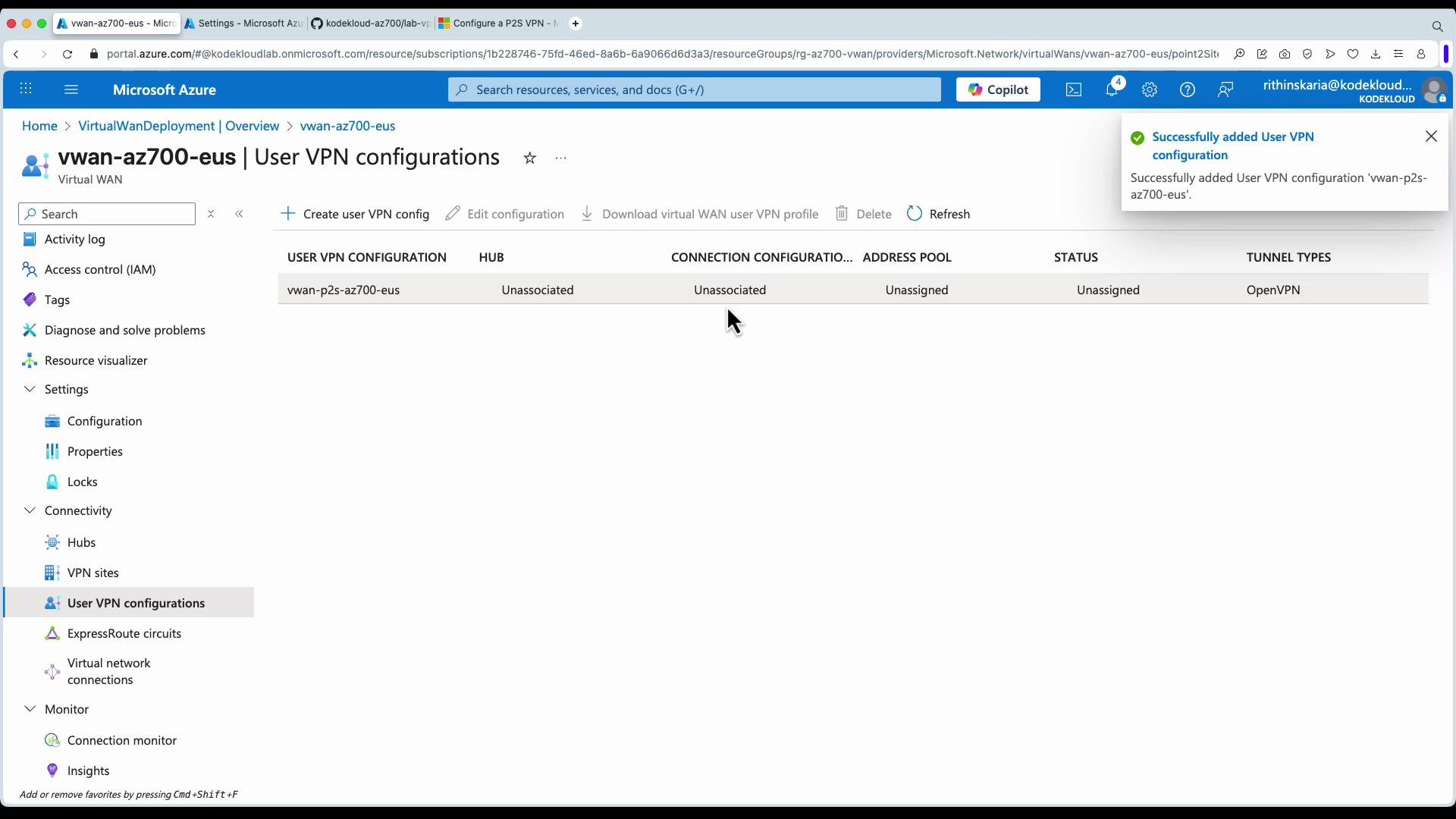
Create and validate the user VPN configuration (OpenVPN + Microsoft Entra ID). It appears as “Unassigned” until you associate it to a hub.
A screenshot of the Microsoft Azure portal open to a "Create new User VPN configuration" dialog showing validation passed and details like region (eastus), tunnel type (OpenVPN) and AAD authentication. A cursor is visible over the "Create" button, ready to submit the configuration.
A screenshot of the Microsoft Azure portal showing the "vwan-az700-eus | User VPN configurations" page. It lists a user VPN config (vwan-p2s-az700-eus) with status "Unassigned" and an on-screen notification saying the User VPN configuration was successfully added.
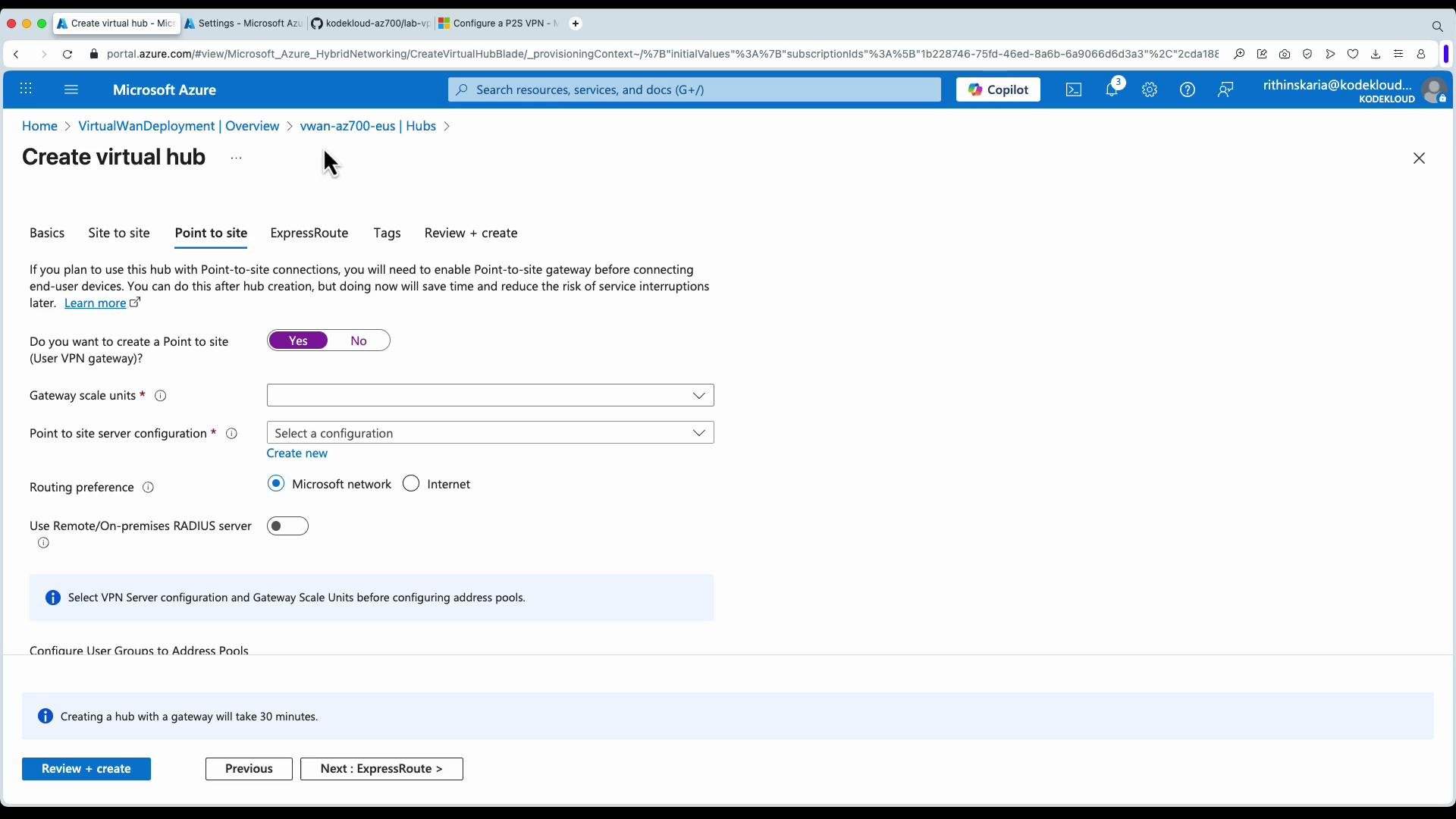
  1. Continue hub creation and P2S settings
    • Under Point-to-site, set gateway units (scale units) to match expected concurrent clients—refer to Azure docs for current capacity guidance.
    • Define the client address pool for P2S clients (for example 172.16.0.0/25).
    • Review and create the hub. Expect provisioning time if a gateway is requested.
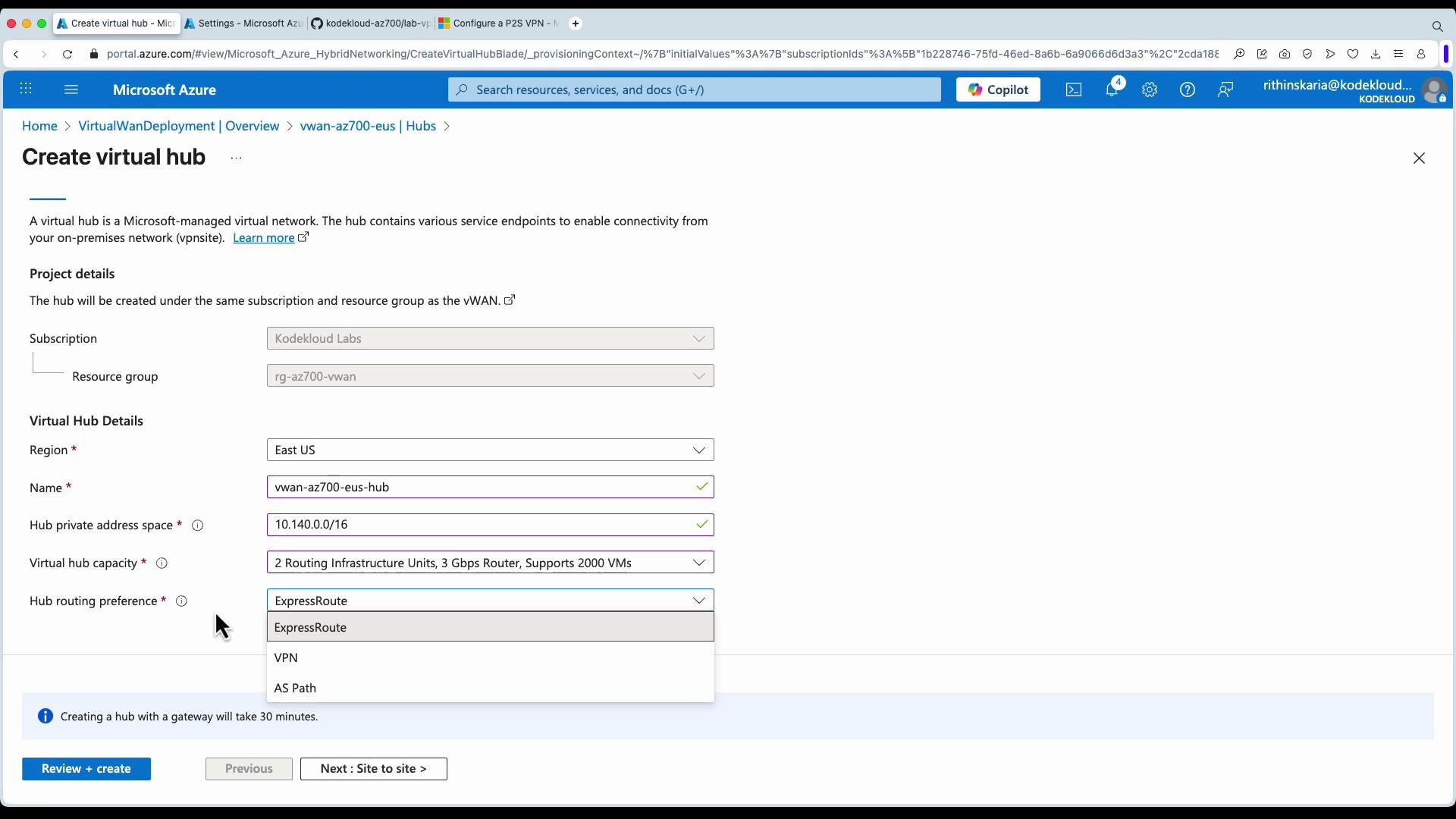
A screenshot of the Microsoft Azure portal displaying the "Create virtual hub" form with fields for subscription, resource group, region, hub name, private address space, capacity, and a "Hub routing preference" dropdown (ExpressRoute, VPN, AS Path). Buttons at the bottom include "Review + create" and "Next: Site to site."
A screenshot of the Microsoft Azure portal showing the "Create virtual hub" page and a modal titled "Specify Address Pools for: P2SConnectionConfigDefault," with the client address pool field partially filled (172.16...) and Add/Cancel buttons. The left pane shows hub settings like configuration name, user groups, and custom DNS server fields.
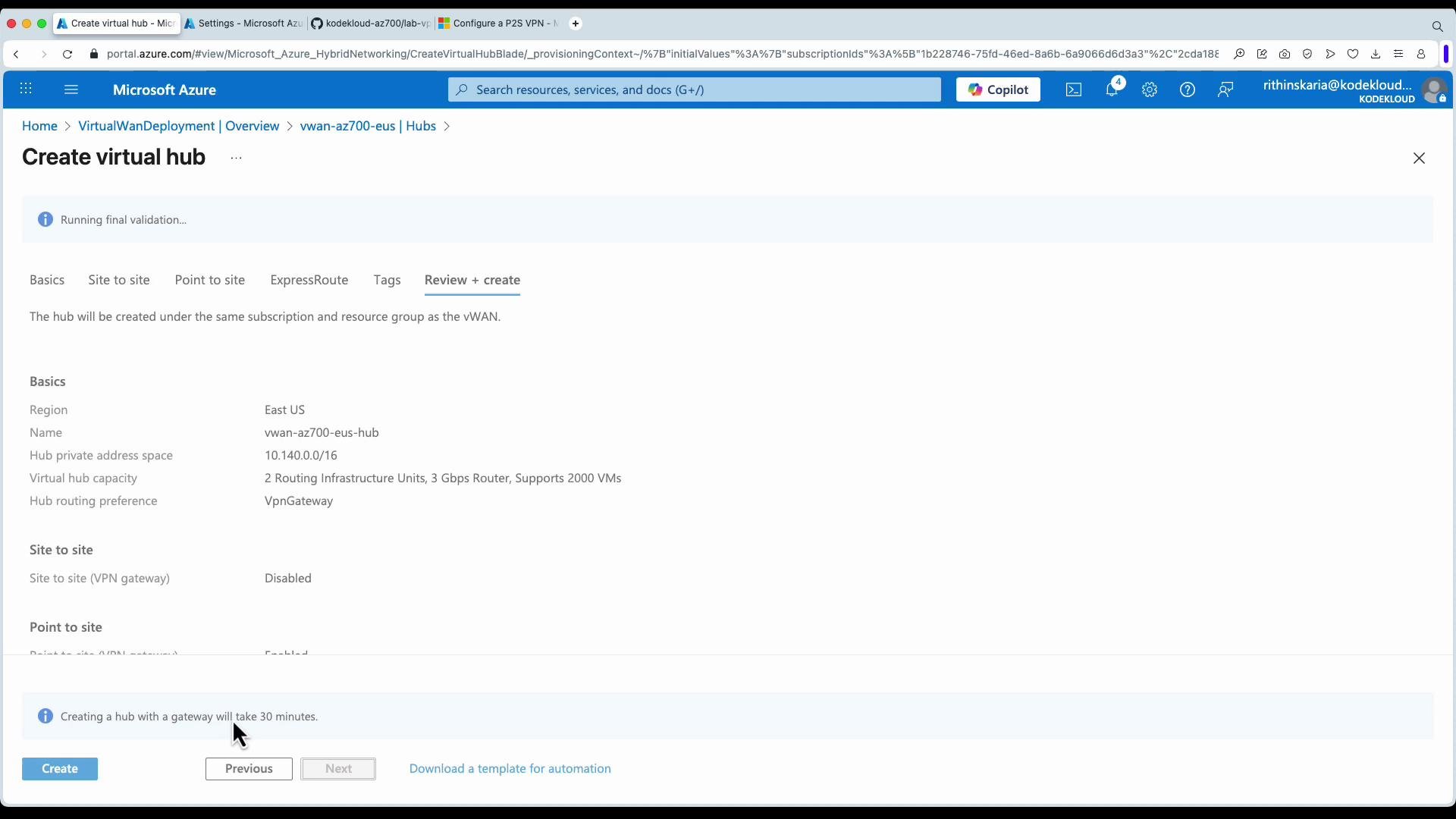
A screenshot of the Microsoft Azure portal on the "Create virtual hub" Review + create page showing hub settings (Region: East US, hub name, private address space, capacity) and a message "Submitting deployment..." in the top-right. The Create button at the bottom-left is being clicked.
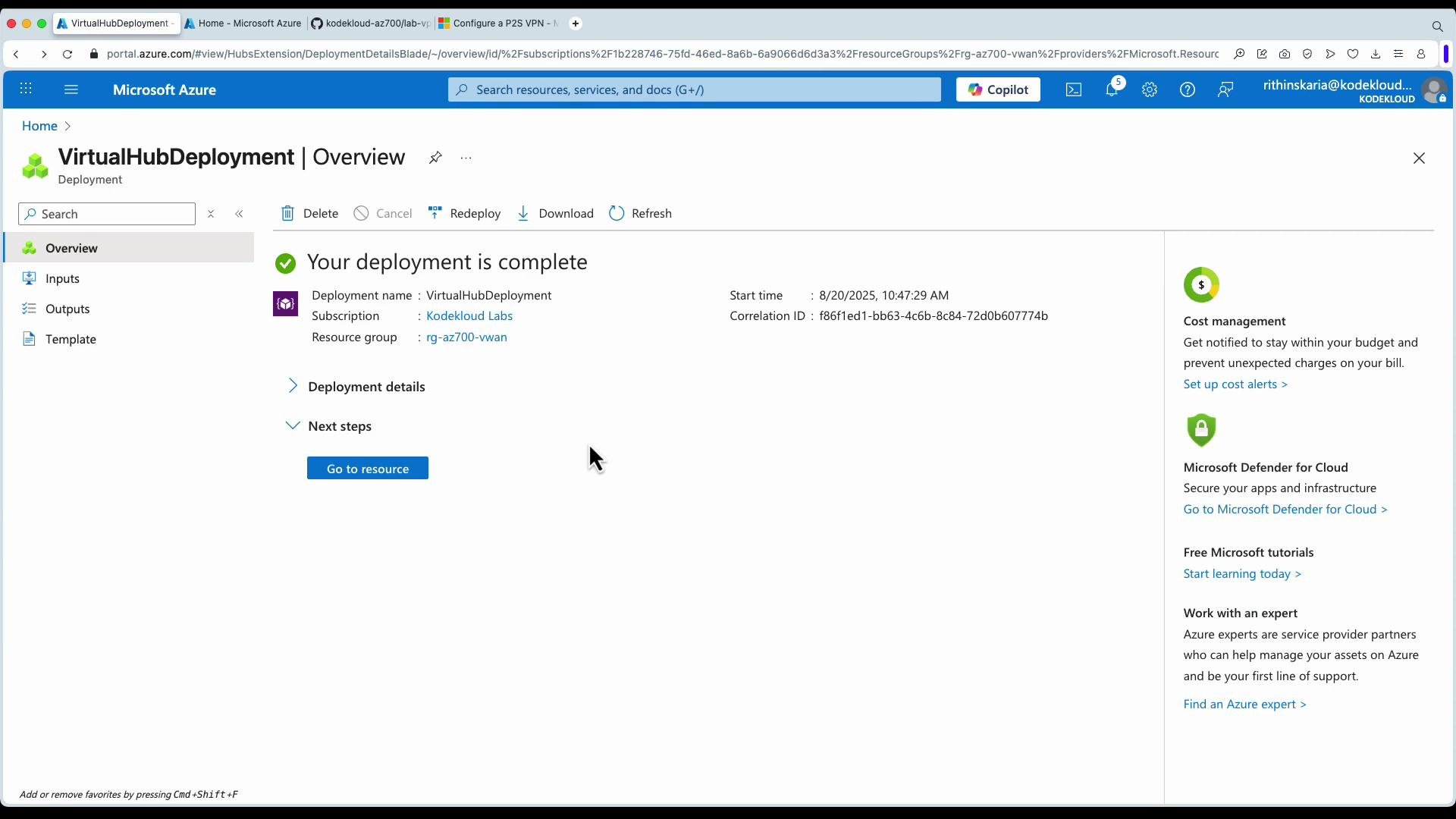
After the hub is deployed, open the hub resource and return to the Virtual WAN resource to manage user VPNs, route tables, and connections.
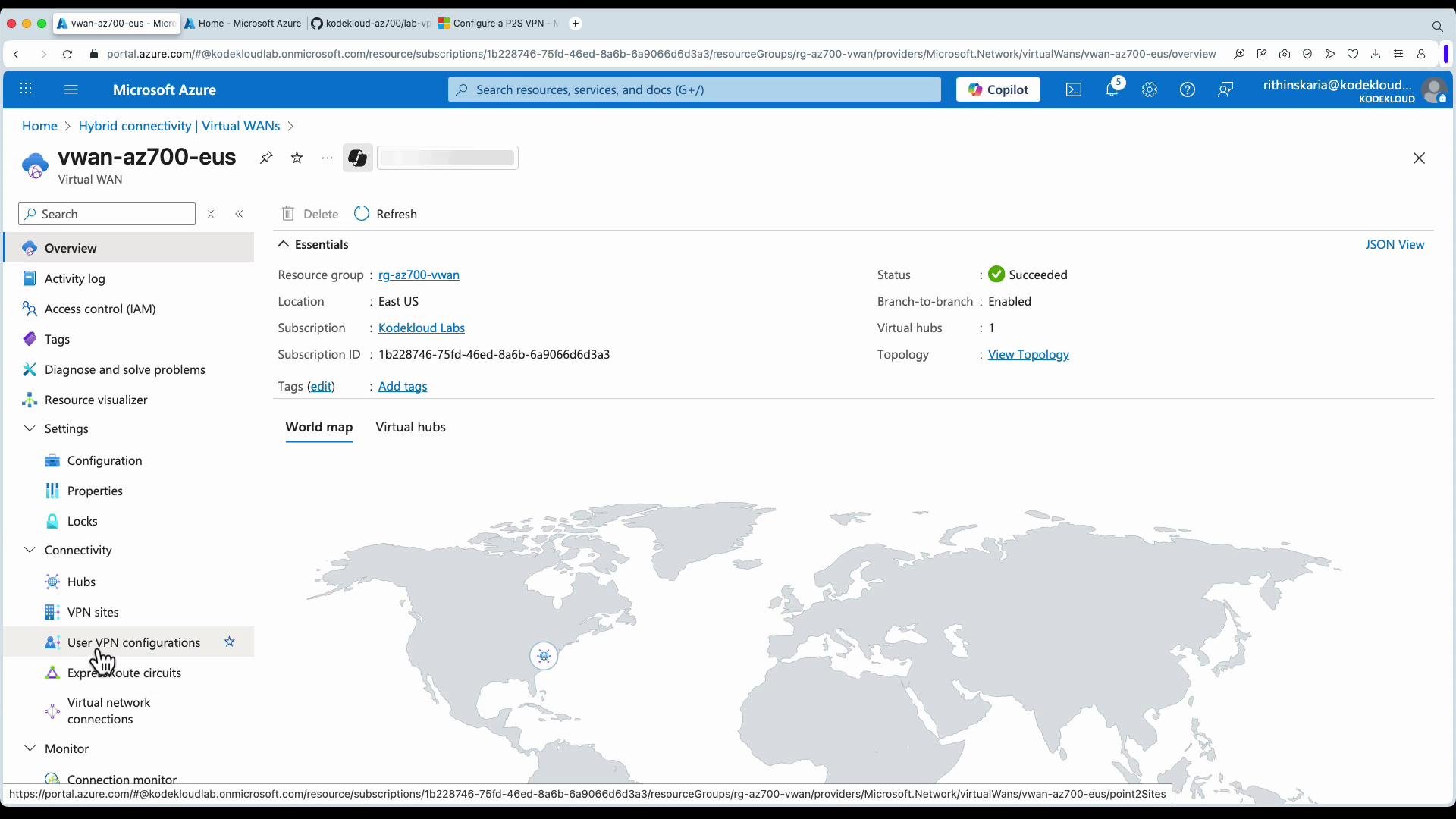
A screenshot of the Microsoft Azure portal showing the "vwan-az700-eus" Virtual WAN overview, including essentials (resource group, location East US, subscription) and a virtual hub listed with status "Succeeded." The page also shows connectivity options like VPN sites, Azure Firewall and a point-to-site link.

Connecting VNets to the hub

  1. Add virtual network connections to the hub:
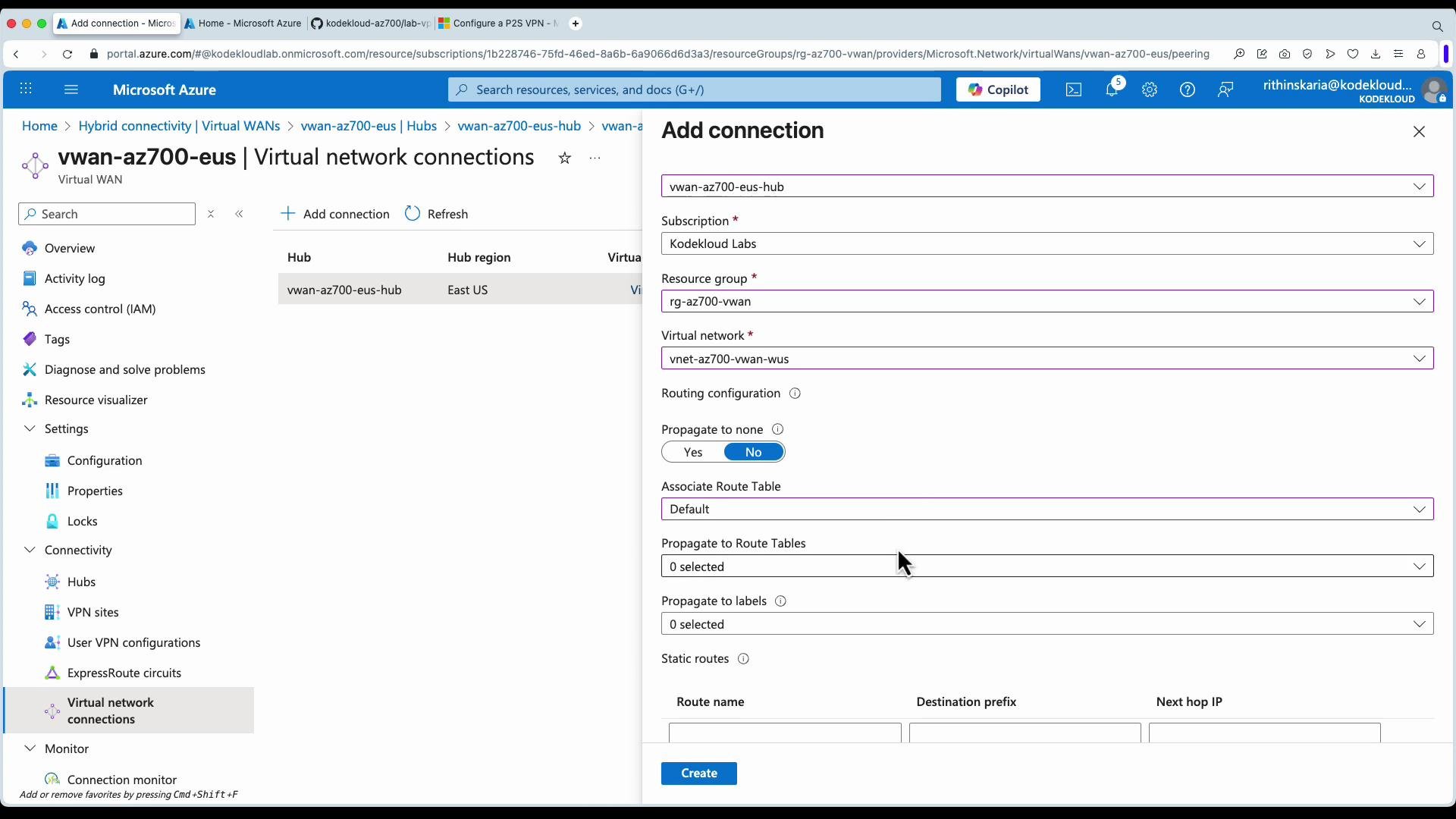
    • In Virtual WAN → Virtual network connections → Add connection.
    • Choose the hub and the target virtual network (spoke).
    • Configure association (route table) and propagation (which route labels to propagate).
    • Create the connection and repeat for each spoke.
A screenshot of the Microsoft Azure portal showing the "vwan-az700-eus | Virtual network connections" page with an "Add connection" pane open. The form on the right contains fields for connection name, hub, subscription, resource group, and virtual network, while the left shows navigation items like Overview and Connectivity.
Inspect and manage the hub’s routing configuration, route maps, routing intent, BGP peers, and route tables from the hub overview. This view shows connected VNets, P2S status, and other connectivity tiles.
A screenshot of the Microsoft Azure portal displaying the virtual hub "vwan-az700-eus-hub" overview page. The Essentials pane shows hub status, private address space (10.140.0.0/16) and location (East US), with tiles for virtual network connections, VPN (site-to-site), user VPN (point-to-site), ExpressRoute and Azure Firewall.

Download and use the Virtual WAN user VPN profile

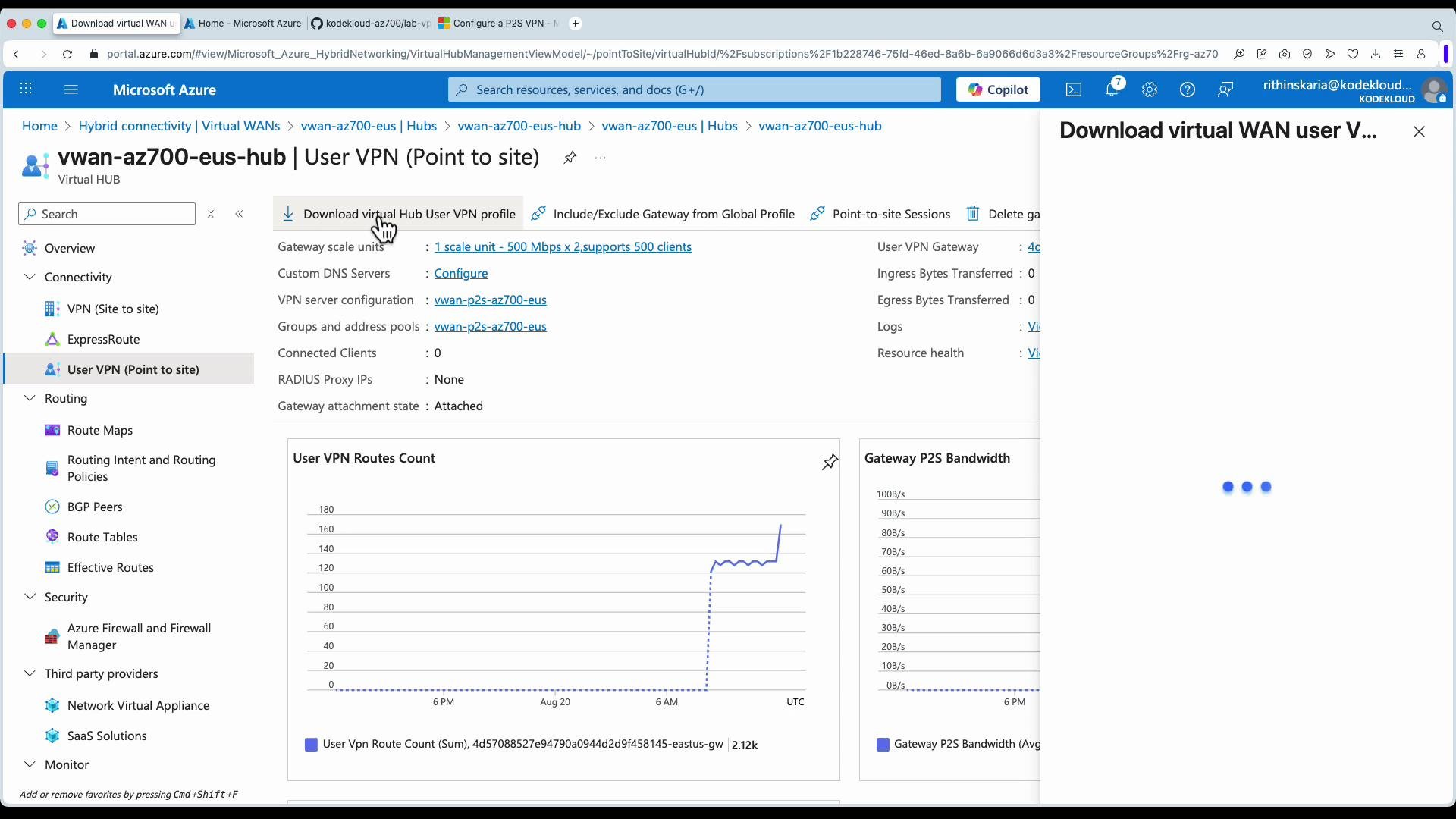
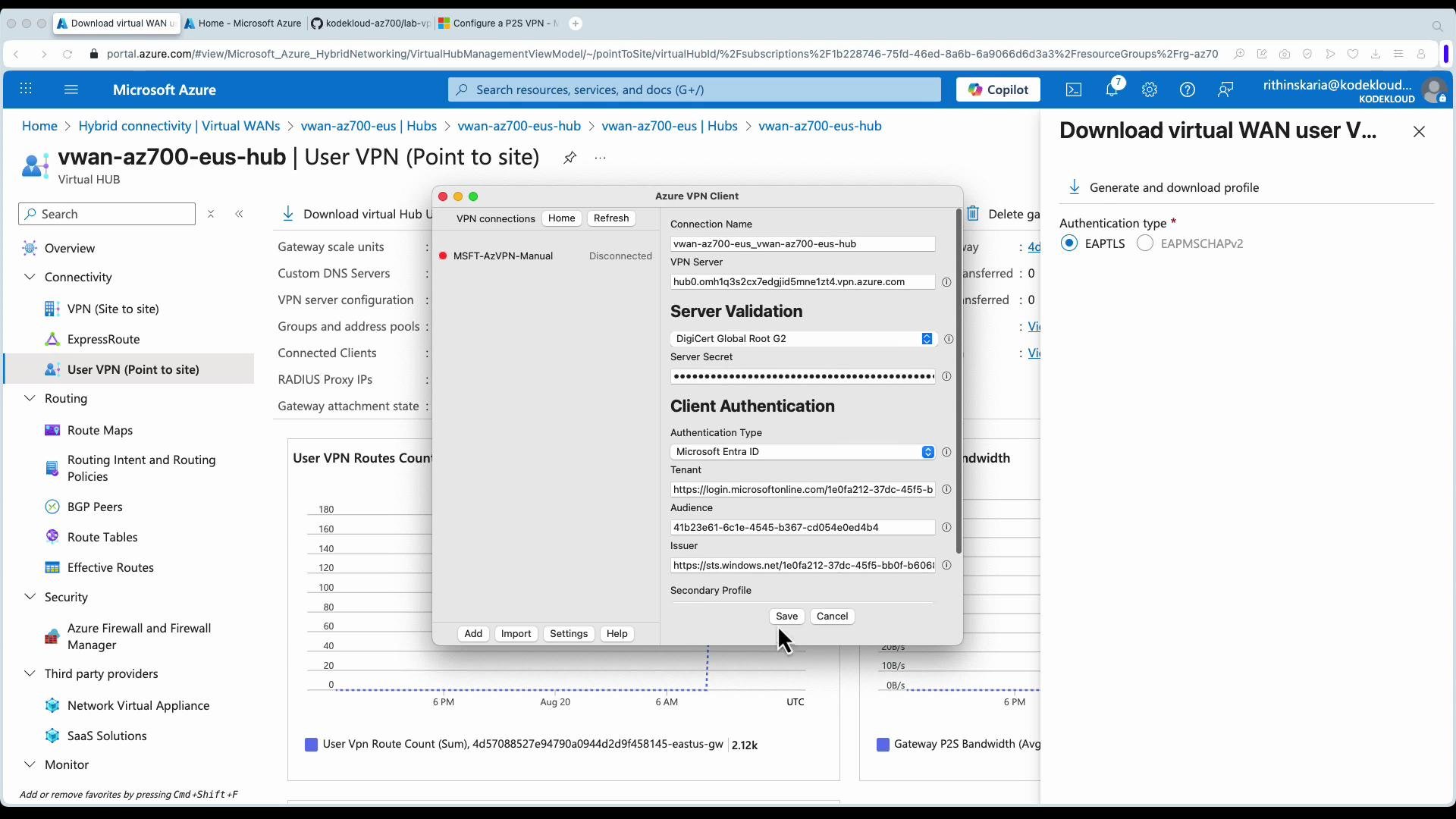
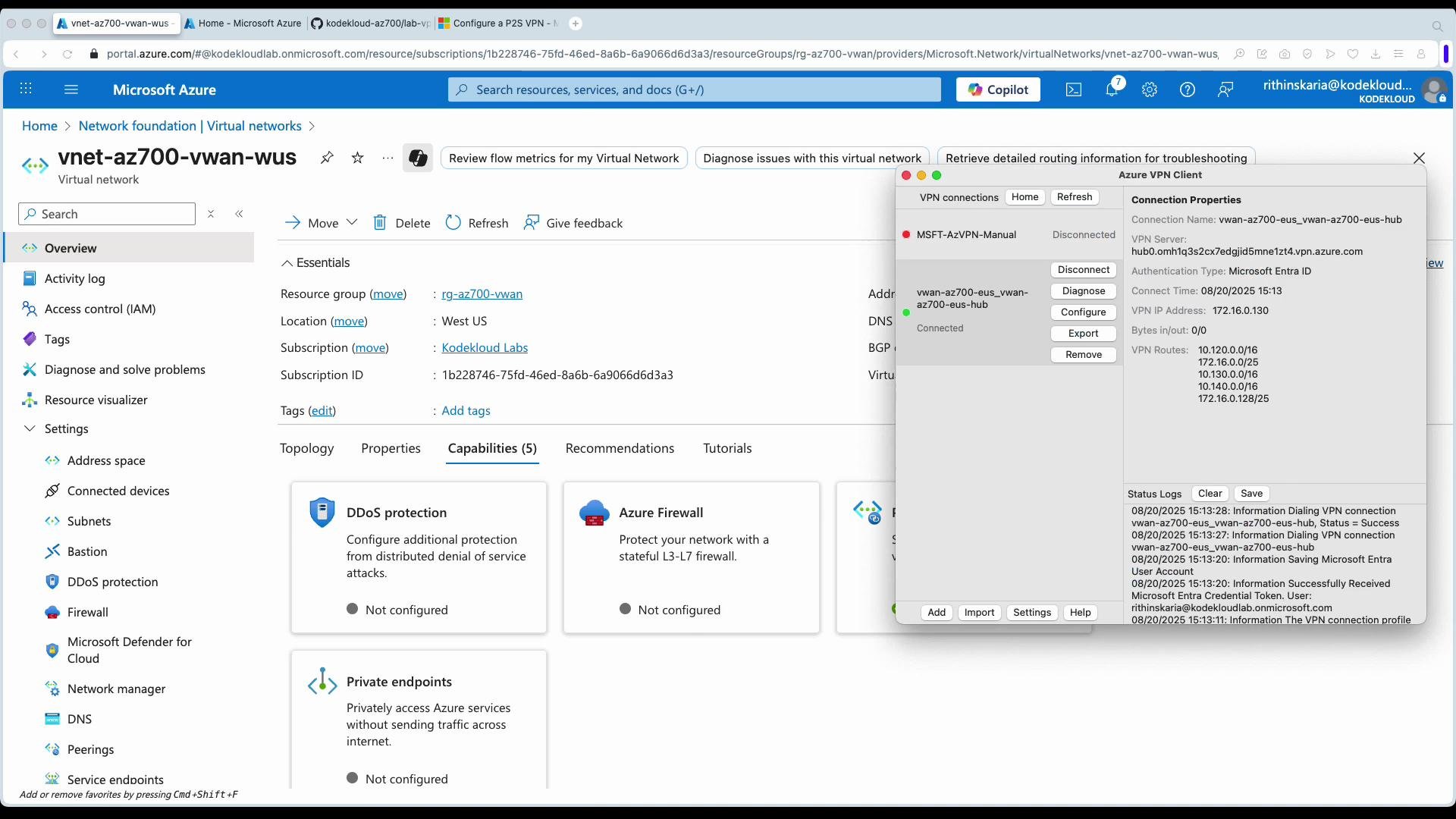
From the User VPN (P2S) blade you can download a client profile (XML) for the Azure VPN Client. Import the profile into the Azure VPN Client and connect. The client will show the hub as the VPN server and list propagated VPN routes.
A screenshot of the Microsoft Azure portal on the "vwan-az700-eus-hub | User VPN (Point to site)" page with an Azure VPN Client configuration window open in the center and a "Download virtual WAN user V..." pane on the right. The client dialog shows server validation and client authentication settings for a VPN connection.
Sample VPN client connection properties and status logs (example output from Azure VPN Client):
Connection Properties
Connection Name: vwan-az700-eus_vwan-az700-eus-hub
VPN Server: hub0.omhlq3s2cx7edgjid5mne1zt4.vpn.azure.com
Authentication Type: Microsoft Entra ID
Connect Time: 08/20/2025 15:13
VPN IP Address: 172.16.0.130
Bytes in/out: 0/0
VPN Routes:
10.120.0.0/16
172.16.0.0/25
10.130.0.0/16
10.140.0.0/16
172.16.0.128/25

Status Logs
08/20/2025 15:13:28: Information Dialing VPN connection vwan-az700-eus_vwan-az700-eus-hub, Status = Success
08/20/2025 15:13:27: Information Dialing VPN connection vwan-az700-eus_vwan-az700-eus-hub
08/20/2025 15:13:20: Information Saving Microsoft Entra User Account.
08/20/2025 15:13:20: Information Successfully Received Microsoft Entra Credential Token. User: rithinskaria@kodekloudlab.onmicrosoft.com
08/20/2025 15:13:11: Information The VPN connection profile...

Verify connectivity

Once the P2S connection is established and VNets are connected to the hub, validate connectivity by:
  • Pinging or SSHing to VMs in different spoke VNets (internal IPs).
  • Accessing internal web applications by their private IP addresses.
  • Confirming propagated routes show up in the VPN client and hub route tables.
If you run into issues, check:
  • Role permissions for cross-tenant VNet connections.
  • Route table associations and propagation labels.
  • VPN client configuration and AAD authentication claims/audience values.
  • Hub and gateway provisioning status.

Summary

Azure Virtual WAN simplifies and centralizes global routing and connectivity for multi-VNet, multi-tenant, and hybrid environments. It supports cross-tenant VNet attachments, consolidated P2S/S2S/ExpressRoute connectivity, central route tables with propagation and labels, and integration with Azure Route Server or NVAs for advanced routing. For global scale and simplified operations, Virtual WAN is a compelling alternative to a manually managed hub-and-spoke network. Further reading: