Learn how Azure DNS zones work, how to delegate a domain to Azure, and how to manage DNS records (A, CNAME, MX, TXT, etc.). This guide moves from core DNS concepts into Azure-specific DNS management, with practical portal and troubleshooting walkthroughs.
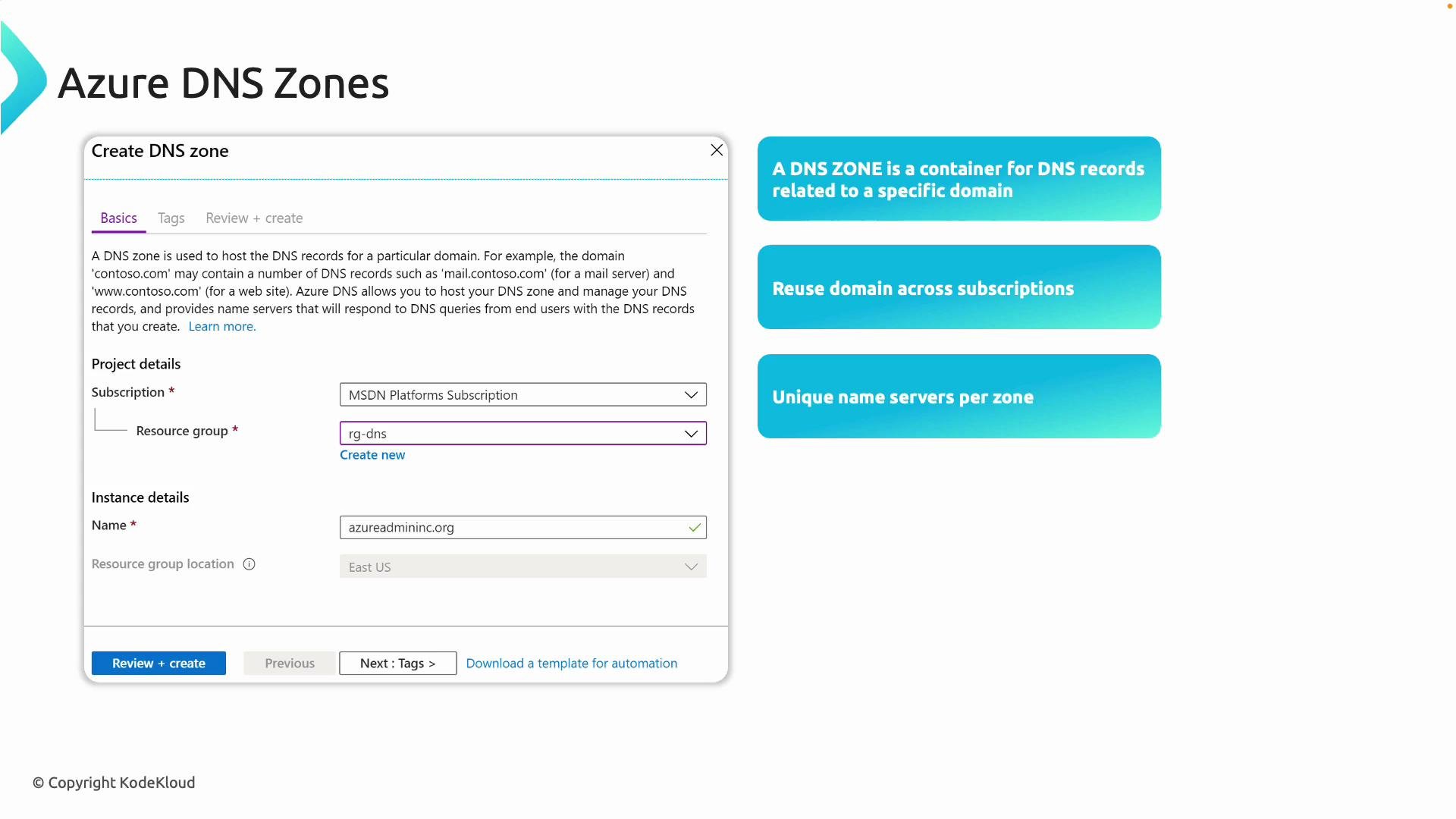
A slide titled "Azure DNS Zones" showing the Azure "Create DNS zone" dialog (subscription, resource group and name fields) on the left. On the right are four blue boxes listing DNS zone features like reuse across subscriptions, unique name servers, and root domain pointing to Azure.
What is a DNS zone?
  • A DNS zone is a container for the DNS records (A, CNAME, MX, TXT, NS, SOA, etc.) for a specific domain or subdomain.
  • Example: if you own echovisa.com, the DNS zone stores all records that map names (web, mail, etc.) to IPs or services.
  • Azure DNS zones can be created in any supported subscription and resource group; you can manage zones across subscriptions.
  • Each public Azure DNS zone is assigned four authoritative name servers — use these values to delegate the domain from your registrar to Azure.
  • Creating a DNS zone in Azure does not automatically make Azure authoritative for the domain — you must update delegation at the registrar.
You can buy domains from Azure (see App Service Domains) or external registrars such as GoDaddy or Namecheap. If you register outside Azure, the registrar’s name servers remain authoritative until you change them to point to Azure. DNS delegation (high-level steps)
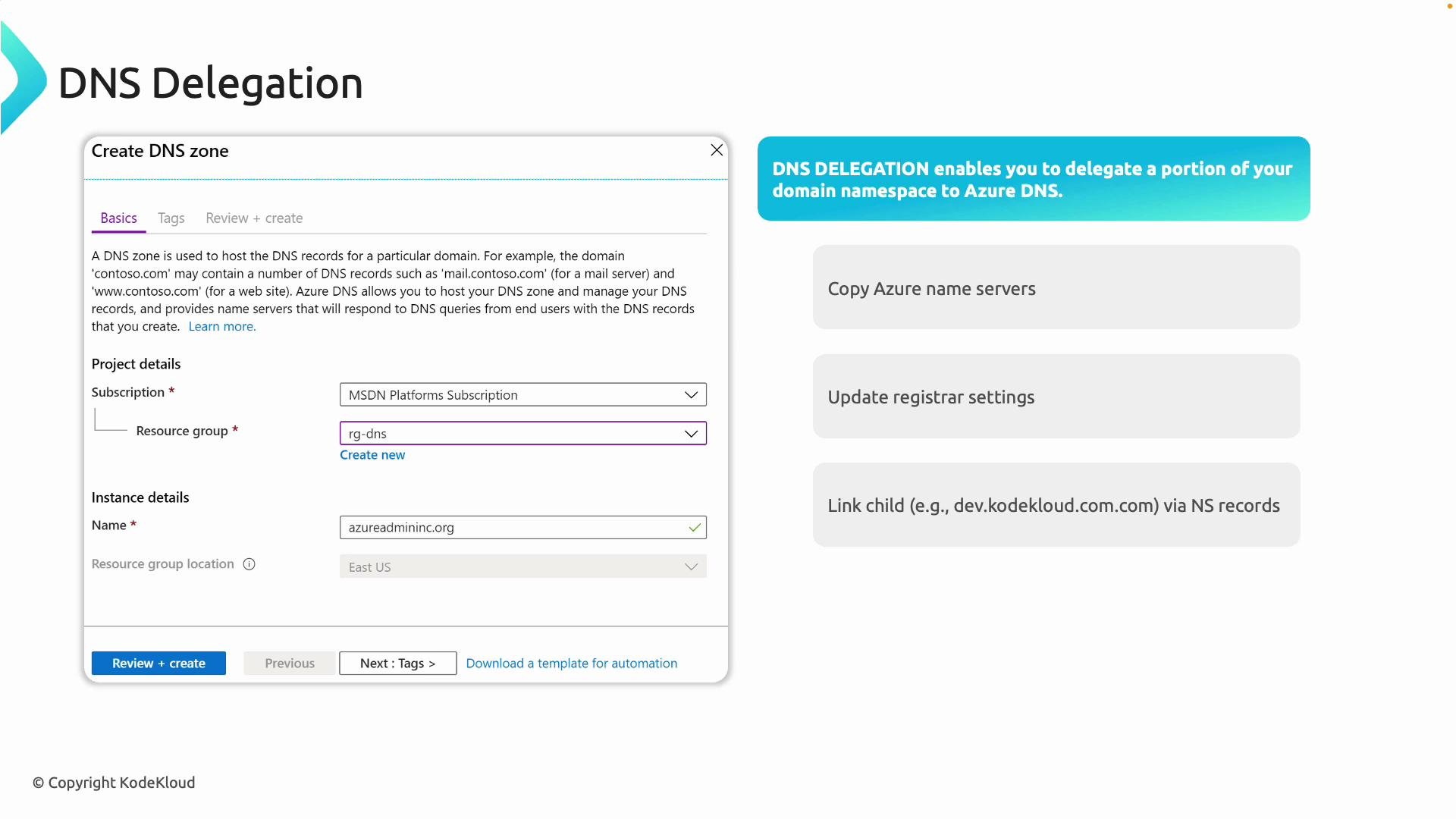
  1. Create a DNS zone in Azure.
  2. Copy the Azure-assigned name servers from the zone overview.
  3. Update the domain’s name servers at your registrar to the Azure name servers.
A slide titled "DNS Delegation" showing an Azure portal "Create DNS zone" dialog on the left and three delegation steps on the right (copy Azure name servers, update registrar settings, link child via NS records). The form is filled with example project details like subscription, resource group, and zone name.
DNS record sets
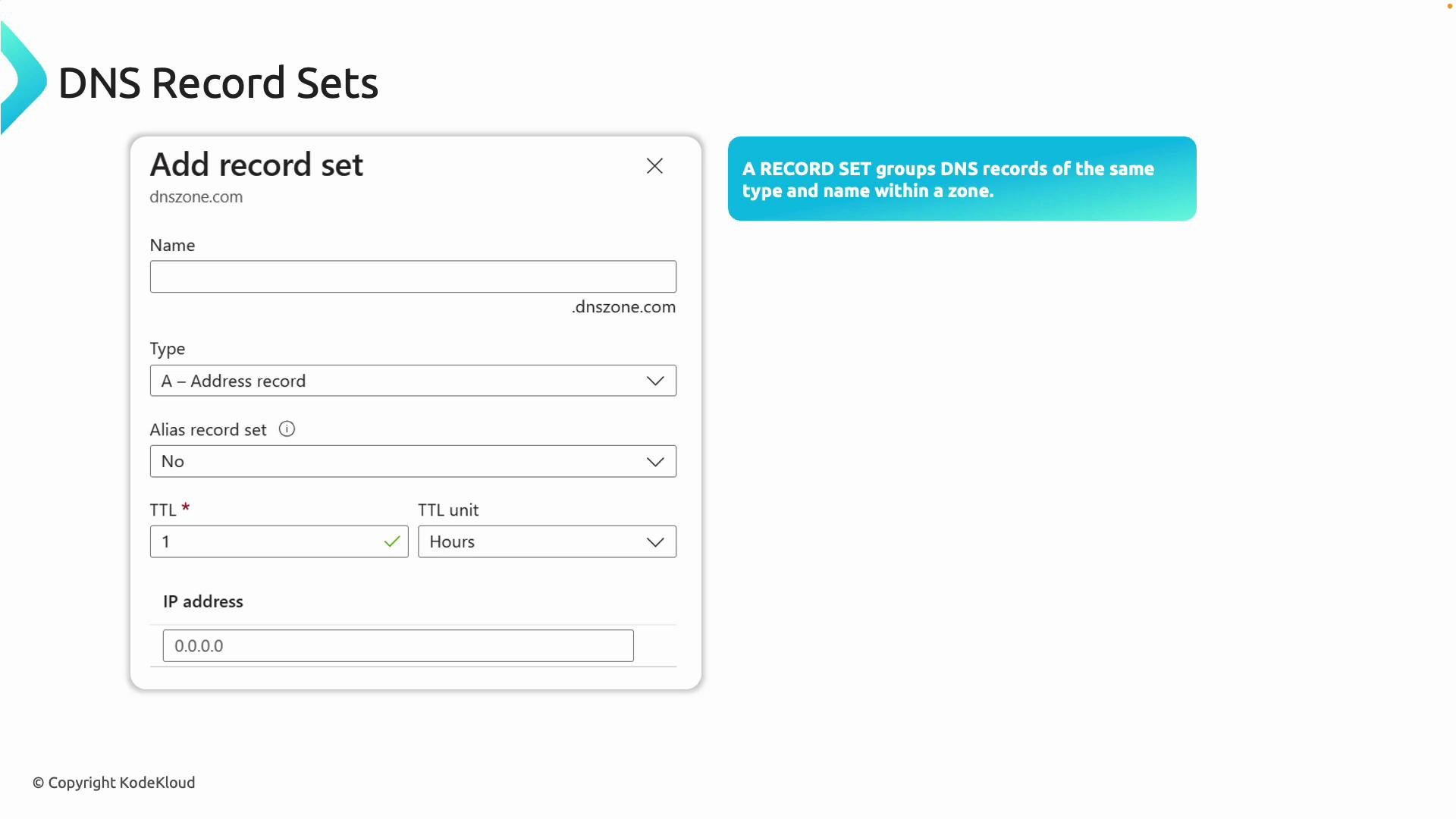
  • A record set groups records that share the same name and type within a zone (for example, multiple A records for the same host to achieve simple round-robin).
  • Azure supports standard DNS record types: A, AAAA, CNAME, MX, NS, TXT, PTR, SRV, etc.
  • Azure prevents duplicate records within a record set to avoid conflicts.
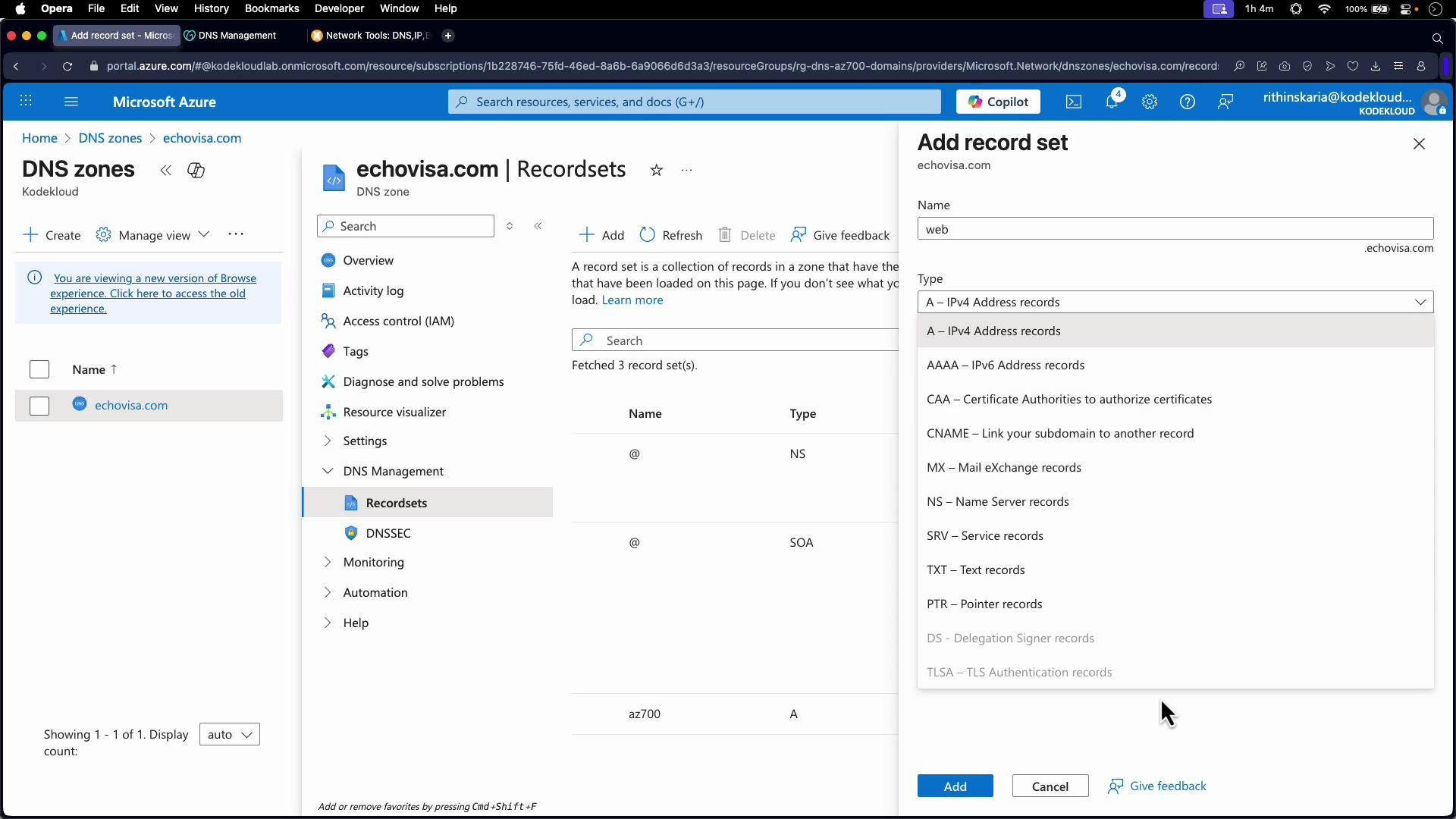
  • The Azure portal’s Add record set form adapts the required fields based on the record type (A requires IPv4 address, CNAME requires a target name, MX requires preference and mail server, etc.).
A screenshot of a DNS Record Sets interface showing an "Add record set" form with fields for Name, Type, Alias, TTL and IP address. To the right are blue info panels describing Azure DNS record types, duplicate-record rules, and required fields.
Common record types and uses
Record TypeUse CaseExample
AMap a hostname to an IPv4 addressweb.echovisa.com → 4.210.189.55
AAAAMap a hostname to an IPv6 addresswww.example.com → 2001:db8::1
CNAMEAlias one name to another canonical nameshop.echovisa.com → shops.azurewebsites.net
MXMail exchange records for email routingechovisa.com MX 10 mail.echovisa.com
TXTMiscellaneous text (SPF, DKIM, verification)echovisa.com TXT "v=spf1 include:..."
NSDelegation of subdomains or the zone itselfechovisa.com NS ns1-09.azure-dns.com
SOAStart of authority, zone metadataAuto-created by Azure DNS
Demo walkthrough (portal and troubleshooting)
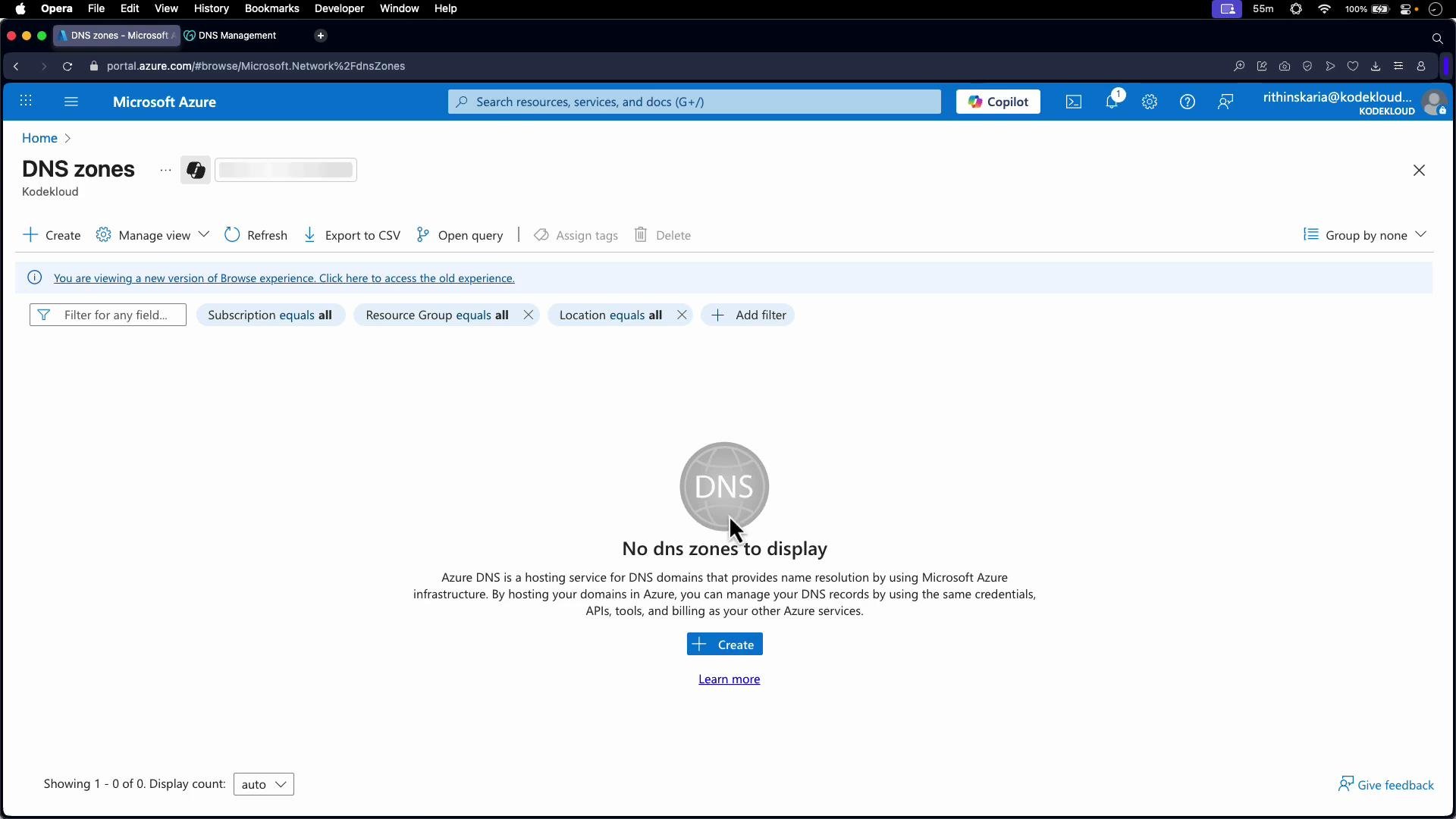
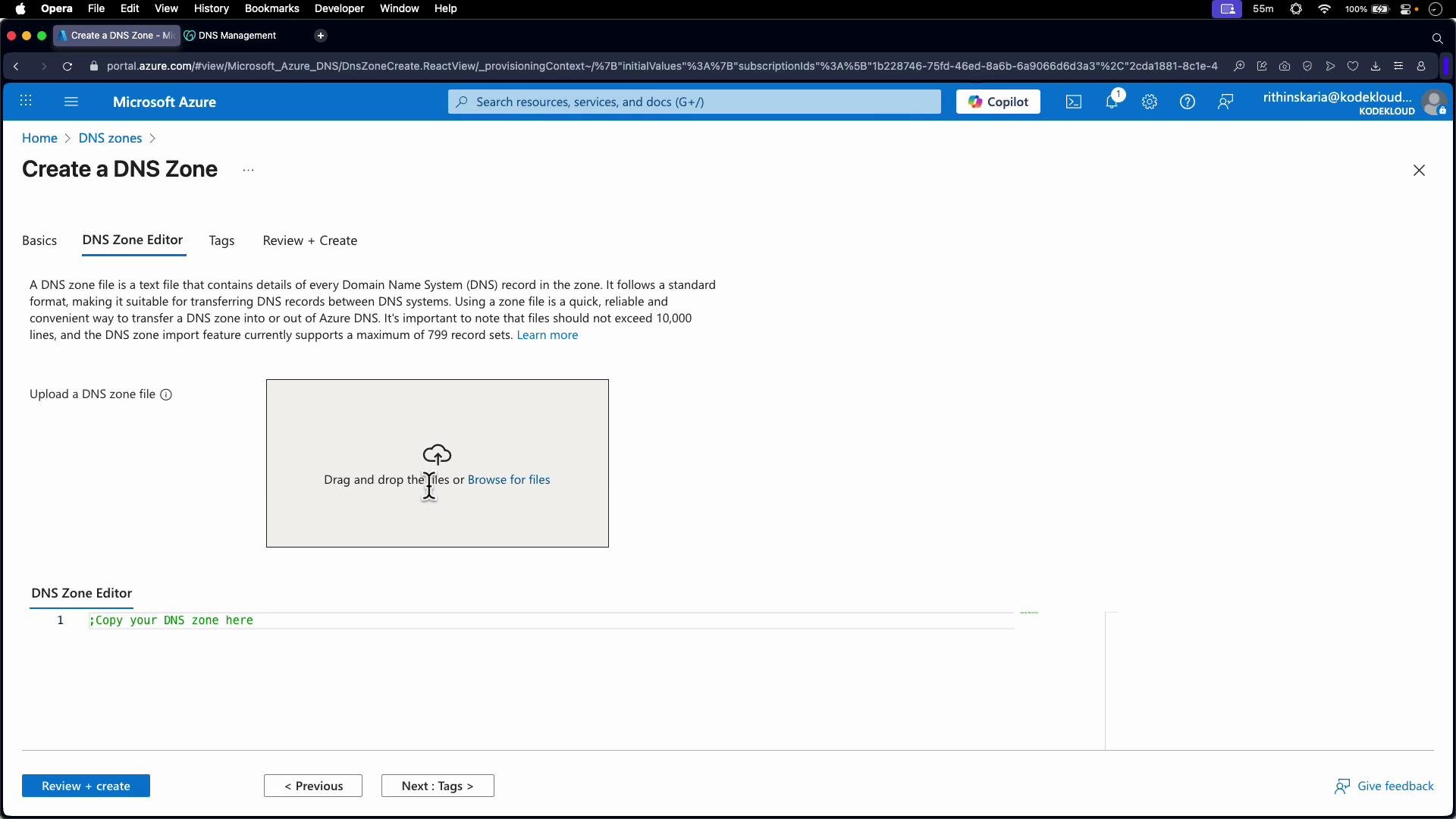
  1. Create a resource group (e.g., RGDNS or 700-domains) and then create a DNS zone named echovisa.com. If you have many existing records, you can import a zone file in BIND format.
# Example zone file placeholder
# 1 ;Copy your DNS zone here
  1. Once the zone is created, Azure assigns four distributed name servers. The new zone contains at least NS and SOA records automatically.
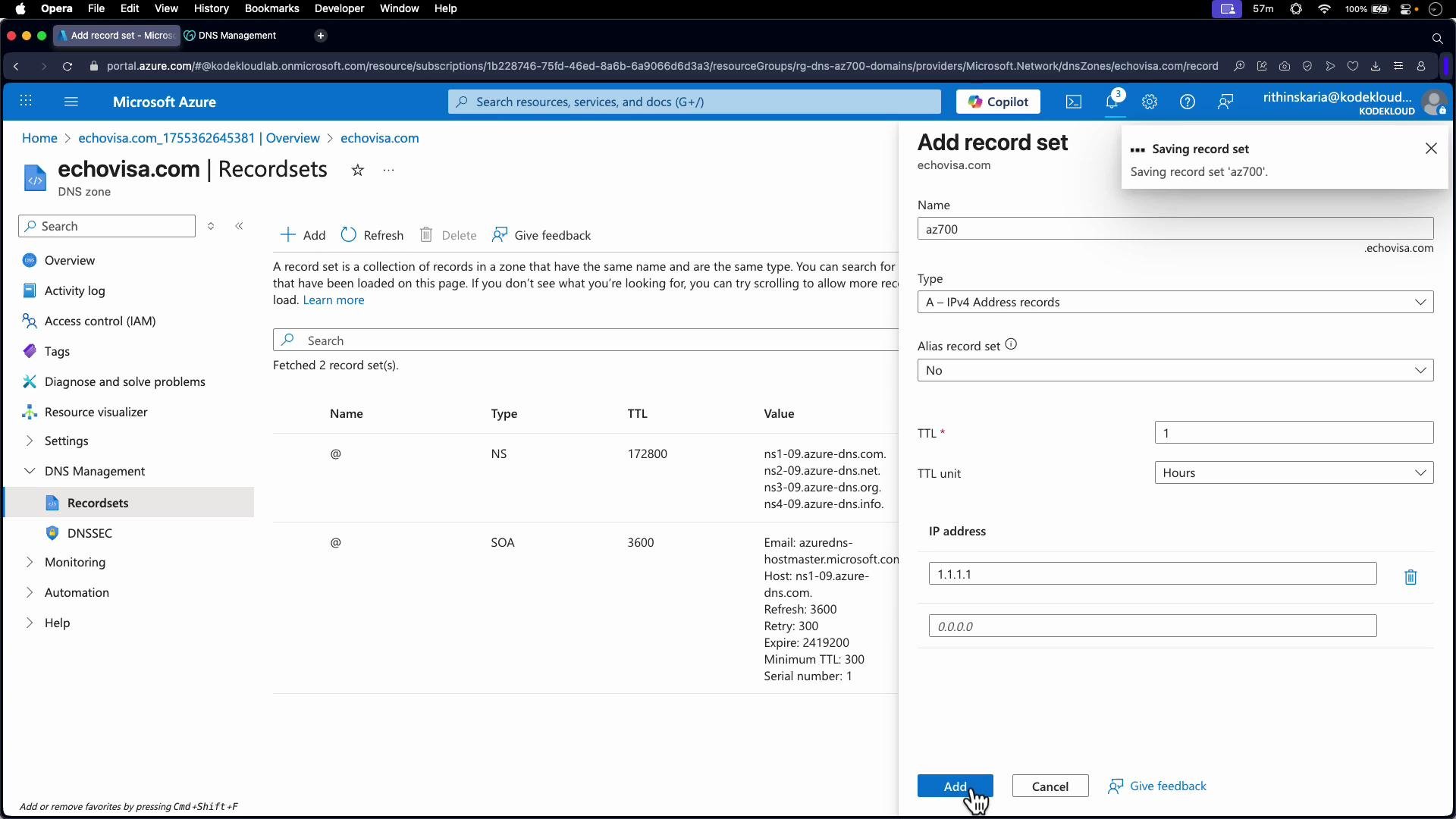
  2. Add a record set. Example: create an A record for az700.echovisa.com with IP 1.1.1.1.
A screenshot of the Microsoft Azure portal showing the DNS zone "echovisa.com" Recordsets page. A side panel is open to "Add record set" with name "az700", type A (IPv4), TTL 1 hour and IP address 1.1.1.1.
  1. If you run nslookup az700.echovisa.com from a machine that still uses the registrar’s DNS servers, you might see the old IPs because public delegation still points to the registrar:
nslookup az700.echovisa.com
Server:         192.168.1.1
Address:        192.168.1.1#53

Non-authoritative answer:
Name:    az700.echovisa.com
Address: 13.248.169.48
Name:    az700.echovisa.com
Address: 76.223.54.146
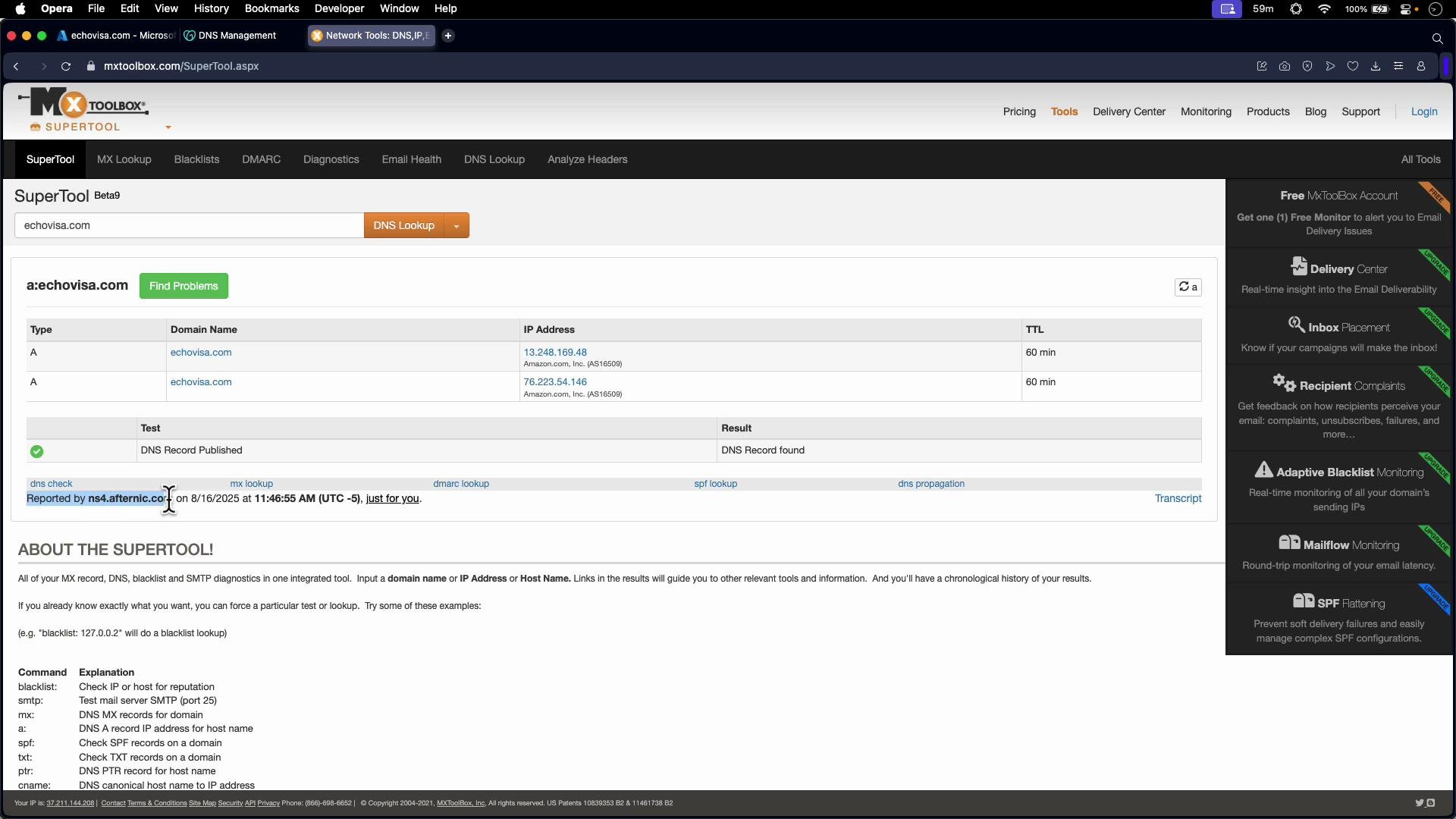
These responses come from the registrar’s (e.g., GoDaddy / Afternic) name servers. Azure is serving the new record inside your DNS zone, but public delegation still points elsewhere. Use tools such as MXToolbox or dig to check the public records:
A screenshot of the MXToolbox SuperTool DNS lookup showing A records for the domain "echovisa.com" with two IP addresses (13.248.169.48 and 76.223.54.146) and a "DNS Record found" result. The page also includes navigation tabs and a right-hand panel with monitoring and deliverability options.
  1. To confirm Azure is authoritative for the record in your zone, query one of the Azure-assigned name servers directly:
# Start nslookup
nslookup

# Point to an Azure name server (example)
> server ns1-09.azure-dns.com.
Default server: ns1-09.azure-dns.com.
Address: 13.107.236.9#53

# Query the hostname against Azure's name server
> az700.echovisa.com
Server:         ns1-09.azure-dns.com.
Address:        13.107.236.9#53

Name:   az700.echovisa.com
Address: 1.1.1.1
This demonstrates Azure is serving the new record — but only clients querying Azure name servers will receive that answer until registrar delegation is updated.
  1. Make Azure authoritative globally by updating the registrar’s name servers:
  • Copy the four Azure name servers from the Azure DNS zone overview.
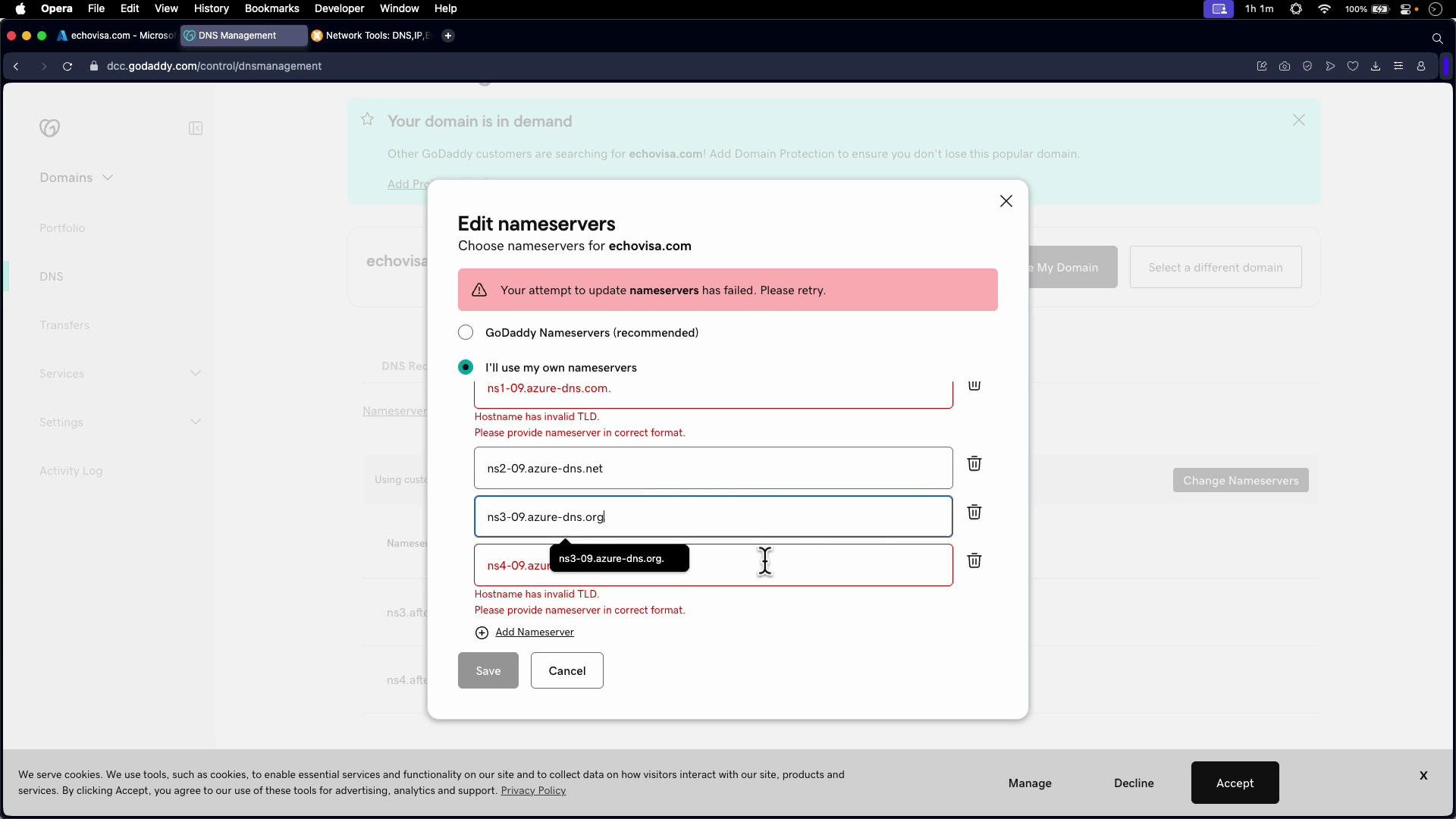
  • In your registrar’s DNS settings (e.g., GoDaddy), replace the current name servers with the Azure name servers. Note: some registrars require removing the trailing dot from the FQDNs displayed by Azure.
  • Save changes and wait for delegation propagation. Propagation timing depends on previous TTLs and registrar processing; it can take minutes to hours.
When updating name servers, ensure you copy all four Azure NS records to the registrar. Some registrars strip the trailing dot — that is usually acceptable; just ensure the domain names are entered correctly.
A screenshot of the Microsoft Azure portal showing the DNS zone overview for the domain "echovisa.com," including resource group, subscription ID, recordset count and the four Azure name servers. The page also shows action buttons (Add record sets, Import, Export, DNSSEC) and getting-started tiles for adding or importing DNS record sets.
After updating name servers at the registrar, external checks (MXToolbox, dig, public resolvers) will begin reporting Azure as the DNS hosting provider once delegation has propagated.
Screenshot of the GoDaddy DNS management page for the domain echovisa.com. It shows the Nameservers tab with custom nameservers (ns3.afternic.com and ns4.afternic.com) and a “Success — Your request is in progress” notification.
When propagation completes, queries for records in echovisa.com will return the Azure-managed values:
A screenshot of the MXToolbox SuperTool DNS lookup page showing an A record lookup for az700.echovisa.com resolving to IP 1.1.1.1 with the DNS record found, while the parent domain echovisa.com shows "DNS Record not found." The page includes the search box, result table, and a right-hand sidebar with monitoring features.
  1. Example: point a web record to a VM public IP
  • Start a VM and note its public IP address.
  • In the DNS zone, create an A record such as web.echovisa.com and set the record value to the VM’s public IPv4 address. Choose an appropriate TTL (e.g., 1 hour). Shorter TTLs are useful while troubleshooting.
A screenshot of the Microsoft Azure portal showing the Compute infrastructure > Virtual machines page. The right-hand pane shows details for a VM named "vm-az700-pip," including its status (stopped/deallocated), location, and networking/public IP info.
TTL (Time To Live) determines how long resolvers cache records before re-querying authoritative servers. For troubleshooting, lower the TTL or flush local resolver caches (for example, use ipconfig /flushdns on Windows or sudo systemd-resolve —flush-caches on some Linux systems).
A screenshot of the Microsoft Azure portal showing the DNS zones page for "echovisa.com" with the Recordsets view open. A right-hand pane titled "Add record set" is visible, prefilled with a record name "web", type "A – IPv4 Address", TTL set to 1 hour and an IP address field.
After propagation, public lookups should return the Azure-managed records and show Azure as the DNS provider.
Screenshot of the MXToolbox SuperTool DNS lookup page. It displays A-record results for web.echovisa.com (4.210.189.55) and az700.echovisa.com (1.1.1.1) showing DNS records published and Azure listed as the DNS provider.
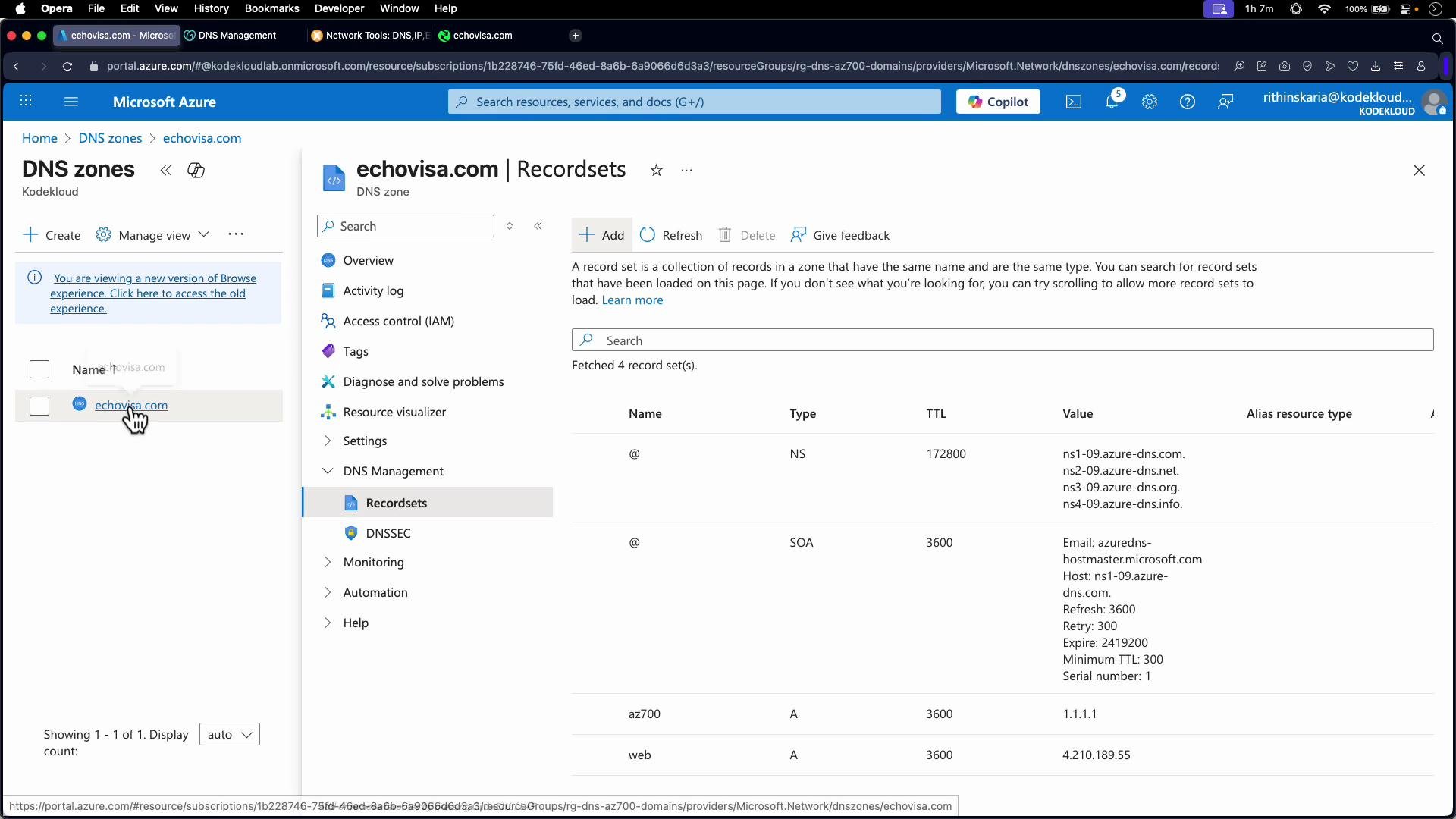
Now the domain is controlled from Azure. Update or add records in the Azure DNS zone — the registrar will no longer answer public DNS queries for echovisa.com once delegation completes.
Screenshot of the Microsoft Azure portal showing the DNS zone for echovisa.com. The Recordsets pane lists NS and SOA entries plus A records (e.g., az700 → 1.1.1.1 and web → 4.210.189.55) with TTLs and other details.
Example: local lookup after propagation
# Example local nslookup after propagation
nslookup web.echovisa.com

Server:         127.0.0.53
Address:        127.0.0.53#53

Non-authoritative answer:
Name:   web.echovisa.com
Address: 4.210.189.55
Screenshot of the Microsoft Azure portal showing the DNS zones page for "echovisa.com." The overview panel displays essentials like the resource group, subscription ID, recordset count and the four Azure name servers.
Summary
  • Creating a DNS zone in Azure does not automatically make Azure authoritative for the domain — you must update the registrar to delegate the domain to Azure’s name servers.
  • Use Azure DNS record sets to manage public DNS records once the domain is delegated.
  • TTL controls caching and affects how quickly changes propagate to resolvers.
  • For internal-only name resolution, use Azure Private DNS zones or DNS forwarding solutions; do not delegate private domains publicly.
Tip: While testing changes, use short TTLs and query Azure’s authoritative name servers directly with dig or nslookup to confirm the zone contents before updating registrar delegation.
How can we handle internal-only domains (domains that should be resolved only inside the organization)? Options for internal-only DNS in Azure:
  1. Azure Private DNS zones (recommended for most Azure-only scenarios)
    • Create a Private DNS zone (for example, corp.internal or contoso.local) in Azure.
    • Link the Private DNS zone to one or more virtual networks (VNet links). These links control which VNets can resolve names in the private zone.
    • Use virtual network DNS settings (Azure-provided resolver or custom DNS servers) so VMs and PaaS resources in linked VNets resolve private names automatically.
    • You can enable automatic virtual machine registration in the zone if you use Azure VMs.
    Documentation:
  2. Split-horizon / split-brain DNS (public + private view)
    • Keep the public DNS zone in Azure DNS (or registrar) for internet-facing records.
    • Create a private zone with the same domain inside Azure (or use different internal naming) to serve different answers to internal clients. Note: having identical names for public and private zones requires careful planning to avoid confusion.
  3. Conditional forwarding / Azure DNS Private Resolver
    • If you have on-premises DNS servers and want centralized resolution, use conditional forwarders to send queries for specific domains to Azure DNS Private Resolver or to on-prem DNS servers.
    • Azure DNS Private Resolver (inbound and outbound endpoints) helps bridge between on-premises DNS and Azure’s private zones without exposing private records to the internet.
    • This is useful for hybrid environments where on-prem clients must resolve Azure private records and vice versa.
  4. Legacy or custom DNS servers
    • Run your own DNS servers (VMs) or Active Directory-integrated DNS for complex scenarios or legacy requirements. These can be connected to VNets and used as the DNS servers for your virtual networks or on-prem clients.
Best practices
  • Use Azure Private DNS for name resolution that must stay within your VNets.
  • Avoid exposing internal-only domains to public DNS. Never publish private records on public authoritative servers.
  • Use conditional forwarding or a private resolver for hybrid environments to avoid split-brain problems.
  • Pick sensible TTLs: short TTLs during change windows, longer TTLs for stable records to reduce lookup volume.
References