

- You must have the Az PowerShell module installed and be authenticated (
Connect-AzAccount). - Confirm you have permission to read the ExpressRoute circuit resource in the target subscription and resource group.
Get-AzExpressRouteCircuit command and specify the resource group and circuit name:
If any of the above states do not match the expected values, the problem is likely at provisioning or with the service provider. Typical next steps are to check the provider’s provisioning console/status, verify ordering/billing, and if needed, open a support request with the provider or Microsoft.
Example output (values redacted where appropriate):
If any of these states are not as expected, the issue is likely at the provisioning or service-provider level. Common next steps are to verify the provider’s provisioning status, confirm billing/ordering, and open a support request with the provider or Microsoft if needed.
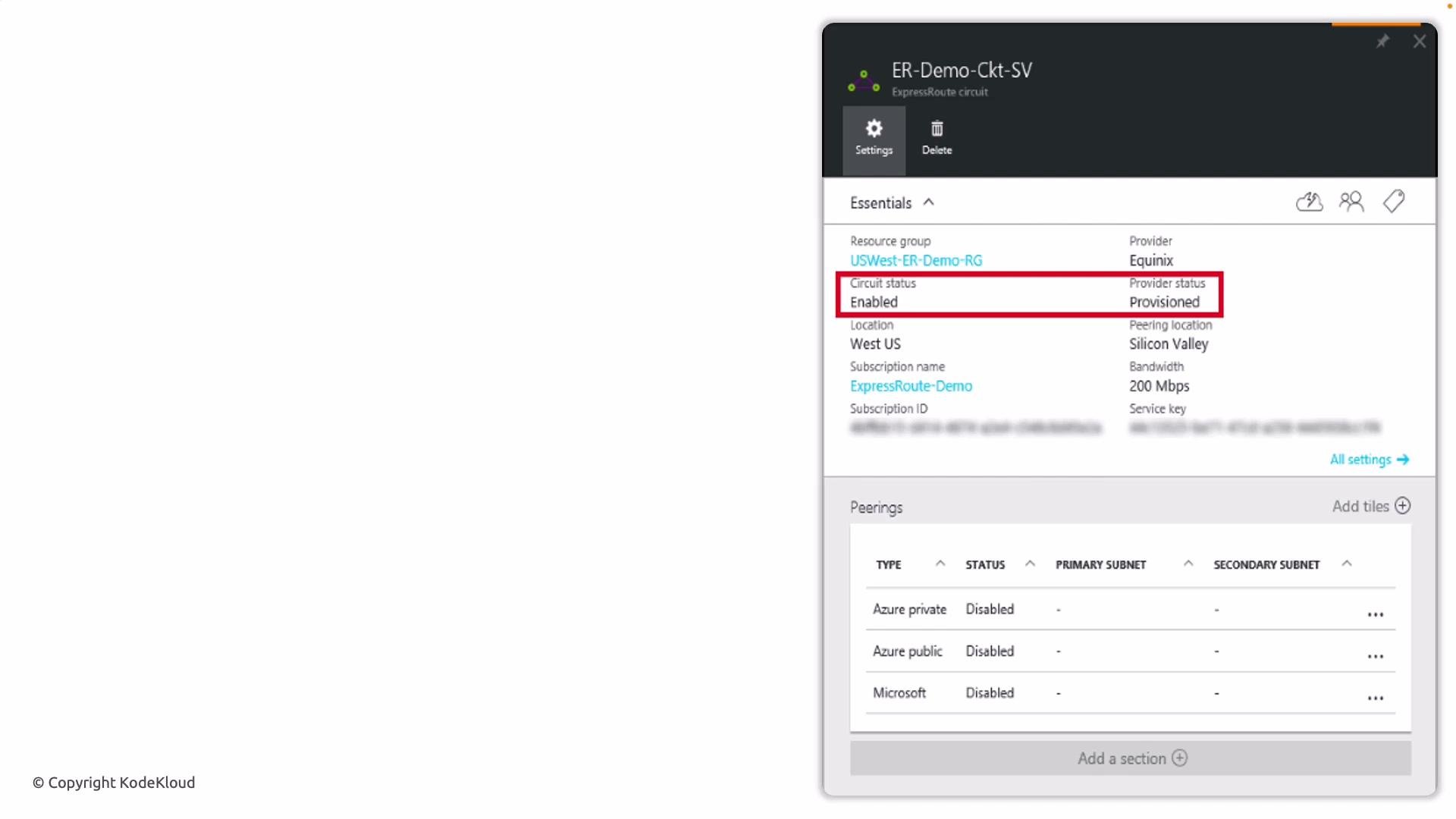
- Open the Azure portal and navigate to your ExpressRoute circuit resource.
- On the Overview blade you will see the circuit’s Provisioning and service provider status.
- If the portal shows mismatched states, capture screenshots and correlate timestamps with your provider’s status information before escalating.
- Confirm the Azure-side states (
ProvisioningState,CircuitProvisioningState) are as expected. - Verify the service provider’s provisioning and circuit activation status.
- Ensure the circuit’s
ServiceKeyand peering details match what the provider has on record. - Check for any pending authorizations or missing peering configurations.
- If everything appears correct and traffic still isn’t flowing, open a support request with Microsoft and/or your service provider and provide the command output and portal screenshots.
- ExpressRoute overview (Microsoft Docs)
- Get-AzExpressRouteCircuit (PowerShell)
- Azure PowerShell documentation
- Azure portal