Azure Monitor Network Insights gives you a single, centralized view into the health, connectivity, and performance of your Azure networking resources. Instead of opening multiple blades across the Azure Portal, Network Insights consolidates resource health, alerts, and traffic analytics into one dashboard so you can monitor and troubleshoot faster. In this article you’ll learn:
  • What Network Insights monitors and how it displays resource health.
  • How traffic analytics and flow logs integrate for traffic visibility.
  • The built-in diagnostic workflows (Connection Troubleshoot, Packet Capture, Connection Monitor) used for root-cause analysis.
  • Practical steps to get started and recommendations for telemetry.
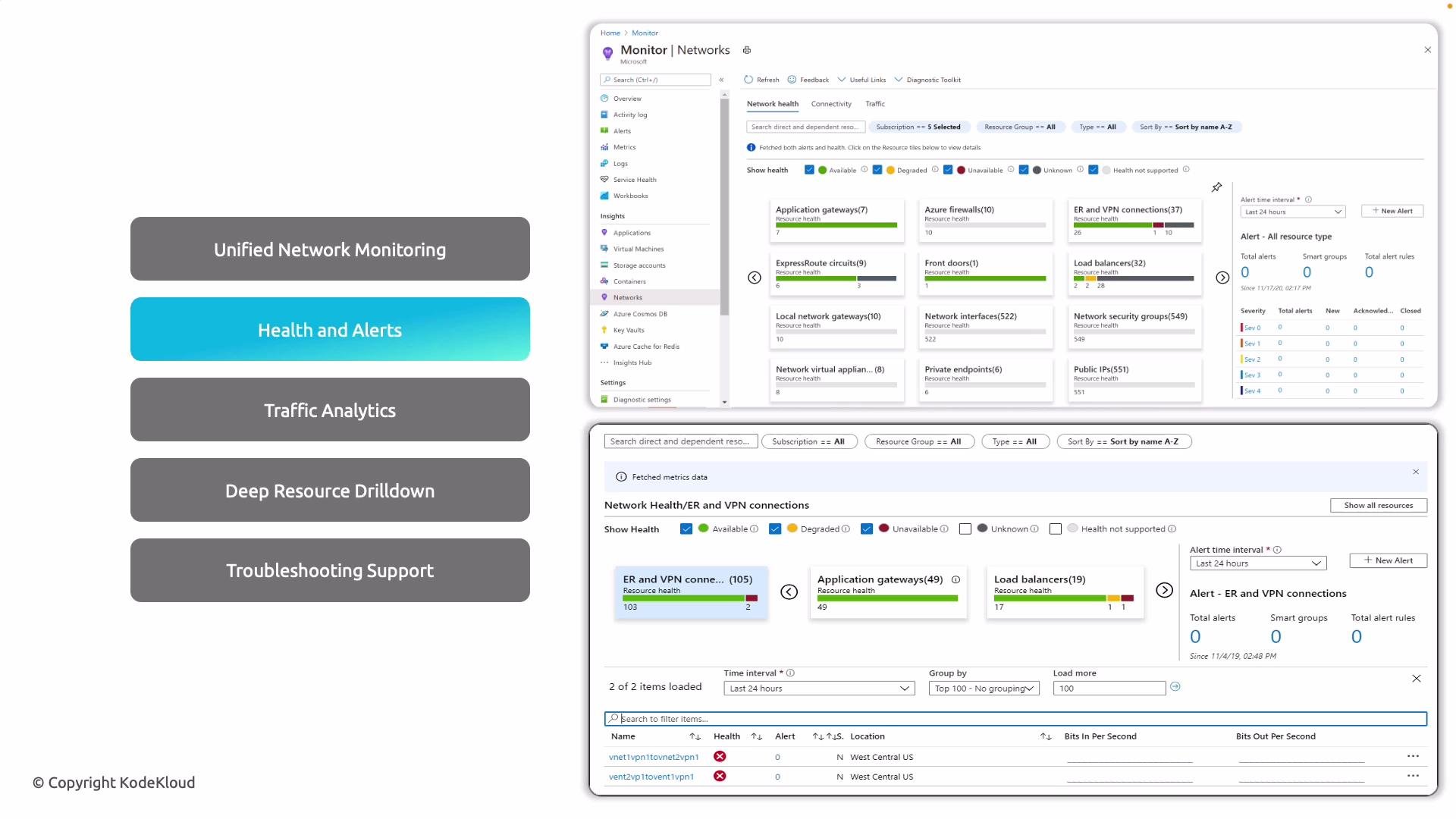
A presentation slide listing network-monitoring features (Unified Network Monitoring; Health and Alerts; Traffic Analytics; Deep Resource Drilldown; Troubleshooting Support) on the left, with screenshots of an Azure Monitor Networks dashboard showing resource health and VPN/ER connection details on the right.

What Network Insights provides

CapabilityWhat it deliversWhy it matters
Unified network monitoringSingle-pane view across resource types (VNet, subnets, NICs, NSGs, App Gateways, VPN, ExpressRoute, Load Balancers)Reduces portal navigation and speeds troubleshooting
Health and alertsResource health statuses (Available, Degraded, Unavailable) and consolidated alertsQuickly surface and prioritize failures
Traffic analyticsNSG flow log analysis, top talkers, bandwidth, asymmetric routing detectionCapacity planning and anomaly detection
Deep resource drilldownPer-resource metrics (packet drops, latency, bytes/packets in/out, tunnel status) and workbooksContextual troubleshooting without manual log queries
Troubleshooting workflowsIntegrated Connection Troubleshoot, Packet Capture, Connection MonitorGuided diagnostics and ongoing connectivity checks

How to find Network Insights in the Azure Portal

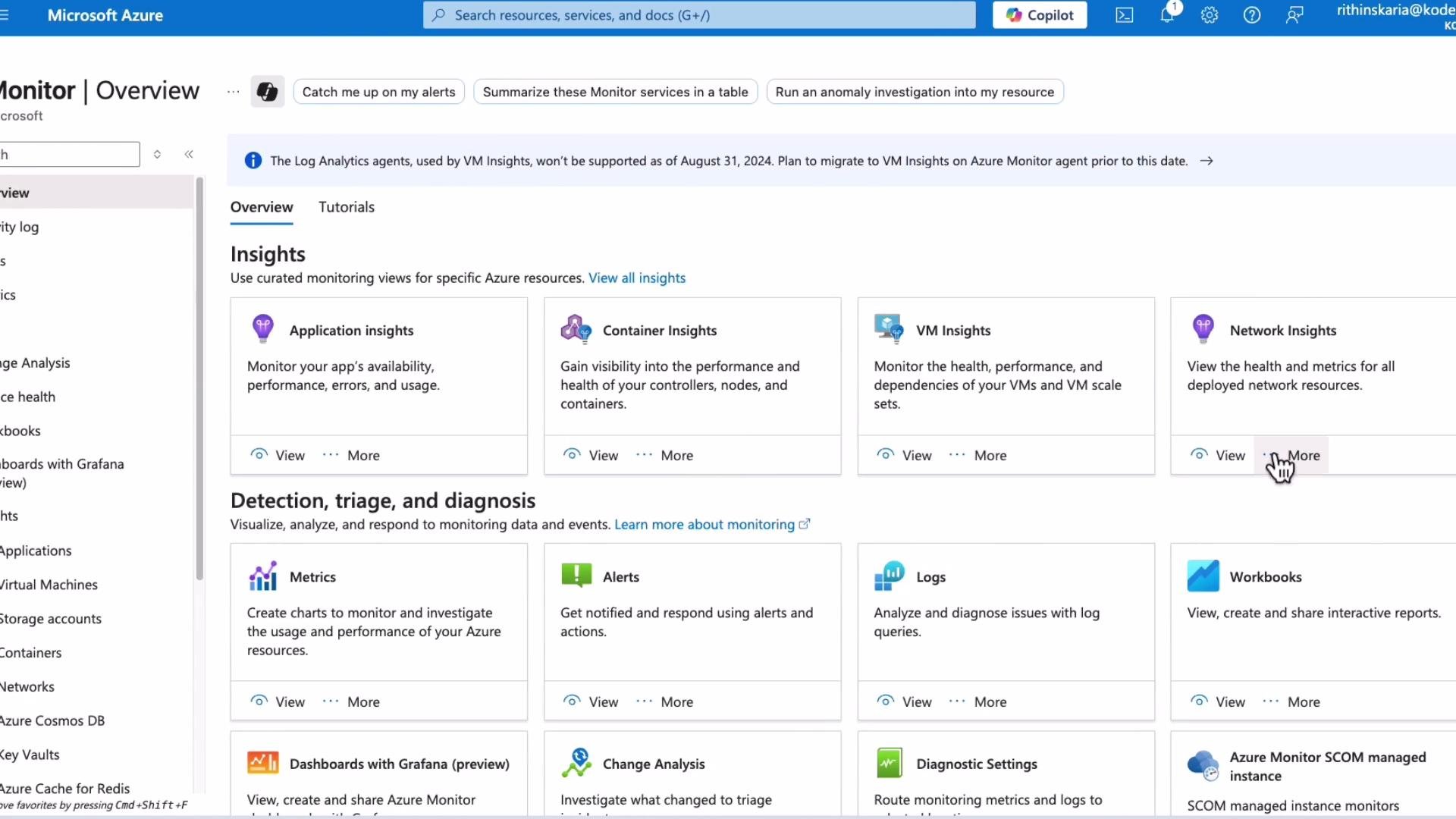
  1. Open Azure Monitor from the Azure Portal.
  2. From the Monitor overview, expand the Insights section and choose Networks (or select the Network Insights tile).
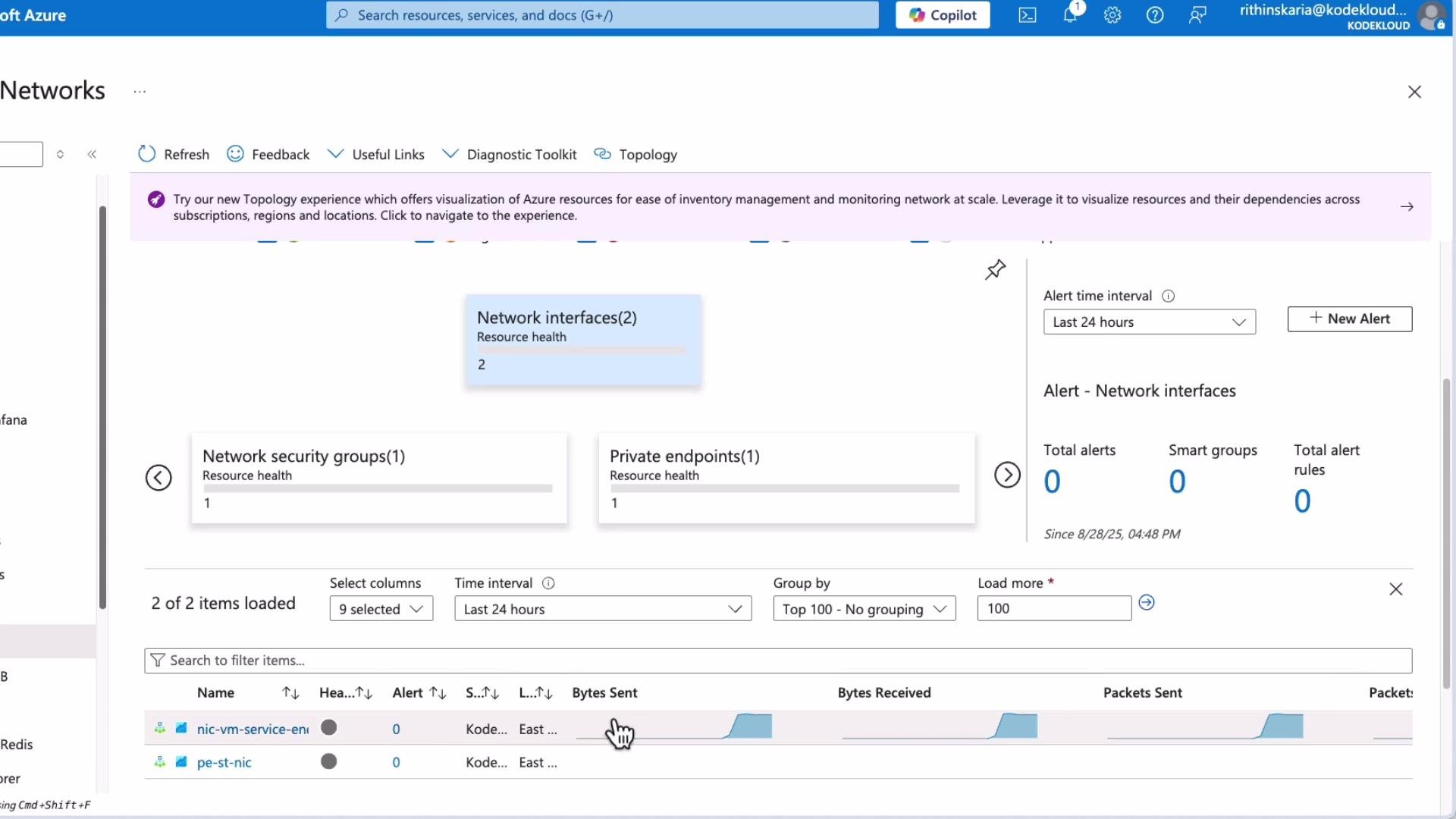
  3. The Networks view presents grouped resource types (Network Interfaces, NSGs, Private Endpoints, Public IPs, VNets, etc.), alerts, and health signals. Select a resource type to see instance lists and key metrics.
A screenshot of the Microsoft Azure Monitor Overview page showing monitoring and insights tiles (Application Insights, Container Insights, VM Insights, Network Insights) and sections for metrics, alerts, logs, and workbooks. A cursor is hovering over the "More" button on the Network Insights tile.

Exploring the Networks view

  • The left pane surfaces grouped resources and active alerts/health signals.
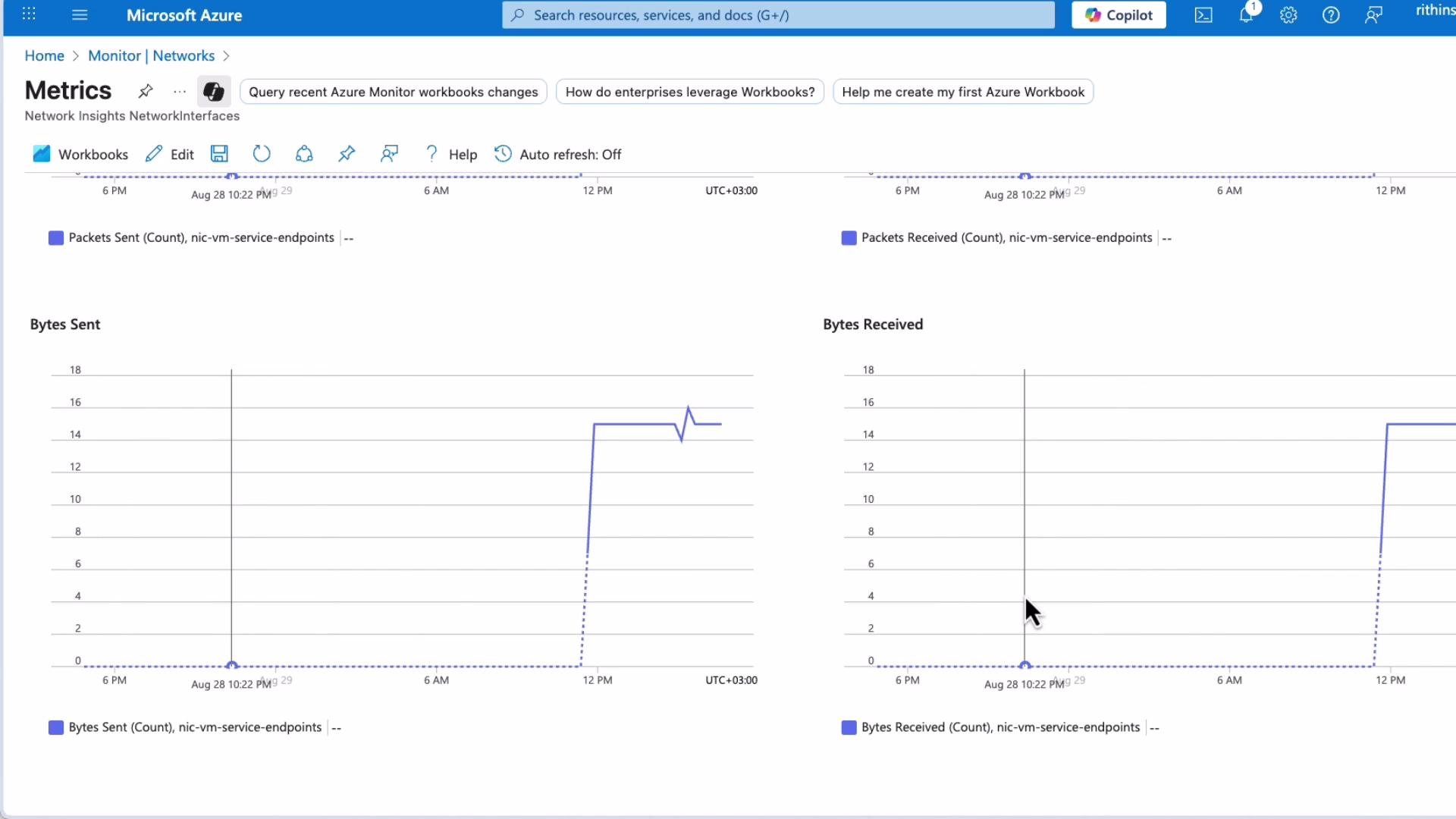
  • Selecting a resource type (for example, Network Interfaces) opens a list of instances and shows metrics such as bytes/packets sent and received, packet drops, and other telemetry.
  • Use the workbook icon to open pre-built visualizations for a resource; workbooks provide richer, contextual dashboards without crafting Metrics Explorer queries manually.
A screenshot of the Microsoft Azure "Networks" dashboard showing resource tiles for Network interfaces, Network security groups, and Private endpoints, plus alert metrics. The lower pane lists two network interface entries with columns for bytes/packets sent and received.

Connectivity, flow logs, and traffic analytics

  • If you have VPN Gateways, ExpressRoute, or other cross-prem connectivity, Network Insights integrates with Connection Monitor and Connection Troubleshoot so you can validate paths and measure performance end-to-end.
  • For security group and traffic visibility, enable NSG flow logs and forward them to a Log Analytics workspace. Traffic Analytics runs on that telemetry to show top talkers, protocols, and traffic trends.
  • Network Insights also surfaces whether diagnostic features (flow logs, traffic analytics) are enabled and displays related alerts and configuration details.
A Microsoft Azure Networks portal screenshot showing the Connectivity/Traffic view with an "East US" network tile and flow log/traffic analytics status indicators. The right panel shows alert settings and that there are currently zero alerts.

Troubleshooting workflows

Network Insights brings Network Watcher diagnostics directly into the monitoring flow:
  • Connection Troubleshoot (on-demand path checks) helps validate end-to-end reachability between endpoints.
  • Packet Capture can collect packets from a VM NIC for deep analysis.
  • Connection Monitor provides continuous connectivity checks and historical metrics for SLA and trend analysis.
These tools help you determine whether an issue is caused by NSG rules, routing, gateway configuration, or an ExpressRoute/ISP outage.
Network Insights relies on diagnostics collected by Network Watcher and related services. To maximize traffic analytics and workbook insights, enable NSG flow logs and send them to a Log Analytics workspace where Traffic Analytics and workbooks can run.

Practical checklist to get started

  • Enable Network Watcher in regions where you have resources.
  • Turn on NSG flow logs and configure a Log Analytics workspace.
  • Enable Connection Monitor for critical endpoints (VPN, ExpressRoute, service endpoints).
  • Open Network Insights in Azure Monitor and explore related workbooks to validate telemetry and view pre-built dashboards.
  • Create alert rules from Network Insights metrics and logs to get proactive notifications.
ResourcePurpose
Azure Monitor Network InsightsOverview and docs for Azure Monitor and Network Insights
Network Watcher documentationDiagnostics and packet capture instructions
Traffic AnalyticsHow Traffic Analytics works and NSG flow logs guidance
Connection MonitorContinuous connectivity monitoring details
With this foundation you can use Network Insights as a single-pane view for network health, traffic analysis, and guided troubleshooting. Next, we’ll move on to the final topic.