

- Reduced latency for data-plane traffic.
- Higher packets-per-second and connections-per-second capacity.
- Lower processing load on the virtual network gateway, improving overall data-path performance.
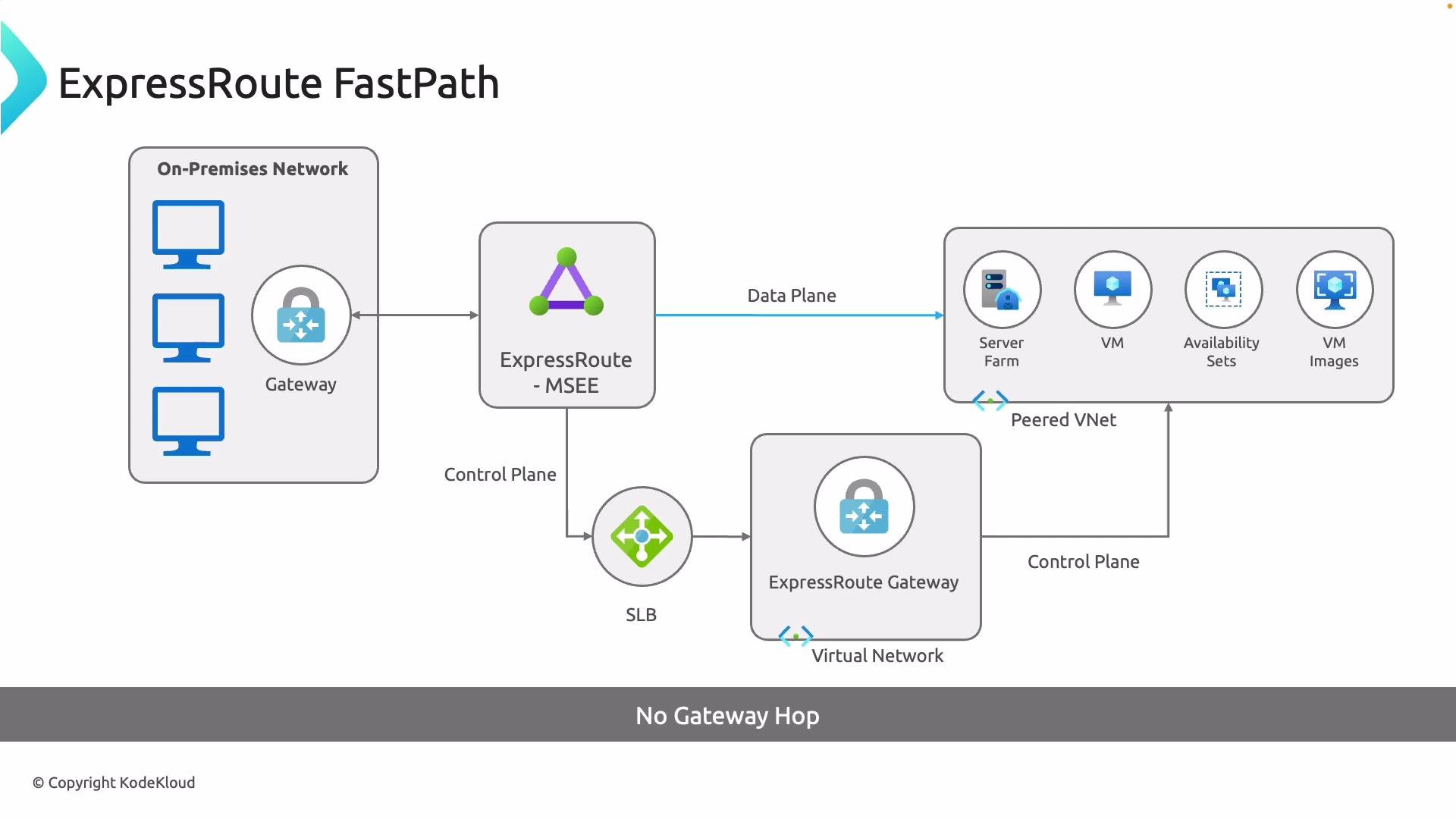
How FastPath works
Two logical planes remain in the architecture:- Data plane (FastPath): High-throughput, low-latency path that forwards application/user data directly from on-premises into Azure virtual machines and services without traversing the virtual network gateway.
- Control plane: Routing, management, and control messages still use the virtual network gateway for configuration and topology control.
Key benefits and considerations
FastPath requires a gateway SKU that supports the feature. Check the Azure documentation (https://learn.microsoft.com/en-us/azure/expressroute/expressroute-fastpath-overview) for the exact SKUs and any additional prerequisites (for example, certain gateway versions, configurations, or network topologies). Enabling FastPath can affect how traffic is routed, so validate requirements before making changes in production.
Prerequisites checklist
- Confirm your virtual network gateway SKU supports FastPath (refer to the Azure FastPath overview).
- Ensure you have access to the ExpressRoute circuit and the Connection resource inside the circuit.
- Validate topology and routing: changes can affect how traffic flows to Azure VMs and appliances.
- Test in a non-production environment before enabling in production.
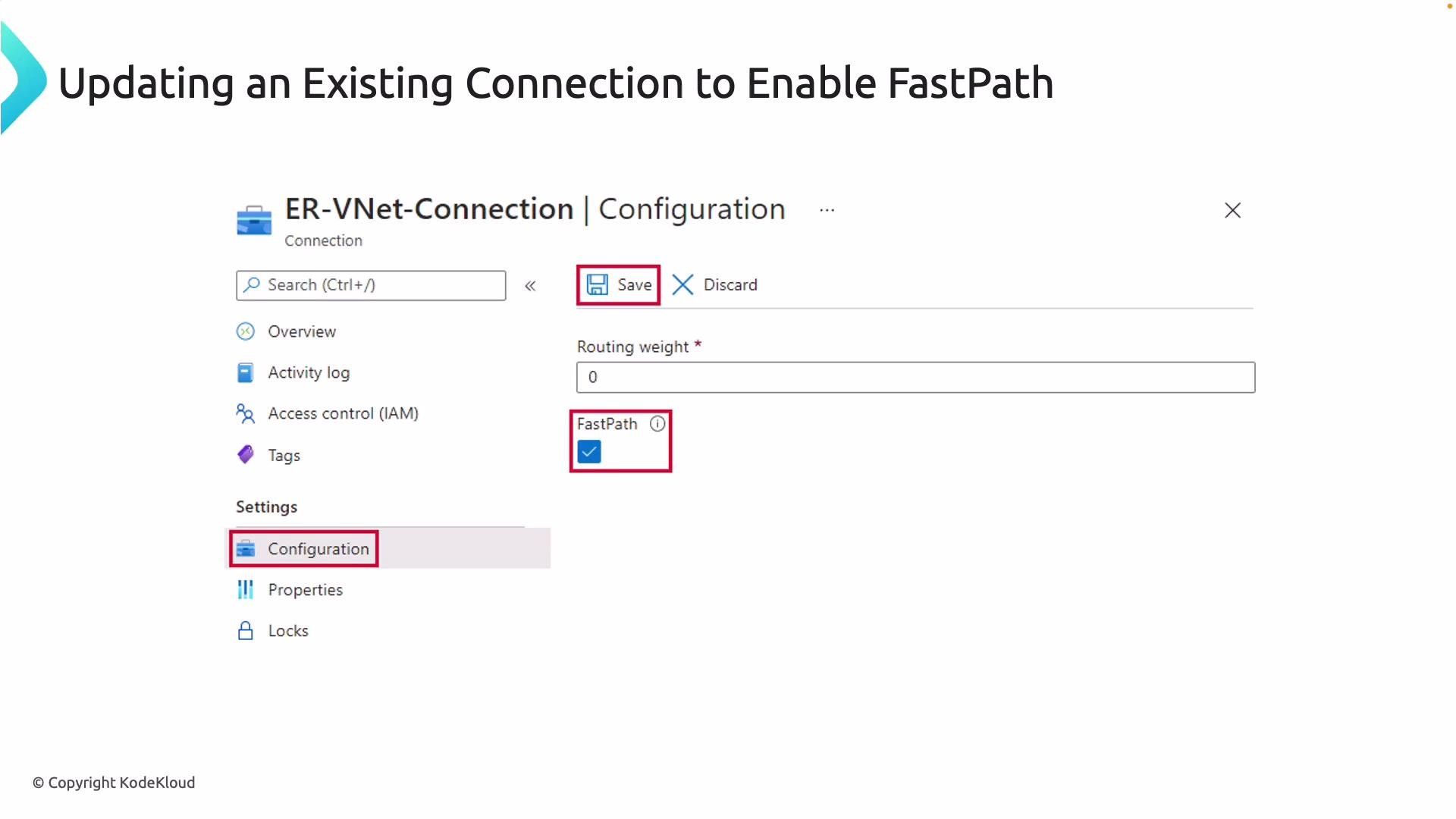
Enable FastPath — Azure Portal
- Open the ExpressRoute circuit in the Azure Portal.
- Locate the ExpressRoute Connection resource (the connection inside the circuit that links to your gateway).
- Open Connection > Configuration.
- Toggle the FastPath (or “ExpressRoute gateway bypass”) checkbox and save the changes.
Enable FastPath — CLI and PowerShell
You can also enable FastPath programmatically. Azure CLI (example pattern):Enabling FastPath changes the data plane for qualified traffic. Validate routing, perform staged testing, and confirm compatibility of gateway SKUs and connected appliances before enabling in production to avoid unintended traffic disruptions.
Validation and operational tips
- After enabling FastPath, generate representative traffic and measure latency and throughput against baseline results.
- Monitor gateway metrics to confirm reduced processing load.
- Confirm control-plane operations (route updates, connection state) continue to function via the gateway.
- If issues appear, roll back the setting and re-run validation tests in a staging environment.
References
- Azure ExpressRoute FastPath overview: https://learn.microsoft.com/en-us/azure/expressroute/expressroute-fastpath-overview