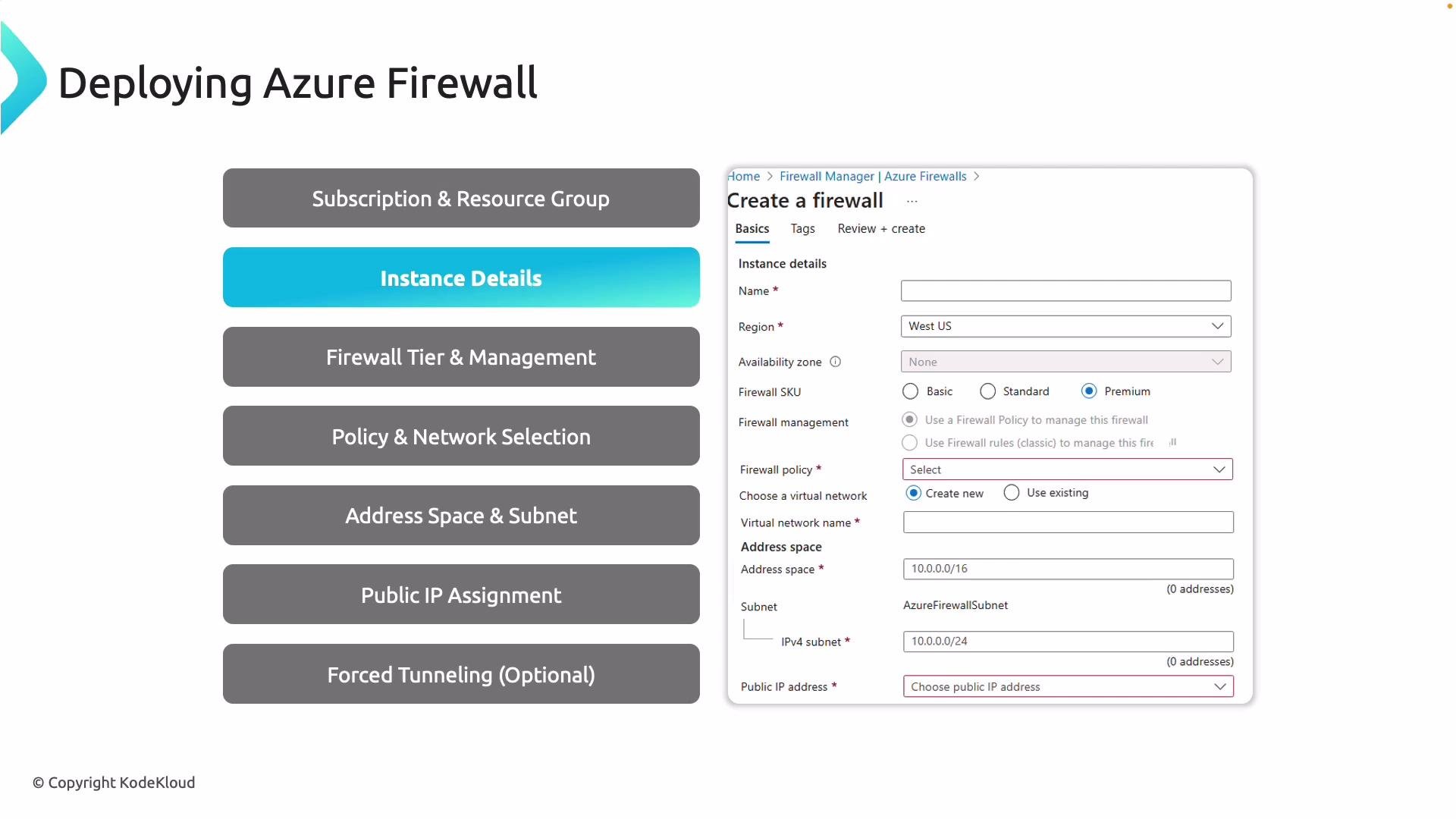
This guide walks through deploying Azure Firewall from the Azure portal, explains how it fits into a hub‑and‑spoke topology, and compares its capabilities to Network Security Groups (NSGs). Follow the portal steps and design guidance below to create a scalable, centralized inspection point for your Azure network. Begin by selecting the subscription and resource group where the firewall will reside. Provide a descriptive firewall name and choose the Azure region for deployment. Select the SKU (Basic, Standard, or Premium) — note that Premium adds advanced capabilities such as TLS inspection and IDPS — and choose whether to manage rules using a Firewall Policy (recommended) or the legacy rule model on the firewall resource itself. Attach or create a Firewall Policy and select the virtual network where the firewall will be deployed.
A presentation slide titled "Deploying Azure Firewall" showing a list of deployment steps on the left (with "Policy & Network Selection" highlighted) and an Azure portal "Create a firewall" configuration form on the right with fields for name, region, SKU, virtual network, address space and public IP.
Portal deployment checklist
StepWhat to configureExample / notes
Subscription & Resource GroupChoose the billing scope and logical groupingUse separate RG for firewall + policy if you version policies
Name & RegionDescriptive name and preferred regionmyHubFirewall-eus
SKUBasic / Standard / PremiumPremium = TLS inspection + IDPS
Firewall PolicyAttach an existing policy or create a new oneRecommended for centralized management
Virtual NetworkSelect the VNet to host the firewallFirewall requires a dedicated subnet
SubnetMust be named AzureFirewallSubnetNo spaces; dedicated subnet only
Public IP(s)One or more depending on SNAT/DNAT needsMultiple for scale or NAT requirements
Forced tunneling / UDRsRoute 0.0.0.0/0 to on-prem or NVA as neededImplement via UDR or firewall forced-tunnel setting
DiagnosticsEnable Azure Monitor logs and alertsUse logging for threat telemetry and auditing
Network requirements and the firewall subnet You must define the virtual network address space and create a dedicated subnet for Azure Firewall. The subnet must be named exactly AzureFirewallSubnet (no spaces) because Azure Firewall requires its own dedicated subnet. Do not deploy other resources into this subnet. Public IP addresses and forced tunneling Assign or create one or more public IP addresses to the firewall depending on whether you need DNAT (inbound) or SNAT (outbound). Configure DNAT for inbound connections (port forwarding) and SNAT for outbound translations by associating public IPs with the firewall. Optionally, configure forced tunneling so outbound traffic is routed to on‑premises appliances or a third‑party NVA. Forced tunneling is implemented by ensuring 0.0.0.0/0 in the relevant route table(s) points to your chosen next hop (for example a virtual network gateway or virtual appliance). You can configure this via a UDR on the firewall subnet, applied on spoke route tables, or by using the firewall’s forced‑tunneling setting. Quick SKU comparison
SKUUse caseNotable features
BasicSmall or test environmentsBasic stateful filtering
StandardProduction workloadsFirewall policy, FQDN rules, NAT
PremiumAdvanced enterprise scenariosTLS inspection, IDPS, extra features
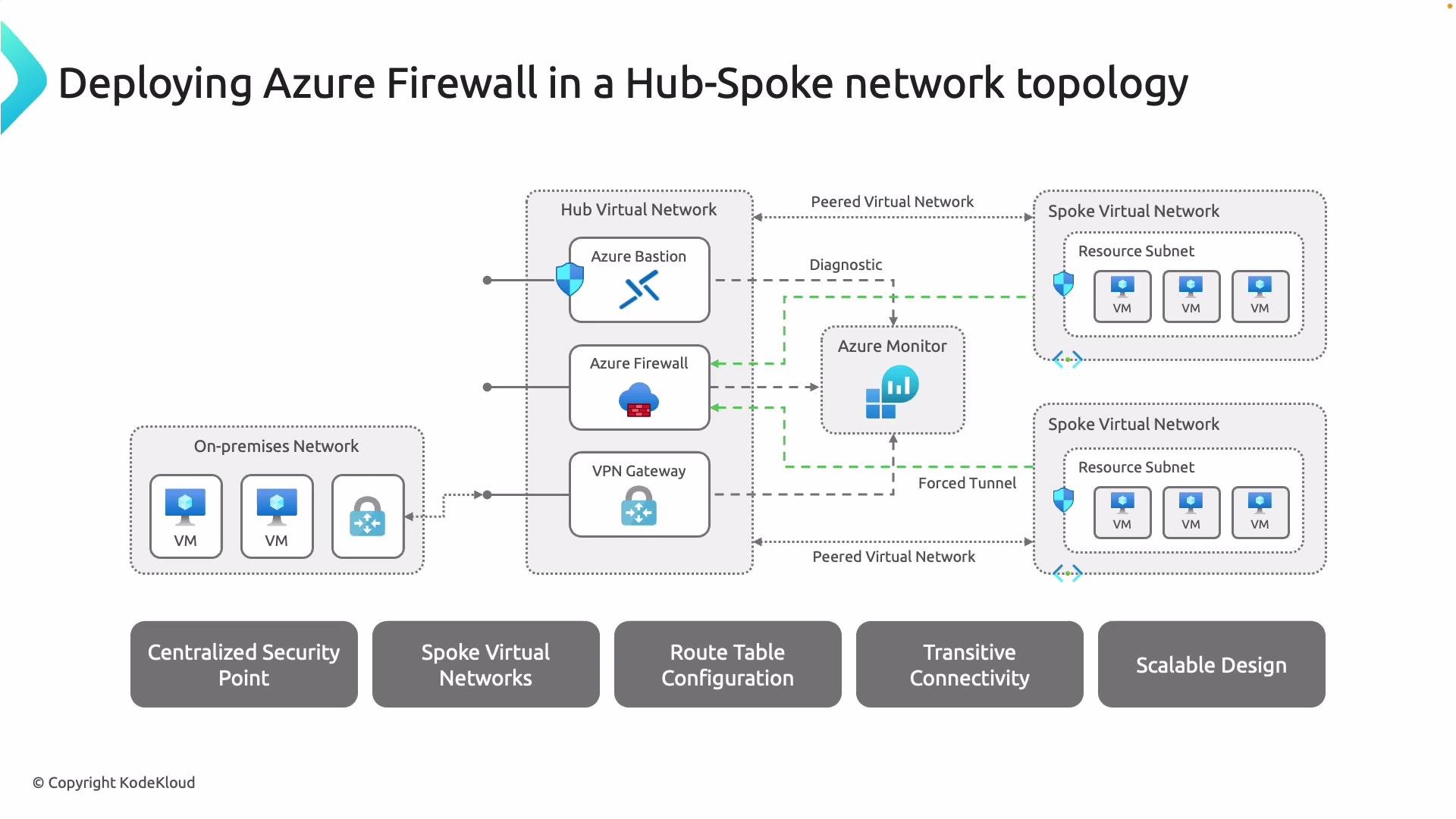
Overall, portal deployment is straightforward: pick the subscription/resource group, name, region, SKU, firewall policy, VNet, AzureFirewallSubnet, and public IP(s), then create the firewall and enable diagnostics. Hub‑and‑spoke deployment pattern When used in a hub‑and‑spoke topology, Azure Firewall provides centralized inspection and control. Deploy the firewall in the hub virtual network and peer spoke VNets with the hub. User‑defined routes in each spoke point traffic to the firewall so it can inspect and allow or deny flows according to policy. Ensure VNet peering is configured to allow forwarded traffic so the hub can receive and forward traffic from spokes. If you extend the hub to on‑premises (via VPN Gateway or ExpressRoute), you can route on‑premises traffic through the firewall before it reaches spoke VNets.
A diagram titled "Deploying Azure Firewall in a Hub-Spoke network topology" showing a hub virtual network hosting Azure Firewall, Bastion and a VPN gateway connected to on-premises and multiple spoke virtual networks with VM resource subnets. It also shows Azure Monitor for diagnostics/forced tunnel and lists benefits like centralized security, route table configuration, transitive connectivity and scalable design.
Key design considerations
  • Azure Firewall sits in the hub VNet and acts as a centralized inspection point for traffic entering, leaving, or traversing between spokes.
  • Each spoke peers with the hub; UDRs in the spokes direct traffic to the firewall.
  • Cross‑spoke traffic flows through the hub and is inspected by the firewall, enabling secure inter‑spoke communication.
  • The hub‑and‑spoke model is scalable: add or remove spokes without reconfiguring the firewall itself—only update spoke route tables.
  • Azure Monitor integration and traffic capture on the firewall let you observe and log traffic for diagnostics and security monitoring.
You can forward traffic from spoke VMs to a network virtual appliance using UDRs and capture traffic for analysis. Replacing a VM‑based NVA with Azure Firewall gives you a managed, highly available, and intelligent inspection point capable of layer‑7 controls, NAT, and richer telemetry.
Remember: the firewall subnet must be named AzureFirewallSubnet (no spaces) and should be sized to accommodate Azure Firewall’s requirements. Use a dedicated subnet and avoid deploying other resources into it.
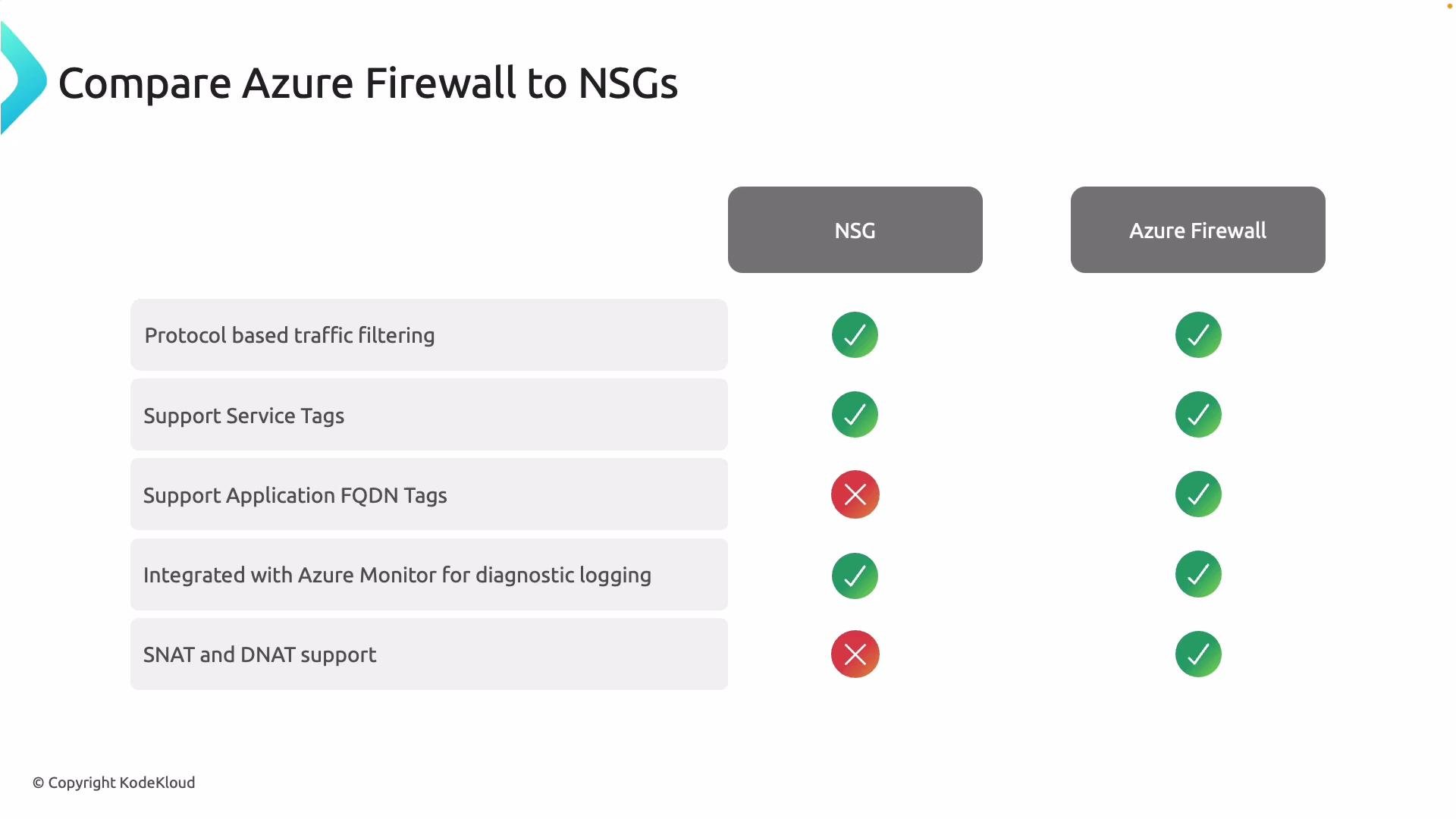
How Azure Firewall differs from Network Security Groups (NSGs) Before deploying, understand the differences so you choose the right tool for each layer of your network security model. NSGs are lightweight ACLs suitable for per‑subnet or NIC filtering. Azure Firewall is a managed, centralized, stateful firewall with application‑aware controls and NAT.
A slide titled "Compare Azure Firewall to NSGs" showing five feature rows with green check or red X icons indicating support for each feature. Azure Firewall has green checks for all features, while NSGs have checks for protocol filtering, service tags and logging but red Xs for application FQDN tags and SNAT/DNAT.
Feature comparison table
FeatureNSGsAzure Firewall
ScopeSubnet / NIC ACLsCentralized managed firewall (hub)
Stateful inspectionNoYes
Protocol filtering (TCP/UDP/ICMP)YesYes
Service tagsYesYes
Application FQDN / Layer‑7 rulesNoYes (FQDN, FQDN tags, app rules)
SNAT / DNAT (NAT)NoYes (outbound SNAT + inbound DNAT)
TLS inspection / IDPSNoPremium SKU only
Monitoring & telemetryIntegrates with Azure MonitorRich threat telemetry and rule logging
In short: NSGs are excellent for simple, distributed ACLs at the subnet or NIC level. Azure Firewall is recommended when you need centralized, stateful, application‑aware inspection, NAT capabilities, and richer logging and policy management. Next steps Now that you understand the deployment steps, hub‑and‑spoke integration, and how Azure Firewall compares to NSGs, proceed to the Azure Portal and create the firewall using the configuration items and checklist above. Be sure to:
  • Size the AzureFirewallSubnet appropriately and reserve sufficient IP space.
  • Enable diagnostics and export logs to a Log Analytics workspace or Storage account.
  • Apply a Firewall Policy for centralized management and reuse across multiple firewalls.
References and further reading