In this lesson we explore Azure Monitor — the centralized Azure service for collecting, analyzing, and acting on telemetry from applications, virtual machines, containers, networking resources, and hybrid environments. Monitoring is essential for keeping infrastructure healthy, secure, and optimized; without it you’re operating blind. Core Azure Monitor concepts:
  • Metrics: Lightweight numerical series (CPU, memory, latency). Collected at near‑real-time intervals for short-term health and performance tracking.
  • Logs: Rich, detailed event and diagnostic data (traces, exceptions, activity logs). Used for deep troubleshooting, correlation, and forensic analysis.
  • Integrated insights: Prebuilt and custom insights for applications, VMs, containers, and network resources that provide a single pane for performance, reliability, and security.
ConceptUse caseWhere to view
MetricsReal‑time performance, alerts, autoscaleMetrics Explorer, Dashboards
LogsTroubleshooting, long‑term retention, queriesLog Analytics, Workbooks
InsightsPreconfigured monitoring for specific servicesAzure Monitor insights blades
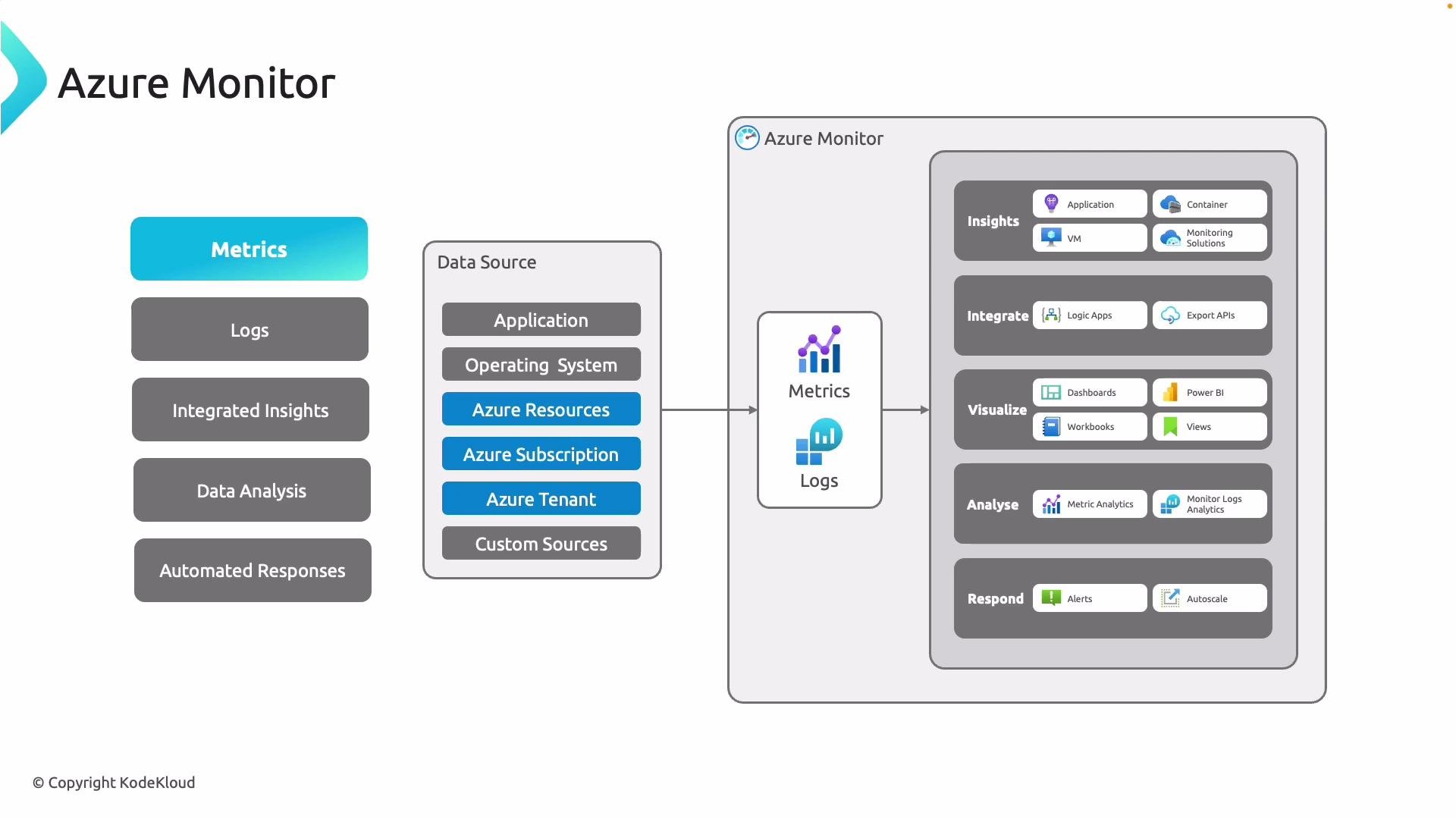
An architectural diagram of Azure Monitor showing data sources (applications, OS, Azure resources/subscriptions/tenants, and custom sources) feeding metrics and logs into the service. The right side highlights capabilities like insights, integration, visualization, analysis, and automated responses (alerts, autoscale).
With dashboards, workbooks, Log Analytics, and Metrics Explorer you can visualize, analyze, and correlate telemetry to detect anomalies, identify bottlenecks, and predict failures. Alerts can trigger automated actions (autoscale, service restarts, notifications), enabling proactive remediation without manual intervention.
Metrics are best for near real-time numeric trends (short-term monitoring). Logs provide deeper diagnostic context and are better for forensic analysis, long-term retention, and troubleshooting.

Metrics Explorer

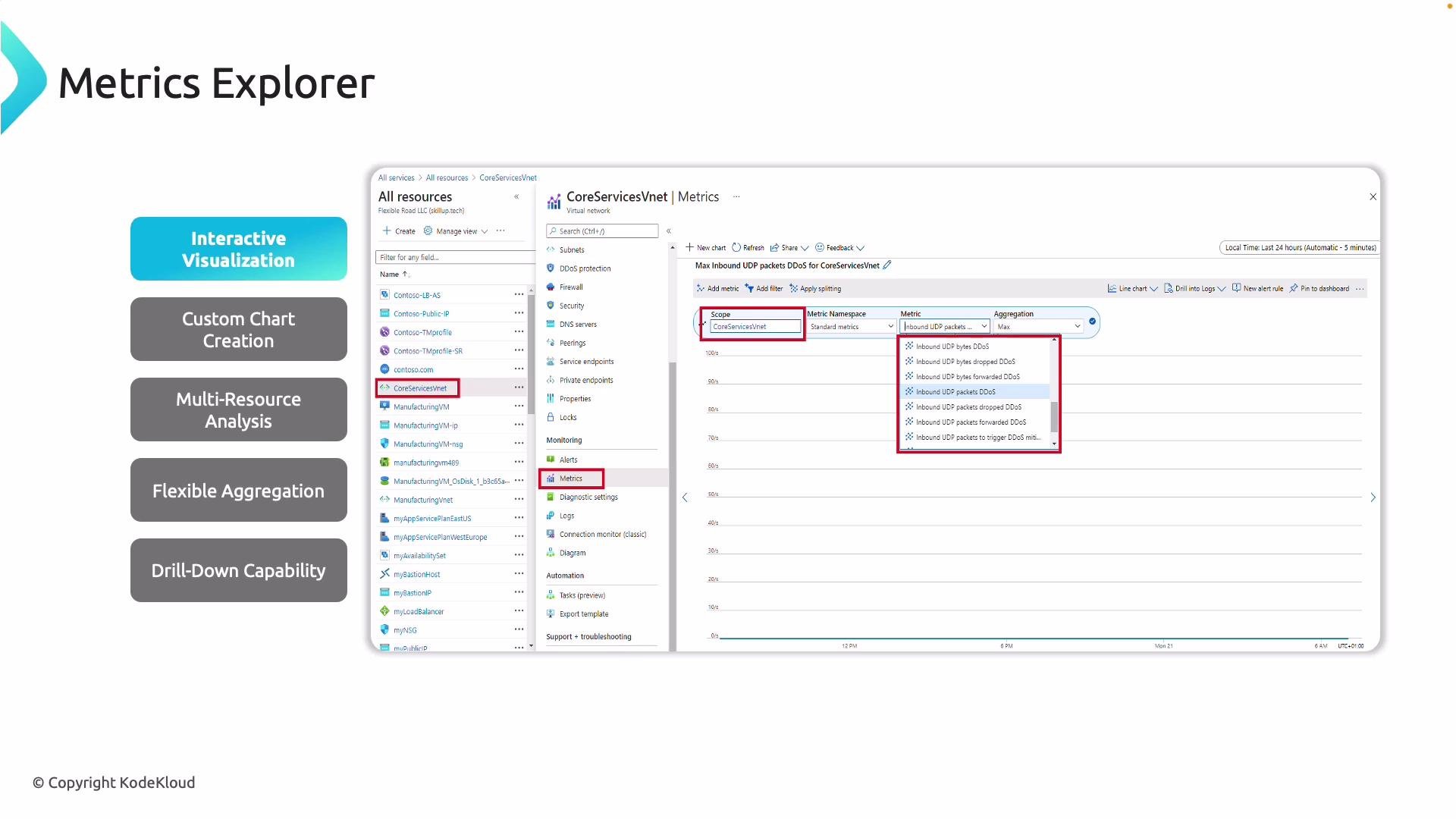
Metrics Explorer provides an interactive UI to graph real‑time and historical metrics. Use it to spot patterns — for example, spikes in network latency or sustained increases in CPU — and build KPIs like inbound dropped packets for a VNet firewall or average transaction latency for a SQL managed instance.
A slide titled "Metrics Explorer" showing an Azure portal screenshot for monitoring a virtual network (CoreServicesVnet) with metric selection (e.g., inbound UDP DDoS packets) and a chart area. The left column lists highlighted features like Interactive Visualization, Custom Chart Creation, Multi-Resource Analysis, Flexible Aggregation, and Drill-Down Capability.
Key features of Metrics Explorer:
  • Multi-resource analysis: Compare metrics across resources to locate hotspots (for example, throughput across VNets).
  • Aggregations: Use sum, average, min, max, count to tailor analysis (average CPU across a scale set vs peak CPU for a single instance).
  • Drill-down: Zoom into specific time windows (e.g., a 5‑minute interval during a DDoS event) for granular analysis.
  • Charting and sharing: Change chart types, pin charts to dashboards, and export visualizations for operations teams.
How to open Metrics Explorer:
  1. Sign in to the Azure Portal.
  2. Go to Monitor > Metrics, or open a resource and select the Metrics blade.
  3. Select scope (one or more resources), choose metric(s), aggregation, and time range.
A screenshot of the Microsoft Azure portal displaying the "vnet-service-endpoints" virtual network overview, showing essentials (resource group, location, address space) and the Capabilities tab with items like DDoS protection, Azure Firewall, Peerings and Private endpoints. The left sidebar shows navigation options such as Subnets, DNS, Peering and Service endpoints.
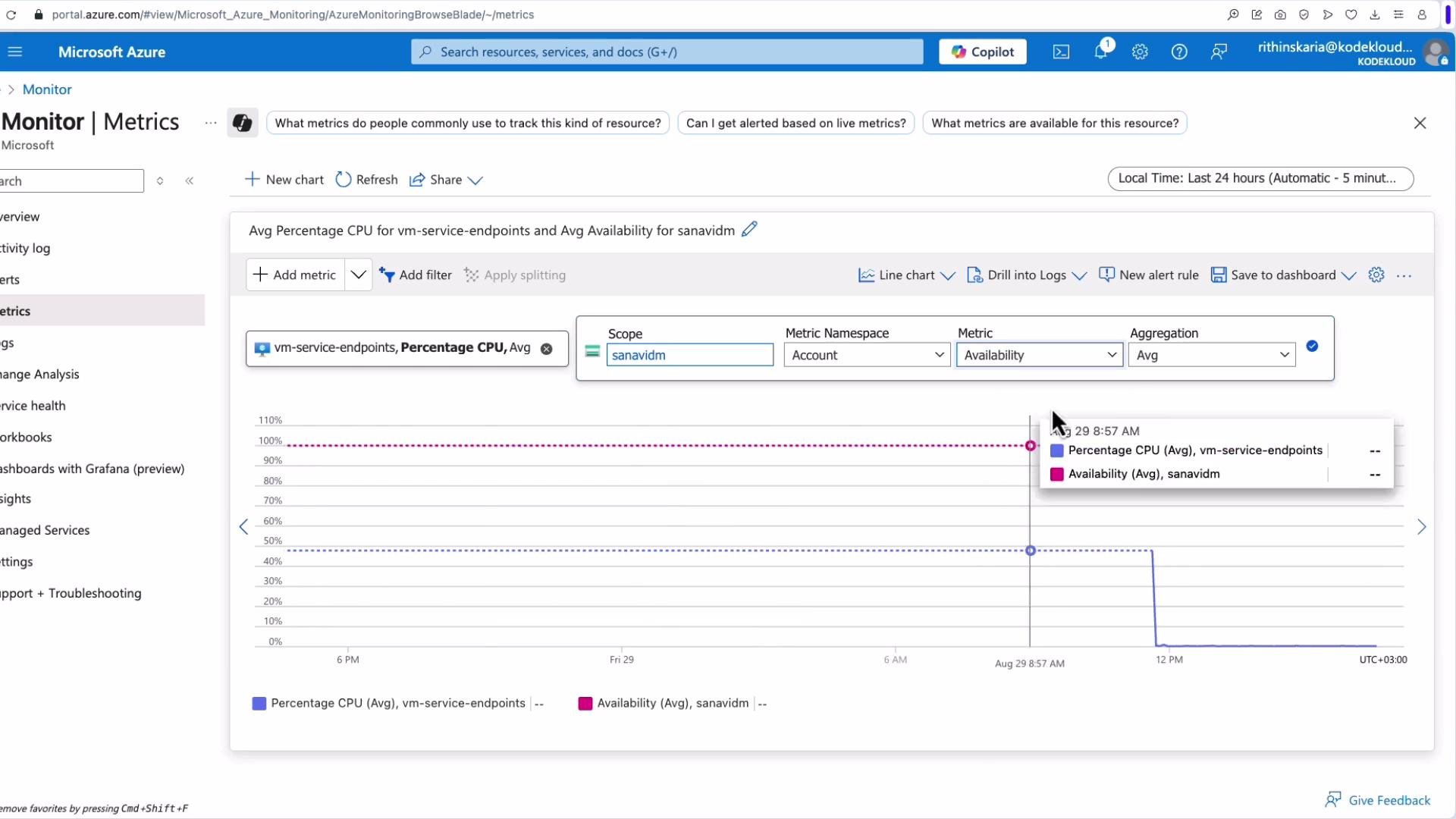
Cross-resource analysis from the Monitor pane lets you correlate behavior across services. For example, select Monitor > Metrics, choose the scope (multiple resources), and add metrics such as Percentage CPU for compute resources and Bytes Sent for networking resources to build a combined view.
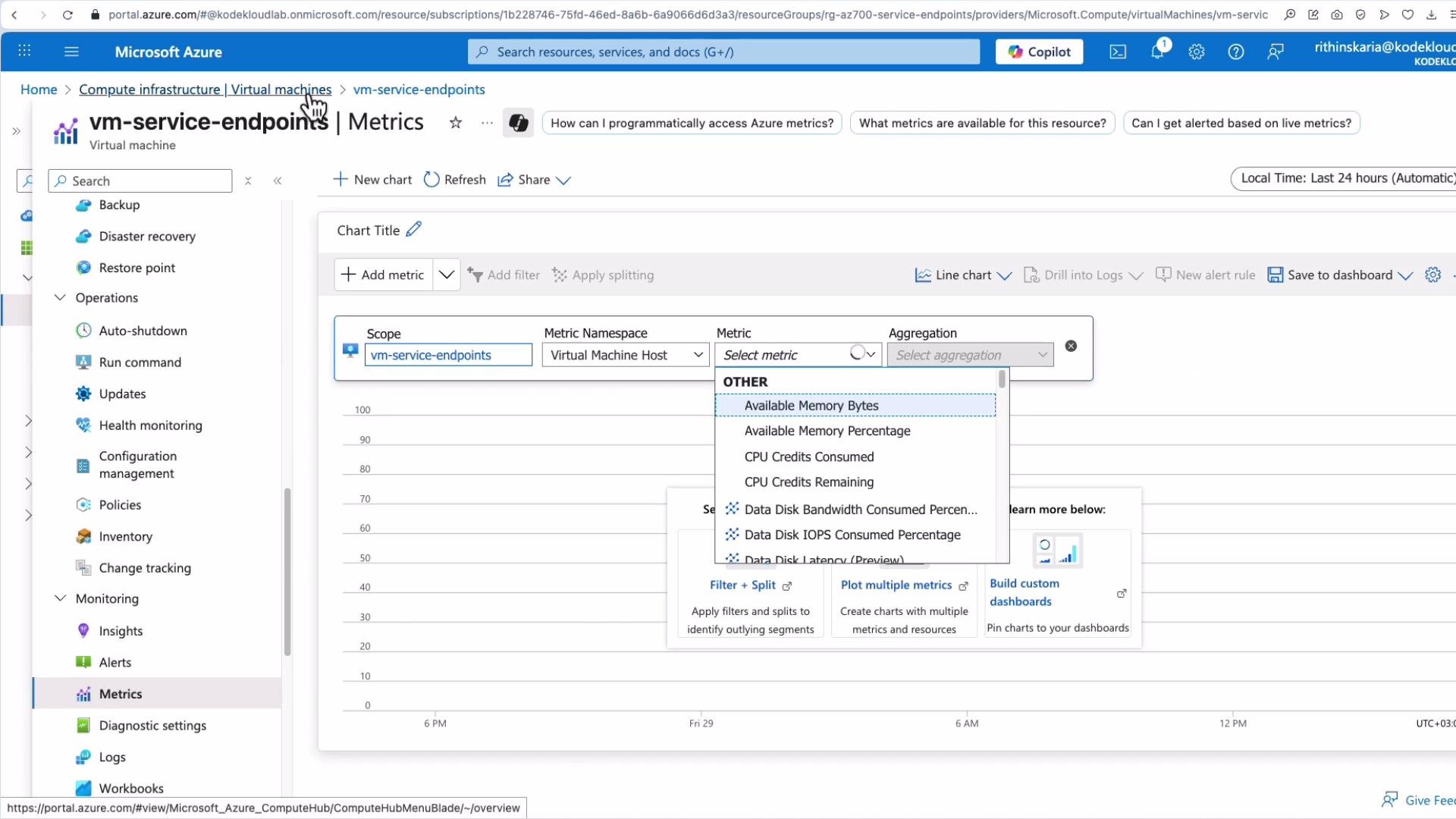
A screenshot of the Microsoft Azure portal showing the Monitor > Metrics page with an "Select a scope" dialog open listing resource names, resource types and locations. Behind the dialog is a chart for average Percentage CPU for a vm-service-endpoints resource.
You can save Metric Explorer charts to dashboards, create alert rules from metrics, change chart styles (line, area, stacked), and pin visualizations for operational runbooks.
A Microsoft Azure Monitor Metrics dashboard showing Avg Percentage CPU for a VM service endpoint and the Sum of Egress for a resource (sanavidm). The line chart shows very low CPU usage (~0.339%) with brief spikes in egress.

Metrics vs Logs and Diagnostic Settings

Platform metrics shown in Metrics Explorer are retained for a limited period (platform metrics retention is typically around 93 days by default; check the Azure Monitor documentation for current windows). For longer retention or richer diagnostic context, enable diagnostic settings on resources to route telemetry to long‑term stores or streaming endpoints. Common diagnostic destinations:
DestinationBest forNotes
Log Analytics workspaceQuerying, correlation, workbooks, advanced analyticsSupports Kusto Query Language (KQL)
Storage accountLong‑term archivalLower cost, limited query capability
Event HubStreaming to external systems or SIEMUseful for real‑time forwarding
Partner solutionsThird‑party analytics and monitoringIntegrations with SIEM or APM tools
To configure Diagnostic settings:
  1. Open the target resource in the Azure Portal.
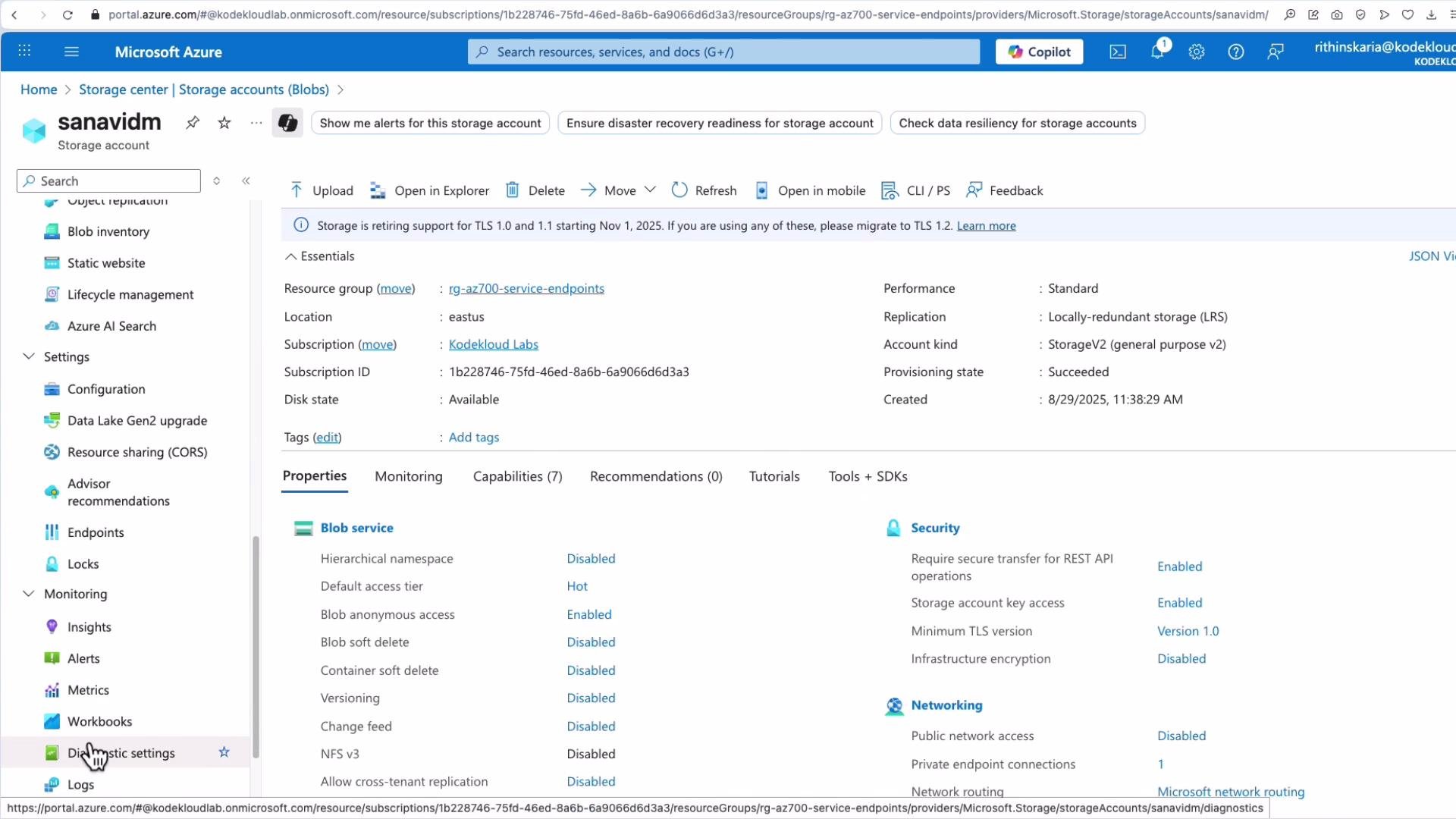
  2. Under Monitoring, select Diagnostic settings.
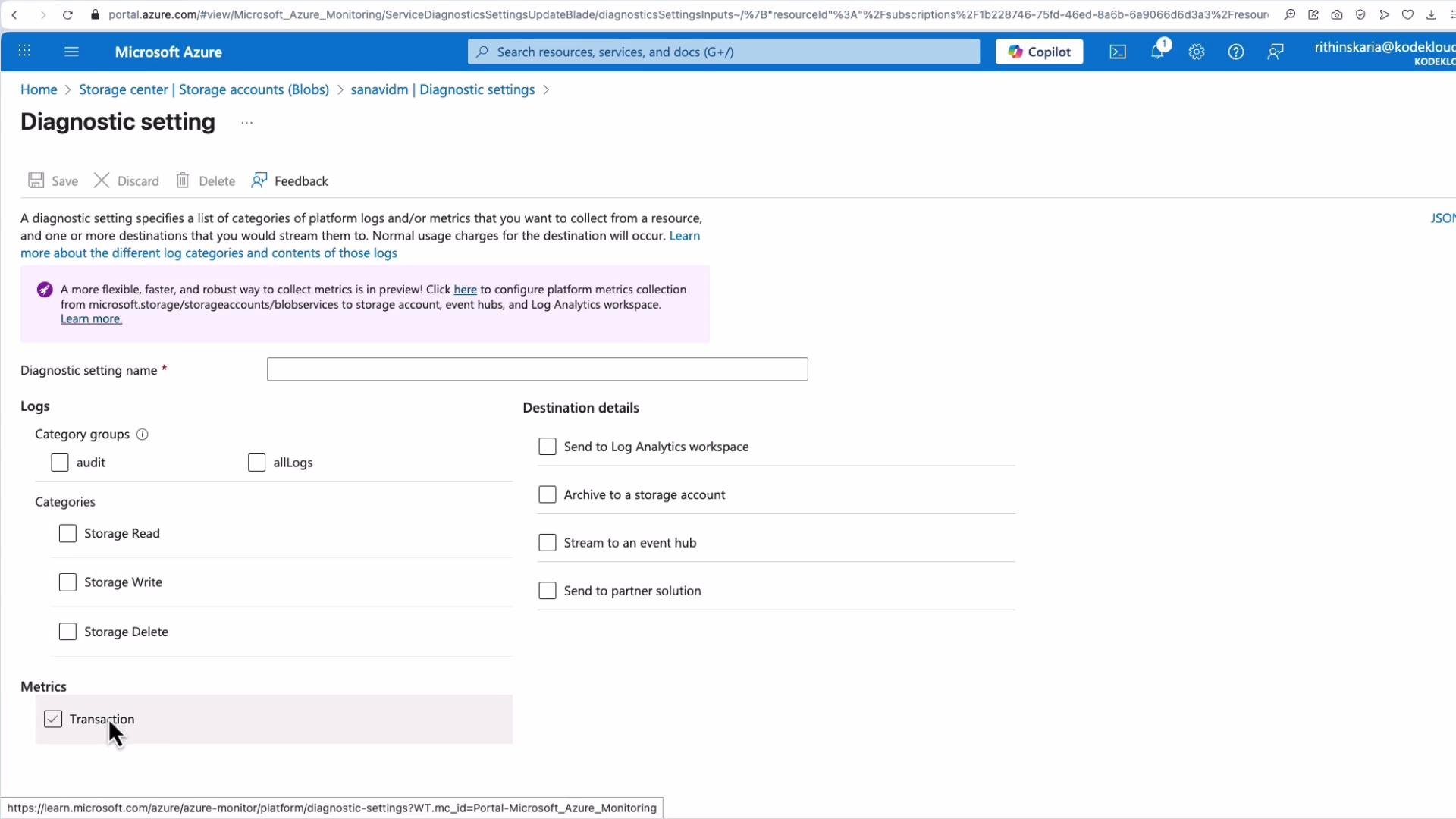
  3. Create or edit a diagnostic setting, choose log categories and metrics, and select one or more destinations (Log Analytics, storage, Event Hub, or partner).
A screenshot of the Microsoft Azure portal showing the "Diagnostic setting" page for a storage account. It shows a field for the diagnostic setting name plus checkboxes for log categories (Storage Read/Write/Delete), a "Transaction" metric, and destination options like Log Analytics, storage account, event hub, or partner solution.
When you add a diagnostic setting, you select which categories of logs and metrics to send and where to send them. This is how you ingest data into Log Analytics for advanced query‑driven analysis rather than relying solely on Metrics Explorer. Example KQL (Log Analytics) to count failed requests in the last 24 hours:
AppRequests
| where Timestamp >= ago(24h)
| where Success == false
| summarize FailedCount = count() by bin(Timestamp, 1h)
| order by Timestamp
Sending diagnostics to Log Analytics or Event Hub can incur ingestion and retention costs. Evaluate retention policies and choose destinations that balance observability needs with budget.
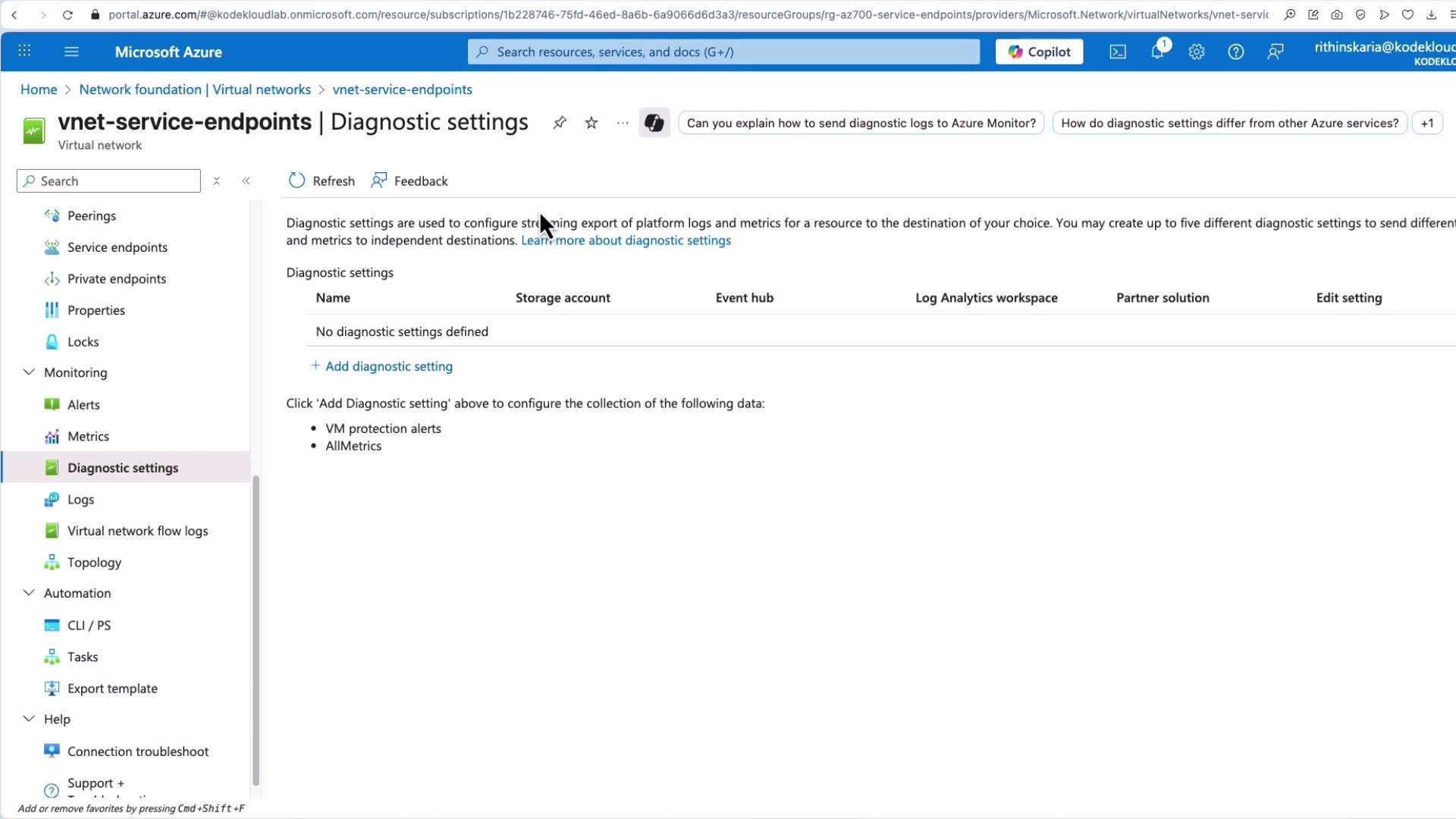
Many Azure resources will display whether diagnostic settings are configured and, when none are defined, surface an “Add diagnostic setting” option.
A screenshot of the Microsoft Azure portal showing the "Diagnostic settings" page for a storage account named "sanavidm." It shows no diagnostic settings defined and offers an "Add diagnostic setting" option with details about storage read/write/delete and transaction logs.

Further reading and references

Use these links to dive deeper into configuration examples, pricing/retention details, and common monitoring patterns for network-centric scenarios like VNet firewalls, DDoS protection, and Azure Firewall telemetry.