

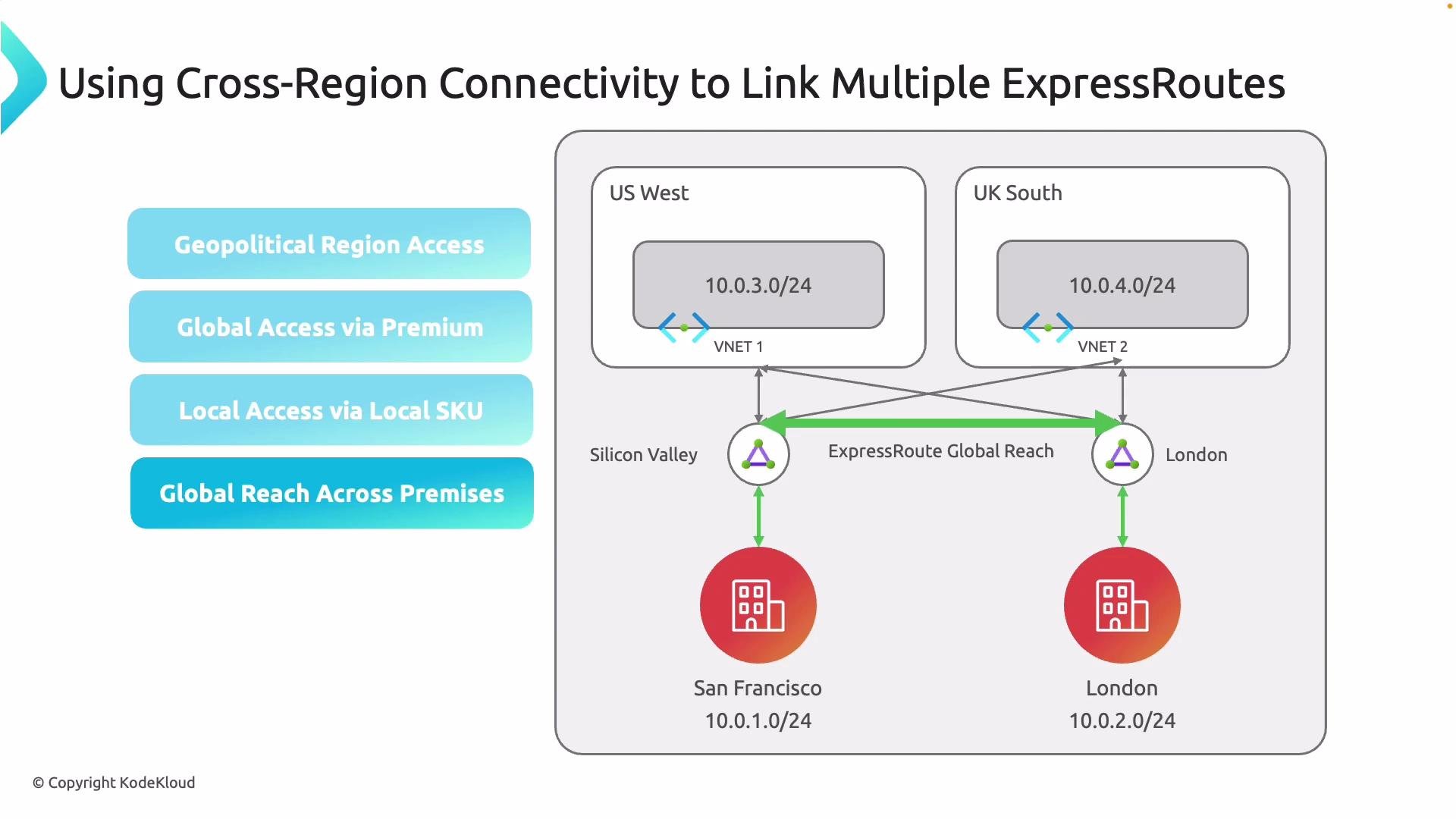
- Private WAN overlay: Connect two or more ExpressRoute circuits to create a private path between on-premises sites across regions.
- Carrier-agnostic interconnect: Use different local carriers at each site; traffic still flows over Microsoft’s backbone.
- Cross-region reach: With the appropriate SKU and region support, you can connect sites across continents without routing over the public Internet.
- ExpressRoute Direct option: For high-throughput, low-latency needs, consider ExpressRoute Direct which offers dedicated physical ports (such as 10 Gbps or 100 Gbps) to the Microsoft network.
- Two ExpressRoute circuits—one in Tokyo and one in Silicon Valley—can be linked through Global Reach to create a private, global path between offices in those cities. As long as the ExpressRoute SKUs and regional availability support the link, all traffic will stay on the Microsoft Global Network.
Check regional availability: ExpressRoute Global Reach and some SKUs are not supported in every Azure region. Verify current Microsoft documentation and regional availability before designing your topology.
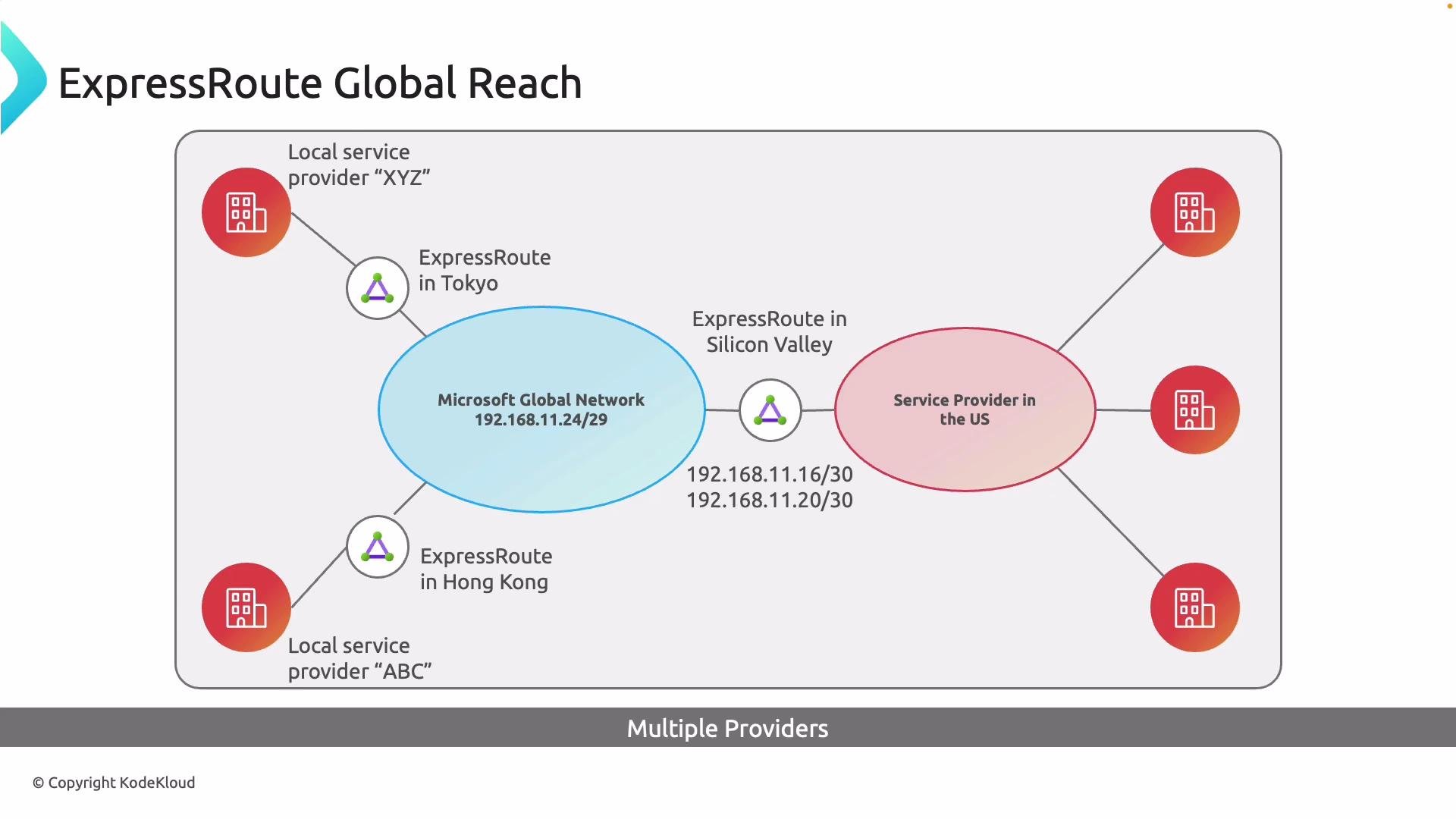
- Each ExpressRoute circuit has private peering configured to exchange routes between your on-premises routers and the Microsoft fabric.
- When you link circuits using Global Reach, Microsoft injects route connectivity across those circuits so on-premises sites behind different circuits can exchange traffic over the Microsoft backbone.
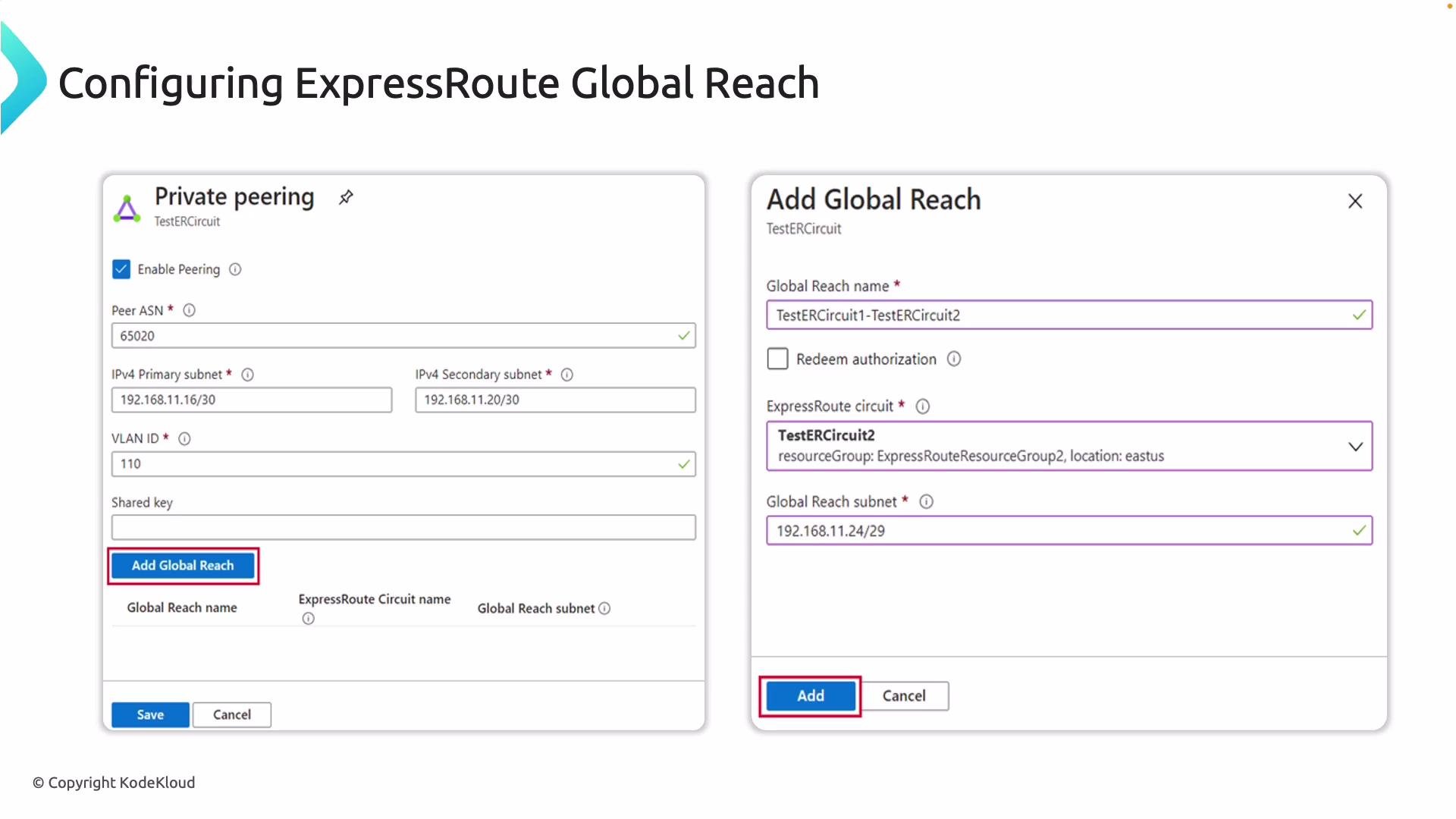
- Optionally, you can configure a shared key when linking circuits for additional authentication during setup.
- Open the ExpressRoute circuit you want to enable Global Reach on.
- Verify private peering is correctly configured (ASN, peering subnets, VLAN IDs and BGP settings).
- Click Add Global Reach on the circuit blade.
- Select the peer circuit to link (for example, the circuit in the remote office/region). If available, enter a shared key for the connection.
- Ensure the routing and peering configuration on the peer circuit matches expected parameters.
- Repeat Add Global Reach for each pair of circuits you want to interconnect.
- Save and confirm changes; Azure will establish the internal connectivity so traffic flows over the Microsoft Global Network.
- Routing: Ensure route filters, BGP communities, and route limits are planned—Premium SKUs increase route capacity.
- Latency and path selection: Although traffic stays on Microsoft’s backbone, design for optimal paths and regional proximity where possible.
- Security and compliance: Global Reach avoids the public Internet, which aids security and compliance, but verify any regional/legal constraints (geopolitical boundaries).
- Interoperability: Because Global Reach is carrier-agnostic, you can use different service providers at each site; just ensure local connectivity to the ExpressRoute co-location is configured.
- Build a private global WAN overlay between on-premises sites using the Microsoft Global Network.
- Avoid routing inter-site traffic over the public Internet for better security, predictability, and performance.
- Use different local carriers while maintaining a centralized private connectivity fabric.
- Extend connectivity across regions when using the Premium SKU—confirm region support and SKU capabilities before implementation.
- ExpressRoute Global Reach documentation
- ExpressRoute Direct documentation
- Azure ExpressRoute overview