This guide walks through deploying an Azure Load Balancer from the portal, explaining each component and showing the step-by-step configuration you need to build a zone-redundant, load-balanced web tier. Key concepts covered:
  • Frontend IP configurations and public vs. internal load balancers
  • Backend pools (VM NICs or static IPs)
  • Load balancing rules and session persistence
  • Health probes (TCP/HTTP/HTTPS)
  • Inbound NAT rules for per-VM access (SSH/RDP)
  • Outbound connectivity and NAT gateway recommendations
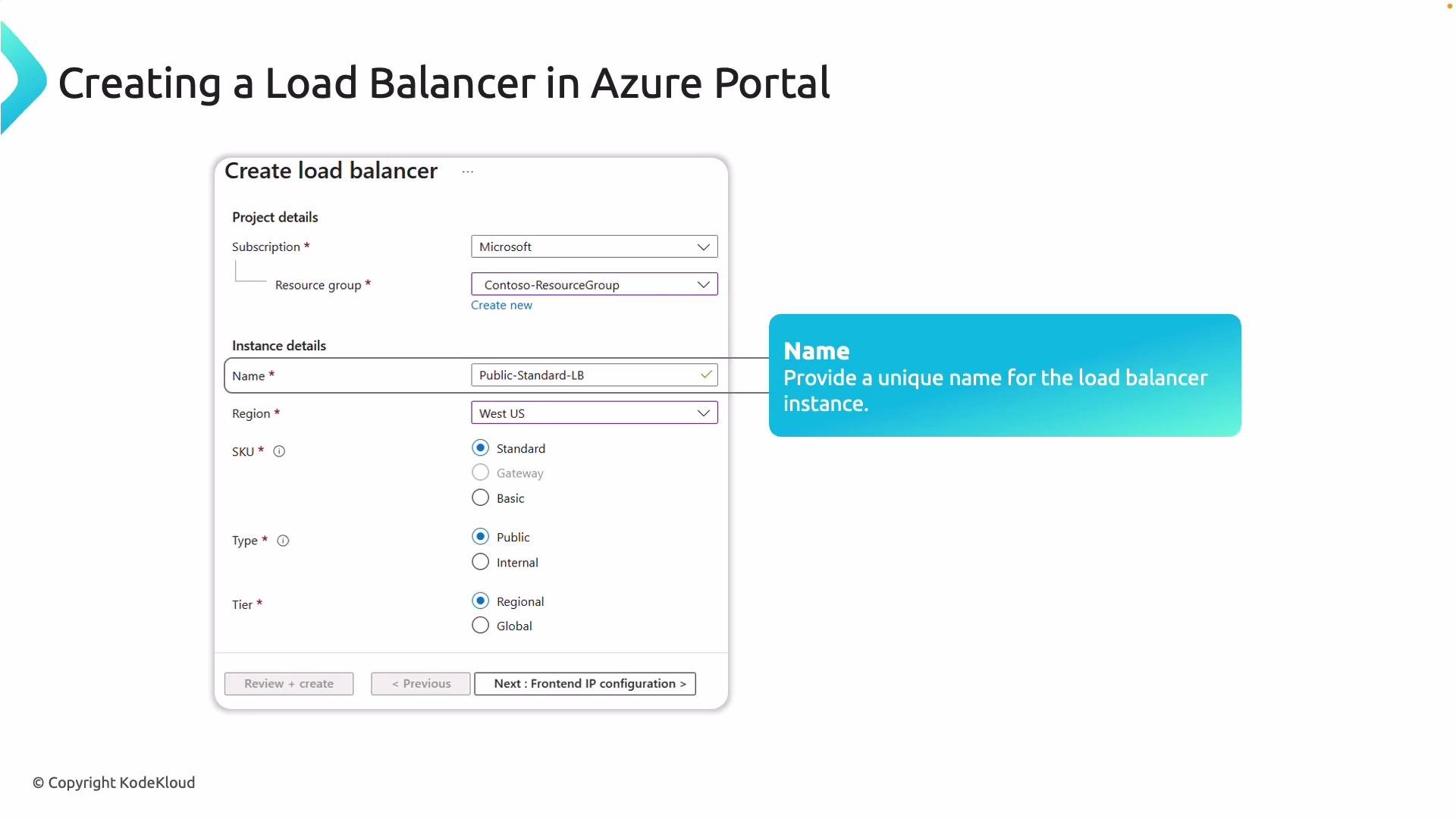
First step: choose your Azure subscription and resource group, provide a unique name for the Load Balancer, select the deployment region, and pick the appropriate SKU (Basic, Standard, or Gateway) based on required features and scale.
A screenshot of the Azure Portal "Create load balancer" form showing project and instance details with options for SKU, Type, and Tier. A blue callout box highlights the SKU selection and notes to choose Basic, Standard, or Gateway.
Select the Load Balancer type (Public/internet-facing or Internal/private) and the tier (Regional or Global). Once those are chosen, the next focus is backend pools.
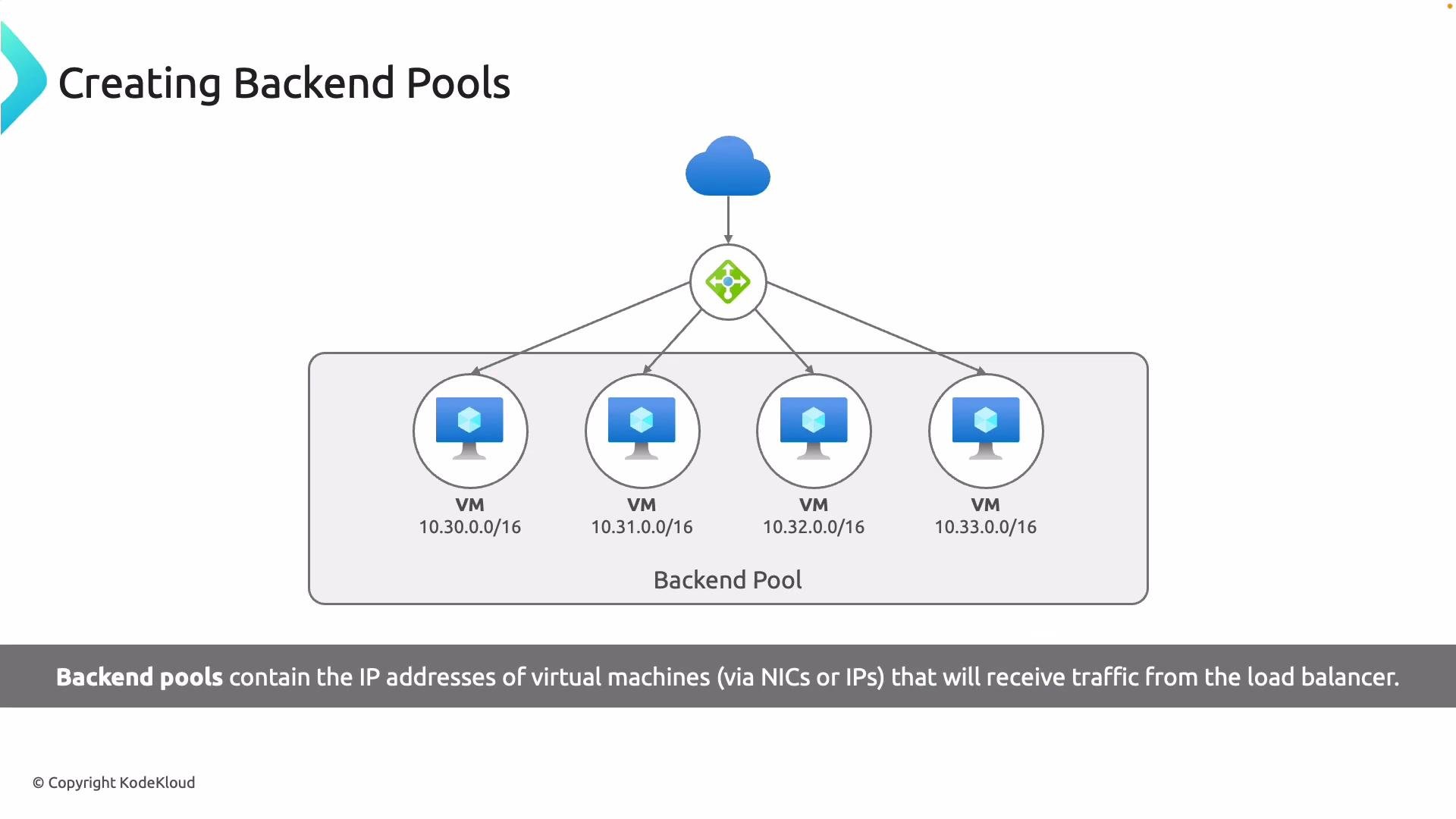
A diagram titled "Creating Backend Pools" showing a cloud/load-balancer sending traffic to a backend pool of four virtual machines. Each VM is labeled with an IP subnet (10.30.0.0/16, 10.31.0.0/16, 10.32.0.0/16, 10.33.0.0/16).

Backend pools

A backend pool is the collection of VM NICs or IP addresses that receive load-balanced traffic. When creating a backend pool you must:
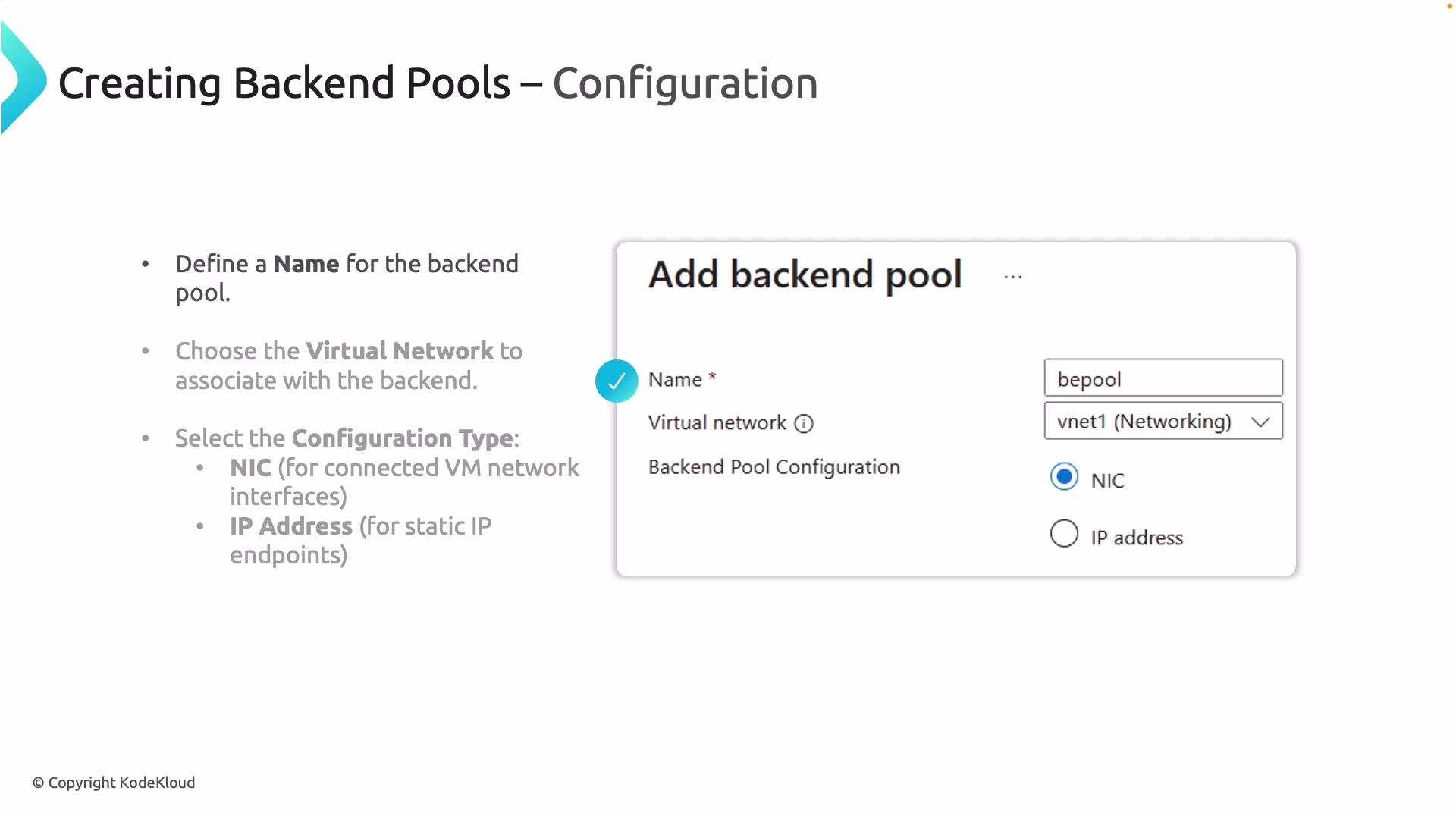
  • Provide a name to identify the pool.
  • Associate it with the correct virtual network.
  • Select a configuration type: NIC (VM-attached interfaces) or IP address (static endpoints).
A slide titled "Creating Backend Pools – Configuration" showing steps to name the backend pool, choose a virtual network, and select a configuration type (NIC or IP address). On the right is a screenshot of an "Add backend pool" form with the name "bepool", virtual network "vnet1", and NIC selected.
Choose NIC when you want to attach VM network interfaces directly to the pool. Choose IP address for external or static endpoints.

SKU impact on backend pools

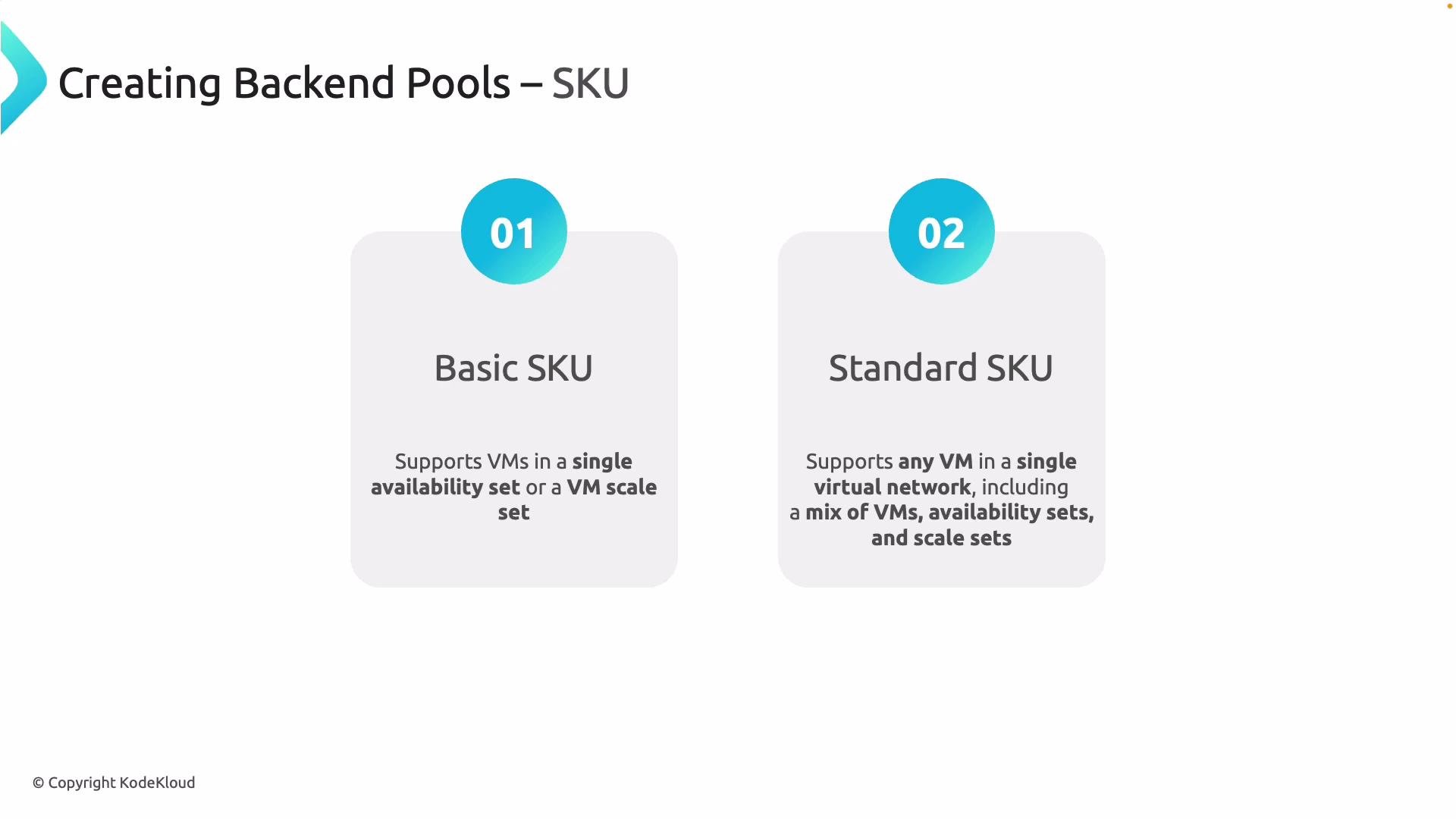
Slide titled "Creating Backend Pools – SKU" showing two options labeled 01 Basic SKU and 02 Standard SKU. The Basic SKU supports VMs in a single availability set or a VM scale set, while the Standard SKU supports any VM in a single virtual network including mixes of VMs, availability sets, and scale sets.
SKUUse CaseNotes
BasicSmall or legacy deploymentsLimited features; VM sets only; may be unavailable in some subscriptions/regions
StandardProduction, scale, zone redundancySupports any VM in a single VNet, mixed resources (VMs, availability sets, scale sets)
Standard SKU is recommended for modern, resilient deployments.

Load balancing rules

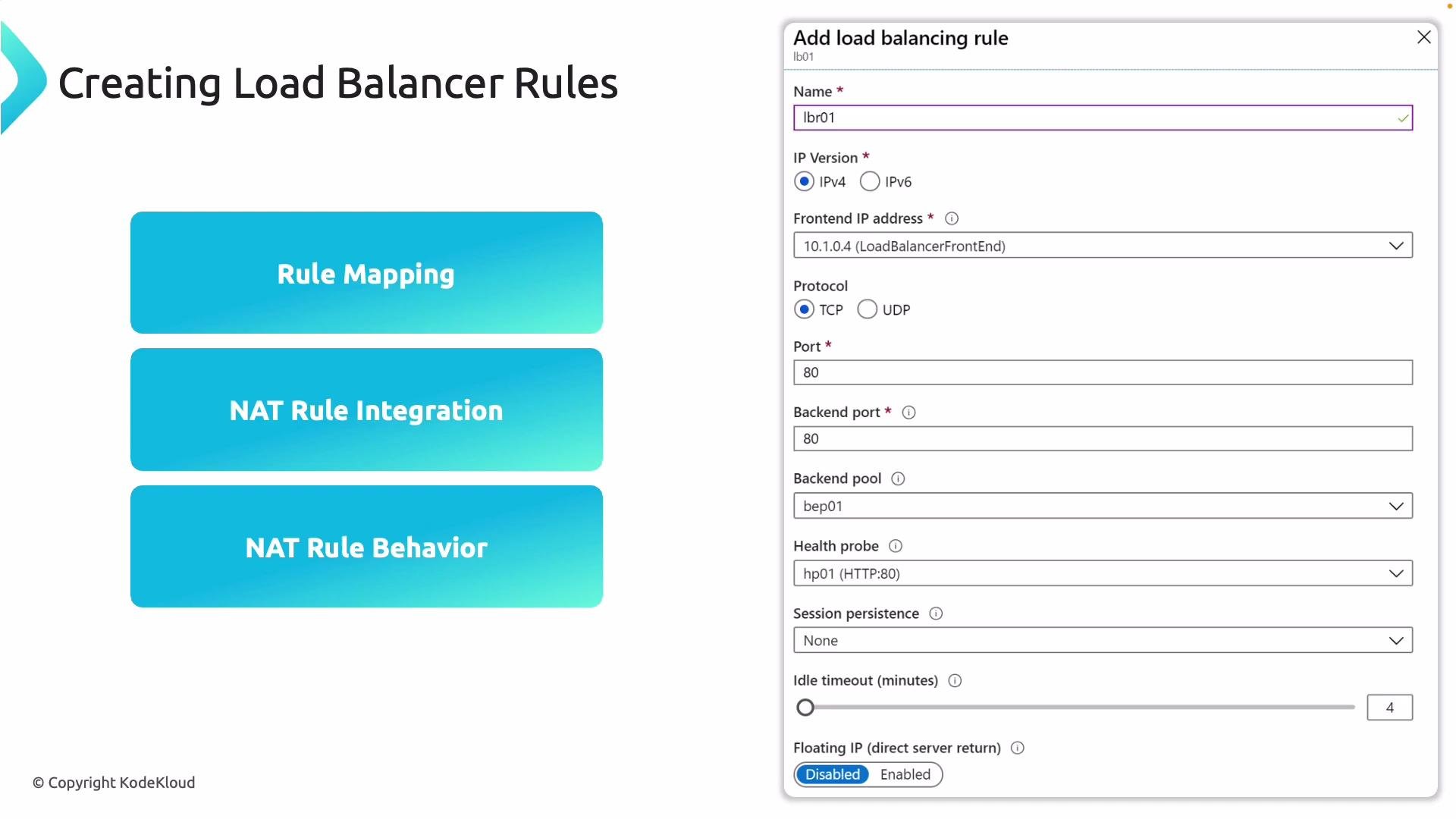
After front-end and back-end configuration, create one or more load balancing rules. A load balancing rule maps:
  • a frontend IP and port (public-facing)
  • to a backend pool and backend port (where your service runs)
When creating a rule, configure:
  • Rule name
  • Frontend IP
  • Protocol (TCP/UDP)
  • Frontend and backend ports
  • Associated backend pool
  • Health probe to monitor backend instances
  • Session persistence (sticky sessions) as needed
  • Idle timeout and Floating IP (if required)
A presentation slide titled "Creating Load Balancer Rules" showing three blue boxes labeled "Rule Mapping", "NAT Rule Integration", and "NAT Rule Behavior" on the left, and an "Add load balancing rule" configuration form (name, IP version, frontend IP, protocol, ports, backend pool, health probe, session settings) on the right.

Session persistence (affinity)

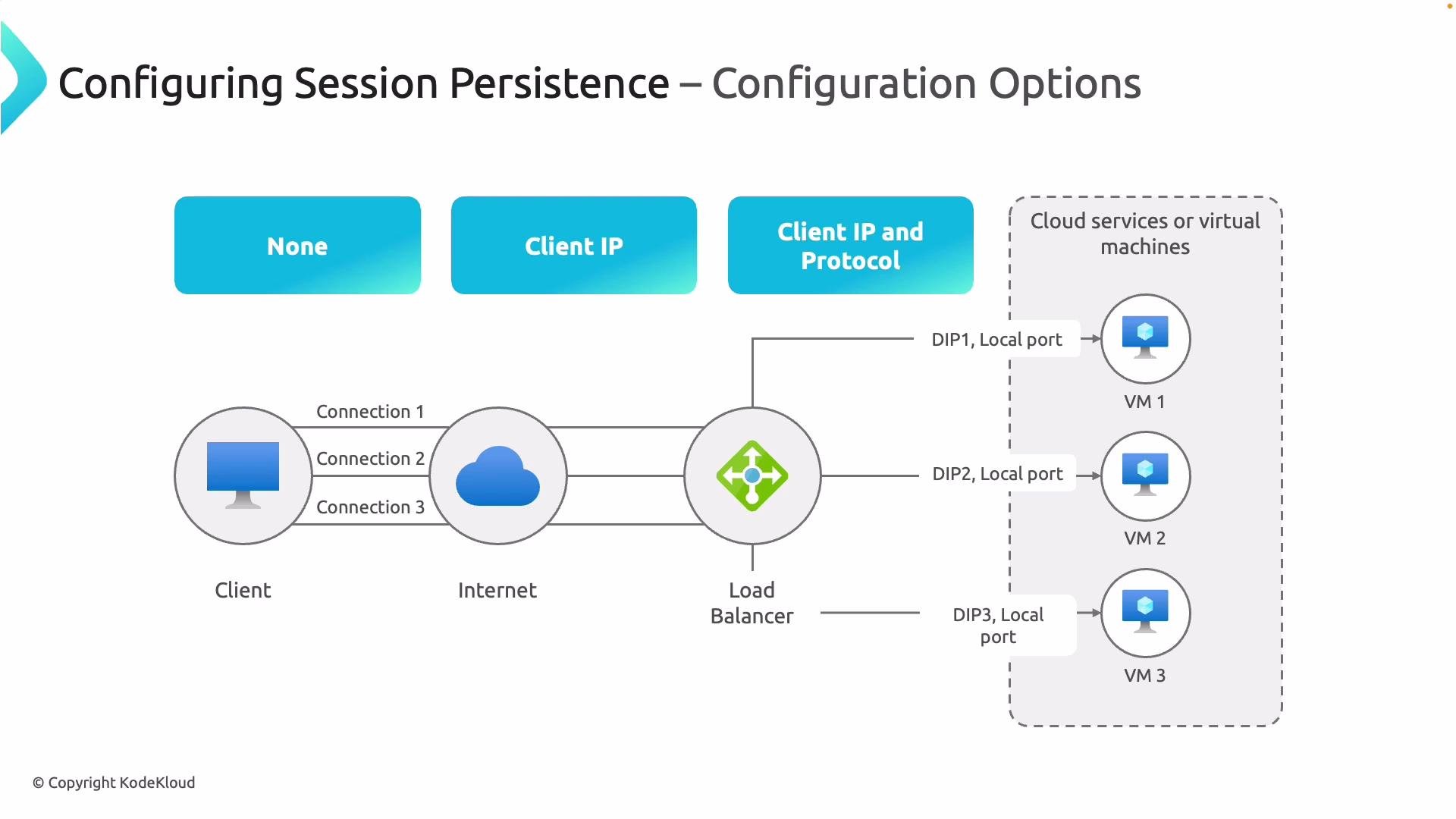
Session persistence determines whether requests from the same client are consistently routed to the same backend instance. By default, Azure Load Balancer uses a five-tuple hash:
  • Source IP
  • Source port
  • Destination IP
  • Destination port
  • Protocol
Persistence options:
  • None — no stickiness (five-tuple hashing; best distribution)
  • Client IP — two-tuple hashing (source IP, destination IP)
  • Client IP and protocol — three-tuple hashing (source IP, destination IP, protocol)
Use session persistence for applications that require session awareness — for example, shopping carts, login sessions, or forms.
A network diagram titled "Configuring Session Persistence" showing a client connecting through the Internet to a load balancer which forwards connections to three virtual machines (VM1–VM3) using distinct DIP/local ports. A left panel lists the 5-tuple hash fields (source IP, source port, destination IP, destination port, protocol) used for session persistence.
A presentation slide titled "Configuring Session Persistence – Use Case Example" showing three blue rounded boxes. The boxes are labeled "Shopping Cart", "Form Data", and "Login States" as example use cases.

Health probes

Health probes continuously check backend instances and ensure traffic is routed only to healthy VMs. Configure a probe and associate it with your load balancing rule. Probe types and parameters:
Probe typeWhat it doesCommon parameters
TCPChecks if a TCP port is openPort, Interval, Unhealthy threshold
HTTPSends a GET request and expects 200–399Port, Path (e.g., /), Interval, Unhealthy threshold
HTTPSSecure HTTP health checkPort, Path, TLS settings, Interval
After creating a probe, associate it with the relevant load balancing rule to enable health-aware routing.
Slide titled "Creating Health Probes – Purpose" showing an illustration of sliders and a magnifying glass, with text explaining that health probes continuously monitor backend instances so traffic is only sent to healthy VMs.
A slide titled "Creating Health Probes – Probe Types" showing three turquoise buttons labeled TCP, HTTP, and HTTPS on the left. On the right is an "Add health probe" configuration panel with fields filled in (Name: hp01, Protocol: HTTP, Port: 80, Path: /, Interval: 5 seconds).

Outbound connectivity

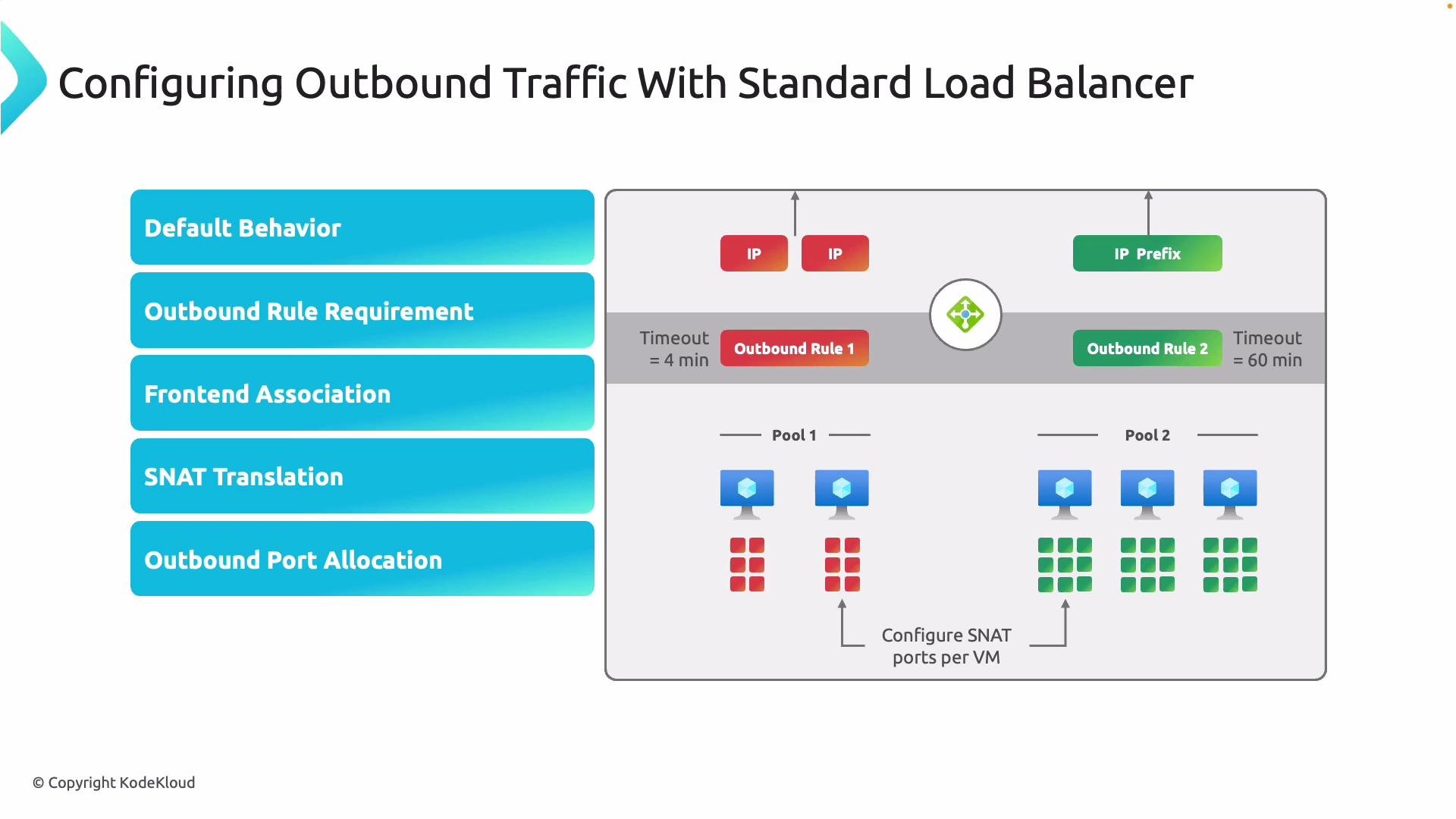
With a Standard Load Balancer, backend VMs do not automatically get outbound Internet access. To enable SNAT-based outbound connectivity, create an explicit outbound rule that uses the load balancer’s public IP or public IP prefix. One outbound rule can apply to multiple backend pools. If you require large-scale outbound connections (to avoid SNAT port exhaustion), use a NAT gateway for the subnet — it’s optimized for high-scale outbound translations.
A slide titled "Configuring Outbound Traffic With Standard Load Balancer" showing a diagram of a load balancer with outbound rules, public IPs/IP prefix, backend pools, and SNAT port allocations. It illustrates default behavior, frontend association, SNAT translation and differing outbound rule timeouts and ports per VM.
Use a NAT gateway when your backend VMs require many concurrent outbound connections or when SNAT port exhaustion becomes a concern. For simple outbound needs, a Standard Load Balancer outbound rule is sufficient.

Portal walkthrough — build a public Standard Load Balancer (zone-redundant)

In this example we place a public Standard Load Balancer in front of three Linux VMs distributed across three availability zones to achieve zone redundancy. I have three VMs deployed in East US 2 across three availability zones. The goal is to place the Load Balancer in front of them so if one zone fails the remaining zones still serve traffic.
A screenshot of the Microsoft Azure portal on the Compute infrastructure → Virtual machines page. It shows three running Linux VMs (vm-az700-lb-web-az1/az2/az3) in the Kodekloud Labs subscription and rg-az700-lb resource group.
Steps (summary):
  1. Create a Standard Load Balancer (use Standard SKU unless you have a specific Basic requirement).
  2. Add a frontend IP configuration (create a new public IP — you can enable availability zones here for zone redundancy).
  3. Create a backend pool and add the three VM NICs.
  4. Create a health probe (e.g., HTTP /).
  5. Create a load balancing rule mapping frontend port 80 → backend port 80 with the probe and desired session persistence.
  6. Optionally add inbound NAT rules for SSH to individual VMs and configure outbound rules or a NAT gateway for Internet access.
Create a Standard Load Balancer and select subscription, resource group, name (e.g., “AZ-700 Web LB”), region (East US 2), SKU = Standard.
A screenshot of the Microsoft Azure portal showing the "Create load balancer" form with fields for subscription, resource group, name, region, SKU, type and tier. The Standard SKU and Regional/Internal options are selected, and navigation buttons (Next: Frontend IP configuration) are visible at the bottom.
Note: the Basic SKU has limited capabilities and may not be available in all subscriptions or regions; choose Standard for production and zone-redundant scenarios. Add a frontend IP configuration for a public load balancer: give it a name (e.g., AZ-700-LB-FE), choose IPv4, and create a new Public IP (e.g., AZ-700-LB-PIP). Optionally select availability zones for the public IP to enable zone redundancy.
A Microsoft Azure portal screenshot showing the Load Balancer configuration screen. The right-hand pane displays an "Add frontend IP configuration" form with a pop-up to "Add a public IP address," including fields like Name, SKU, Availability zone, and Save/Cancel.
Add the backend pool by selecting the VNet where the VMs live and then adding each VM NIC (or IP configuration).
A screenshot of the Microsoft Azure portal showing the "Add backend pool" page and an "Add IP configurations to backend pool" dialog listing three virtual machines (vm-az700-lb-web-az1/az2/az3) with their IP configurations (10.200.1.4–10.200.1.6), with the first VM selected.
You can skip inbound rules / NAT rules during initial creation and add them later. Review and deploy the Load Balancer.
A screenshot of the Microsoft Azure "Create load balancer" review page showing configuration sections (Basics, Frontend IP configuration, Backend pools, Inbound rules) and a "Validation passed" message. It lists details like subscription, resource group, name, region, SKU and frontend/backend names.

Create a load balancing rule (example)

Example settings for a web tier:
  • Name: az700-web-rule
  • IP version: IPv4
  • Frontend: AZ-700-LB-FE
  • Backend pool: AZ-700-LB-BE
  • Protocol: TCP
  • Frontend port: 80
  • Backend port: 80 (Apache)
  • Health probe: AZ-700-web-HP (HTTP probe on /, interval 5s)
  • Session persistence: None (or Client IP if session affinity required)
Save to create the rule, which bridges the LB frontend port 80 to backend port 80.
A screenshot of the Microsoft Azure portal open to the "Add load balancing rule" form for a load balancer (az700-web-lb), with TCP selected and both port and backend port set to 80. The form shows backend pool, health probe, session persistence set to None, idle timeout 4 minutes, and a cursor clicking the Save button.
After saving you’ll see the rule listed and associated with the backend pool and health probe.
Screenshot of the Microsoft Azure portal showing the "az700-web-lb" load balancer's Load balancing rules page.It lists a rule called "az700-web-rule" using protocol TCP/80 with backend pool "az700-lb-be" and health probe "az700-web-hp."
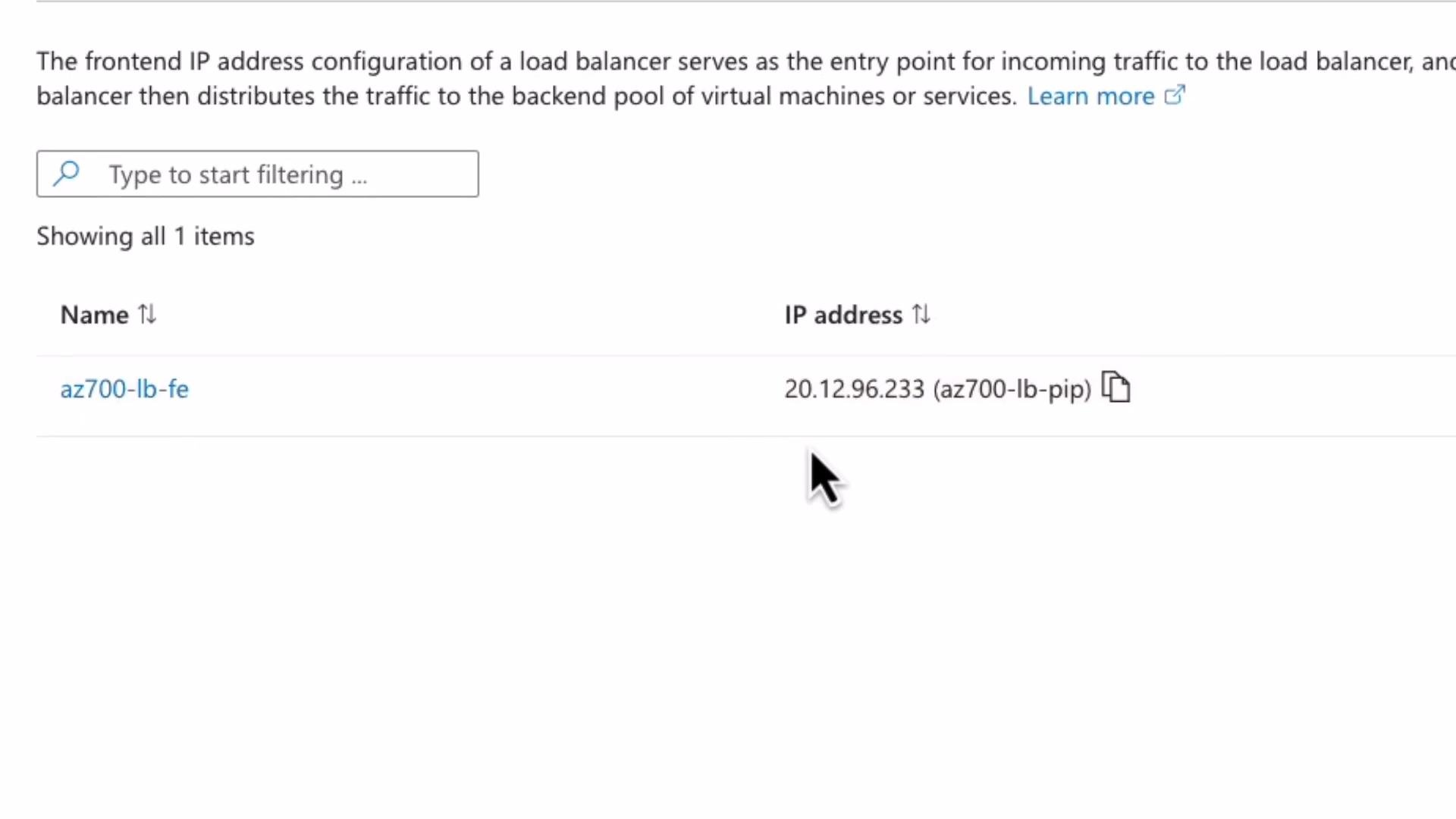
Compare the load balancer frontend public IP with the IP shown on VM pages — it will be the load balancer’s frontend IP. Open that public IP in a browser to see responses from your backend web servers. Refreshing may return responses from different backend VMs due to five-tuple hashing.
A screenshot of a cloud portal showing a load balancer frontend IP entry named "az700-lb-fe." The listed IP address is 20.12.96.233 (az700-lb-pip) with a mouse cursor nearby.
Example web server response you might see:
happy learning from vm-az700-lb-web-az3

Inbound NAT rules (per-VM access)

Inbound NAT rules let you SSH/RDP to individual backend VMs through the Load Balancer’s public IP on different frontend ports. Example NAT rule:
  • Name: AZ700-LB-NAT-VM1
  • Target VM: vm-az700-lb-web-az1
  • Frontend IP: AZ-700-LB-FE
  • Frontend port: 9090
  • Backend port: 22 (SSH)
Connecting to the load balancer public IP on port 9090 will be translated to port 22 on vm-az700-lb-web-az1.
The portal may recommend migrating older NAT rule versions (V1) to NAT rule V2. Prefer V2 to avoid future migrations and ensure compatibility.
SSH through the load balancer:
ssh kodekloud@20.12.96.233 -p 9090
The authenticity of host '[20.12.96.233]:9090 ([20.12.96.233]:9090)' can't be established.
ED25519 key fingerprint is SHA256:ROcidCMQg4adTewDLIo6h4IZe/8iqG1ZWaMRvIDCUJM.
This key is not known by any other names.
Are you sure you want to continue connecting (yes/no/[fingerprint])?
# type "yes" then enter password to complete SSH login

Outbound behavior demonstration

If VMs are behind a Standard Load Balancer and no outbound rule/NAT gateway is configured, outbound Internet access will not work by default. DNS resolution may succeed but TCP/HTTP connections fail. Example failing apt update when outbound is blocked:
kodekloud@vm-az700-lb-web-az1:~$ sudo apt update
0% [Connecting to azure.archive.ubuntu.com (52.252.75.106)]
W: Failed to fetch http://azure.archive.ubuntu.com/ubuntu/dists/jammy/InRelease  Could not connect to azure.archive.ubuntu.com:80 (52.252.75.106), connection timed out
W: Failed to fetch http://azure.archive.ubuntu.com/ubuntu/dists/jammy-updates/InRelease  Unable to connect to azure.archive.ubuntu.com:http:
W: Failed to fetch http://azure.archive.ubuntu.com/ubuntu/dists/jammy-backports/InRelease  Unable to connect to azure.archive.ubuntu.com:http:
W: Failed to fetch http://azure.archive.ubuntu.com/ubuntu/dists/jammy-security/InRelease  Unable to connect to azure.archive.ubuntu.com:http:
W: Some index files failed to download. They have been ignored, or old ones used instead.
After creating an outbound rule that allocates SNAT ports (or after attaching a NAT gateway), the update succeeds:
kodekloud@vm-az700-lb-web-az1:~$ sudo apt update
Hit:1 http://azure.archive.ubuntu.com/ubuntu jammy InRelease
Get:2 http://azure.archive.ubuntu.com/ubuntu jammy-updates/InRelease [128 kB]
Get:3 http://azure.archive.ubuntu.com/ubuntu jammy-backports/InRelease [127 kB]
Get:4 http://azure.archive.ubuntu.com/ubuntu jammy-security/InRelease [129 kB]
Get:5 http://azure.archive.ubuntu.com/ubuntu jammy-updates/main amd64 Packages [2842 kB]
Fetched 3227 kB in 1s (3386 kB/s)
Reading package lists... Done
Building dependency tree... Done
Reading state information... Done
20 packages can be upgraded. Run 'apt list --upgradable' to see them.
This demonstrates how outbound rules enable backend VMs to use the load balancer’s public IP for Internet access via SNAT. For production or high-scale outbound needs, prefer NAT gateway.

Quick reference table — Load Balancer components

ComponentPurpose
Frontend IP configurationPublic or internal IP the clients connect to
Backend poolVM NICs or IPs that receive traffic
Load balancing ruleMaps frontend IP/port to backend pool/port
Health probeMonitors backend health (TCP/HTTP/HTTPS)
Inbound NAT rulesPer-VM port mappings for SSH/RDP
Outbound rules / NAT gatewayEnable outbound Internet via SNAT

Summary

  • Create a frontend IP and one or more load balancing rules to distribute inbound traffic.
  • Use health probes to ensure only healthy instances receive traffic.
  • Use inbound NAT rules to access individual VMs through the load balancer public IP.
  • Configure outbound rules or attach a NAT gateway to allow backend VMs to reach the Internet and avoid SNAT port exhaustion.
  • Prefer Standard SKU and zone redundancy for production, resilient architectures.
Further reading: