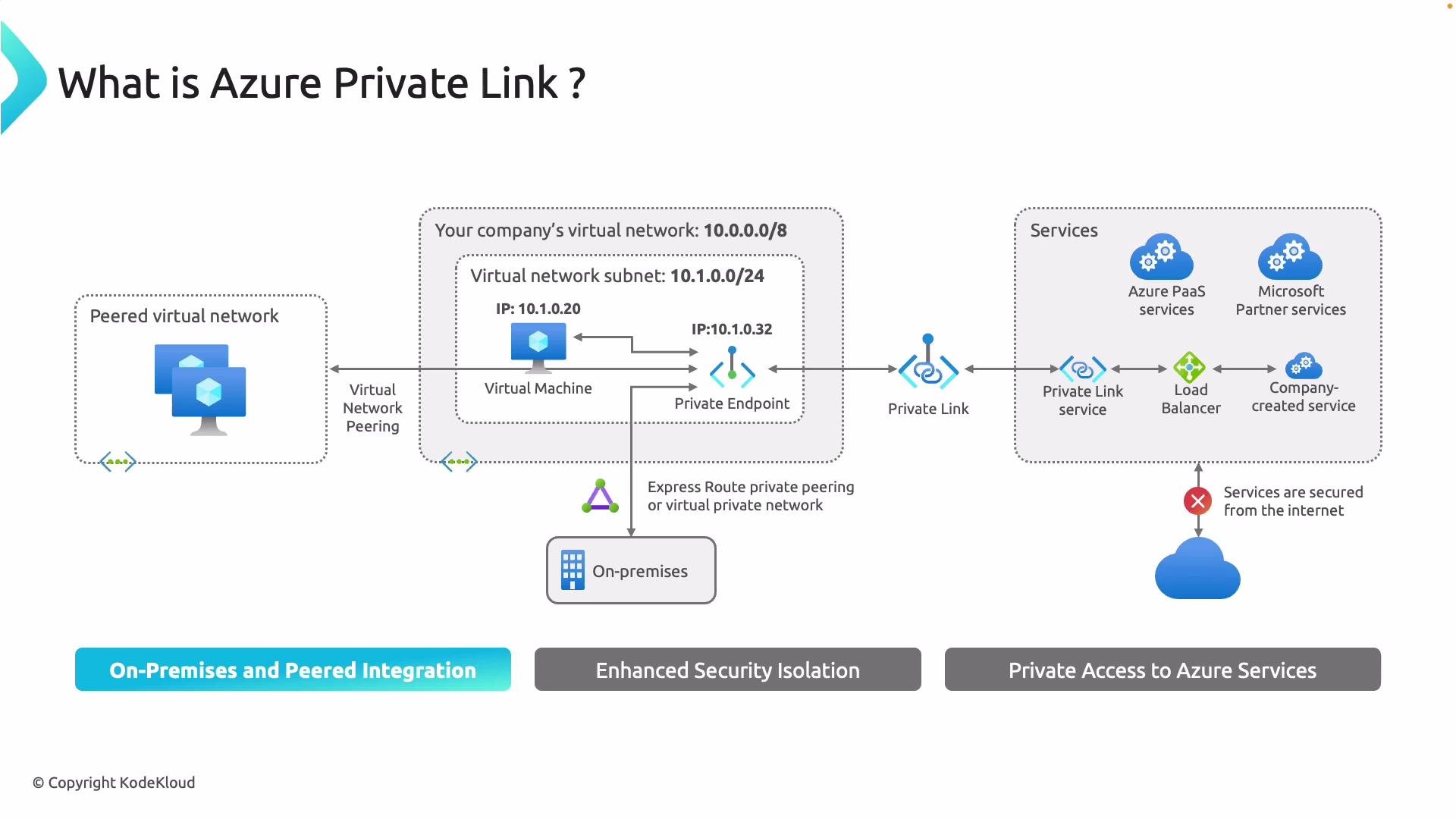
Azure Private Link lets you access Azure PaaS services (Storage, SQL, App Service, etc.) and partner services privately from your virtual networks or on-premises environments — without exposing those services to the public internet. Traffic flows over the Microsoft backbone using private IP addresses, reducing surface area and improving security posture. Pay attention to the diagram below: a virtual machine in a peered network accesses a private endpoint using a private IP address. This removes public IP exposure for the PaaS resource.
A diagram illustrating Azure Private Link architecture, showing a virtual network with a private endpoint that connects via Private Link and a Private Link service/load balancer to Azure and partner services. It also shows peered virtual networks and on-premises integration, emphasizing that services are isolated from the public internet.
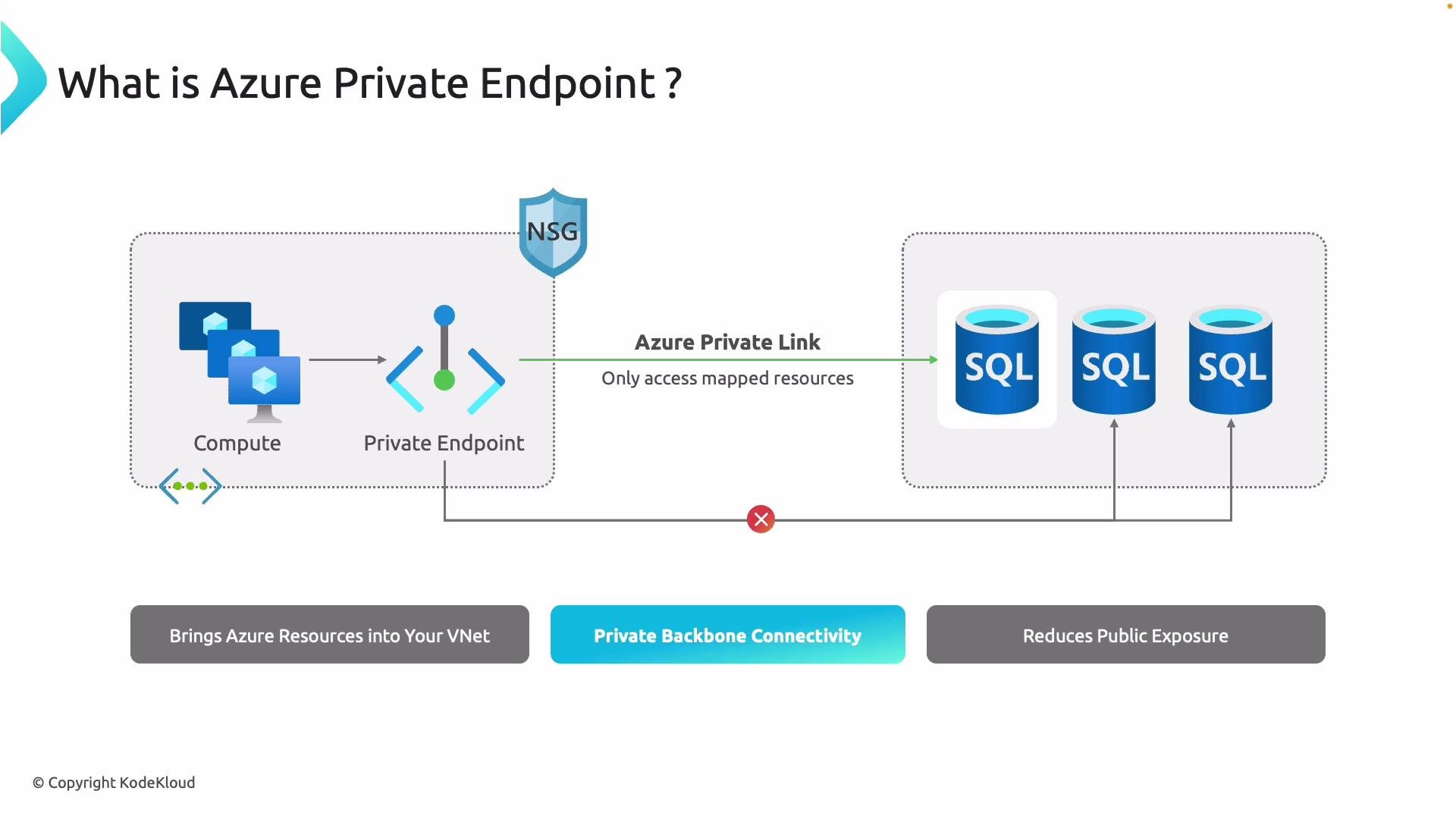
A private endpoint is an elastic network interface (ENI) in your VNet with a private IP mapped to a single Azure resource. Even if other parts of the VNet are compromised, an attacker cannot reach the PaaS instance unless they can interact with that specific private endpoint NIC and bypass any NSG/other controls — drastically reducing attack surface. On the right side of the diagram you can see Azure PaaS and partner services accessed via Azure Private Link — not via the public internet. Internet traffic is blocked and communication occurs over the Microsoft backbone using private IP addresses.

What is a private endpoint?

A private endpoint projects an Azure service into your virtual network by assigning it a private IP address. For example, an Azure Storage blob can appear inside a VNet subnet as a local IP. DNS resolves the service name to the private endpoint’s IP, so communication between a VM (or other compute) and the service stays on the Microsoft backbone and never traverses the public internet.
A slide titled "What is Azure Private Endpoint?" showing compute resources in a VNet connecting through a Private Endpoint/Azure Private Link to Azure SQL instances, with an NSG and a blocked public path. It highlights benefits like bringing Azure resources into your VNet, private backbone connectivity, and reduced public exposure.
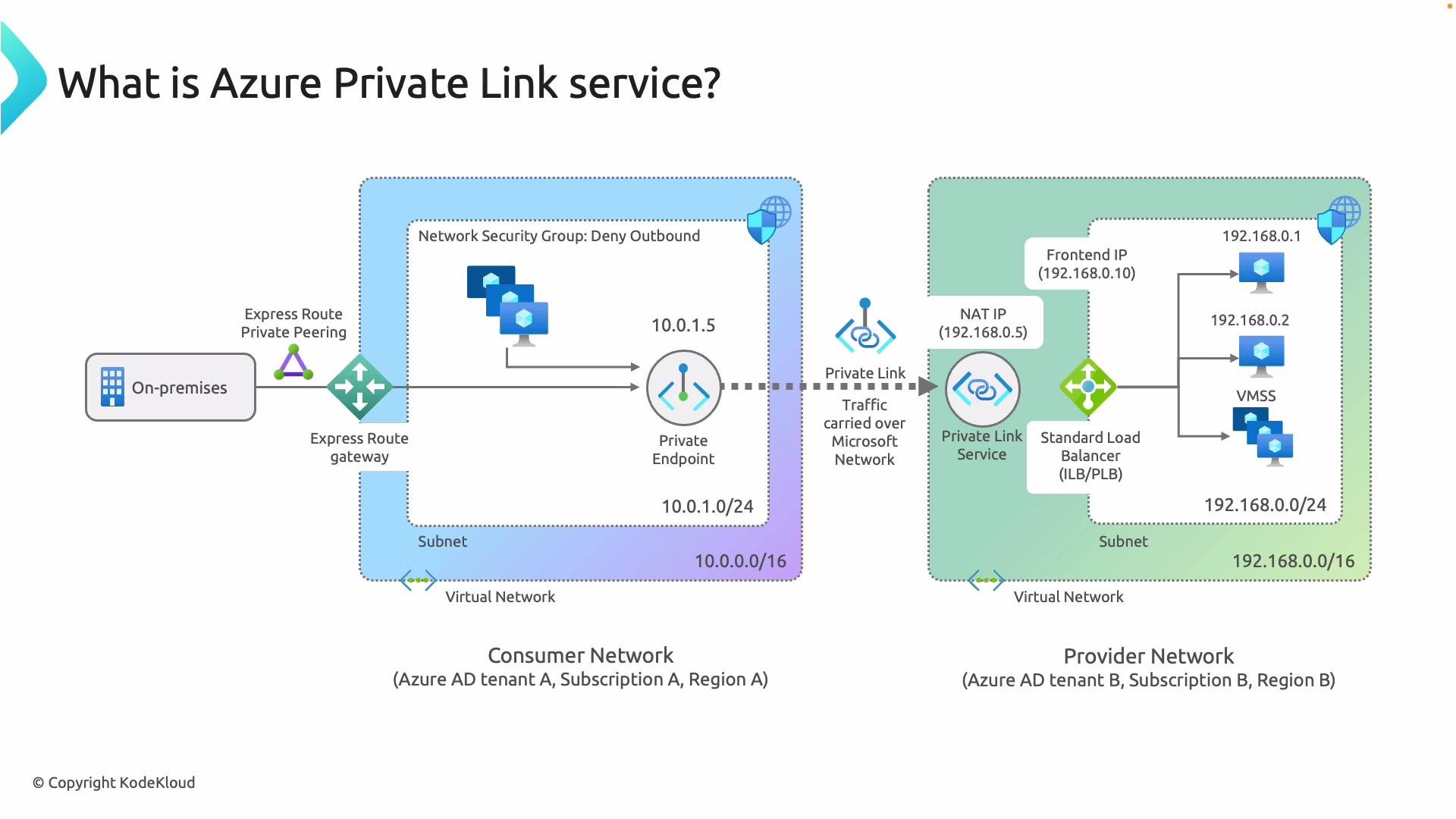
This configuration blocks direct internet access to the resource, which reduces exposure to brute-force or port scanning attacks while preserving full service functionality via the private IP. Read the next diagram left-to-right: it shows a consumer network connecting privately to a provider network over the Microsoft backbone — no public internet. On the consumer side you have a private endpoint (for example, 10.0.1.5). The client resolves the service name to that private IP and connects. The dotted line denotes Private Link: the private pipe mapping consumer private endpoints to the provider. On the provider side the Private Link service privately publishes the provider’s application. It sits behind a standard load balancer that fans out to backend VMs. The provider controls who can connect and must approve consumer private endpoint connections. Quick definitions:
  • Private Link = the private network pipe across the Microsoft backbone.
  • Private Endpoint = the consumer’s private IP (the NIC in the VNet).
  • Private Link service = how a provider privately publishes an application (backed by a load balancer and backend pool).
A network architecture diagram showing how Azure Private Link connects a consumer virtual network (and on‑premises via ExpressRoute) to a provider network. It illustrates a private endpoint linking over the Microsoft backbone to a Private Link Service with a NAT IP, load balancer and backend VMs.

Step-by-step: create and validate a Private Endpoint in the Azure portal

This walkthrough uses a VM that previously accessed the storage account via public endpoints so you can compare behaviors.
  1. Verify current DNS/public resolution for the storage account:
kodekloud@vm-service-endpoints:~$ nslookup sanavidm.blob.core.windows.net
Server:         127.0.0.53
Address:        127.0.0.53#53

Non-authoritative answer:
sanavidm.blob.core.windows.net    canonical name = blob.blz22prdstr07a.store.core.windows.net.
Name:   blob.blz22prdstr07a.store.core.windows.net
Address: 52.239.169.228
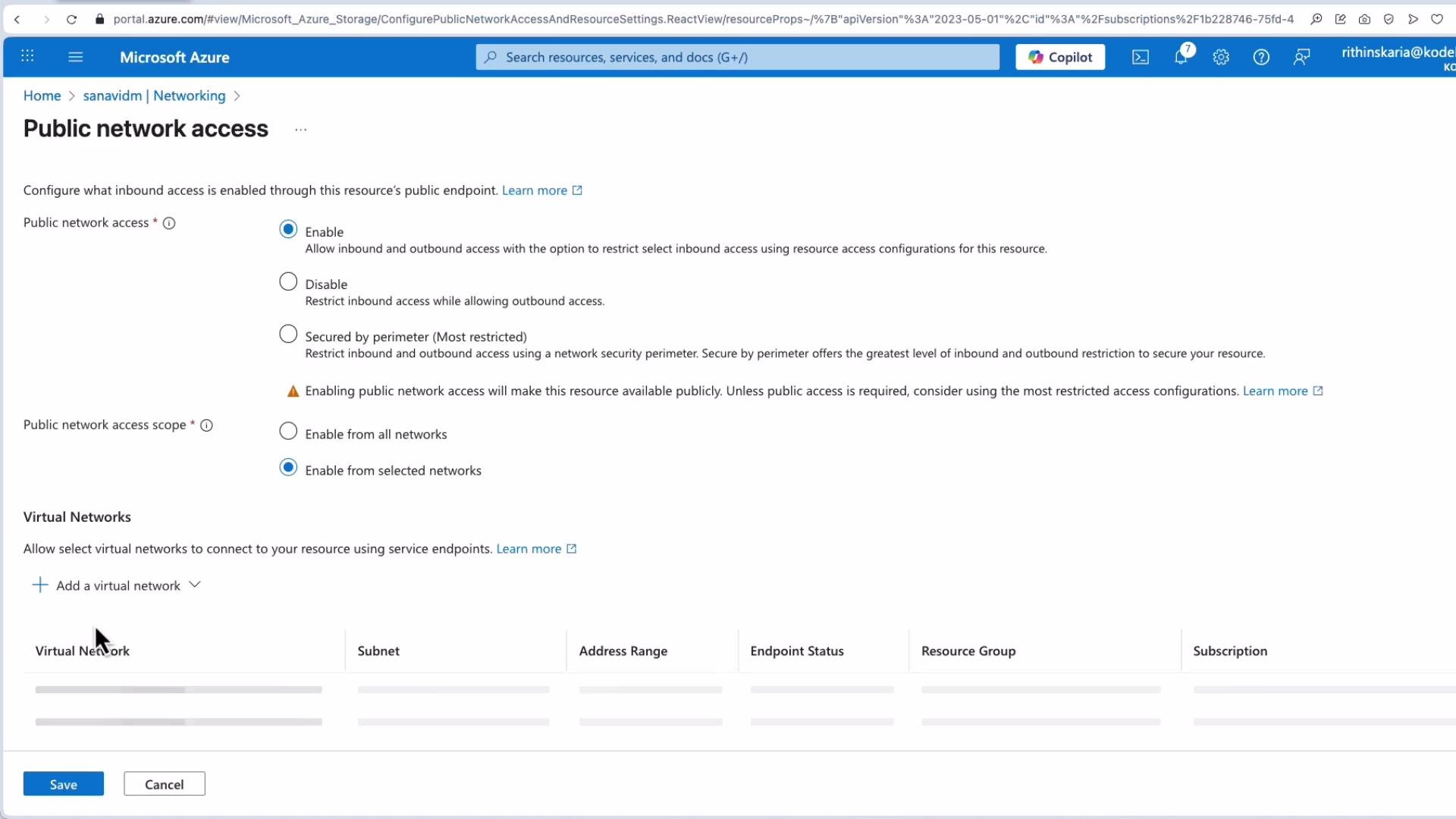
  1. In the Storage Account > Networking, set Public network access to Disabled. This blocks public endpoints and forces private connectivity (private endpoint) for access.
A screenshot of the Microsoft Azure "Public network access" settings page. It shows options to enable/disable public access, choose access scope (all or selected networks), a Virtual Networks section to add networks, and Save/Cancel buttons.
After disabling public access, attempts to reach the blob via the public path fail with an authorization or access error:
kodekloud@vm-service-endpoints:~$ curl https://sanavidm.blob.core.windows.net/data/gl2.jpeg
<?xml version="1.0" encoding="utf-8"?>
<Error>
  <Code>AuthorizationFailure</Code>
  <Message>This request is not authorized to perform this operation.</Message>
  <RequestId>b0cf934e-701e-0073-55c6-187af6000000</RequestId>
  <Time>2025-08-29T09:25:30.3316246Z</Time>
</Error>
  1. Create the private endpoint:
    • Storage Account > Private endpoints > Create private endpoint.
    • Choose subscription, resource group (can reuse), and endpoint name (e.g., PEST — portal will append NIC).
    • Select resource type (Storage -> blob).
    • Pick the VNet and subnet where the private endpoint NIC will be placed. You can place it in the same subnet as your VMs or isolate private endpoints in a dedicated subnet.
A screenshot of the Microsoft Azure portal on the Networking page for a storage account named "sanavidm," with the "Private endpoints" tab selected. The page shows "No private endpoints to display" and a blue "Create private endpoint" button.
Screenshot of the Microsoft Azure portal showing the "Create a private endpoint" wizard on the "Virtual Network" step. It displays dropdowns for selecting a virtual network and subnet, options for private IP allocation, and application security group settings.
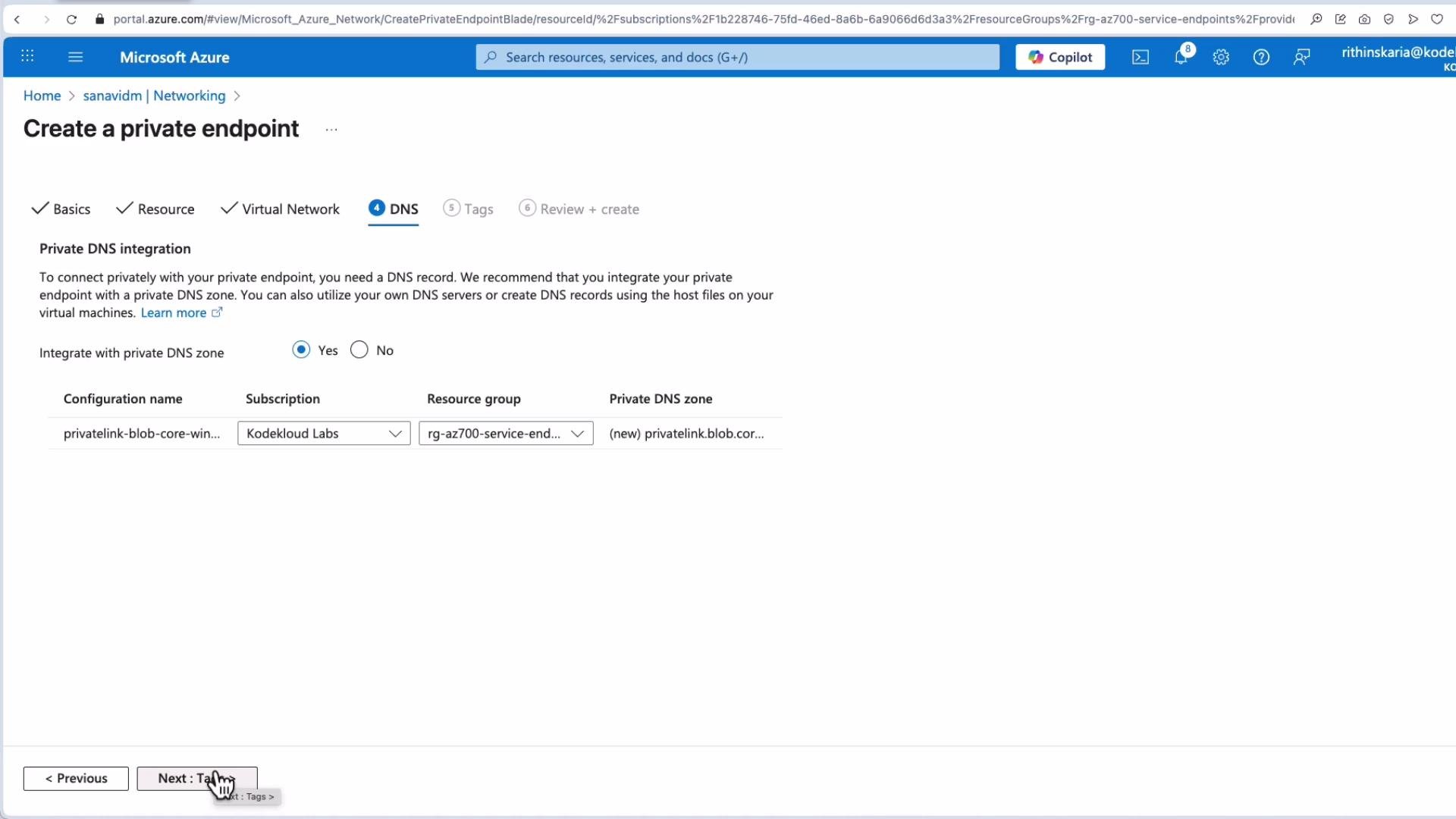
  1. DNS: choose how DNS resolution maps the service name to the private IP. Options:
    • Integrate with Azure Private DNS zones (recommended for Azure VMs and simplest).
    • Use your own DNS server with conditional forwarding.
    • Use host file overrides (not recommended for production).
If you enable Azure Private DNS integration in the portal, Azure will create the appropriate privatelink zone (for example, privatelink.blob.core.windows.net) and link it to your VNet automatically.
A screenshot of the Microsoft Azure portal on the "Create a private endpoint" page, focused on the DNS step. It shows Private DNS integration options and form fields for configuration name, subscription, resource group, and private DNS zone.
  1. Continue through Tags, Review + create, and then Create.
A browser screenshot of the Microsoft Azure portal on the "Create a private endpoint" Review + create page, showing a "Validation passed" check and configuration details for subscription, resource group, region, and virtual network. The page lists resource and network settings for creating a private endpoint.
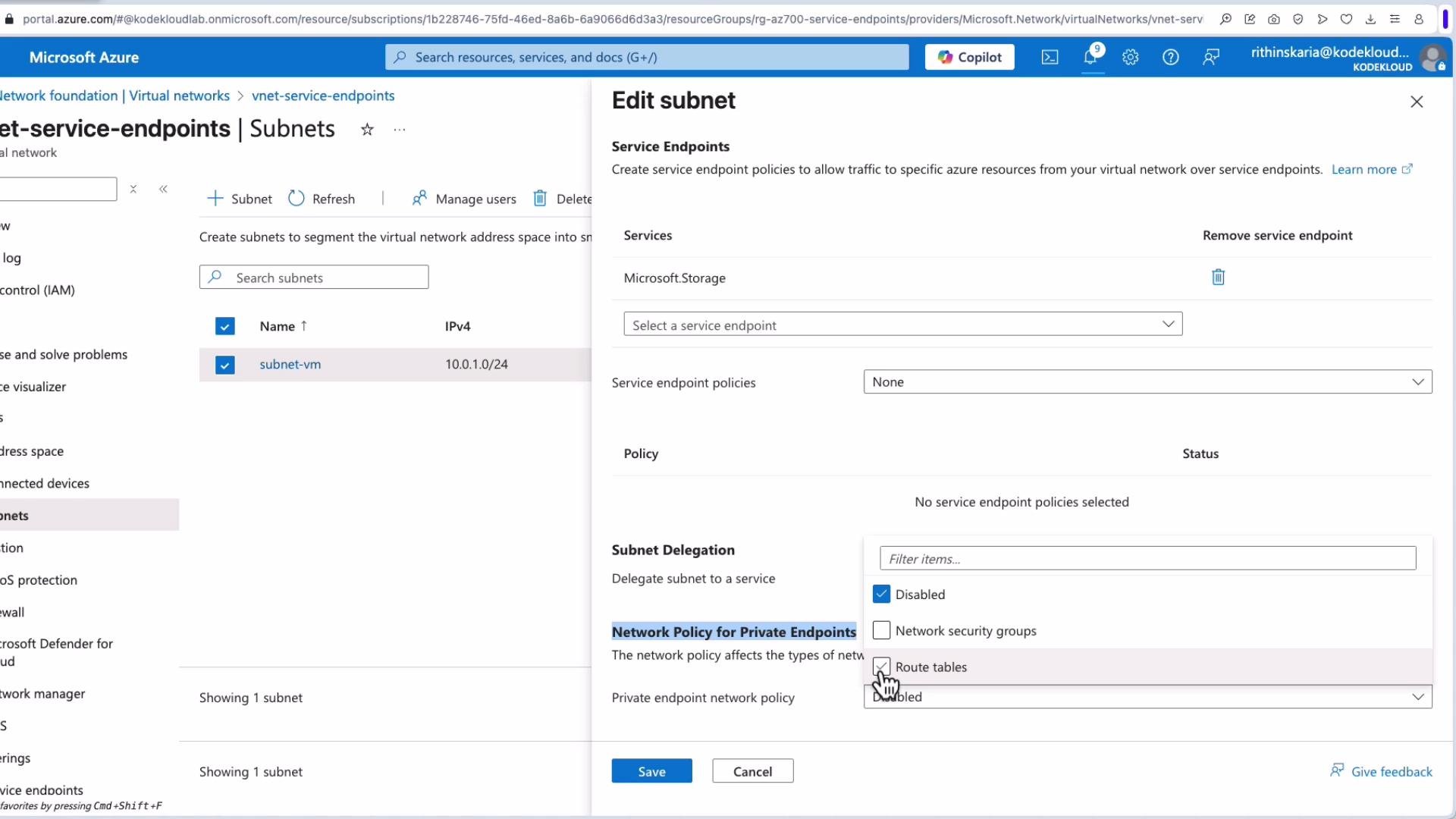
Networking detail to plan for: private endpoints interact with subnet-level User Defined Routes (UDRs) and network policies. If you have UDRs routing traffic through a firewall, private endpoint traffic may bypass those UDRs unless the subnet’s “Network policies for private endpoints” is enabled so that NSGs and route tables apply to the private endpoint NIC. If you want UDRs/NSGs to affect the private endpoint NIC, enable network policies on the subnet; if you intentionally want the private endpoint to bypass subnet policies, keep it disabled. Depending on your firewall (Azure Firewall or an NVA) you may need SNAT configuration to enable required egress flows.
A screenshot of the Microsoft Azure portal showing the "Edit subnet" pane with Service Endpoints and Subnet Delegation settings. The left side lists one subnet (subnet-vm 10.0.1.0/24) while the right side shows options for service endpoints, private endpoint network policy, and checkboxes for network security groups/route tables.
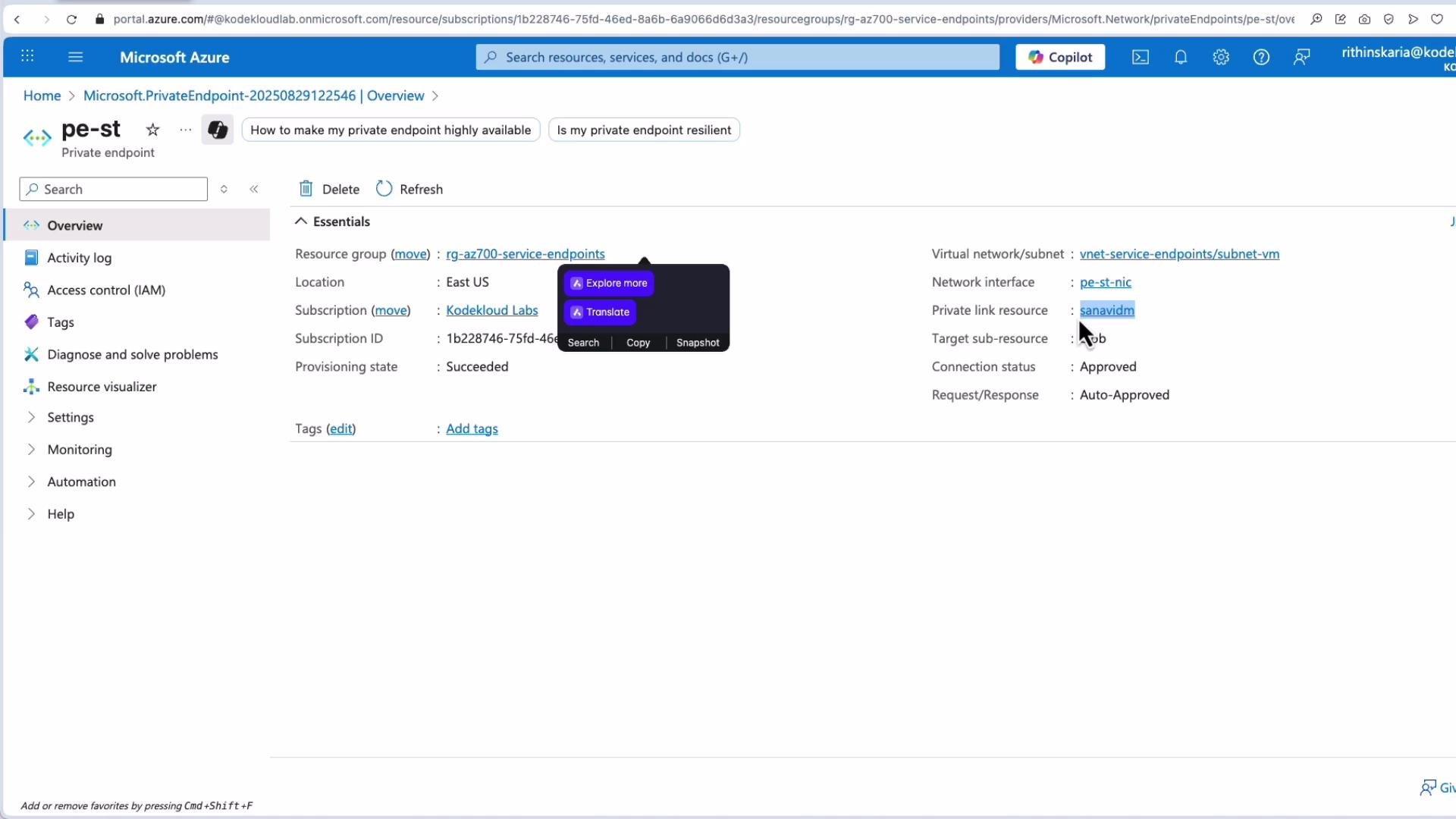
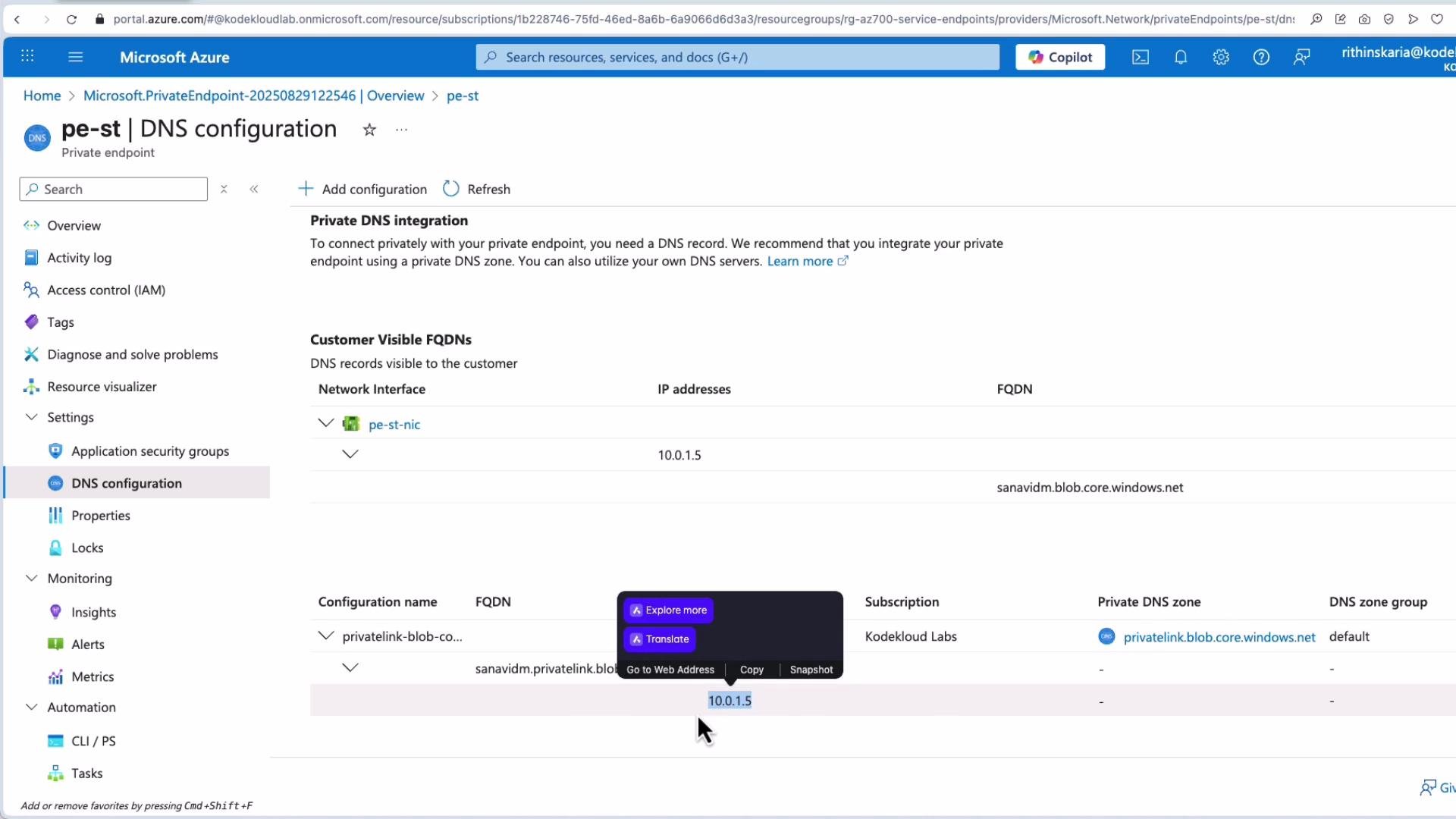
For this lab the network policy was left at its default, so no firewall configuration was required. After deployment the private endpoint NIC is attached to a “private link resource” representing the storage account. The portal shows DNS entries created for the private link — you should see the storage name resolving to the private IP (for example, 10.0.1.5) if the private DNS zone is linked and the VM uses Azure DNS.
A screenshot of the Microsoft Azure portal showing the "pe-st | DNS configuration" page for a private endpoint. It lists a network interface (pe-st-nic) with IP 10.0.1.5 and FQDNs such as sanavidm.blob.core.windows.net and privatelink.blob.core.windows.net.
Back on the VM, nslookup now should resolve the storage account to the private endpoint IP:
kodekloud@vm-service-endpoints:~$ nslookup sanavidm.blob.core.windows.net
Server: 127.0.0.53
Address: 127.0.0.53#53

Non-authoritative answer:
sanavidm.blob.core.windows.net canonical name = sanavidm.privatelink.blob.core.windows.net.
Name: sanavidm.privatelink.blob.core.windows.net
Address: 10.0.1.5
At this point traffic from the VM to the storage account flows to 10.0.1.5 (the private endpoint) over the Microsoft backbone, avoiding the public internet.
If you must access private endpoints from on‑premises, plan DNS carefully: use conditional forwarding to Azure DNS, deploy Azure Private Resolver, or configure conditional forwarders so on‑prem DNS queries resolve privatelink zones to private IPs.

Integration with edge services (example: Front Door)

If using edge services like Azure Front Door (Standard/Premium), you can enable “Enable Private Link Service” for origin groups. That forces Front Door to reach origins over Private Link rather than the public endpoint, allowing you to disable public access to the origin and ensure all traffic is inspected by edge protections (WAF, etc.).
A screenshot of the Microsoft Azure portal showing the overview page for an Azure Front Door resource named "afd-waf," with essentials like resource group, status, location, pricing tier and origin response timeout. The Properties section displays endpoints, a web application firewall/security policy, origin groups, and actions such as Purge cache and Delete.
Note: App Service Private Endpoint support requires a paid App Service tier — Free/Shared tiers do not support Private Link. Use Standard or higher for full feature support.
If your subnet uses UDRs or a firewall, explicitly configure “Network policies for private endpoints” on the subnet and verify your firewall/NVA supports private endpoint flows (SNAT, routing, and stateful inspection requirements).
With the private endpoint created and DNS validated (resolves to the private IP), your PaaS resource is now accessible privately. Additional DNS and on‑premises integration scenarios exist and should be planned based on your architecture.

Quick comparison

ConceptPurposeTypical components
Private EndpointConsumer-facing network interface in VNetENI with private IP mapped to a single resource
Private LinkThe private connectivity methodMicrosoft backbone connectivity mapping private endpoints to providers
Private Link ServiceProvider-side publishing mechanismLoad balancer + backend pool, consumer approval controls
With these steps and considerations, you can plan, deploy, and validate Azure Private Link and Private Endpoints to keep PaaS services private and secure.