

- In the Azure portal, open the VM’s network interface and view the Effective routes blade. This shows the exact routes applied to the NIC—similar to running the
routecommand on a Windows or Linux VM—and includes the route source (system, default, or custom) and the next hop. - Use the Effective routes view when troubleshooting connectivity to confirm which route will be used for a given destination.
- For automation or scripting scenarios, you can also inspect route tables and associations via the Azure CLI or REST API. See References below for official docs.
- System routes
- Azure automatically creates system routes for every subnet in a virtual network. These built-in routes establish baseline connectivity for:
- routing between subnets in the same virtual network (intra-VNet),
- routing to the internet for public outbound access,
- routing across peered virtual networks.
- System routes are managed by Azure and require no manual configuration. For example, after creating a virtual network peering, traffic flows between the peered VNets without adding any routes because system routes already cover that connectivity.
- Default routes
- Default routes are implemented as part of the system routes and cover common scenarios so resources work out of the box. A typical default sends traffic for all destinations outside the VNet to the internet via the
0.0.0.0/0route. - Defaults provide sensible behavior initially; use UDRs if you need to change outbound behavior (for instance, route internet-bound traffic through an NVA).
- Custom routes (User-defined routes, UDRs)
- Create custom routes in a route table and associate the table to one or more subnets to override or extend system/default routing.
- Common use case: send all internet-bound traffic through a firewall/NVA for inspection by creating a UDR with next hop type
Virtual appliancepointing to the NVA’s IP. - Azure uses longest-prefix match to pick the route that applies. A more specific (longer) prefix wins. If two routes share the same prefix length, a user-defined route takes precedence over system routes—so carefully design UDRs to avoid unintended routing behavior.
Common next hop types
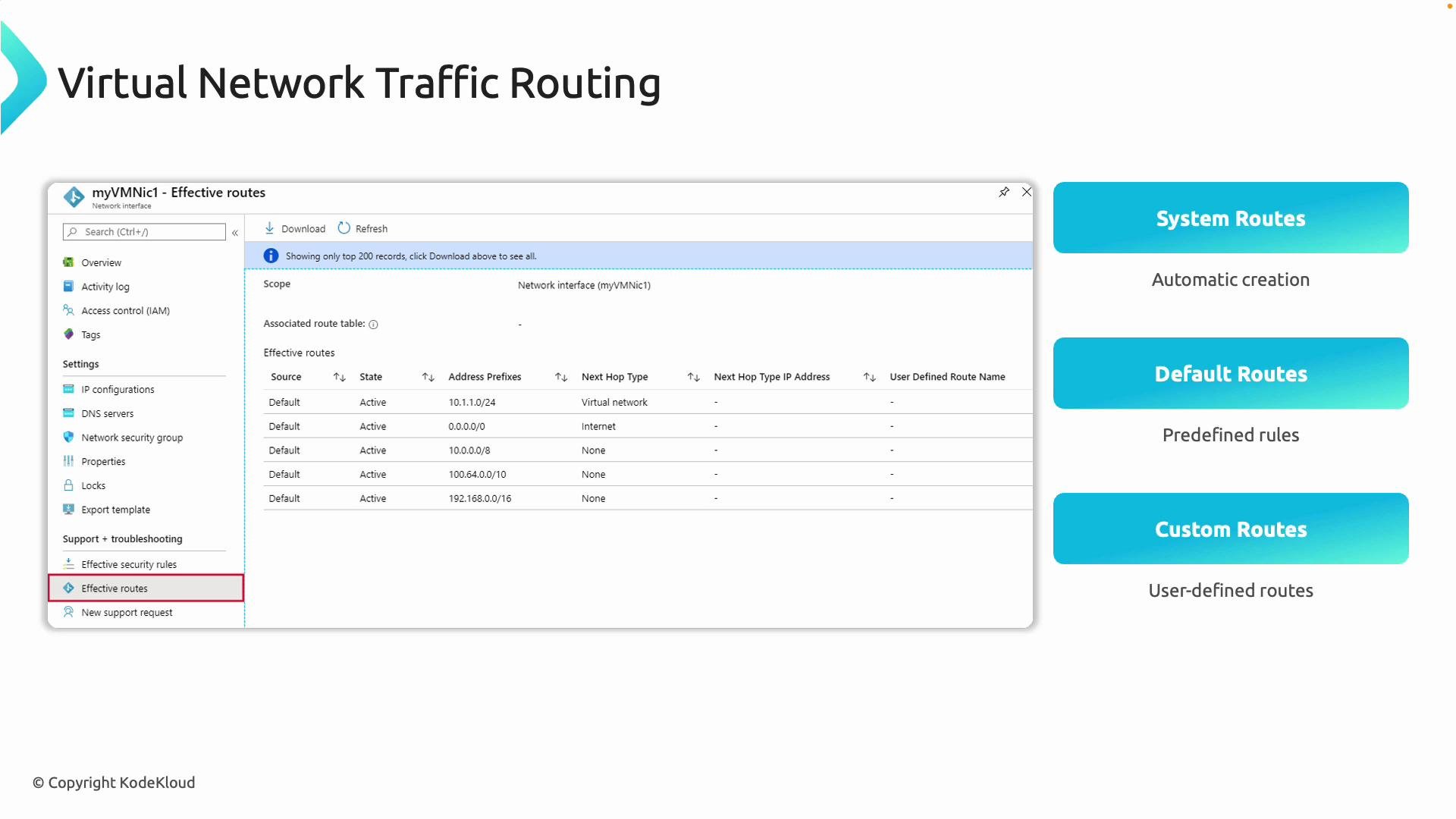
To change routing for a subnet, create or update a route table with the desired routes and associate it with the subnet. Then use the Effective routes blade on a VM’s network interface to verify which routes are in effect—system, default, and any user-defined routes.
- Route tables are applied at the subnet level; NICs inherit their subnet’s associated route table.
- Use the Effective routes blade to confirm the result of longest-prefix matching and UDR precedence.
- When routing through an NVA, ensure the NVA has the required inbound/outbound rules and that Azure NSGs do not block required traffic.
- Limit UDR scope to only the subnets that need custom routing to reduce risk of widespread misconfiguration.
Misconfigured user-defined routes can disrupt connectivity (including access to Azure services or the internet). Test changes in a controlled environment and verify with the Effective routes blade before applying in production.
- Azure selects the route based on the most specific prefix that matches the destination (longest-prefix match).
- If two routes have the same prefix length, a user-defined route takes precedence over a system route.
- Common next hop types include
VirtualNetwork,Internet, andVirtual appliance. UseVirtual applianceto direct traffic to NVAs/firewalls for inspection or filtering. - When using NVAs, ensure IP forwarding is enabled on the subnet/NIC if required by the NVA vendor.
- Azure route tables and user-defined routes
- View effective routes on a network interface in the Azure portal
- Azure network virtual appliances (NVAs) guidance