This lesson explains how to use Azure Network Watcher to monitor, diagnose, and troubleshoot network issues in Azure. We’ll cover each primary tool, its purpose, and when to use it. Where applicable, follow-up steps for the Azure portal are included so you can reproduce the diagnostics in your environment.

Why use Network Watcher?

Azure Network Watcher centralizes regional network diagnostics and monitoring. It helps you map topology, validate connectivity, inspect packet flows, capture traffic for analysis, and export telemetry into Azure Monitor and Log Analytics. These capabilities are especially useful for hybrid or multi-region deployments, security investigations, and operational troubleshooting.

Tool overview

Below is a quick reference of the core Network Watcher tools and their common use cases.
ToolPrimary use caseOutput / Storage
TopologyVisualize VNets, subnets, NICs, NSGs, IP configurations, and resource relationshipsPortal topology map (regional)
Connection MonitorContinuous connectivity checks (latency, packet loss) between endpointsAzure Monitor metrics, Log Analytics
IP Flow VerifySimulate a packet flow to determine Allow/Deny against NSG rulesImmediate result + matching NSG rule
NSG DiagnosticsEvaluate effective NSG rules on NIC or subnet; explain allow/deny decisionsRule evaluation report
Next HopDetermine next hop type and whether system routes or UDRs are appliedNext hop type & route table info
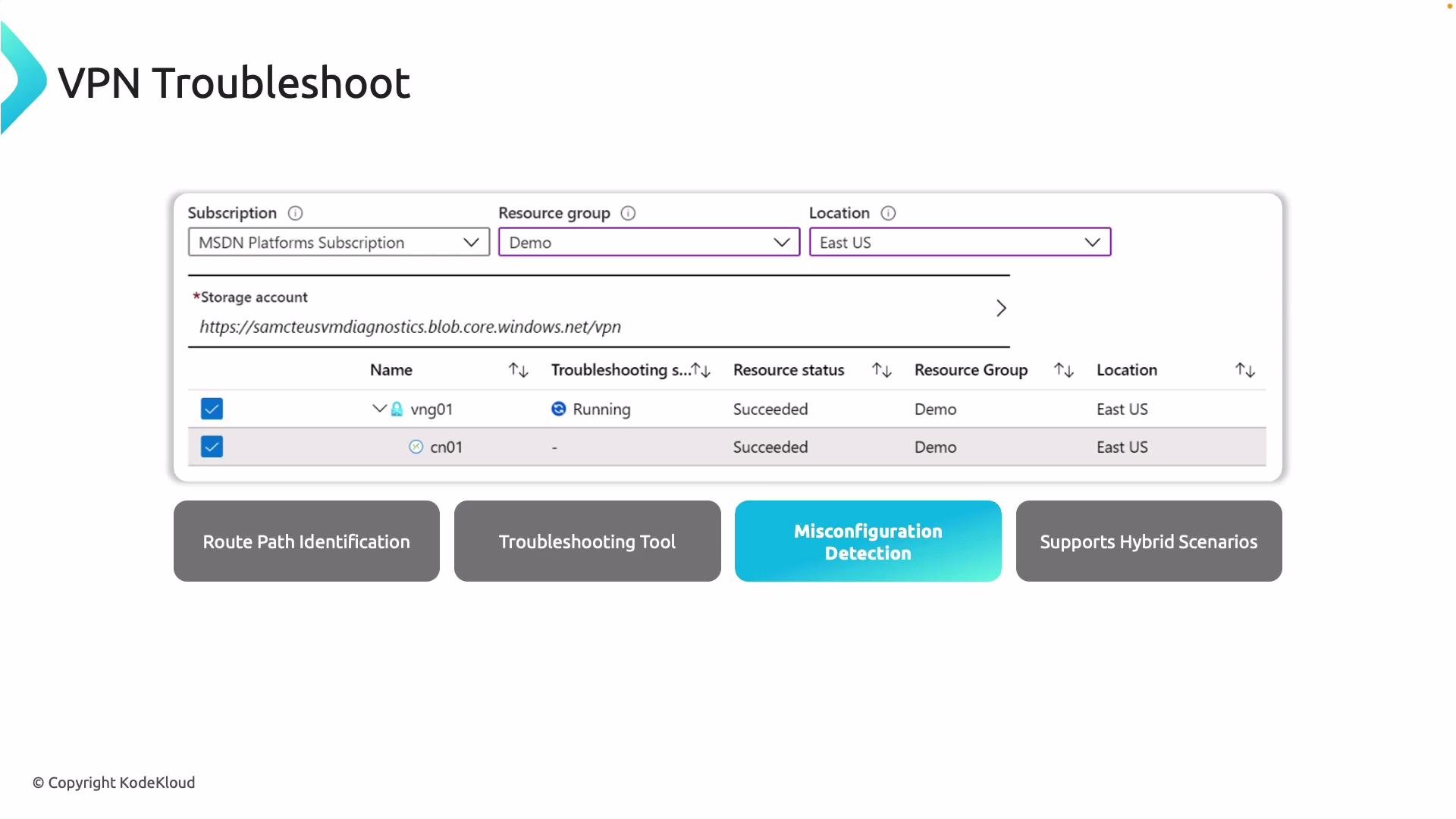
VPN TroubleshootDiagnose site-to-site and P2S VPN issues and route behaviorDiagnostic output saved to storage
Packet CaptureCapture raw packets from a VM for offline analysis (tcpdump/Wireshark style)PCAP files in Storage Account
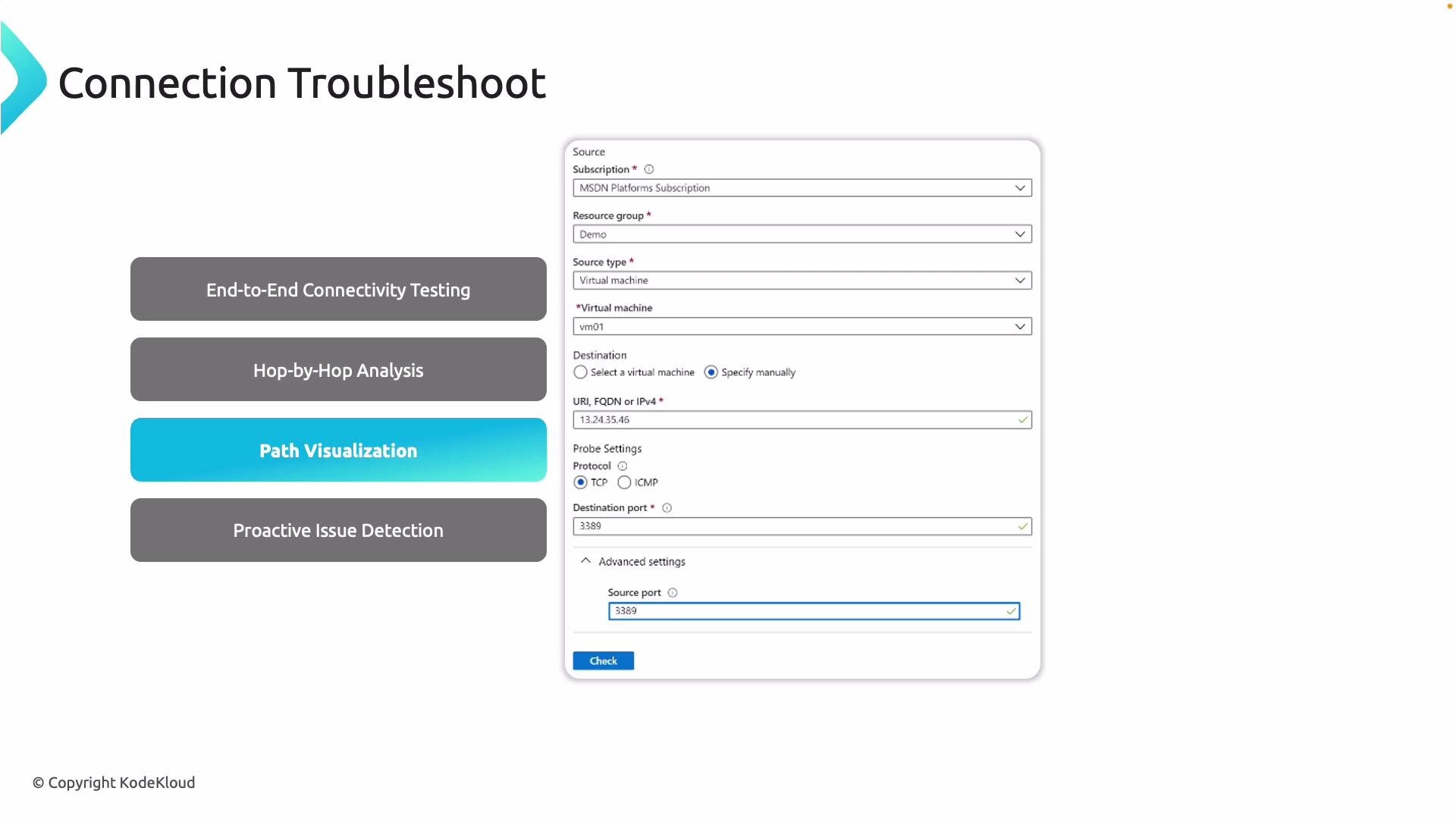
Connection TroubleshootEnd-to-end and hop-by-hop connectivity checksHop list, NSG checks, latency/port checks
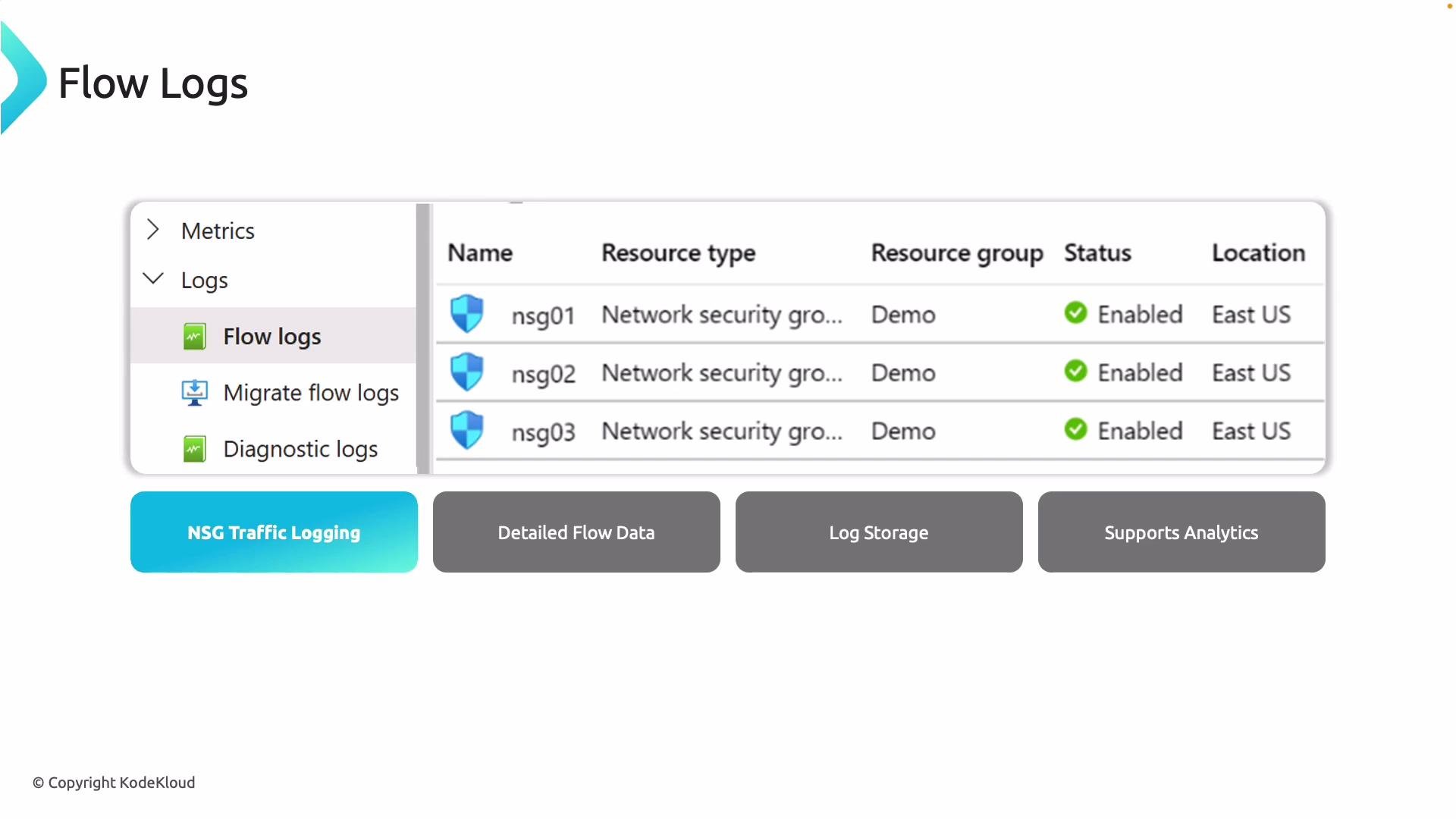
Flow Logs (NSG)Record allow/deny flow data for NSGsStorage Account, optionally Log Analytics
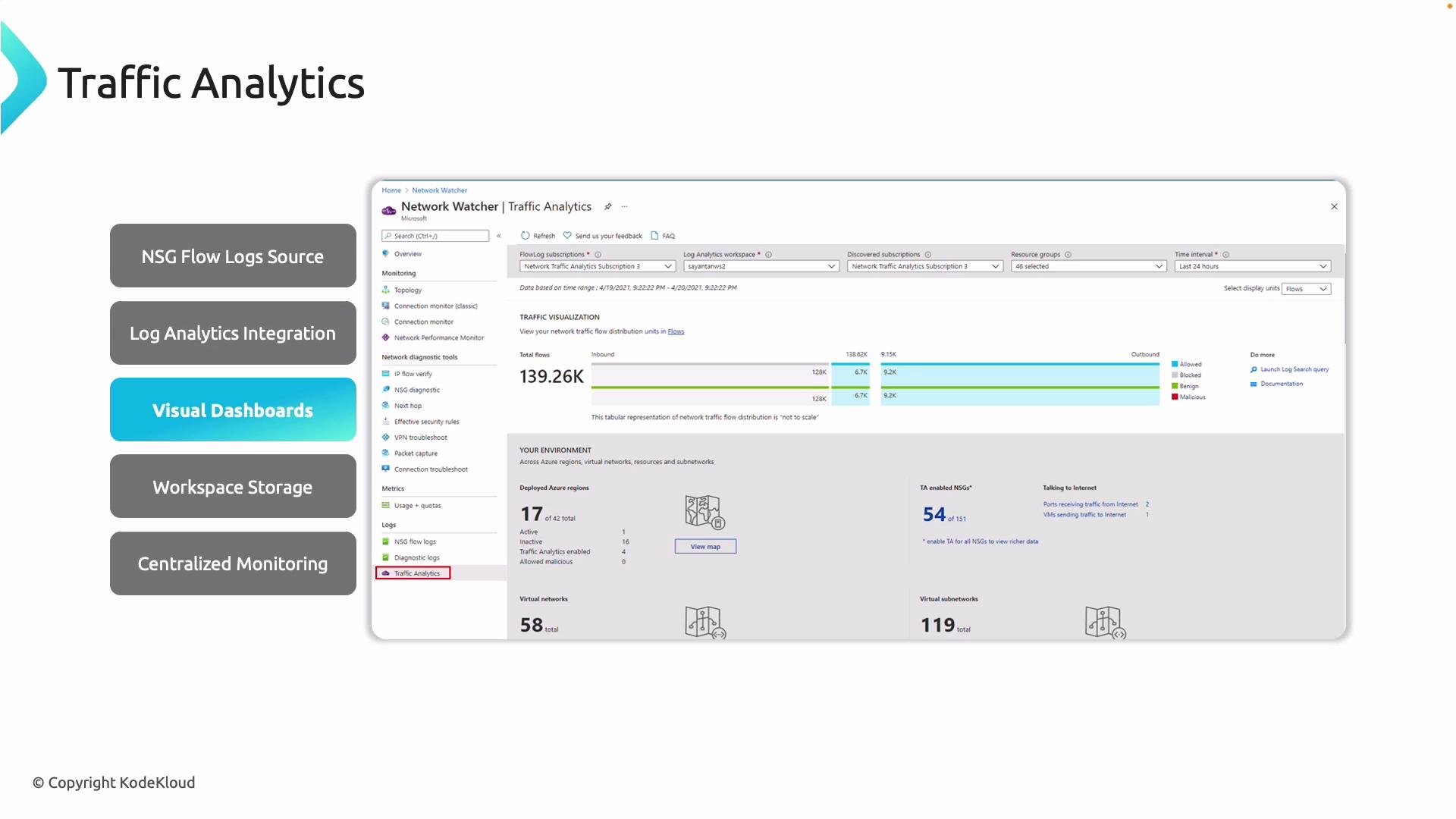
Traffic AnalyticsVisualize and analyze aggregated flow logsLog Analytics solution dashboards
Network Watcher features are region-scoped. Some features require the Network Watcher resource to be enabled in the same region as the resources you test. Appropriate RBAC (e.g., Reader or Network Contributor) is required to run diagnostic tools.

Detailed tool descriptions

Topology
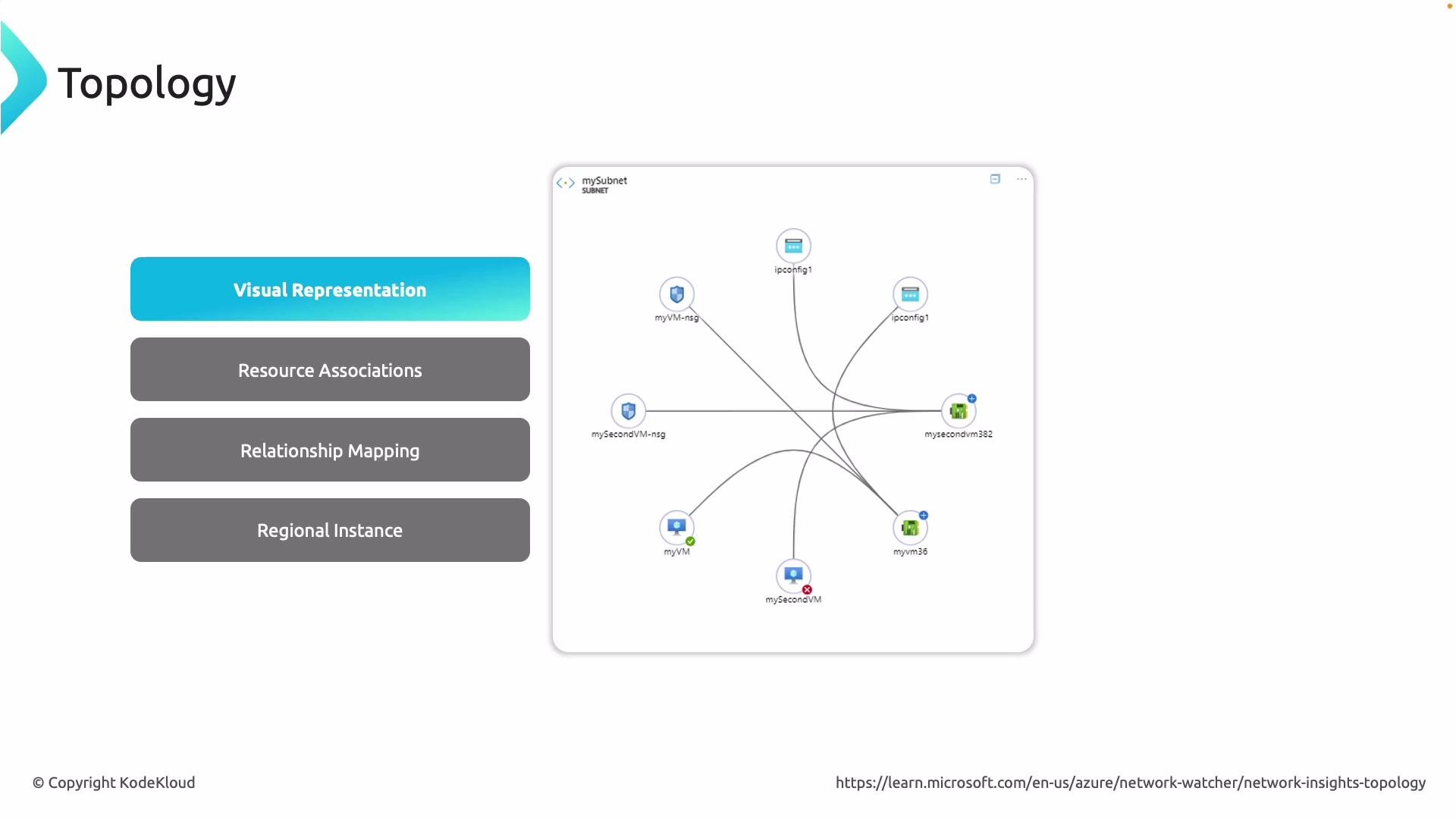
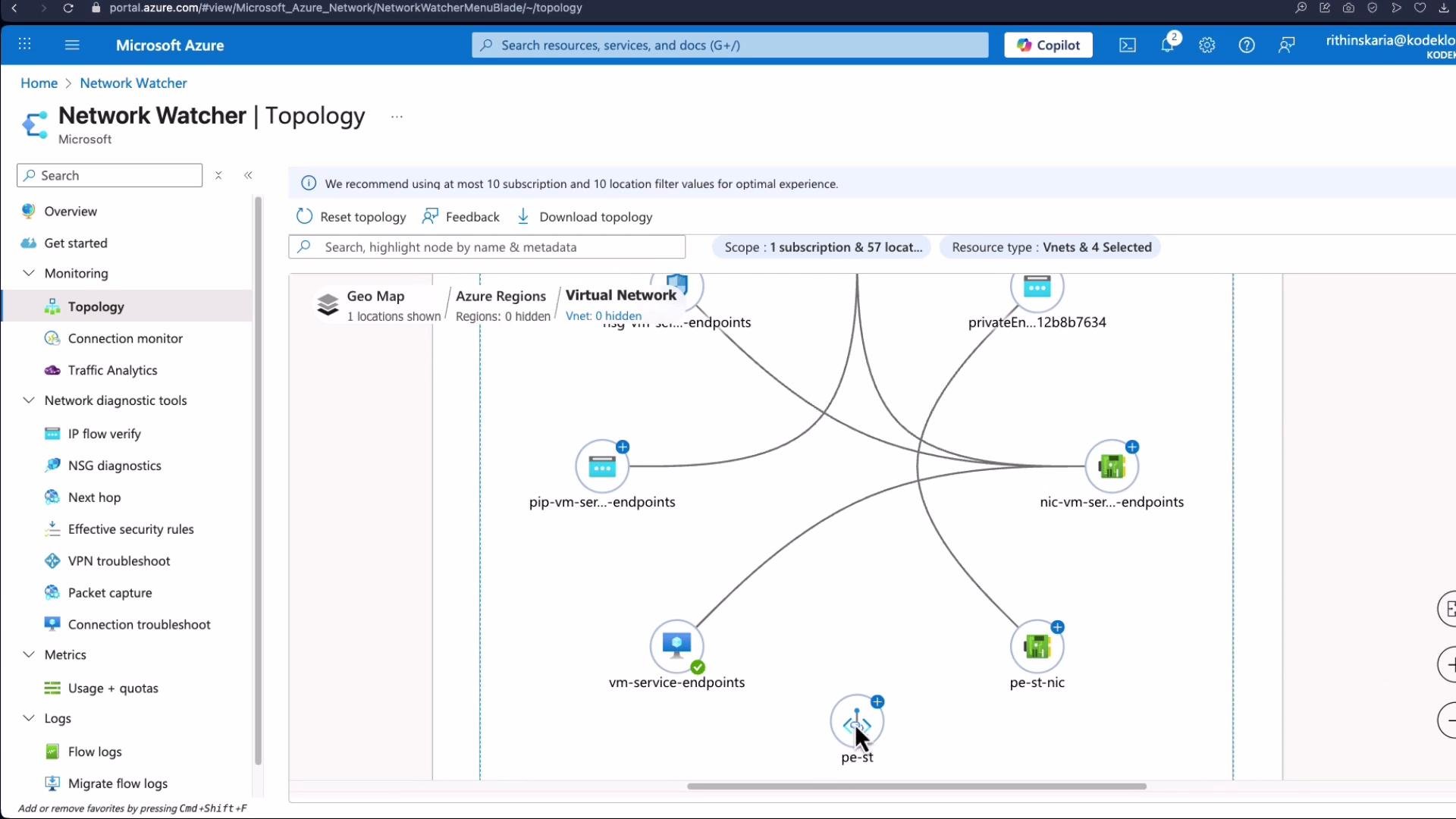
  • Purpose: Generates a regional visual map of networking elements in a VNet (VMs, NICs, subnets, NSGs, IP configurations, private endpoints, public IPs, etc.).
  • When to use: Understand resource relationships and dependencies when troubleshooting complex connectivity or routing issues.
  • Note: Topology is region-specific — enable Network Watcher in the same region as the VNet you want to map.
A slide titled "Topology" showing a visual network diagram of an Azure subnet with nodes (VMs, NSGs, and ipconfig icons) connected to a central virtual machine. On the left are four labeled buttons: Visual Representation, Resource Associations, Relationship Mapping, and Regional Instance.
Connection Monitor
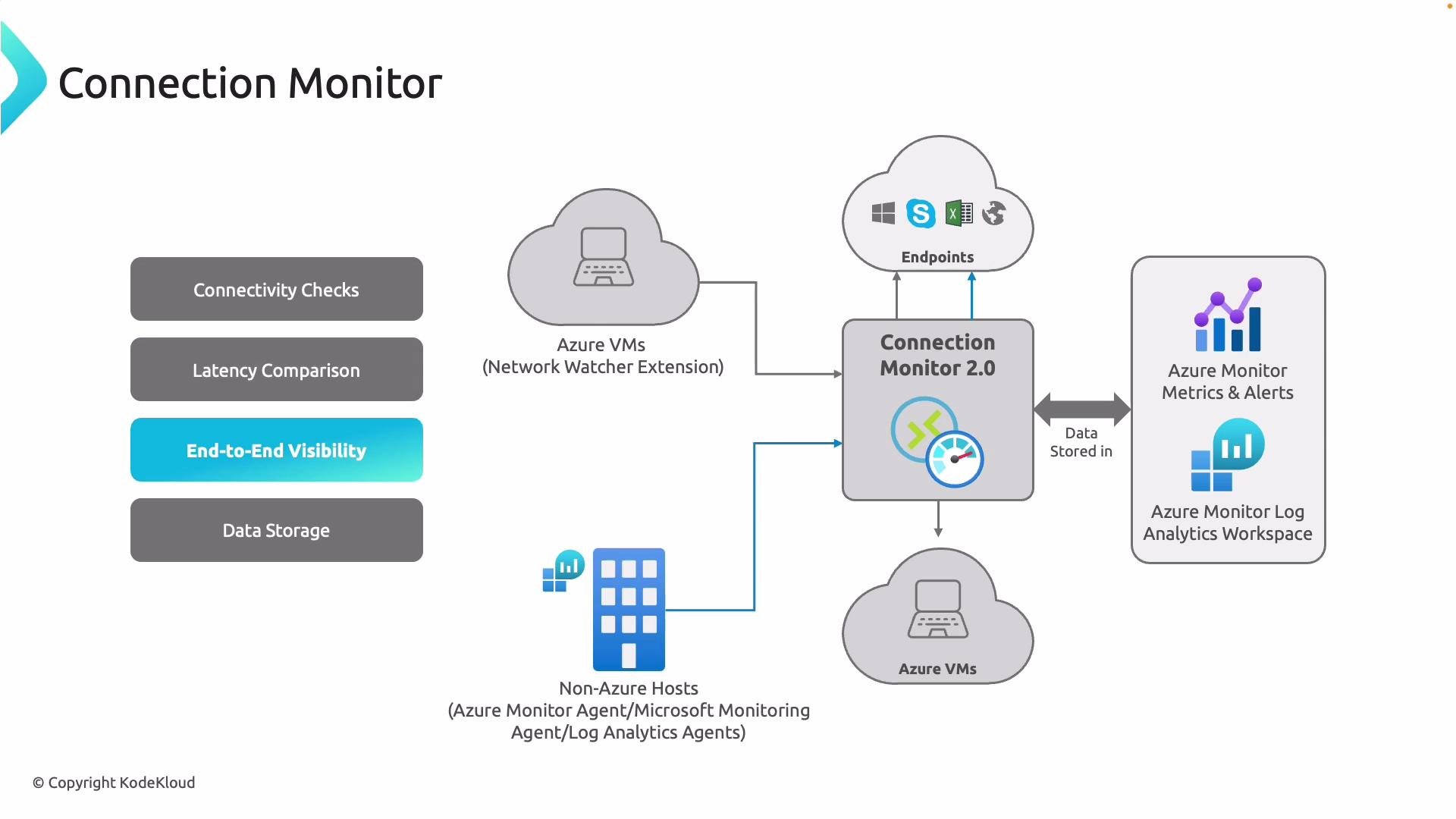
  • Purpose: Performs continuous connectivity checks between endpoints (VM-to-VM, on-premises-to-Azure, cross-region).
  • Telemetry: Measures latency and packet loss over time and stores results in Azure Monitor metrics and a Log Analytics workspace for historical tracking and alerting.
  • Best practice: Use for SLA verification, synthetic monitoring, and tracking intermittent cross-region or hybrid connectivity issues.
A network architecture diagram for Azure Connection Monitor 2.0 showing Azure VMs and non‑Azure hosts performing connectivity and latency checks to endpoints, with results fed into Connection Monitor. The monitor stores data in Azure Monitor (Metrics & Alerts) and a Log Analytics workspace for end‑to‑end visibility and storage.
IP Flow Verify
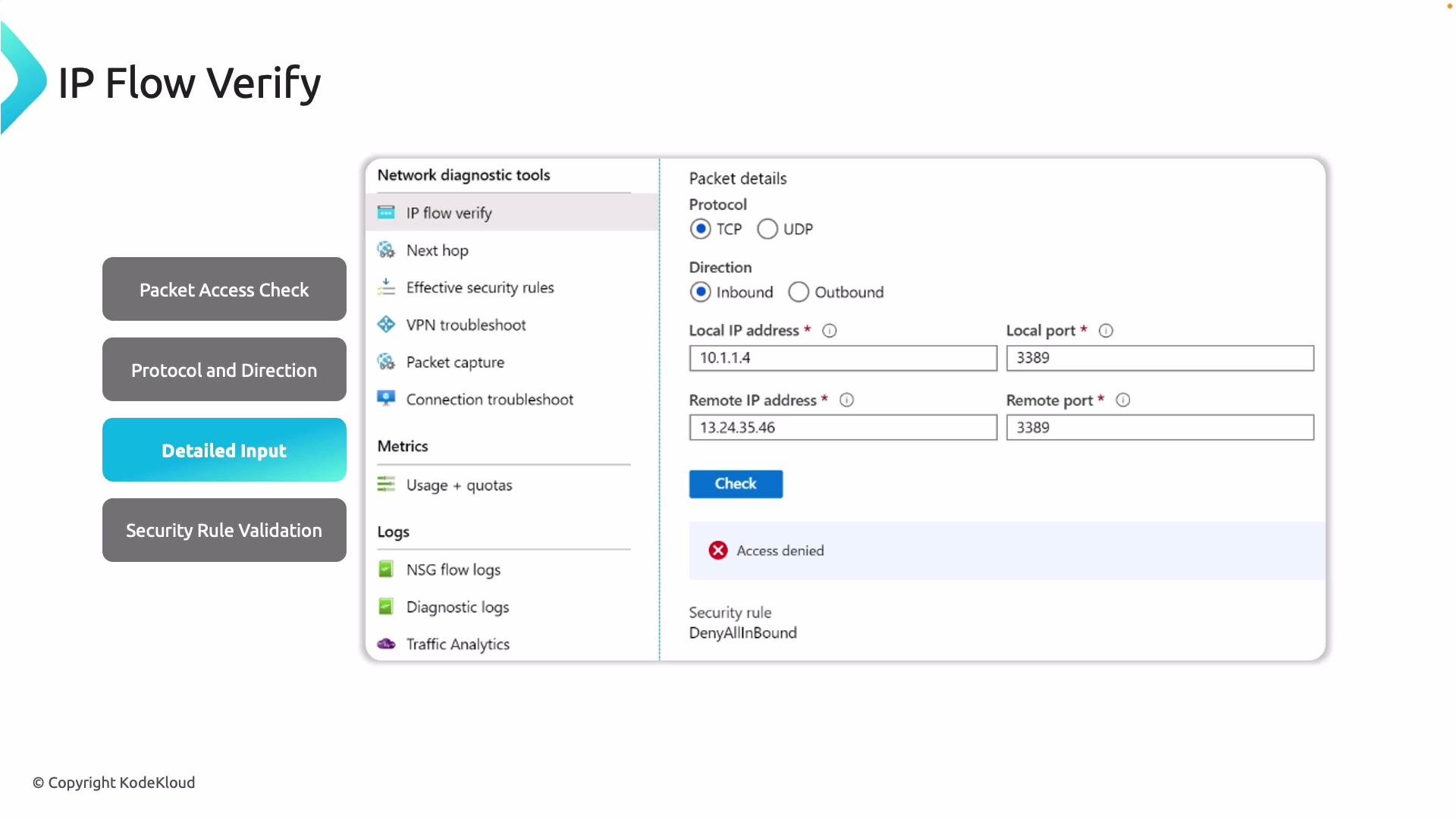
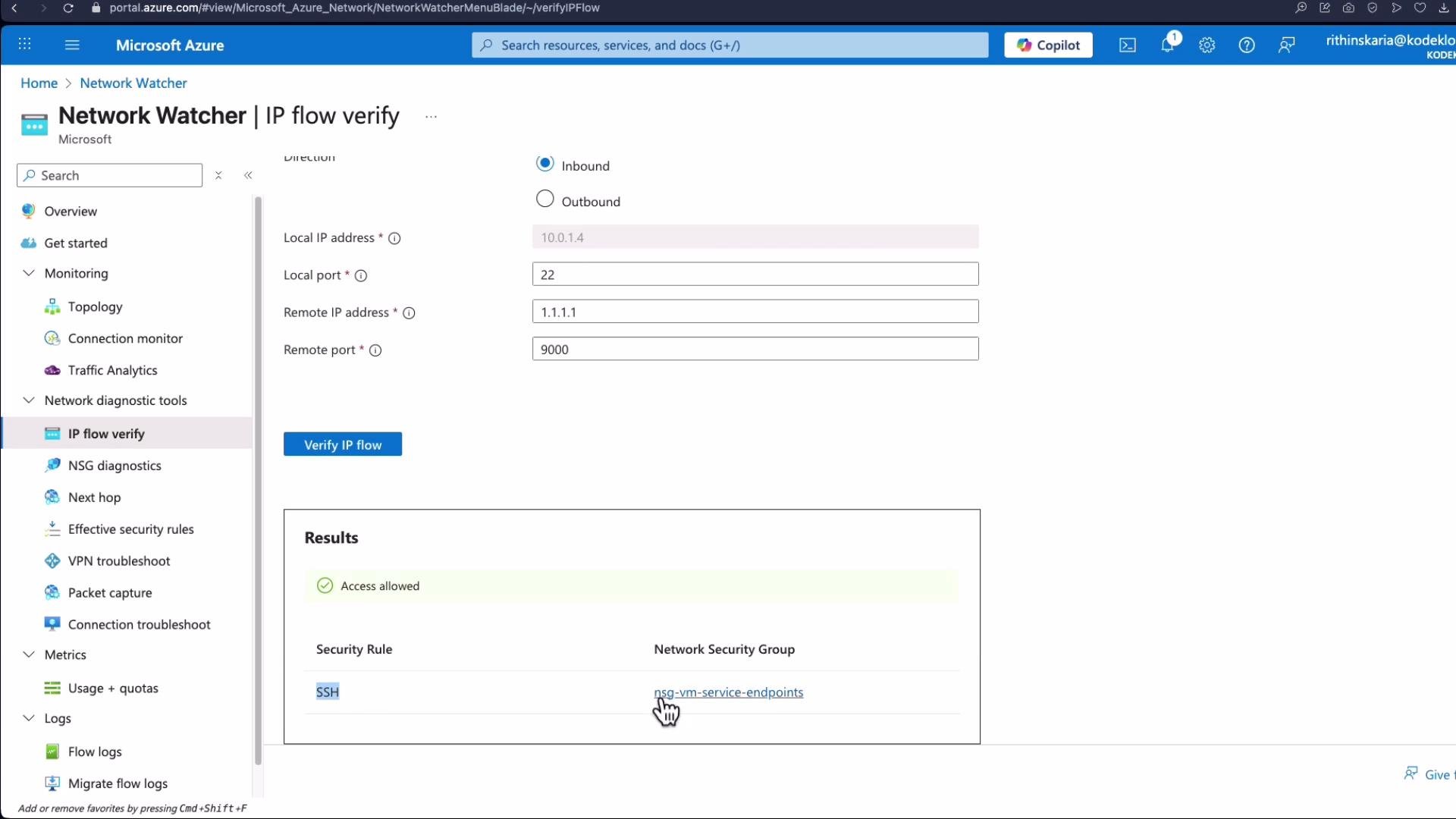
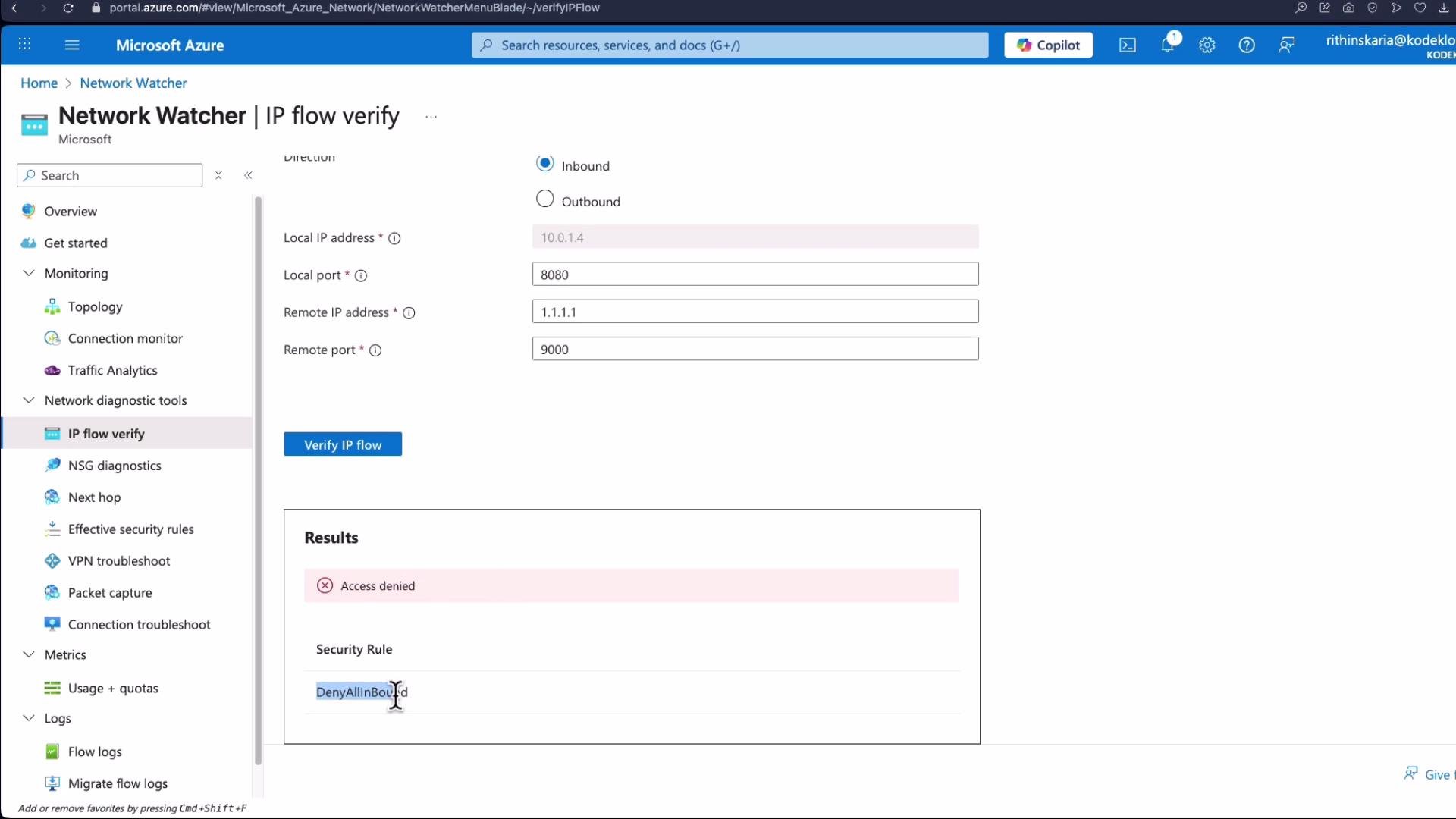
  • Purpose: Simulates a packet through NSG rules to show whether a specific flow (TCP/UDP, inbound/outbound) would be allowed or denied.
  • Inputs: Source/destination IPs and ports, protocol, and direction.
  • Output: Access result and the matching NSG rule(s) that caused the decision.
A screenshot of an "IP Flow Verify" network diagnostic tool showing packet details (protocol TCP, direction inbound) with local and remote IPs and ports entered. The check result shows "Access denied" with the security rule "DenyAllInBound."
NSG Diagnostics
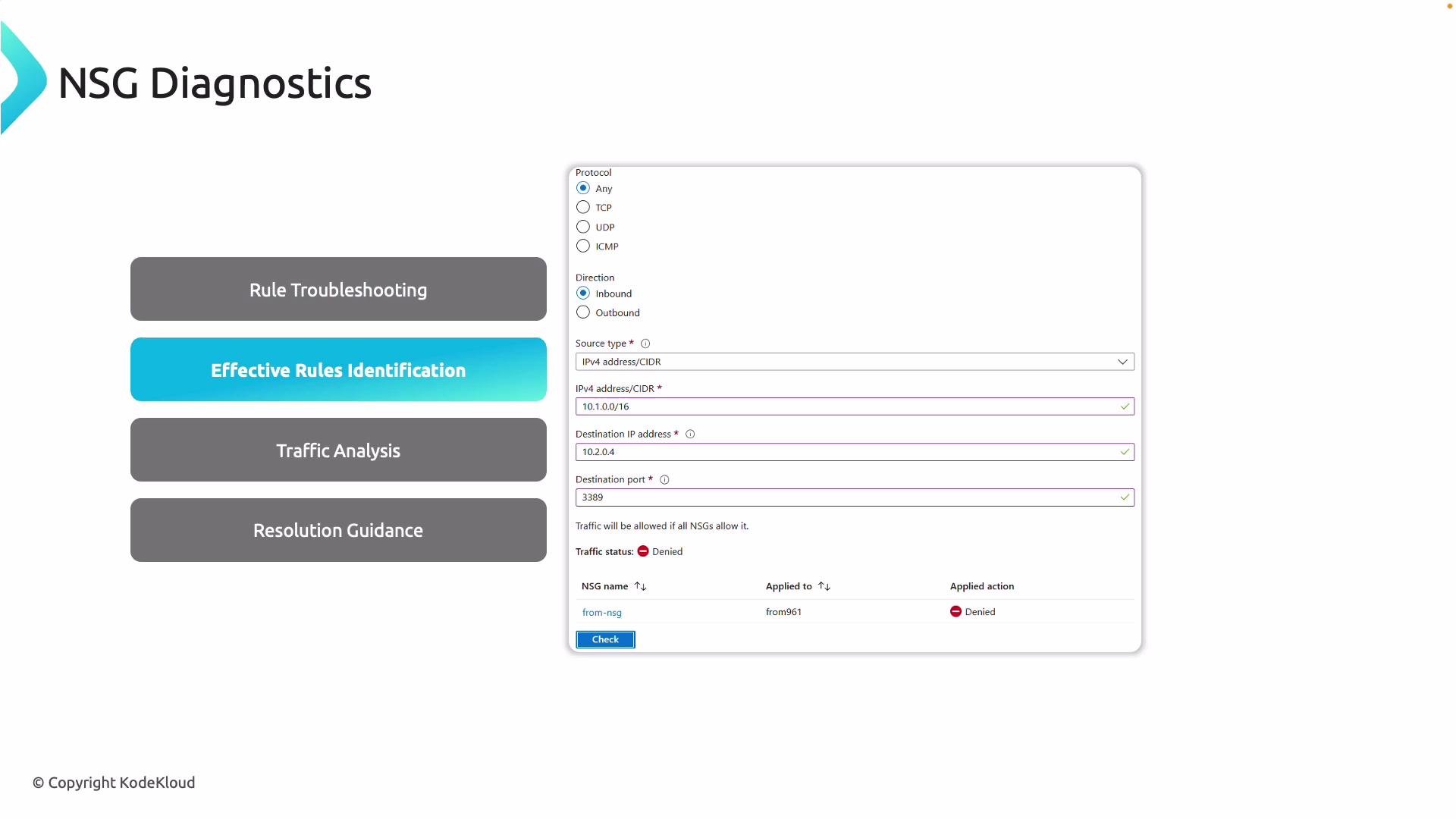
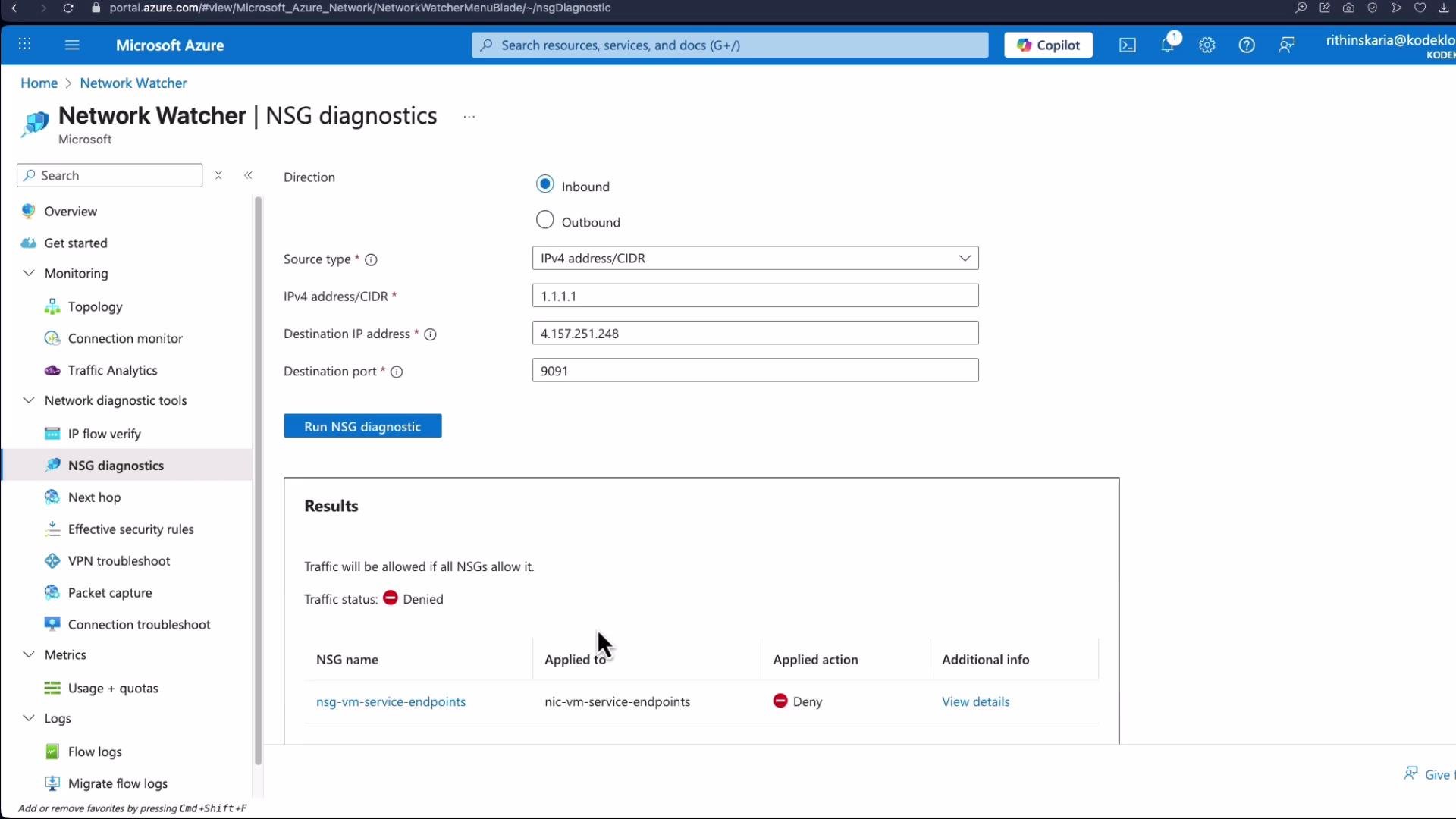
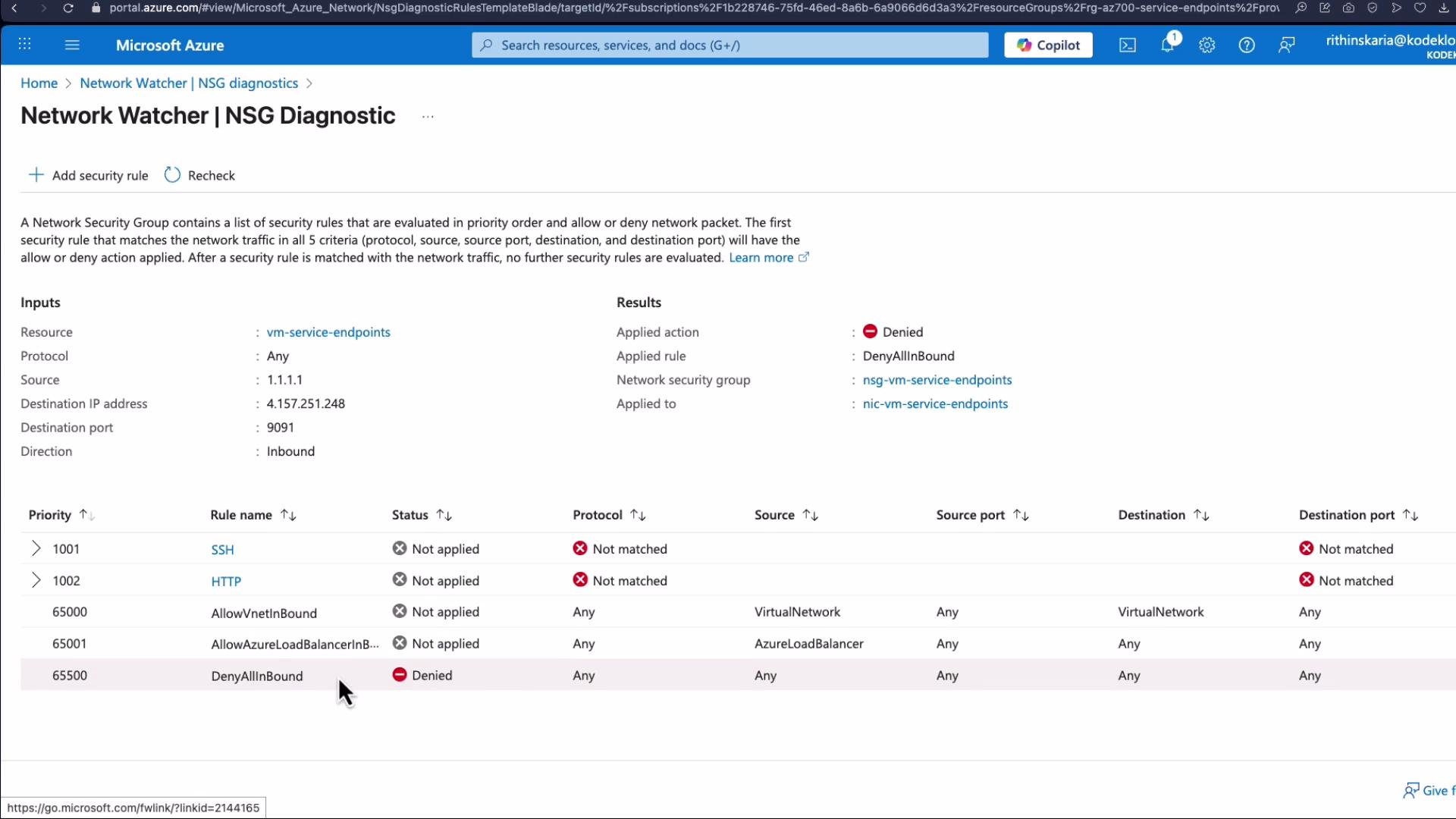
  • Purpose: Lists effective NSG rules applied to a NIC or subnet (inherited and custom), shows evaluation order/priority, and explains why a flow was allowed or denied.
  • When to use: Troubleshoot conflicting rules, unintended deny statements, or when a VM cannot reach an endpoint despite expected rules.
VPN Troubleshoot
  • Purpose: Diagnose VPN gateway issues for site-to-site and point-to-site connections.
  • Capabilities: Validates routing/next hop behavior for VPN traffic, detects misconfigurations and tunnel issues.
  • Output: Diagnostic data saved to a storage account for offline analysis and deeper troubleshooting.
A VPN Troubleshoot dashboard screenshot showing subscription, resource group and location selectors, a storage account URL, and a table listing VPN resources (vng01 and cn01) with their statuses. Below the table are buttons for Route Path Identification, Troubleshooting Tool, Misconfiguration Detection, and Supports Hybrid Scenarios.
Packet Capture
  • Purpose: Capture raw packet-level traffic on a VM (similar to tcpdump or Wireshark).
  • Filters: Target VM, protocol, IP, or port. Useful for investigating latency issues, dropped connections, or suspicious traffic.
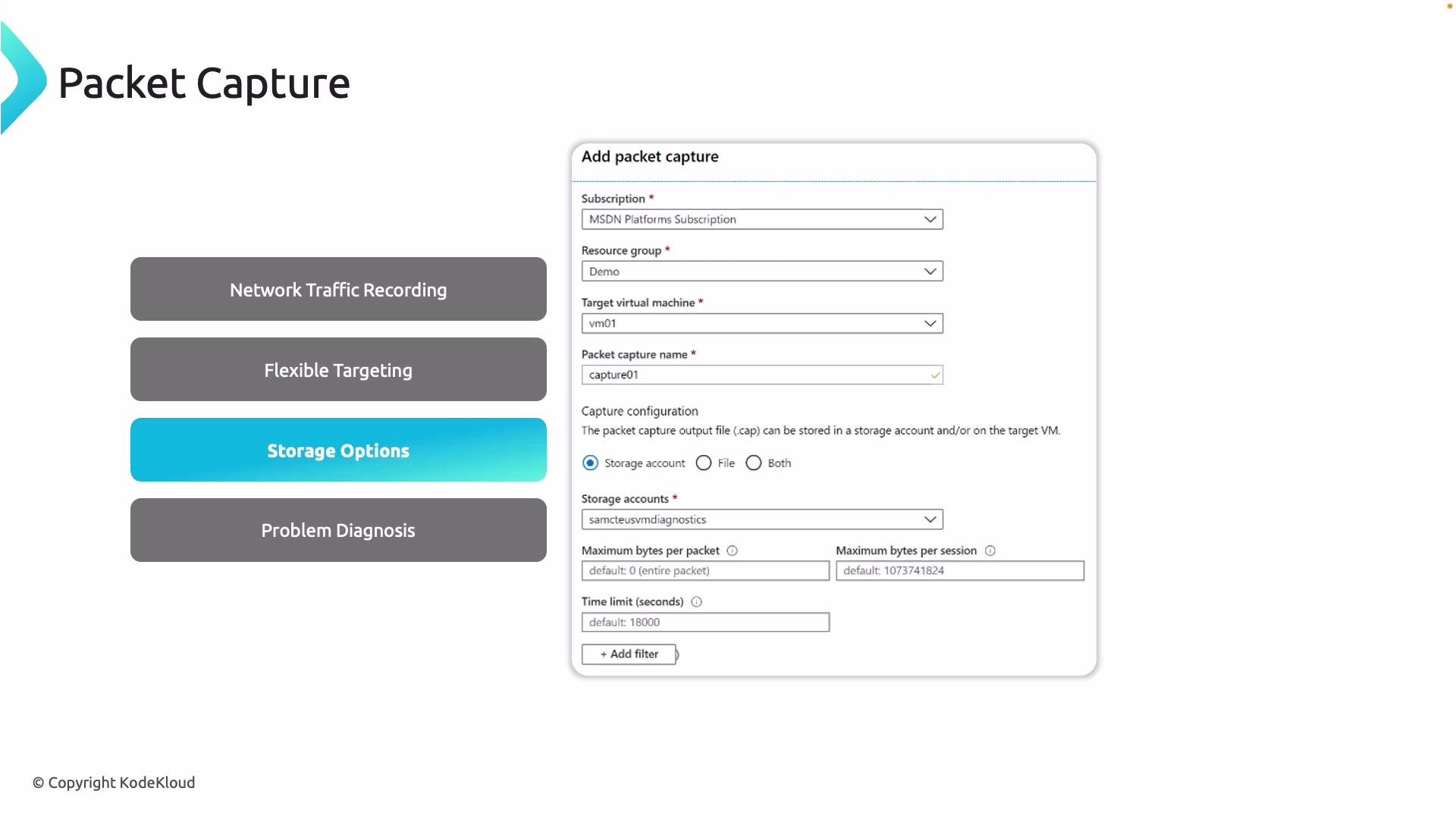
  • Storage: Captures save to an Azure Storage account; you can download PCAP files for offline analysis.
A slide titled "Packet Capture" showing a highlighted "Storage Options" item on the left and an "Add packet capture" configuration form on the right with fields for subscription, resource group, target VM, packet capture name, and storage settings. The left column also lists features like Network Traffic Recording, Flexible Targeting, and Problem Diagnosis.
Connection Troubleshoot
  • Purpose: End-to-end connectivity tests with hop-by-hop analysis. Includes NSG diagnostics, next hop, path visualization, port checks, and latency measurements.
  • Use case: Isolate the network hop where connectivity fails and obtain actionable diagnostics to remediate the issue.
A slide titled "Connection Troubleshoot" showing four workflow buttons (End-to-End Connectivity Testing, Hop-by-Hop Analysis, Path Visualization — highlighted, Proactive Issue Detection) on the left. On the right is a form-like UI for specifying source/destination, protocol (TCP/ICMP) and ports for connectivity/path checks.
Flow Logs
  • Purpose: Record NSG-level traffic flows (inbound/outbound) including source/destination IPs, ports, protocol, and the action (Allow/Deny).
  • Storage and integration: Flow logs are written to an Azure Storage account and can be forwarded to Log Analytics or SIEM solutions for analysis.
A screenshot of a "Flow Logs" dashboard listing three network security groups (nsg01–nsg03) with flow logging enabled in the East US. The left menu shows log options and the bottom buttons highlight features like NSG Traffic Logging, Detailed Flow Data, Log Storage, and Supports Analytics.
Traffic Analytics
  • Purpose: A Log Analytics solution that ingests NSG Flow Logs and provides visualizations, traffic patterns, hotspot detection, and security insights.
  • Best practice: Centralize flow logs from multiple regions into a Log Analytics workspace for cross-region analysis and threat hunting.
A screenshot of a "Traffic Analytics" dashboard (Network Watcher) showing traffic visualization bars, totals (139.26K flows) and environment metrics. The left column highlights features like NSG Flow Logs Source, Log Analytics Integration, and Visual Dashboards.

Using Network Watcher in the Azure portal — step-by-step

  1. Open the Azure portal and search for “Network Watcher”.
  2. Select a Network Watcher instance in the same region as the resources you will analyze. The diagnostic tools will appear in the left-hand menu.
IP Flow Verify (portal demo)
  • Select IP Flow Verify.
  • Choose the target VM and network interface.
  • Enter local IP/port, remote IP/port, direction (inbound/outbound), and protocol.
  • Run the check — the result shows Allow/Deny and the NSG rule that matched.
A screenshot of the Microsoft Azure portal showing the Network Watcher "IP flow verify" tool with fields for local/remote IP and ports. The Results panel shows "Access denied" with the matching security rule "DenyAllInbound."
NSG Diagnostics
  • Choose the VM or NIC and run NSG diagnostics by specifying source/destination and port.
  • The tool simulates the flow, lists evaluated rules in priority order, and indicates which rule (if any) matched and the resulting action.
A screenshot of the Microsoft Azure Network Watcher "NSG Diagnostic" page showing a Network Security Group rule evaluation. It shows inputs (source 1.1.1.1, destination IP 4.157.251.248, port 9091) and that the DenyAllInBound rule was applied, resulting in the traffic being denied.
Next Hop
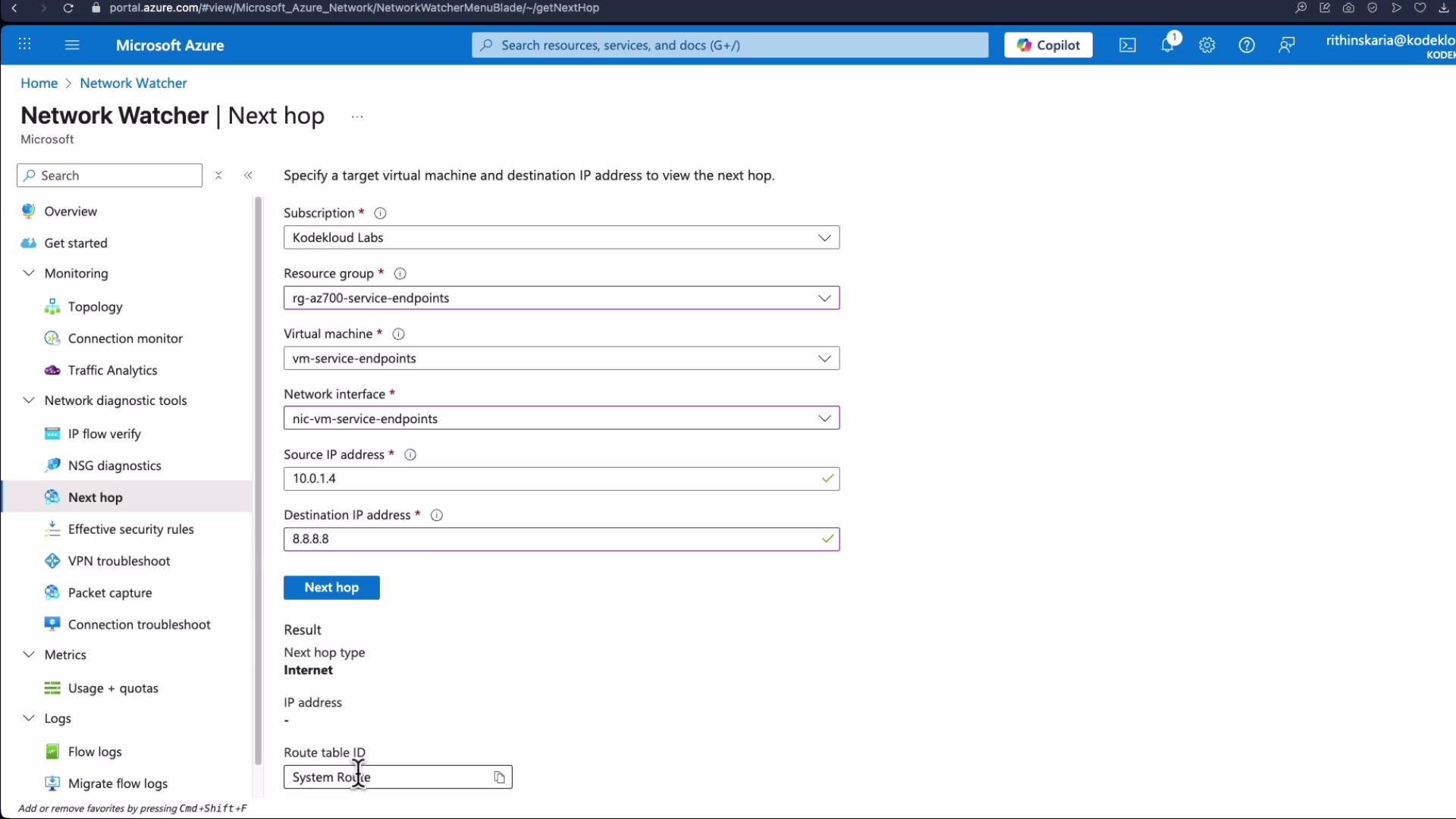
  • Use Next Hop to discover the next hop type (Internet, VirtualAppliance, VirtualNetworkGateway, VirtualNetwork, VnetLocal, None) and to confirm whether system routes or user-defined routes are being used.
A screenshot of the Microsoft Azure portal showing the Network Watcher "Next hop" tool. It displays a target VM and network interface with source IP 10.0.1.4 and destination 8.8.8.8, and the result shows the next hop type as "Internet" with route table "System Route."
VPN Troubleshoot
  • Select the VPN gateway resource, specify a storage account for diagnostics, and run the troubleshoot job.
  • Review the saved output to analyze tunnel status, connection health, and routing for site-to-site or point-to-site VPNs.
Packet Capture (portal)
  • Select Add packet capture.
  • Choose the target VM, set a capture name and storage location, and optionally add packet filters (protocol, local/remote IP/port).
  • Specify max capture size and duration, then start the capture. Download PCAP files from the storage account for offline analysis.
A screenshot of the Microsoft Azure portal showing the Network Watcher "Add packet capture" pane with options for capture location, storage account, packet capture configuration, and packet filtering. The dialog includes fields and buttons like "Add filter criteria," "Start packet capture," and "Cancel."
Packet capture requires the VM agent/extension to be installed on the target VM and may collect sensitive data. Captures and diagnostic storage can incur costs — ensure compliance, access controls, and retention policies are followed.
Connection Troubleshoot (portal)
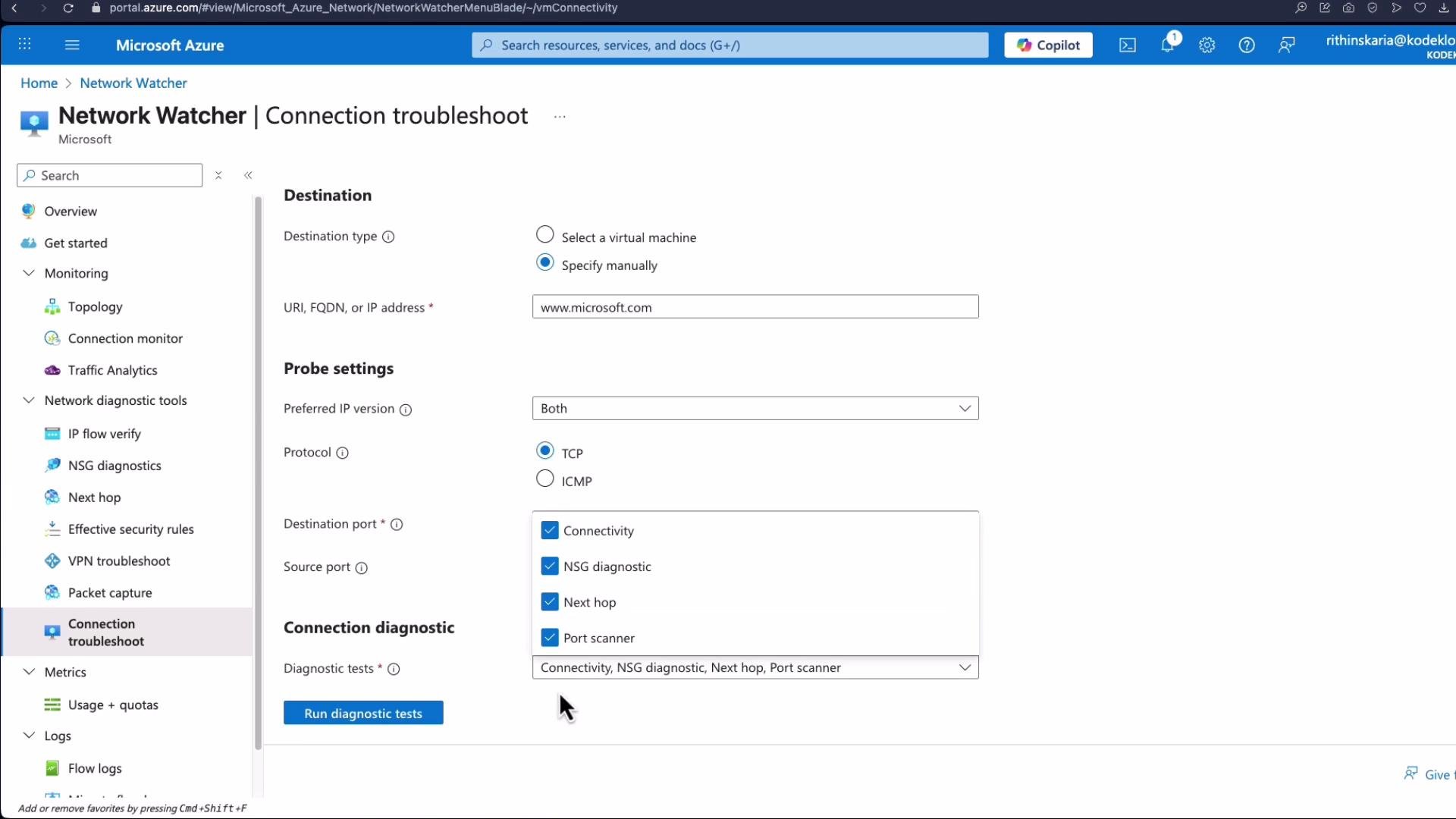
  • Select the source VM and specify the destination (resource URI, FQDN such as https://www.microsoft.com, or IP address).
  • Choose protocol (TCP/ICMP), destination port, and which checks to run (connectivity, NSG diagnostics, next hop, port scan).
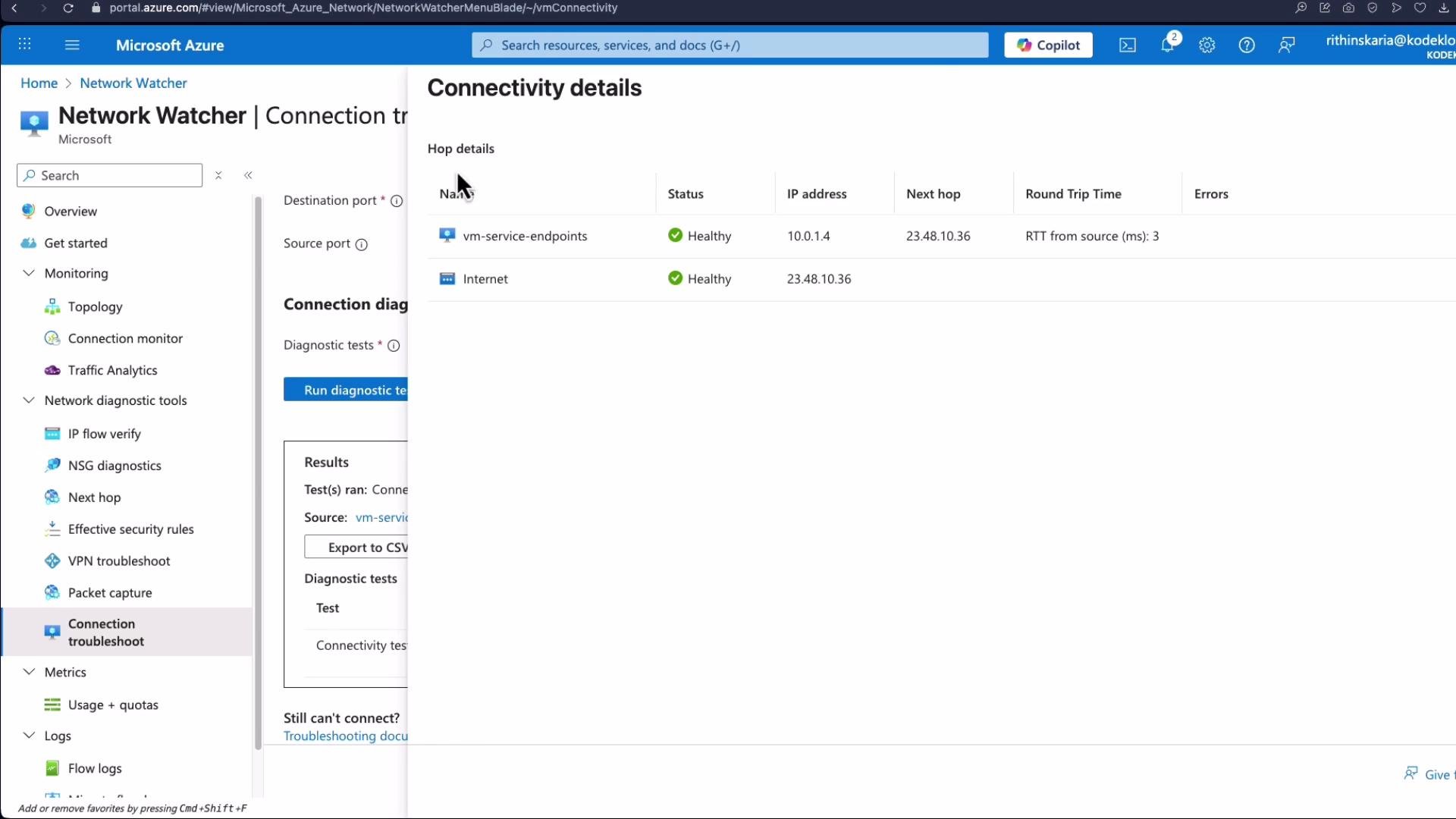
  • Examine results: reachability, probe statistics (sent/failed), average/max latency, and a detailed hop-by-hop path that highlights where failures occur.
Screenshot of the Microsoft Azure portal showing the Network Watcher "Connectivity details" pane with hop details for a connectivity test — listing vm-service-endpoints and Internet as "Healthy" with IP addresses and RTT. The Network Watcher navigation menu is visible on the left.
Flow Logs and Traffic Analytics
  • Enable Flow Logs on an NSG and choose a storage account to retain flow data. Optionally route logs to a Log Analytics workspace for analysis.
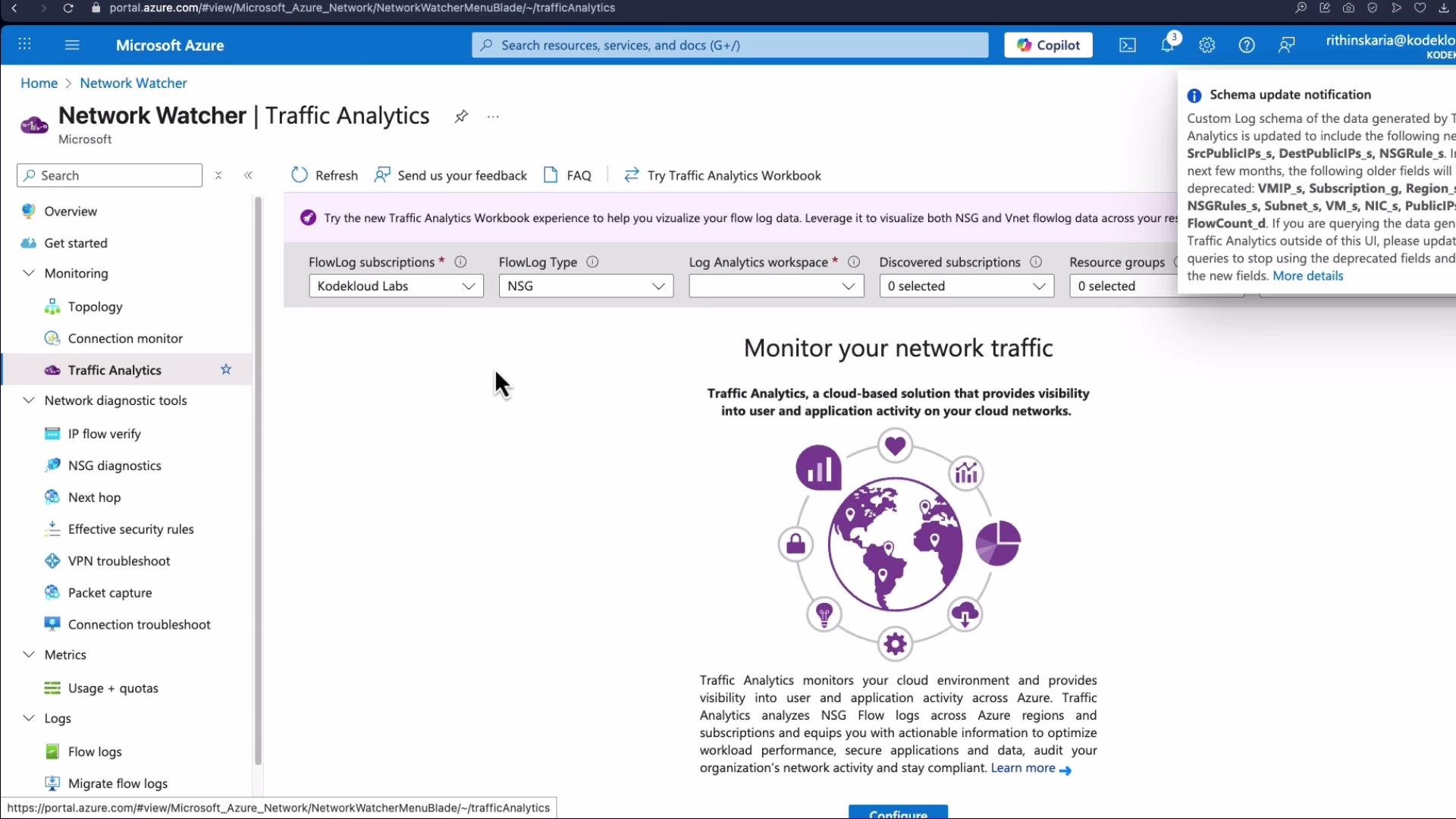
  • Use Traffic Analytics (Log Analytics solution) to visualize and analyze flow logs: identify traffic trends, hotspots, and security-related events across regions when logs are centralized.
A screenshot of the Microsoft Azure portal on the Network Watcher > Traffic Analytics page, showing flow log/workspace filters across the top and a central "Monitor your network traffic" infographic with configuration options.

Best practices and tips

  • Enable Network Watcher in each region where you need diagnostics.
  • Centralize Flow Logs into a Log Analytics workspace for unified analysis and Traffic Analytics.
  • Limit packet capture retention and control access to storage accounts to minimize exposure of sensitive data.
  • Combine Connection Monitor for continuous telemetry with Connection Troubleshoot for on-demand hop debugging.
  • Use IP Flow Verify and NSG Diagnostics before making NSG changes in production to reduce risk.

Summary

Azure Network Watcher bundles a set of regionally scoped diagnostics — topology, Connection Monitor, IP Flow Verify, NSG Diagnostics, Next Hop, Packet Capture, Connection Troubleshoot, Flow Logs, and Traffic Analytics — into a single service to help you monitor and troubleshoot network issues. Use the Azure portal tools for ad-hoc investigation, integrate outputs with Azure Monitor and Log Analytics for long-term observability, and follow security and retention practices when storing diagnostic data.