

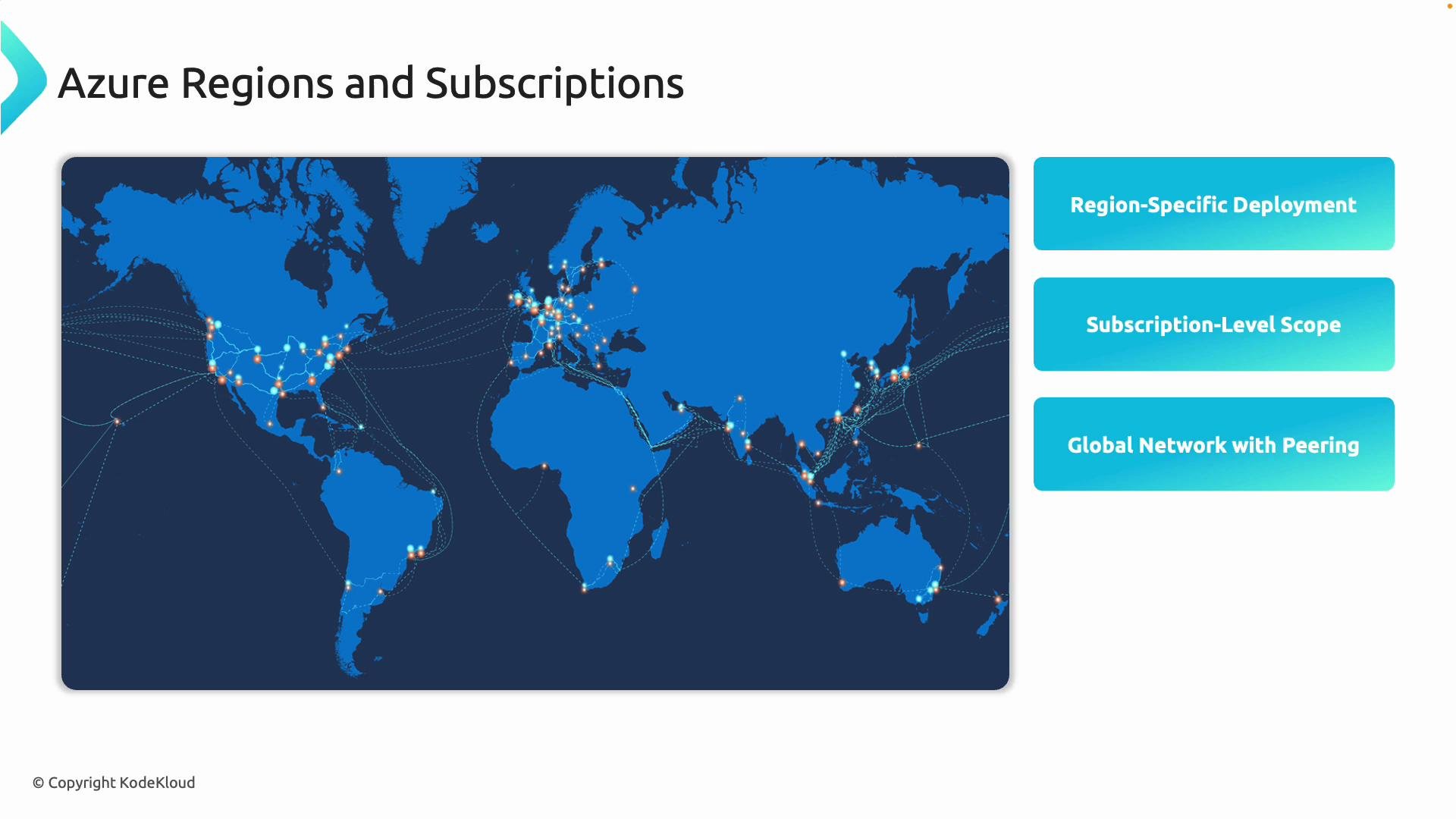
- Region-specific deployment: Each VNet is deployed to a specific Azure region (for example, East US, West Europe). The region determines the physical location of your resources and can affect latency and compliance.
- Subscription-level scope: VNets are created inside an Azure subscription. Subscriptions are used for billing, quotas, and access control—separate subscriptions are common for dev, test, and prod.
- Virtual network peering: Azure VNet peering enables low-latency, secure network connectivity across VNets in the same or different regions and subscriptions. Plan IP ranges to avoid overlap if you intend to peer VNets.
-
Start the VNet creation wizard
- Sign in to the Azure portal.
- Search for “Virtual Network” and select it.
- Click Create (or Create a virtual network) to open the guided setup.
-
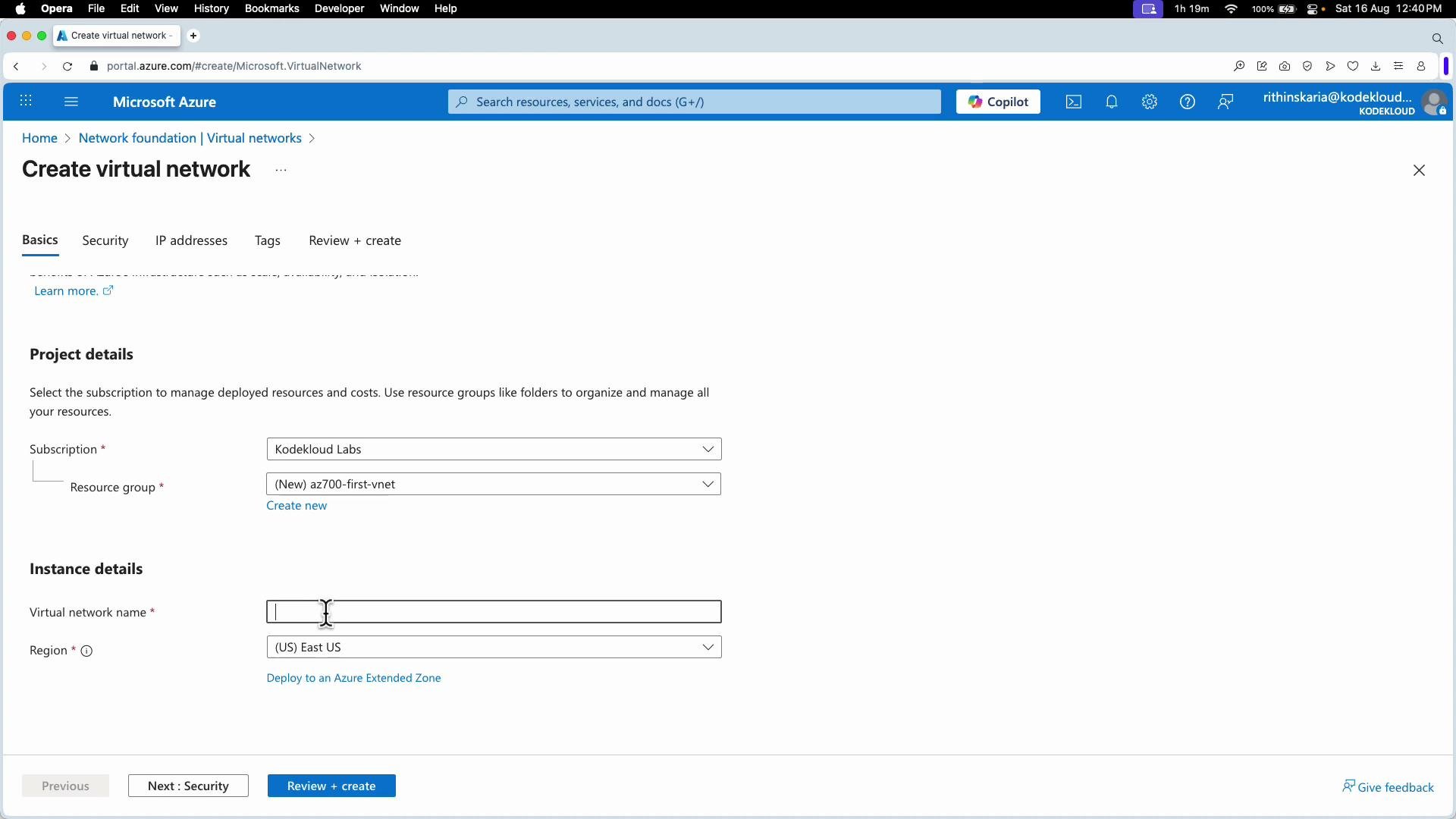
Project / Instance details
- Select the target subscription.
- Create or select a resource group to contain the VNet and related resources.
- Provide a descriptive VNet name and choose the region for deployment (match region to where your resources or users are located).
-
Optional security and add-on features
- The portal shows optional security services such as Azure Bastion, Azure Firewall, and DDoS Protection. You can enable them during VNet creation or attach them later.
- Note: many services require dedicated subnets and exact subnet names (for example,
GatewaySubnetfor VPN Gateway,AzureBastionSubnetfor Bastion, andAzureFirewallSubnetfor Firewall). Plan subnet names and sizes ahead of deployment.
-
Configure IP address space and subnets
- Define the VNet address space (CIDR), e.g.,
192.168.0.0/16. This is the IP range the VNet will contain. - Add one or more subnets inside that address space. For each subnet, provide:
- Name (use consistent naming conventions, e.g.,
snet-web,snet-db) - Prefix (CIDR), e.g.,
192.168.0.0/27
- Name (use consistent naming conventions, e.g.,
- When sizing subnets, remember Azure reserves 5 IPs per subnet (the first 4 and the last). These addresses are not assignable to VMs or PaaS services.
- Define the VNet address space (CIDR), e.g.,
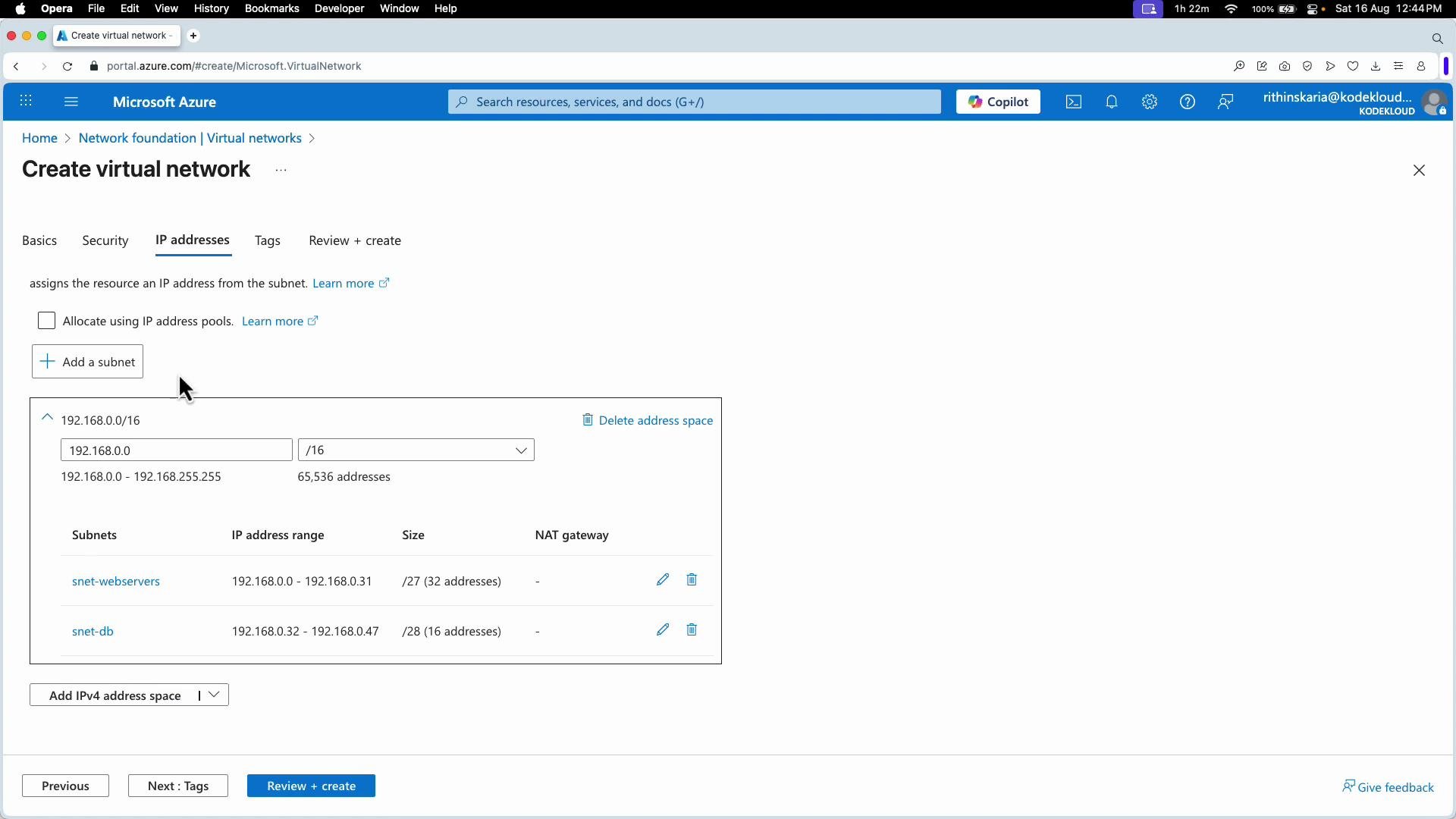
Azure reserves five addresses in each subnet (the first four and the last). Some Azure services also require subnets with specific names, e.g.,
GatewaySubnet for VPN Gateway and AzureBastionSubnet for Bastion. Create those subnets with the required names and sizes if you plan to use those services.
Example VNet + Subnet plan
- VNet address space:
192.168.0.0/16(65,536 addresses) - Subnet 1:
snet-webservers->192.168.0.0/27(32 total; 27 usable) - Subnet 2:
snet-db->192.168.0.32/28(16 total; 11 usable)
-
Add additional address spaces (optional)
- A single VNet can include multiple address spaces. If you anticipate growth or need to avoid overlaps with on-prem networks, you can add CIDR blocks to the VNet later.
-
Review + Create
- Click Review + Create. Azure validates your configuration (checks for overlapping ranges, invalid names, and service-specific subnet requirements).
- If validation passes, click Create to deploy the VNet. Deployment usually completes in seconds to a few minutes.
-
Verify the deployed VNet
- After deployment, click Go to resource to open the VNet blade.
- Select Subnets to view the configured subnets and the available IP addresses (note the portal reflects Azure’s reserved addresses in the available count).
- Check Networking | Peerings if you plan to connect this VNet to other VNets.
- Example command (run in Cloud Shell or locally with
azsigned in):
--subnet flag multiple times or add subnets separately with az network vnet subnet create if you need more than one subnet at creation time.
Checklist before you create a VNet
- Choose the correct region and subscription for deployment.
- Plan address space to avoid IP overlap with other VNets and on-prem networks.
- Reserve subnet names and sizes for required services (
GatewaySubnet,AzureBastionSubnet,AzureFirewallSubnet). - Decide on peering and whether VNets across subscriptions/regions need connectivity.
- Consider NSGs, route tables, Firewall, and DDoS requirements and whether to attach them now or later.
- Azure Virtual Network documentation: https://learn.microsoft.com/azure/virtual-network/
- VNet peering overview: https://learn.microsoft.com/azure/virtual-network/virtual-network-peering-overview
- Azure CLI reference for networking: https://learn.microsoft.com/cli/azure/network/vnet