

- Group NICs logically regardless of IP address or subnet.
- A NIC can belong to multiple ASGs; an ASG can be referenced by many NSGs.
- Simplifies rule maintenance when VMs scale, are replaced, or move subnets.
How ASGs work (brief)
- Create an ASG and add NICs as members.
- Reference the ASG in NSG rules as source or destination.
- When traffic is evaluated, NSGs match against the ASG membership (not IPs).
- Use ASGs to build layered, role-based network security policies.
Example scenario (problem to solve)
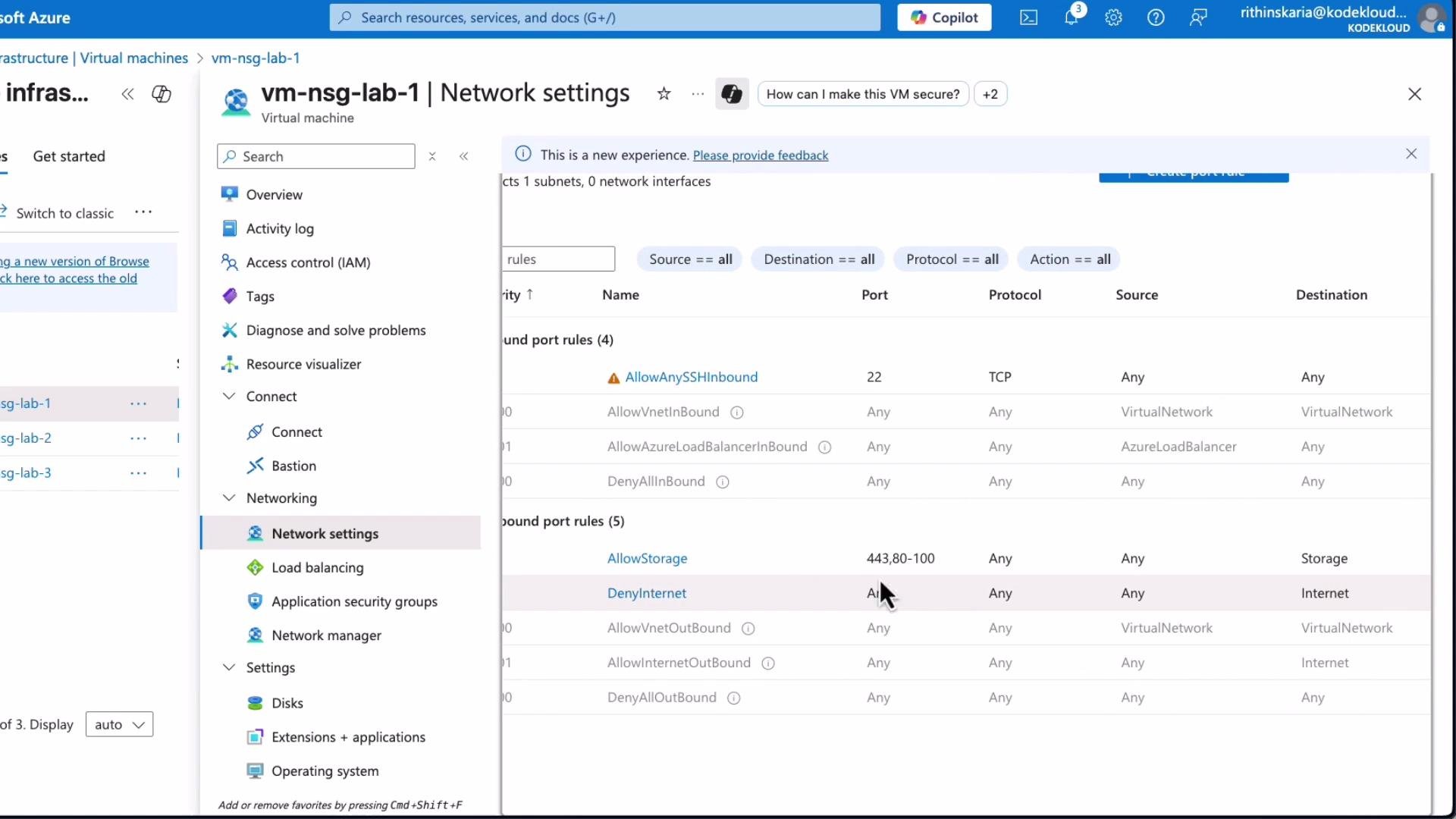
- A subnet has a broad NSG rule that allows access to a storage account — by default every VM in the subnet inherits it.
- Requirement: Only specific VMs (lab1 and lab2) should access the storage account; lab3 must be excluded.
- Without ASGs, you would manually maintain IP addresses in NSG rules — error-prone and hard to scale.
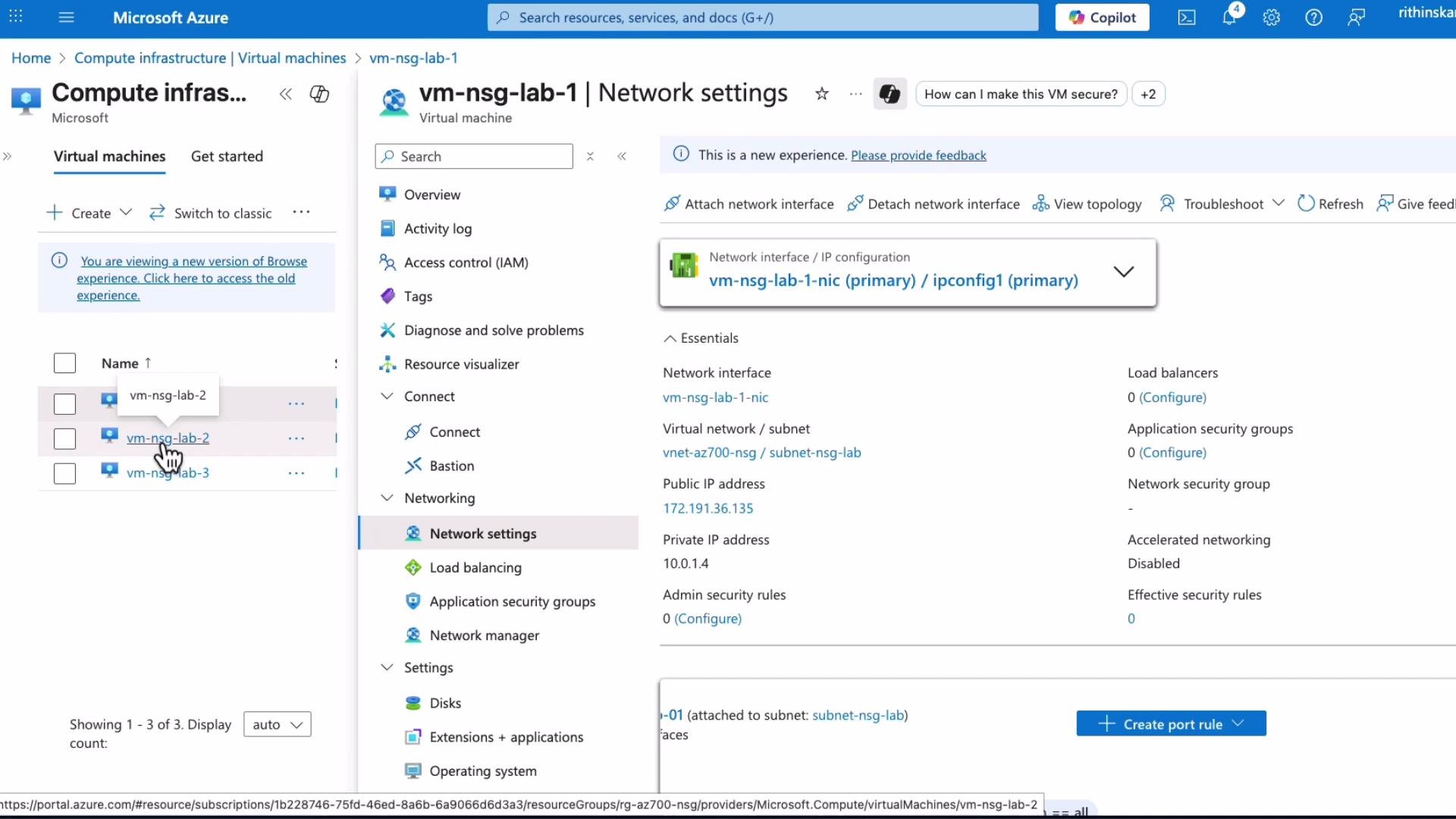
- Create an ASG (for example,
ASG-storage-servers). - Associate the NICs for
lab1andlab2with that ASG. - Update NSG rules to reference the ASG (instead of IP addresses).
- Verify that
lab1/lab2can access the Storage service and thatlab3cannot.
Step-by-step: Create ASG and enforce NSG rules
-
Create an ASG
- In the Azure portal search for “Application security groups” → Add → provide a name such as
ASG-storage-servers.
- In the Azure portal search for “Application security groups” → Add → provide a name such as
-
Add NICs to the ASG
- Open the VM → Networking → Network interface → Application security groups → Add → select
ASG-storage-servers. - Repeat for the second VM (
lab2).
- Open the VM → Networking → Network interface → Application security groups → Add → select
-
Consider NIC-level NSGs
- If a NIC-level NSG exists, it will be evaluated together with subnet-level NSGs. To ensure consistent behavior, either disassociate the NIC-level NSG or update its rules so they don’t conflict.
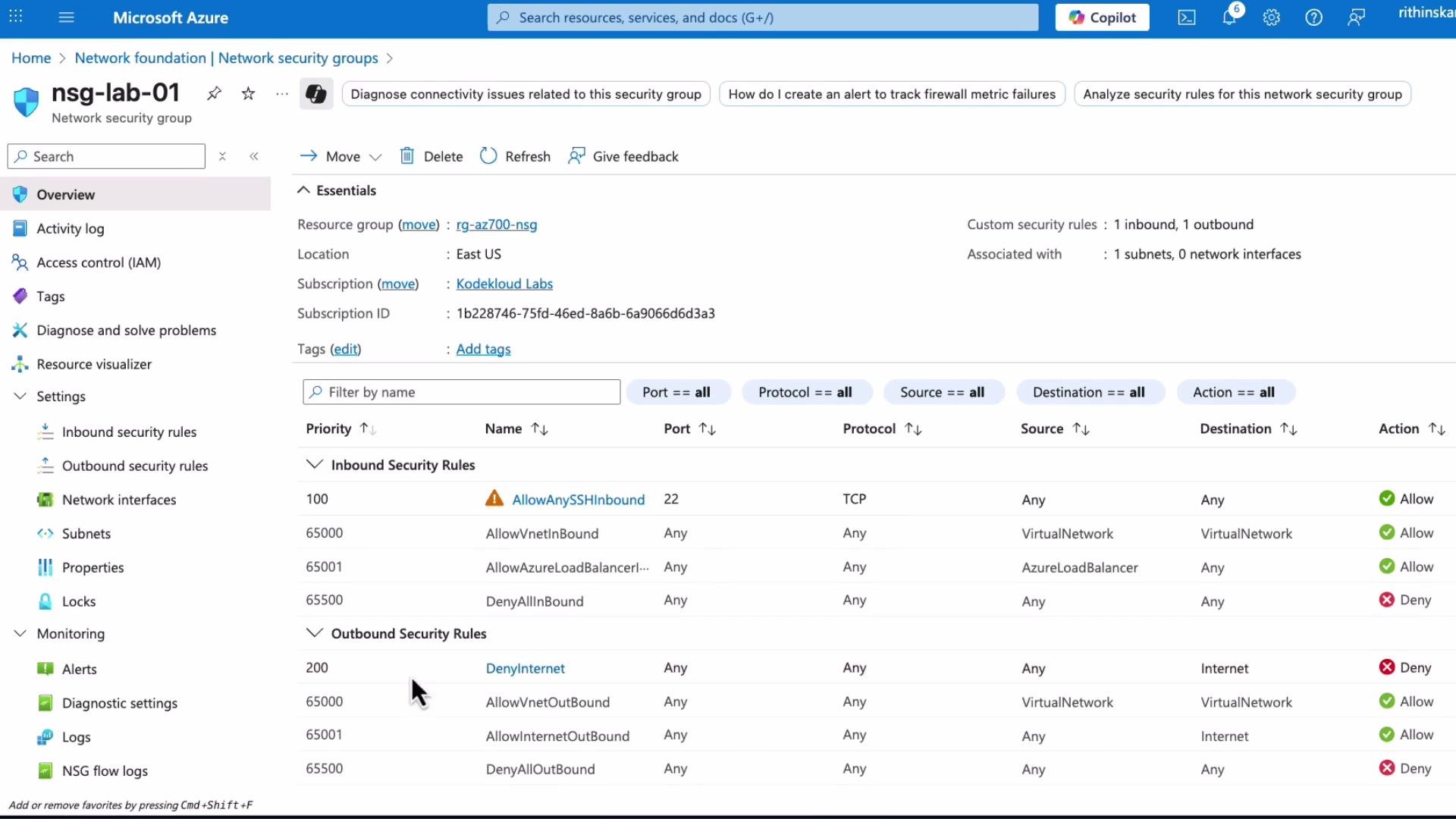
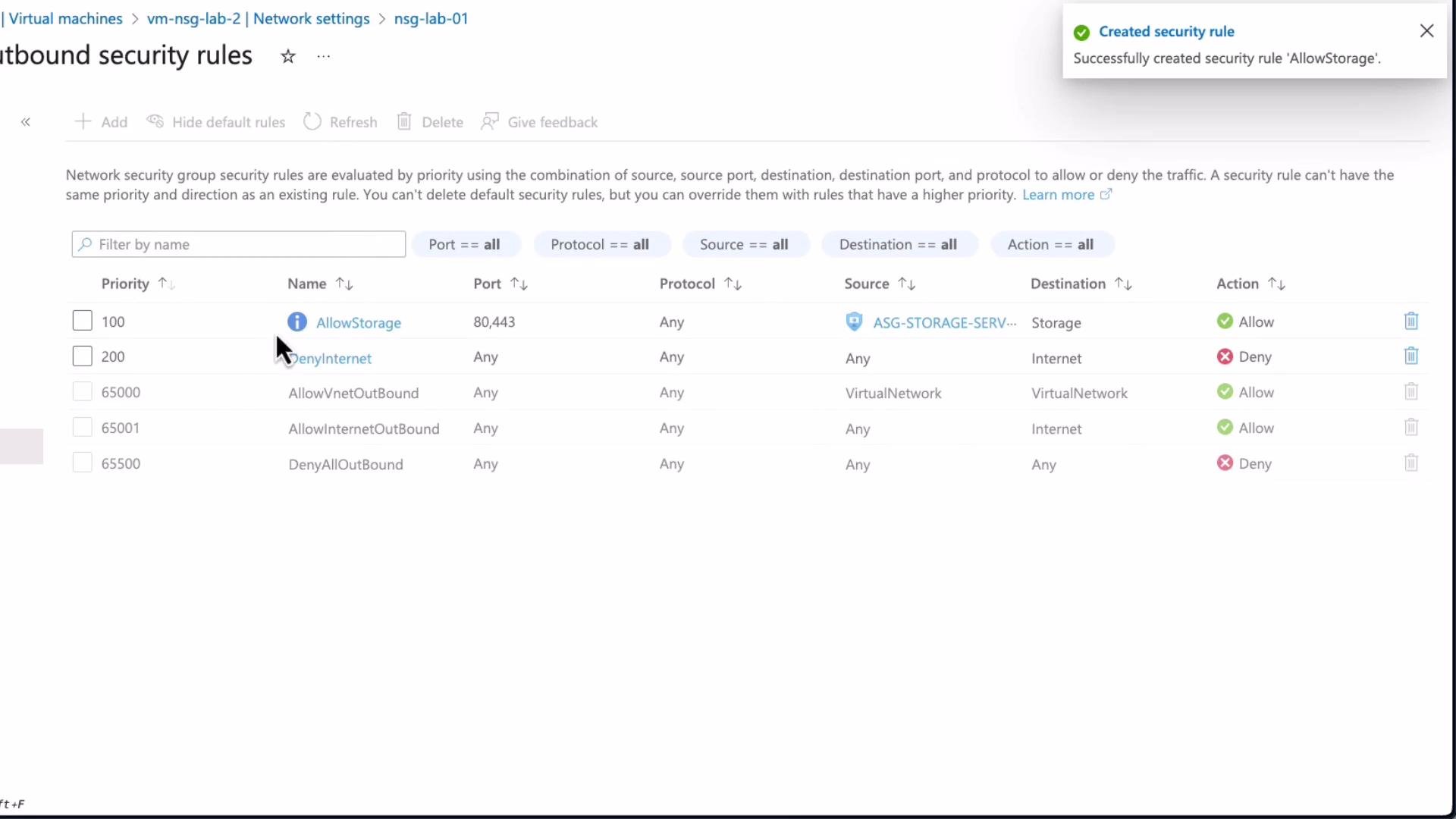
- Create the NSG rule referencing the ASG
- In the NSG outbound (or inbound) rules pane, click Add and set:
- Source:
ASG-storage-servers - Destination: Service tag
Storage - Destination ports:
80, 443(or ports required by your service) - Protocol:
Any(orTCPto restrict) - Action:
Allow - Priority: choose a lower numeric value than an existing deny rule (e.g.,
100if a Deny is200)
- Source:
- In the NSG outbound (or inbound) rules pane, click Add and set:
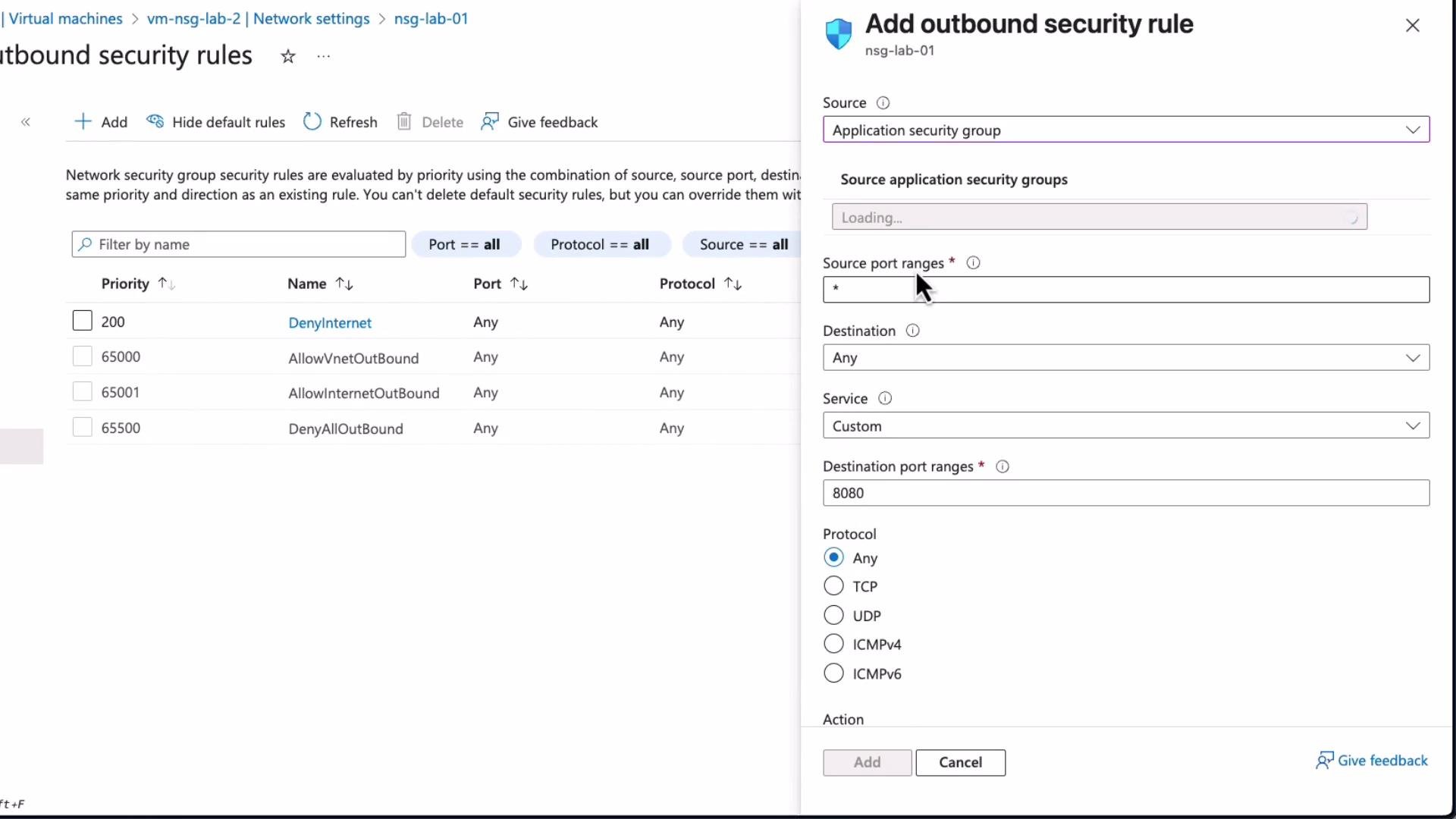
AllowStorage) that permits traffic from your ASG to the Storage service tag on the specified ports.
Verify connectivity from the VMs
- From a VM in the ASG (
lab1orlab2), you should be able to reach the storage account. - From a VM not in the ASG (
lab3), access should be blocked by the subnet-level deny rule or by the absence of the Allow condition.
- From a VM that is allowed to access Storage:
- From a VM blocked from Internet or Storage:
Quick reference table
Application Security Groups simplify NSG management by letting you add or remove VMs from logical groups instead of repeatedly editing IP-based rules. Reuse ASGs across multiple NSGs to enforce consistent, layered network security policies.
References
- Azure Application Security Groups documentation: https://learn.microsoft.com/azure/virtual-network/application-security-groups
- Azure Network Security Groups documentation: https://learn.microsoft.com/azure/virtual-network/network-security-groups-overview