This article explains how Microsoft Defender for Cloud helps you meet regulatory and compliance requirements in Azure. Defender for Cloud maps industry standards to built-in Azure Policy controls, continuously assesses resources, and exposes a compliance dashboard with prioritized, actionable recommendations and reporting tools. Key benefits:
  • Centralized compliance view across subscriptions and management groups
  • Built‑in mappings to standards such as Azure Security Benchmark, PCI DSS, ISO/IEC 27001, NIST, and CIS
  • Continuous assessment with Secure Score and Compliance score to help prioritize remediation
  • Integrated alerts, investigation workflows, automation playbooks, and downloadable reports for auditors

Compliance dashboard and control visibility

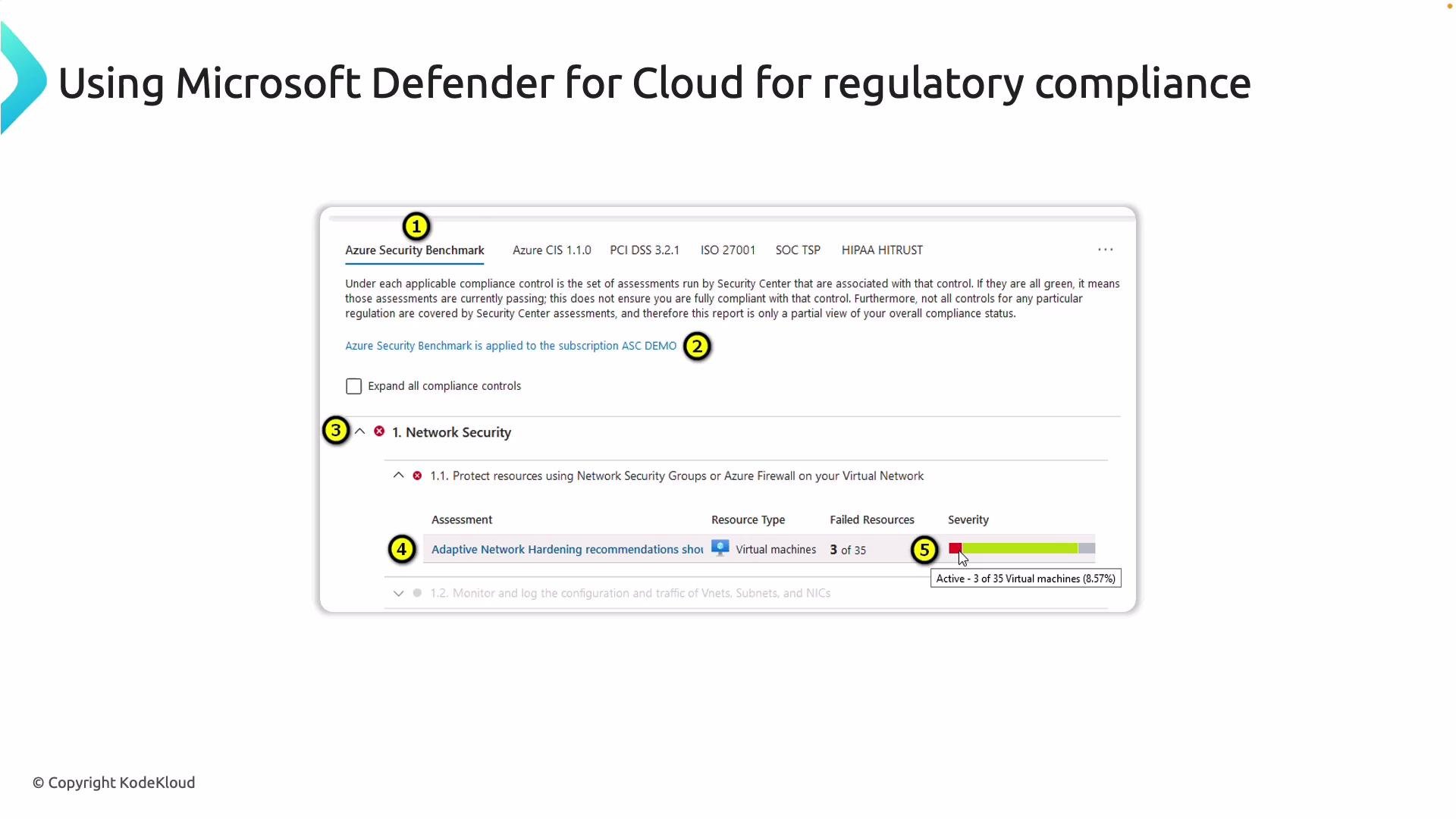
At the top level, Defender for Cloud lists the security standards applied to a subscription and shows where those policies are assigned. The dashboard highlights controls (for example, network security) and surfaces how many resources fail each control plus severity to help you prioritize remediation.
A slide titled "Using Microsoft Defender for Cloud for regulatory compliance" showing a screenshot of the Azure Security Center compliance dashboard. The screenshot displays the Azure Security Benchmark tab and a Network Security assessment listing failed resources (3 of 35 virtual machines) with a severity bar.
You can expand a control (for example, network security) to see the exact checks Defender for Cloud performs — such as NSGs, firewalls, subnet associations, and other network controls. Those checks are derived from the selected security standard (Azure Security Benchmark, CIS, etc.), and each standard is organized into sections and specific controls. Defender for Cloud links each control to targeted remediation guidance (for example, identifying VMs that require stricter network rules) and shows failing resource counts and severity so you can triage efficiently.

Multi‑framework support, Secure Score, and compliance scoring

Defender for Cloud supports monitoring multiple compliance frameworks at once (ISO/IEC 27001:2013, PCI DSS, HIPAA, Azure Security Benchmark, NIST, CIS, and more). It provides two complementary metrics:
  • Compliance score — shows how well your environment meets the selected regulatory frameworks.
  • Secure Score — reflects overall security posture across recommendations.
These scores help identify missing controls and guide remediation priorities. Audit tools let you export assessment reports and share them with compliance teams or auditors.
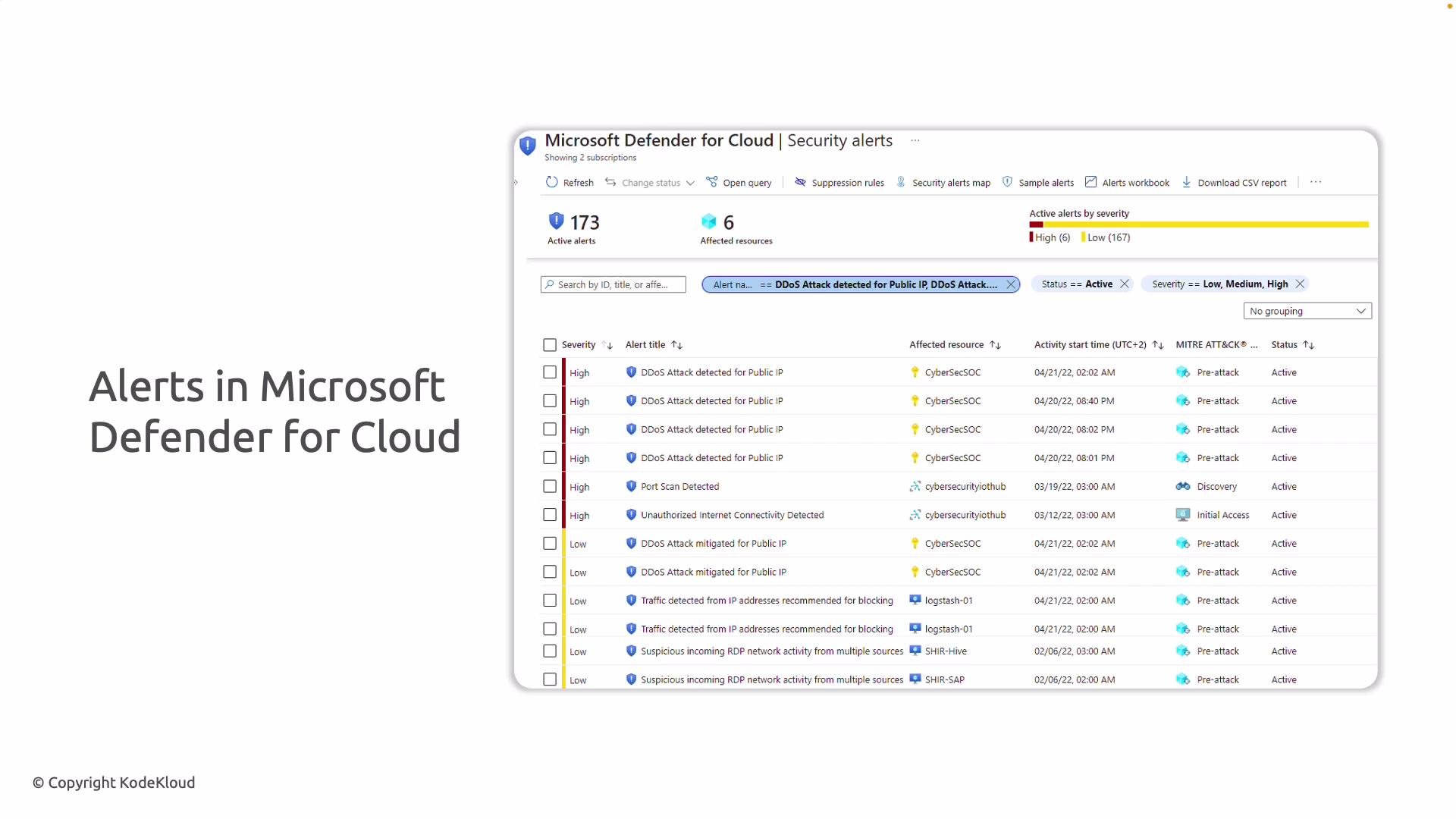
A slide showing a Microsoft Defender for Cloud Security alerts dashboard with a list of alerts (e.g., DDoS attacks, port scans, unauthorized connectivity), counts of active alerts and affected resources, and alert details. The slide title reads "Alerts in Microsoft Defender for Cloud."

Alerts, investigations, and automation

Defender for Cloud centralizes security alerts (DDoS, suspicious RDP, port scans, anomalous sign‑ins, etc.) and provides:
  • Severity and affected resources
  • Investigation workflows and context
  • Direct investigation from the dashboard
  • Automation playbooks to remediate or respond to incidents
This integration helps close the loop from detection to automated response and reduces time-to-remediation.

Where to find these features in the Azure portal

Open Microsoft Defender for Cloud from the Azure portal (search for “Defender for Cloud”). You typically land on the Overview blade. On a newly created subscription you may initially see few recommendations or a message like “No compliance assessment” until the evaluation has run.
A screenshot of the Microsoft Azure "Regulatory Compliance" dashboard (Microsoft Defender for Cloud) showing toolbar options like Download report and Manage compliance standards, with a central message saying "No subscription to calculate compliance for" and "No additional standards are currently monitored." The right pane highlights integration with Microsoft Purview Compliance Manager and includes an "Open" button.
To attach standards to an environment:
  1. Click Manage compliance standards from the Regulatory compliance dashboard.
  2. In Environment settings choose the scope (subscription or management group).
  3. Select the frameworks you want to monitor and configure any framework-specific parameters (for example, how to audit virtual machines).
A screenshot of the Microsoft Azure portal showing the "Environment settings" page for Microsoft Defender for Cloud, with a "Tenant Root Group (1 of 1 subscriptions)" entry and icons for subscriptions, connectors, and coverage. The page includes search/filters and shows one total resource for the listed subscription.
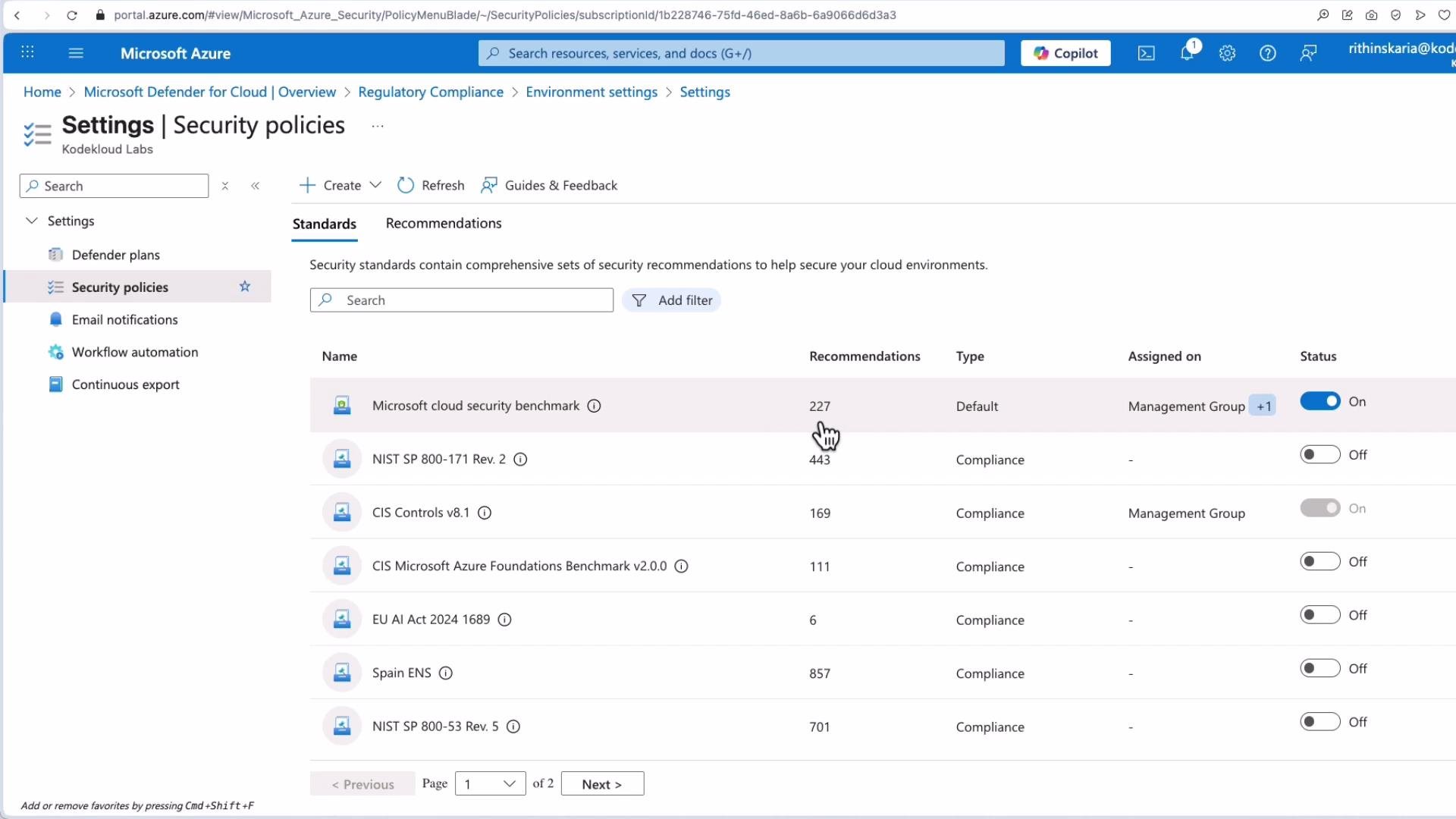
You can scope standards at either subscription or management group level. When you select a subscription and open Security policies, Defender for Cloud lists available frameworks and the number of recommendations (controls) associated with each. For example, the Microsoft Cloud Security Benchmark includes around 227 recommendations while CIS has about 169. Enable the frameworks relevant to your organization and configure parameters required for evaluation.
A screenshot of the Microsoft Azure portal open to Settings > Security policies in Microsoft Defender for Cloud, showing a list of security standards (e.g., Microsoft cloud security benchmark, NIST, CIS) with recommendation counts, assignment info, and on/off status toggles. The left menu and top navigation bar are also visible.
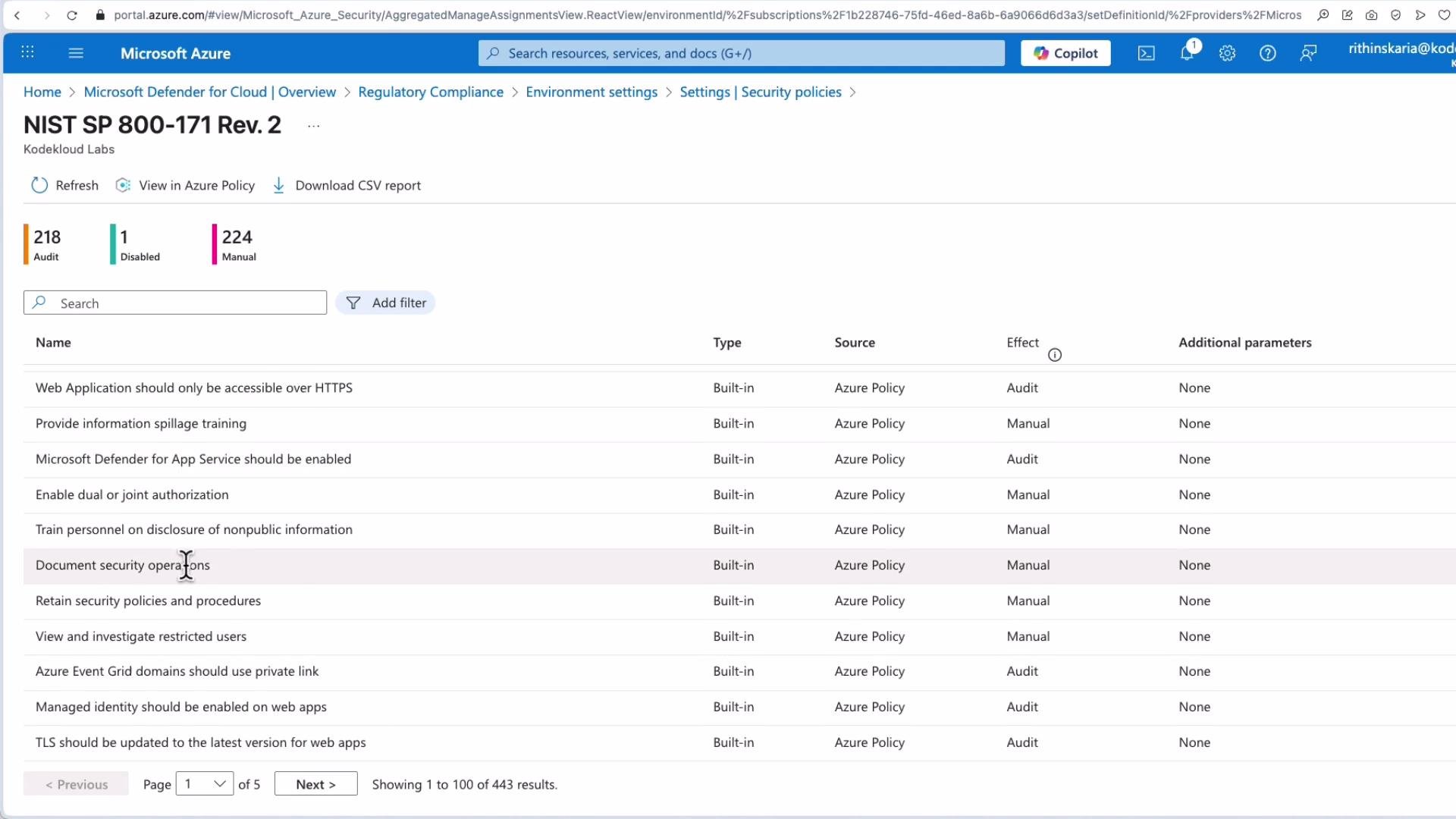
Click a framework to view the built‑in policy controls: control name, type, effect, source, and any additional parameters used for evaluation. These controls drive compliance assessments and generate the recommendations you’ll remediate.
Screenshot of the Microsoft Azure portal showing the NIST SP 800-171 Rev. 2 compliance view, listing built-in Azure Policy controls and their names (e.g., "Web Application should only be accessible over HTTPS") with columns for Type, Source, Effect, and Additional parameters. The top bar shows summary counts (218 Audit, 1 Disabled, 224 Manual) and pagination at the bottom.
In short, Defender for Cloud removes much of the effort to author policies from scratch — you can apply industry standards directly and measure compliance against them. Note that on new (greenfield) deployments, assessments may show no results until policies have evaluated your resources.
When you enable Defender for Cloud or add new policies, it typically takes between 8 to 24 hours (depending on evaluation frequency and number of resources) for recommendations and compliance assessments to fully populate.

Recommendations and remediations

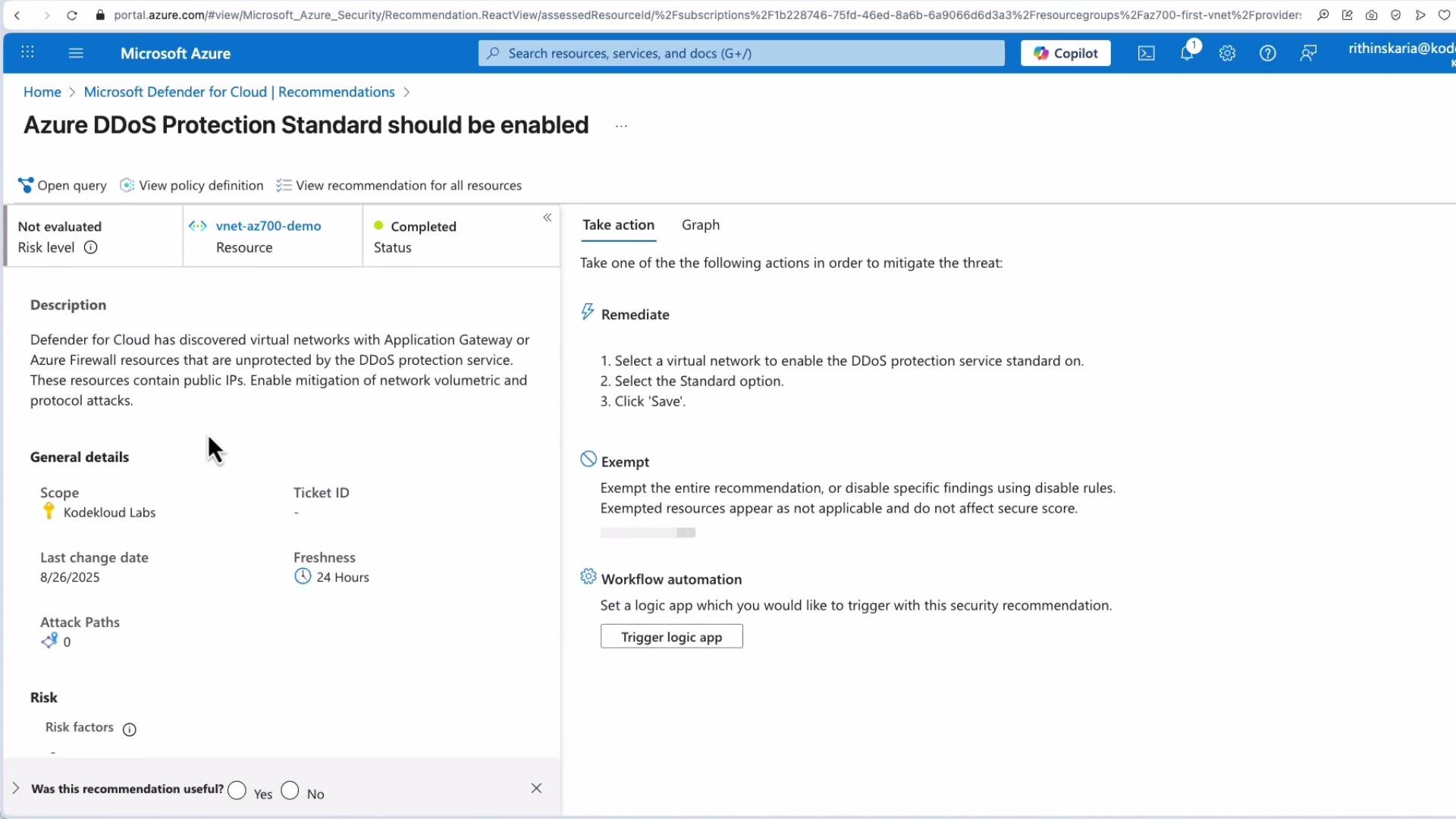
Open Recommendations in Defender for Cloud to see subscription-specific security recommendations. Early in setup some items may show as “Not evaluated” until assessments complete. Recommendation details include risk summary, governance impact, remediation steps, available automation, and the option to exempt resources where appropriate.
A screenshot of the Microsoft Azure portal showing the Microsoft Defender for Cloud "Recommendations" dashboard. It lists security recommendations (e.g., enable Azure DDoS Protection Standard, associate subnets with network security groups) along with risk summary widgets.
A screenshot of the Microsoft Azure portal showing the Microsoft Defender for Cloud "Recommendations" page for a subscription. It lists security recommendations (e.g., enable Azure DDoS Protection, associate subnets with network security groups) with risk levels shown as "Not evaluated."

Defender plans and coverage

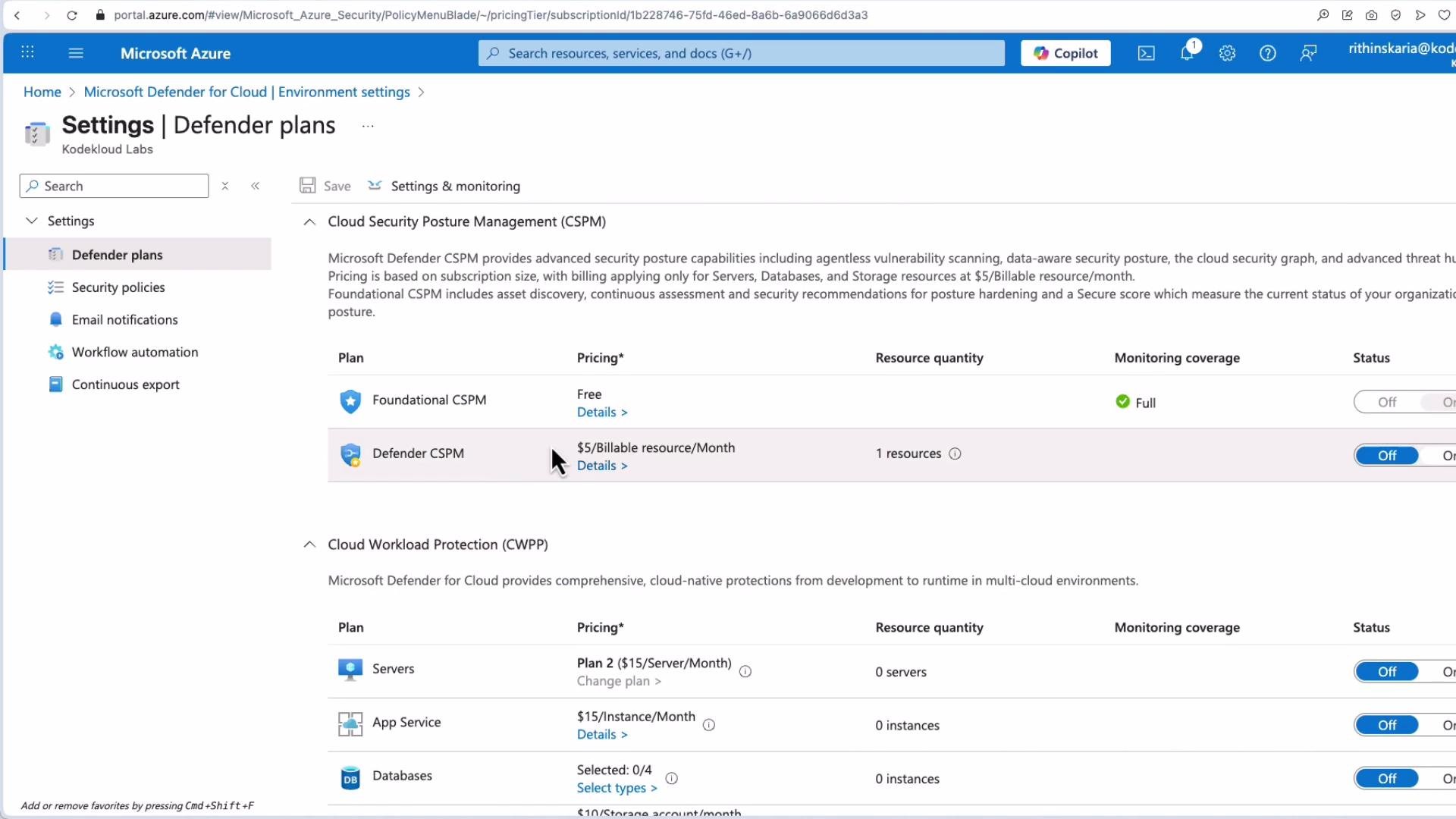
Defender for Cloud provides additional Defender plans (server protection, App Service, databases, CSPM, CWPP, etc.) for deeper visibility and more recommendations tailored to specific resource types. These plans can be enabled per subscription or workspace.
Some Defender plans incur additional charges. Review pricing and choose plans that align with your security and compliance needs before enabling coverage broadly.
Screenshot of the Microsoft Azure portal showing the "Settings | Defender plans" page in Microsoft Defender for Cloud. It lists various Defender/CWPP plans with pricing, resource quantities and on/off toggles for monitoring coverage.

Study and practical focus (for exams and real deployments)

From both an exam and operational perspective, focus on these Defender for Cloud capabilities:
  • Integration of industry standards via built‑in controls
  • Continuous assessment and Compliance score / Secure Score
  • Actionable recommendations and remediation steps with automation options
  • Central alerting, investigation workflows, and playbook integration
  • Exportable audit reports for compliance verification
A screenshot of the Microsoft Azure portal showing the Microsoft Defender for Cloud "Regulatory compliance" dashboard. The left navigation menu and a main panel display options like "Manage compliance standards" and a message saying "No subscription to calculate compliance for."

Quick reference table

CapabilityWhy it mattersExample
Built‑in frameworksSaves time and ensures alignment to standardsAzure Security Benchmark, PCI DSS, ISO/IEC 27001
Continuous assessmentKeeps posture up-to-date and prioritizedCompliance score, Secure Score
RecommendationsActionable fixes and automationAssociate subnets to NSGs, enable DDoS Protection Standard
Alerts & automationFaster response and reduced manual effortPlaybooks to remediate alerts
Exportable reportsEvidence for auditors and compliance teamsDownloadable assessment reports
This guidance should help you plan how to use Microsoft Defender for Cloud to meet regulatory obligations and maintain a defensible security posture in Azure.