

1. Install the Email Extension Plugin
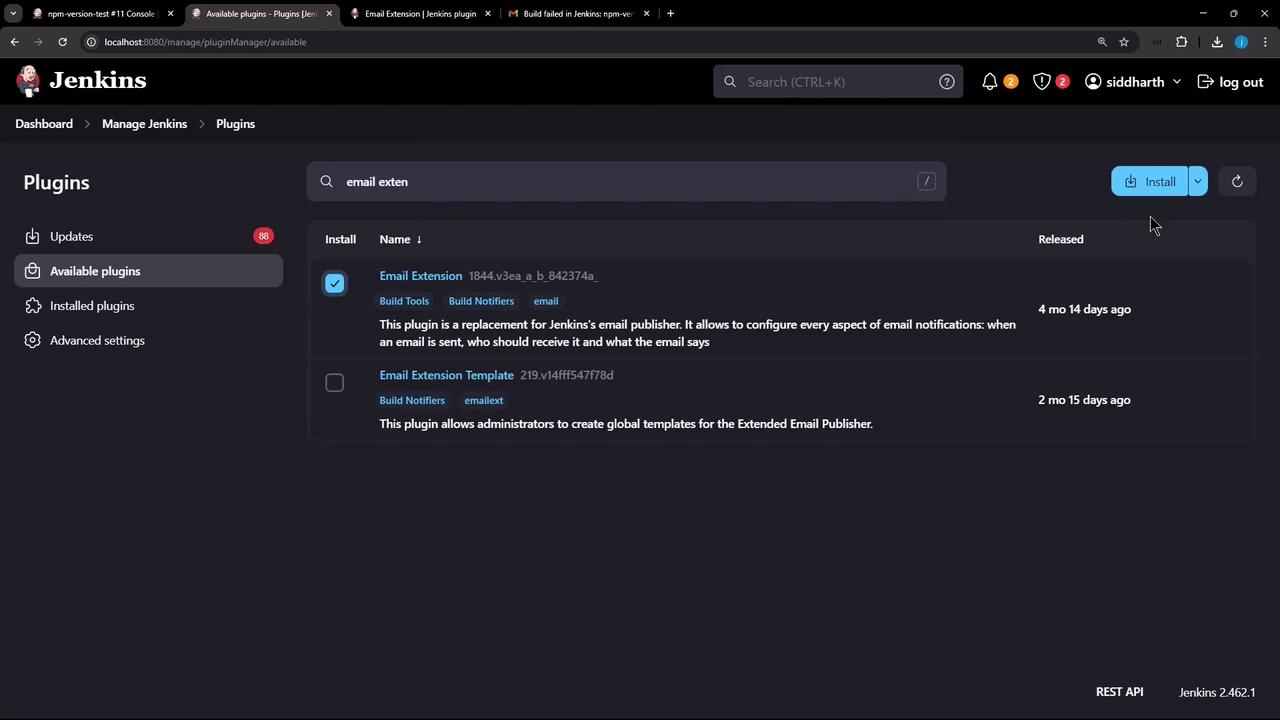
- Go to Manage Jenkins → Plugin Manager → Available.
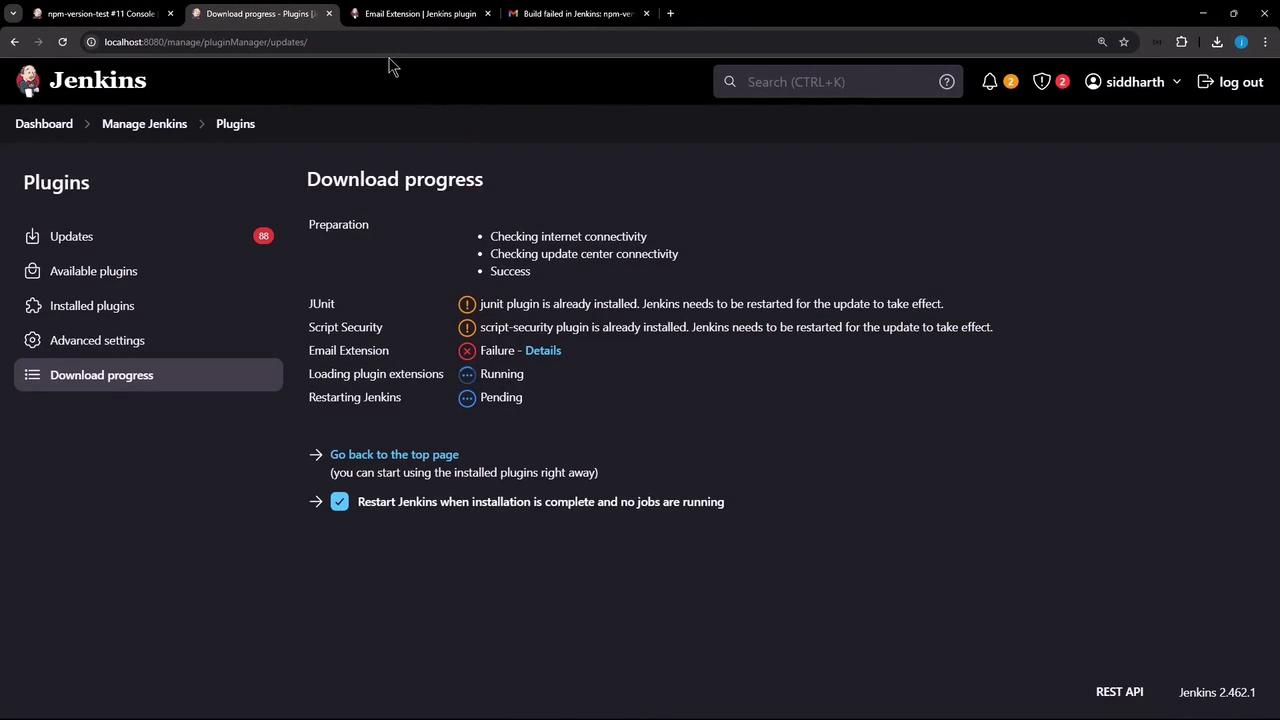
- Search for Email Extension Plugin and click Install without restart.
- When installation completes, restart Jenkins.
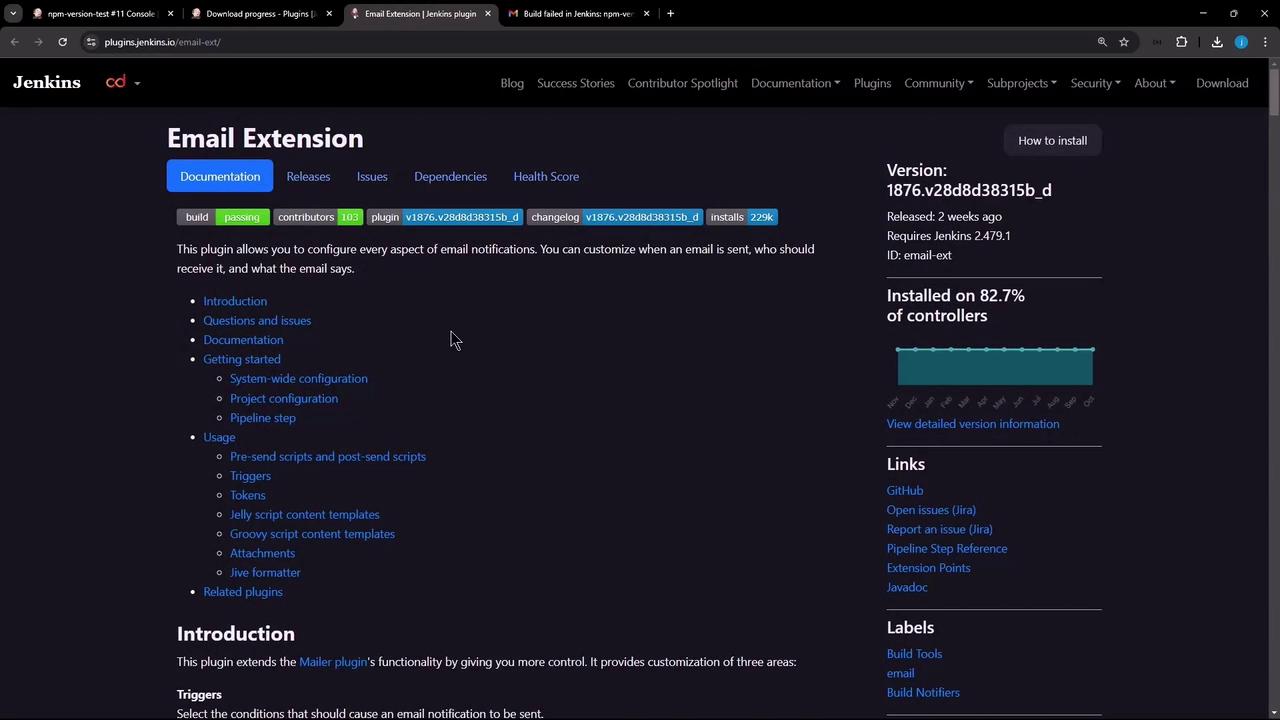
Refer to the official Email Extension plugin documentation for advanced examples and template syntax.
2. Configure Global Email Settings
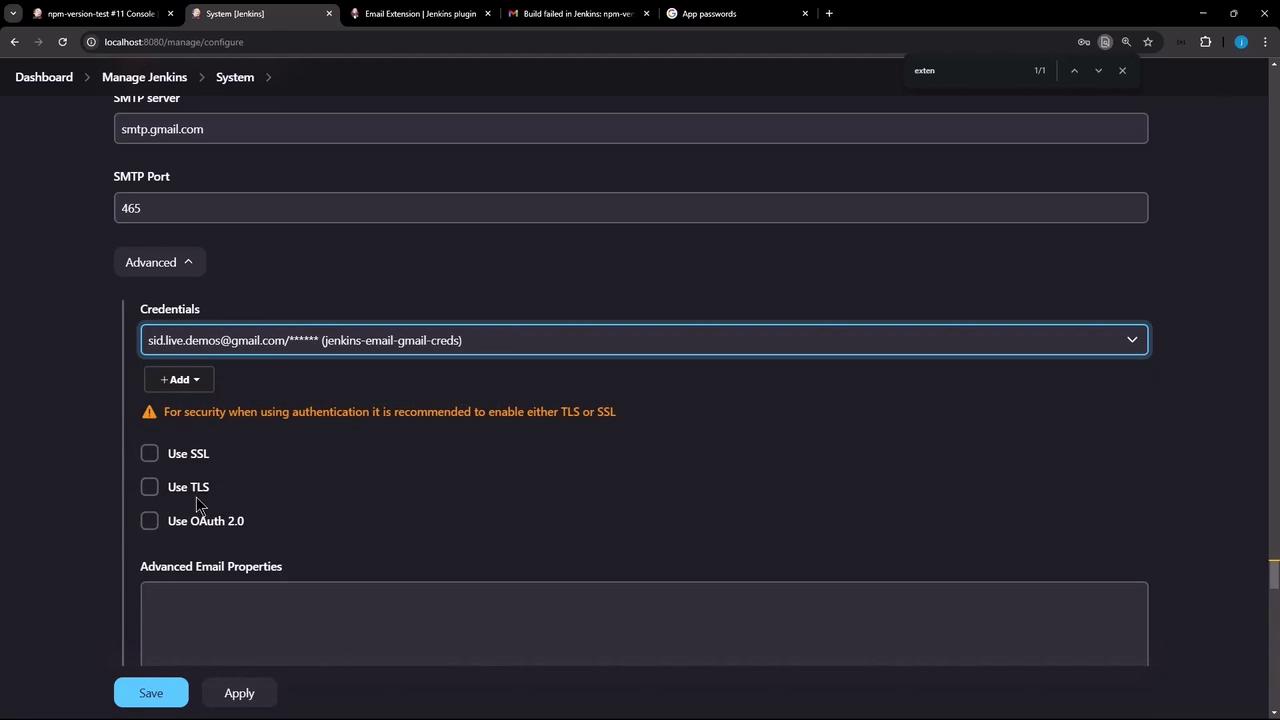
Navigate to Manage Jenkins → Configure System and scroll to Extended E-mail Notification. Set up your SMTP details:- Add Credentials
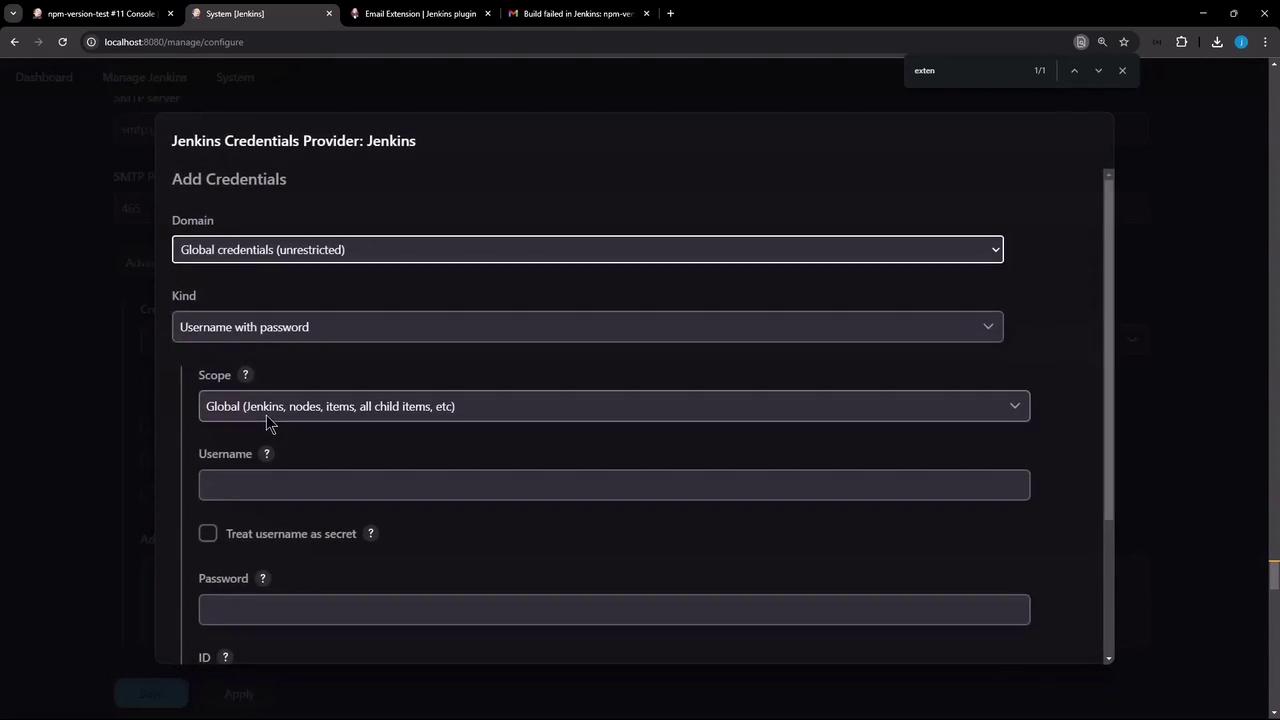
Click Add → Jenkins and select Username with password.- Username: your Gmail address
- Password: an app-specific password
Generate an app-specific password in your Google Account under Security → App passwords.
- Select the new credentials and enable Use SSL.
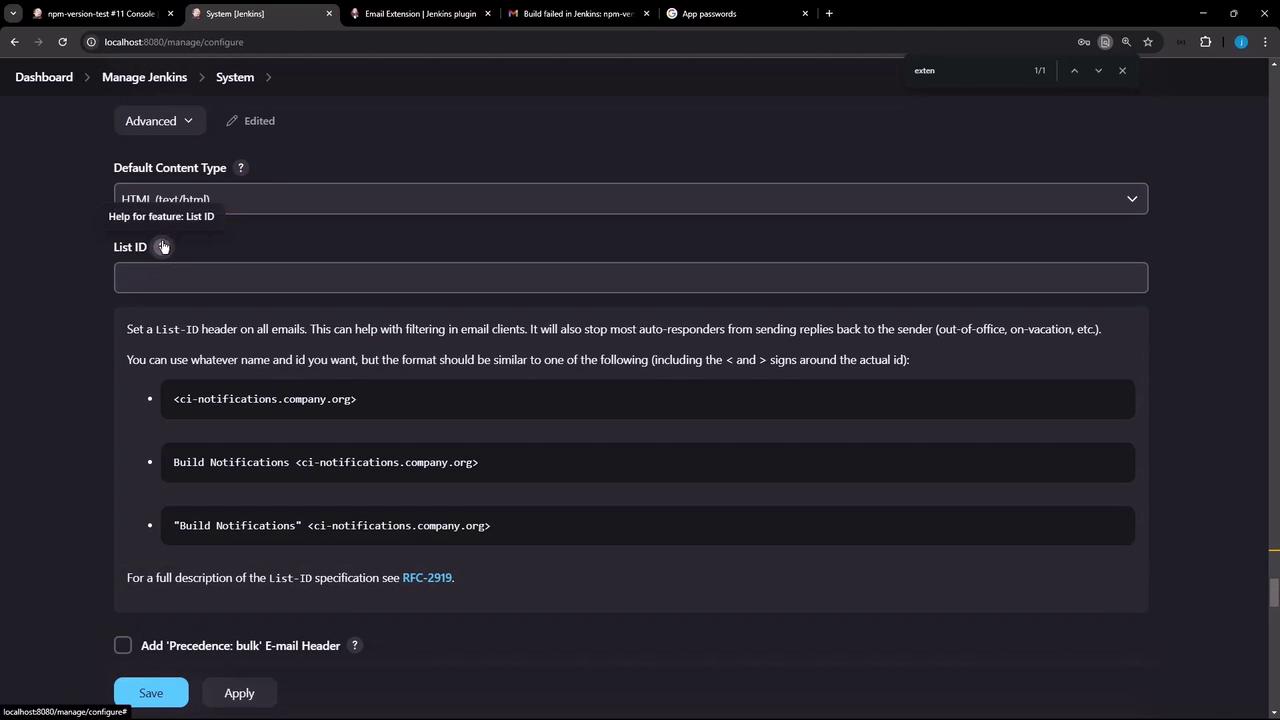
- Default List-ID Header
Optionally specify a List-ID to group your emails.
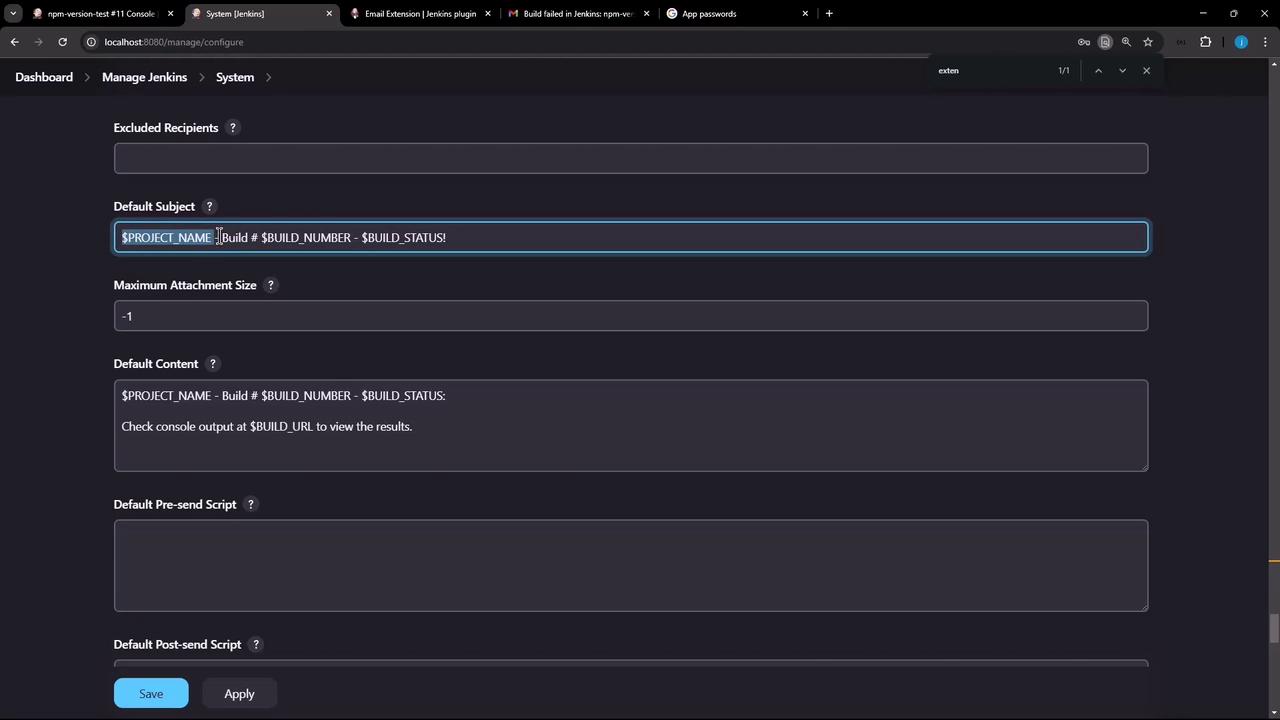
- Default Subject & Body
Use tokens like${PROJECT_NAME},${BUILD_NUMBER}, and${BUILD_STATUS}.
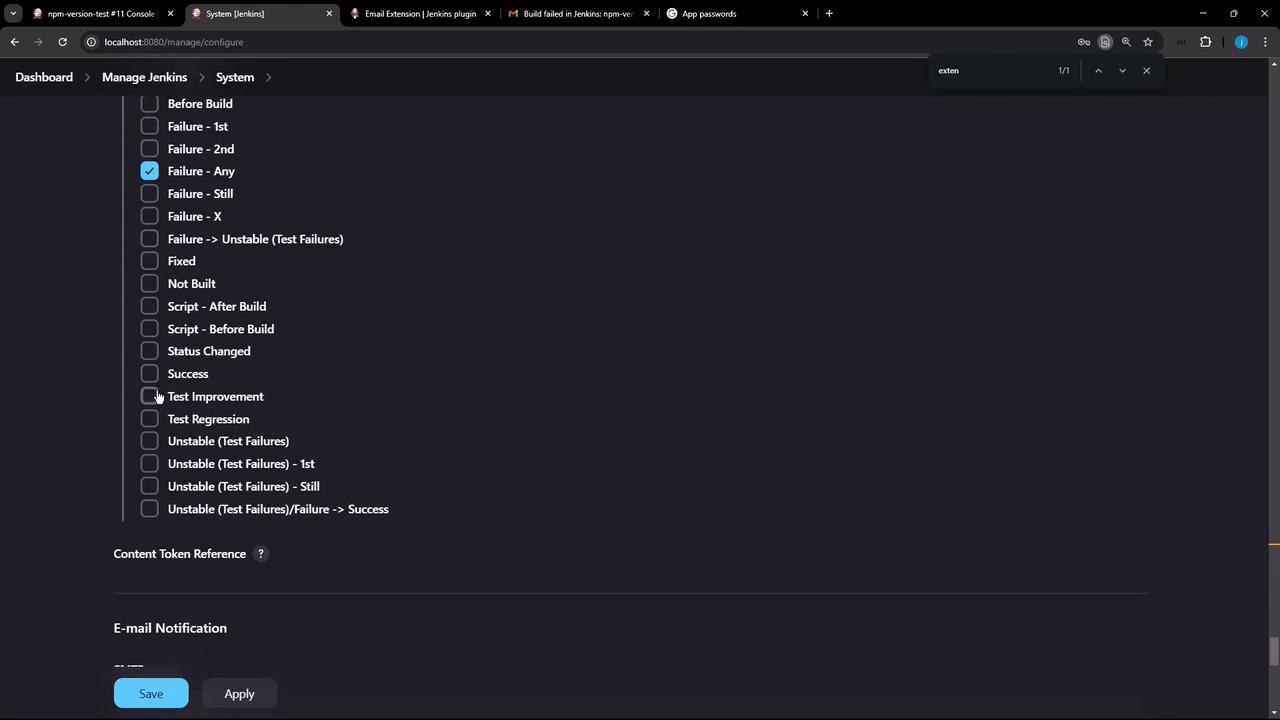
- Default Triggers
Enable Failure – Any, and add others (e.g., Unstable, Always) as needed.
3. Configure a Freestyle Job
Open your Freestyle project (e.g., npm-version-test) and click Configure.- Remove any existing E-mail Notification.
- Under Post-build Actions, select Add post-build action → Editable Email Notification.
-
Add a Shell Build Step to simulate failure:
The
exit 1 command will force the build to fail to trigger the failure notification.- Project Recipient List
Leave blank to use global defaults or specify an address (e.g.,sid.live.demos@gmail.com).
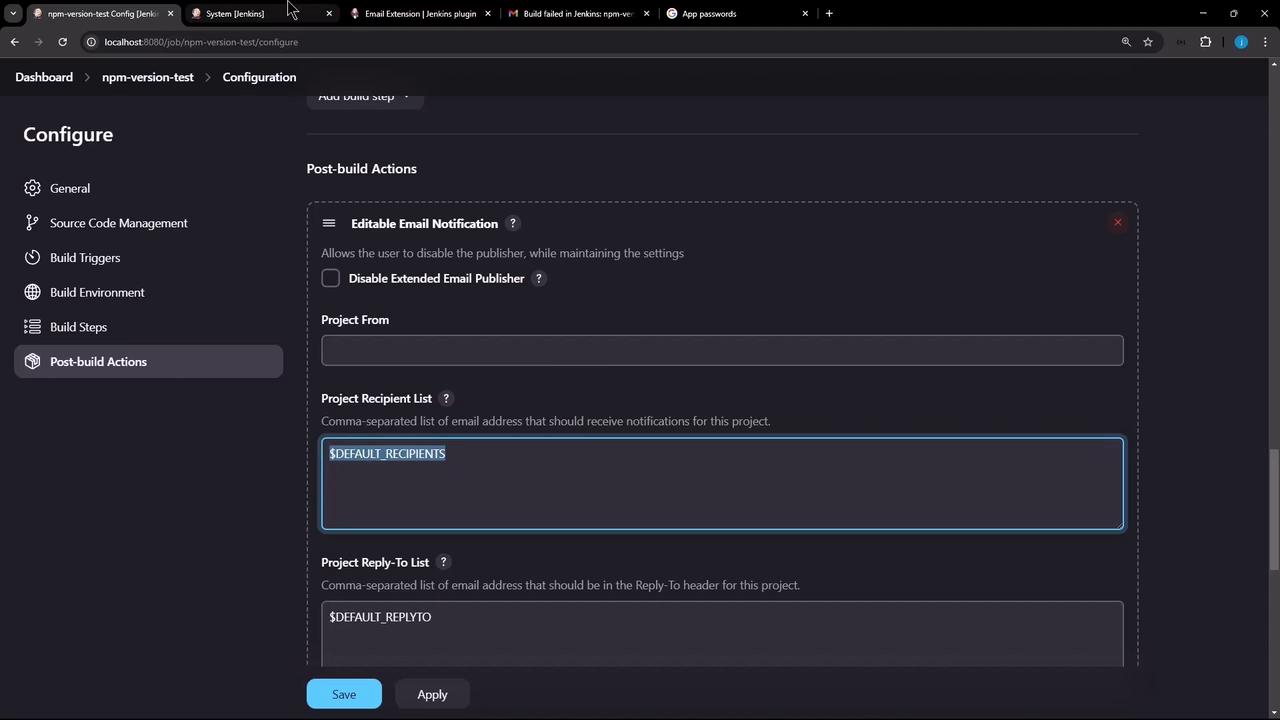
- Leave Default Subject and Default Content inherited from global settings.
- Click Apply and Save.
3.1 Trigger a Build Without Recipients
Run the job to see:4. Add Recipients and Rerun
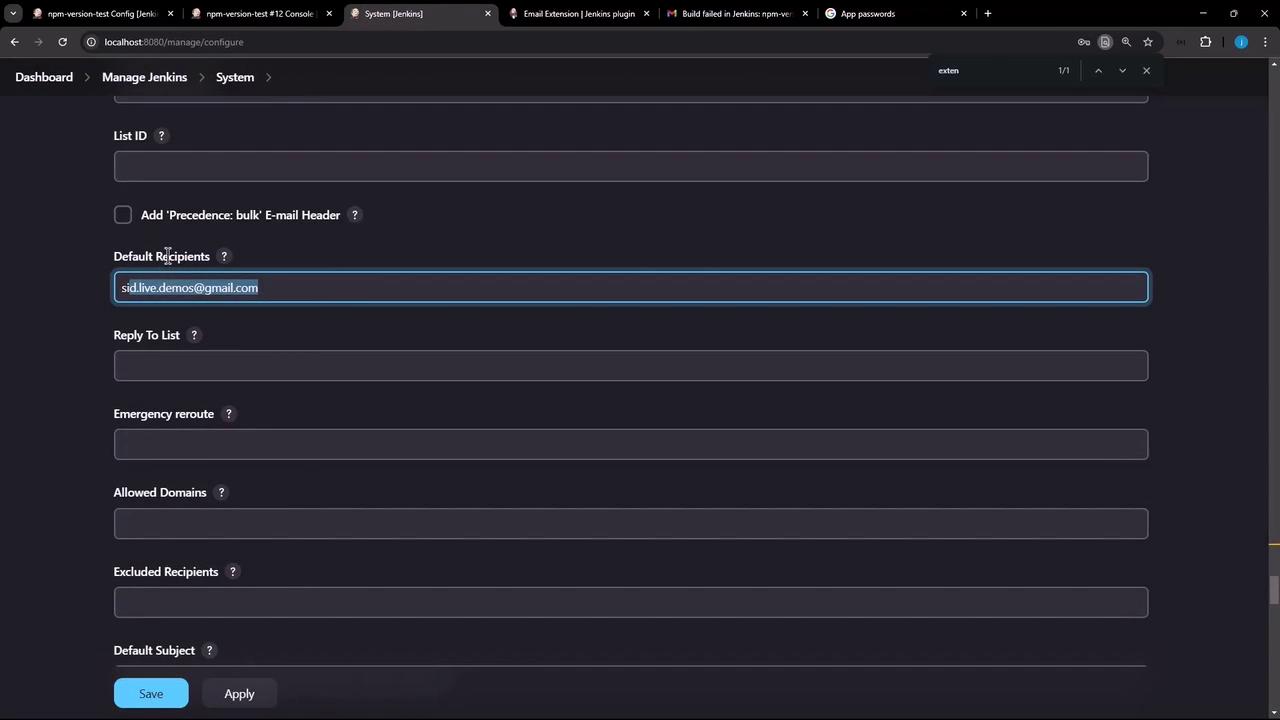
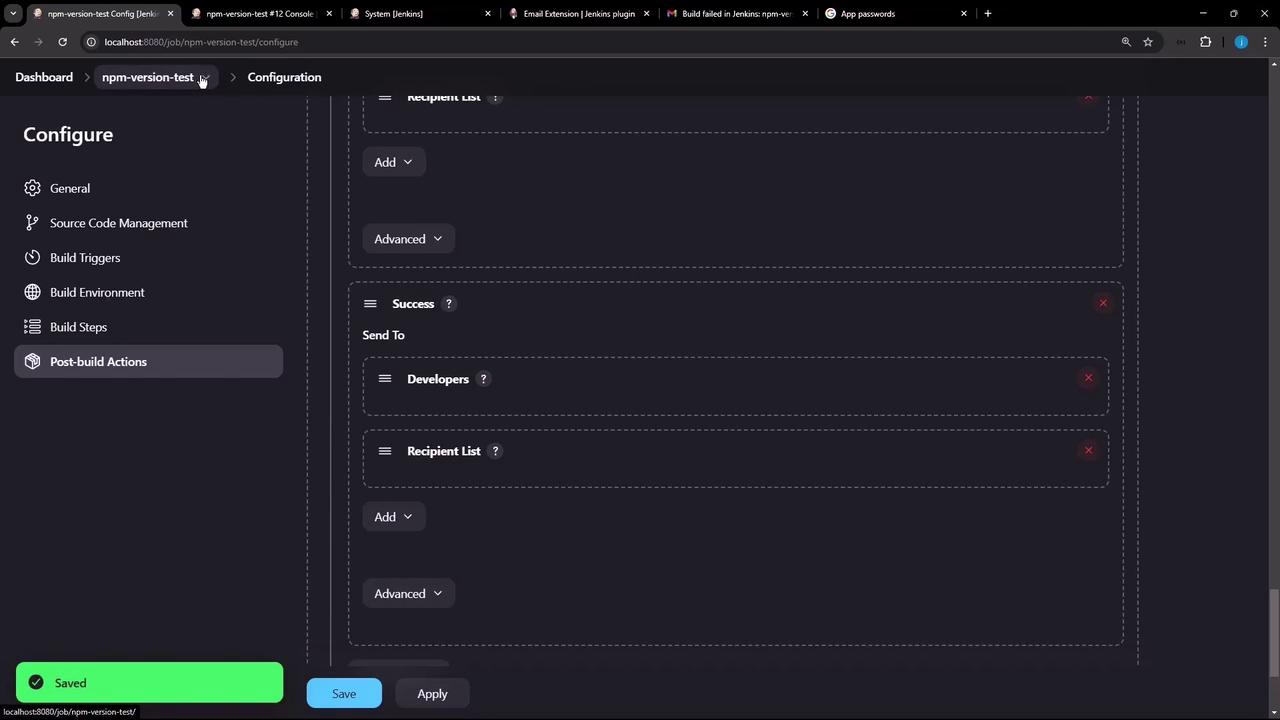
- In Editable Email Notification, expand Advanced Settings.
- Under Default Recipients, add your email or check Send to Recipient List for each trigger.
5. Verify in Your Inbox
You should receive a notification with your default HTML template: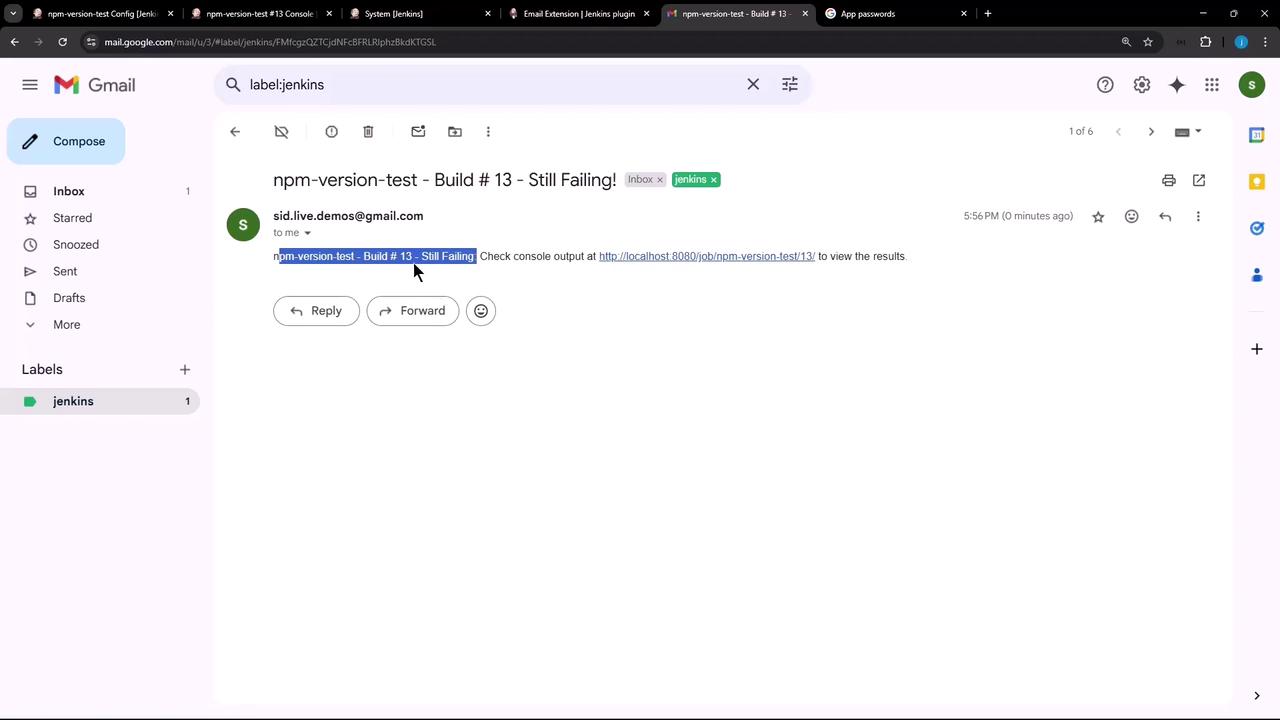
6. Attach the Build Log
To include the build log in your notification:- Under Editable Email Notification → Advanced Settings, enable Attach Build Log and optionally Compress Build Log.
- Save and rerun the job.
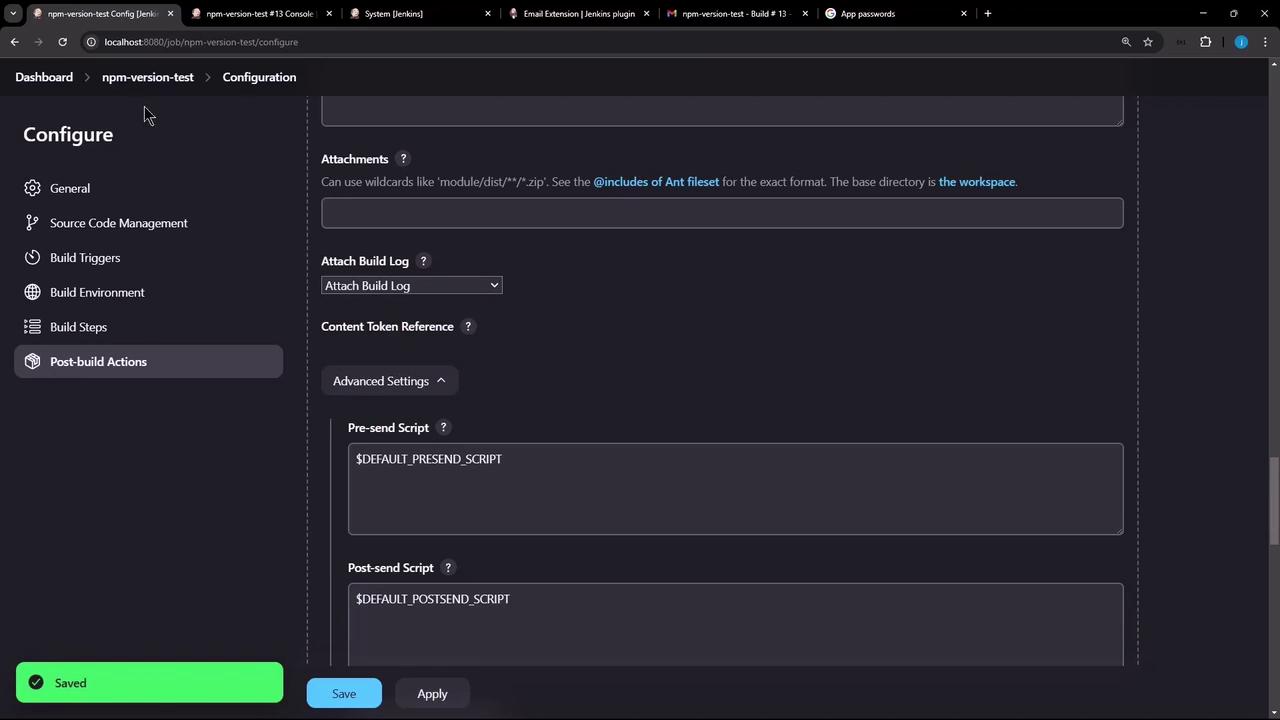
build.log as an attachment:
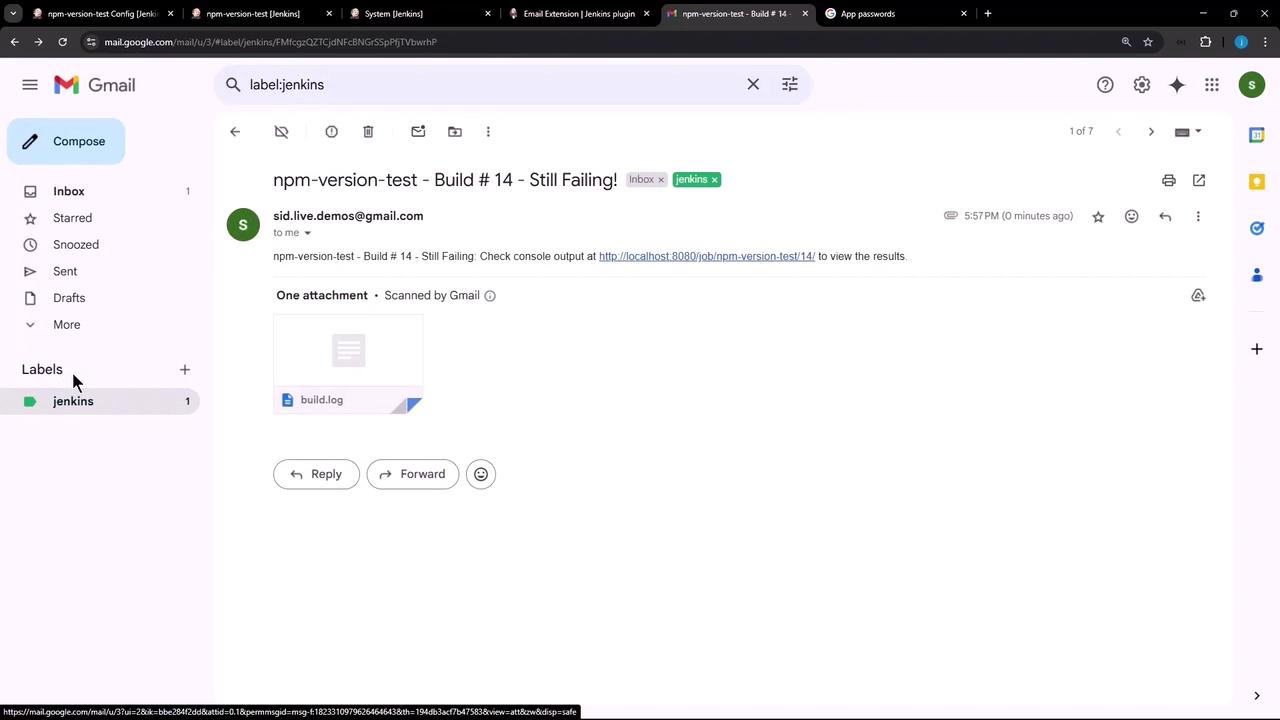
You’ve now set up the Jenkins Email Extension Plugin for Freestyle jobs—covering installation, global SMTP configuration, project-level notifications, triggers, and attachments.