

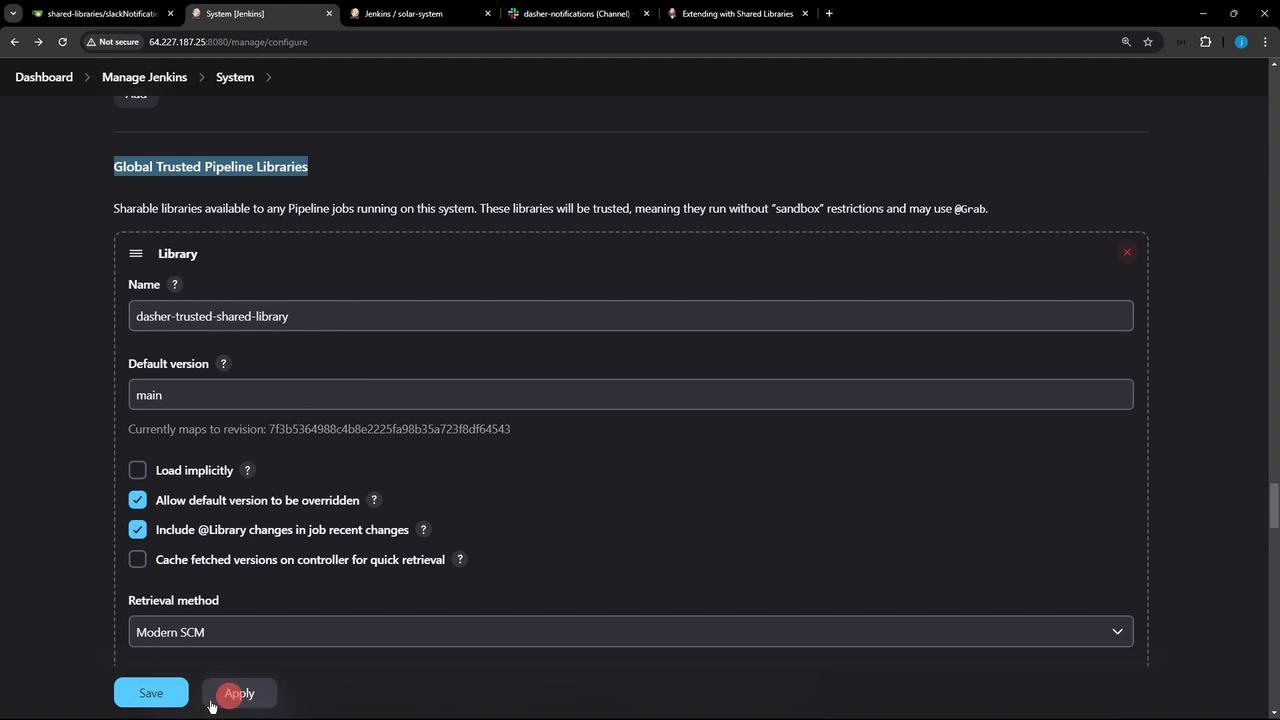
1. Confirm Shared Library Configuration
- In the Jenkins UI, navigate to Manage Jenkins > Configure System.
- Scroll down to the Global Pipeline Libraries section.
- Verify that your library (e.g.,
dashers-trusted-shared-library) is listed with the correct default version (main) and retrieval method (e.g., Git). - Note the latest commit ID fetched from your repository—this ensures Jenkins is using the intended code.
2. Reference the Shared Library in Your Jenkinsfile
Switch to thefeature/advanced-demo branch of your project repository. First, remove any inline Slack notification methods or other utility functions you intend to centralize.
@Library annotation at the very top. Make sure to match the library name configured in Jenkins:
The underscore (
_) after the @Library annotation is mandatory syntax when importing a Shared Library.3. Commit Changes and Trigger the Build
Commit your updated Jenkinsfile and push the feature branch: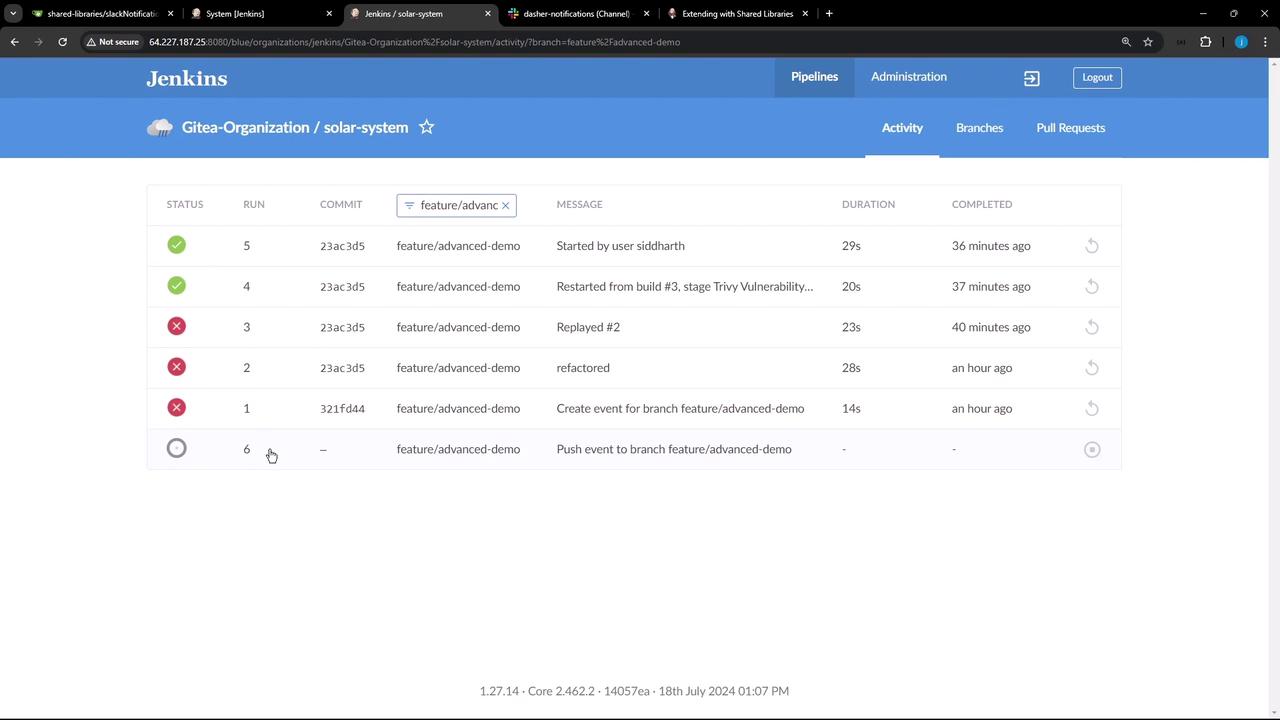
4. Verify Library Loading in the Console Log
Open the classic console log for the triggered build and search for “Loading library”:slackNotification method (including color logic and messaging).
5. Shared Library Benefits
Next Steps
In upcoming tutorials, we will explore:- Managing multiple library versions with
@Library('lib@1.2.3') - Advanced features such as global variables, custom steps, and credentials binding
- Best practices for testing Shared Library code