Table of Contents
- Creating the Team C Folder
- Verifying the Copied Pipelines
- Accessing Inherited Credentials
- Triggering and Viewing the Build
- Sample Console Output
- References
Creating the Team C Folder
- In Jenkins, click New Item.
- Enter team-c for the folder name.
- Select Folder as the item type.
- Under Copy from, search for and choose team-a.
- Click OK to confirm.
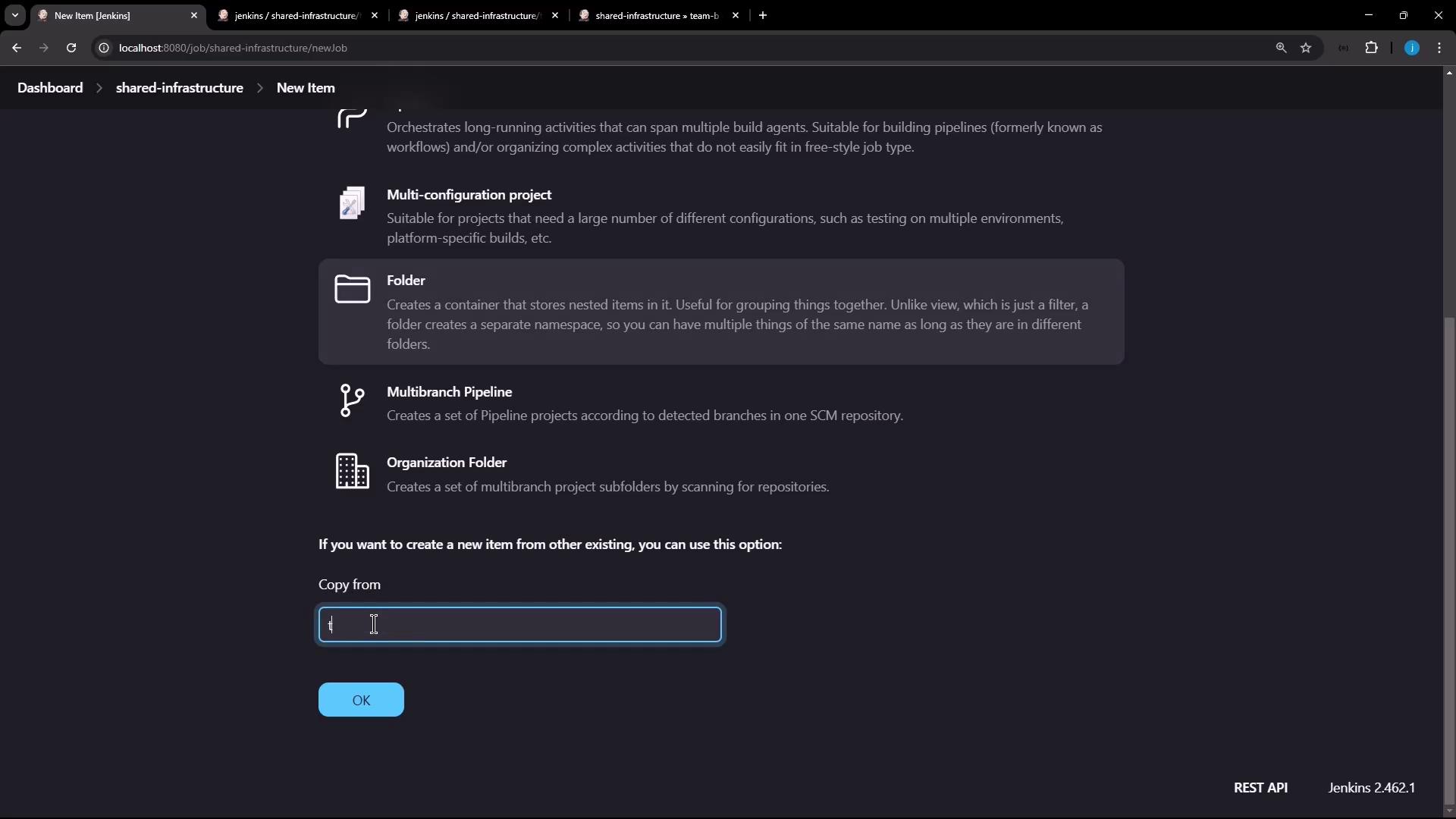
Copied folder items (jobs) inherit the disabled state. You must manually enable them before running builds.
Verifying the Copied Pipelines
Navigate into the newly created team-c folder. You should see team-a-pipeline listed—this confirms the pipeline configuration has been cloned successfully.
Accessing Inherited Credentials
Since team-c inherits from team-a, it also has access to both the Shared Infrastructure credentials and the Team A credentials. Verify under Credentials → team-c → shared-infrastructure.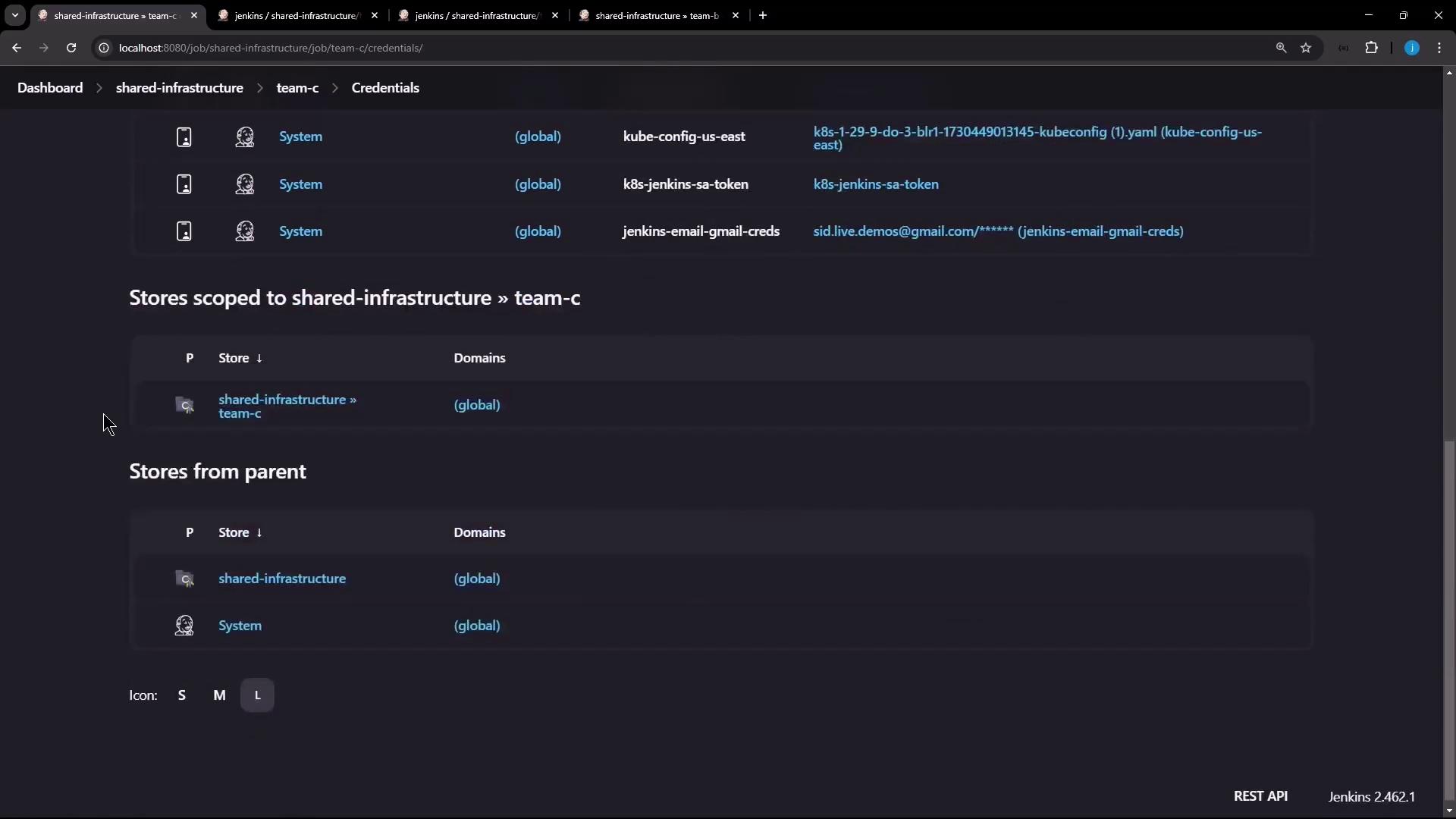
Jenkinsfile, use a withCredentials block to bind these credentials to environment variables:
Credentials Reference Table
Triggering and Viewing the Build
- Inside team-c, open team-a-pipeline → Configure and click Save to enable the job.
- Click Build Now on the pipeline page.
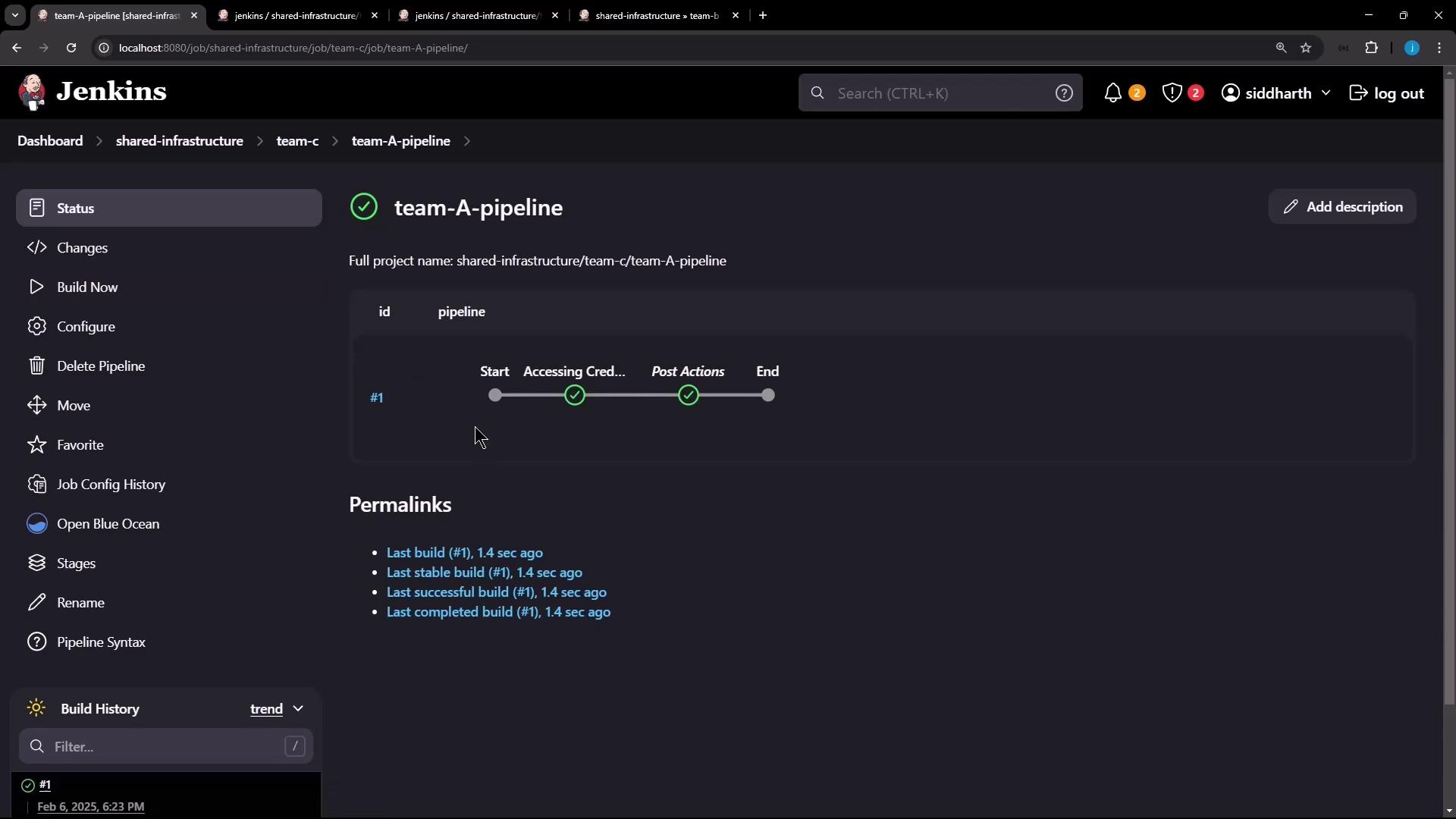
- Monitor the progress: each stage, including “Start,” “Accessing Credentials,” and “Post Actions,” should complete successfully.