

- Built the Docker image.
- Scanned it for vulnerabilities using Trivy.
Make sure your Jenkins agent has Docker installed and the Docker daemon is accessible by the Jenkins user.
Stage: Push Docker Image
Begin by adding aPush Docker Image stage to your Jenkinsfile. A minimal example:
Install the Docker Pipeline Plugin
To enable registry authentication and image operations in a Jenkins Pipeline, install the Docker Pipeline plugin.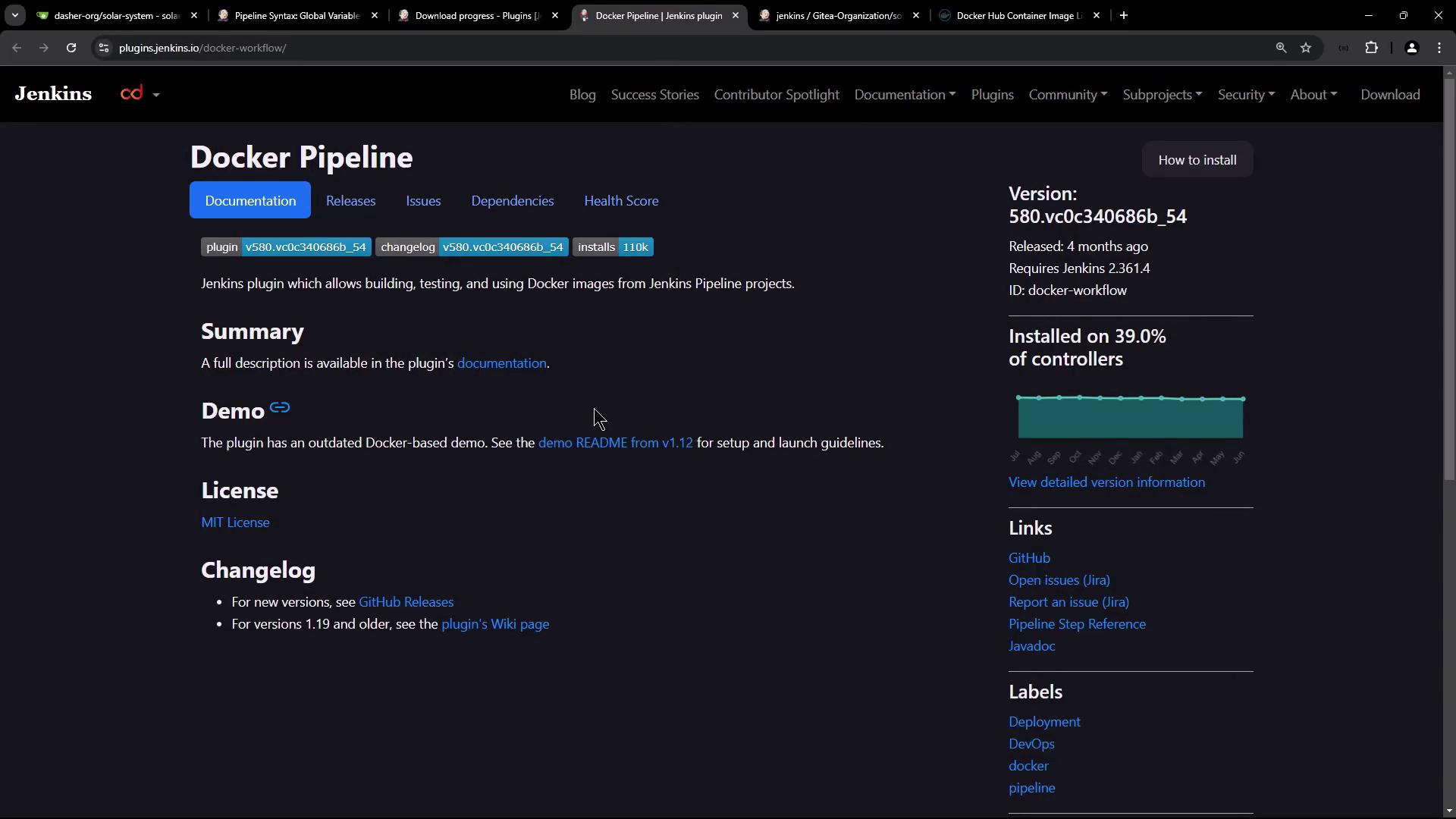
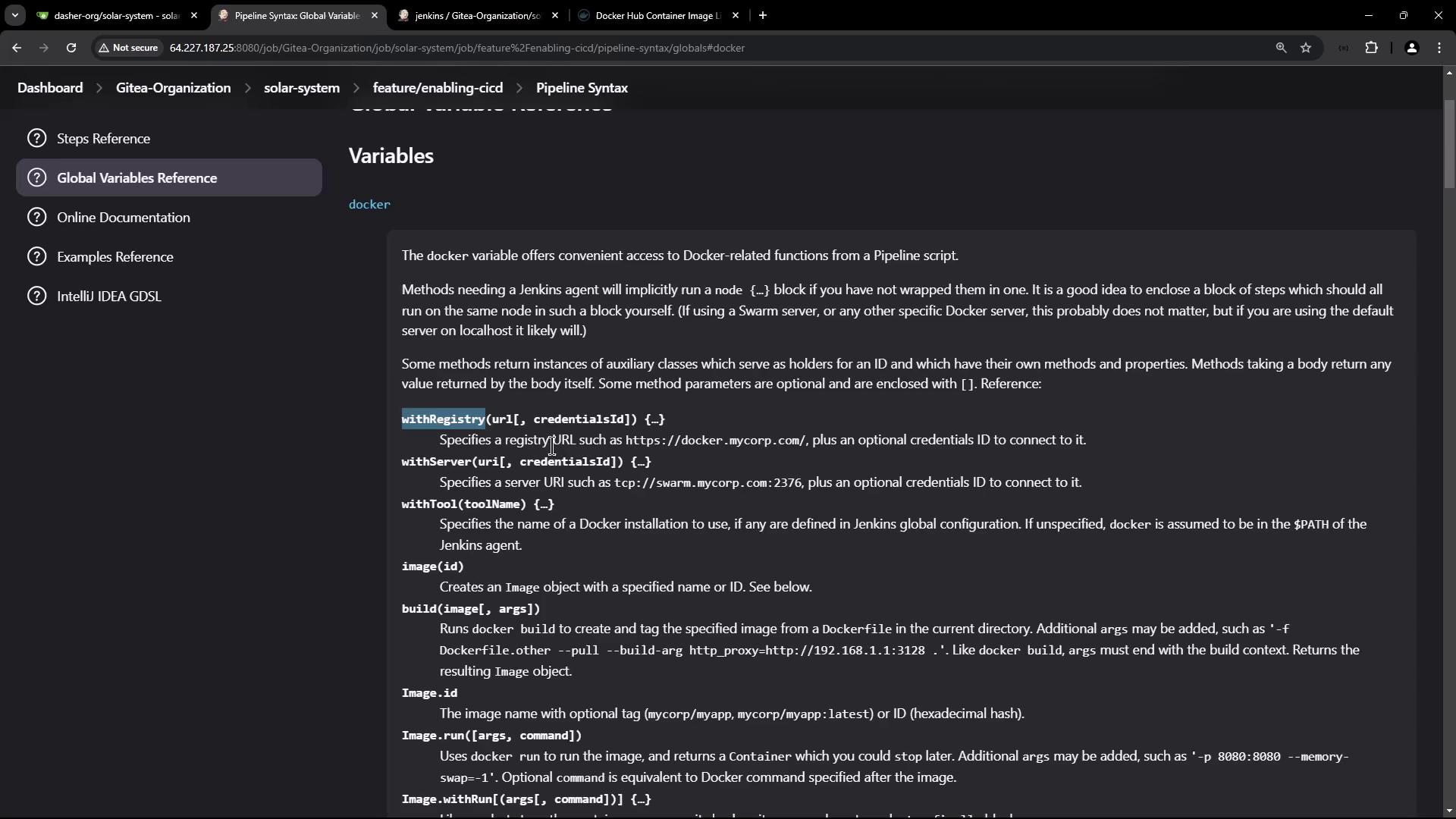
Generate the withDockerRegistry Snippet
- In Jenkins, navigate to Pipeline Syntax > Snippet Generator.
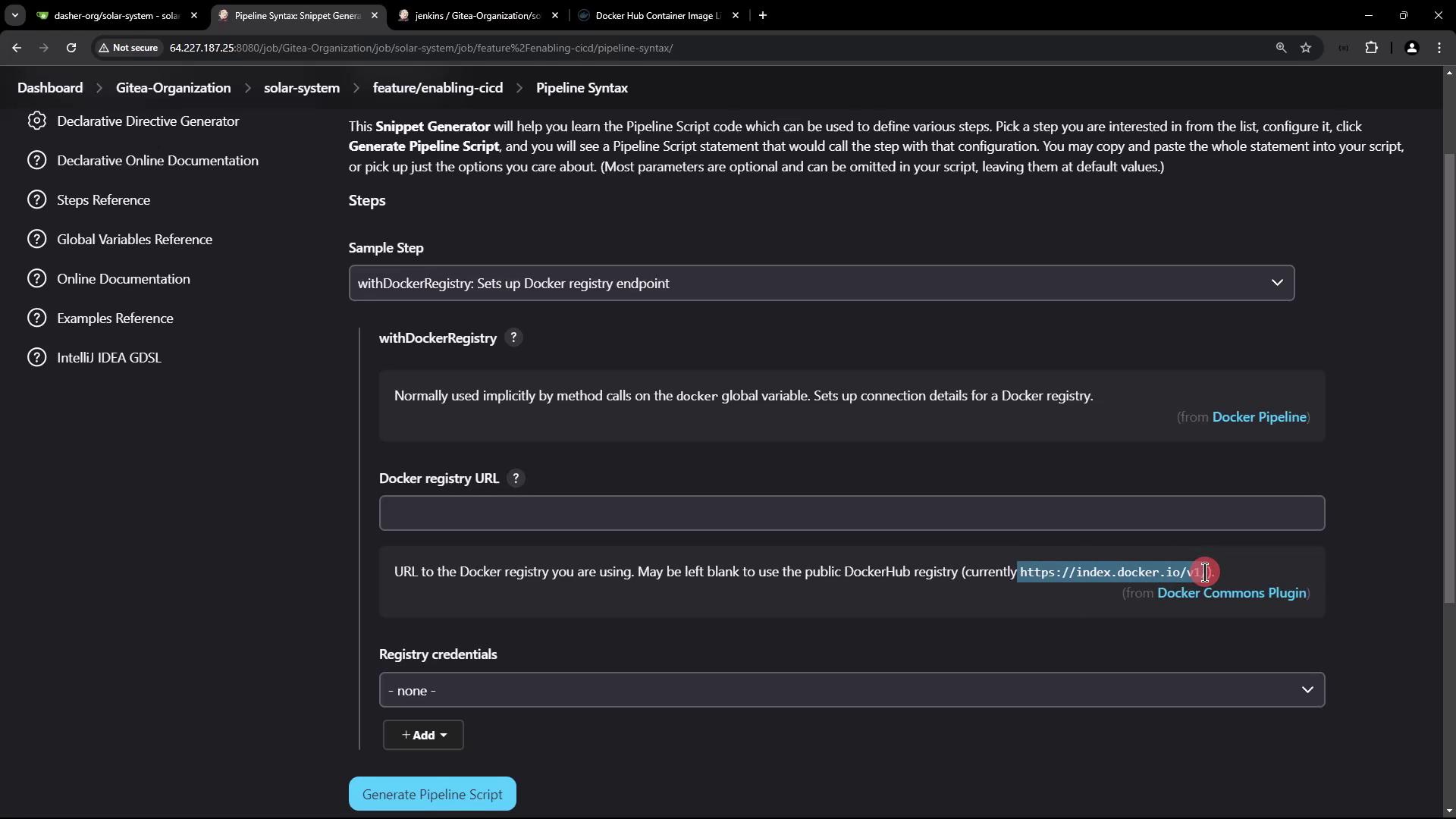
- Under Docker Pipeline, select withDockerRegistry.
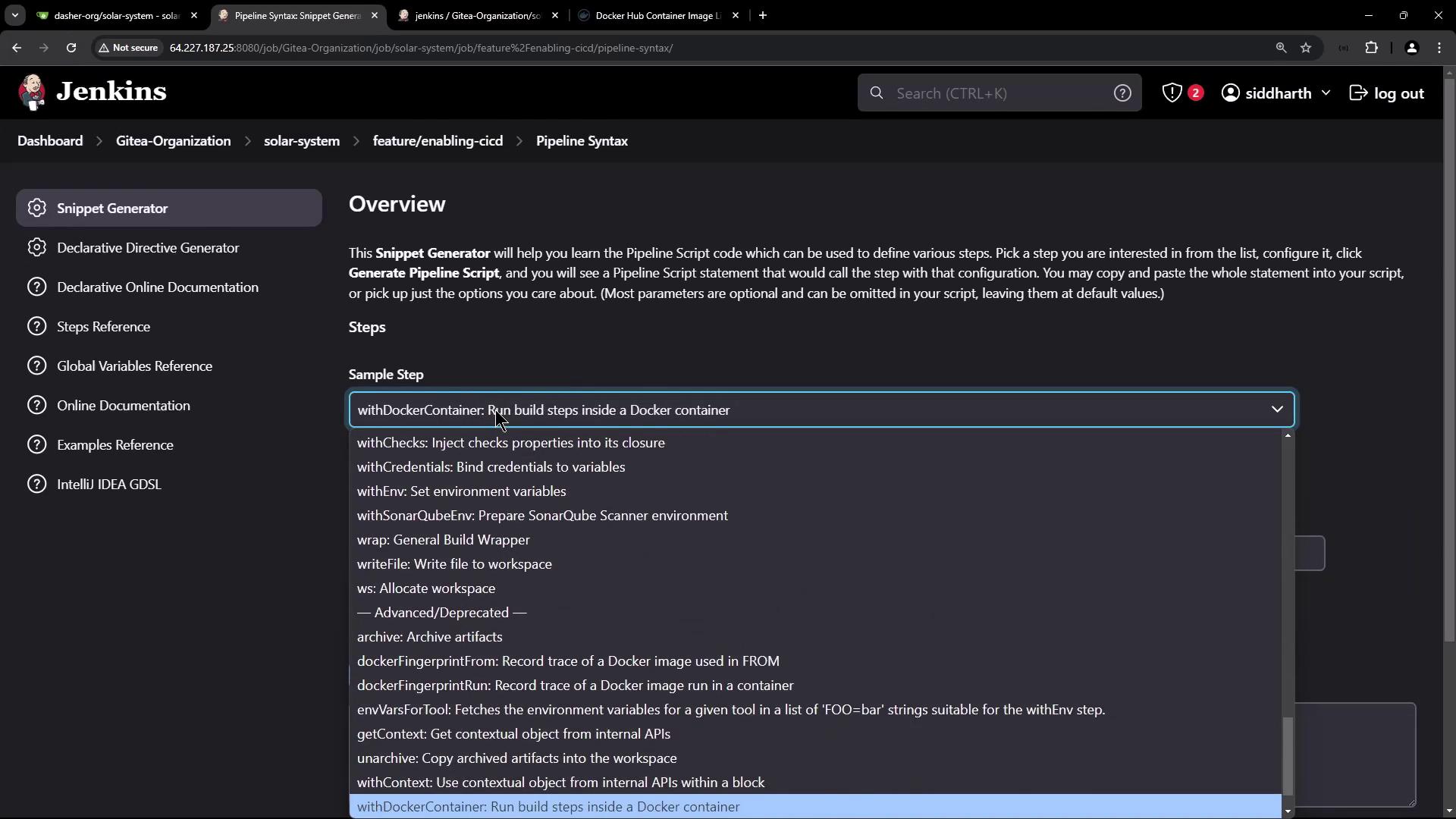
- Switch to the Docker Registry snippet. Configure the registry URL and credentials.
Add Docker Hub Credentials
Create Docker Hub credentials in Jenkins: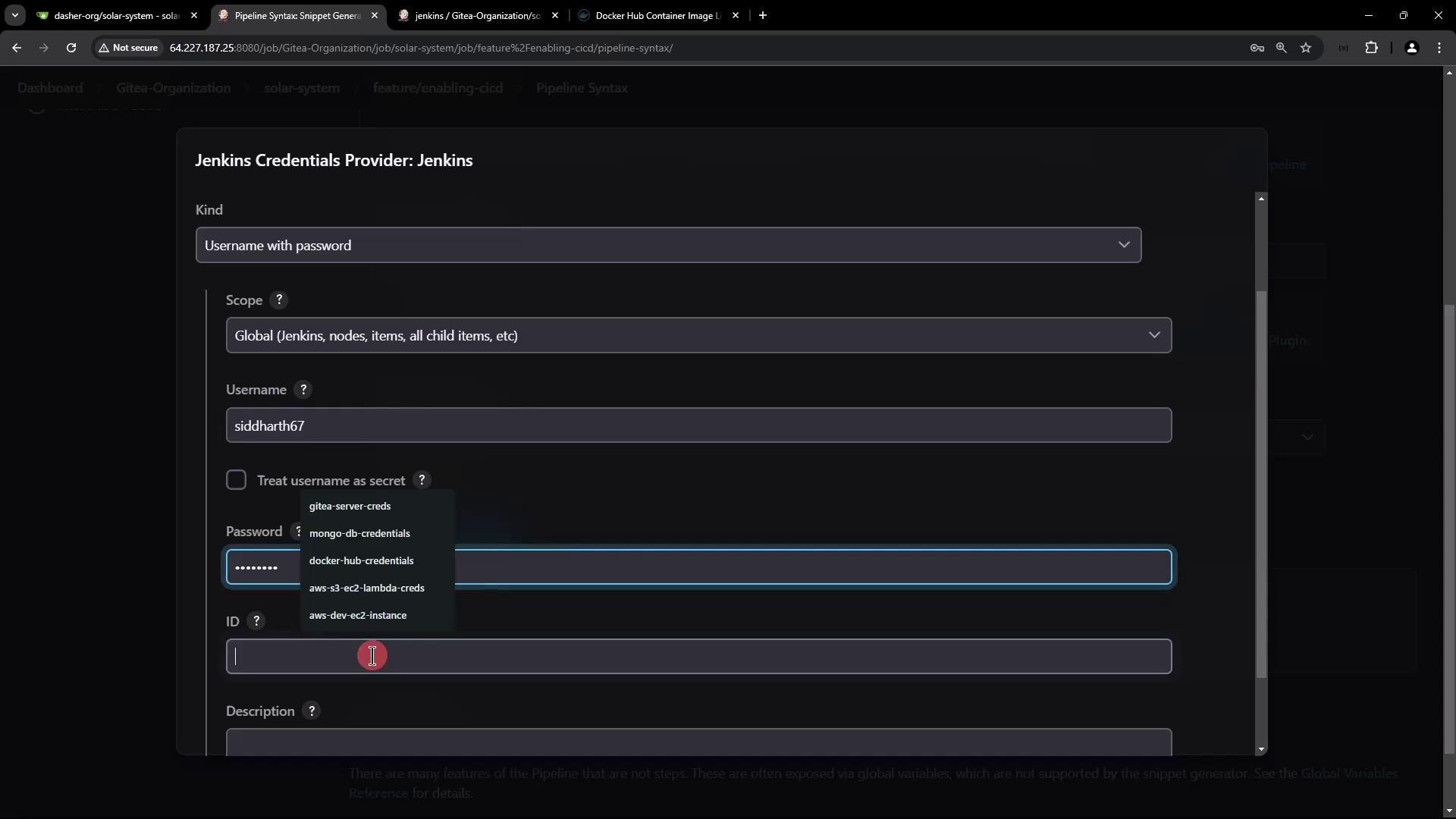
Final Jenkinsfile Configuration
Update yourPush Docker Image stage to wrap the push command in withDockerRegistry:
Leaving
url: '' uses the default Docker Hub endpoint (https://index.docker.io/v1/).Verifying on Docker Hub
After the pipeline finishes, log in to Docker Hub to confirm your repository and tag: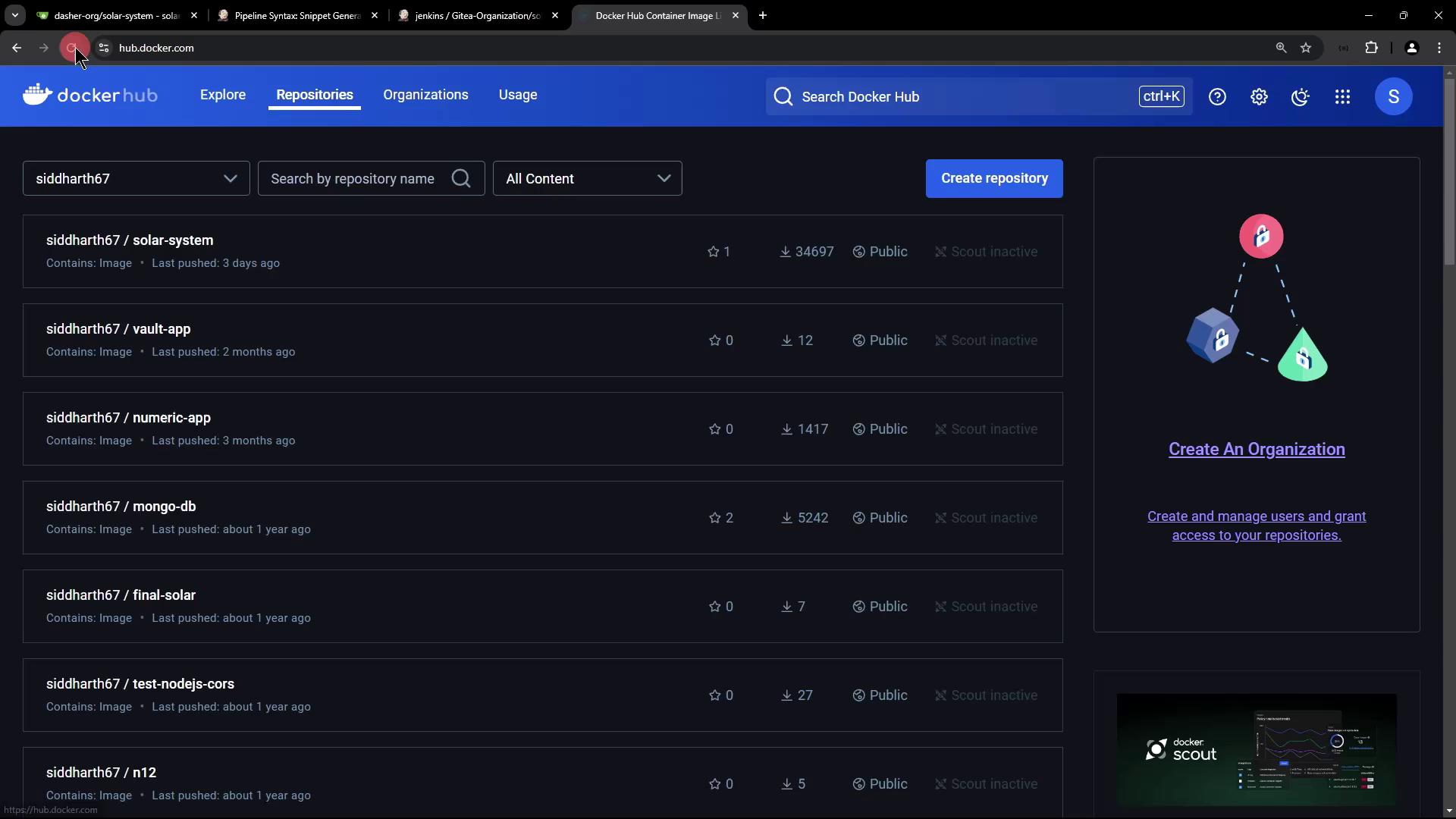
Confirm in GitHub
You can also verify the commit ID in your source repository: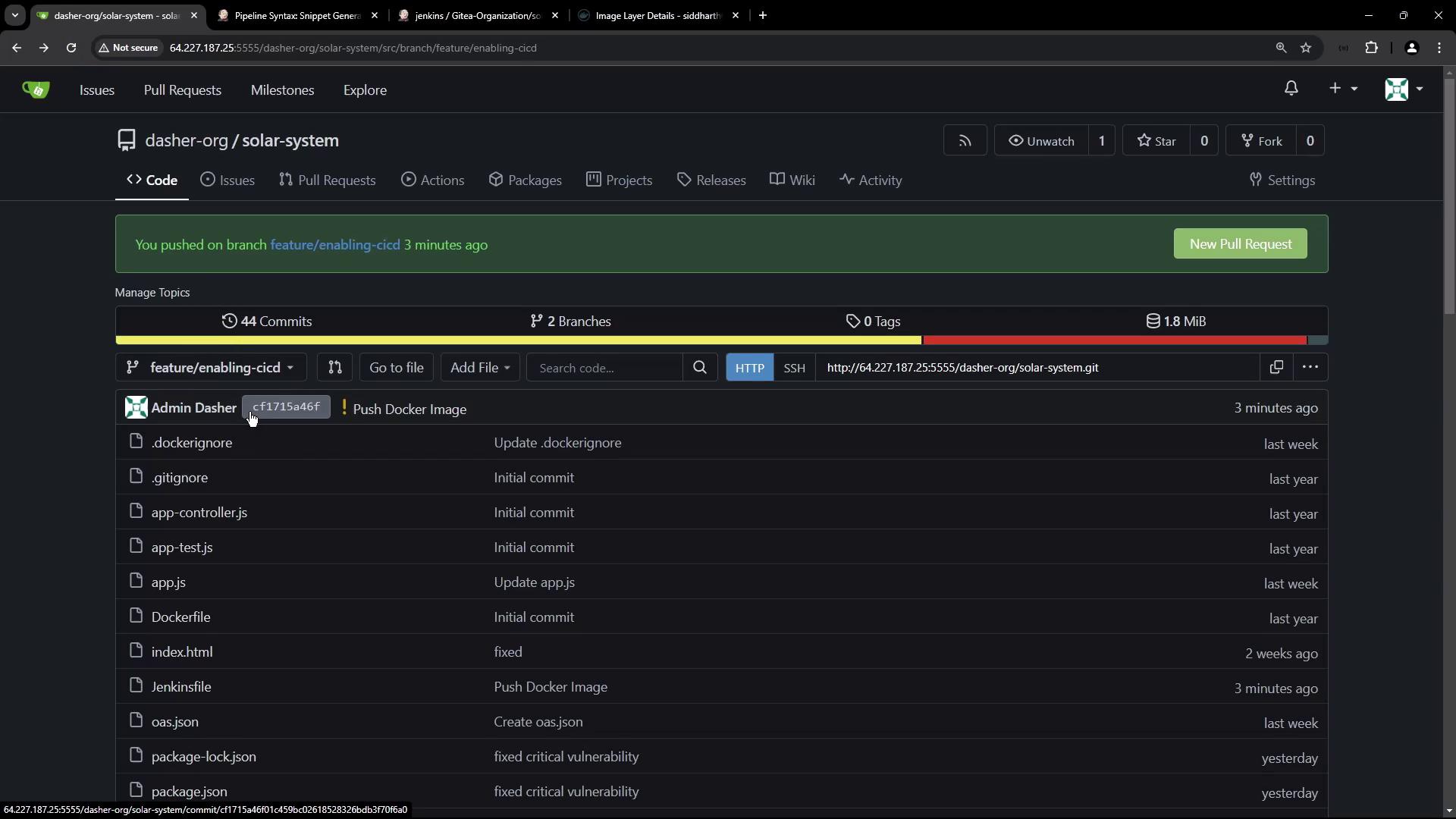
Summary
With this configuration, your CI pipeline now:- Builds a Docker image.
- Scans it with Trivy for vulnerabilities.
- Authenticates and pushes the image to Docker Hub.