

- Checking for new Jenkins releases
- Reviewing changelogs
- Preventing new builds during the update
- Performing the WAR file upgrade
- Verifying the new version
1. Choose Your Jenkins Release
Navigate to the Jenkins download and deployment page. Compare the Stable (LTS) and Weekly packages: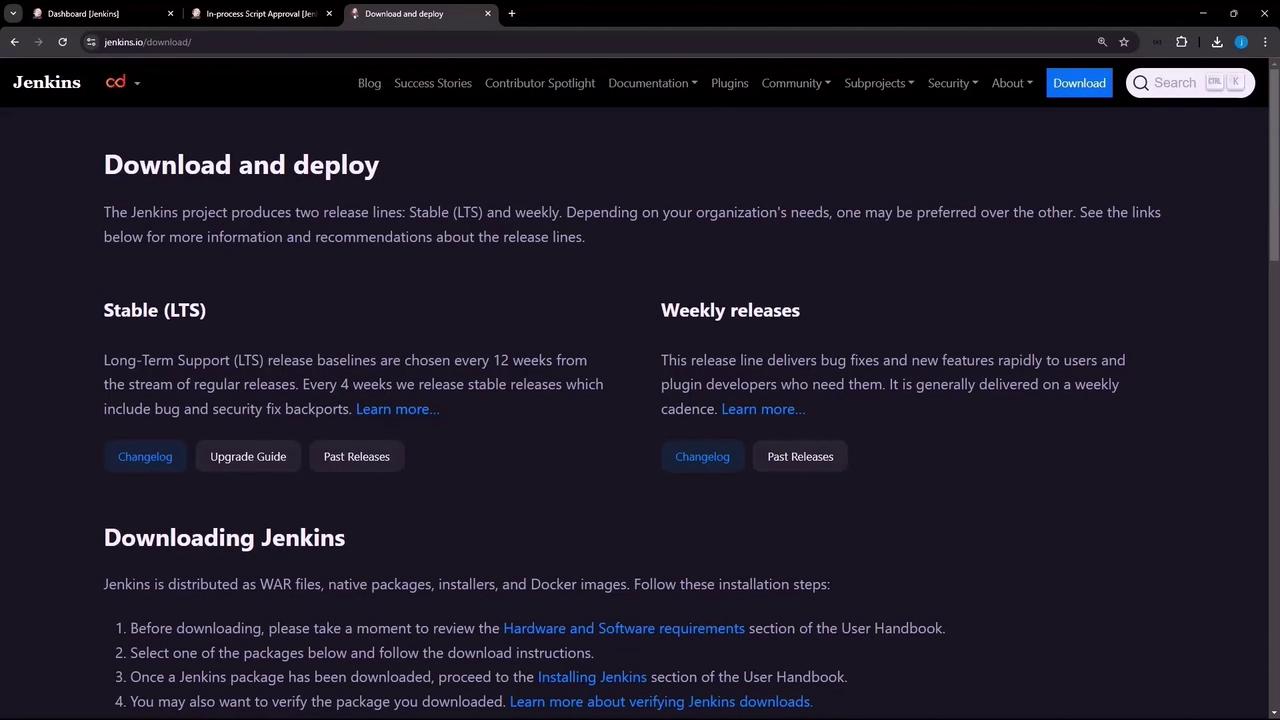
2. Check for Updates on Your Dashboard
Log in to Jenkins and go to Manage Jenkins. The dashboard shows pending updates and plugin advisories: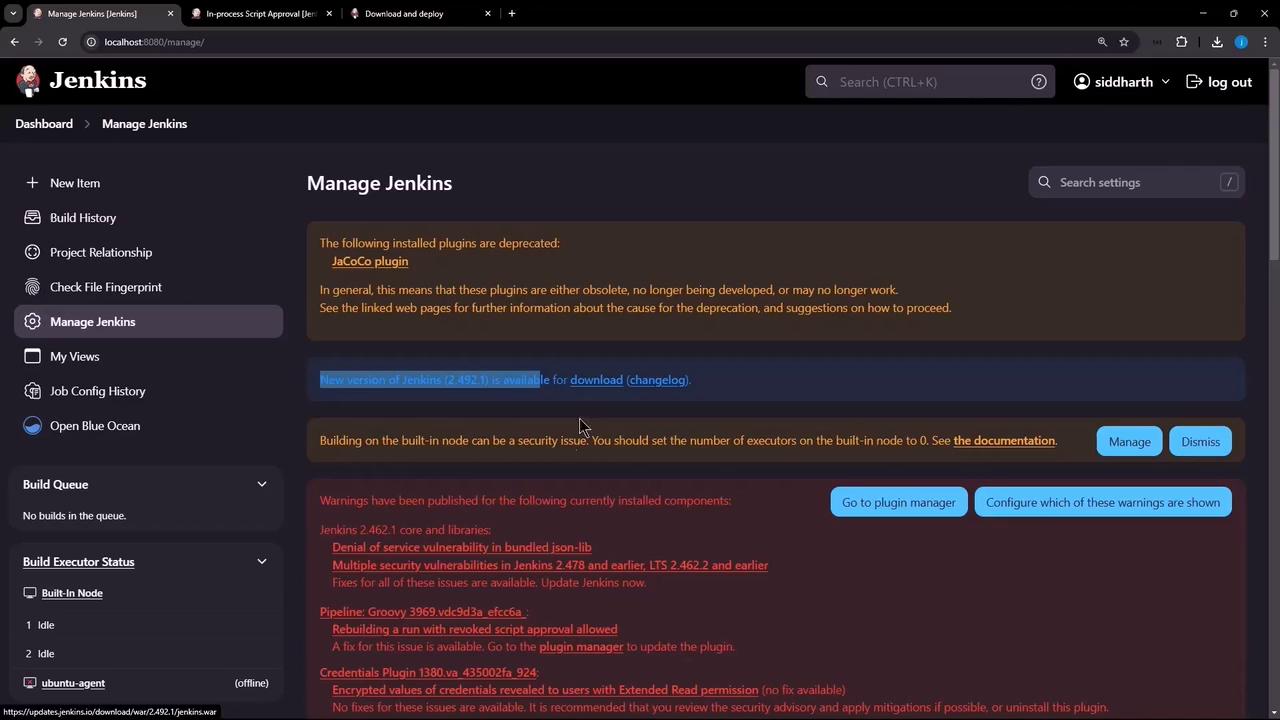
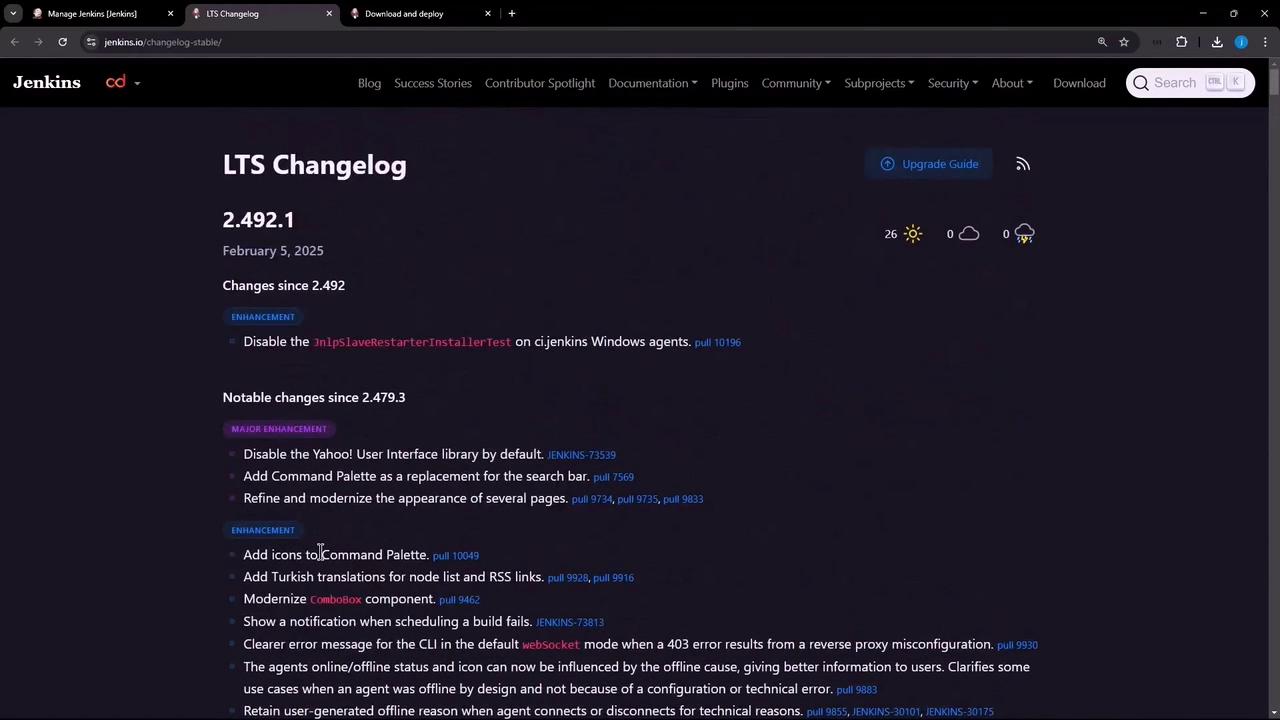
https://updates.jenkins.io/download/war/2.492.1/jenkins.war) for the next step.
3. Prepare Jenkins for Upgrade
Before replacing the WAR, enter shutdown mode so existing builds finish and no new builds start:- Go to Manage Jenkins → Prepare for Shutdown
- Add a reason (e.g., “Planning for upgrade”) and confirm
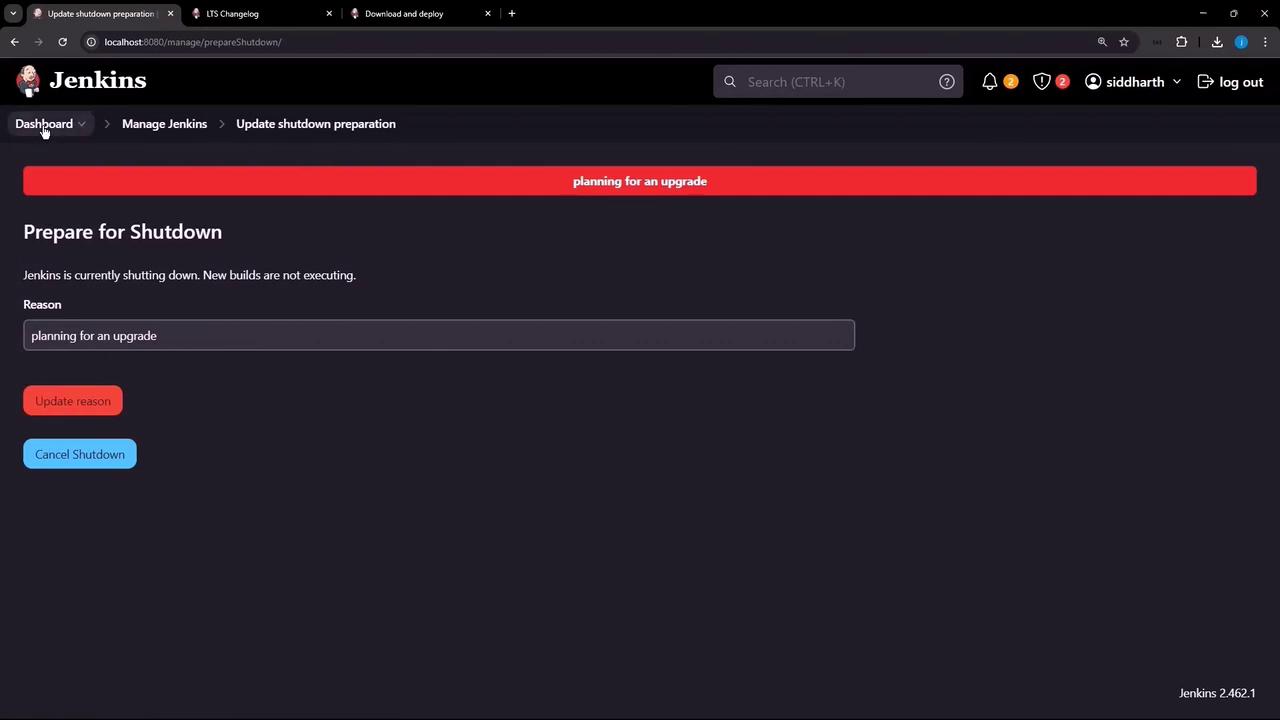
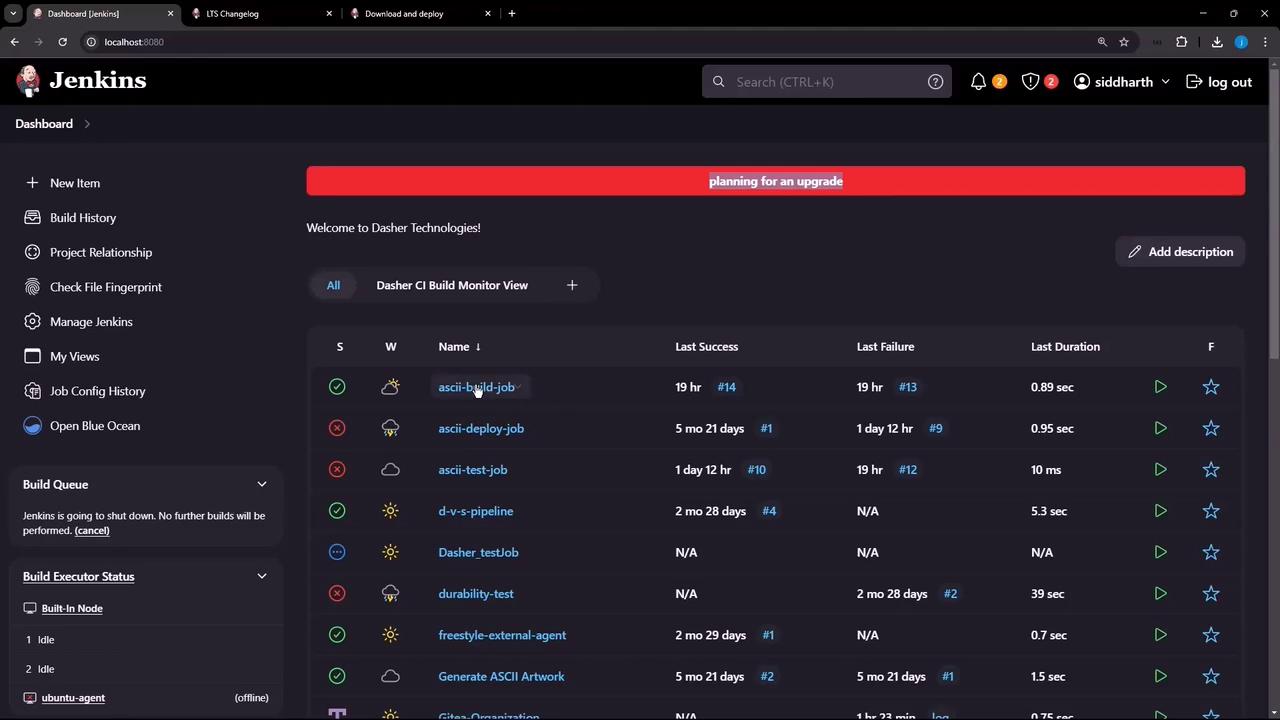
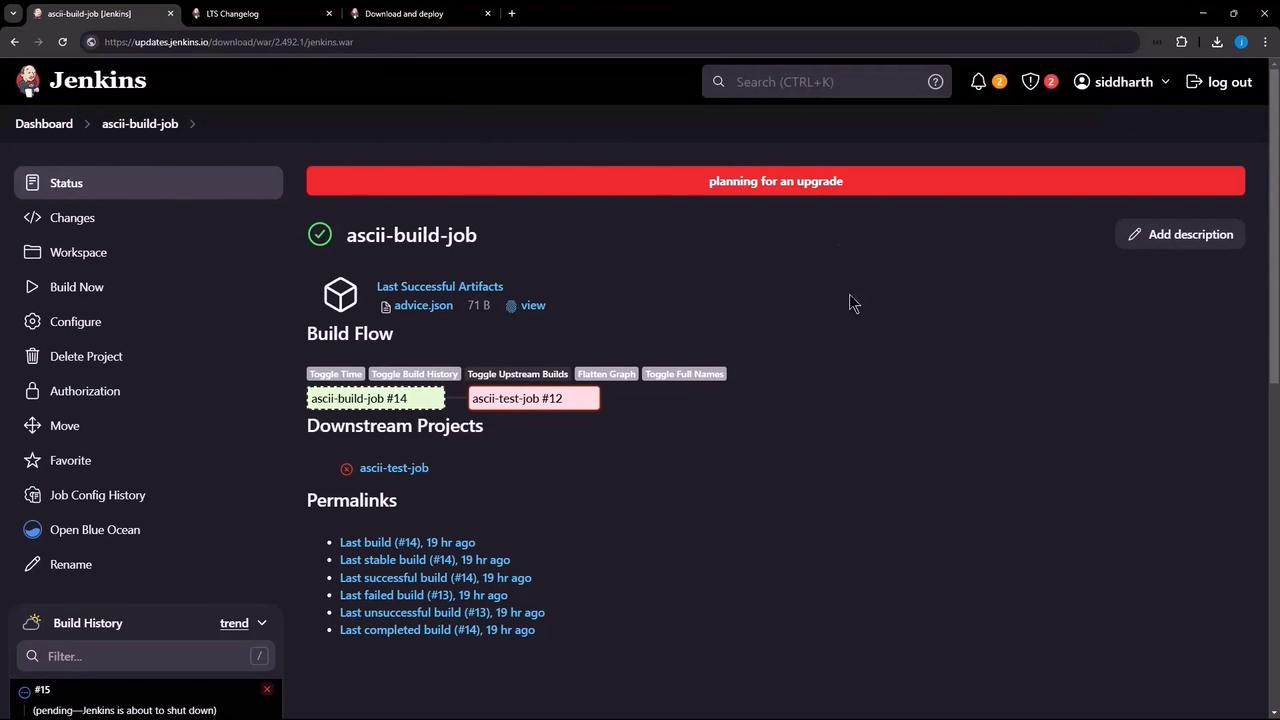
Ensure all running builds complete and no new tasks remain in the queue before stopping the Jenkins service.
4. Upgrade the Jenkins WAR
On your Jenkins host, run the following commands:Always back up or rename your current WAR before replacing it.