Before pushing your Docker image to a registry, it’s crucial to identify and remediate vulnerabilities. In this guide, we’ll walk through how to use Trivy for vulnerability scanning and integrate it into a Jenkins pipeline.
What Is Trivy?
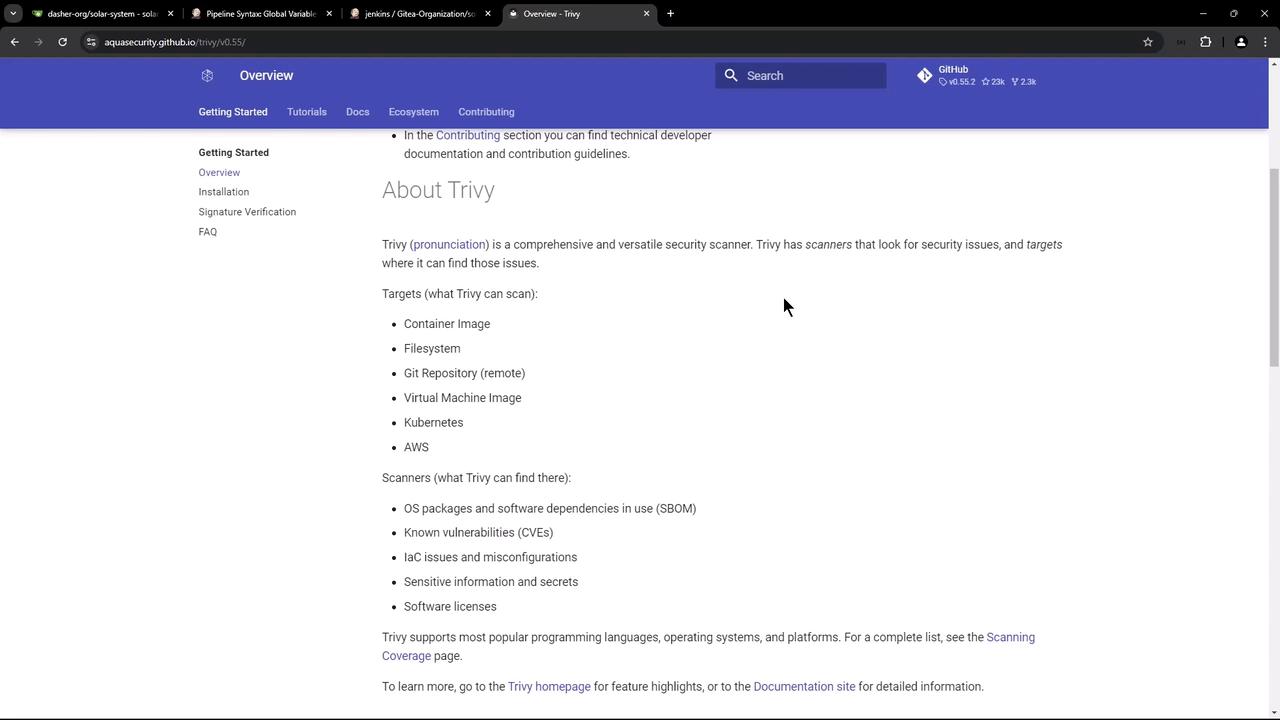
Trivy is an open-source, all-in-one security scanner from Aqua Security. It can analyze:
Container images
File systems
Git repositories
Kubernetes manifests
Infrastructure as Code (IaC)
Trivy detects OS package vulnerabilities, software dependency issues, IaC misconfigurations, license risks, and exposed secrets.
Learn more on the official Trivy GitHub repository .
Installing Trivy
You can install Trivy via package managers, a standalone binary, or run it in Docker.
Platform Method Command / Reference macOS Homebrew brew install trivyDocker Container image See Docker block below RPM-based Linux YUM repository Add repo then sudo yum install trivy Manual / Source Shell script & Go Use Aquasecurity install script or build from source
Homebrew (macOS)
Docker
docker run --rm \
-v /var/run/docker.sock:/var/run/docker.sock \
-v $HOME /Library/Caches/:/root/.cache \
aquasec/trivy image python:3.4-alpine
RPM-Based Linux
sudo tee /etc/yum.repos.d/trivy.repo << EOF
[trivy]
name=Trivy repository
baseurl=https://aquasecurity.github.io/trivy-repo/releases/ $releasever /
enabled=1
gpgcheck=1
gpgkey=https://aquasecurity.github.io/trivy-repo/rpm/public.key
EOF
sudo yum -y update
sudo yum -y install trivy
Manual / From Source
# Install via script
curl -sL https://raw.githubusercontent.com/aquasecurity/trivy/main/contrib/install.sh | sh
# Or build from GitHub
git clone --depth 1 --branch v0.55.2 https://github.com/aquasecurity/trivy
cd trivy
go install ./cmd/trivy
Basic Usage
Scan a Docker image for vulnerabilities:
trivy image python:3.4-alpine
Scan a local project directory for vulnerabilities and secrets:
trivy fs --scanners vuln,secret,misconfig ./myproject
Get Trivy version and help:
trivy -v # e.g. Version: 0.55.2
trivy image --help # Image-scan options
By default, Trivy exits with code 0 even if it finds non-critical issues. Use --exit-code to control build failures based on severity.
Integrating Trivy into a Jenkins Pipeline
Add a Trivy Vulnerability Scanner stage immediately after your Docker build. Below is an example declarative pipeline:
pipeline {
agent any
stages {
stage( 'Build Docker Image' ) {
steps {
// your build steps...
}
}
stage( 'Trivy Vulnerability Scanner' ) {
steps {
// Medium/Low scan does not fail build
sh '''
trivy image siddharth67/solar-system:$GIT_COMMIT \
--severity LOW,MEDIUM,HIGH \
--exit-code 0 \
--quiet \
--format json -o trivy-image-medium.json
# Critical scan fails on findings
trivy image siddharth67/solar-system:$GIT_COMMIT \
--severity CRITICAL \
--exit-code 1 \
--quiet \
--format json -o trivy-image-critical.json
'''
}
post {
always {
// Convert JSON to HTML and JUnit XML
sh '''
trivy convert --format template \
--template "/usr/local/share/trivy/templates/html.tpl" \
--output trivy-image-medium.html trivy-image-medium.json
trivy convert --format template \
--template "/usr/local/share/trivy/templates/html.tpl" \
--output trivy-image-critical.html trivy-image-critical.json
trivy convert --format template \
--template "/usr/local/share/trivy/templates/junit.tpl" \
--output trivy-image-medium.xml trivy-image-medium.json
trivy convert --format template \
--template "/usr/local/share/trivy/templates/junit.tpl" \
--output trivy-image-critical.xml trivy-image-critical.json
'''
// Publish JUnit test reports
junit allowEmptyResults : true , testResults : 'trivy-image-*.xml'
// Publish HTML vulnerability reports
publishHTML([
allowMissing : true , alwaysLinkToLastBuild : true , keepAll : true ,
reportDir : '.' , reportFiles : 'trivy-image-critical.html' ,
reportName : 'Critical Vulnerabilities' , useWrapperFileDirectly : true
])
publishHTML([
allowMissing : true , alwaysLinkToLastBuild : true , keepAll : true ,
reportDir : '.' , reportFiles : 'trivy-image-medium.html' ,
reportName : 'Medium/Low Vulnerabilities' , useWrapperFileDirectly : true
])
}
}
}
stage( 'Push to Registry' ) {
steps {
// your push steps...
}
}
}
}
The critical-scan stage uses --exit-code 1. Any CRITICAL vulnerability will fail the build immediately.
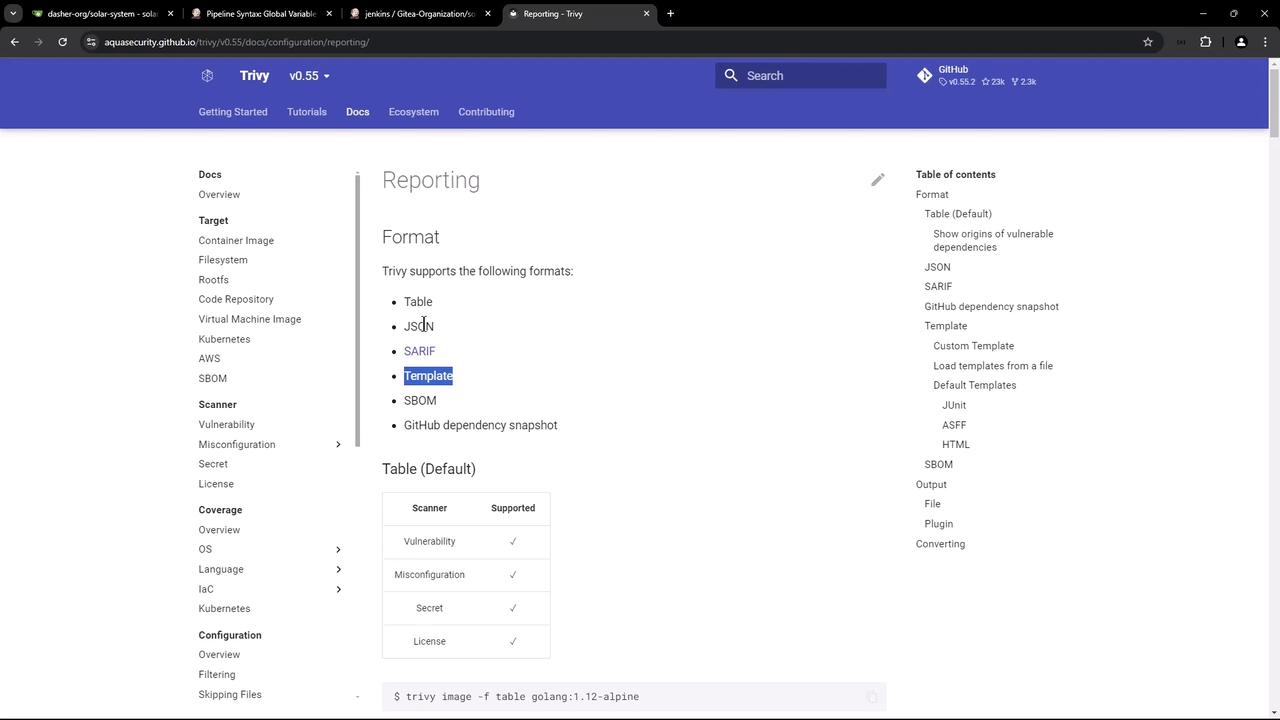
Trivy supports several output formats:
Format Description Table Human-readable table view JSON Machine-parsable data SARIF Static Analysis Results Interchange Format Template Custom reports via Go templates (HTML, JUnit, CycloneDX)
Templates are installed at:
ls /usr/local/share/trivy/templates
# asff.tpl gitlab-codequality.tpl gitlab.tpl html.tpl junit.tpl
To convert a JSON output into a CycloneDX SBOM:
trivy image --format json -o result.json debian:11
trivy convert --format cyclonedx --output result.cdx result.json
Reviewing Scan Results
After your Jenkins job completes, the workspace will contain:
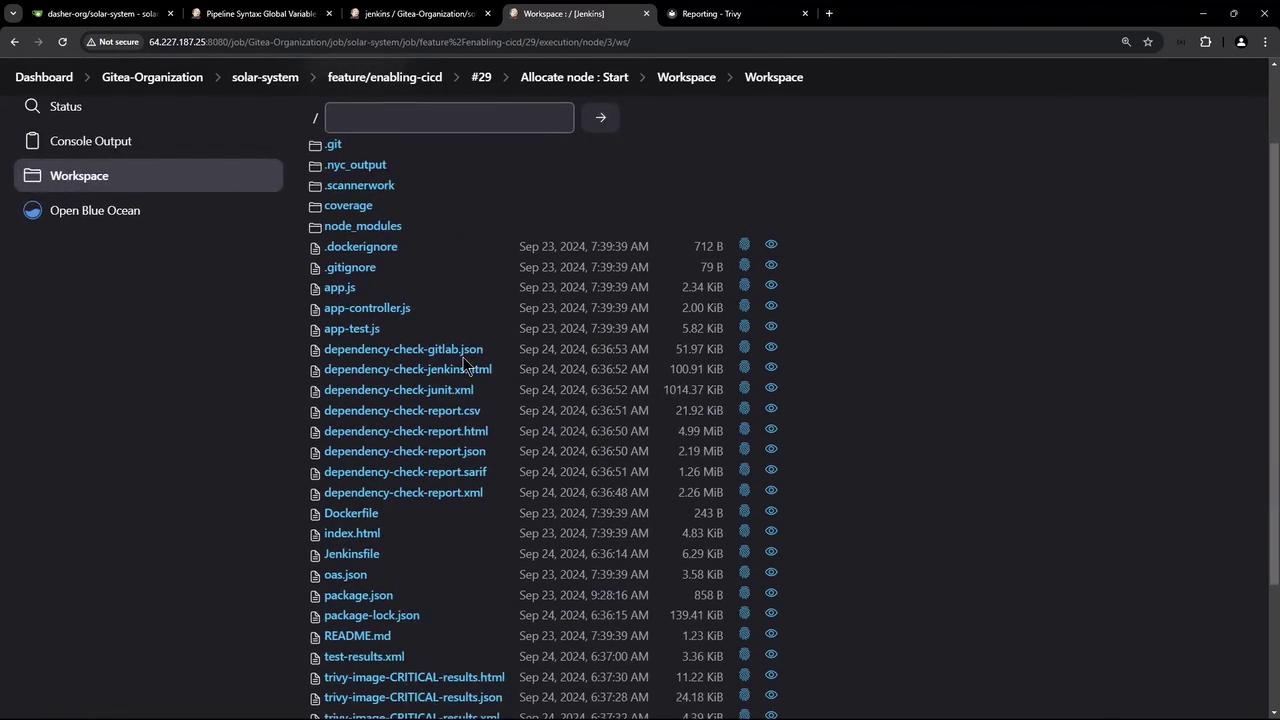
trivy-image-medium.html / .json / .xml
trivy-image-critical.html / .json / .xml
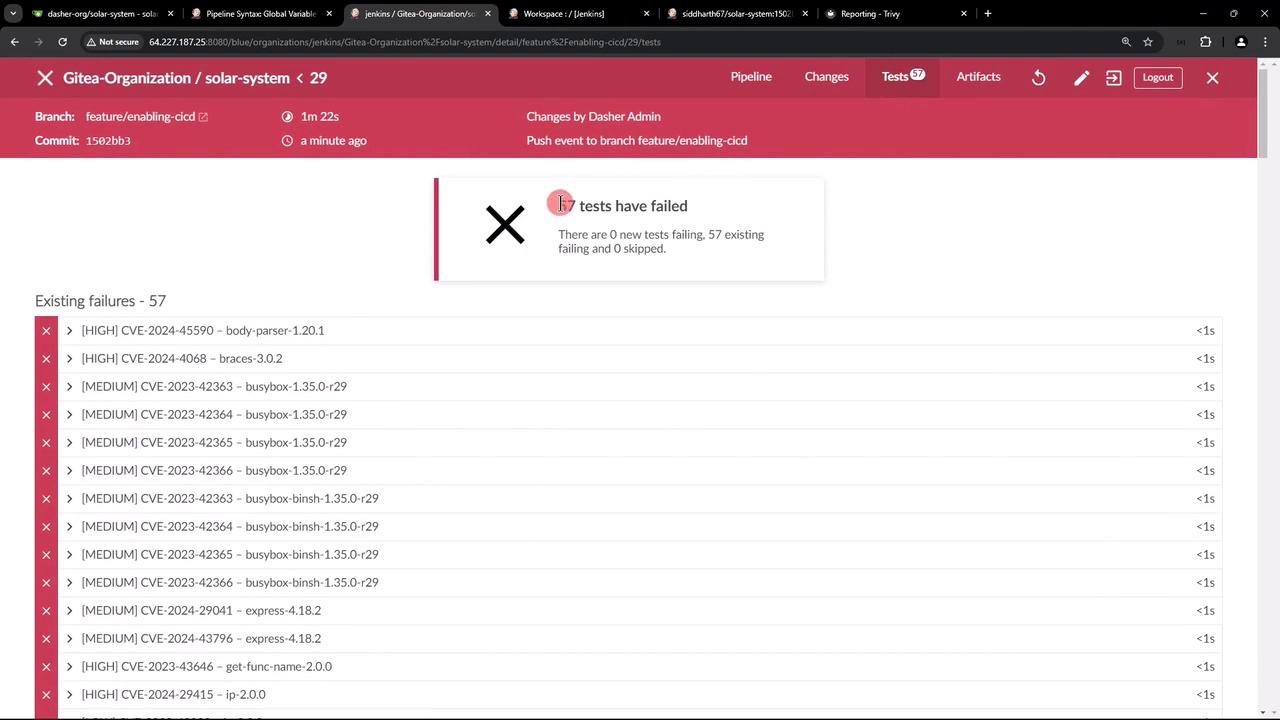
In Jenkins’ Test Results view, Trivy’s JUnit entries appear alongside other CI tests:
Adjusting Severity Thresholds
To treat HIGH severity like MEDIUM (only fail on CRITICAL), include HIGH in the non-failing scan:
steps {
sh '''
trivy image siddharth67/solar-system:$GIT_COMMIT \
--severity LOW,MEDIUM,HIGH \
--exit-code 0 \
--quiet \
--format json -o trivy-image-medium.json
trivy image siddharth67/solar-system:$GIT_COMMIT \
--severity CRITICAL \
--exit-code 1 \
--quiet \
--format json -o trivy-image-critical.json
'''
}
Summary
In this tutorial, you learned how to:
Install Trivy on various platforms
Execute basic vulnerability scans on images and filesystems
Integrate Trivy into a Jenkins pipeline with pass/fail thresholds
Convert JSON results to HTML, JUnit, or CycloneDX formats
Publish and review vulnerability reports in Jenkins
Trivy also supports scanning IaC files, detecting sensitive data, and auditing software licenses. For advanced scenarios, visit the official Trivy documentation .
Links and References