

By the end, you’ll understand why Freestyle jobs do not survive controller restarts and what alternatives exist.
1. Prepare a Long-Running Deploy Job
Edit the ascii-deploy-job and insert asleep before the actual deployment steps. This will simulate a long-running process.
Adjust the
sleep duration to suit your testing environment.2. Trigger the Build and Test Jobs
- In Jenkins, click Build Now for ascii-build-job.
- ascii-build-job will automatically trigger ascii-test-job.
Test Job Failure
Because our advice quote has five words or fewer, the test script will fail. Inspect ascii-test-job’s console output:3. Rerun and Deploy
- Update the advice text so it contains more than five words.
- Trigger ascii-build-job again.
- ascii-test-job completes successfully.
- ascii-deploy-job enters the queue and then starts.
sleep invocation:
4. Simulate Controller Failure
While ascii-deploy-job is sleeping, simulate a controller outage.Stopping the Jenkins controller will immediately terminate all running Freestyle jobs.
- SSH into the Jenkins controller host.
- Stop Jenkins:
The service should display inactive.
- Refresh the Jenkins UI— it will be unreachable.
- Start Jenkins again:
You should see output similar to:
- Log back into the UI and open ascii-deploy-job. The build will have failed:
5. Observations
When the Jenkins controller goes down:- Any running Freestyle jobs are terminated.
- Builds do not resume after restart.
Freestyle projects cannot resume after a controller restart. Consider using Pipeline projects for better resilience and survivability.
6. Jenkins Dashboard and Icon Legend
On the Jenkins dashboard, monitor your jobs’ statuses: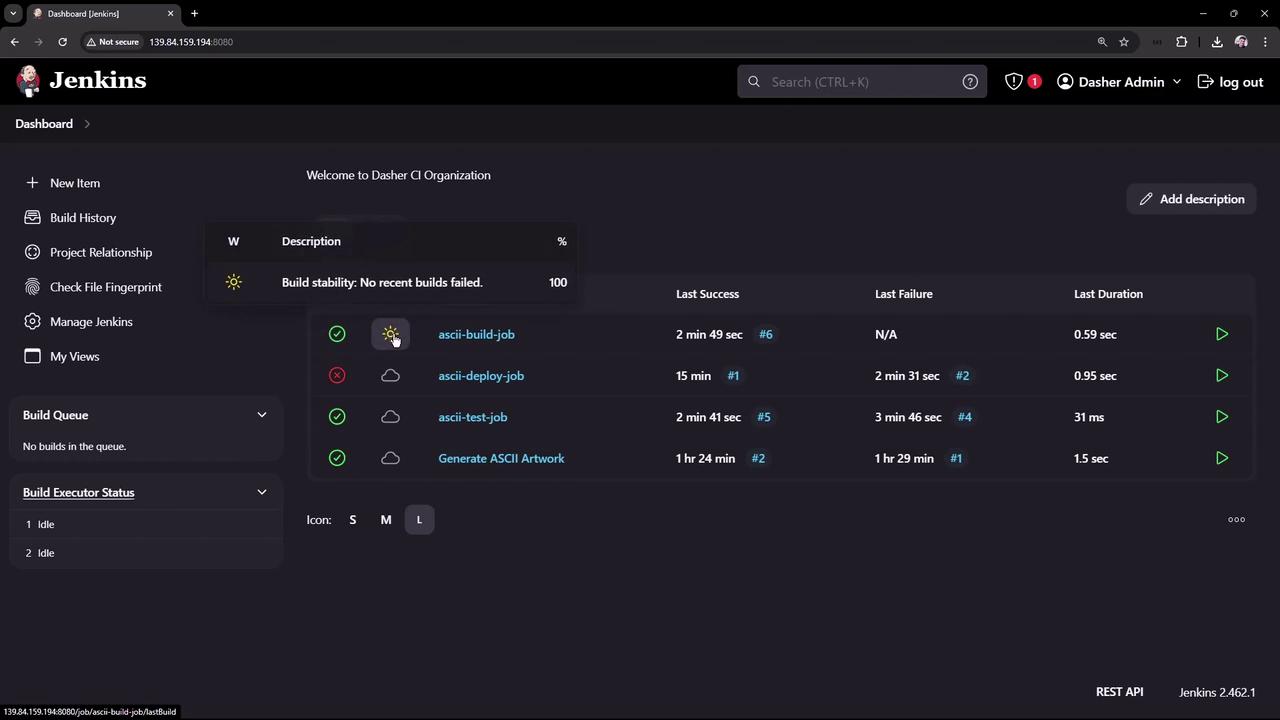
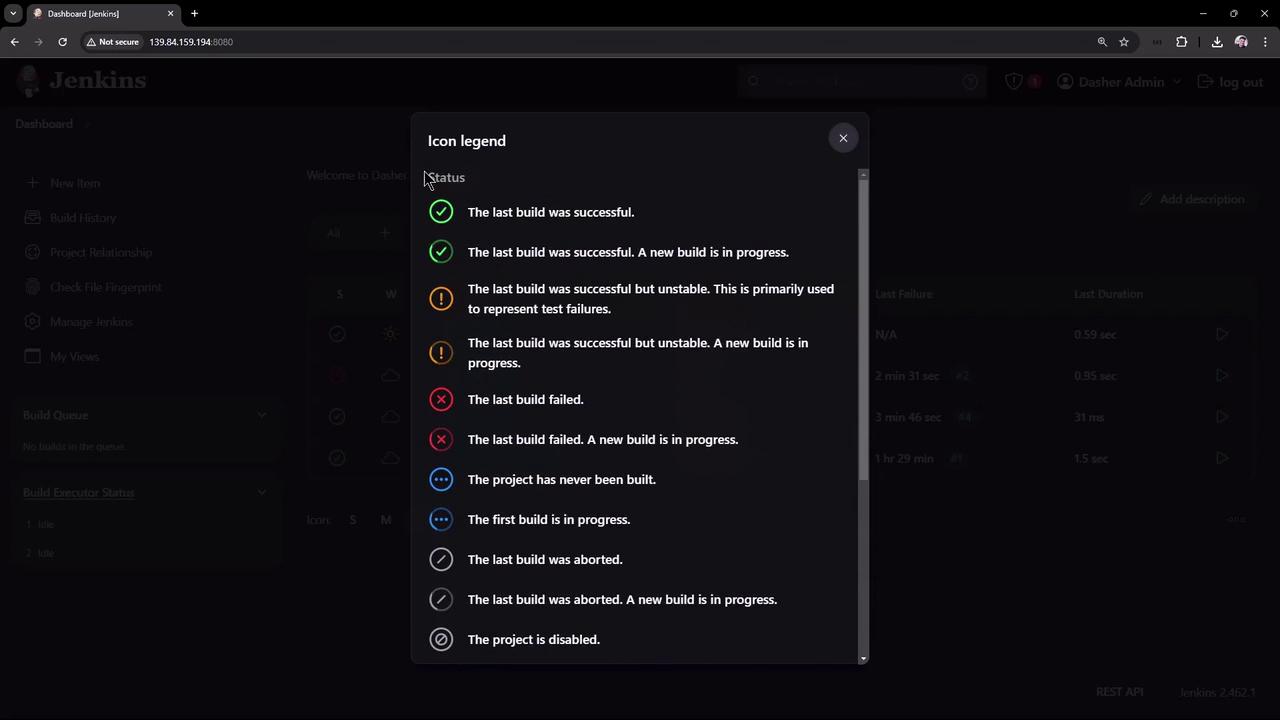
Next Steps
- Explore Jenkins Pipeline for durable, restart-safe workflows.
- Review the Freestyle project documentation to understand its limitations.