

- when emails are sent (triggers),
- who receives them (recipient options and tokens), and
- the exact email content (HTML, templates, attachments, and scripts).
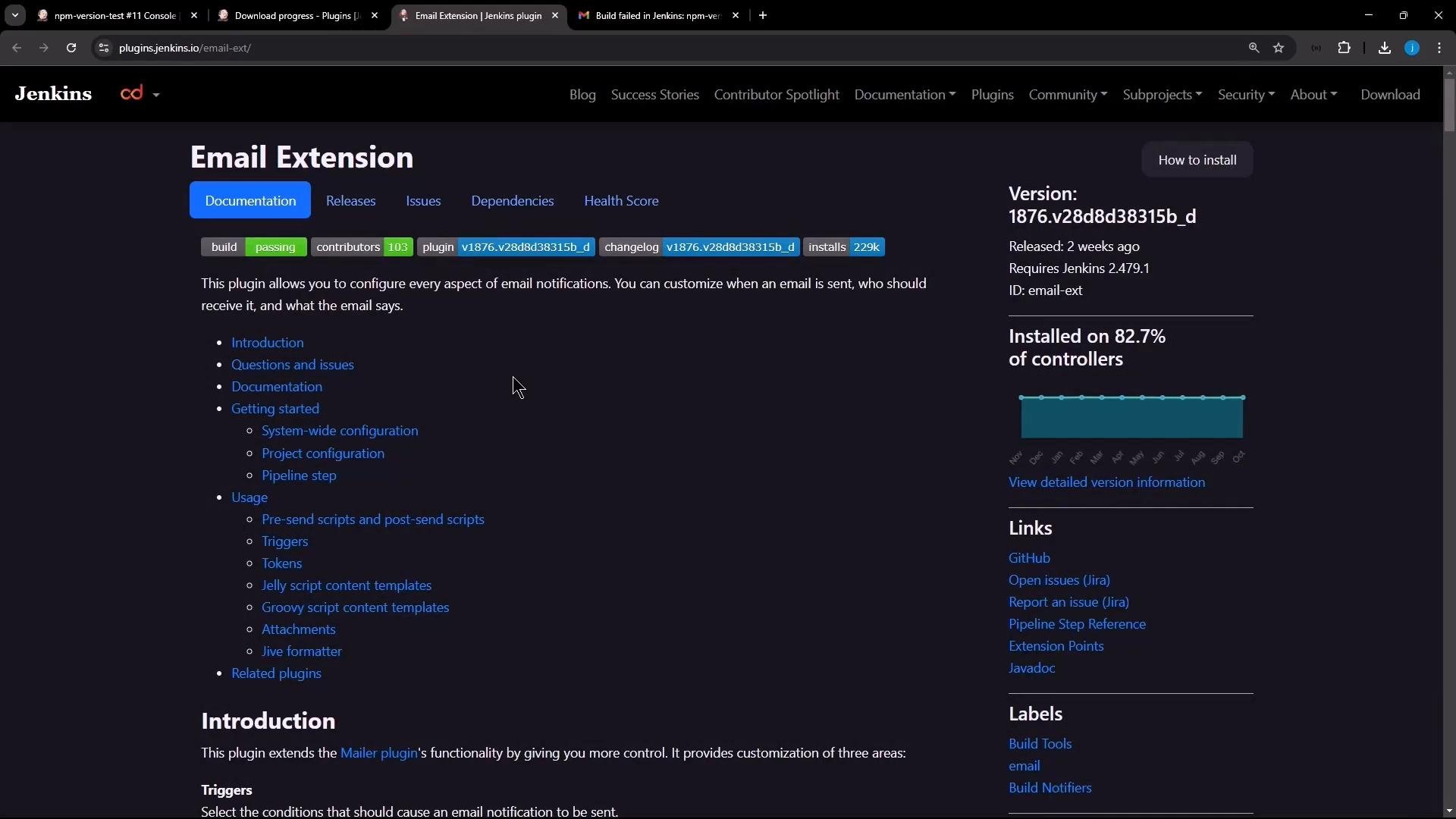
System-wide configuration
- Open Manage Jenkins → Configure System and search for “Extensible” to find the Editable Email Notification section.
- Configure SMTP and authentication:
- SMTP server:
smtp.gmail.com - Port:
465(SSL) or587(TLS) - Add credentials (username/password or App Password) via Jenkins Credentials, then click Advanced to choose SSL/TLS and other options.
- SMTP server:
If you use Gmail, enable 2‑step verification and create an App Password for Jenkins. Do not use your normal account password.
Default content type and recipients
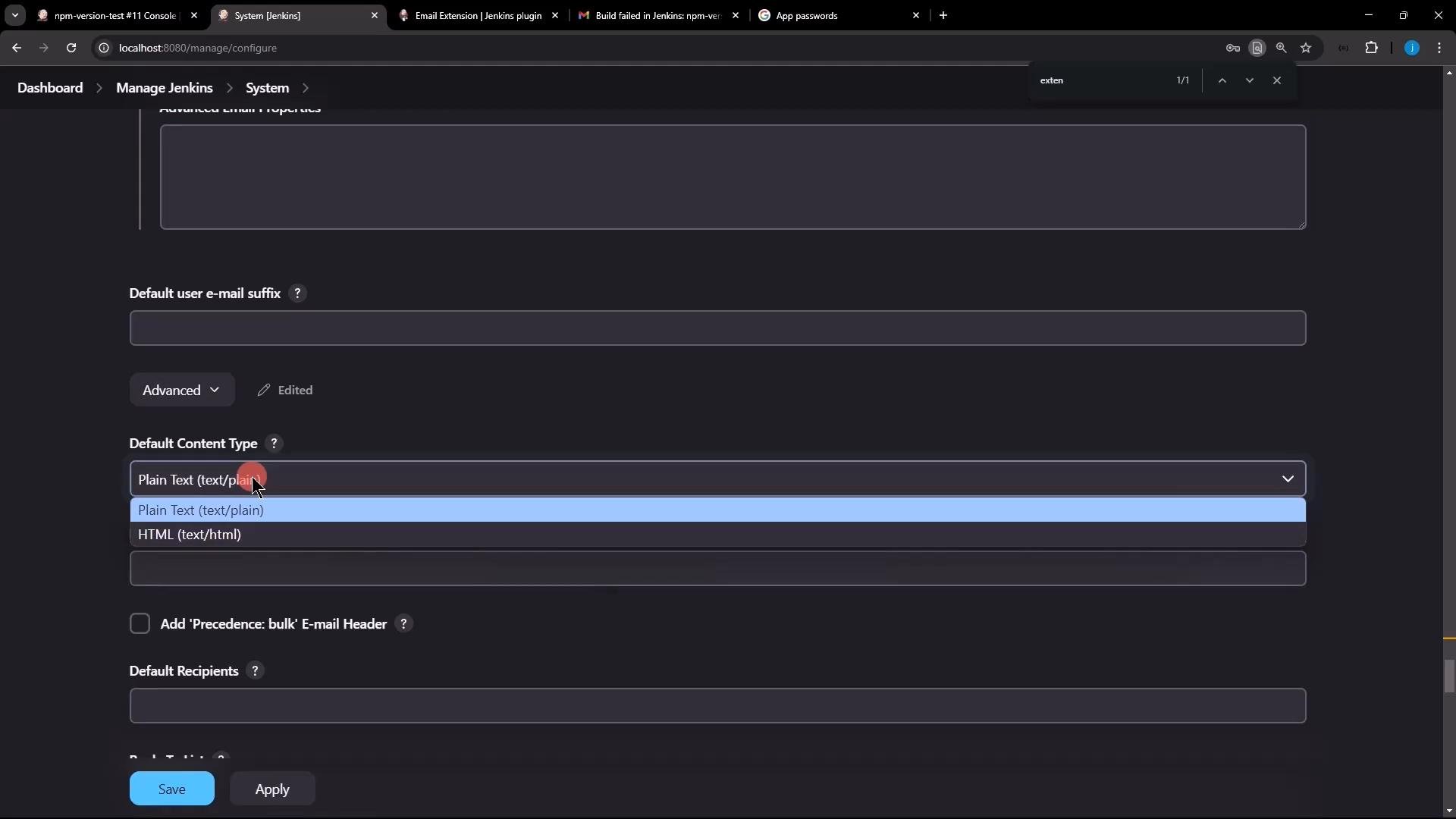
You can set global defaults that jobs inherit:- Default Content Type: Plain Text or HTML
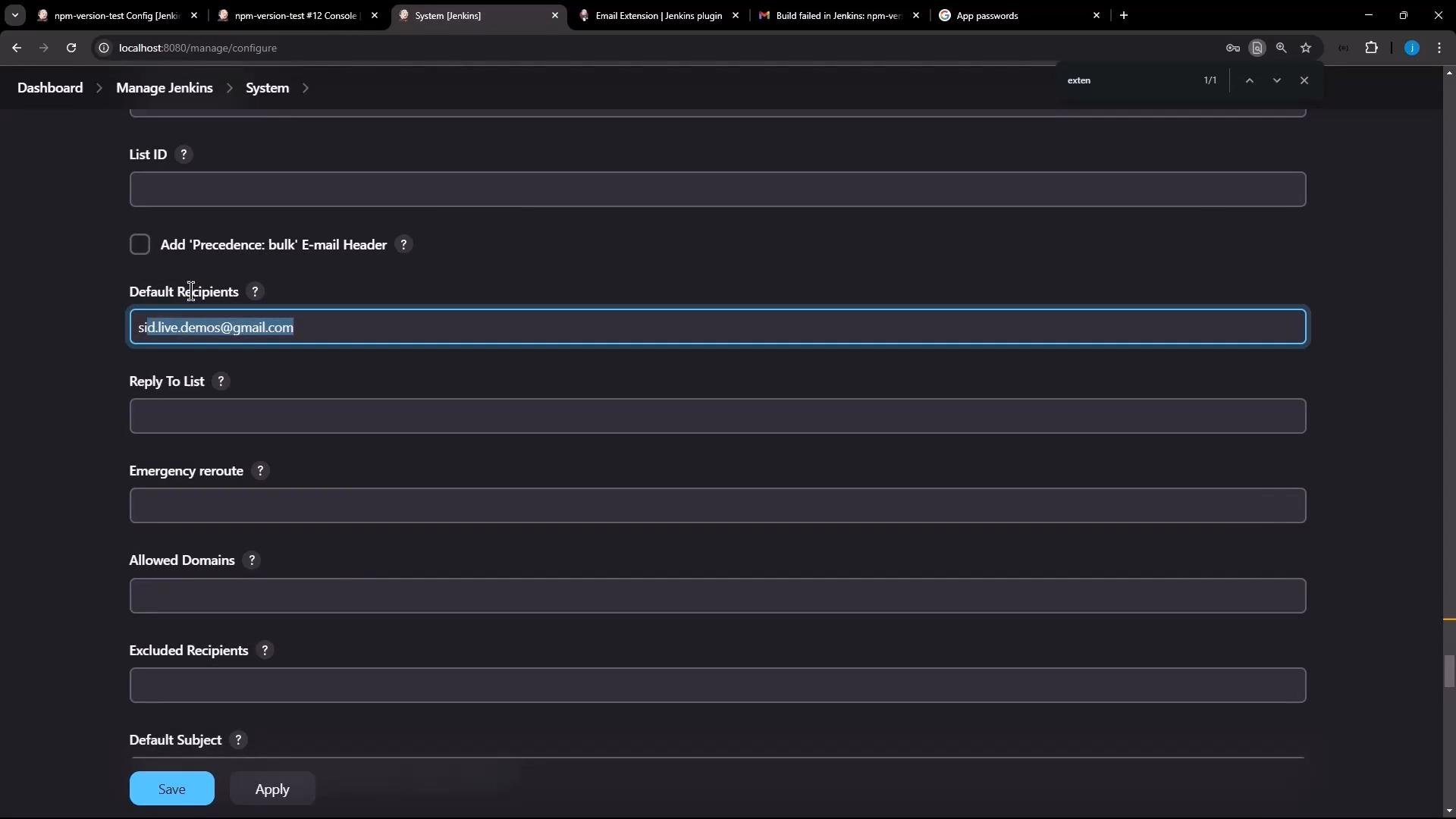
- Default Recipients: comma-separated emails (available as the token
\$DEFAULT_RECIPIENTS) - Default Reply‑To, Default Subject, Default Body.
HTML if you want richer email formatting.
- List-ID examples (keep values in code if they contain angle brackets):
- Default recipients: a comma-separated list of email addresses. When present, jobs can reference them using
\$DEFAULT_RECIPIENTSand\$DEFAULT_REPLYTO.
Default subject and body templates
Email‑ext supports tokens/variables. Common system defaults: Default subject:Attachments and limits
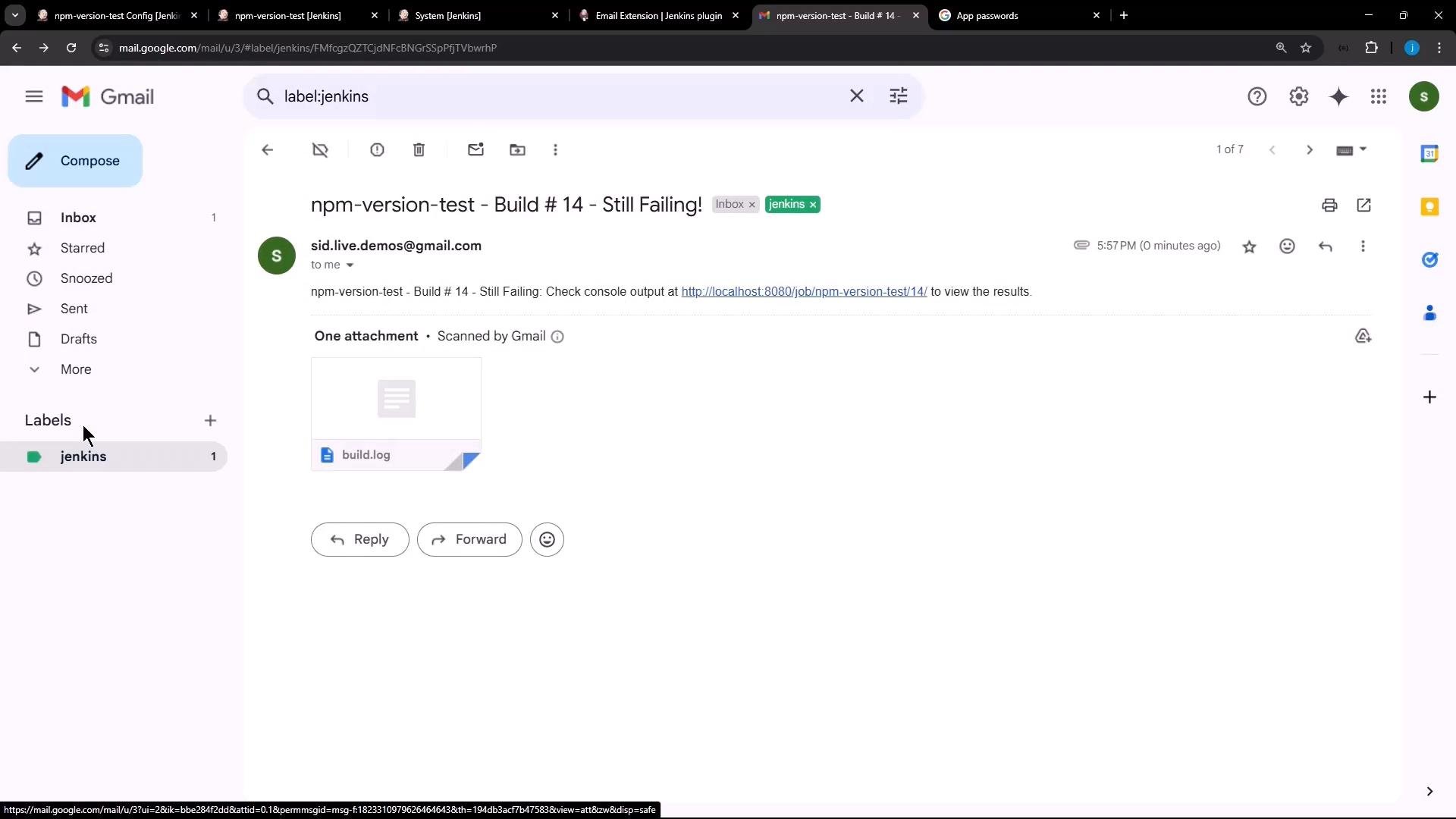
You can attach files (for example, the build log). The attachment size limit can be left blank or set to-1 to indicate no limit. Options include compressing the log or attaching the raw build.log.
Triggers and default behavior
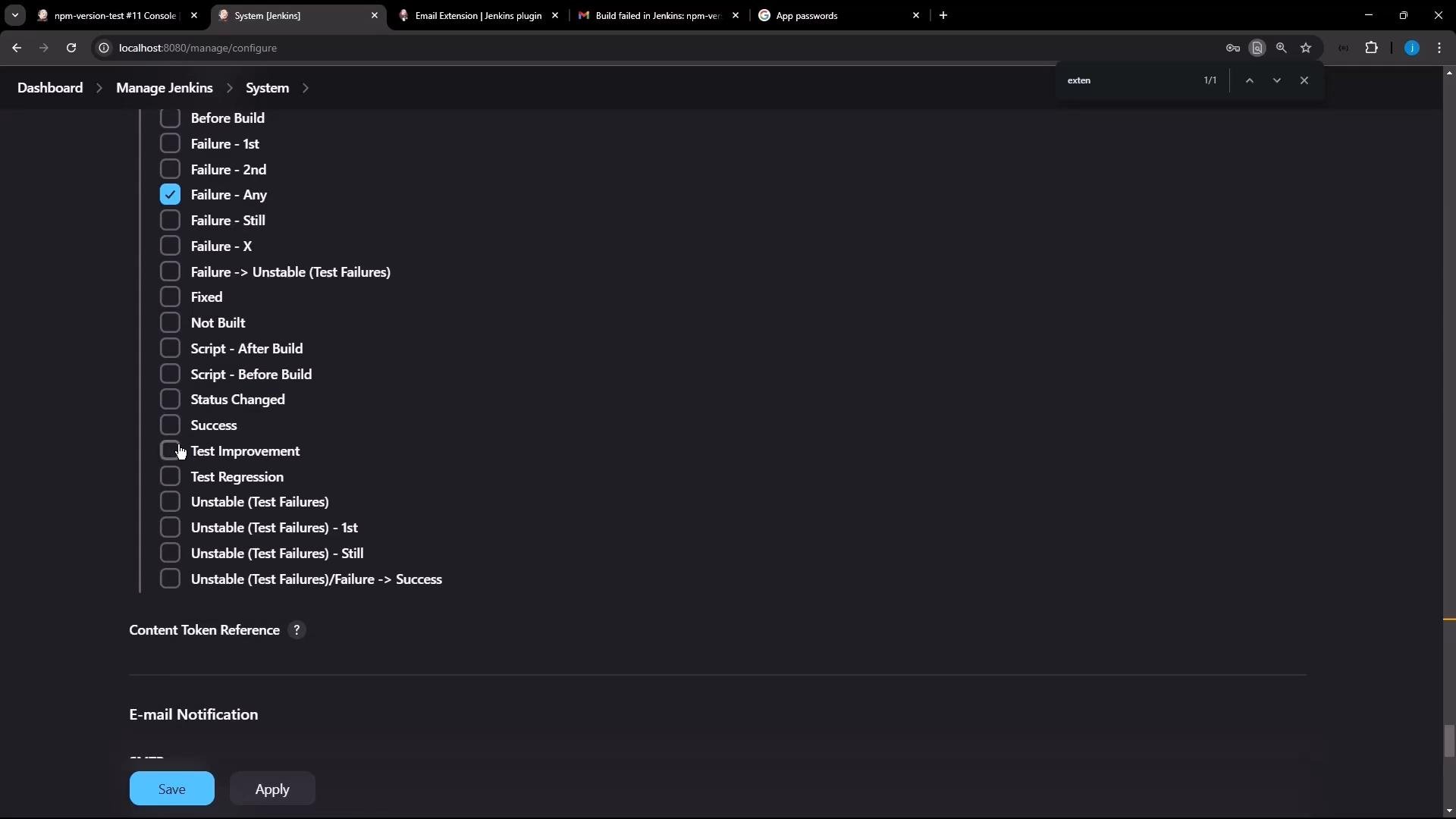
Email‑ext ships with multiple triggers (e.g., “Failure - Any”). Important behavior to know:- Some triggers (like “Send to Developers” or “Send to Culprits”) only include those groups and do not automatically include
\$DEFAULT_RECIPIENTSunless the trigger is explicitly configured to do so. - If a trigger is evaluated but no recipients are selected, the plugin will skip sending.
Job-level configuration (Freestyle job)
- Open the job (e.g.,
npm-version-test) → Configure. - In Post‑build Actions, remove any older/in-built Email‑ext entry if present, then add Editable Email Notification.
- For the project recipient list you can:
- Add explicit comma-separated email addresses, or
- Leave blank and rely on
\$DEFAULT_RECIPIENTS(if your trigger includes it), or - Configure recipients per-trigger (recommended when using group options like Developers/Culprits).
If you leave the project recipient list empty and use a trigger that only targets Developers/Culprits, email will not be sent to your
\$DEFAULT_RECIPIENTS unless you explicitly include that token in the trigger or project recipients.Fix: add recipients for the trigger
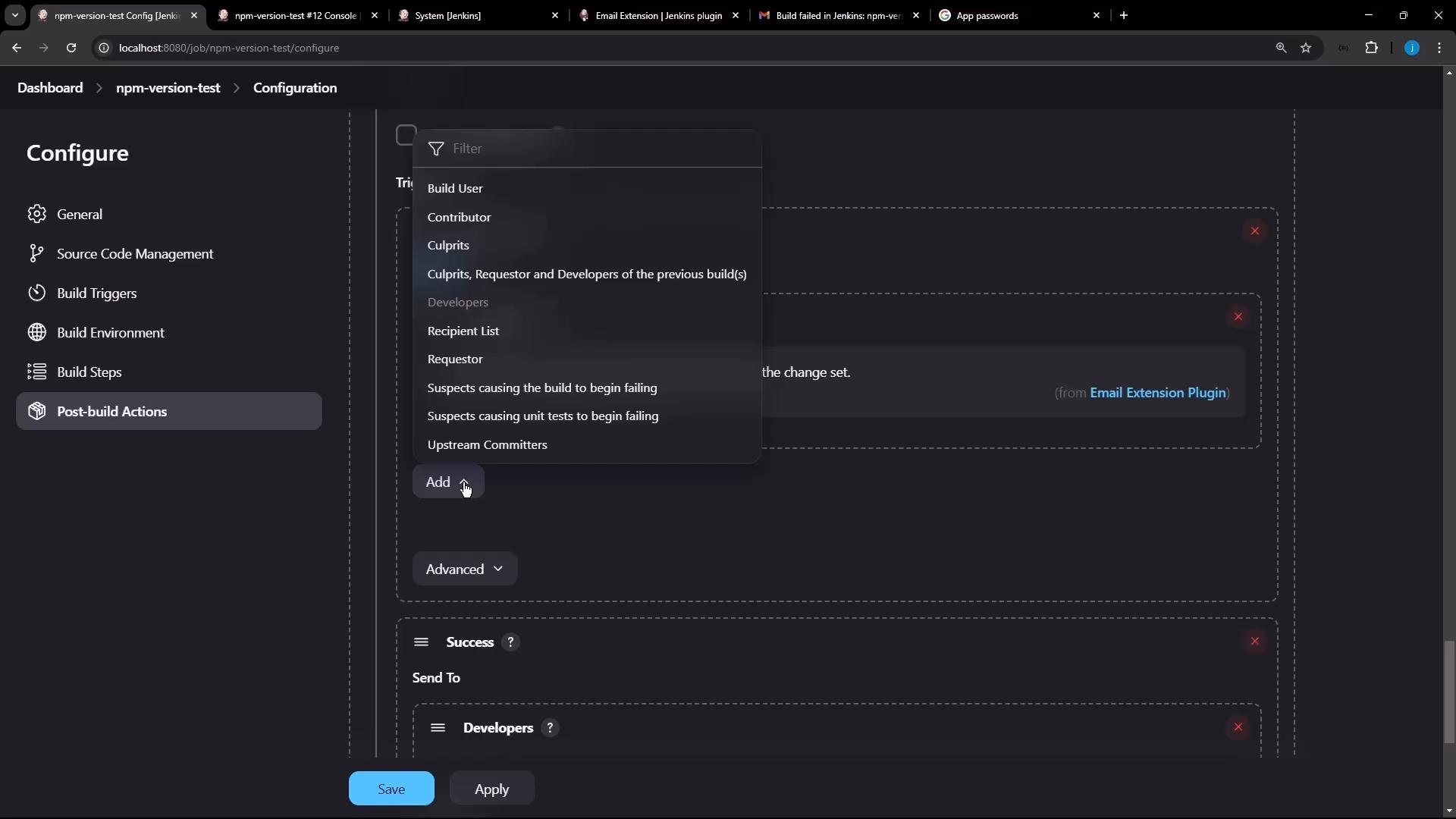
In the job’s post-build action for a specific trigger (for example, Failure - Any), add one of the following:- explicit email addresses (comma-separated),
- the token
\$DEFAULT_RECIPIENTS, - or select one of the provided recipient options (Send To Developers, Send To Culprits, Build User, etc.).
Email content, templates, and attachments
- The job uses the system default subject/body unless you override them at the project level.
- You can provide HTML bodies or custom templates per job.
- Attach the build log via the plugin UI or use presend/postsendscripts:
- Optionally compress logs before attaching.
build.log) when enabled.
Tokens and common variables
Summary / Checklist
- Install Email Extension plugin and restart Jenkins.
- Configure SMTP and credentials (Gmail users: create an App Password).
- Set system defaults: content type (HTML vs Plain),
\$DEFAULT_RECIPIENTS, subject, body, and attachment limits. - For each job, add an Editable Email Notification in Post-build Actions.
- Ensure the triggers include recipients explicitly (project list,
\$DEFAULT_RECIPIENTS, or recipient groups such as Developers/Culprits). - Enable attachments, use presend/postsend scripting if needed, and customize HTML/template content as required.
- Email Extension plugin: https://plugins.jenkins.io/email-ext
- Gmail App Passwords: https://support.google.com/accounts/answer/185833?hl=en