In this lesson, we’ll dive into the Jenkins Build Timeout plugin, which automatically terminates a build when it exceeds a specified duration. Please note this plugin does not apply to Pipeline jobs, as they use their own timeout step.
Pipeline jobs should use the built-in timeout directive. Learn more in the Pipeline Syntax documentation.
Plugin Overview
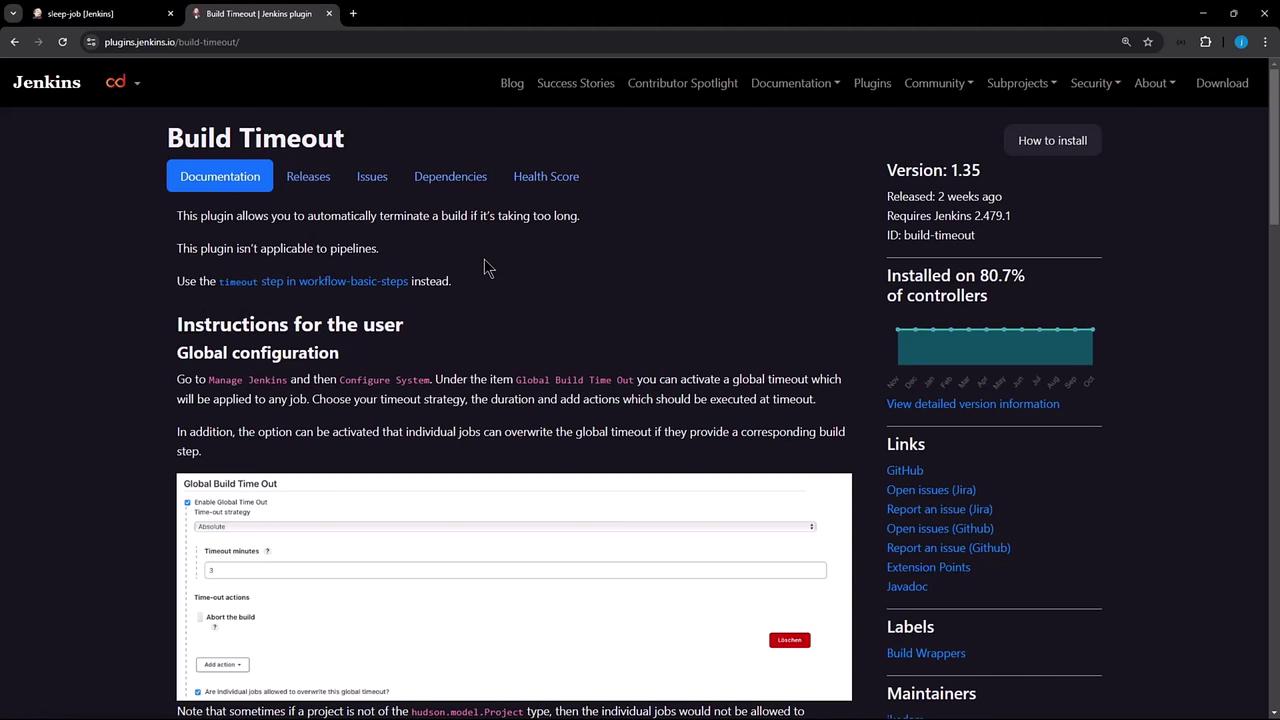
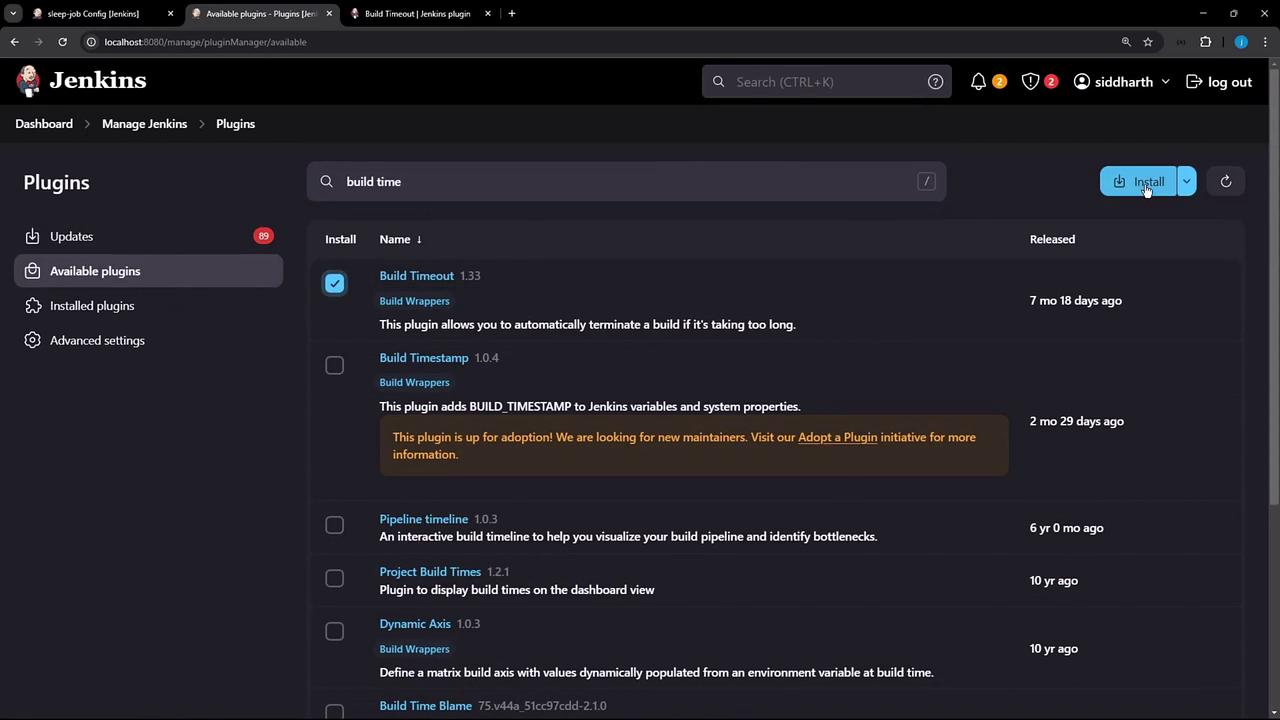
Before configuring any jobs, let’s review the plugin details and installation stats:
Installation
Go to Manage Jenkins > Manage Plugins .
Search for Build Timeout .
Install and restart Jenkins if prompted.
Configuration Scopes
You can configure timeouts at three levels:
Scope Configuration Location Global Manage Jenkins > Configure System Job Build Env Individual job’s Build Environment Build Step Add build step > Run with timeout
1. Global Configuration
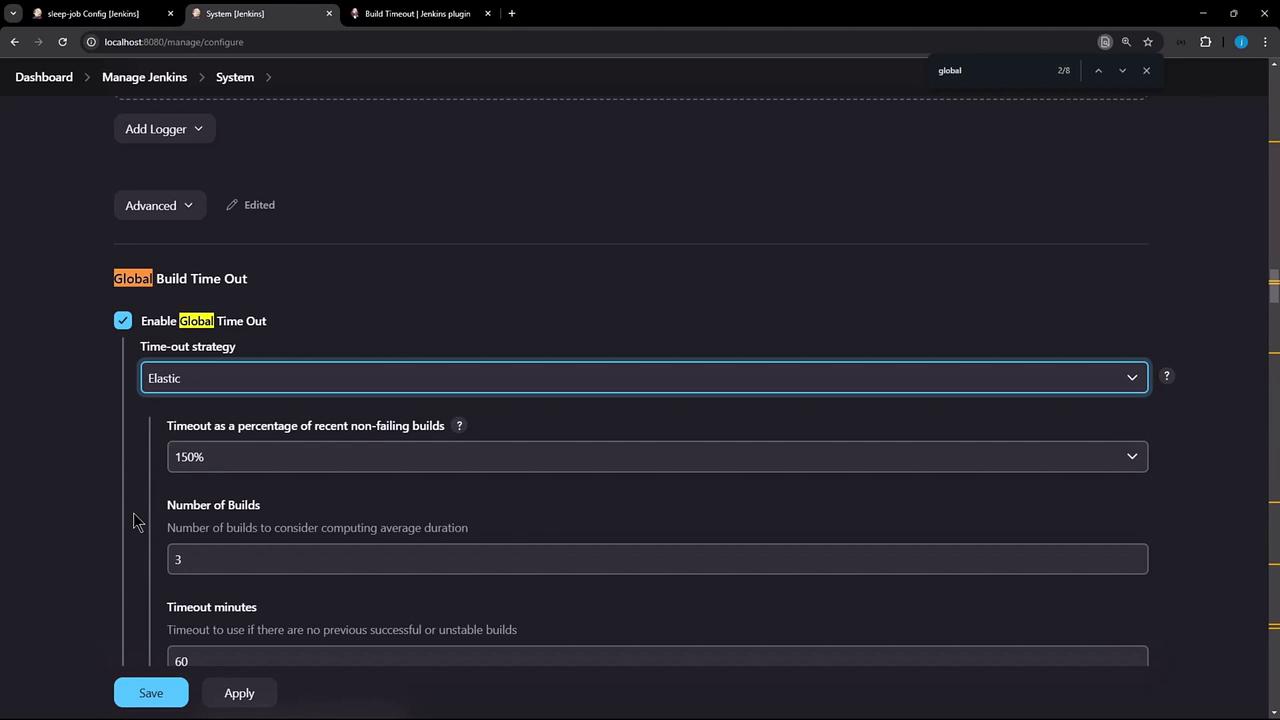
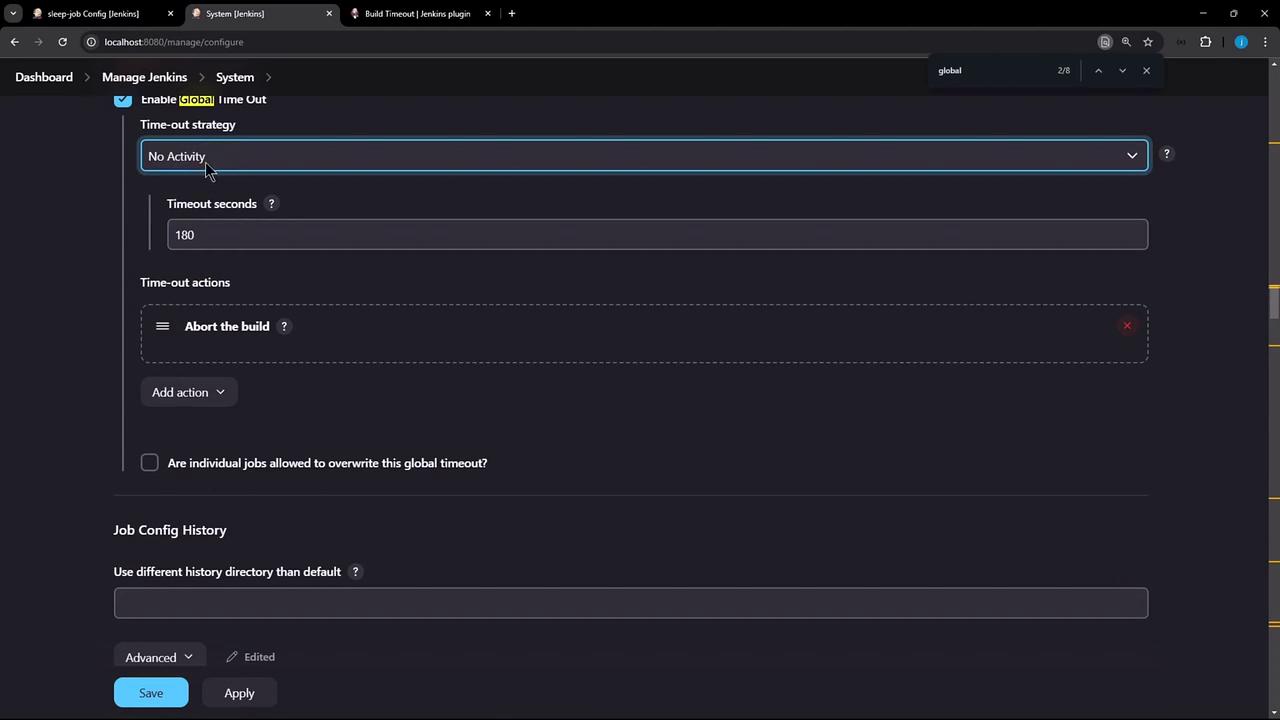
Navigate to Manage Jenkins > Configure System and scroll to Global Build Time Out . Enable the plugin and choose a timeout strategy:
Strategy Description Absolute Fixed timeout in minutes (minimum 3 minutes). Elastic Percentage of recent successful builds. Deadline Specific date/time cutoff (e.g., 2024-12-31 23:59).
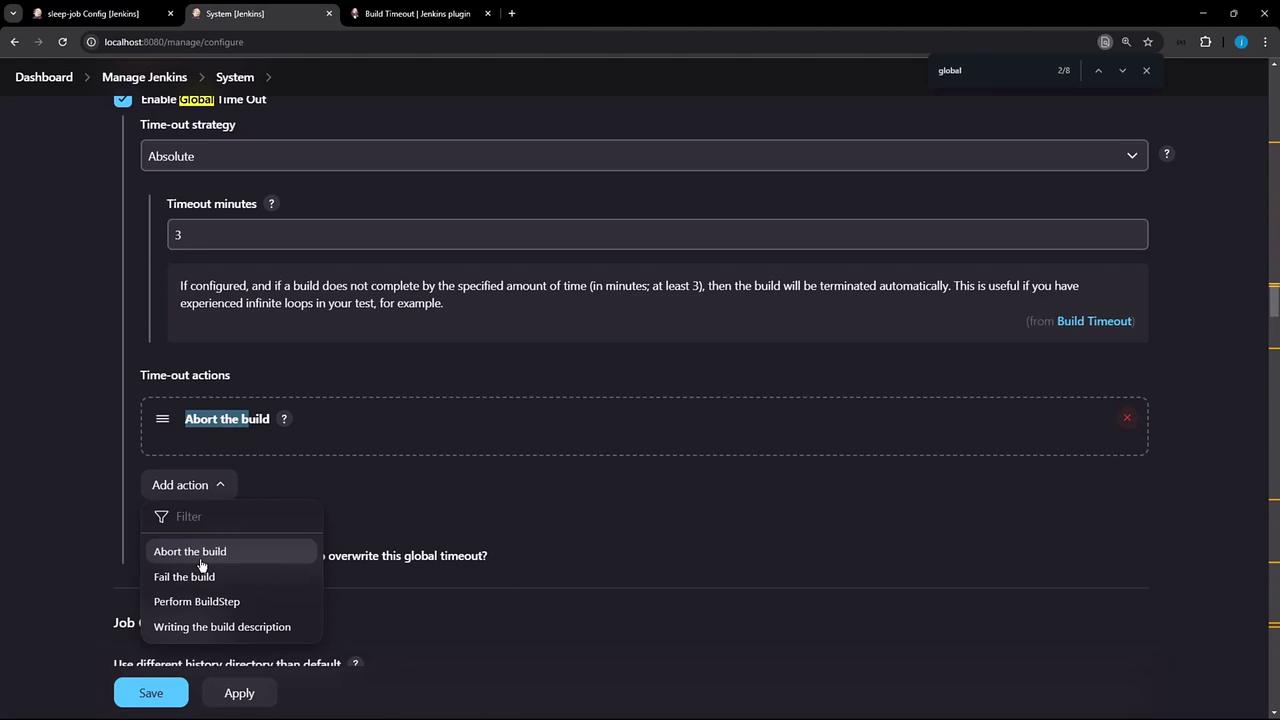
The Absolute strategy requires a minimum value of 3 minutes. Values below this will be rejected.
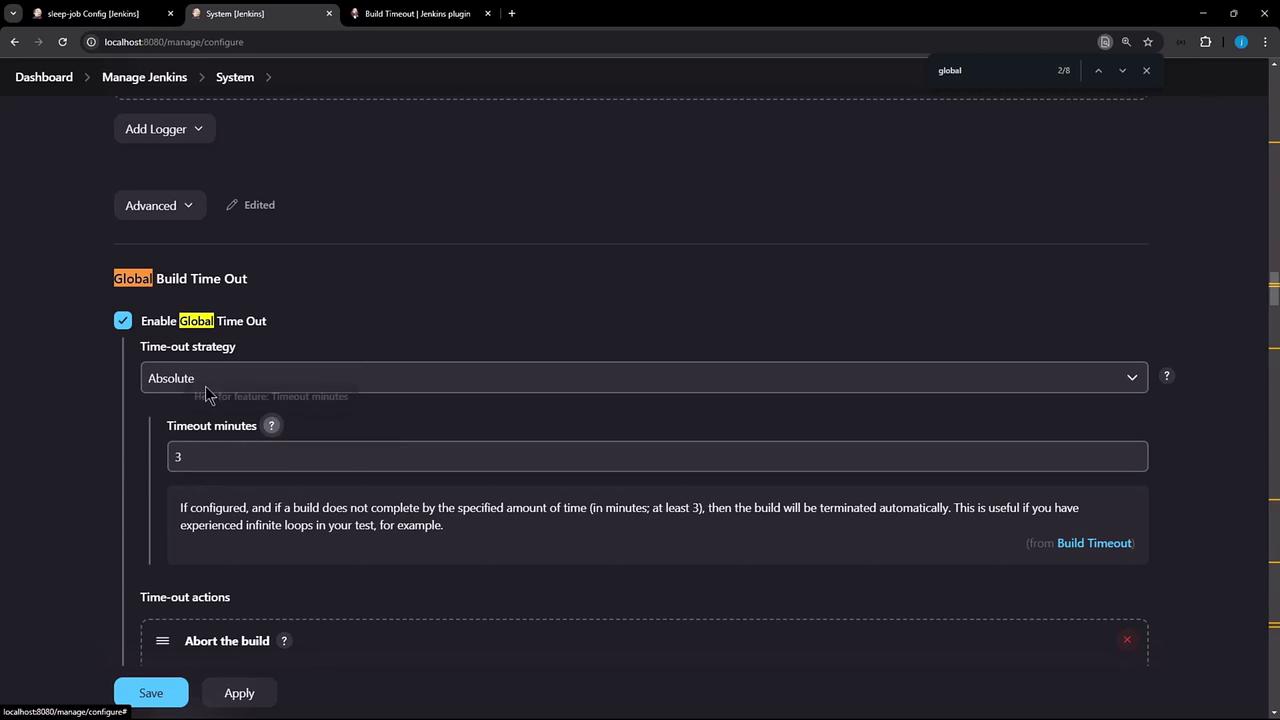
In the same section, define how Jenkins should respond when time runs out:
Post-Timeout Action Description Abort the build Halt execution and mark as ABORTED . Fail the build Mark the build as FAILED . Execute extra build steps Run custom cleanup or notification steps. Write a build description Append timeout details to build metadata.
Below is an example using the Absolute strategy with a 3-minute timeout:
With this global property, any job running longer than 3 minutes will be terminated automatically.
2. Job-Level Configuration
To apply a timeout to a single job:
Open the job configuration.
In Build Environment , check Terminate the build if it is stuck .
Choose your strategy and set the duration.
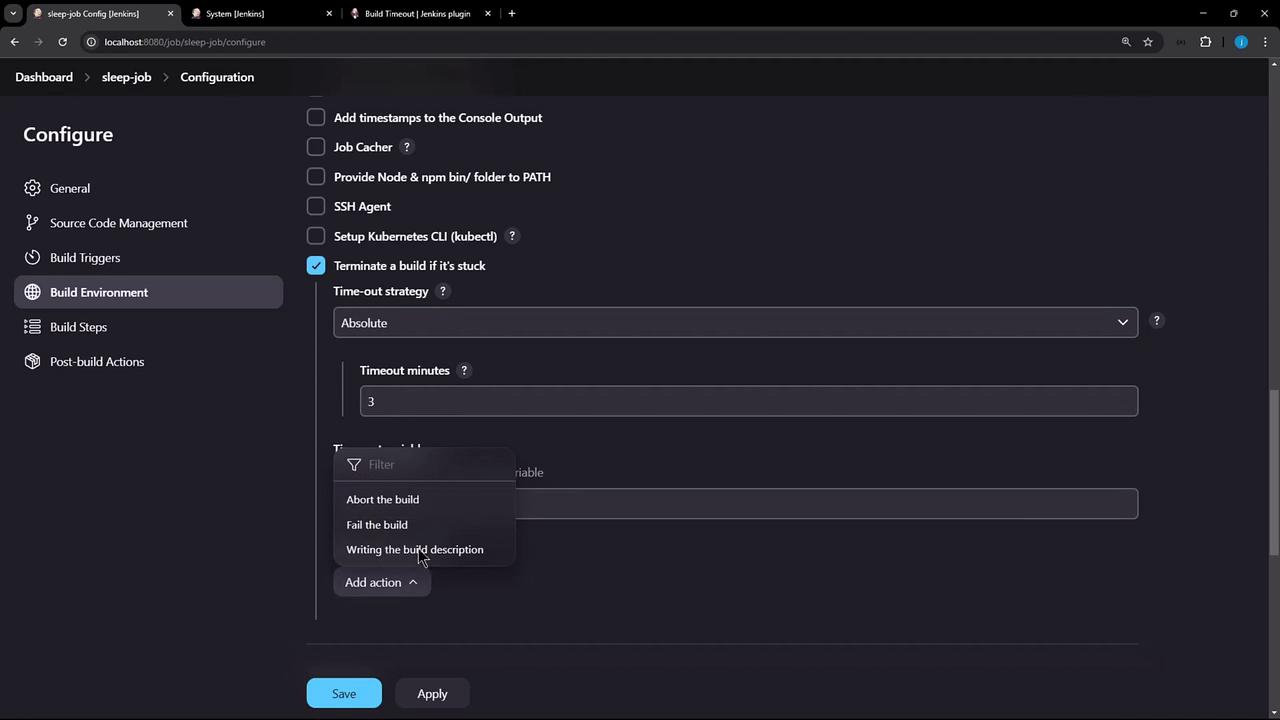
You can also reference environment variables for dynamic timeouts if needed:
def timeoutMinutes = env . BUILD_TIMEOUT ?: 5
3. Build-Step Timeout
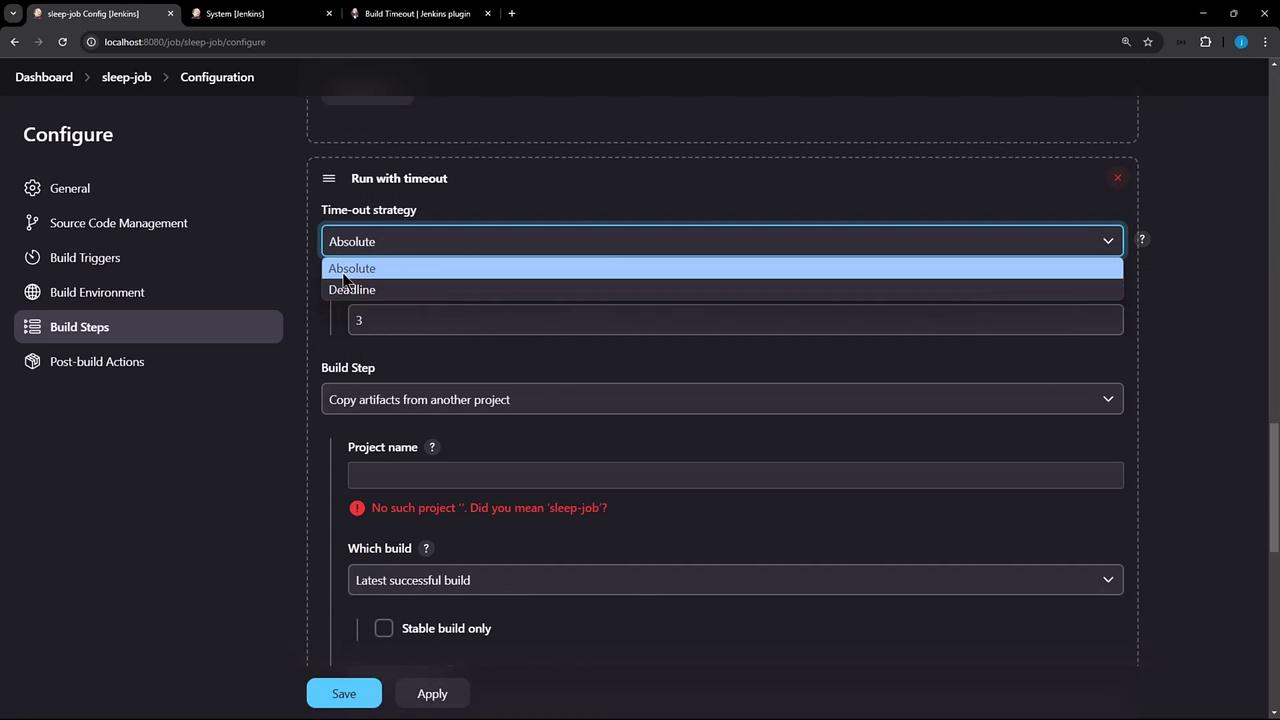
For fine-grained control, add a Run with timeout wrapper around individual build steps:
Click Add build step .
Select Run with timeout .
Pick Absolute or Deadline , then set your value.
Add subsequent steps based on timeout status.
Demonstration
Create a freestyle job named sleep-job with this shell script:
echo "Started. Sleeping for 300 seconds..."
sleep 300
echo "Finished."
Trigger the build. After 3 minutes, the console will display:
+ sleep 300
Build timed out (after 3 minutes ). Marking the build as aborted.
[build-timeout] Global time out activated
The job stops and is marked ABORTED .
Conclusion
You’ve learned how to:
Install and overview the Jenkins Build Timeout plugin
Configure timeouts globally, per job, or per build step
Select strategies: Absolute, Elastic, or Deadline
Define post-timeout actions such as aborting, failing, or running cleanup steps
With these techniques, you can keep your Jenkins builds under control and prevent runaway jobs.
References