

/fingerprints page of your Jenkins master.
Use Case
Consider a simple three-job pipeline:
You need to know, for any artifact, which builds created it and which builds later consumed it. We’ll enable fingerprinting on build-job and then view its usage graph across the pipeline.
Fingerprinting is enabled by default in Jenkins LTS. You don’t need additional plugins—just define the files or glob patterns you want to track.
1. Configuring Fingerprints
- Open build-job and click Configure.
- Scroll to Post-build Actions.
- Click Add post-build action → Record fingerprints of files to track usage.
- In Files to fingerprint, enter:
- Click Save.
reports.json).
2. Running the Job and Viewing Fingerprints
- On the build-job page, click Build Now.
- Once the build completes, click the build number (e.g., #8) under Build History.
- In the Artifacts section, locate
advice.json—it will have a fingerprint icon. - Click View to open the fingerprint details page.
- The MD5 checksum of
advice.json. - A list of all builds that produced or consumed that checksum (for example, build-job #8 and test-job #3).
- Timestamps and upstream/downstream relationships, giving you full visibility into your pipeline.
3. Checking Fingerprints from the Dashboard
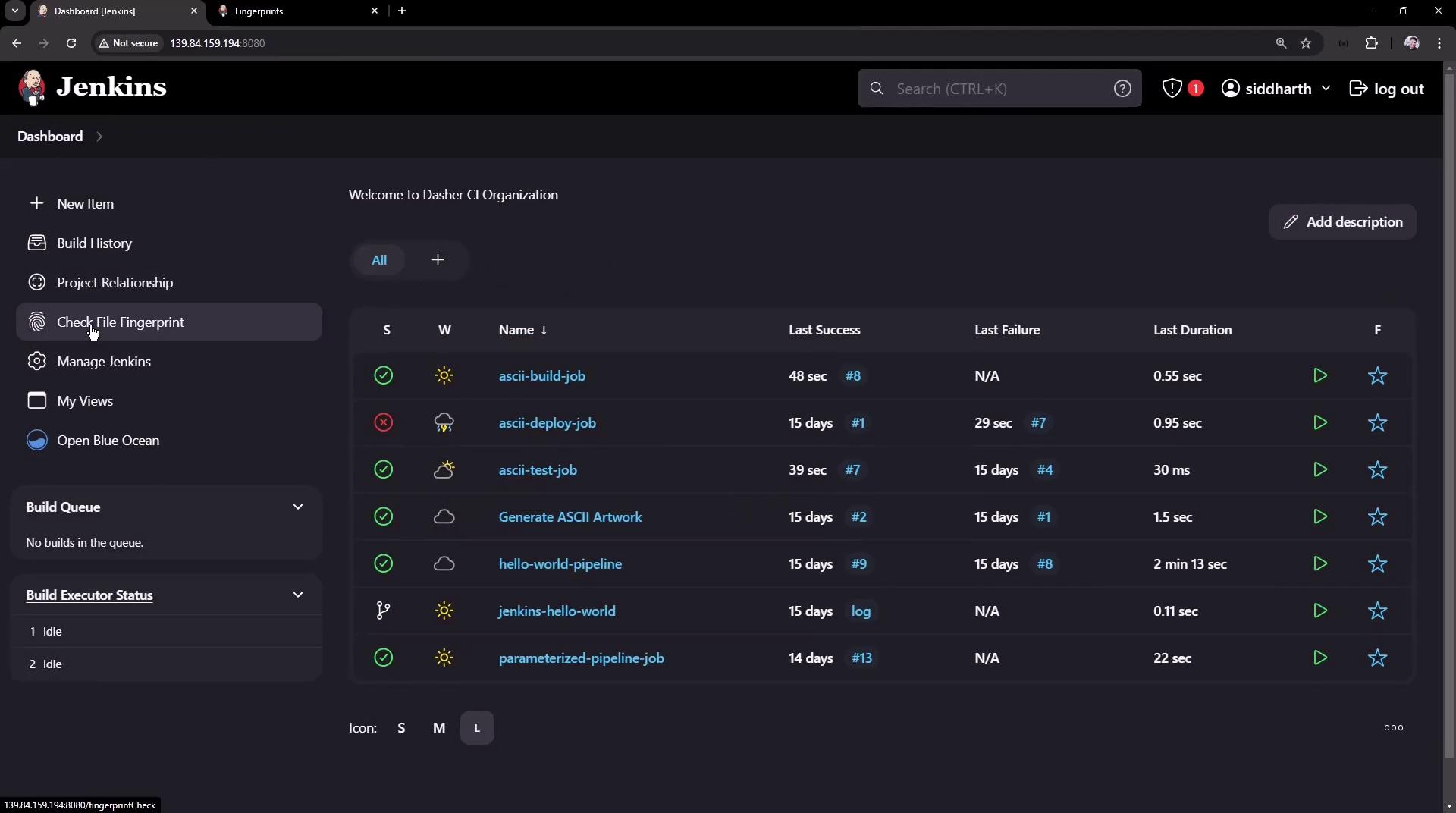
You can also verify fingerprints for ad-hoc files:- From the Jenkins dashboard sidebar, click Check File Fingerprints.
- Upload any file (e.g., an archived JAR).
- Jenkins will display:
- The MD5 checksum.
- Which jobs and builds produced or consumed that checksum.
- Timestamps for each usage.
Fingerprinting very large or frequently changing files can increase Jenkins storage and processing overhead. Use precise glob patterns to limit tracked files.