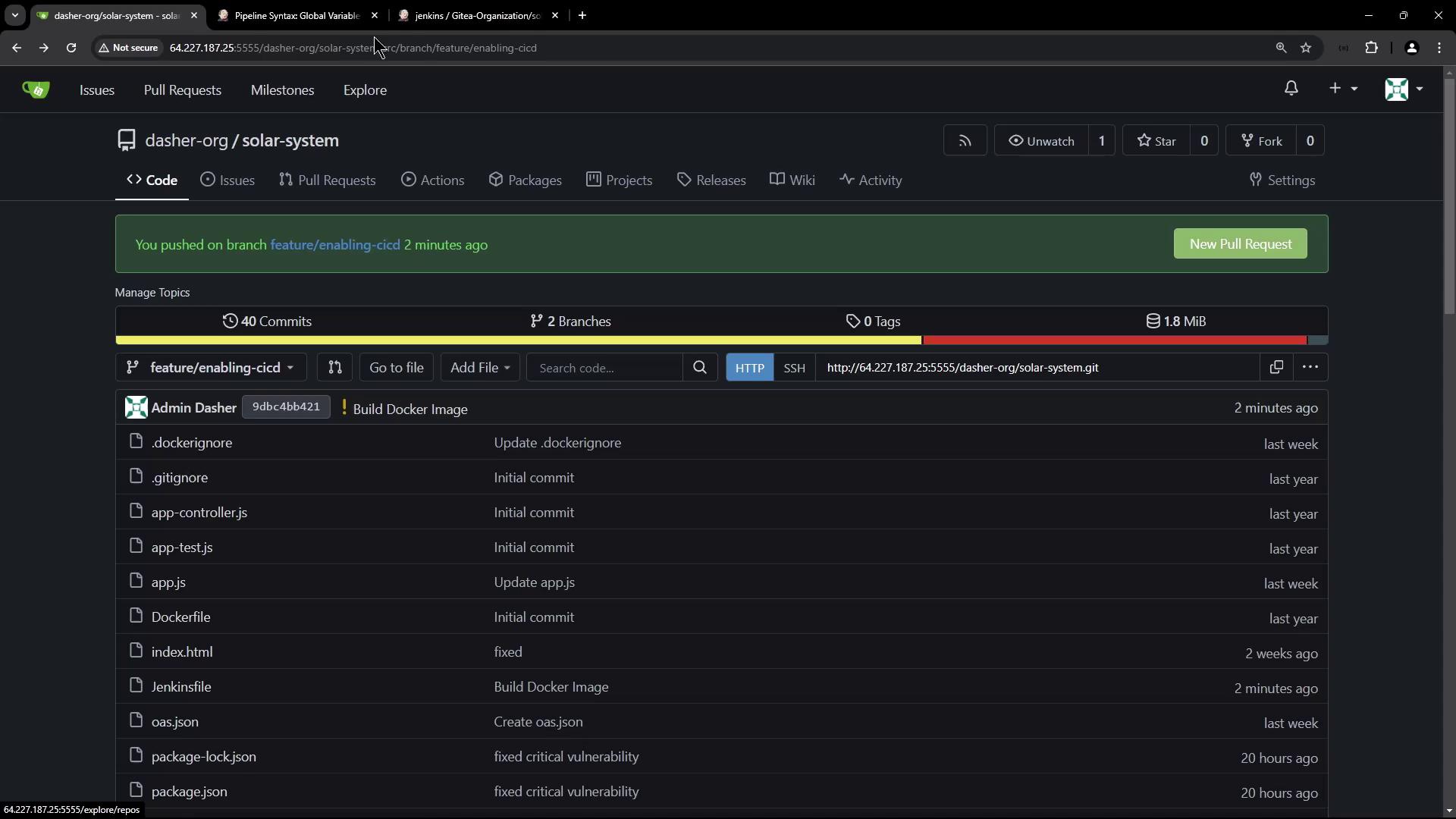
Add the Build Docker Image Stage
Open yourJenkinsfile and, right after the SonarQube stage, insert a new stage named Build Docker Image. This stage prints all environment variables and then builds the Docker image using the current Git commit hash (GIT_COMMIT) as the tag.
GIT_COMMIT is a built-in Jenkins variable provided when you use the checkout step. It resolves to the current commit SHA, ensuring each Docker image is uniquely tagged.Jenkinsfile Reference
For more information on pipeline syntax and environment variables, see the Jenkins Pipeline Syntax documentation.Dockerfile Breakdown
Your repository includes thisDockerfile, which defines how to build the Node.js application image.
- FROM: Start from the lightweight
node:18-alpine3.17base image. - WORKDIR: Set
/usr/appas the working directory. - COPY package*.json: Copy dependency manifests and install packages.
- COPY . .: Add application source code.
- ENV: Define placeholders for MongoDB connection.
- EXPOSE: Open port 3000.
- CMD: Launch the app with
npm start.
.dockerignore
Optimize build context by excluding unnecessary files. Place this .dockerignore in the project root:Be cautious when excluding files. Make sure you don’t accidentally omit critical configuration, scripts, or assets required at runtime.
Jenkins Pipeline Environment Variables
Jenkins exposes numerous environment variables in multibranch pipelines. Visit Pipeline Syntax → Global variables reference to explore them all.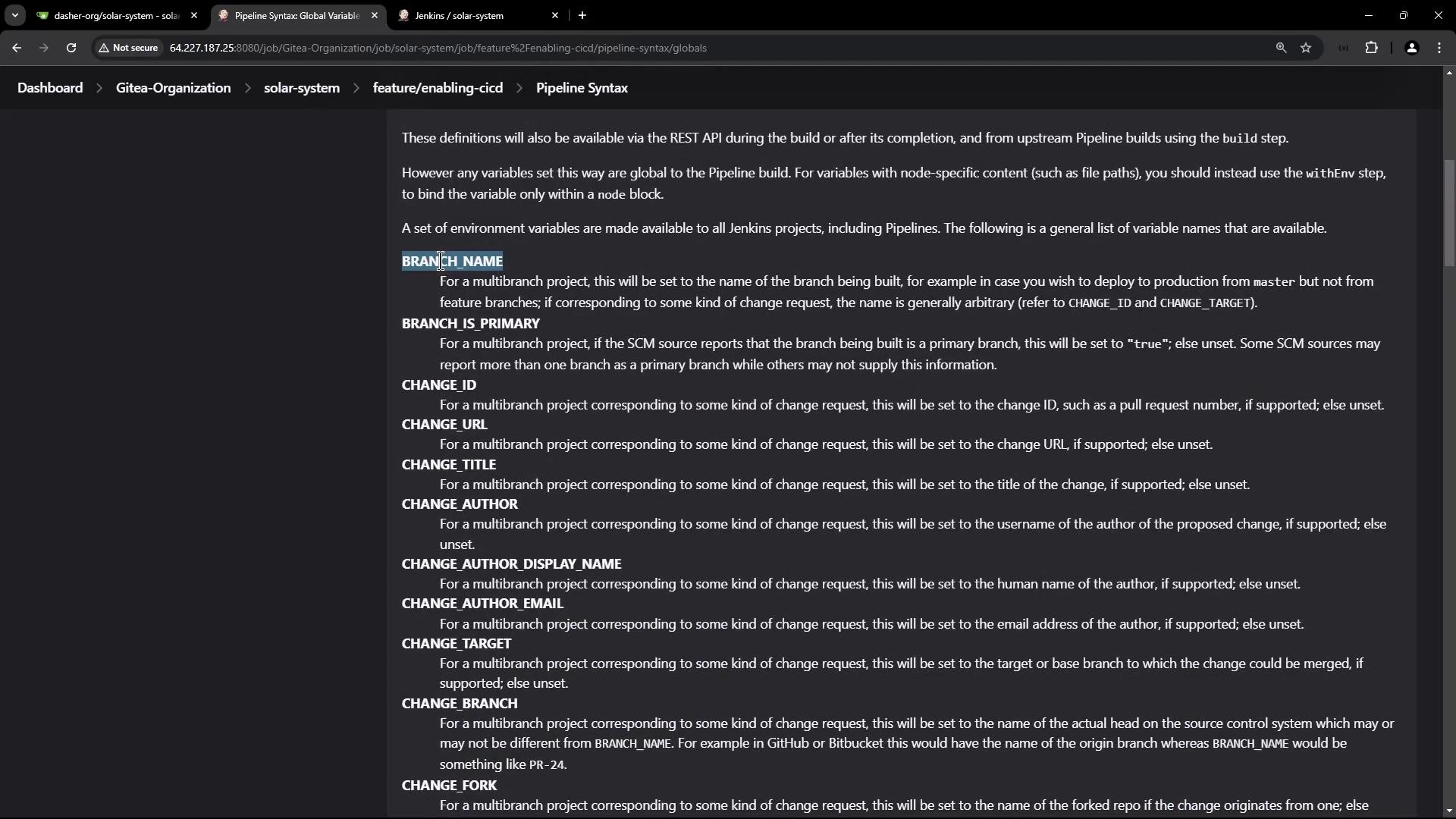
Pipeline Execution
After committing and pushing the updatedJenkinsfile, Jenkins triggers a new run. Once earlier stages finish, the Build Docker Image stage will begin:
Print Environment Variables
This step logs all environment variables visible to the build stage:Docker Build Logs
Jenkins streams the Docker build output, showing layer creation and tagging: