

Prerequisites
- Docker container running on EC2 (port 3000)
- AWS CLI configured with permissions to
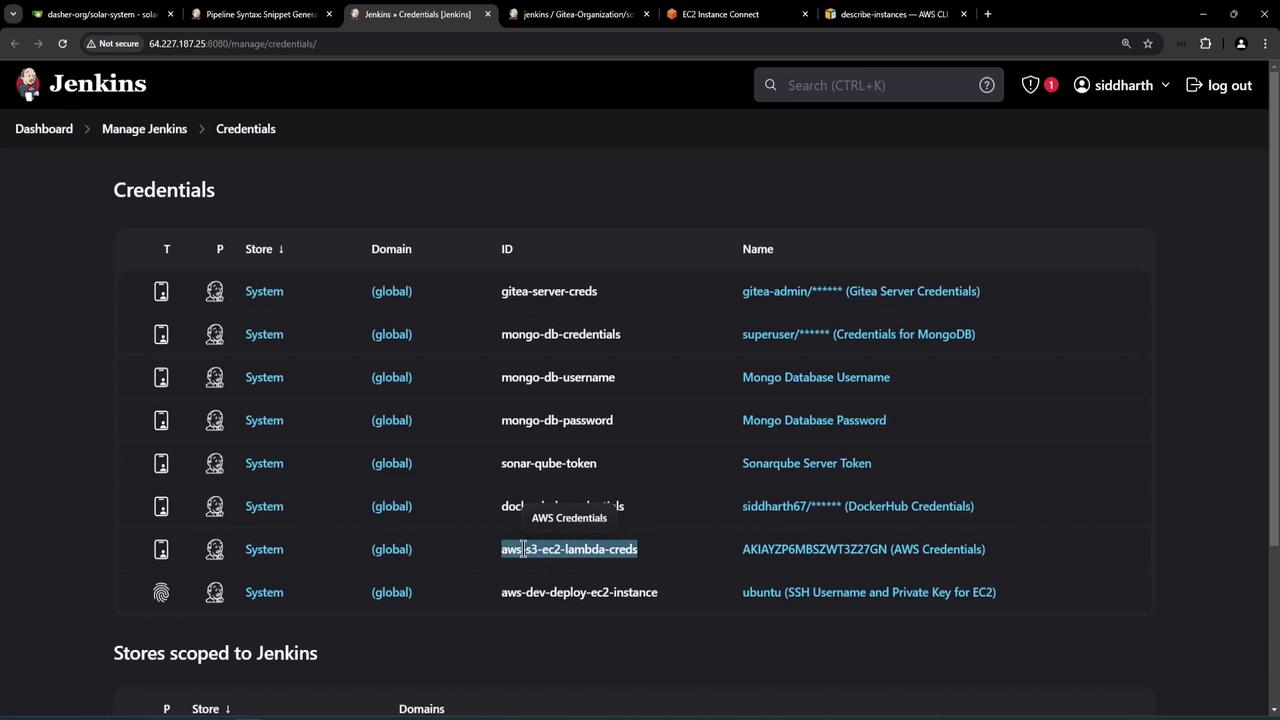
ec2:DescribeInstances jqandcurlinstalled on the Jenkins agent- Jenkins credentials (AWS Access Key & Secret) stored (e.g., ID
aws-s3-ec2-lambda-creds)
Ensure your EC2 instance is tagged with
Name=dev-deploy. This tag is used to filter and locate the instance dynamically.1. Verify the Running Container
Log into your EC2 instance and confirm the application is up:2. Create the Integration Test Script
At the root of your Git repo, addintegration-testing-ec2.sh:
3. AWS CLI: describe-instances
We use the AWS CLI’s describe-instances to list EC2 instances and filter by tag.
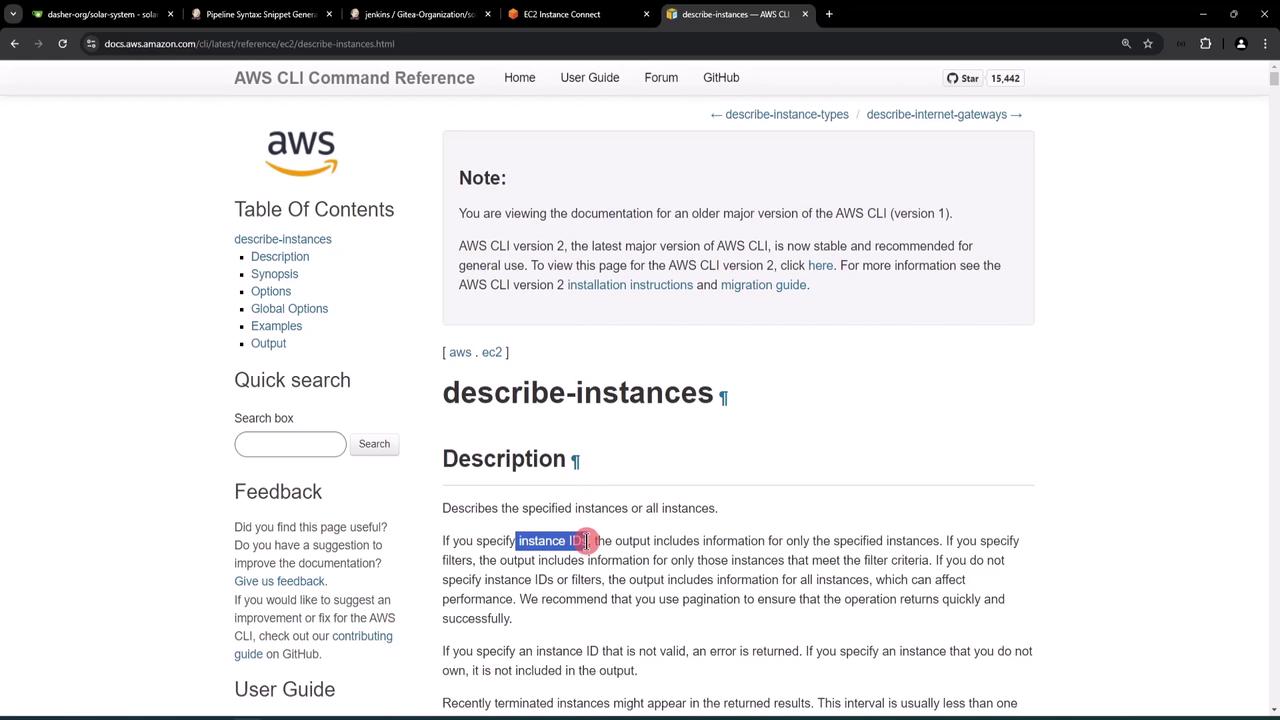
.PublicDnsName where .Tags[].Value == "dev-deploy" using jq.
4. Integrating with Jenkins Pipeline
We’ll add a new stage Integration Testing – AWS EC2 in theJenkinsfile:
- Trigger on
feature/*branches - Use
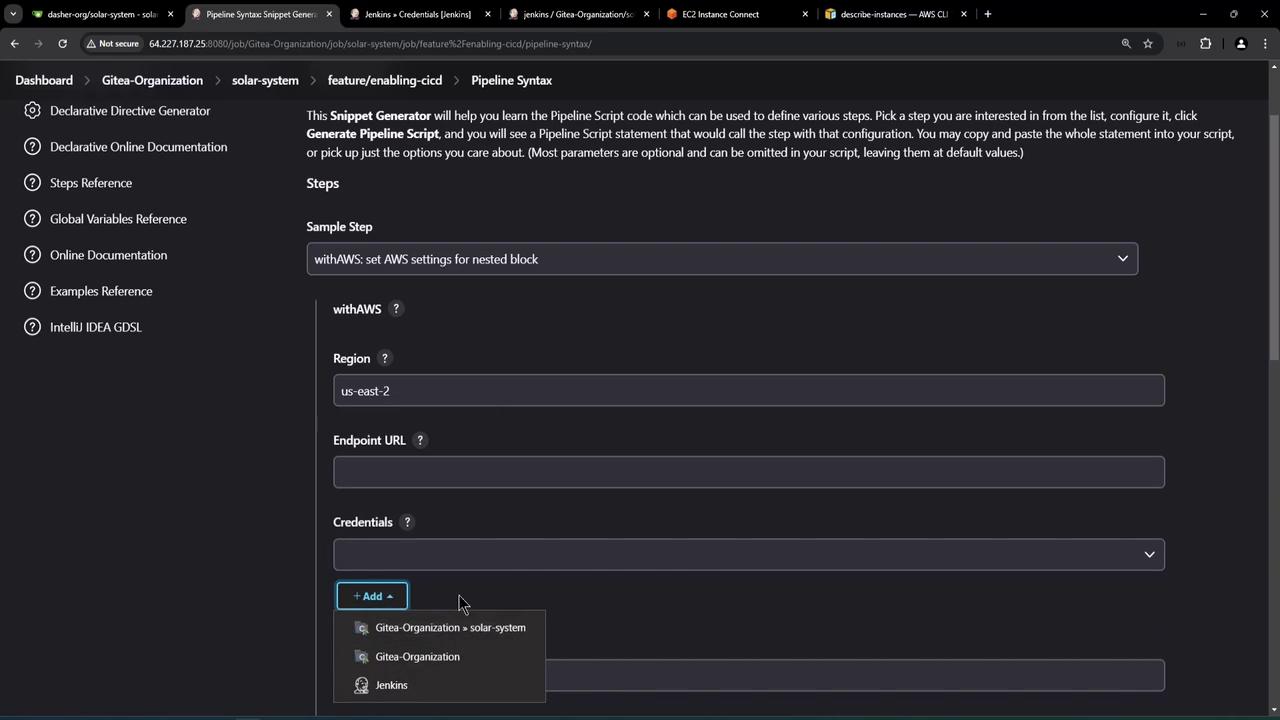
withAWS(AWS Pipeline Steps plugin) for credentials and region - Execute our shell script
Store your AWS credentials securely in Jenkins Credentials. Never hard-code keys in your
Jenkinsfile.Credentials Setup
Generate withAWS Snippet
Use Jenkins’ Pipeline Syntax to obtain:
Jenkinsfile Stage
5. Pipeline Execution & Results
After pushing changes, the new stage runs automatically. Here’s a successful pipeline: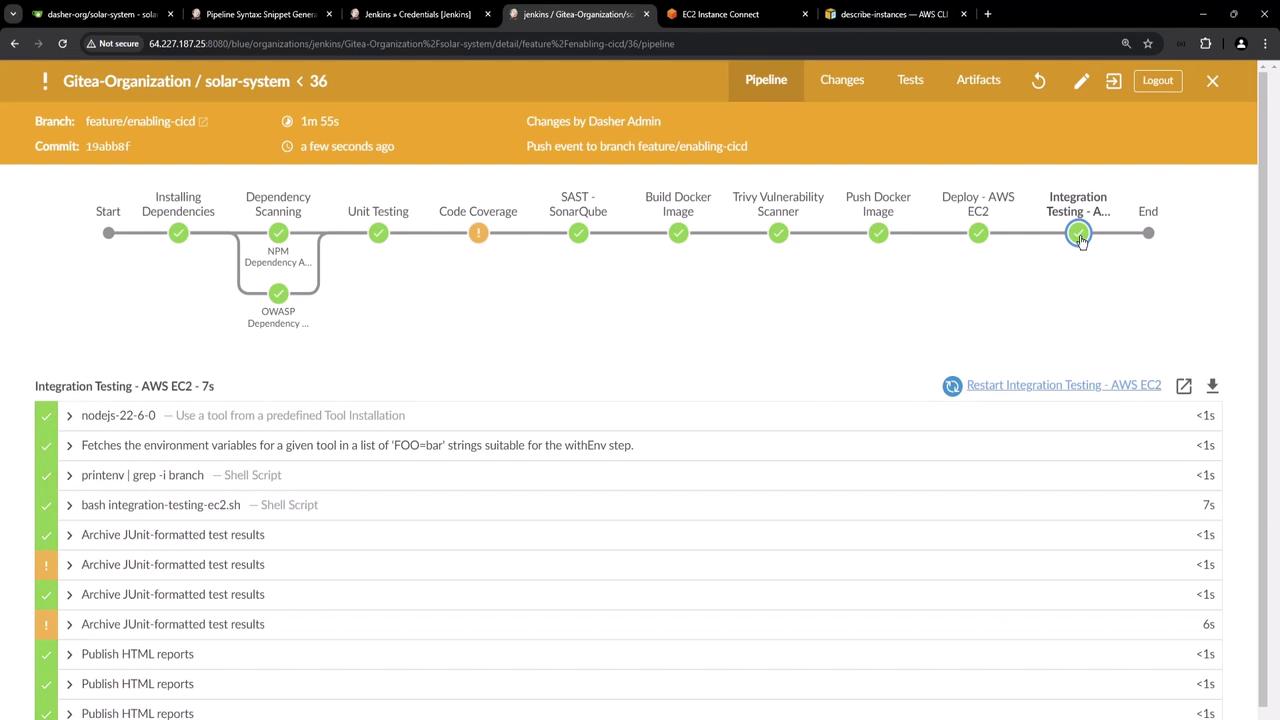
6. Summary of Endpoints Tested
With this setup, each commit on a feature branch dynamically locates the EC2 instance, verifies service health, and enforces basic integration tests before completing the pipeline.