1. Inline Pipeline Definition (Not Recommended)
Defining a pipeline directly in the Jenkins UI is quick but hard to maintain. Changes aren’t versioned, and collaboration is limited.Avoid storing pipeline scripts in the UI. Inline definitions lack versioning and code review.
2. Creating a Jenkinsfile in Your Repository
Store your pipeline script as aJenkinsfile at the root of your project repository:
- Navigate to your app repo on GitHub or Gitea.
- Click Add file → Create new file.
- Name it
Jenkinsfile. - Paste the pipeline script and commit to
main.
3. Simplifying the Jenkinsfile
Once Jenkins auto-checks out your code, remove the explicitgit step to simplify:
Jenkins automatically clones the repository when using Pipeline script from SCM.
4. Configuring “Pipeline script from SCM”
In Jenkins:- Create (or open) a Pipeline job.
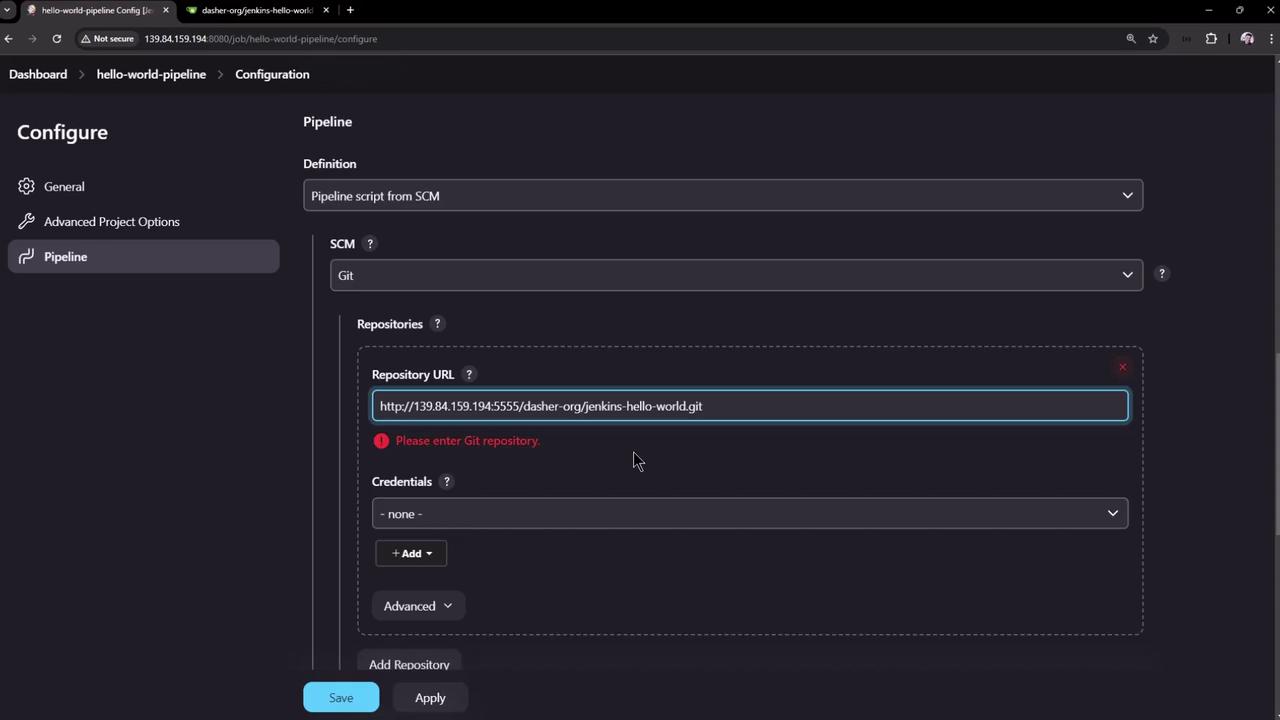
- Under Pipeline > Definition, select Pipeline script from SCM.
- Choose Git and enter your repository details:
If the URL is missing or invalid, Jenkins displays an error:
5. Observing Automatic Checkout and Build
When the pipeline runs, Jenkins adds a Checkout SCM stage: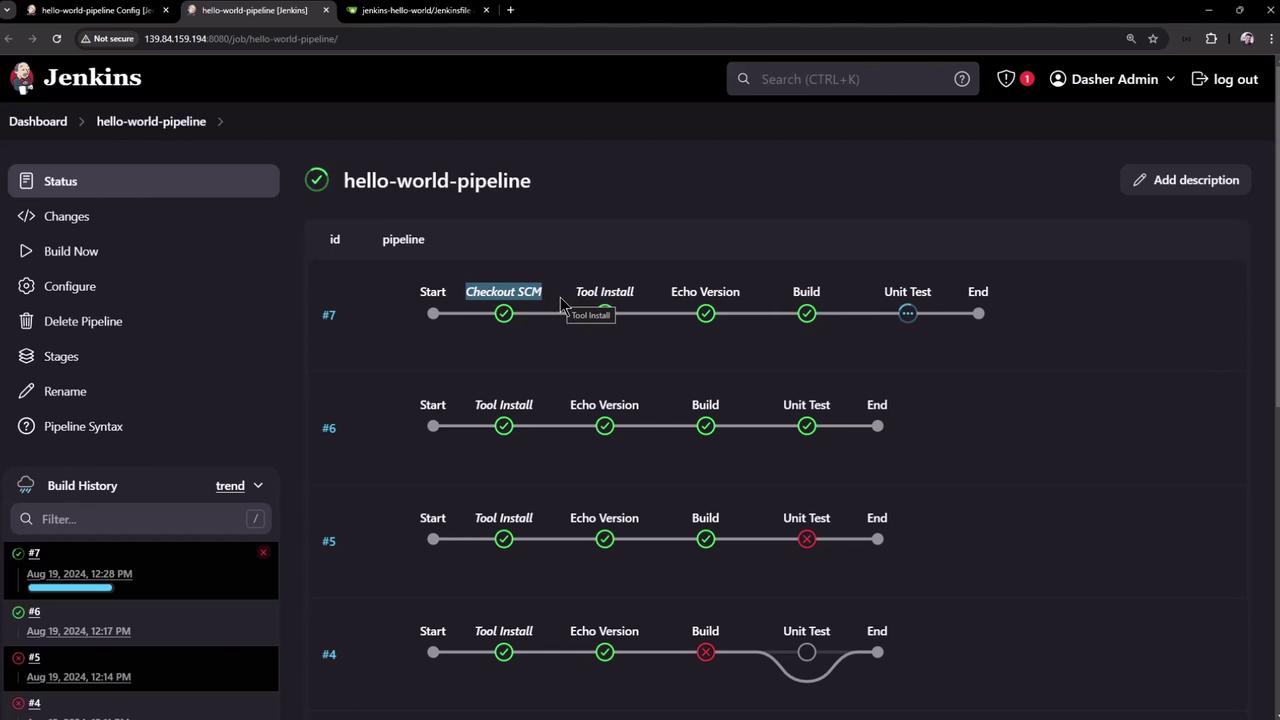
Console Output Highlights
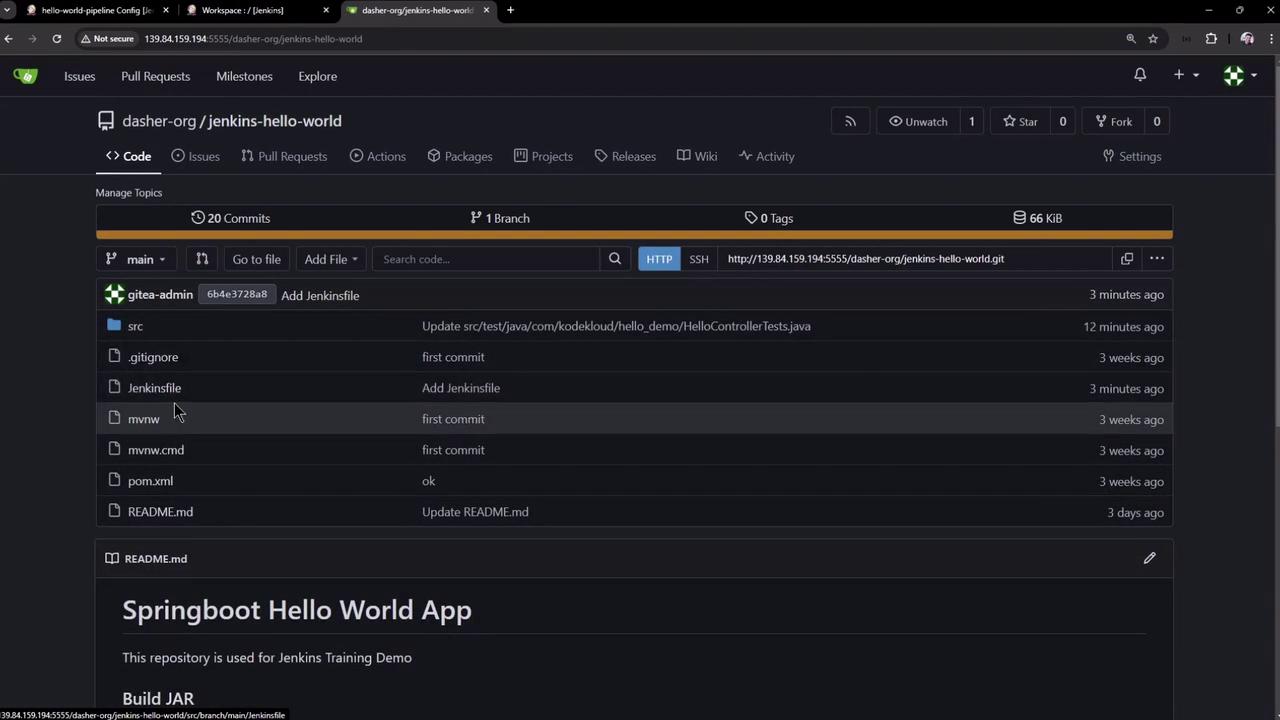
6. Browsing the Repository in Your SCM
Verify yourJenkinsfile and project files in the web UI:
7. Exploring the Jenkins Workspace
Click Workspace in the job sidebar to view checked-out files and build artifacts: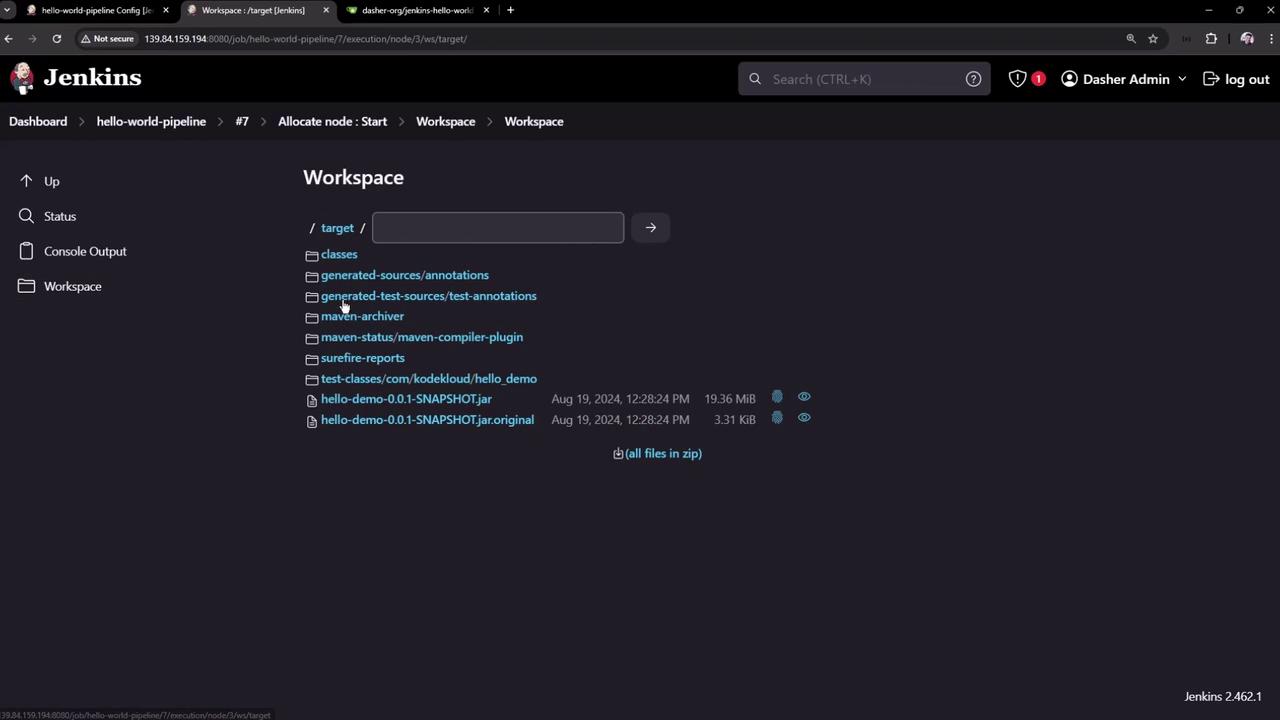
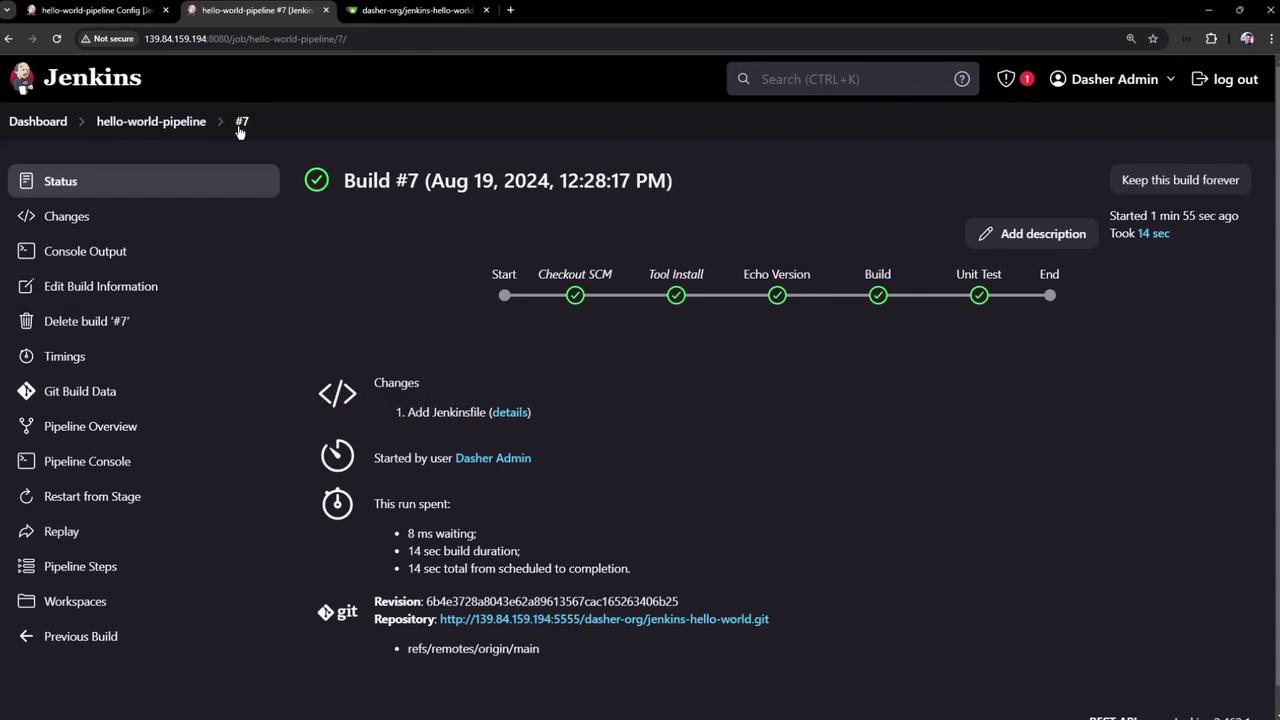
8. Reviewing Completed Build Details
Inspect completed builds and each pipeline stage: