In this guide, we’ll automate creating a pull request on GitHub/Gitea using a Jenkins pipeline. You’ll learn how to:
  • Explore the Pull Request REST API
  • Test curl calls in Swagger UI
  • Integrate the command into a Jenkinsfile
  • Enforce branch protection and sync with Argo CD

Exploring the Pull Request REST API

Most Git hosting platforms expose a REST API for every UI action. To create a pull request via API:
  1. Navigate to your repository in the web UI.
  2. Open the embedded API (Swagger) documentation.
  3. Locate Pulls (GitHub) or Pull Requests (Gitea) under Repository.
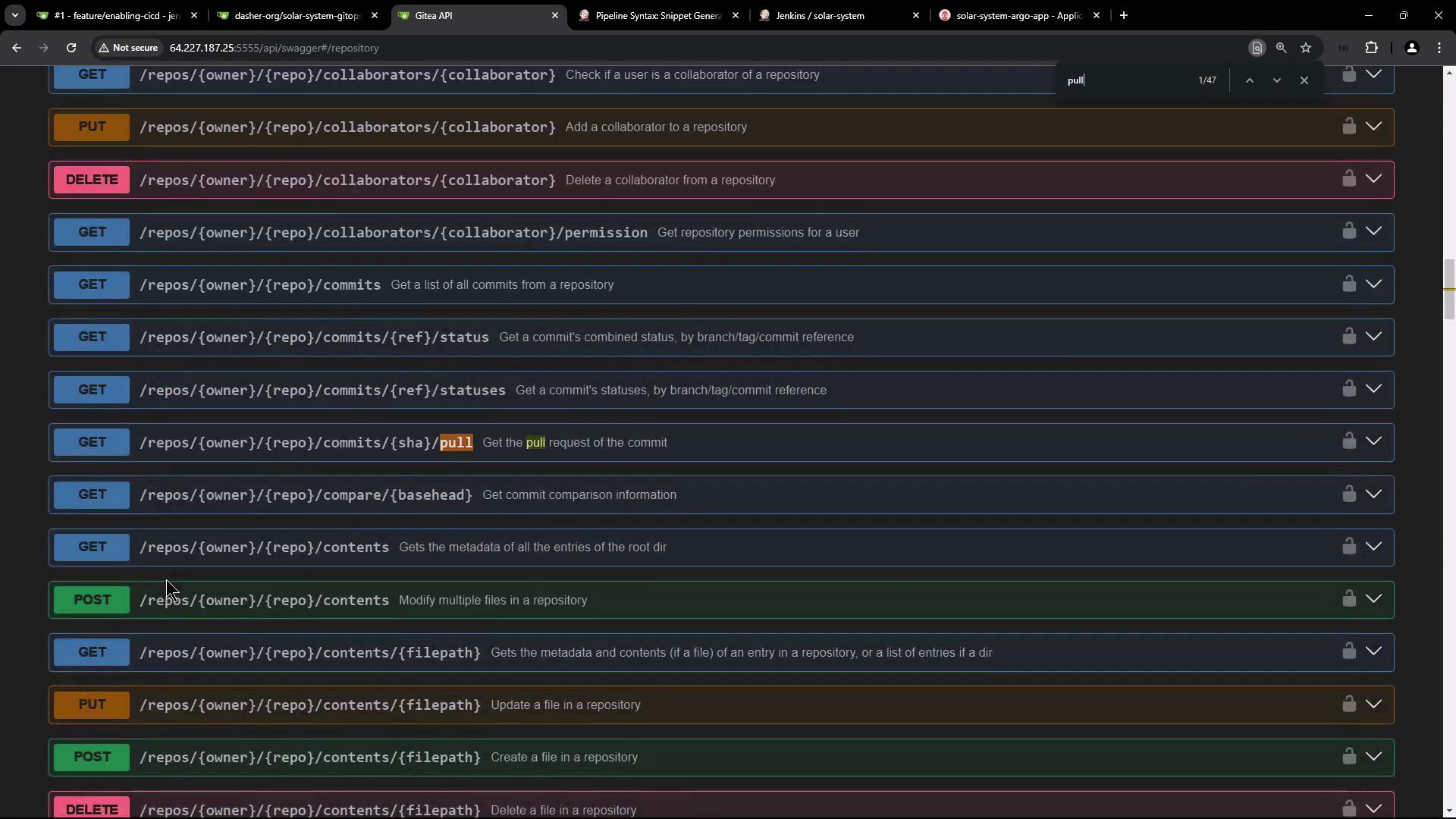
The image shows a list of API endpoints related to repository management, including actions like adding, deleting, and checking collaborators, as well as handling commits and contents. The interface appears to be part of a Swagger API documentation.

Creating a Pull Request via Swagger UI

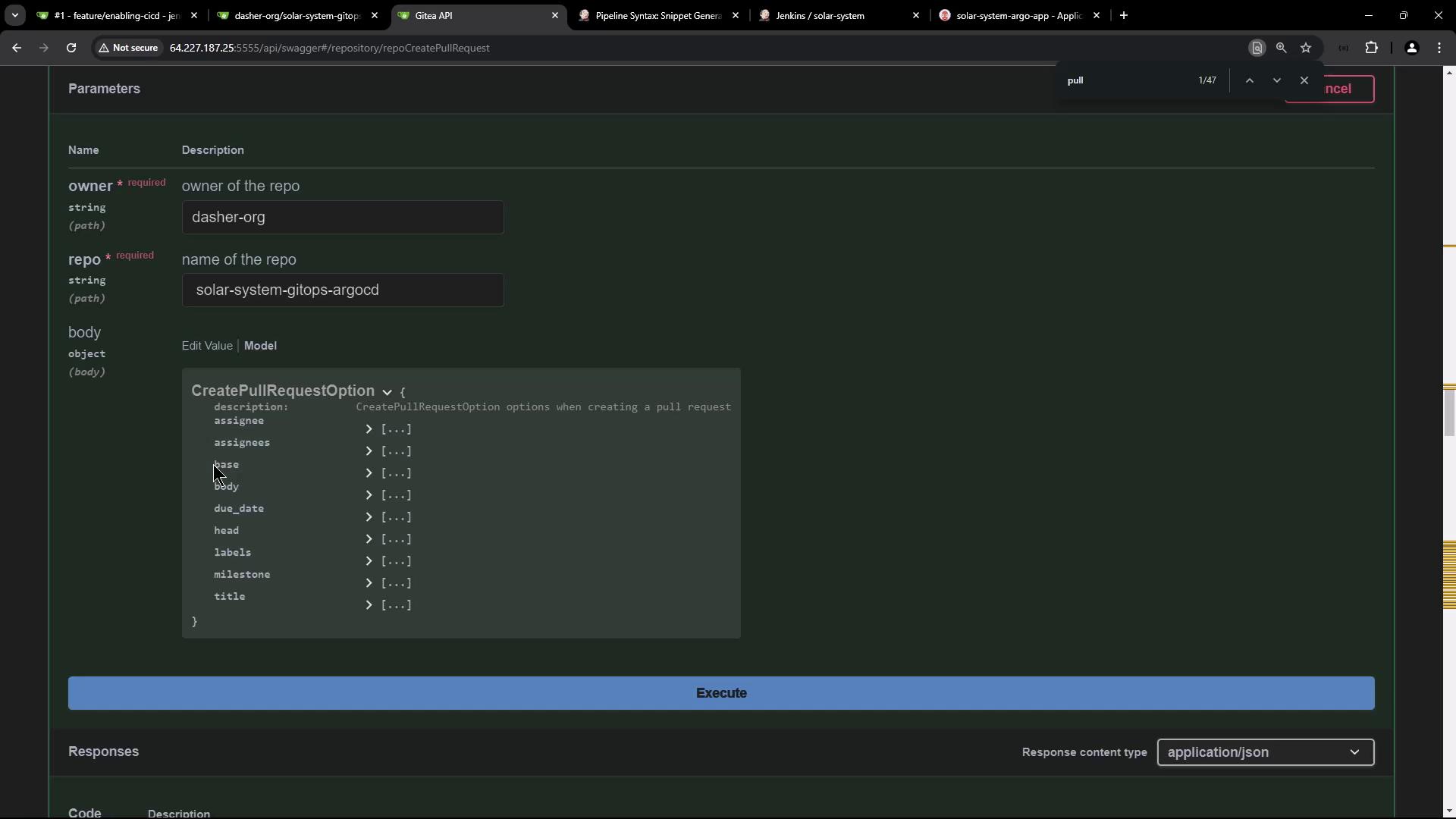
Search for pull and expand the POST /repos/{owner}/{repo}/pulls endpoint to view required parameters: owner, repo, head, base, title, etc.
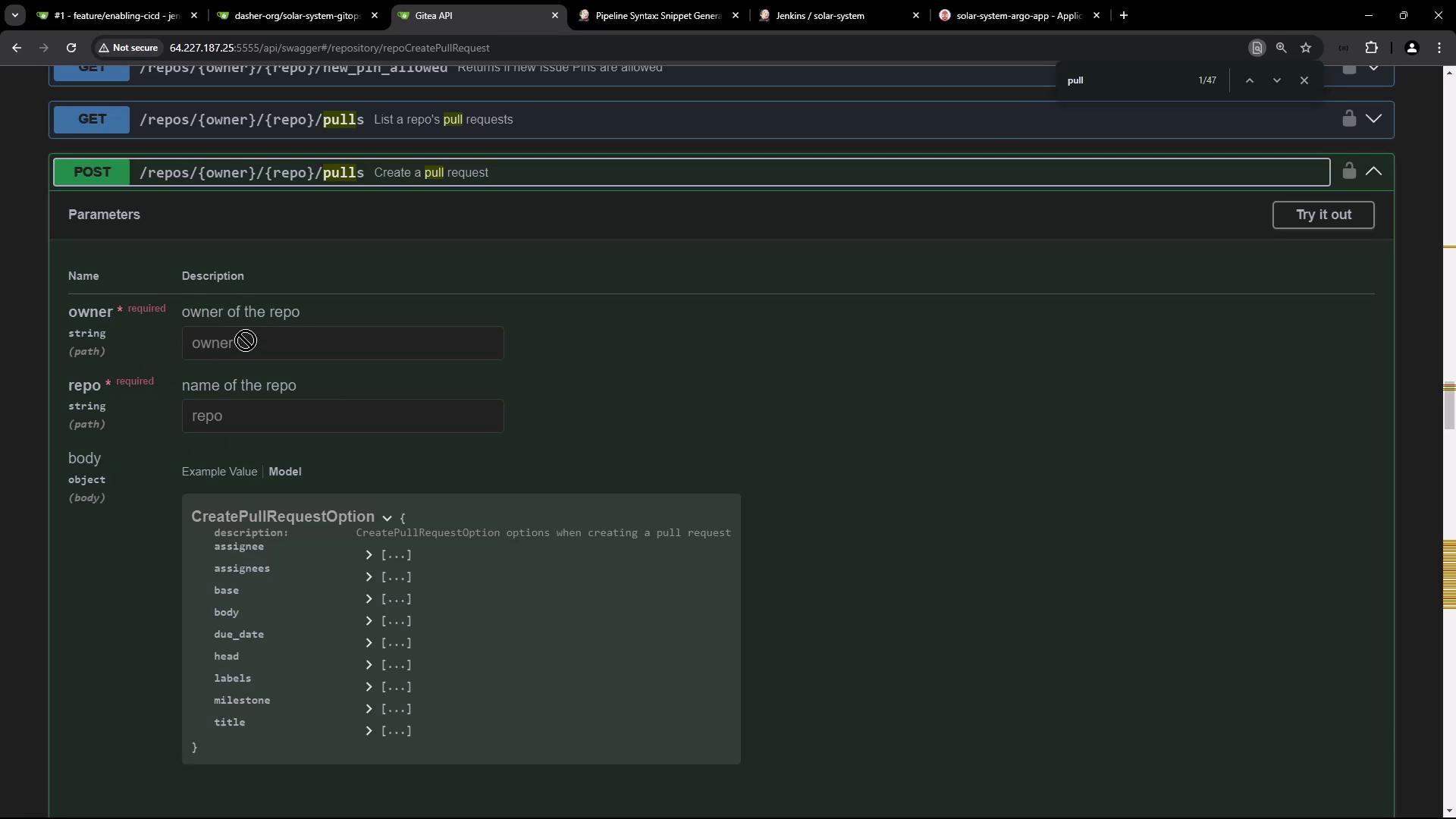
The image shows a Gitea API interface for creating a pull request, with fields for the repository owner, name, and options for the pull request.
Click Try it out and fill in:
  • owner: dasher-org
  • repo: solar-system-gitops-argocd
  • head: feature branch (e.g., feature-123)
  • base: main
  • title, body, assignees, labels
The image shows a web interface for creating a pull request using an API, with fields for specifying the repository owner, repository name, and pull request options.

Request Body Schema

Executing Try it out generates this curl command:
  • 404 Not Found: Verify the URL, owner, and repo names.
  • 401 Unauthorized: Provide a valid API token prefixed with token .
Authorize via Swagger’s Authorize lock icon or add:
Example with a real token:

Integrating into a Jenkins Pipeline

Add the validated curl call to your Jenkinsfile. Store GITEA_TOKEN in Jenkins Credentials:
The when { branch 'PR*' } condition runs this stage only on branches matching PR*. After you push, Jenkins will auto-create a PR:
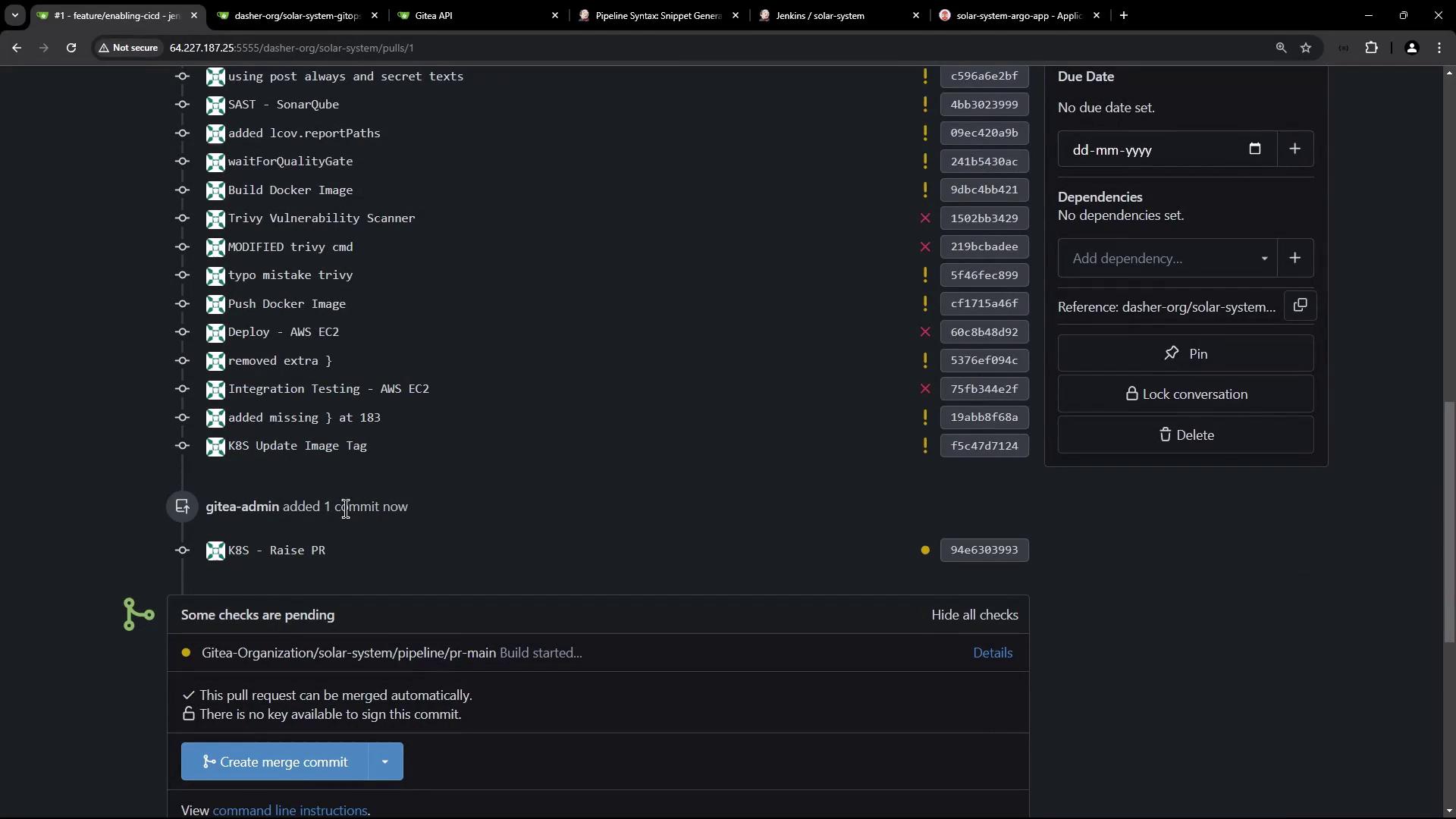
The image shows a pull request interface with a list of commits and their statuses, including checks and dependencies. Some checks are pending, and there is an option to create a merge commit.

Enforcing Branch Protection

To require successful Jenkins builds before merging:
Activating branch protection prevents direct pushes and enforces CI gates before merges.
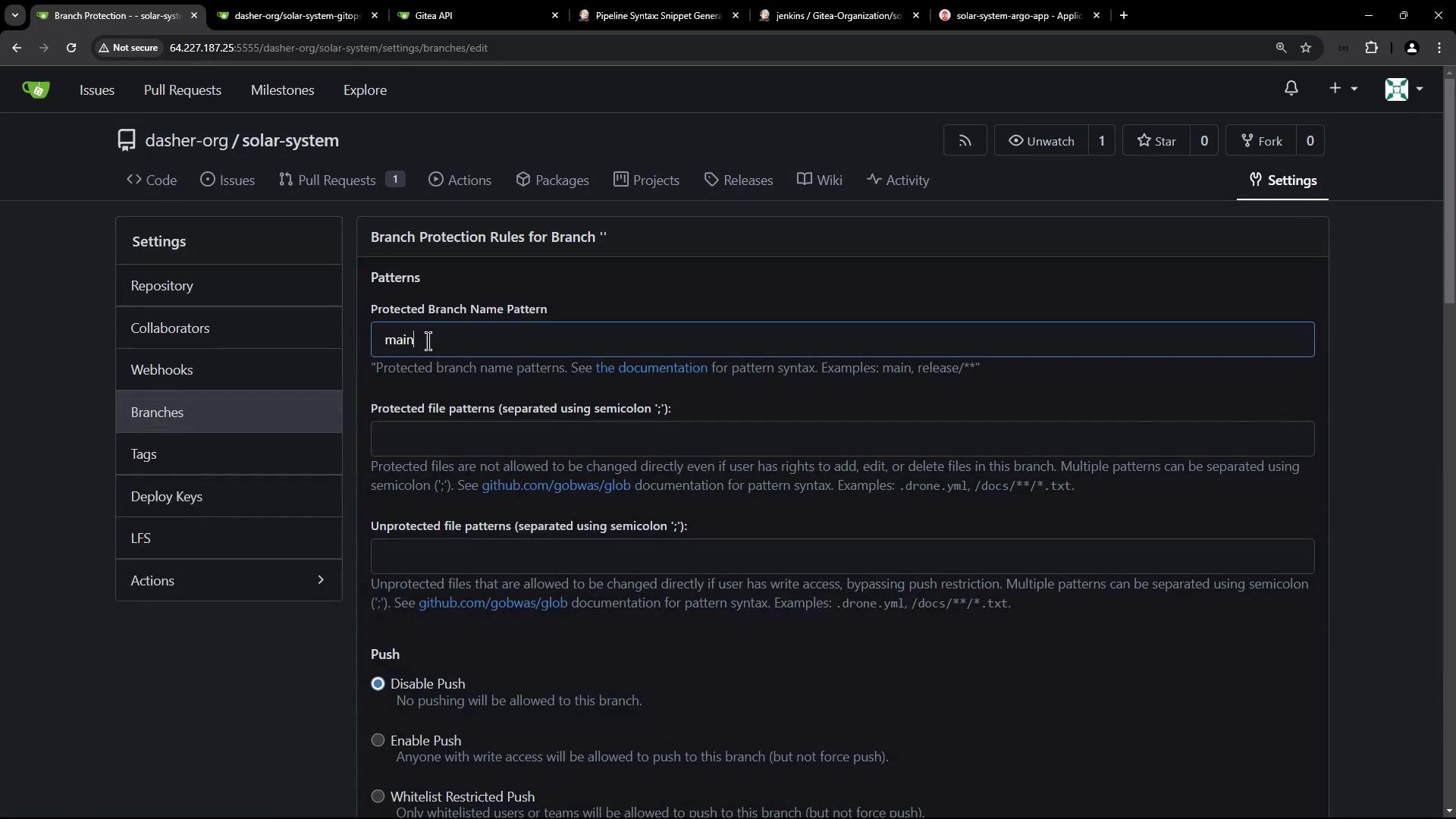
The image shows a web interface for setting branch protection rules in a repository, with options for protected branch name patterns and file patterns.

Verifying the Pull Request and Merge

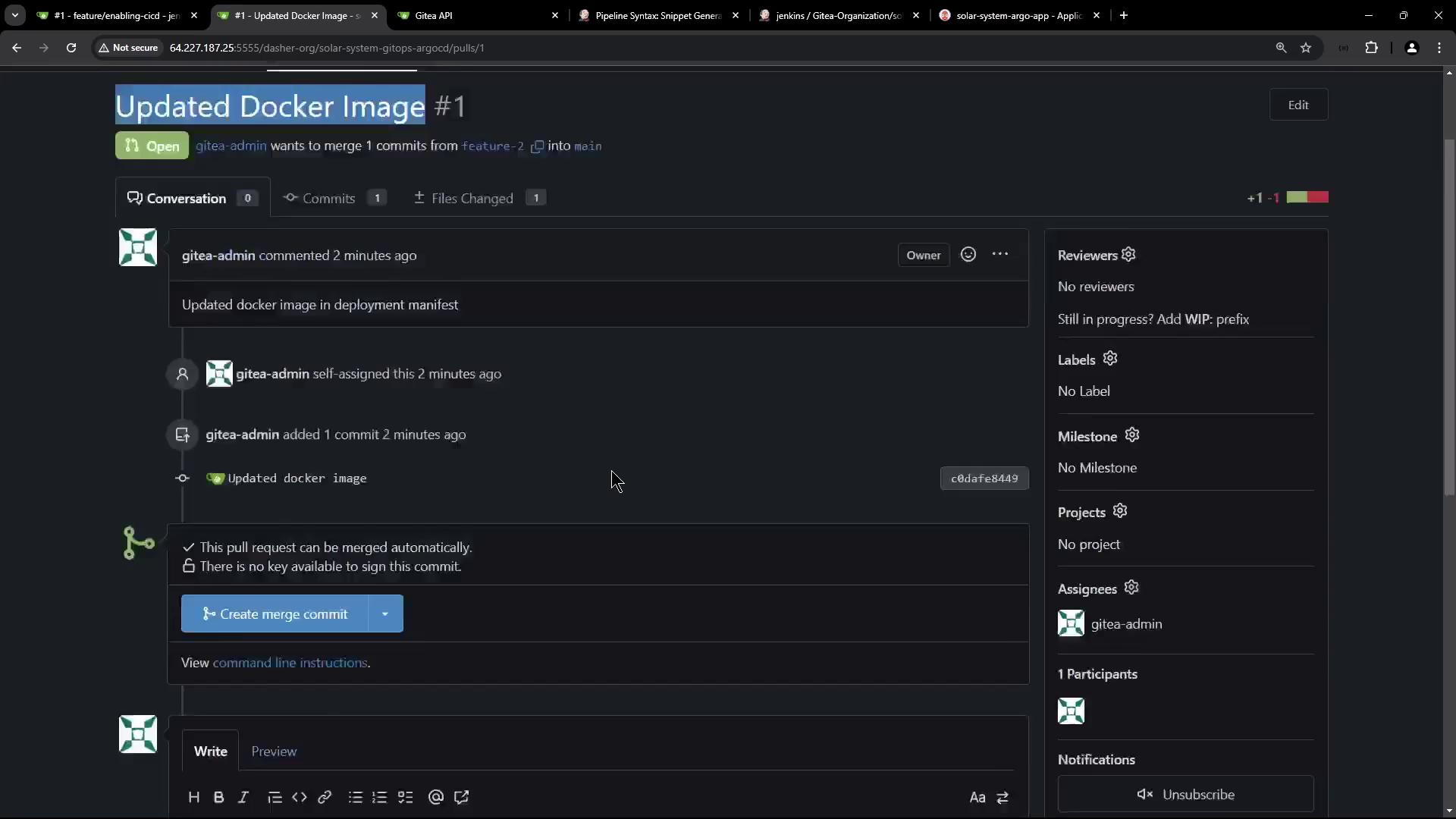
Review and merge your PR into main:
The image shows a pull request titled "Updated Docker Image #1" on a code repository platform, with details about commits and options to merge the request.
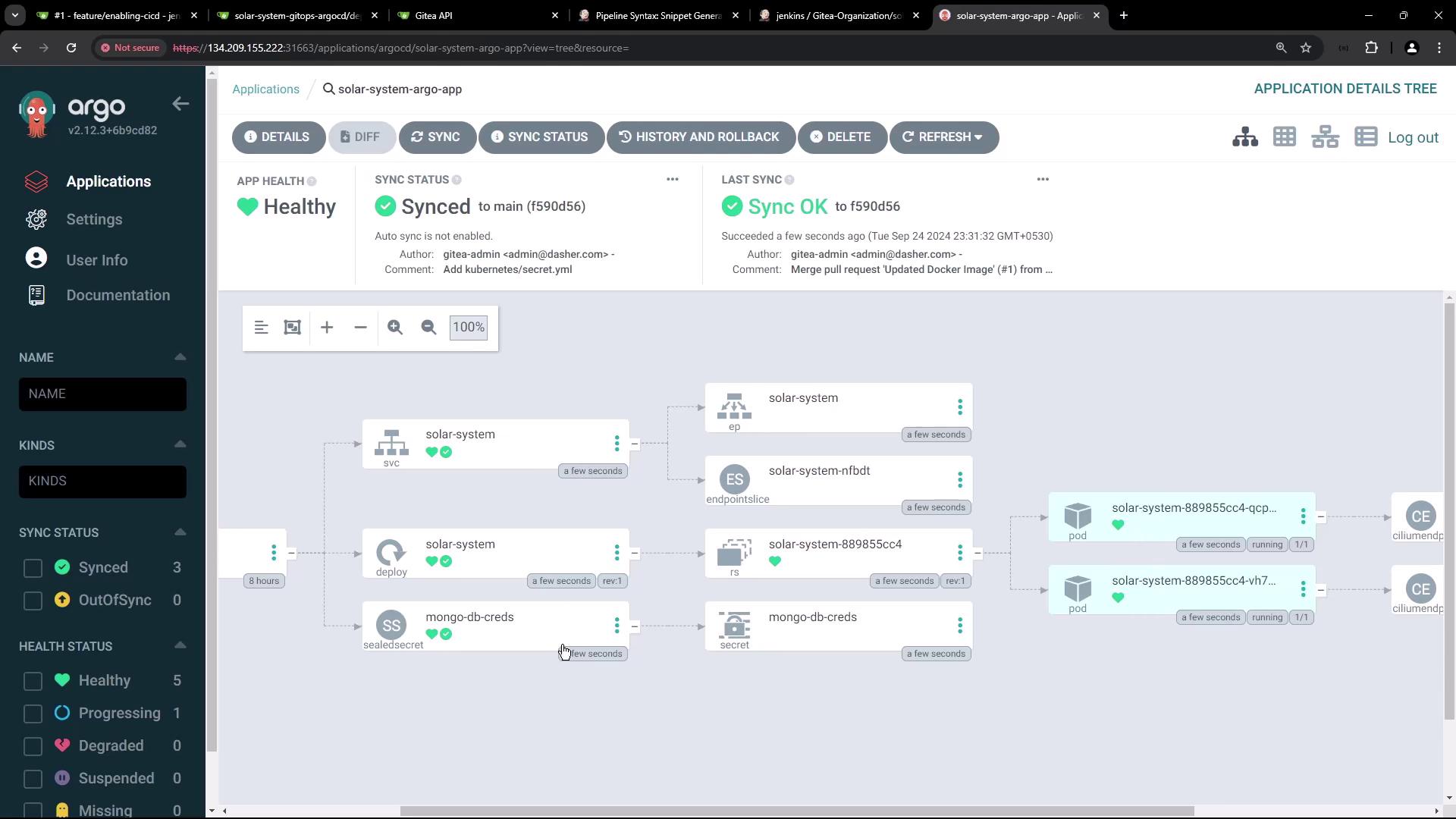
Argo CD will detect the updated image tag (within ~3 minutes) and sync:
The image shows an Argo CD application dashboard displaying the status and structure of a "solar-system-argo-app" with components like services, deployments, and pods, all marked as healthy and synced.

Accessing the Application

After sync completes, list Kubernetes resources:
Locate the NodePort service and browse to:
You should see the Solar System app connected to MongoDB.

Inspecting the Sealed Secret

Bitnami Sealed Secrets decrypts your sealed YAML into a regular Secret:
Retrieve it with:
This workflow automates PR creation, image updates, and GitOps-driven deployment using Jenkins and Argo CD.

Watch Video