In this tutorial, you will learn how to integrate Node.js into your Jenkins pipelines by using both the host installation and Jenkins-managed Node.js tool. By the end, you’ll be able to run Node.js commands in freestyle jobs across controllers and agents.
  • A running Jenkins controller (version 2.x or later).
  • Shell access to the Jenkins host machine.
  • Administrative privileges to install plugins.

1. Verify Node.js on the Jenkins Host

SSH into the Jenkins server and confirm that Node.js and npm are installed:
node -v
npm -v
systemctl status jenkins
# ● jenkins.service - Jenkins Continuous Integration Server
#    Active: active (running)
If Node.js is available on the controller, freestyle jobs can execute node and npm directly. Agents without Node.js will fail unless you provide a managed installation.

2. Test Node.js in a Freestyle Project

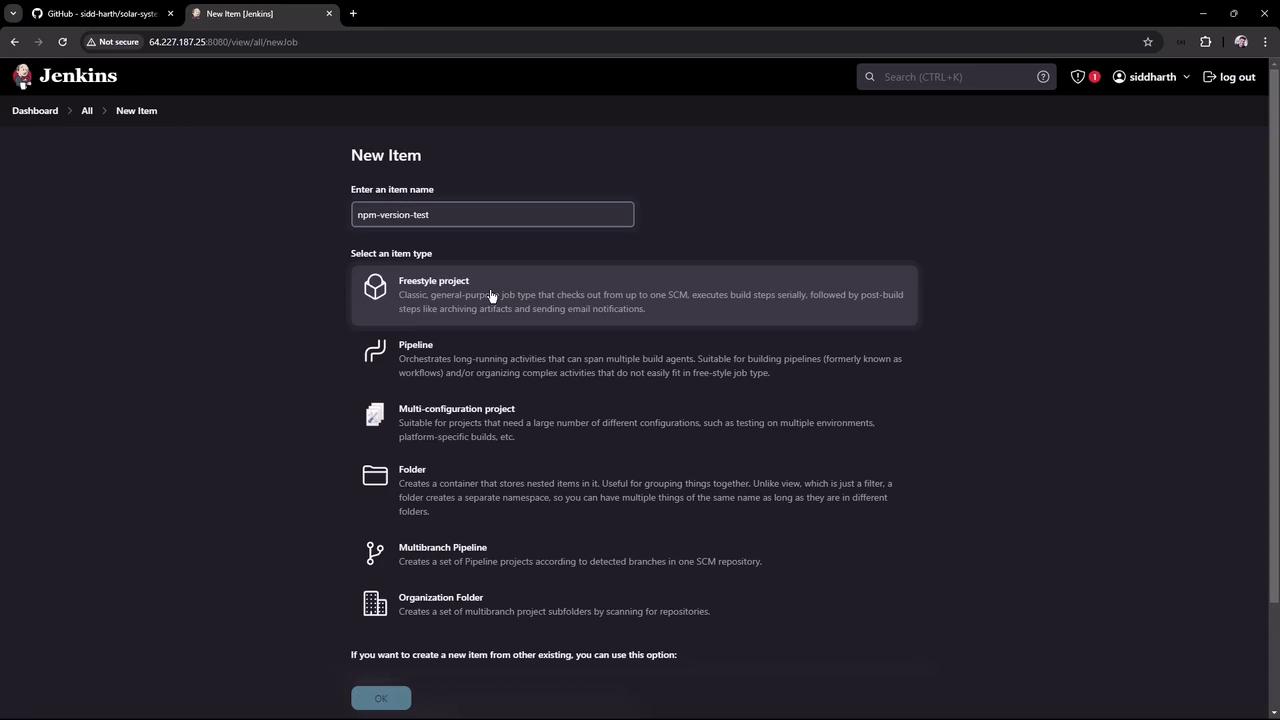
  1. In Jenkins, click New Item, enter npm-version-test, choose Freestyle project, then OK.
  2. Under BuildExecute shell, add:
    node -v
    npm -v
    
The image shows a Jenkins interface where a user is creating a new item, with options to select different project types like Freestyle project, Pipeline, and others. The item name entered is "npm-version-test."
  1. Save and run the job. You should see:
    Started by user example
    Building in workspace /var/lib/jenkins/workspace/npm-version-test
    [npm-version-test] $ /bin/sh -xe /tmp/jenkins.sh
    + node -v
    v20.16.0
    + npm -v
    10.8.1
    Finished: SUCCESS
    
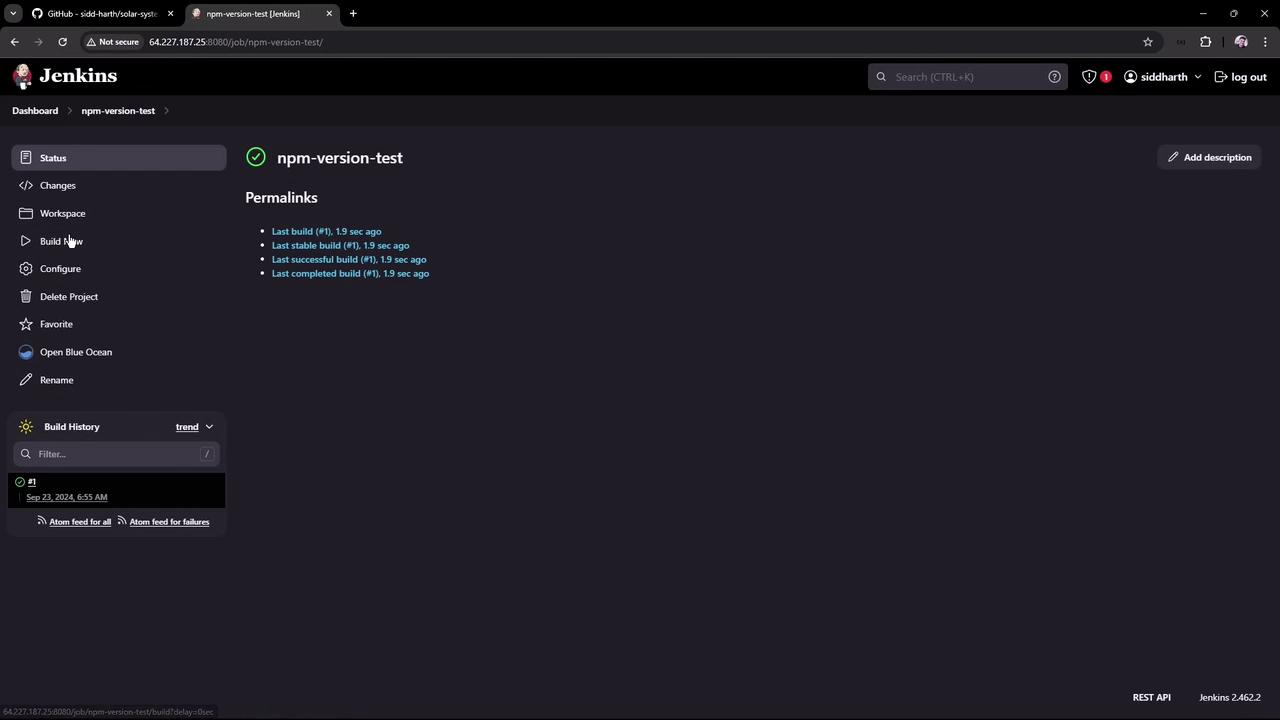
The image shows a Jenkins dashboard for a project named "npm-version-test," displaying build status and history with options for configuration and project management.
If your builds run on agents without Node.js, this job will fail. To ensure consistency, use Jenkins-managed tools.

3. Install the NodeJS Plugin

Add Node.js as a managed tool in Jenkins:
  1. Go to Manage JenkinsManage PluginsAvailable.
  2. Search for NodeJS, select NodeJS plugin (v1.6.2), then Install without restart.
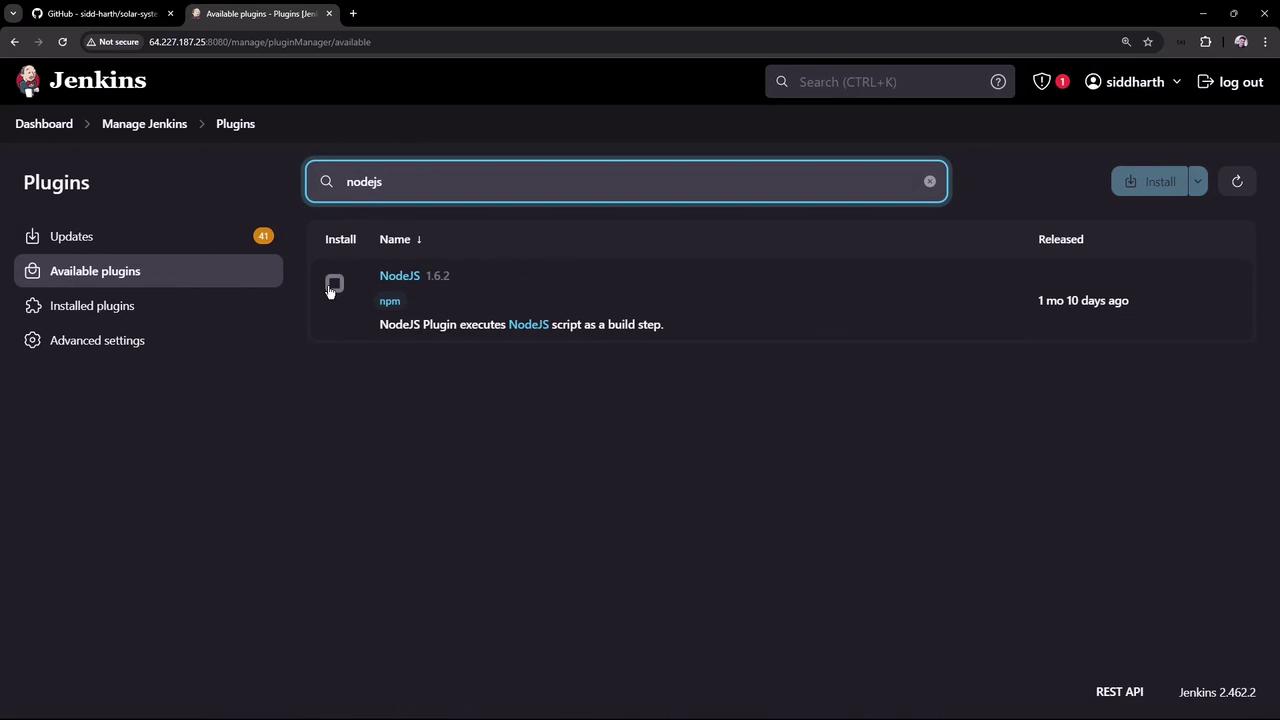
The image shows a Jenkins interface with a search for "NodeJS" in the available plugins section, displaying the NodeJS plugin version 1.6.2.
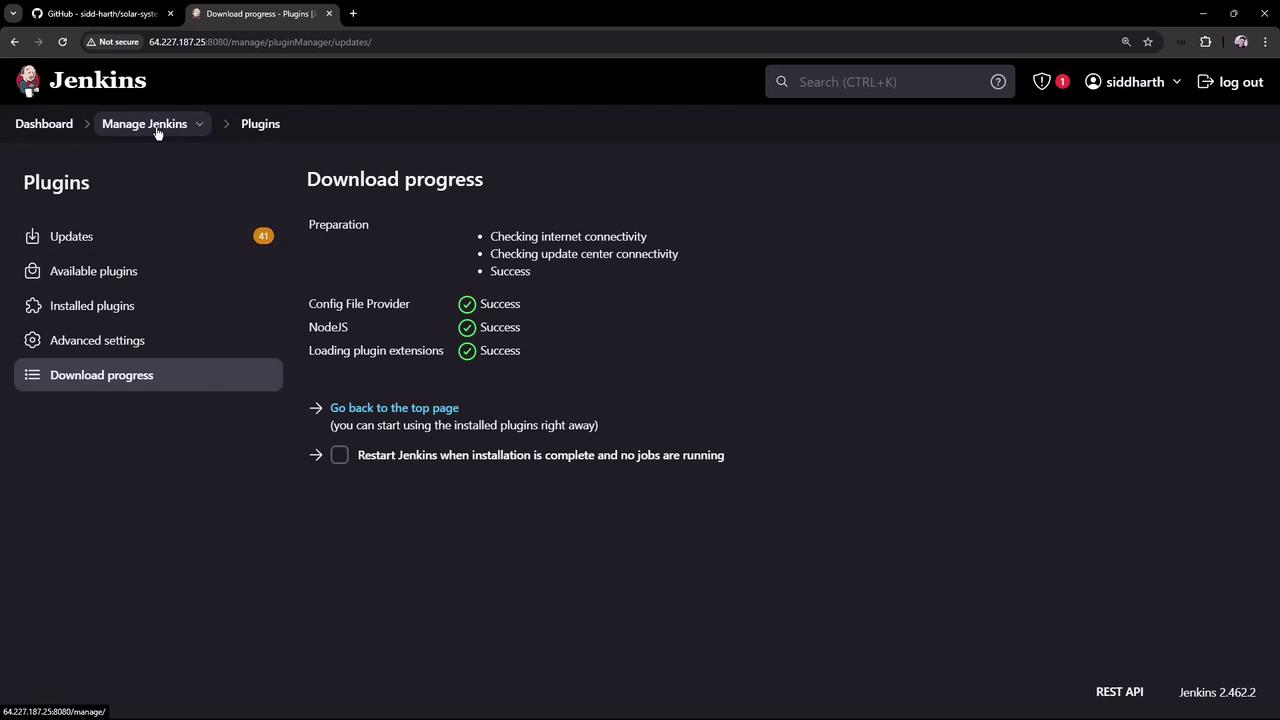
Wait for the installation to complete:
The image shows a Jenkins dashboard displaying the download progress of plugins, with all tasks marked as successful. The interface includes options for managing plugins and settings.

4. Configure Node.js as a Global Tool

  1. Navigate to Manage JenkinsGlobal Tool Configuration.
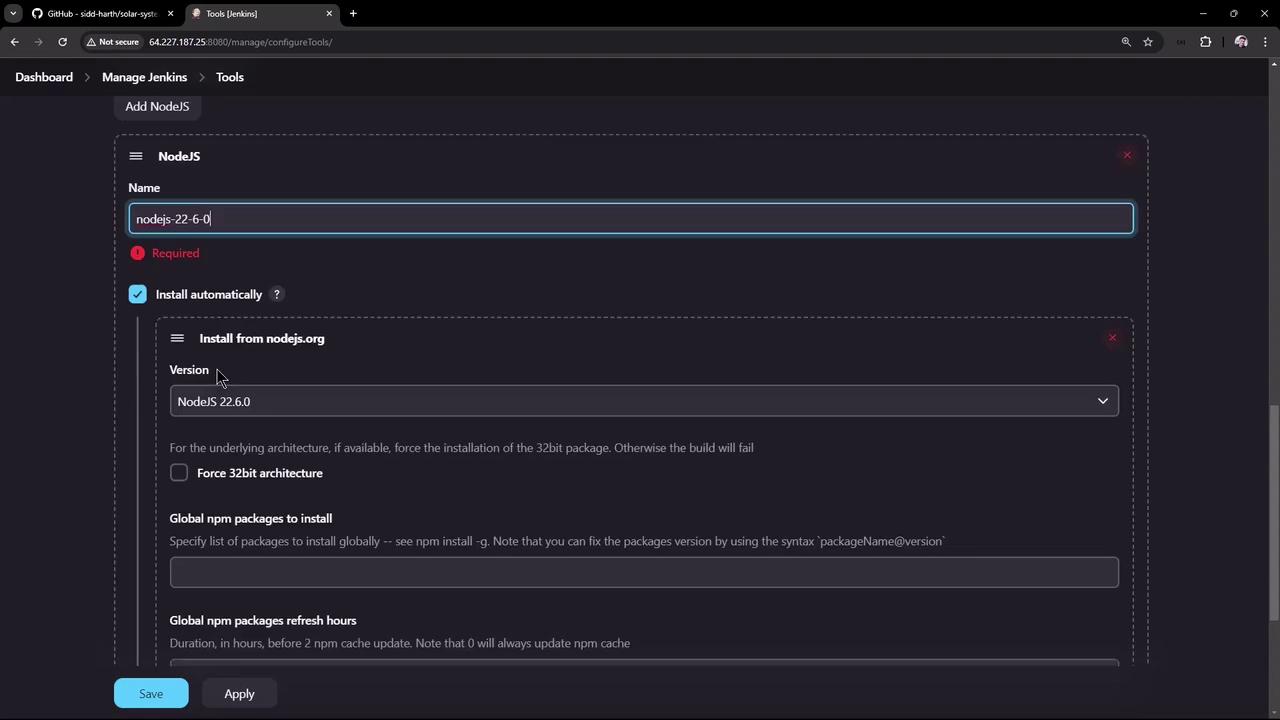
  2. Under NodeJS installations, click Add NodeJS, then fill in:
    • Name: Node.js 22.6.0
    • Install automatically: checked
    • Version: 22.6.0
  3. Click Save.
The image shows a Jenkins configuration screen for adding NodeJS, with options to install a specific version and configure global npm packages.

5. Use the Managed Node.js in a Freestyle Job

  1. Open the npm-version-test job and click Configure.
  2. In Build Environment, enable Provide Node & npm bin/ folder to PATH, then select Node.js 22.6.0.
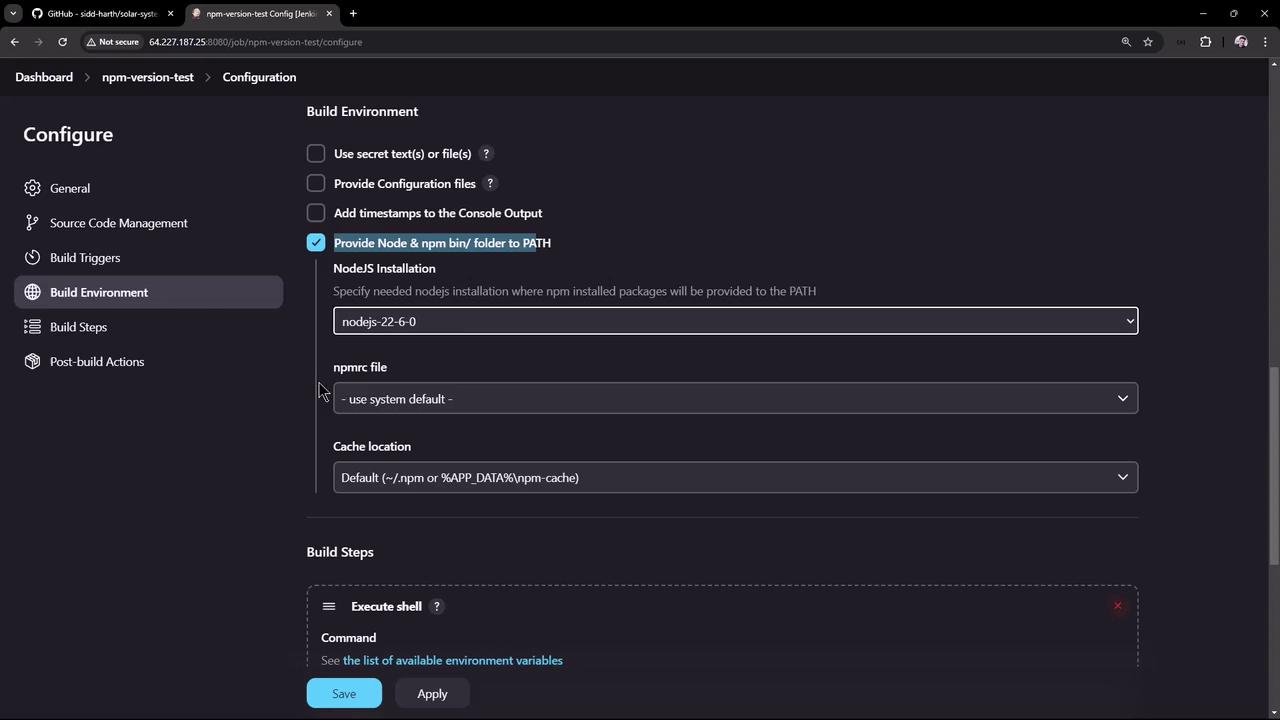
The image shows a configuration screen for a build environment, likely in a CI/CD tool, with options for Node.js installation and npm settings. The interface includes checkboxes and dropdown menus for various settings, such as providing Node & npm bin folder to PATH and executing shell commands.
  1. Save and trigger the build. The first run installs Node.js on the controller:
    Started by user example
    Building in workspace /var/lib/jenkins/workspace/npm-version-test
    Unpacking https://nodejs.org/dist/v22.6.0/node-v22.6.0-linux-x64.tar.gz to /var/lib/jenkins/tools/.../nodejs-22-6-0
    [npm-version-test] $ /bin/sh -xe /tmp/jenkins.sh
    + node -v
    v22.6.0
    + npm -v
    10.8.2
    Finished: SUCCESS
    
Subsequent builds reuse the cached installation, ensuring consistent Node.js versions across all agents.

Summary

StepDescription
Verify Host InstallationCheck node -v and npm -v on the Jenkins controller.
Freestyle Project TestRun a basic freestyle job using host-installed Node.js.
Install NodeJS PluginAdd NodeJS plugin via Manage Plugins.
Global Tool ConfigurationDefine Node.js under Global Tool Configuration.
Use Managed Node.jsEnable Node.js in Build Environment of a freestyle job.