Welcome to the third installment of our Jenkins Groovy Sandbox series. In this demo you’ll learn how the sandbox enforces security by whitelisting and blacklisting Groovy methods, and how administrators can approve blocked signatures via In-process Script Approval.

Table of Contents

  1. Understanding Whitelists & Blacklists
  2. Inspecting the Whitelist
  3. Inspecting the Blacklist
  4. Adding Blacklisted Calls to a Pipeline
  5. First Build: getInstance Blocked
  6. Approving Signatures in Jenkins
  7. Second Build: getProperty Blocked
  8. Final Build: Success!
  9. References

Understanding Whitelists & Blacklists

Jenkins uses the script-security plugin to sandbox Groovy scripts.
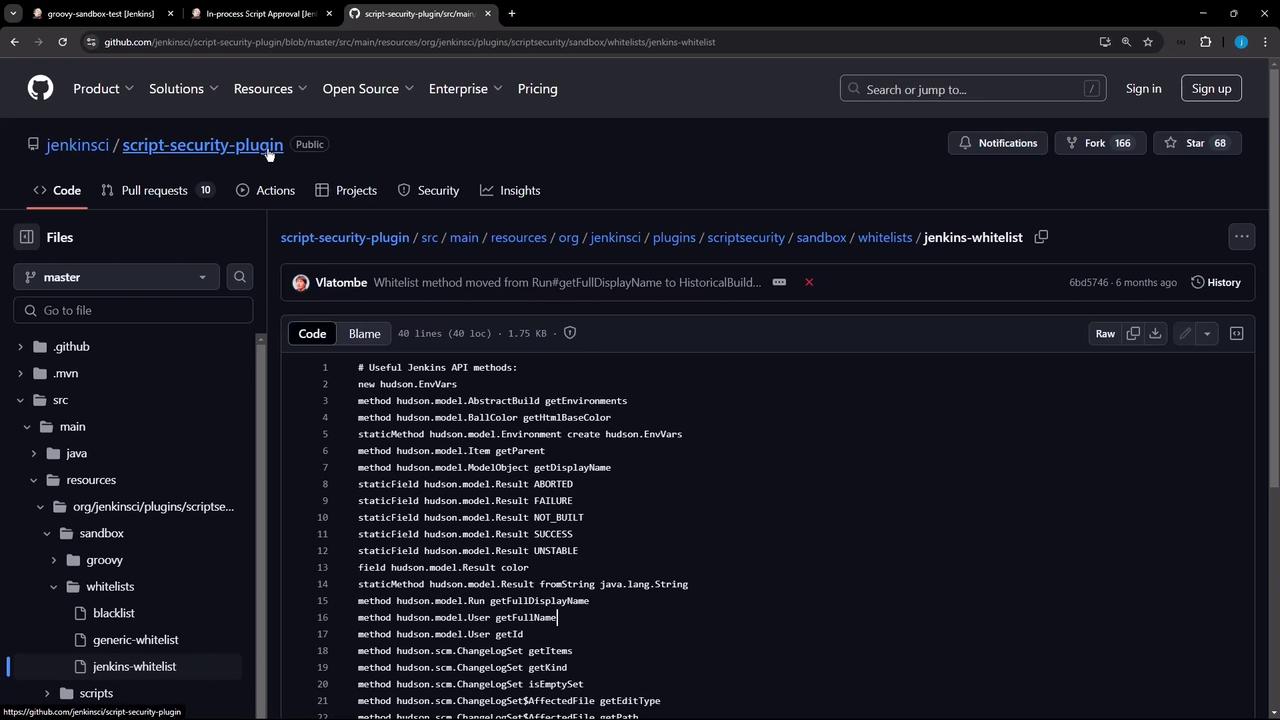
Under src/main/resources/org/jenkinsci/plugins/scriptsecurity/sandbox/whitelists you’ll find files that list allowed methods. The same folder contains a blacklist file defining methods that are blocked by default and require admin approval.

Inspecting the Whitelist

Browse the Jenkins script-security-plugin repository on GitHub and open the whitelists folder:
The image shows a GitHub repository page for the "script-security-plugin" by "jenkinsci," displaying a file named "jenkins-whitelist" with a list of Jenkins API methods. The interface includes navigation options and a code viewer.
An excerpt from jenkins-whitelist:

Inspecting the Blacklist

The blacklist file in the same directory lists methods that are disallowed by default:
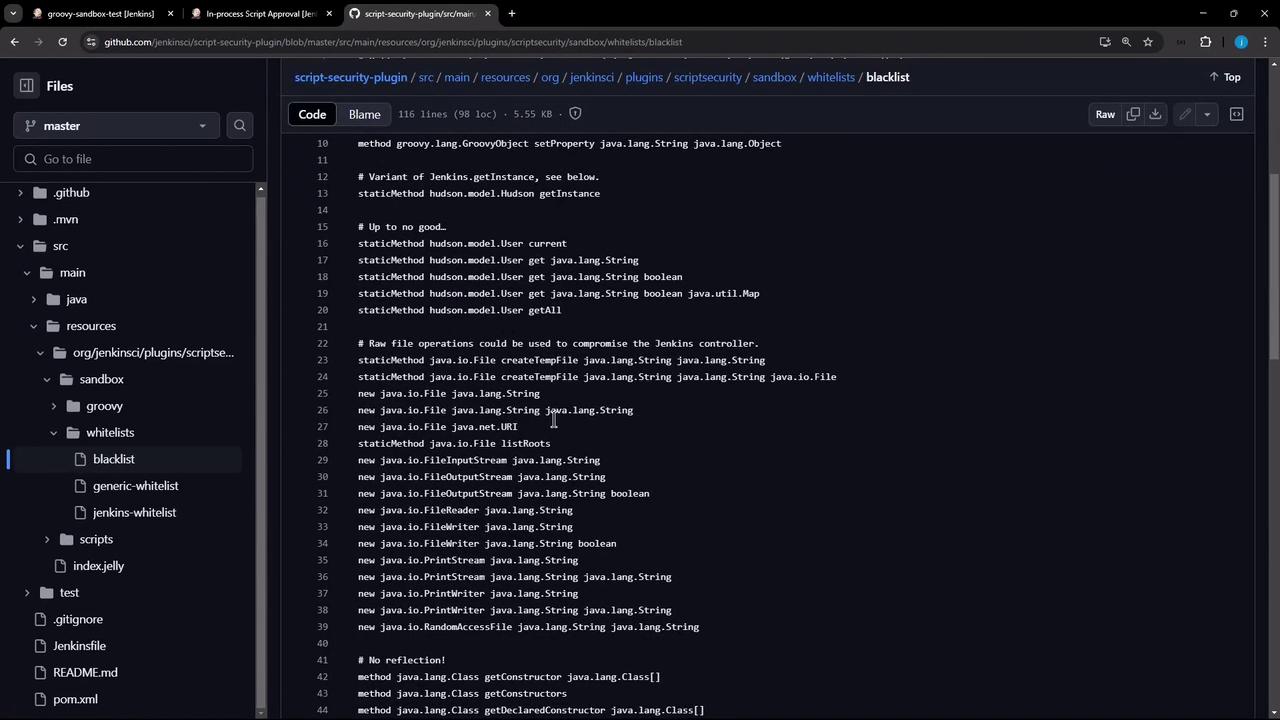
The image shows a GitHub repository page displaying a file named "blacklist" from the "script-security-plugin" project. The file contains a list of Java methods and classes related to security restrictions in Jenkins.
Any invocation of these methods in a sandboxed pipeline will be rejected unless approved.

Adding Blacklisted Calls to a Pipeline

Let’s modify a declarative pipeline to call two blacklisted methods:
Make sure Use Groovy Sandbox is checked in your pipeline configuration before running the build.
The image shows a configuration screen for a Jenkins pipeline, displaying a Groovy script with stages to get a Hudson instance and a system property. There are options to approve the script and use the Groovy sandbox.

First Build: getInstance Blocked

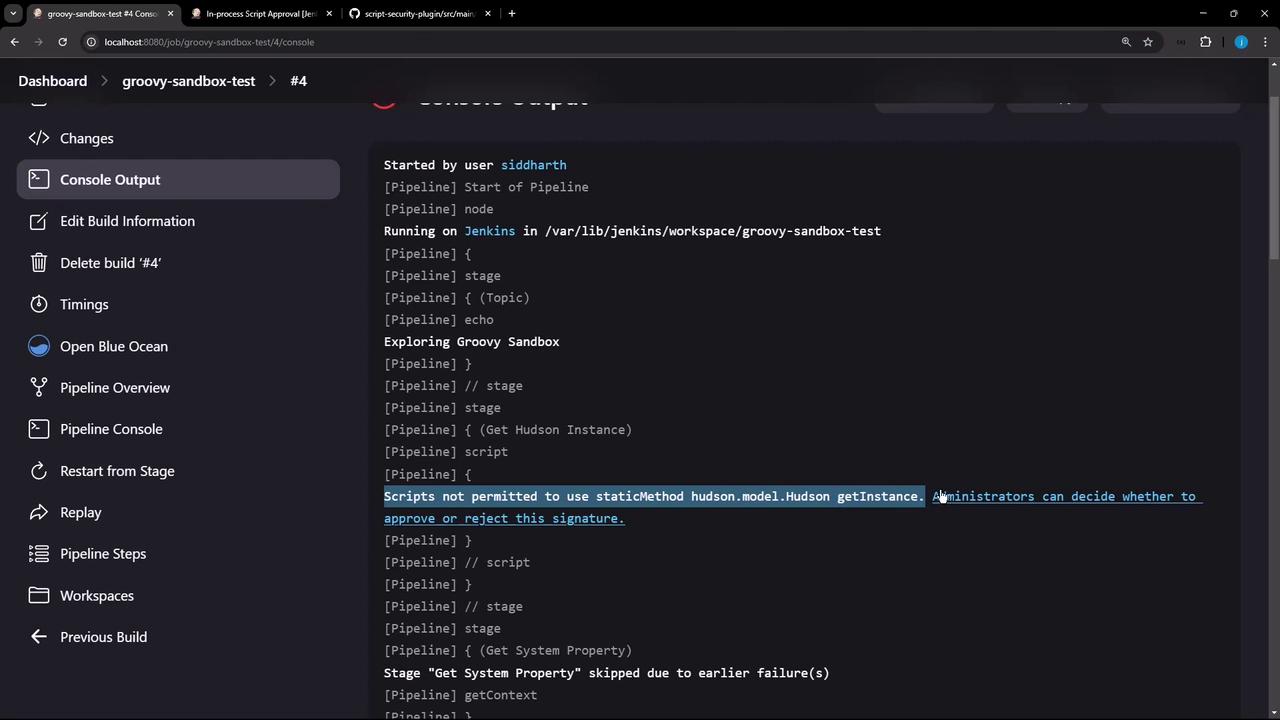
The Topic stage will pass, but Get Hudson Instance fails due to the blacklist:
The image shows a Jenkins dashboard displaying the status of a pipeline named "groovy-sandbox-test," with various stages and their completion statuses.
Console output:
The image shows a Jenkins console output with a Groovy script execution, highlighting a permission error related to using a static method. The sidebar includes options like "Open Blue Ocean" and "Pipeline Overview."

Approving Signatures in Jenkins

Click the error link or navigate to Manage Jenkins → In-process Script Approval to review pending signatures:
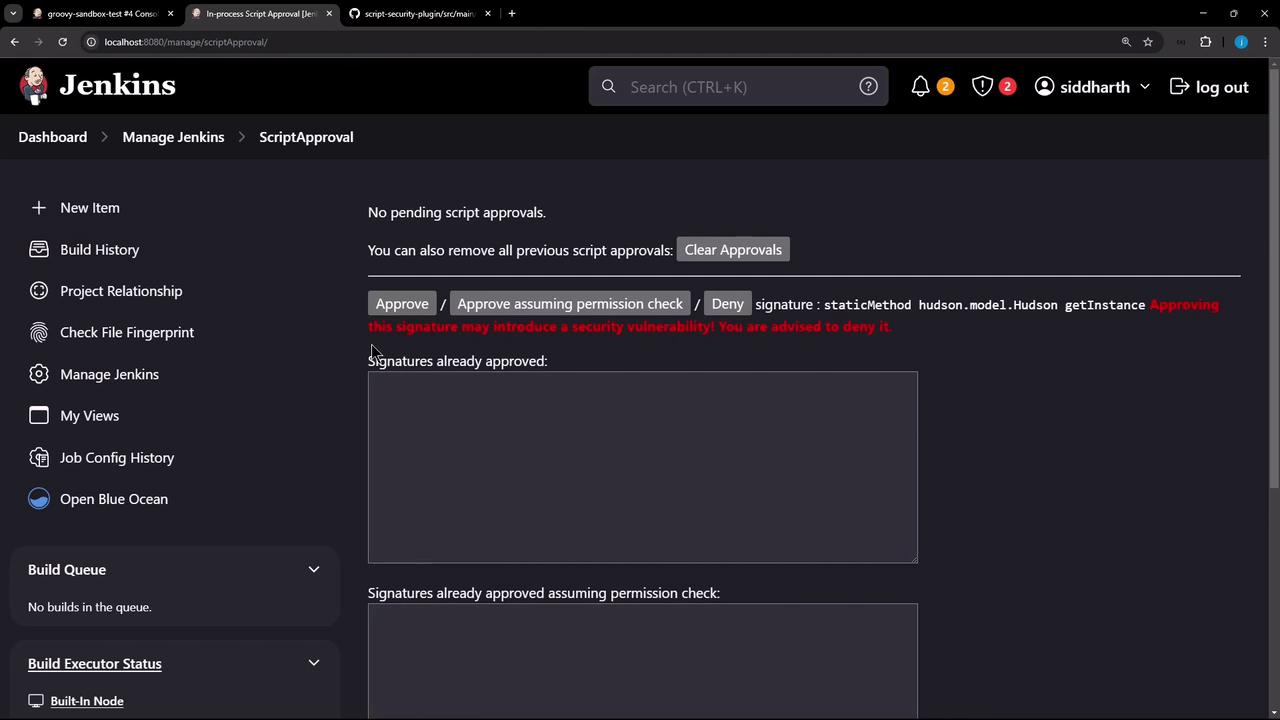
The image shows a Jenkins script approval interface with options to approve or deny script signatures, and a warning about potential security vulnerabilities.
Approving method signatures grants scripts additional privileges. Review each request carefully.
Approve the hudson.model.Hudson getInstance signature, then rerun the build.

Second Build: getProperty Blocked

After approving, Get Hudson Instance now succeeds but Get System Property fails:
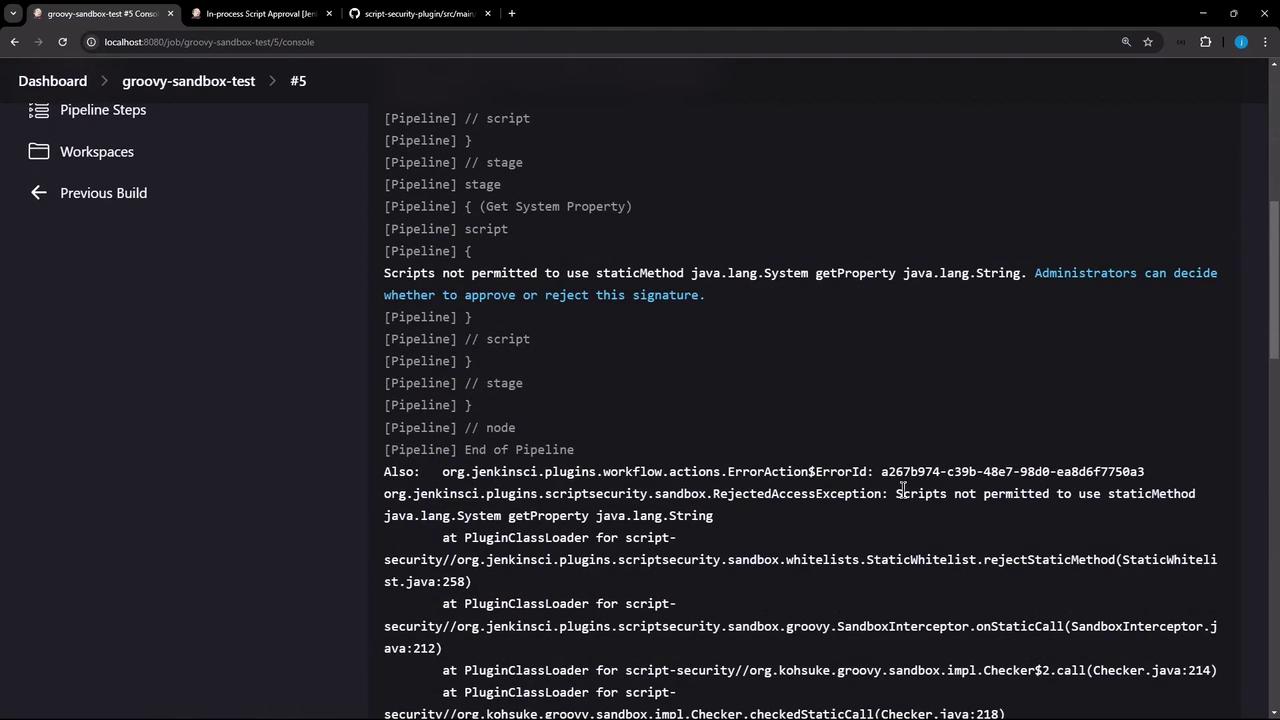
The image shows a Jenkins console output with a script error message indicating that a script is not permitted to use a specific Java method. It suggests that administrators can decide whether to approve or reject the signature.
Return to Script Approval and approve the java.lang.System getProperty signature:
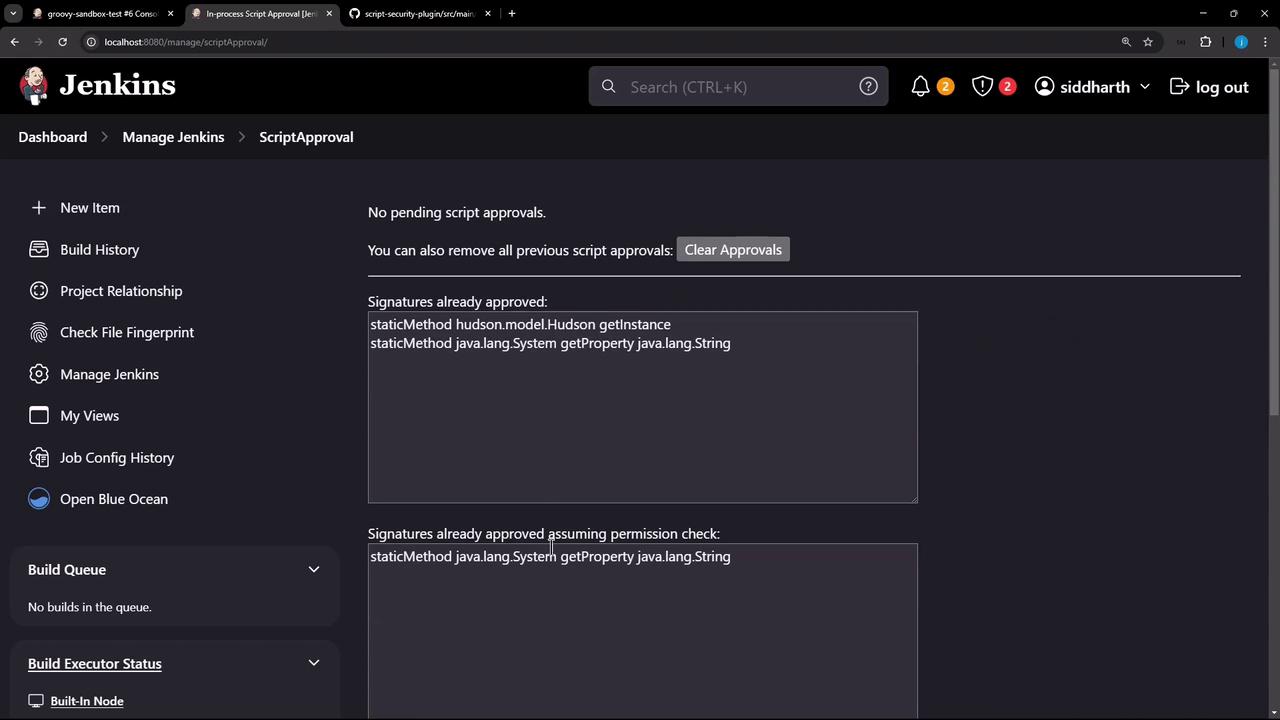
The image shows a Jenkins interface on the "Script Approval" page, displaying no pending script approvals and a list of already approved signatures.

Final Build: Success!

Run the pipeline one last time. All stages should complete without errors:
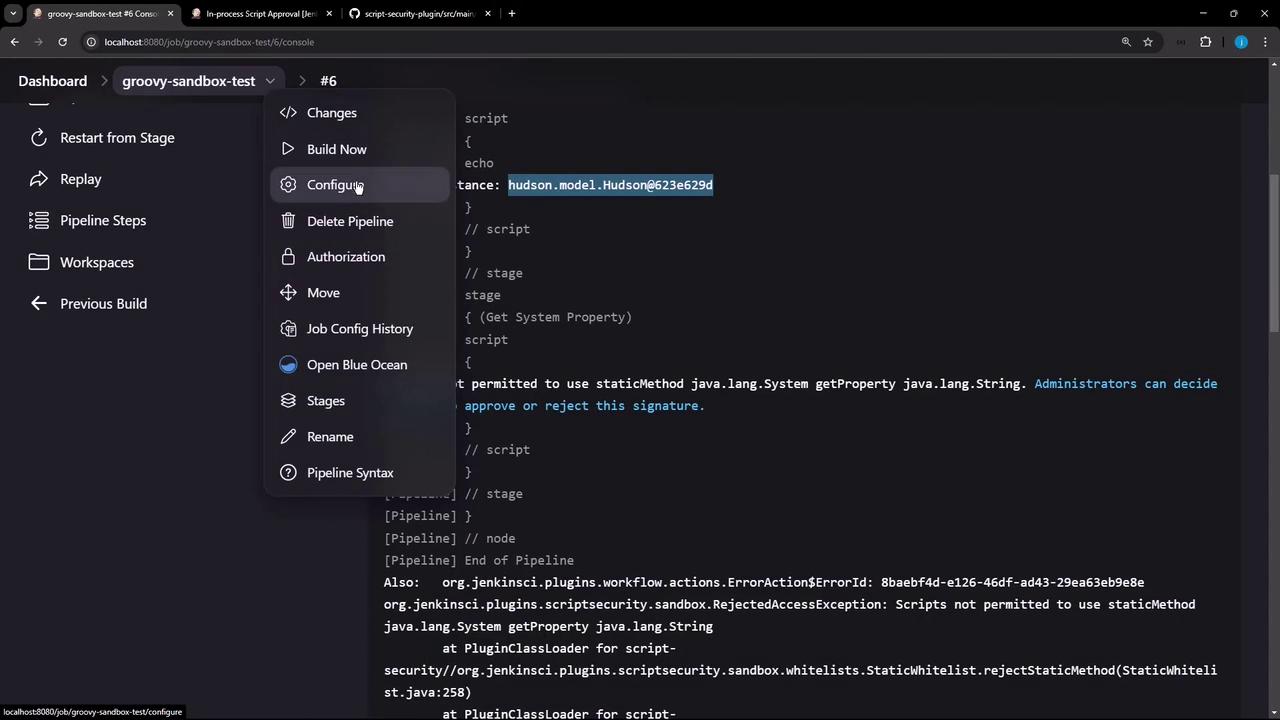
The image shows a Jenkins console interface with a dropdown menu open, displaying options like "Configure" and "Delete Pipeline." The console output includes a script error message related to permission issues with Java methods.

References

Watch Video