

- The Jenkins web UI at
http://localhost:8080returned an HTTP 500 when loading/login. - Server logs show
java.lang.OutOfMemoryError: Java heap space.
systemctl cat:
/etc/systemd/system/jenkins.service.d/override.conf. The service must be restarted for changes to take effect.
Recommended heap sizes
Below are general recommendations for Jenkins JVM heap sizing. Use these as starting points and adjust based on the number of plugins, jobs, and concurrent activity.
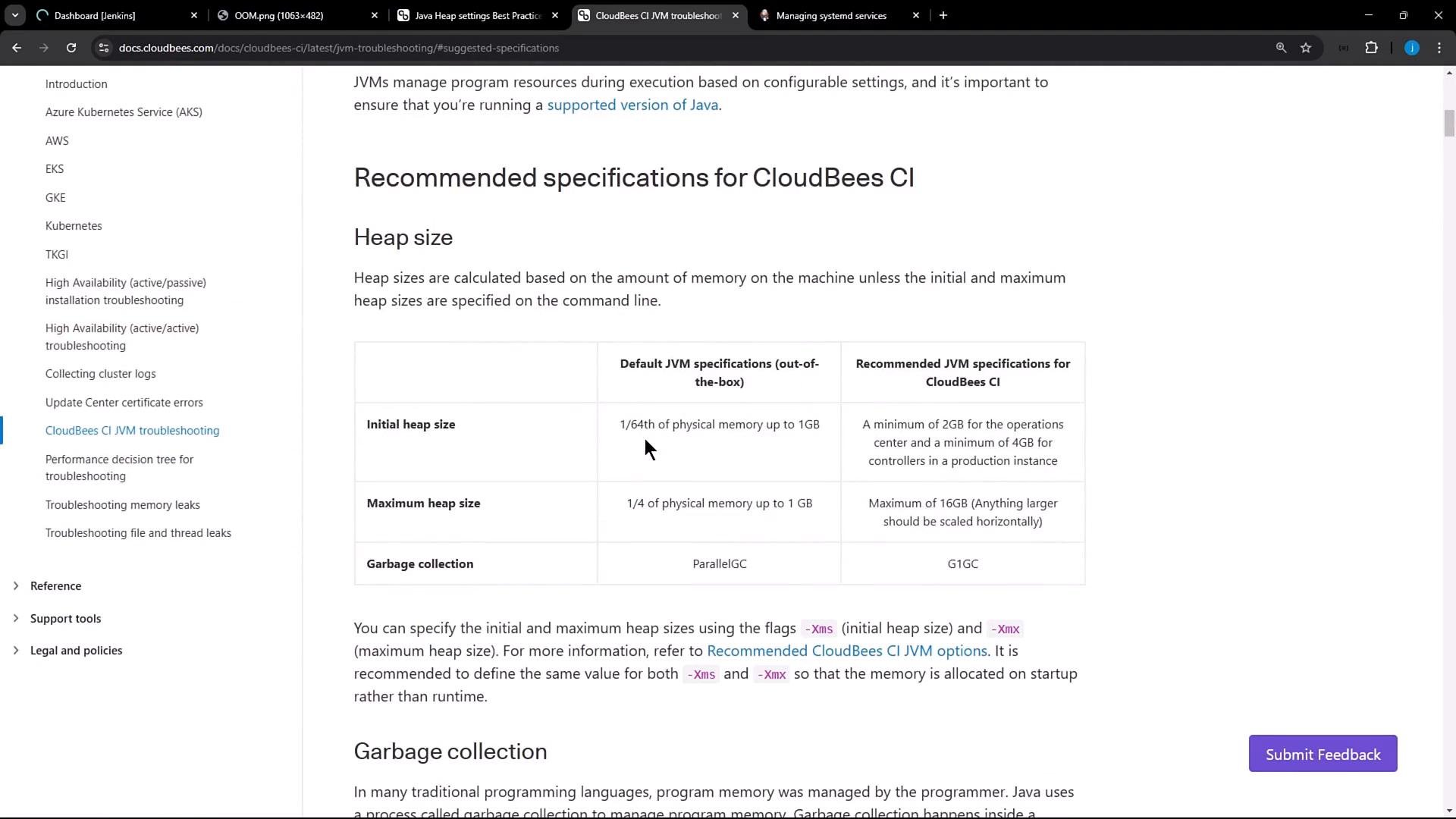
If running Jenkins inside containers (Docker, Kubernetes), prefer container-aware JVM options such as
-XX:+UseContainerSupport (enabled by default on modern OpenJDK) and percentage-based options like -XX:MaxRAMPercentage / -XX:InitialRAMPercentage. These respect container memory limits better than fixed -Xms/-Xmx values.-Xms90M -Xmx90M), increase them in the drop-in. Example existing configuration:
- For bare-metal or VM installs, tuning
-Xms/-Xmxis straightforward and effective. - For containerized Jenkins, prefer container-aware JVM options (
-XX:+UseContainerSupport,-XX:MaxRAMPercentage,-XX:InitialRAMPercentage) and set appropriate container memory limits. - Avoid setting a single JVM heap above ~16 GiB; scale horizontally instead of increasing a single JVM heap beyond practical limits.
- After any systemd unit change, restart the service and verify process arguments (
ps) and logs (journalctl -u jenkins). - Monitor garbage collection and heap usage; increasing heap can alter GC behavior — if GC pauses are problematic, consider GC tuning or changing GC algorithms.
Do not edit the packaged
/usr/lib/systemd/system/jenkins.service file directly. Use systemctl edit jenkins to create a drop-in override so packaged updates or upgrades do not overwrite your custom settings.- Systemd unit documentation: https://www.freedesktop.org/software/systemd/man/systemd.unit.html
- OpenJDK JVM options and container support: https://openjdk.org/ (search for
UseContainerSupport/MaxRAMPercentage) - Jenkins official documentation: https://www.jenkins.io/doc/