Welcome back. In this hands-on demo you’ll extend your Pub/Sub knowledge by connecting a Pub/Sub topic to Cloud Storage so that published messages land as files in a bucket. This pattern is useful for simple, zero-infrastructure ingestion pipelines (for example, later loading objects into BigQuery or processing them with Spark). Prerequisites
  • A Google Cloud project with billing enabled.
  • Pub/Sub API and Cloud Storage enabled.
  • A Pub/Sub topic already created (this demo uses kodekloud-demo-topic).
What we’ll do
  1. Create a Cloud Storage bucket.
  2. Inspect the Pub/Sub topic.
  3. Create a subscription that writes messages to the bucket.
  4. Publish messages and confirm files appear in Cloud Storage.
  5. Clean up resources.
Step 1 — Create a Cloud Storage bucket
  1. In the Cloud Console search for “Buckets” → Create.
  2. Provide a globally unique name (demo uses kodekloud-pubsub-bucket).
  3. Leave other settings at their defaults and click Create.
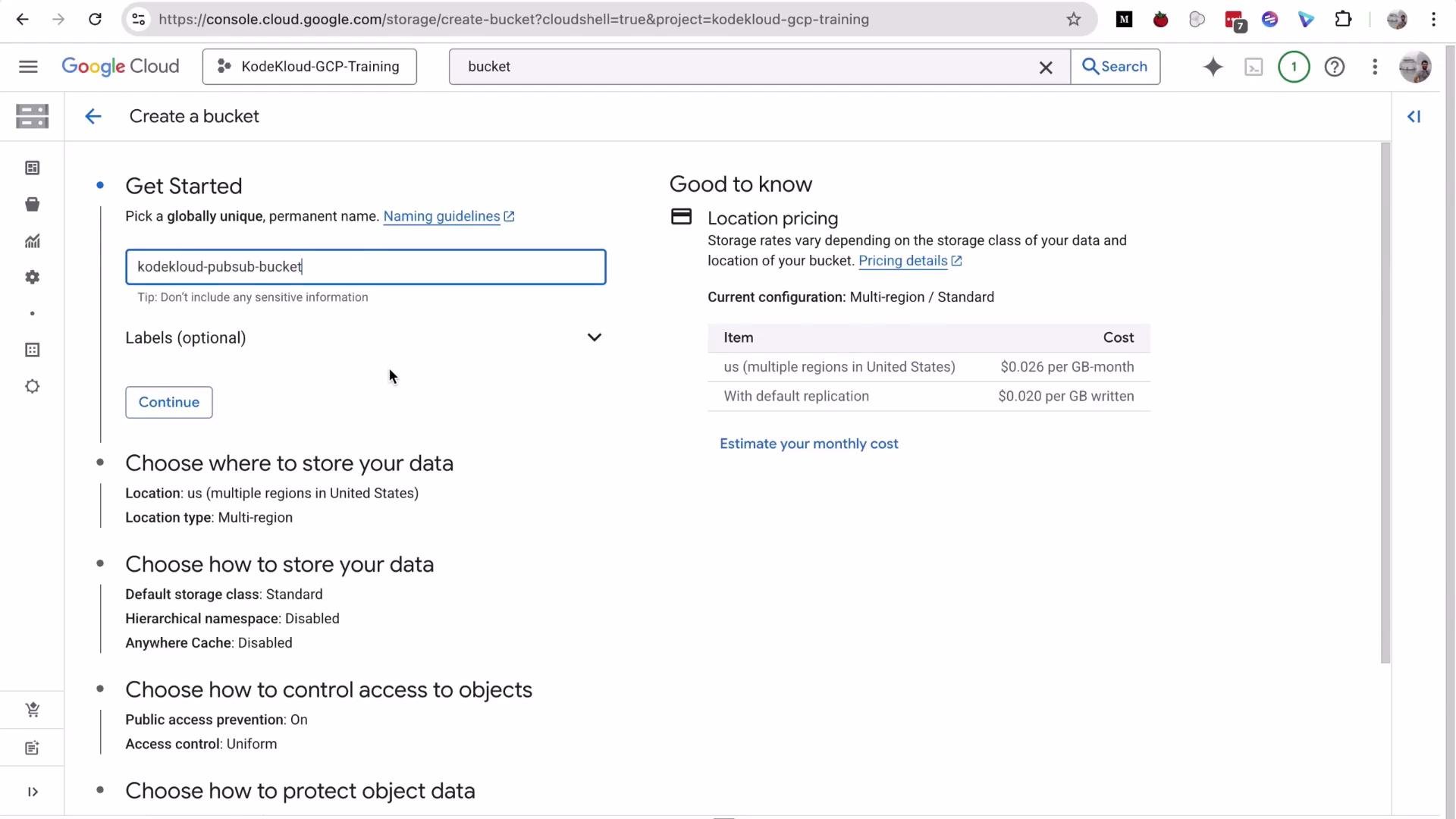
A screenshot of the Google Cloud Console "Create a bucket" page showing a bucket name field filled with "kodekloud-pubsub-bucket." The right side shows location and pricing details for the storage configuration.
Step 2 — Open the Pub/Sub topic and view metrics Open the topic you created earlier (kodekloud-demo-topic). The topic details page shows helpful monitoring metrics (published message count, publish requests, throughput) and export options (BigQuery, Cloud Storage).
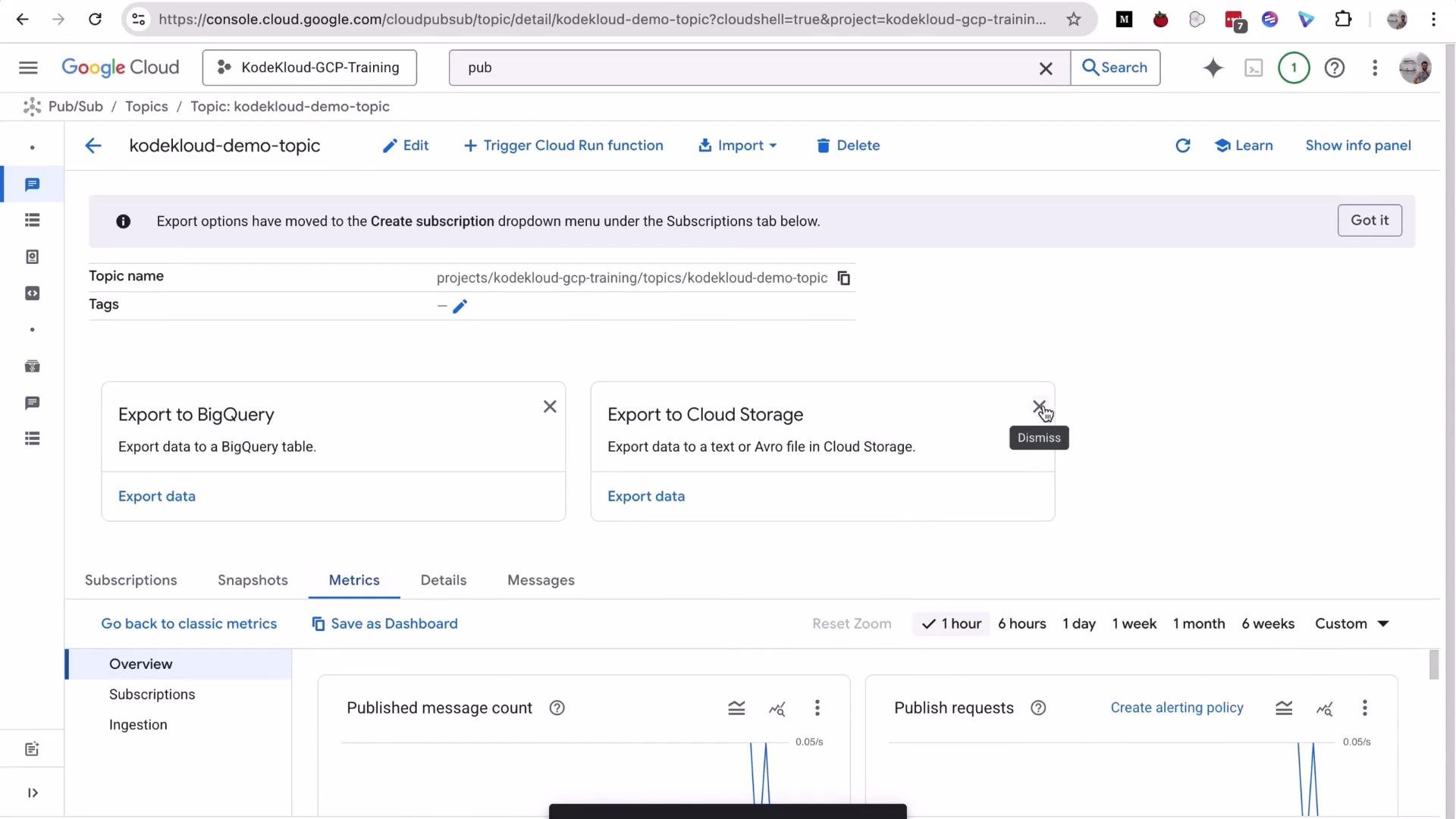
A Google Cloud Console Pub/Sub topic details page for "kodekloud-demo-topic." It shows export options to BigQuery and Cloud Storage and metrics panels (published message count, publish requests).
Step 3 — Create a subscription that writes to Cloud Storage Create a subscription that delivers messages from the topic into your Cloud Storage bucket:
  1. Go to Pub/Sub → Subscriptions → Create subscription.
  2. Enter a subscription ID (demo: kodekloud-storage-sub).
  3. Select the topic projects/<your-project>/topics/kodekloud-demo-topic.
  4. For Delivery type choose Write to Cloud Storage.
  5. Browse and select the bucket kodekloud-pubsub-bucket.
  6. Choose file format: Avro or JSON (demo uses JSON).
  7. Configure file batching (how frequently Pub/Sub writes files). Demo uses a 1 minute batch interval.
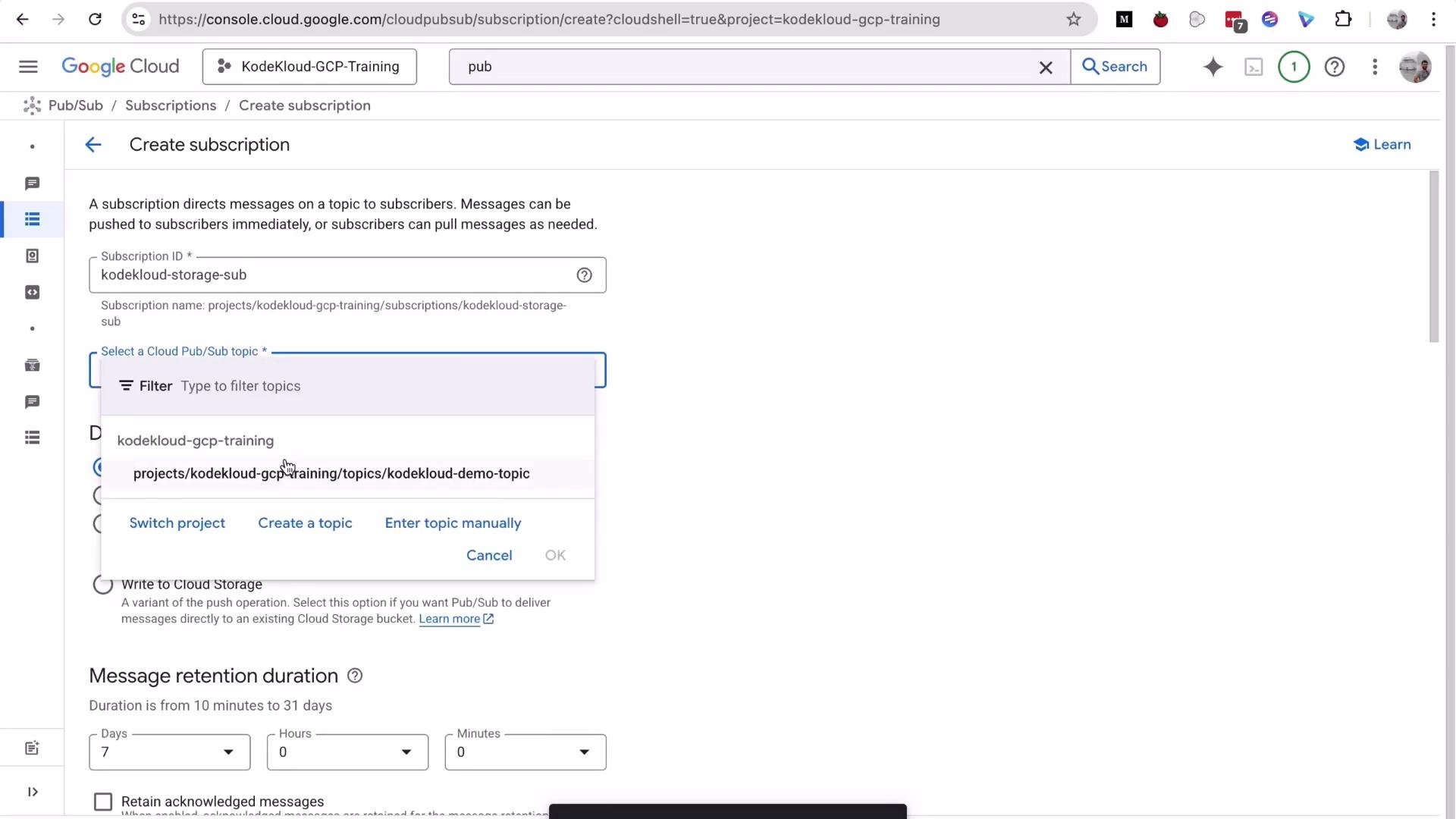
When “Write to Cloud Storage” is selected, Pub/Sub needs permission to create objects in the bucket. The Console will detect missing permissions and offer a one-click option to set them.
Screenshot of the Google Cloud Console Pub/Sub "Create subscription" page showing a Subscription ID set to "kodekloud-storage-sub" and a topic selection dropdown listing projects/kodekloud-gcp-training/topics/kodekloud-demo-topic. The message retention duration settings and delivery options are visible below.
Pub/Sub requires permission to write objects into the destination bucket (typically the Pub/Sub service account needs Object Creator and Object Viewer roles). The Console can auto-assign these when you click “Set permission” during subscription creation.
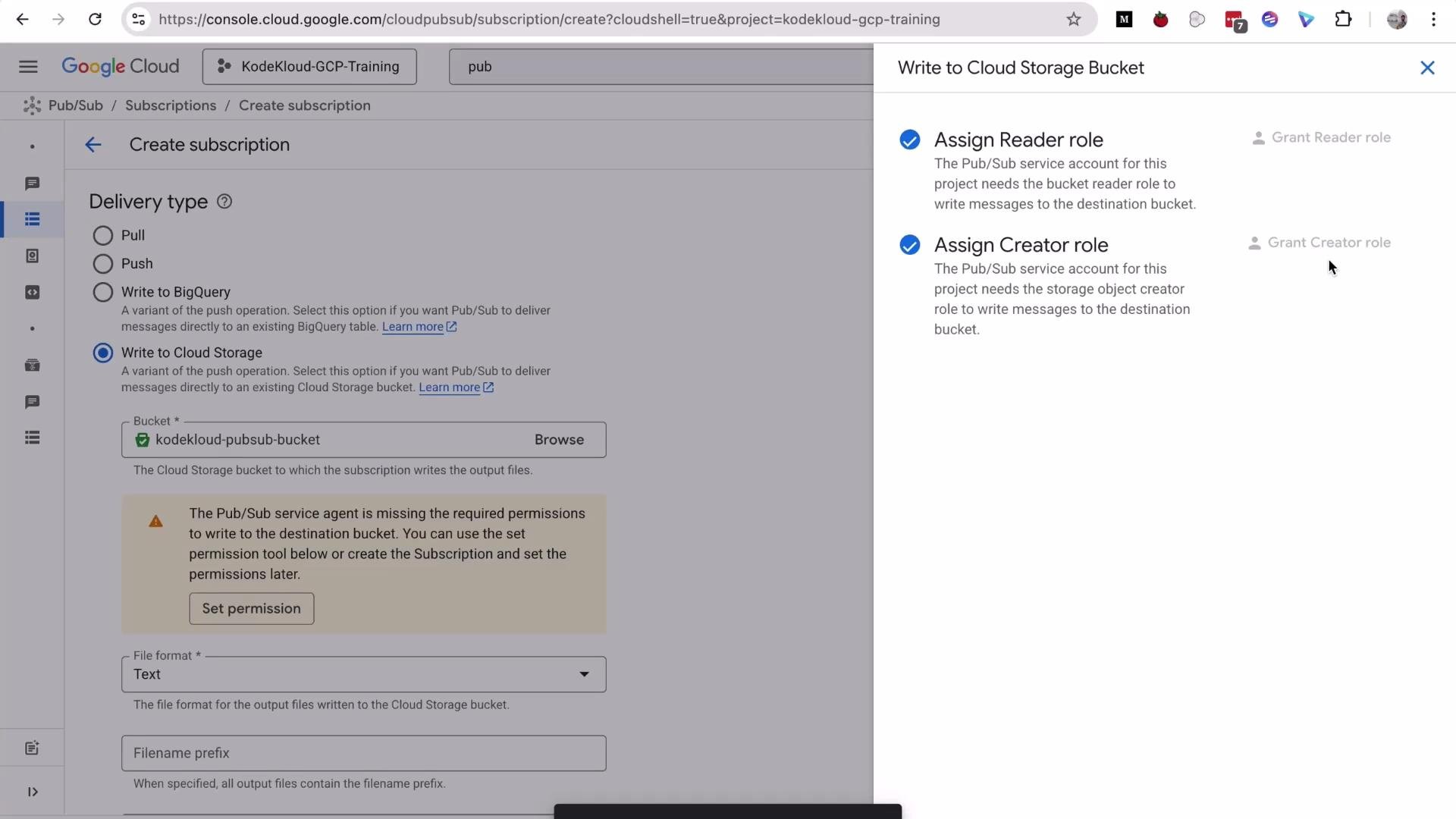
Finalize the subscription creation. With a 1 minute batching interval, Pub/Sub will write files to the bucket approximately once per minute (subject to batching thresholds).
A screenshot of the Google Cloud Console “Create subscription” screen for Pub/Sub, with the "Write to Cloud Storage" delivery option selected and a bucket named kodekloud-pubsub-bucket. A right-side panel prompts assigning Reader and Creator roles so Pub/Sub can write to the destination bucket.
Step 4 — Publish messages and verify Cloud Storage objects Publish messages to the topic to trigger the delivery. You can use a small publish script from Cloud Shell. Example output from a Cloud Shell publish run:
# Example: publish_demo.sh invoked from Cloud Shell
$ bash publish_demo.sh
messageIds:
- '16406407522493350'
messageIds:
- '16406765299791405'
messageIds:
- '16406424317703217'
Wait for the subscription’s configured batching interval (1 minute in this demo), then inspect the bucket kodekloud-pubsub-bucket in the Cloud Console. You should see new objects created by Pub/Sub; download them to view the JSON payloads. Example Cloud Storage object URLs produced by this integration:
https://storage.googleapis.com/kodekloud-pubsub-bucket/2025-11-23T10%3A02%3A44%2B00%3A00_f879d9
https://storage.cloud.google.com/kodekloud-pubsub-bucket/2025-11-23T10%3A02%3A44%2B00%3A00_f879d9
gs://kodekloud-pubsub-bucket/2025-11-23T10:02:44+00:00_f879d9
Why this is useful
  • Zero-infrastructure ingestion: Pub/Sub writes directly to Cloud Storage; you don’t need a streaming consumer running all the time.
  • Files can be consumed by downstream tools: bulk load to BigQuery, process with Dataflow/Spark, run batch analytics, or archive raw events.
Step 5 — Clean up resources To avoid unexpected charges, delete resources you created when finished. Example cleanup commands (run in Cloud Shell):
# Delete subscriptions
$ gcloud pubsub subscriptions delete kodekloud-pull-sub
Deleted subscription [projects/kodekloud-gcp-training/subscriptions/kodekloud-pull-sub].

$ gcloud pubsub subscriptions delete kodekloud-storage-sub
Deleted subscription [projects/kodekloud-gcp-training/subscriptions/kodekloud-storage-sub].

# Delete topic
$ gcloud pubsub topics delete kodekloud-demo-topic
Deleted topic [projects/kodekloud-gcp-training/topics/kodekloud-demo-topic].

# Delete bucket and its objects using gsutil (fast)
$ gsutil -m rm -r gs://kodekloud-pubsub-bucket
Removing gs://kodekloud-pubsub-bucket/2025-11-23T10:02:44+00:00_f879d9#1763892224947144...
Removing gs://kodekloud-pubsub-bucket/2025-11-23T10:02:45+00:00_9c0f14#1763892226046057...
Removing gs://kodekloud-pubsub-bucket/2025-11-23T10:02:46+00:00_921f91#1763892227045748...
Removing gs://kodekloud-pubsub-bucket/2025-11-23T10:02:48+00:00_ce2906#1763892229247529...
Removing gs://kodekloud-pubsub-bucket/2025-11-23T10:02:49+00:00_a39d4e#1763892230246973...
/ [5/5 objects] 100% Done
Operation completed over 5 objects.
Removing gs://kodekloud-pubsub-bucket/...
Always delete test topics, subscriptions, and buckets after your demo to prevent ongoing storage or Pub/Sub costs.
Resources used in this demo
ResourceExample name / IDPurpose
Pub/Sub topickodekloud-demo-topicSource of published messages
Subscription (Cloud Storage delivery)kodekloud-storage-subWrites messages to Cloud Storage
Cloud Storage bucketkodekloud-pubsub-bucketDestination for message files (JSON/Avro)
Links and references That’s it for this lesson — see you in the next one.

Watch Video