Welcome — in this hands-on demo you’ll learn how to run a simple PySpark job on Google Cloud Dataproc that reads data from Cloud Storage, aggregates it, and writes results back to Cloud Storage. Dataproc is a fully managed, scalable service for running Apache Spark, Apache Hadoop, and related open-source data-engineering tools. What you’ll do
  • Create a Cloud Storage bucket and upload input data plus a PySpark script.
  • Create a Dataproc cluster (single-node or multi-node).
  • Submit a PySpark job to the cluster that reads from Cloud Storage, aggregates totals per customer, and writes results back to Cloud Storage.
  • Inspect the job using the Dataproc Console and Spark History Server, then verify output in Cloud Storage.
Prerequisites
  • A GCP project with billing enabled.
  • Permissions to create Storage buckets and Dataproc clusters (roles like Storage Admin and Dataproc Editor are helpful).
  • Cloud SDK (gcloud) installed if you plan to submit jobs from the CLI.

Create a Cloud Storage bucket

Open the GCP Console, search for “Storage”, and create a new bucket. Choose a globally unique name and a region (this demo uses us-central1). Configure the storage class and other options as needed, then create the bucket.
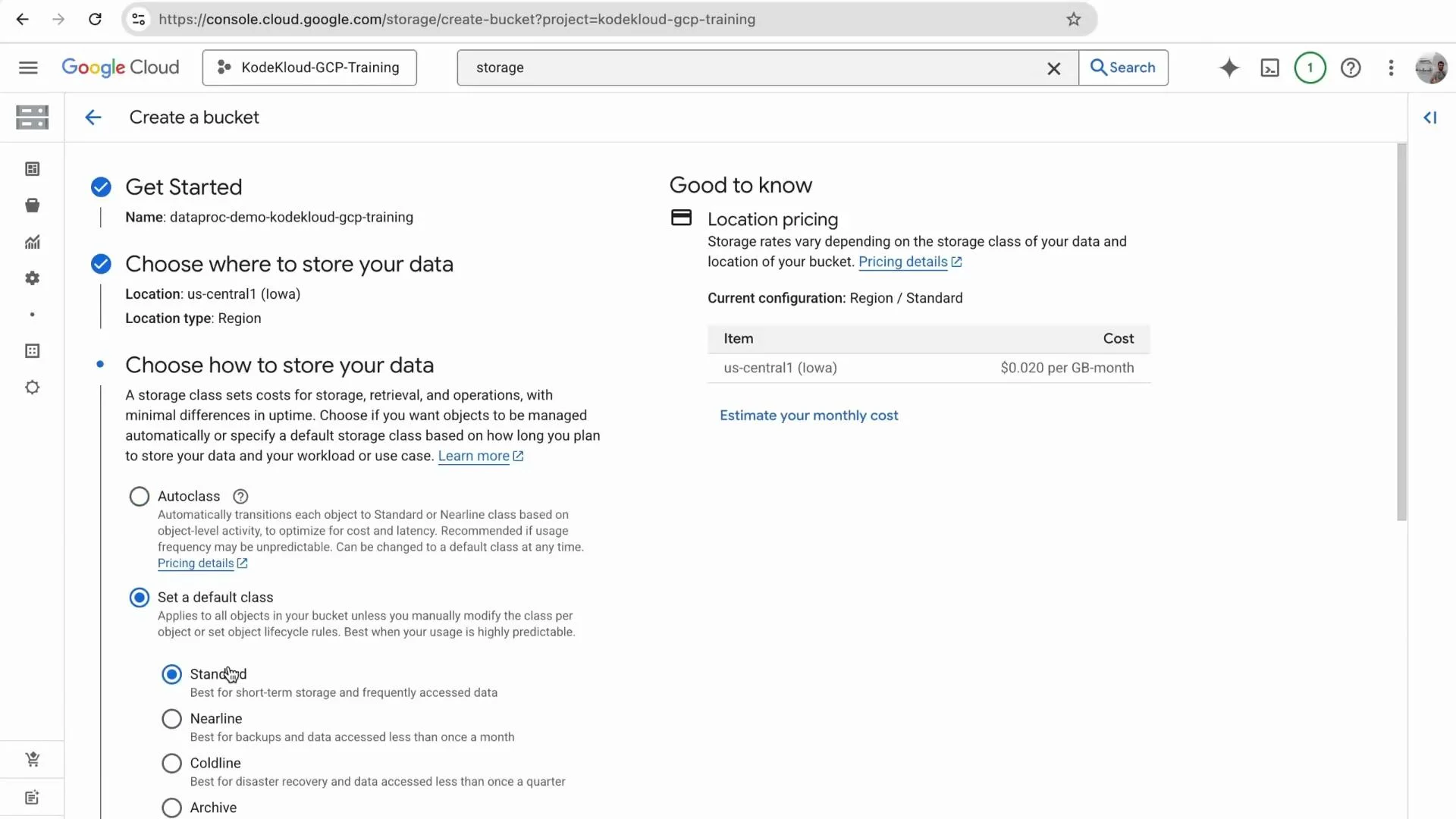
A screenshot of the Google Cloud Console "Create a bucket" page showing the selected location (us-central1 — Iowa), storage-class choices (Standard, Nearline, Coldline, Archive) and an estimated price ($0.020 per GB‑month). The UI also shows options for Autoclass or setting a default storage class.

Prepare the input data

Create a small CSV file named orders.csv with order data. Example contents:
order_id,customer_id,amount
101,1,500.00
102,2,150.50
103,1,300.00
104,3,1200.00
105,2,50.00
Upload orders.csv to the bucket you created (e.g., gs://<your-bucket>/orders.csv).

PySpark job (process_orders.py)

Create a PySpark script process_orders.py. The script below reads a CSV from Cloud Storage, aggregates total spend per customer, and writes the result back to Cloud Storage as CSV.
import sys
from pyspark.sql import SparkSession
from pyspark.sql.functions import sum as _sum

if len(sys.argv) != 3:
    print("Usage: process_orders.py <input_gcs_path> <output_gcs_path>")
    sys.exit(-1)

input_path = sys.argv[1]
output_path = sys.argv[2]

spark = SparkSession.builder.appName("OrderAggregation").getOrCreate()

# Read CSV with header and schema inference
df = spark.read.option("header", "true").option("inferSchema", "true").csv(input_path)

# Aggregate: total spend per customer
result_df = df.groupBy("customer_id").agg(_sum("amount").alias("total_spend"))

# Write result to GCS (CSV, overwrite mode)
result_df.write.mode("overwrite").csv(output_path)

print("Job completed successfully.")
spark.stop()
Notes:
  • The script expects two arguments: the input GCS path (CSV) and the output GCS folder path where Spark will write part files.
  • It uses SparkSession to read the CSV, group by customer_id, sum amount, and write CSV output.

Upload files to Cloud Storage

Upload both orders.csv and process_orders.py to your bucket. If you uploaded the wrong file name, delete and re-upload the corrected files.
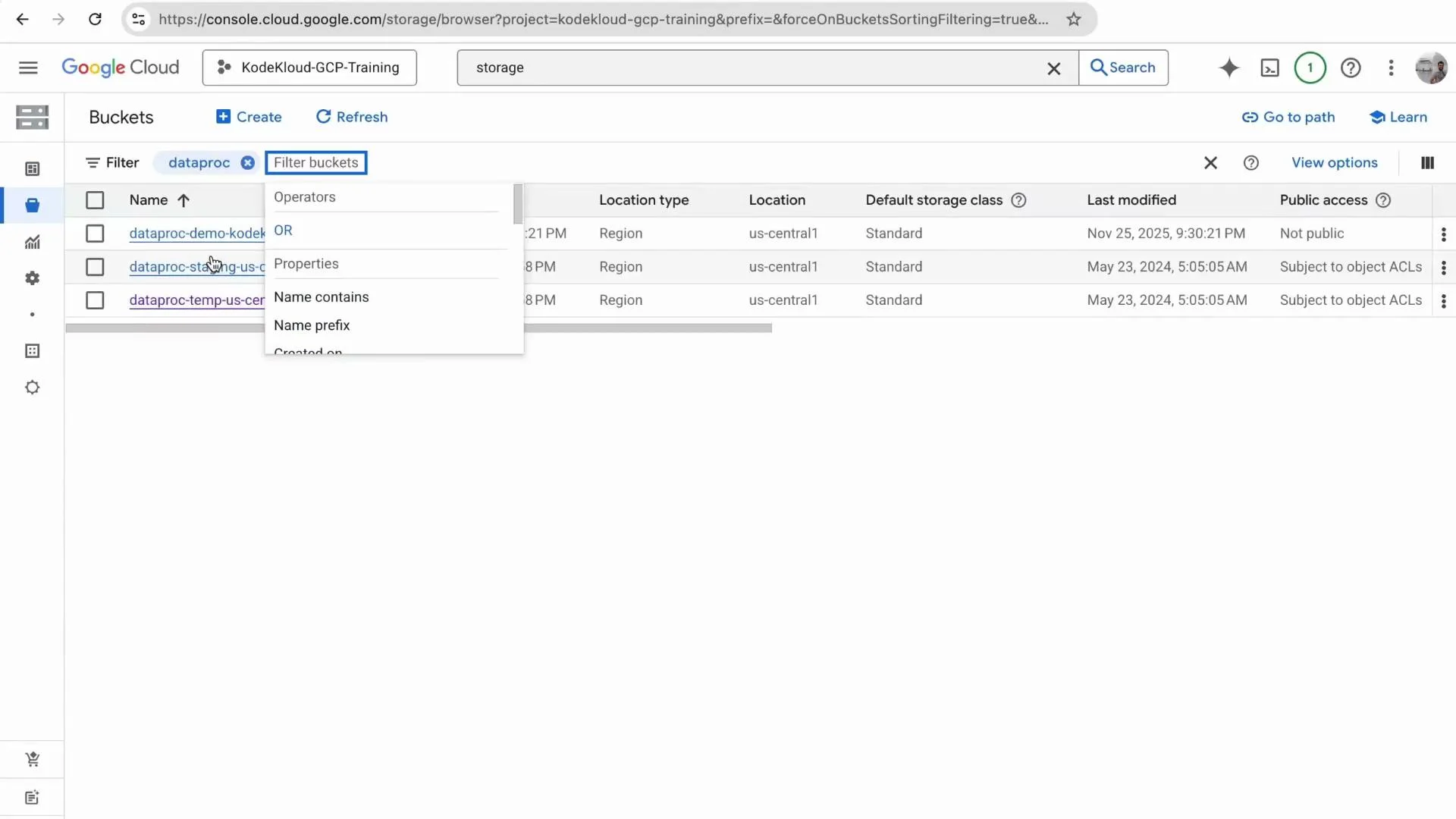
A screenshot of the Google Cloud Console Storage "Buckets" page showing several "dataproc" buckets with a filter dropdown open. Columns for location, default storage class, last modified date, and public access are visible.
Helpful file layout (example)
FileExample GCS pathPurpose
Input datags://your-bucket/orders.csvRaw CSV input for the Spark job
PySpark scriptgs://your-bucket/process_orders.pyMain job entrypoint
Job outputgs://your-bucket/output/Spark writes part-* CSV files and _SUCCESS

Create a Dataproc cluster

Open Dataproc in the GCP Console (search for “Dataproc”), go to Clusters, and click Create cluster. For this demo you can choose:
  • Standard cluster (1 master + workers) for distributed workloads.
  • Single-node cluster (master-only) to save cost for small tests.
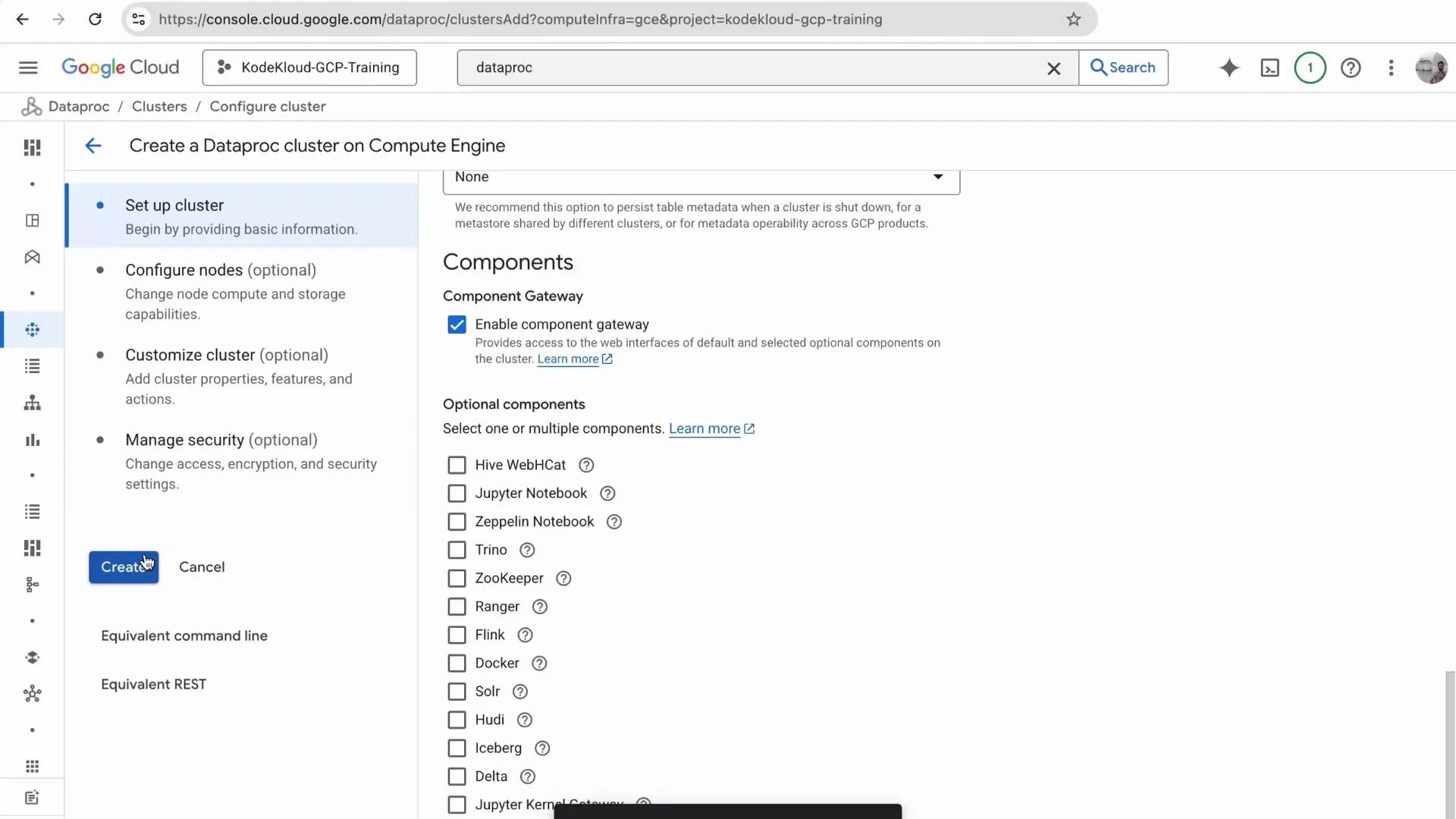
Select additional components (Hive, Jupyter, etc.) if needed and click Create. Cluster provisioning usually takes a few minutes.
A Google Cloud Console screenshot of the Dataproc "Create a Dataproc cluster on Compute Engine" setup page with the "Set up cluster" step selected. The Components pane shows "Enable component gateway" checked and a list of optional components (Jupyter, Zeppelin, Trino, etc.), with a blue "Create" button on the left.
Monitor cluster creation; when the cluster status becomes Running, open the cluster details.
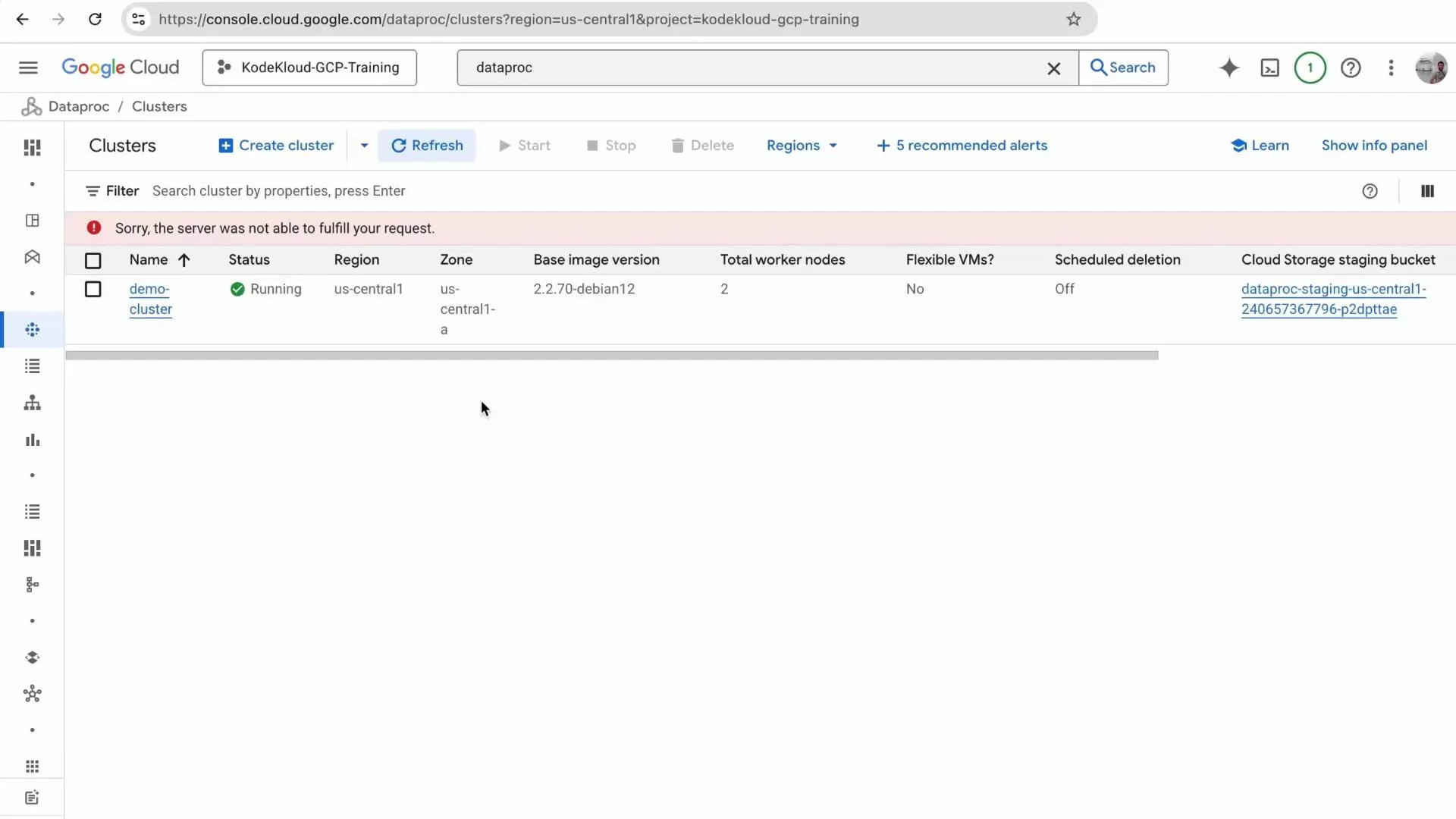
A screenshot of the Google Cloud Console Dataproc "Clusters" page. It shows one demo-cluster listed as Running in us-central1 with an error banner saying "Sorry, the server was not able to fulfill your request."

Submit the PySpark job from the Console

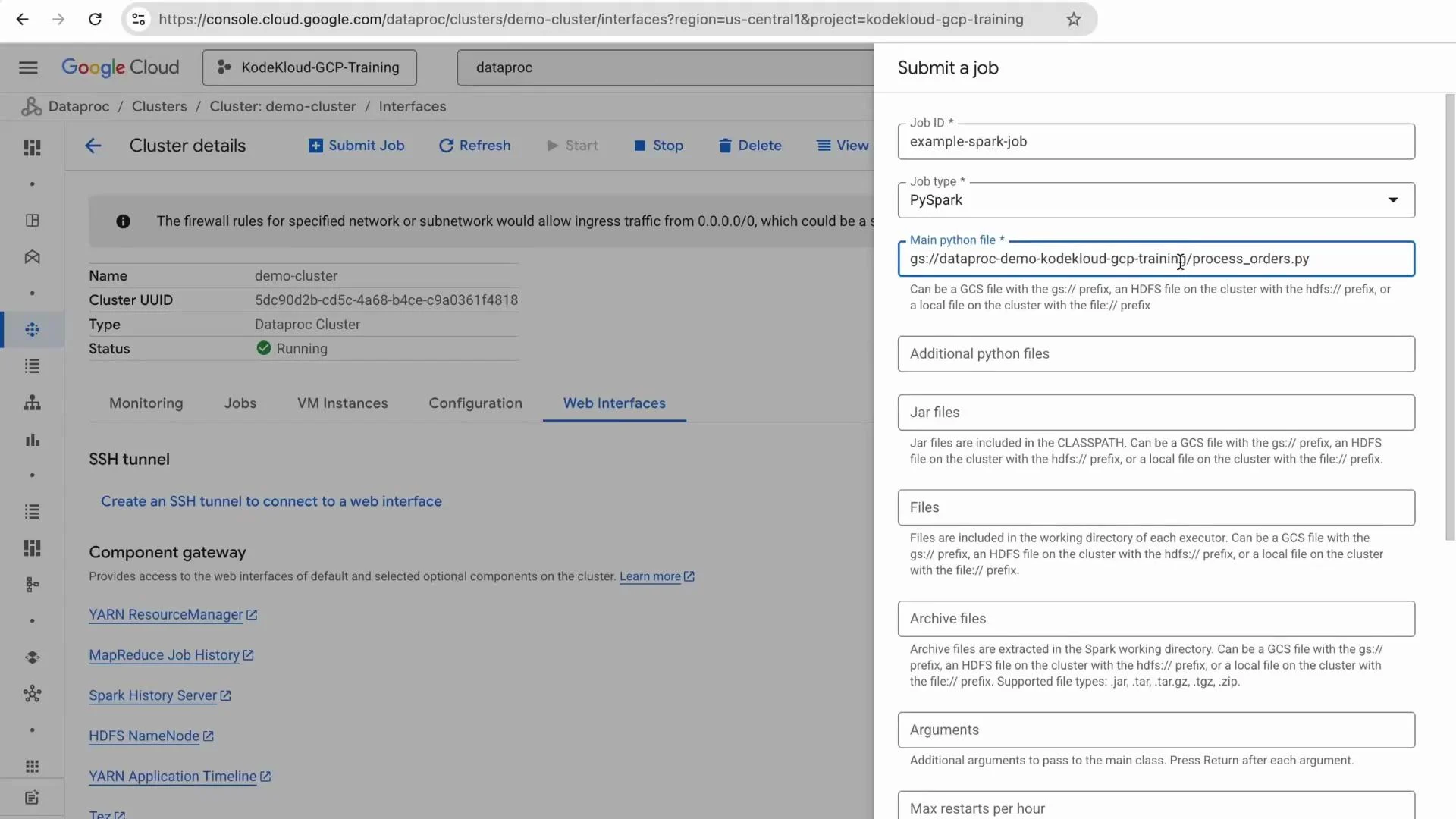
From the Dataproc cluster details page, click Submit job. Set the job type to PySpark, provide a job name (for example example-spark-job), and set the main Python file path to your uploaded script (for example gs://your-bucket/process_orders.py). Provide the two required arguments, each on its own line: Example arguments (each on a separate line):
gs://your-bucket/orders.csv
gs://your-bucket/output/
Then submit the job. The job will appear in the Jobs list; click it to view logs and status.
A screenshot of the Google Cloud Console showing Dataproc cluster details on the left and a "Submit a job" form on the right prefilled for a PySpark job (job ID and main Python file path visible). The cluster is named "demo-cluster" and the form includes fields for additional Python files, JARs, and other job options.
While the job runs you can stream logs from the job details page to troubleshoot issues.
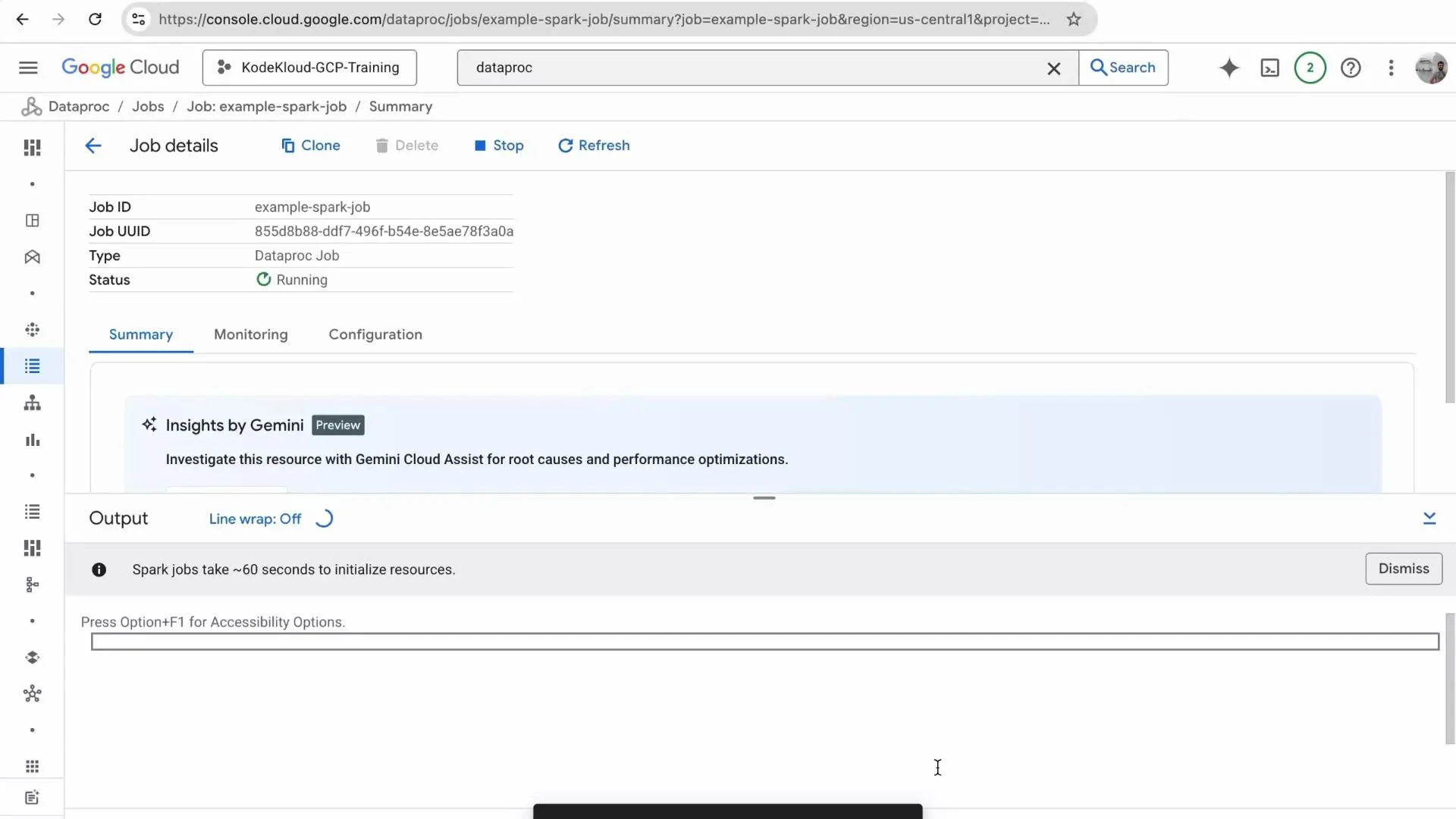
A screenshot of the Google Cloud Console showing a Dataproc job details page for "example-spark-job" with status "Running," an "Insights by Gemini" panel, and an Output area at the bottom.

Inspect the job via Spark History Server and Console

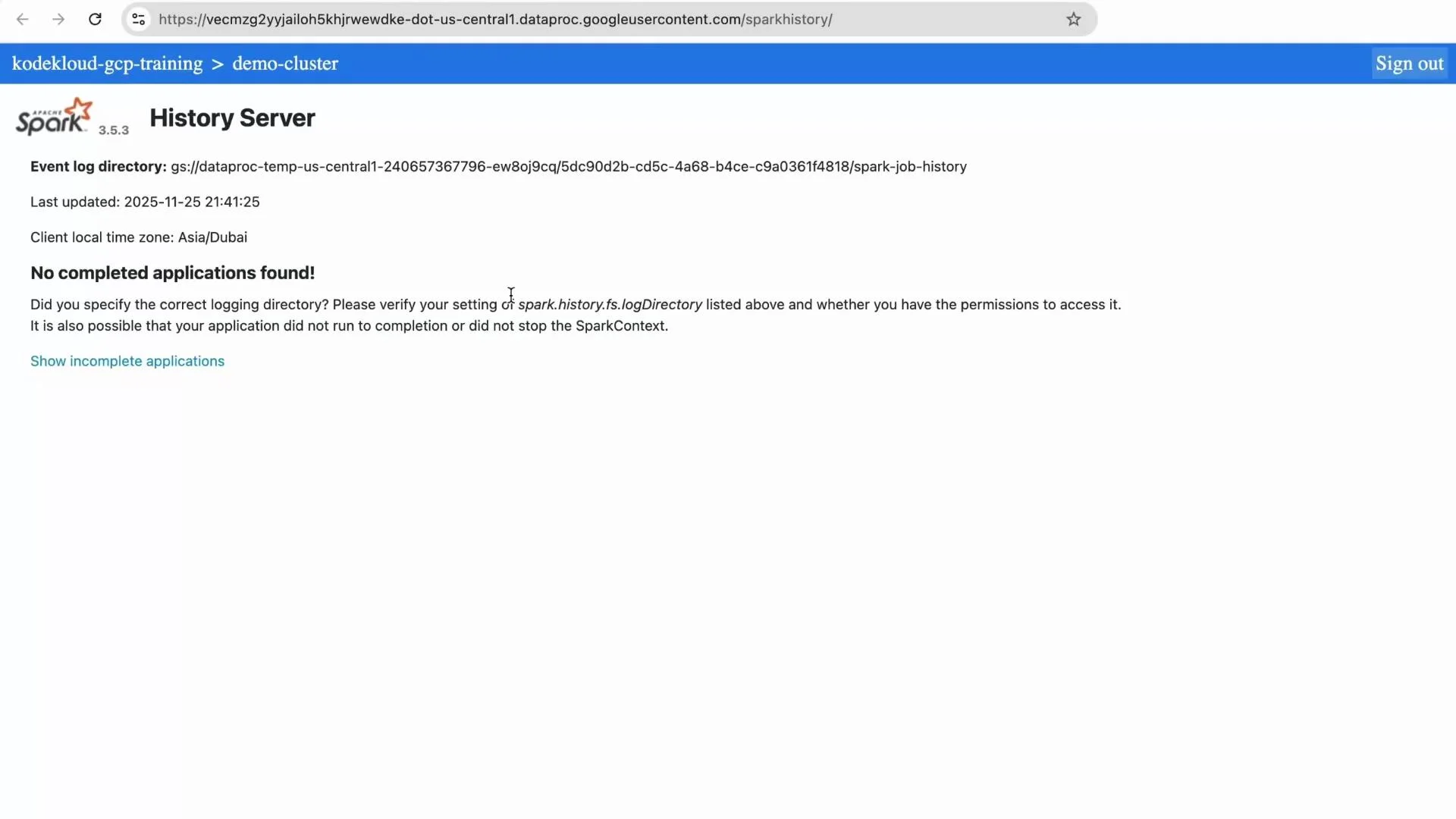
From the cluster details, open Web Interfaces and launch the Spark History Server to inspect completed applications, stages, and executors. If the job has not finished you may initially see “No completed applications found.” After completion the History Server lists the application and stages for deeper debugging and performance analysis.
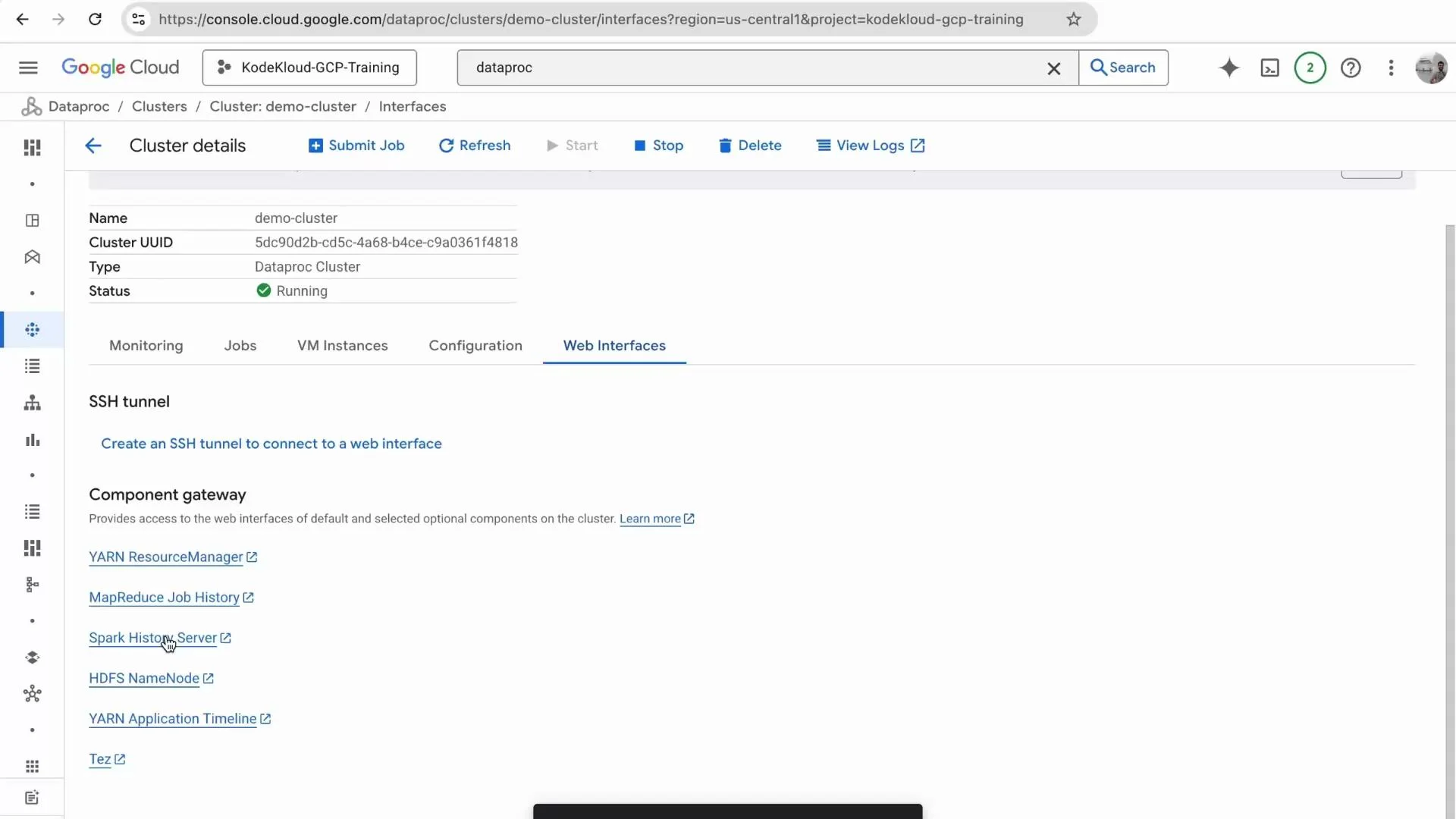
A screenshot of the Google Cloud Console showing Dataproc cluster details for a cluster named "demo-cluster" with status "Running." The Web Interfaces tab is open, listing SSH tunnel info and component gateway links like YARN ResourceManager, Spark History Server, and HDFS NameNode.
A screenshot of an Apache Spark History Server web page showing the event log directory, last updated timestamp and client time zone. The page displays a prominent "No completed applications found!" message.
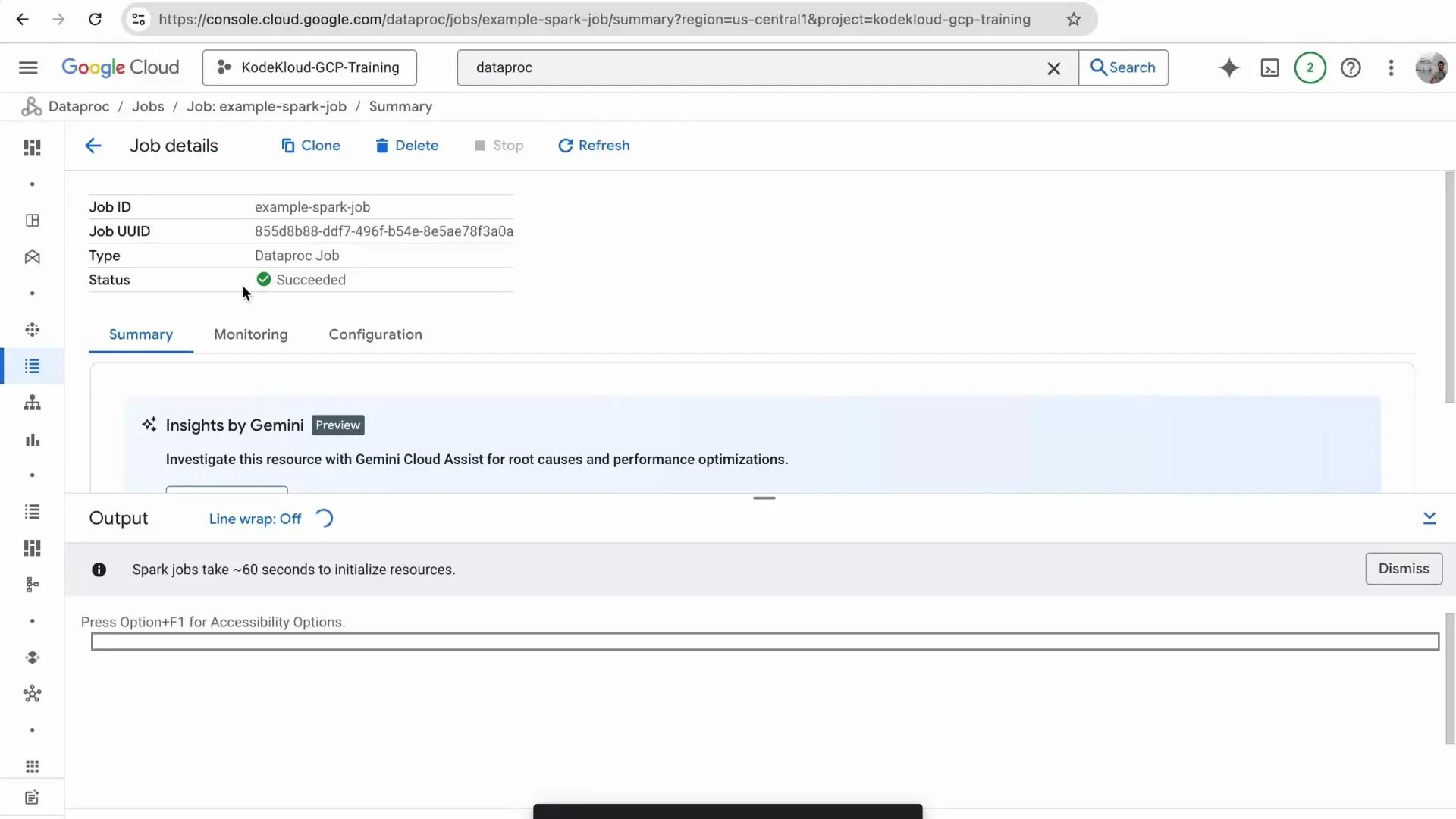
When the job completes successfully the Console shows a green Succeeded status. You can inspect logs to confirm processing details and check the output folder for result files.
A Google Cloud Console Dataproc job details page showing a Spark job named "example-spark-job" with its Job UUID and a green "Succeeded" status. The Summary tab displays an "Insights by Gemini" preview and an Output panel with a note that Spark jobs take ~60 seconds to initialize.

Note: alternatives to console submission

You can also submit Dataproc jobs using the gcloud CLI, Dataproc REST or client libraries (Python, Java), or orchestrate them via Airflow operators for production workflows. See the Dataproc docs for examples and best practices: https://cloud.google.com/dataproc/docs/reference
Cost and cleanup warning
Dataproc clusters incur compute and networking costs while running. For demos, delete or stop clusters when not in use to avoid unexpected charges. Consider using single-node clusters or autoscaling for cost savings.

Verify the output in Cloud Storage

After the job succeeds, refresh your Cloud Storage bucket. The output folder contains Spark’s CSV part files (for example part-00000-*.csv) and a _SUCCESS file indicating completed write.
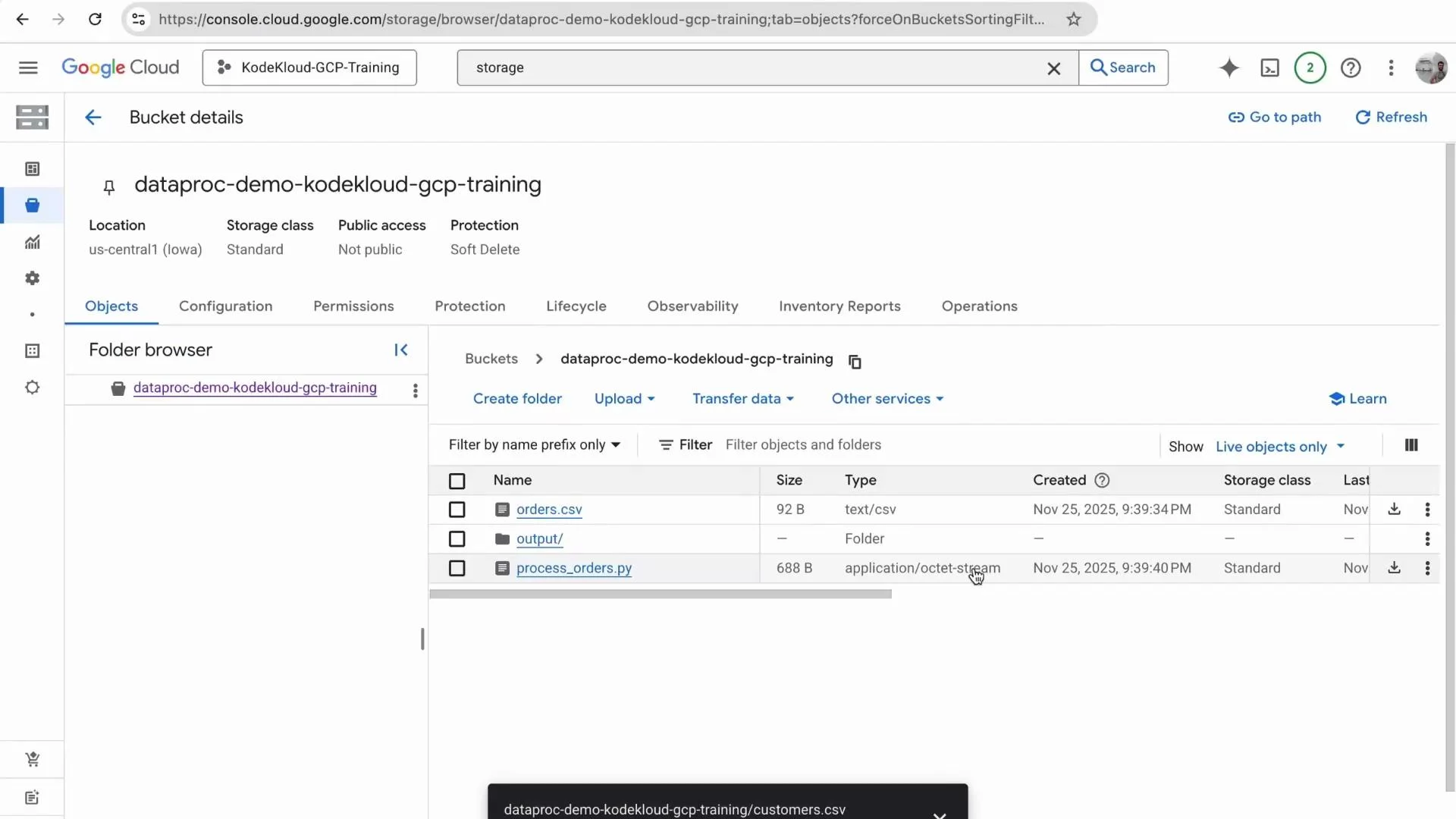
A Google Cloud Console screenshot showing the details of a Storage bucket named "dataproc-demo-kodekloud-gcp-training" with location us-central1 and Standard storage class. The objects list shows files like orders.csv, an output/ folder, and process_orders.py.

Typical production pipeline considerations

In production you’ll commonly separate storage layers (raw, processed, analytics). A typical flow:
  • Raw data ingested into a raw-data bucket.
  • ETL/processing Spark jobs write to a processed bucket.
  • Final aggregated results loaded into BigQuery or an analytics store for reporting.
Common production patterns include:
AreaRecommendation
OrchestrationUse Airflow or Cloud Composer to schedule and retry jobs
MonitoringSend Dataproc/Cloud Logging logs to a central monitoring/alerting system
Storage layoutUse separate buckets or prefixes for raw, processed, and analytics layers
PermissionsUse least-privilege IAM roles for job/service accounts
Links and references

Closing

This walkthrough showed how to create a bucket, prepare data and a PySpark job, spin up a Dataproc cluster, submit a job from the Console, inspect it, and verify results in Cloud Storage. Thanks for following along — try extending the script to write Parquet output or to load results into BigQuery for analytics.

Watch Video