This demo shows how to create a topic and subscription in the Google Cloud Console, publish JSON messages with attributes using Cloud Shell and the gcloud CLI, and pull those messages from a pull subscription. It covers best practices for labels, retention, and message attributes so you can organize and filter messages efficiently.

1. Create a Topic in the GCP Console

  1. Open the GCP Console and search for “Pub/Sub”.
  2. From the Pub/Sub home page, click Create topic and choose a meaningful Topic ID (for this demo we use kodekloud-demo-topic). Keep defaults unless you need a schema, ingestion setting, or export configuration.
  3. Scroll down and click Create. Pub/Sub manages the underlying infrastructure for you.
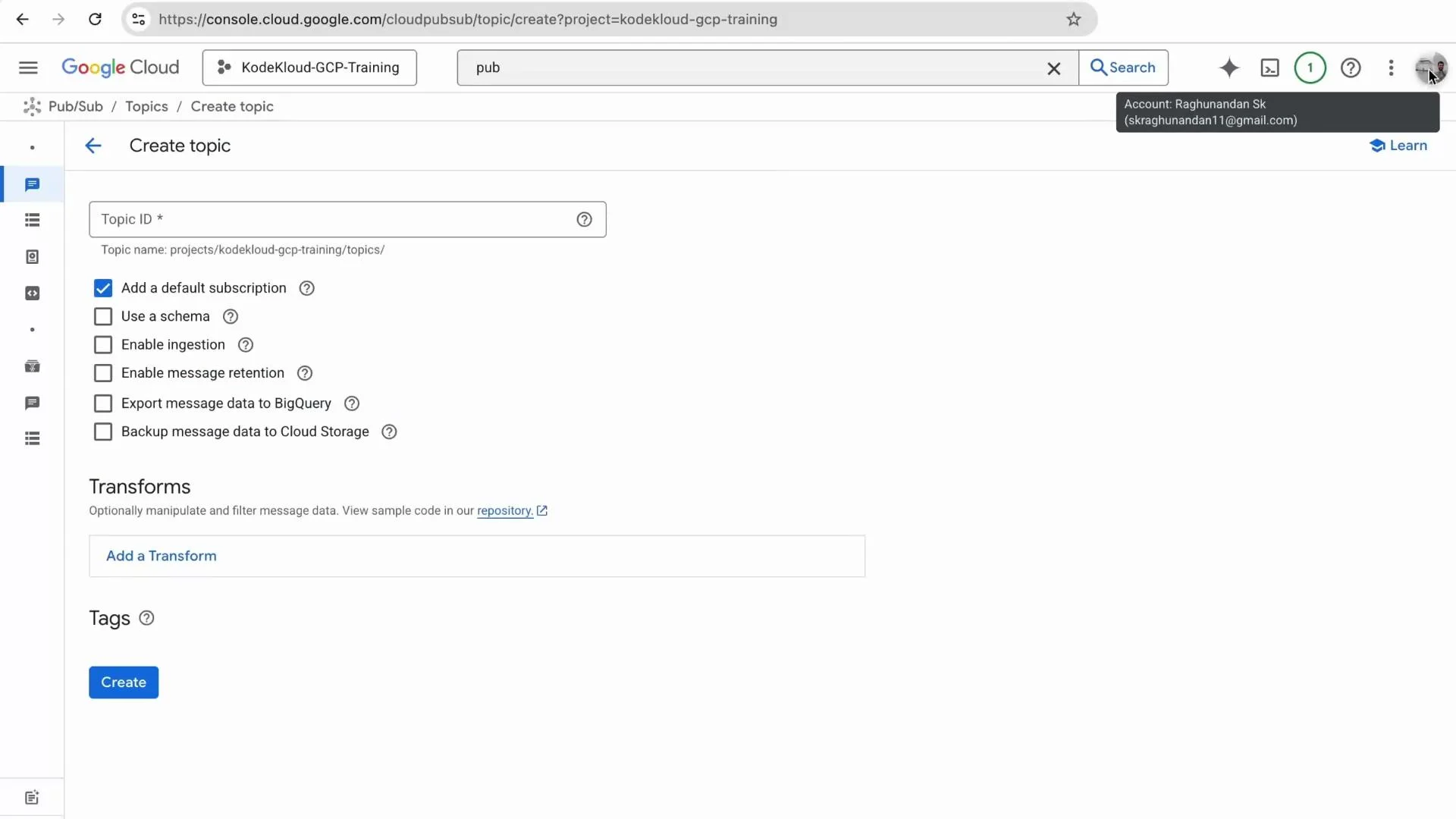
A screenshot of the Google Cloud Console Pub/Sub "Create topic" page showing a Topic ID field and various options (Add a default subscription, use a schema, enable ingestion, export to BigQuery, etc.). A blue "Create" button and a section for Transforms are visible near the bottom.
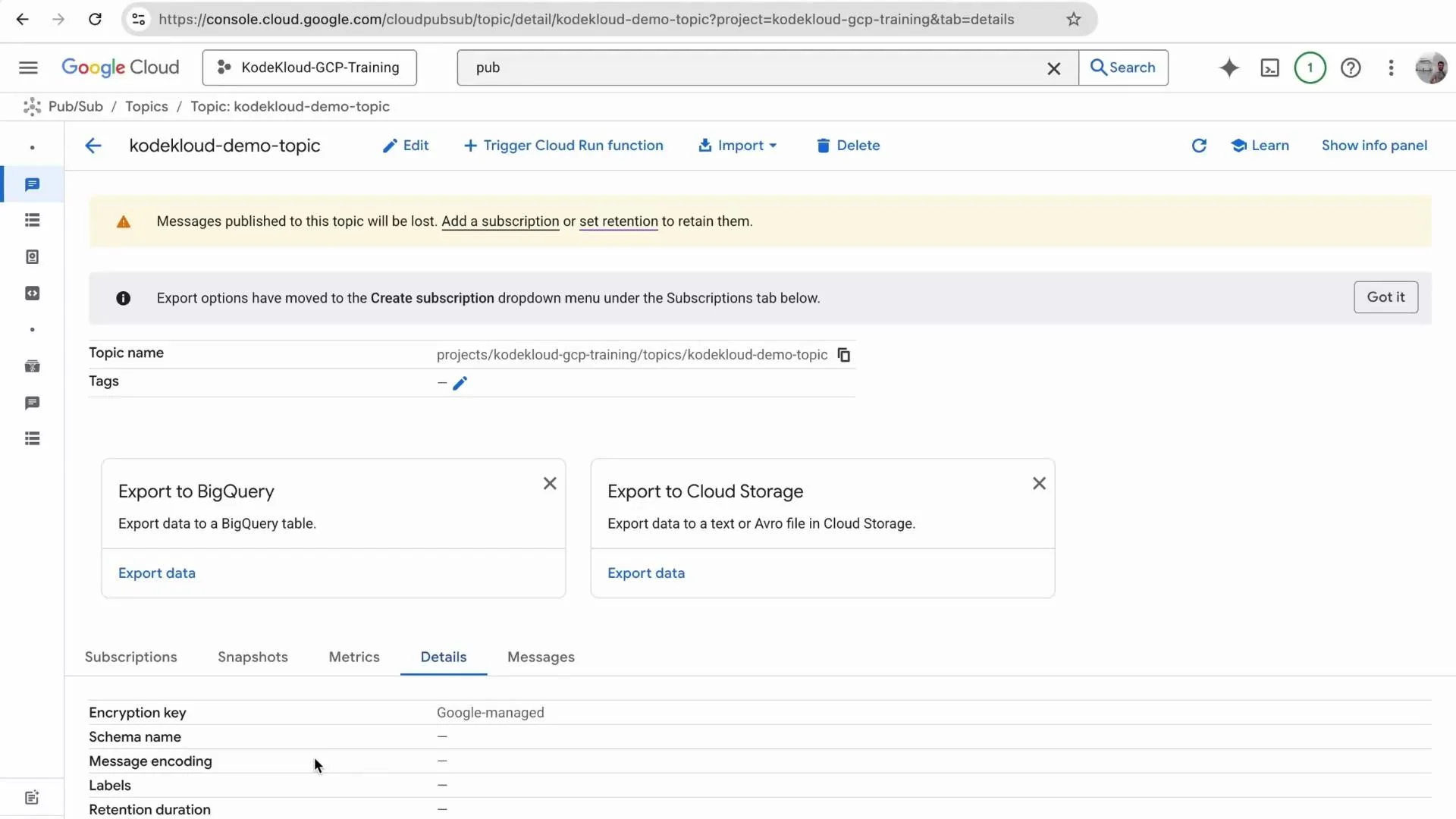
After creating the topic, open it to review or edit configuration such as schema, ingestion, or export options. Under Details you can view metadata and configuration parameters. Best practice: add labels when creating topics so you can organize, search, and filter resources later.
Screenshot of the Google Cloud Console showing Pub/Sub topic "kodekloud-demo-topic" details with a warning that messages will be lost unless a subscription or retention is set. Visible options include exporting to BigQuery or Cloud Storage and topic metadata/tabs.

2. Create a Subscription

From the left-hand menu click Subscriptions → Create subscription.
  • Subscription ID: e.g. kodekloud-pull-sub
  • Topic: kodekloud-demo-topic
  • Delivery type: Pull (this demo uses Pull)
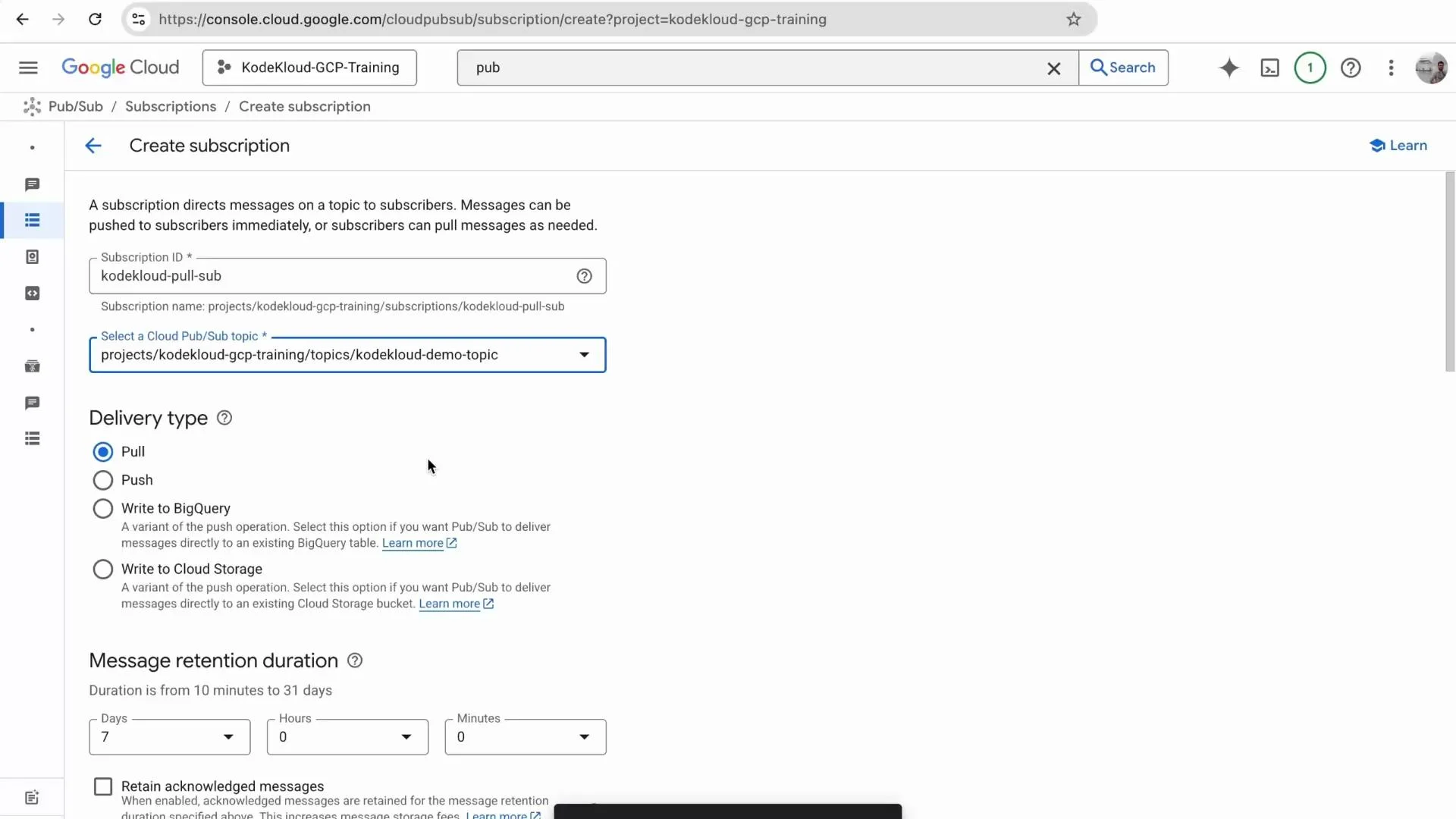
Retention: by default Pub/Sub retains unacknowledged messages for up to 7 days. Retaining acknowledged messages must be explicitly enabled. The retention duration is configurable. A pull subscription requires your application to request messages (good for batch or controlled processing). Push subscriptions forward messages to an HTTP(S) endpoint.
A screenshot of the Google Cloud Console showing the Pub/Sub "Create subscription" page. The Subscription ID is "kodekloud-pull-sub" with the topic set to "kodekloud-demo-topic" and the delivery type selected as "Pull."
Pull subscriptions require the client to explicitly request messages. Push subscriptions send messages to a configured endpoint. Choose the mode that suits your processing pattern.

3. Publish Messages with Cloud Shell and gcloud

Open Cloud Shell and set environment variables:
export PROJECT_ID="kodekloud-gcp-training"
export TOPIC_ID="kodekloud-demo-topic"
export MESSAGE_ID_PREFIX="kodekloud-message"
gcloud config set project "$PROJECT_ID"
Create a small Bash script publish_demo.sh to publish three JSON messages with attributes:
#!/bin/bash
for i in 1 2 3; do
  gcloud pubsub topics publish "$TOPIC_ID" \
    --message "{\"id\":\"${MESSAGE_ID_PREFIX}${i}\", \"status\": \"created\", \"source\": \"kodekloud\"}" \
    --attribute env=demo \
    --attribute team=kodekloud
done
Make the script executable and run it:
bash publish_demo.sh
Example concise output (each publish returns a message ID):
messageIds:
- '16406205265696513'
messageIds:
- '16406362145303396'
messageIds:
- '16406178636819281'
Note: Attributes are small key/value metadata attached to a message. They are useful for filtering and routing, but they consume part of the message size quota—design attributes accordingly.

4. Pull Messages from the Subscription (Console)

  1. In the Pub/Sub Console go to Subscriptions → select kodekloud-pull-sub.
  2. Open Messages → Pull to trigger a pull request and view messages.
Pulled message payloads will look like the JSON bodies below:
{"id":"kodekloud-message-1","status":"created","source":"kodekloud"}
{"id":"kodekloud-message-2","status":"created","source":"kodekloud"}
{"id":"kodekloud-message-3","status":"created","source":"kodekloud"}
The UI displays message attributes as well (for example env: demo, team: kodekloud). You can use these attributes with subscription filters or in your subscriber logic to process only relevant messages. If you update the script to change attributes (for example team=kodekloudteam=raghu) and publish again, the new attribute values will appear when pulling messages. This demonstrates how attributes enable flexible metadata-based routing for multiple producers sharing a topic.

Quick Reference

ResourcePurposeExample CLI
TopicMessage hub to which publishers send messagesgcloud pubsub topics create kodekloud-demo-topic
SubscriptionConsumer view of a topic (Pull or Push)gcloud pubsub subscriptions create kodekloud-pull-sub --topic=kodekloud-demo-topic --ack-deadline=10
Message attributesKey/value metadata for filtering/routing--attribute env=demo
For full Pub/Sub concepts and best practices, see the official documentation: Cloud Pub/Sub documentation.

Summary

  • Create a topic in the GCP Console; add labels for easier organization.
  • Create a subscription (choose Pull or Push based on your consumer architecture).
  • Publish messages using the gcloud CLI or client libraries; include attributes for metadata and filtering.
  • Pull messages from pull subscriptions (console, client libraries, or gcloud).
  • Use subscription filters and message attributes to route and process only relevant messages.
That concludes this demo: creating a topic, publishing messages, and pulling them from a subscription.

Watch Video