Hello everyone — welcome back. In this lesson/article we dive into the Google Cloud SDK and its command-line interface, the gcloud CLI. This guide covers the core SDK components you’ll use most often, how to configure gcloud for day-to-day workflows, and example commands to get started quickly. Key topics:
  • Google Cloud SDK components and when to use them
  • gcloud authentication and configuration best practices
  • Example commands for common tasks
  • Tips for automation and security
Why use gcloud? The CLI gives speed, repeatability, and automation — ideal for DevOps, data engineering, CI/CD pipelines, and interactive administration. Components overview
ComponentPurposeExample command
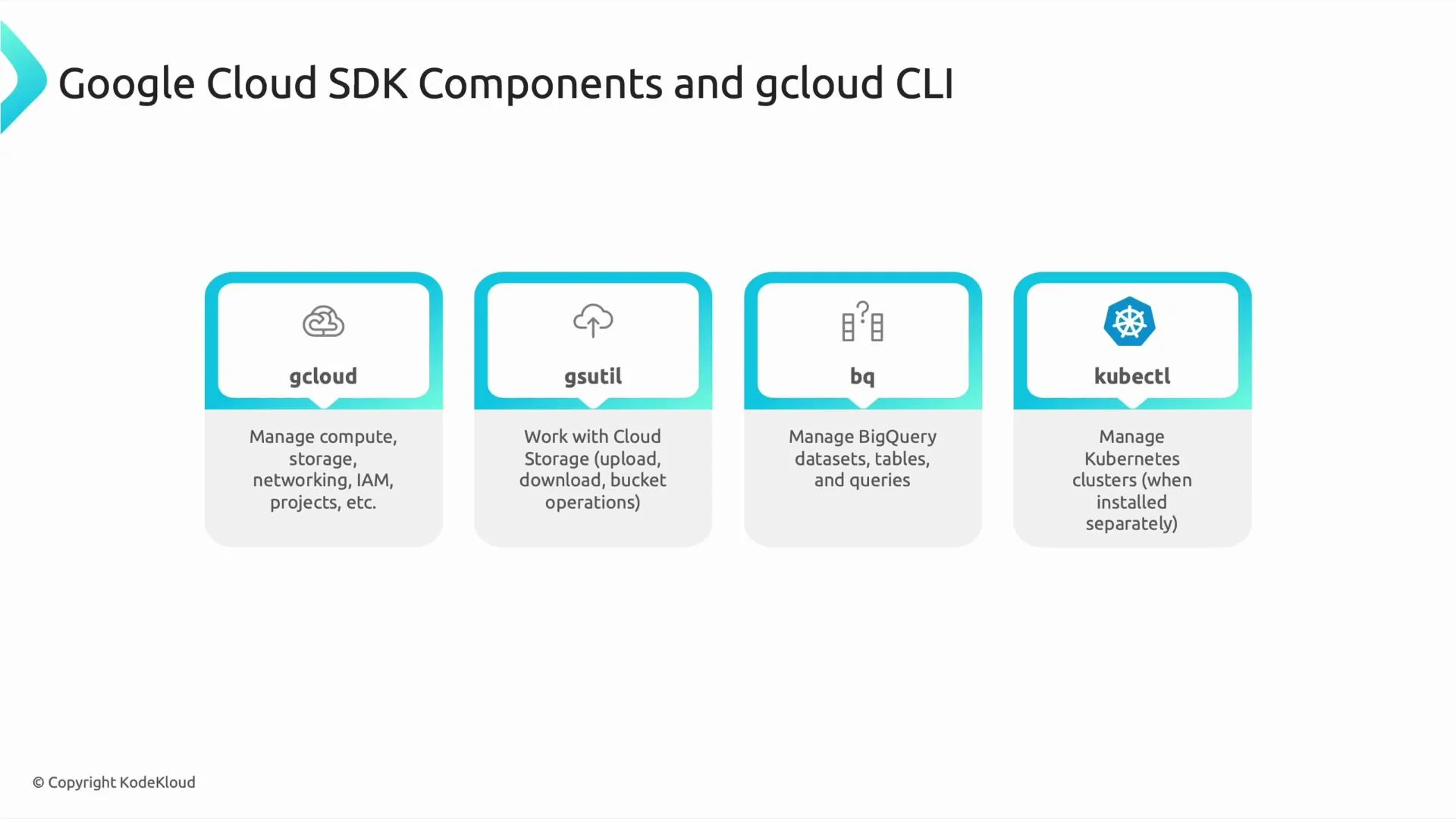
gcloudPrimary CLI for managing Compute, Storage, Networking, IAM, Projects and other GCP servicesgcloud compute instances create vm-1
gsutilManage objects and buckets in Google Cloud Storage (GCS) — similar to AWS S3 toolsgsutil cp file.txt gs://my-bucket/
bqBigQuery command-line tool for running queries and managing datasetsbq query --use_legacy_sql=false 'SELECT COUNT(*) FROM mydataset.mytable'
kubectlKubernetes CLI for managing clusters (including GKE) and workloads. Often installed via gcloud or an OS package managerkubectl get pods
A slide titled "Google Cloud SDK Components and gcloud CLI" showing four tool cards: gcloud, gsutil, bq, and kubectl. Each card has an icon and a short description of the tool's purpose (manage compute/storage, Cloud Storage, BigQuery, and Kubernetes respectively).
Core usage: authenticate and configure gcloud Before running most gcloud commands you typically:
  1. Authenticate your user or service account
  2. Set the default project
  3. Optionally set default compute region/zone
Authentication
  • For interactive use, run:
gcloud auth login
This opens a browser to sign in and stores credentials locally.
  • For headless or scripted environments:
gcloud auth login --no-launch-browser
  • For service accounts (recommended for automation/CI):
gcloud auth activate-service-account --key-file=KEY.json
  • To obtain Application Default Credentials (for local code using Google client libraries):
gcloud auth application-default login
Protect service account keys. Use Workload Identity (GKE) or short-lived credentials in CI when possible. Avoid committing KEY.json into source control.
Set the default project and region/zone
  • Set your active project so you don’t need --project on every command:
gcloud config set project PROJECT_ID
  • Optionally set a default compute region or zone:
gcloud config set compute/region us-central1
gcloud config set compute/zone us-central1-a
These configurations tell gcloud which account and project to use and provide sensible defaults for resource creation. Example: authenticate and configure, then create resources
# Authenticate and set defaults
gcloud auth login
gcloud config set project my-project-id
gcloud config set compute/region us-central1

# Create a VM (defaults used where applicable)
gcloud compute instances create vm-1

# Create a Cloud SQL instance (additional flags usually required in production)
gcloud sql instances create my-sql
Note: Some commands require explicit flags (e.g., --zone, --machine-type, --tier) if defaults are not set or if the action needs them. Configuration management and multi-project workflows
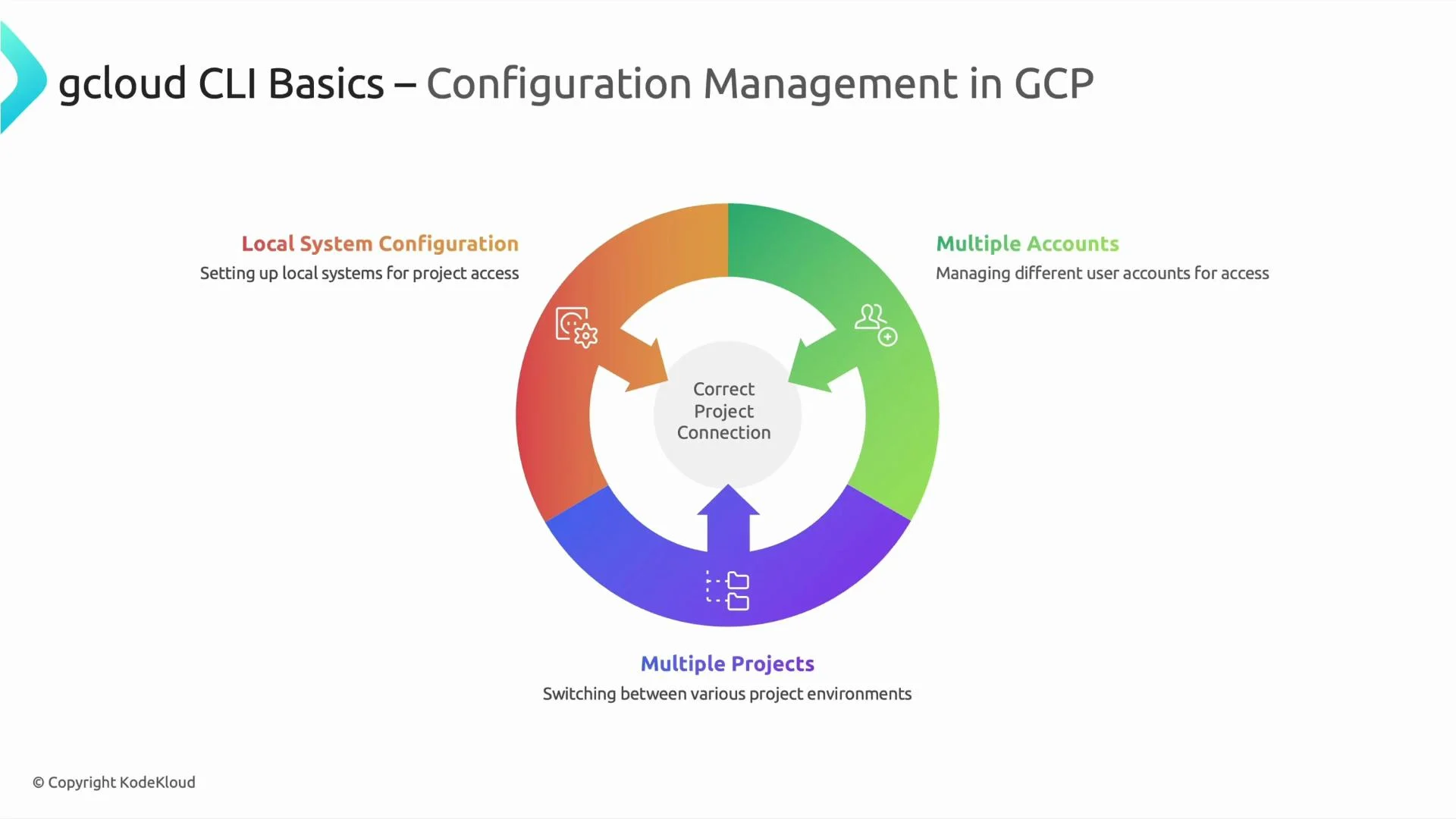
  • Keep environments organized to avoid accidental deployments to the wrong project (dev, staging, prod).
  • gcloud supports multiple named configurations that make switching contexts simple.
Useful configuration commands
CommandPurpose
gcloud auth listList authenticated accounts and show the active account
gcloud config listShow current configuration values (project, region, zone, etc.)
gcloud config configurations listList named configurations
gcloud config configurations activate my-configActivate a named configuration replacing my-config with your config name
gcloud config set project <PROJECT_ID>Set the active project for the current configuration
Use these commands to script environment setup or to switch contexts in interactive sessions.
Use the CLI for quick tasks, automation scripts, and CI/CD pipelines. For long-lived, reproducible infrastructure, combine gcloud with infrastructure-as-code tools like Terraform.
When to use gcloud vs. other tools
  • Use gcloud for quick administration, ad-hoc scripting, or when you need direct control for a single project or operation.
  • For repeatable, versioned infrastructure deployments across environments, prefer IaC tools (Terraform, Deployment Manager) and integrate gcloud commands into CI jobs when needed.
  • For storage operations, use gsutil for bulk object transfers; for data warehouse operations, use bq for BigQuery tasks; for Kubernetes workloads, use kubectl or integrate with gcloud container commands for GKE.
Further reading and references
A presentation slide titled "gcloud CLI Basics – Configuration Management in GCP" showing a colorful circular diagram. The diagram highlights Local System Configuration, Multiple Accounts, and Multiple Projects revolving around a central "Correct Project Connection."
Try these commands in a hands-on session to reinforce learning. Thanks for reading.

Watch Video