

- Universal object storage: stores structured, semi-structured, and unstructured data — CSV, JSON, images, video, binary blobs, and more.
- Common use cases: backups and archival, media distribution, analytics, ML training datasets, and data lake storage.
- Pricing model: pay-as-you-go with no upfront commitments — suitable for both experimentation and production workloads.
- Global access and low-latency delivery: objects can be accessed securely from around the world; latency depends on the chosen location.
- Deep integrations: native connectors to BigQuery, Dataflow, Cloud Functions, and Vertex AI streamline end-to-end data pipelines.
-
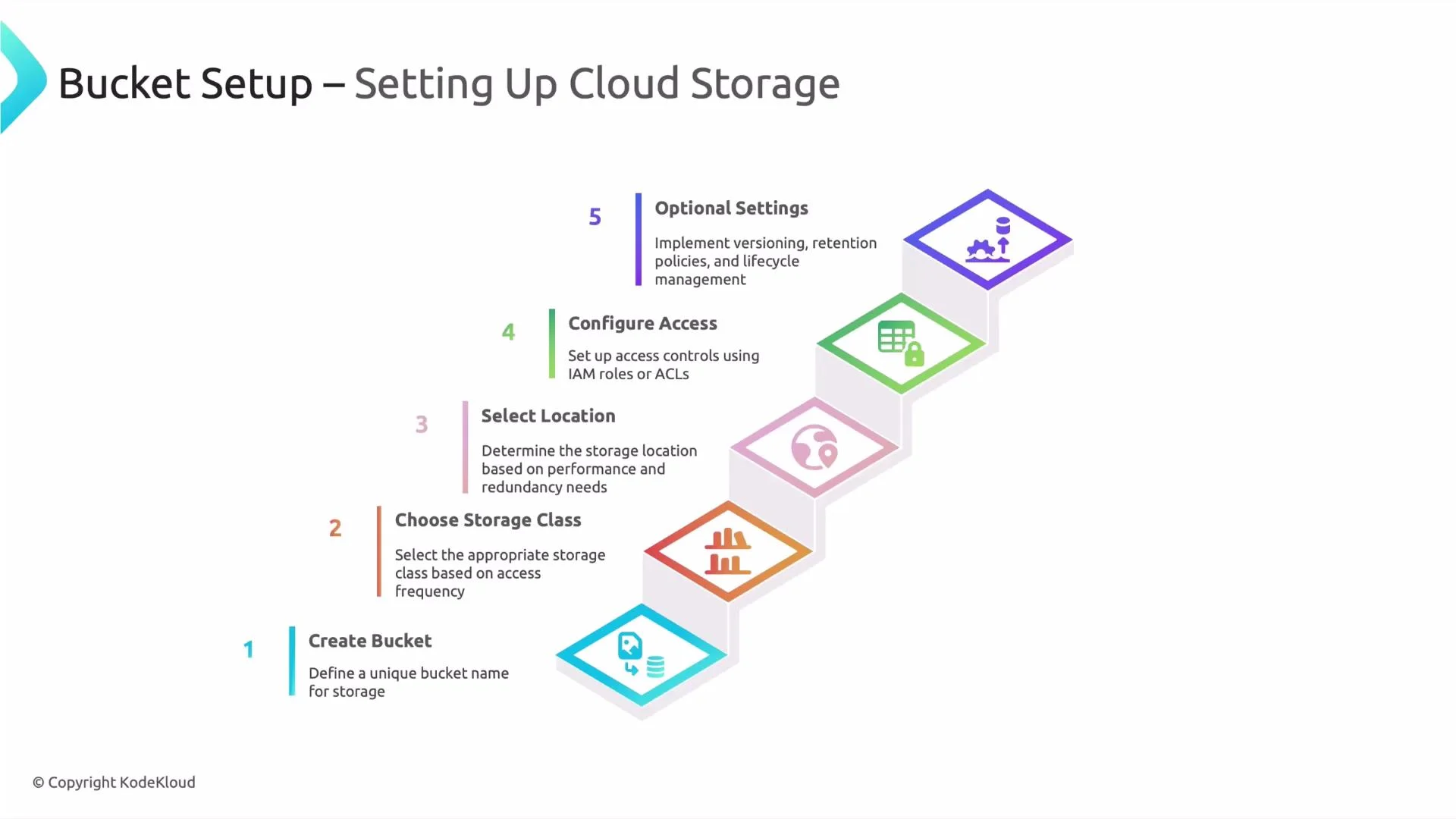
Bucket name (global and immutable)
- Rules to follow:
- 3–63 characters
- Lowercase letters, numbers, dashes, and dots allowed
- Must start and end with a letter or number
- No uppercase letters or underscores
- Cannot be formatted like an IP address
Recommended pattern example:Use a predictable naming convention (for example,project-environment-region-purpose) so it’s easier to manage and discover buckets across teams.myproject-prod-us-central1-raw— indicates project, environment, location, and purpose.
- Rules to follow:
-
Storage class — pick based on access patterns and cost
- Storage class affects storage pricing and retrieval characteristics. Use the following decision guide.
-
Location (region, dual-region, multi-region)
- Choose based on latency, redundancy, and compliance requirements. Examples:
- Region:
us-central1— data stored in a single region - Dual-region: two specific regions for redundancy
- Multi-region: wide geographic redundancy for global access
- Region:
- Location affects where your data is physically stored and can change cost and performance.
- Choose based on latency, redundancy, and compliance requirements. Examples:
-
Access control
- Use Cloud IAM (recommended) for fine-grained, auditable permissions.
- Legacy ACLs still exist but are discouraged; IAM integrates with organization policies and is easier to manage at scale.
-
Optional settings to enforce lifecycle and governance
- Object versioning: retain previous versions for recovery from accidental deletes or overwrites.
- Retention policies: lock data for a minimum retention period.
- Lifecycle rules: automatically transition or delete objects (for example, move objects from Standard to Coldline after 30 days).
- Customer-Managed Encryption Keys (CMEK): use Cloud KMS when you need to control key rotation and ownership.
- Replace placeholders with your project, bucket name, and location:
-
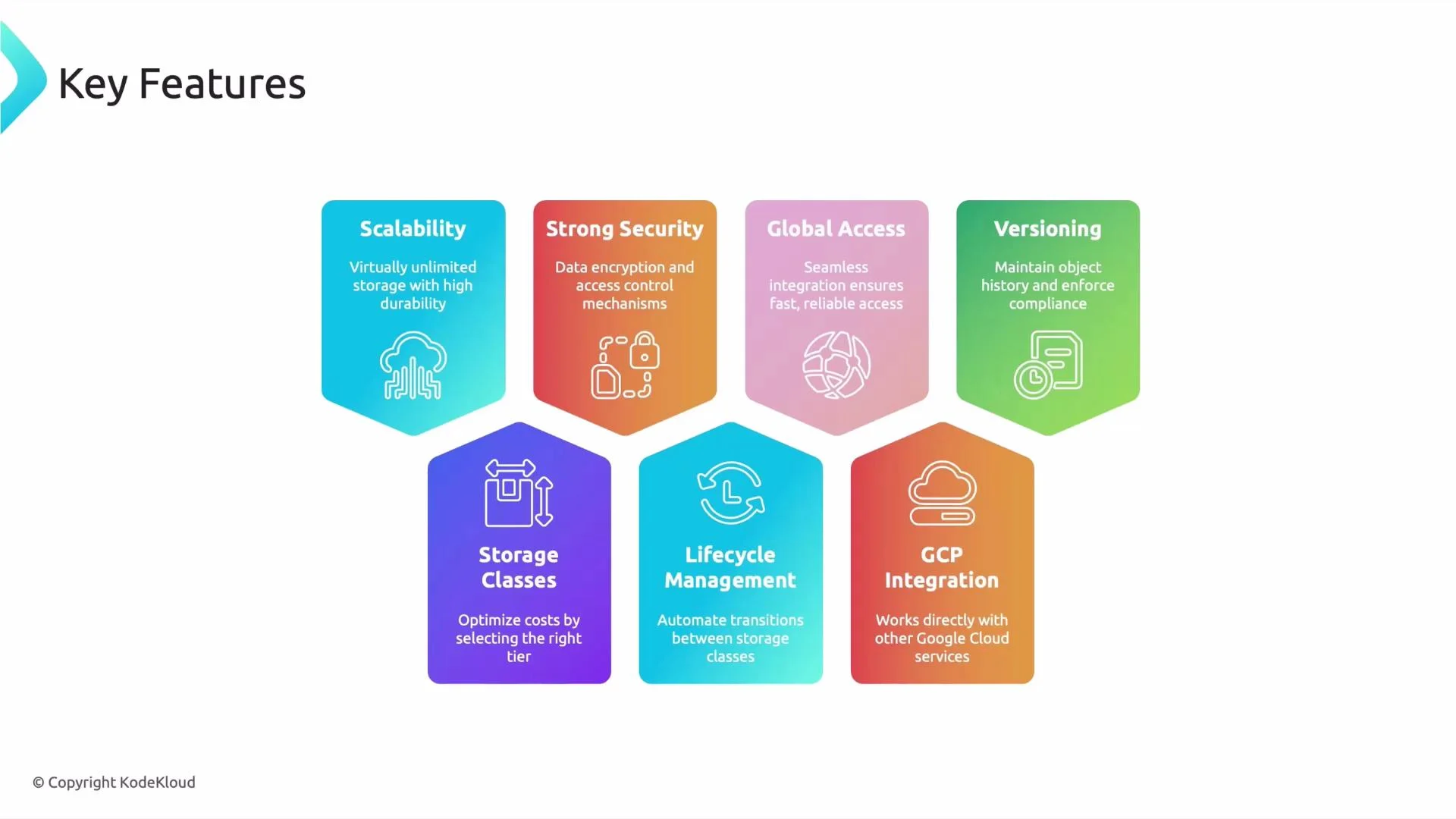
Scalability and durability
- GCS automatically scales to petabytes with high durability and SLA-backed availability. You don’t provision storage nodes — Google manages the infrastructure.
-
Security and encryption
- Data is encrypted in transit (TLS) and at rest by default.
- Integrates with Cloud IAM for access control and Cloud KMS for CMEK when you need to manage encryption keys.
-
Global access and performance
- Choose the right location type to balance cost, latency, and redundancy for your application.
-
Versioning and data protection
- Object versioning preserves historical versions for accidental deletion recovery and auditability.
-
Storage classes and cost optimization
- Multiple storage classes let you align cost to access frequency. Combine storage classes with lifecycle rules to automate cost reductions over time.
-
Lifecycle management
- Define lifecycle rules to transition objects across storage classes (Standard → Coldline → Archive) or to delete objects automatically.
-
GCP integrations
- GCS integrates natively with BigQuery, Dataflow, Cloud Functions, Vertex AI, and other services to simplify data pipelines and ML workflows.
- If you’re following along, try creating a bucket in the Console or with the gcloud example above, enable versioning, and add a lifecycle rule to transition objects after 30 days.
- Useful docs and references: