

- Create a custom IAM role with specific Cloud Storage read permissions.
- Create a service account and attach the custom role.
- Generate and download a service account key (JSON) for external use.
- Verify access from Cloud Shell or a local client.
This guide demonstrates the Console workflow and provides equivalent
gcloud commands so you can automate or repeat the steps. Replace PROJECT_ID, ROLE_ID, SA_NAME, SA_EMAIL, BUCKET, and OBJECT with your actual values.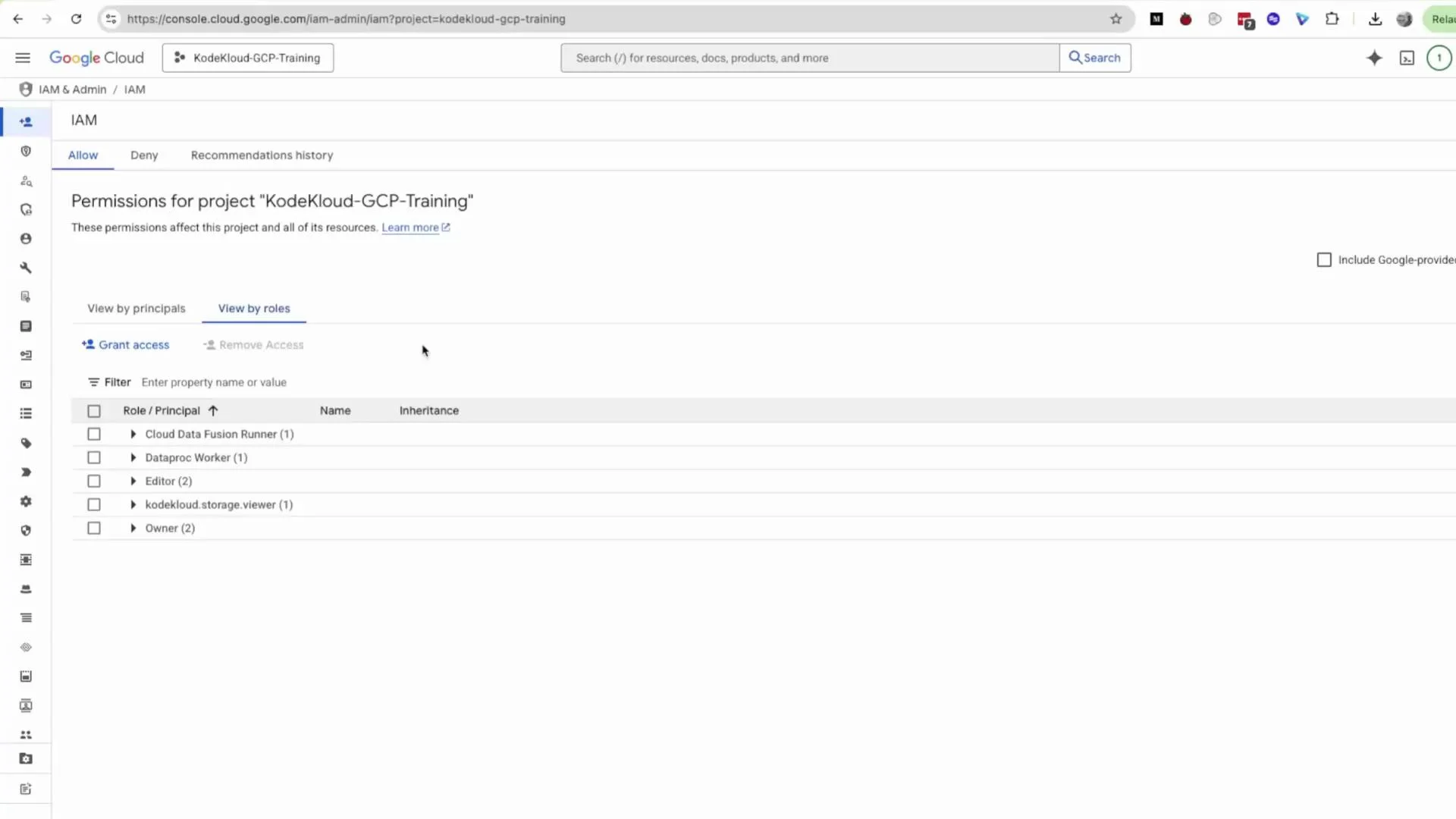
1. Create a custom IAM role (Console)
- In the left-hand panel click Roles, then click Create Role.
- Enter a descriptive Title (example:
KodeKloudStorageViewer), Description (example:KodeKloudCustomRole for viewing storage bucket and object), and an ID (lowercase, URL-safe string such askodekloudstoragerviewer1) — the console may suggest an ID automatically. - Choose the stage (e.g., General Availability) and proceed to add permissions.
Search for each permission in the permissions selector and click Add for each.
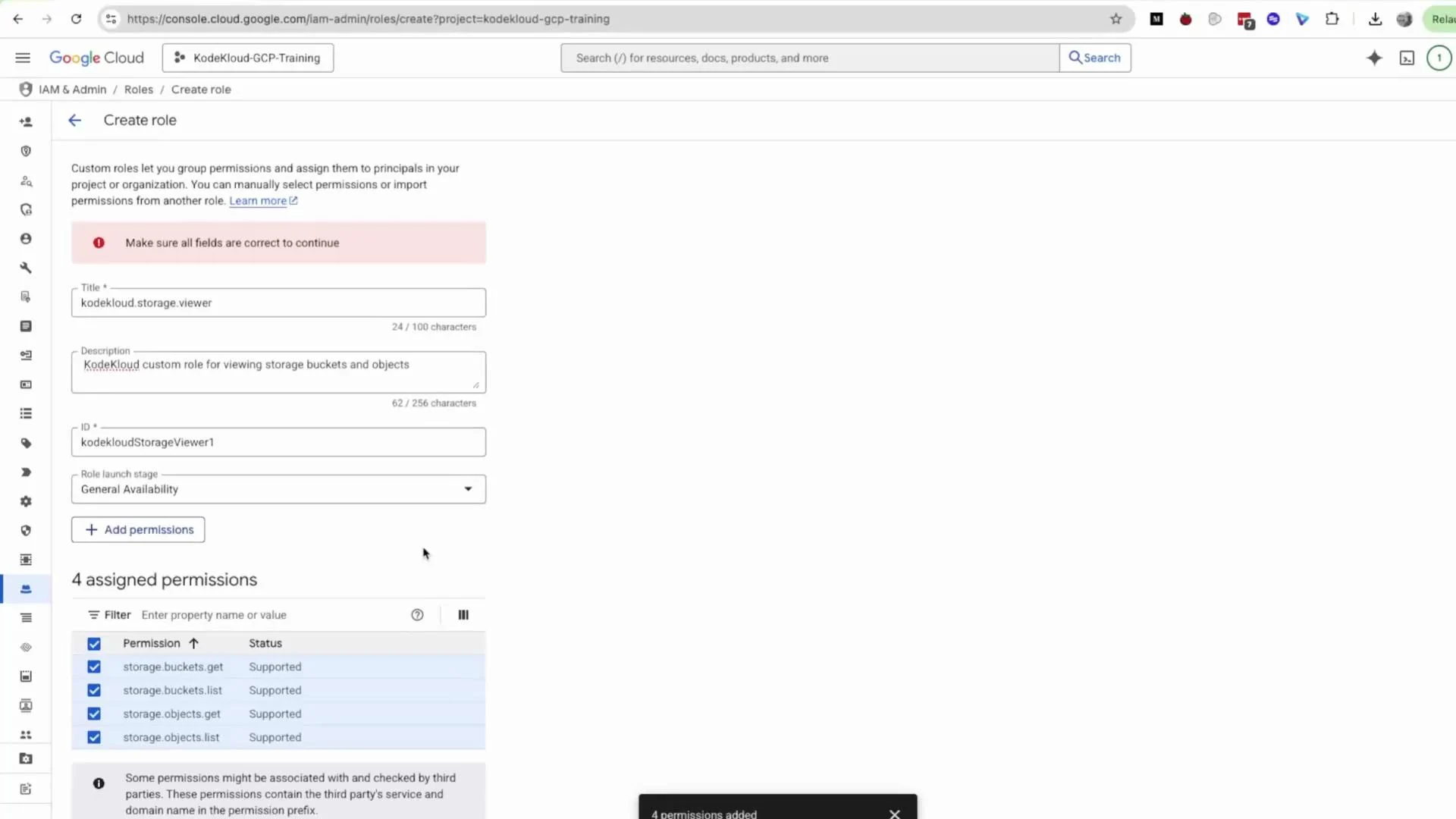
storage.objects.create, storage.objects.delete, or storage.buckets.create as needed, or use a predefined role such as Storage Object Viewer / Storage Object Admin.
After adding permissions, click Create. If you previously created and deleted a similar role you may see multiple entries; ensure you pick the enabled role and use a unique ID when creating new roles.
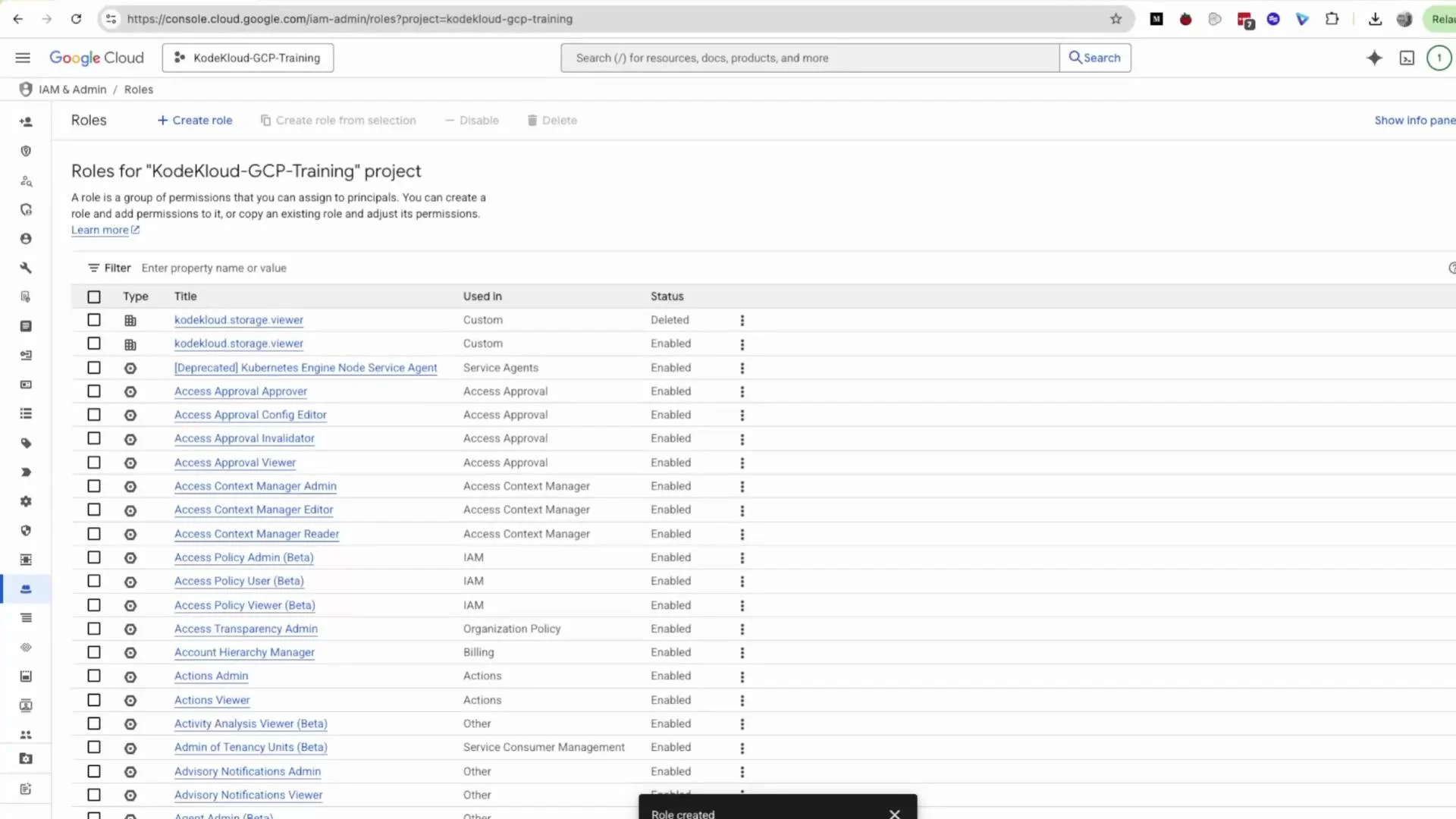
gcloud (example)
2. Attach the role to a user or service account
You can attach the custom role to a user via IAM -> Grant Access, or assign it to a service account. This demo creates a service account and assigns the custom role during creation.- In the side panel select Service Accounts and click Create Service Account.
- Provide a Name (example:
kodekloud-test-sa) — the Service account ID is auto-generated and editable — add a description, then click Create and Continue. - On the Permissions step, search for your custom role (e.g.,
kodekloud.storage.vieweror your custom role ID) and assign it. If a role appears deleted or disabled you may get an error such as “Failed to add project roles” — choose the enabled version.
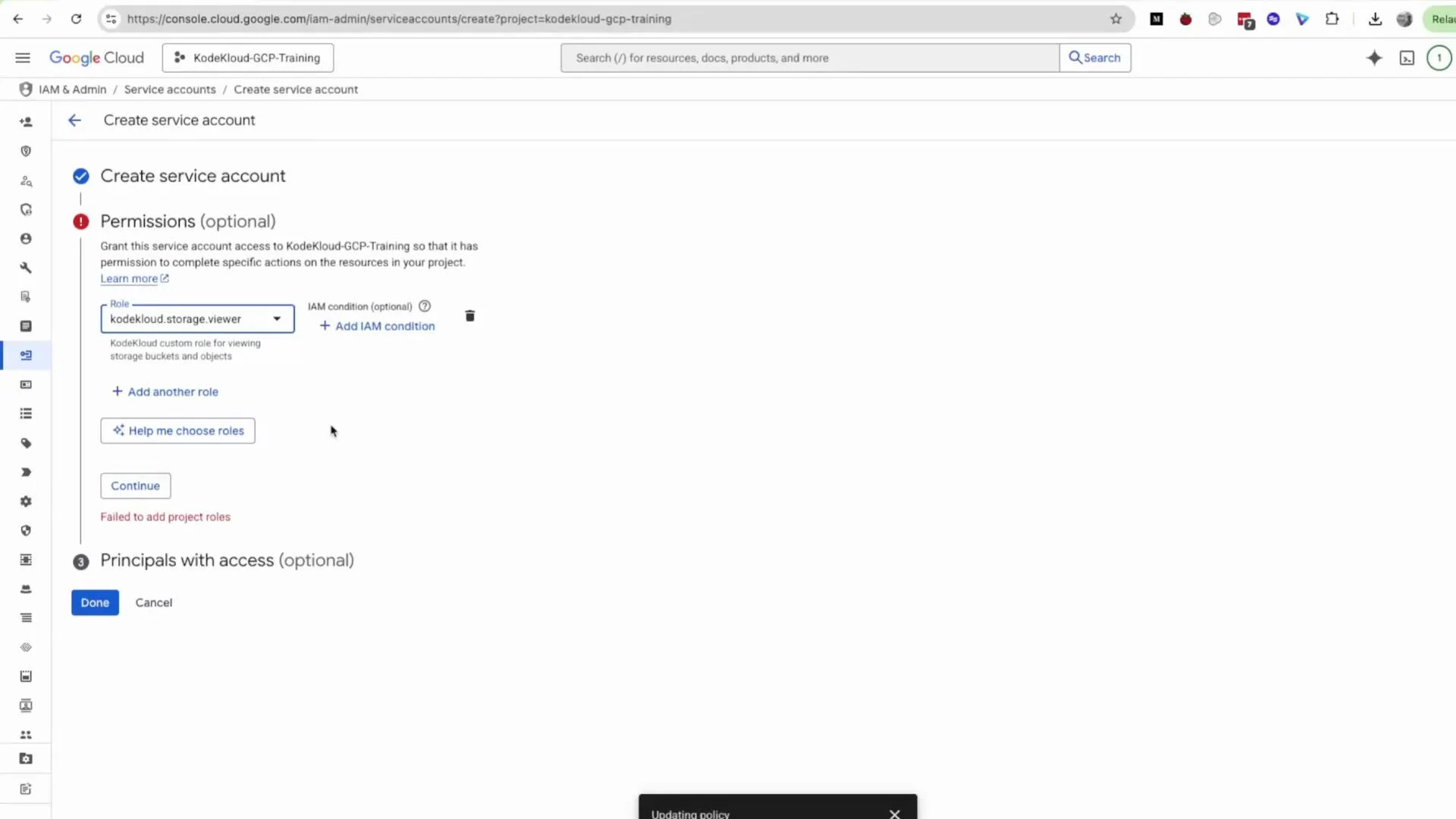
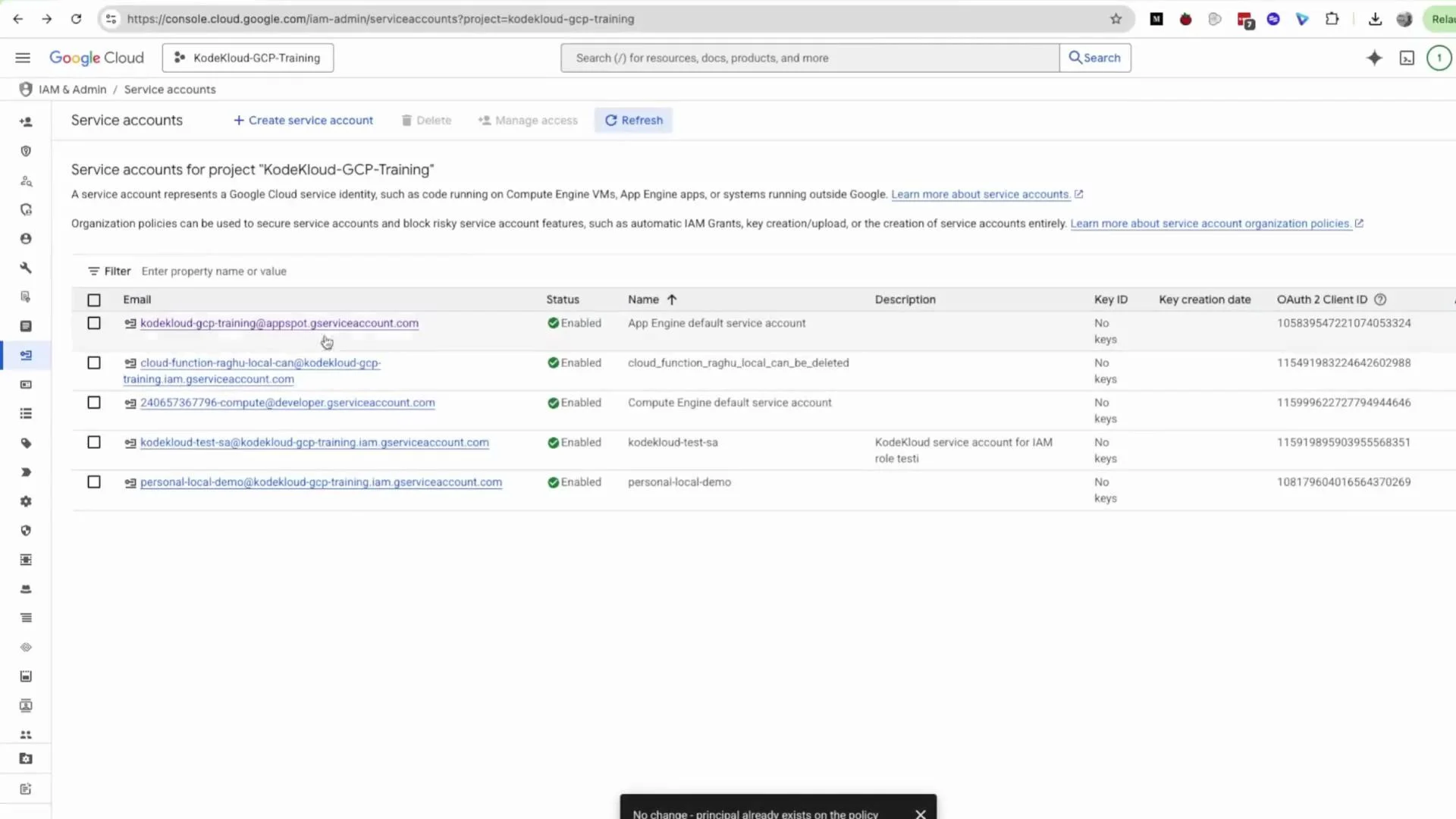
gcloud commands to create the SA and bind the custom role:
3. Create and download a service account key (JSON)
If you plan to use this service account from outside GCP (for local development, CI, or other systems), generate a key:- Click the service account to open its details page.
- Select the Keys tab, click Add Key -> Create new key, choose JSON, and click Create.
- The JSON key will be downloaded to your machine.
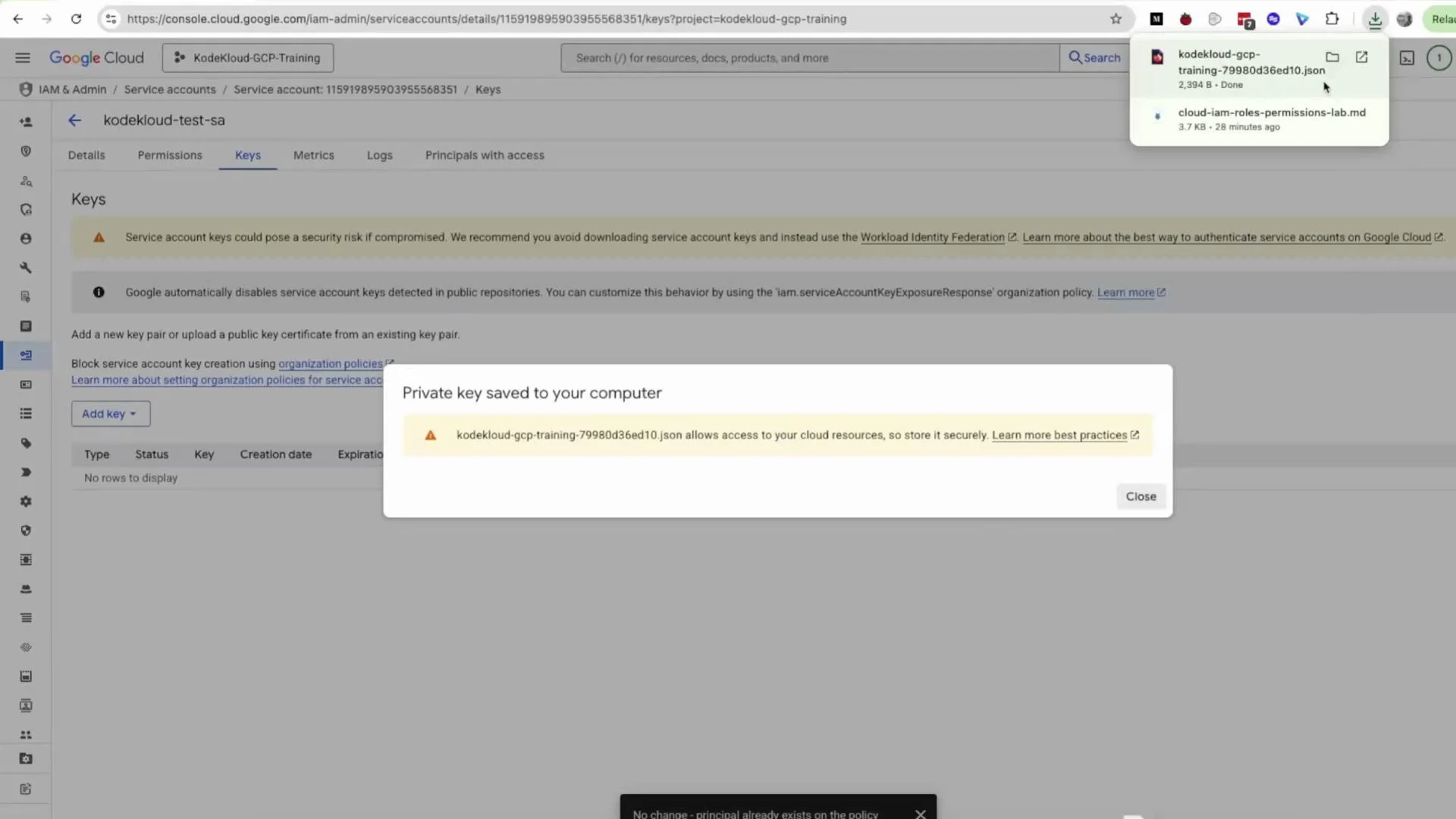
gcloud:
Service account JSON keys are long-lived credentials that grant access to your project. Treat these files like secrets: store them securely, rotate them regularly, and avoid committing them to source control. When possible prefer Workload Identity (for GKE), Workload Identity Federation, or short-lived tokens instead of downloading keys.
4. Verify permissions (Cloud Shell or local client)
To authenticate using the downloaded JSON key:gsutil cp to upload or gsutil rm to delete), you’ll receive an error indicating insufficient permissions. Use this to validate that the role is properly scoped as read-only.
Wrap-up
You now have:- A custom read-only Cloud Storage role,
- A service account with that role attached,
- A JSON key downloaded for external authentication,
- Commands to verify permissions locally or in Cloud Shell.
Links and references
- IAM roles and permissions overview (Google Cloud)
- Creating and managing custom roles
- Service accounts overview
- Best practices for service accounts and keys
- gsutil documentation: https://cloud.google.com/storage/docs/gsutil