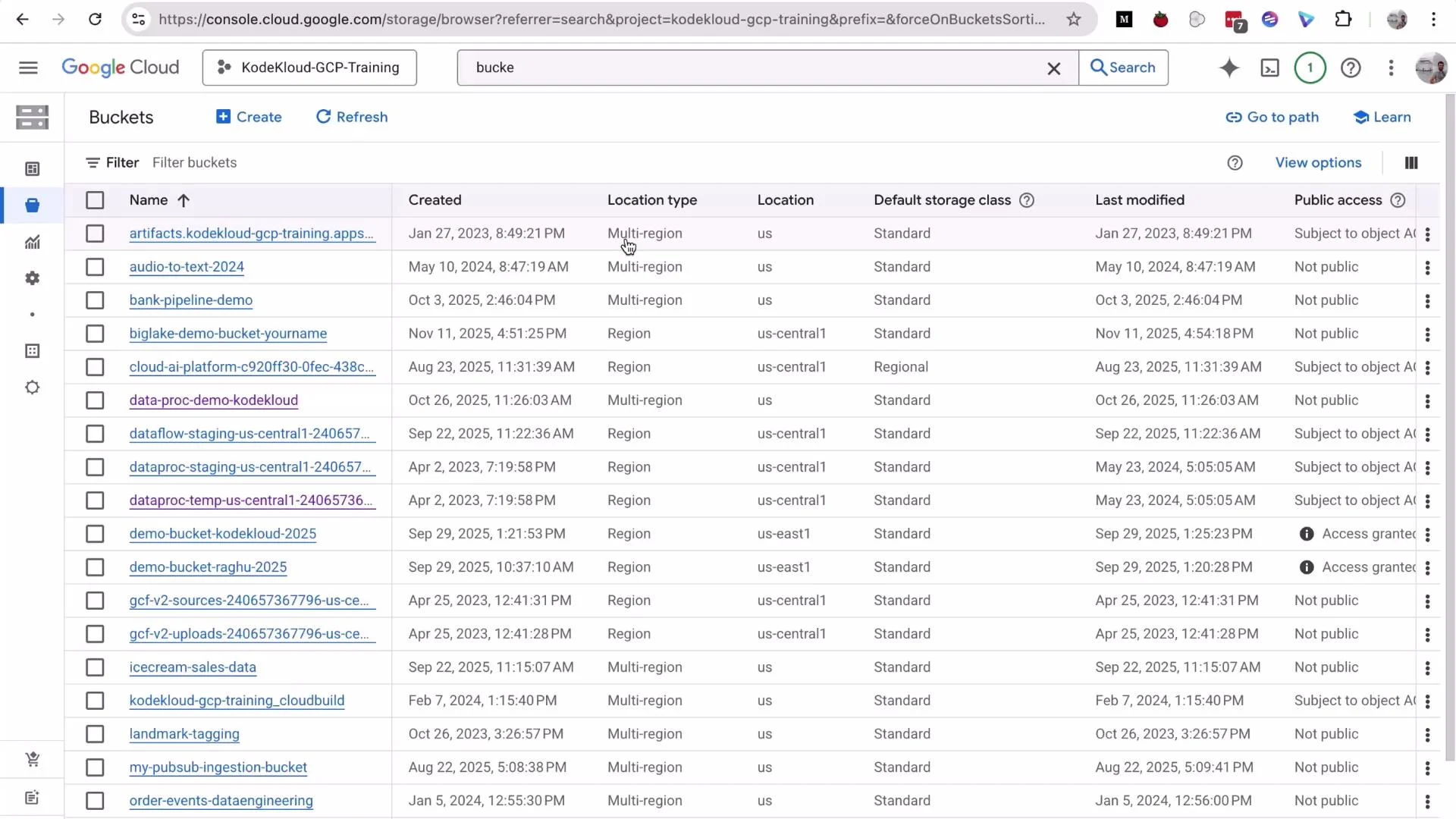
Welcome. In this lesson we’ll create and configure a Google Cloud Storage (GCS) bucket and cover basic lifecycle policies and access controls. GCS is a highly available, low-maintenance object store commonly used for hosting files, storing Airflow DAGs, serving static websites, and acting as a landing/staging layer for data lakes. Creating a bucket is quick, but planning lifecycle rules and access controls helps control costs and protect data. Below we walk through the Console-based workflow step-by-step, show lifecycle and permission settings, and include a quick CLI alternative for automation. Open the GCP Console, search for “Buckets”, and click on Buckets. You may see many buckets in my account; your view might be empty if you have no buckets yet.
A screenshot of the Google Cloud Console showing the Storage → Buckets page with a table of bucket names, creation dates, location types/regions, storage classes, last modified timestamps, and public access settings. It lists buckets like "audio-to-text-2024" and "data-proc-demo-kodekloud" with various region/multi-region settings.

Create a new bucket (Console)

  1. Click Create and enter a globally unique bucket name. GCS bucket names must be unique across all Google Cloud projects.
    • Example name used in this demo: gcs-demo-cloud
  2. Click Continue, choose a location (for this demo we use us-central1 — a single-region), then Continue.
  3. Choose a storage class. For general-purpose usage, select Standard (default). Click Continue.
Bucket-naming tips: Use lowercase letters, numbers, and dashes; avoid dots when possible. Names must be globally unique and should reflect purpose or environment (for example, myproject-staging-2026).
When you reach the permissions step, note the following console defaults and recommended settings:
  • “Enforce public access prevention on this bucket” may be enabled by default—this prevents anonymous public reads even if an object would otherwise be public.
  • Access control model: choose Uniform (uniform bucket-level access) to simplify permission management via IAM and disable ACLs. Uniform access is recommended for most use cases.
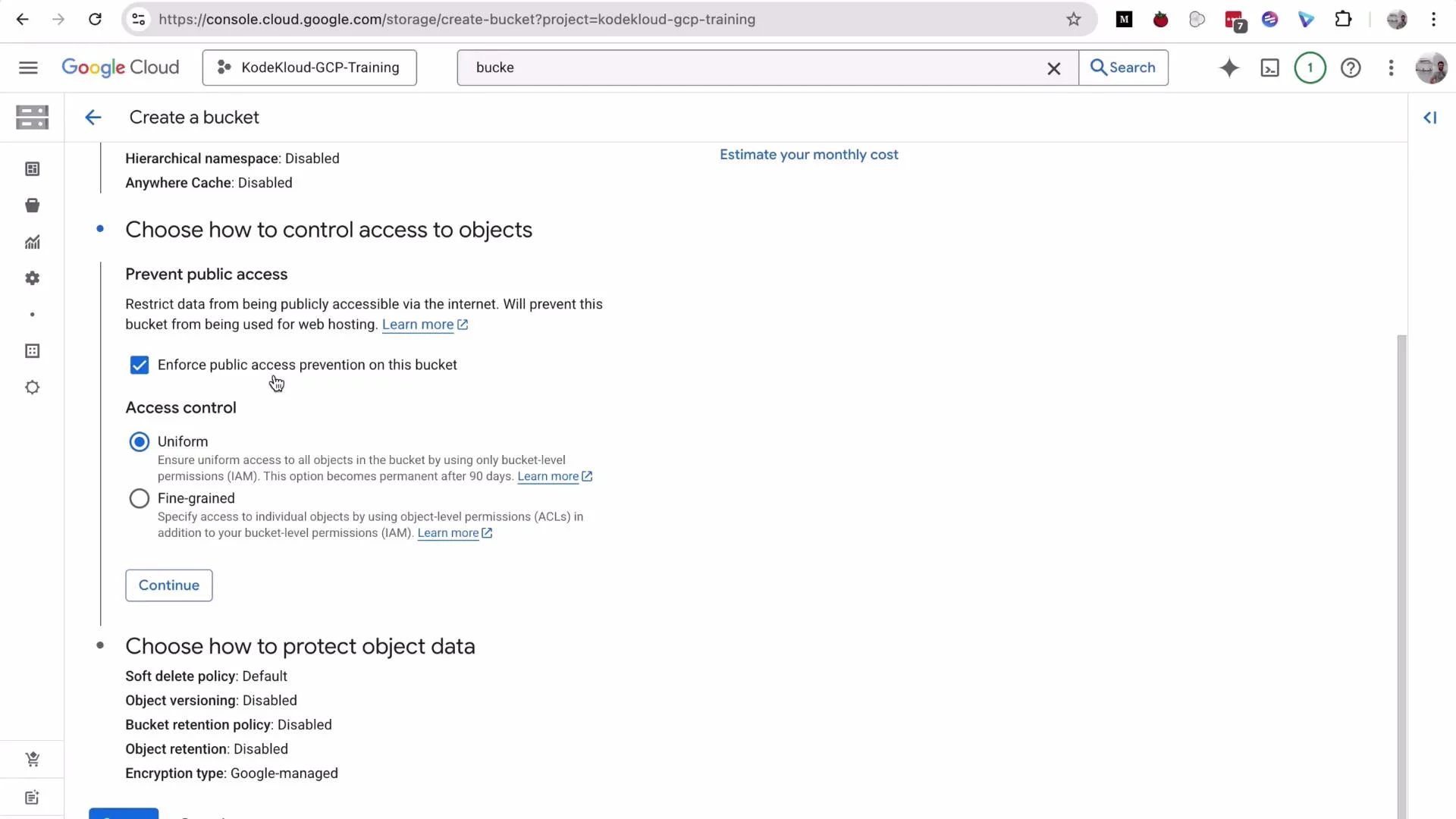
A screenshot of the Google Cloud Console "Create a bucket" page. The "Enforce public access prevention on this bucket" option is checked and the "Uniform" access control option is selected.
Click Continue, then Create, and confirm. Your bucket should be created in under a minute. Once created, you can use it as a staging area, landing zone, or data lake for CSVs, logs, or intermediate files that downstream systems (like BigQuery) will consume.

Storage classes — quick reference

Storage classUse caseTypical example
StandardFrequently accessed objectsActive datasets, website assets
NearlineInfrequent access (≥30 days)Backups, infrequently read archives
ColdlineRare access (≥90 days)Long-term backups
ArchiveVery rare access (≥365 days)Regulatory archives

Lifecycle rules: control costs automatically

GCS lifecycle rules help automate storage class transitions or deletions of older objects (or older versions). This keeps storage costs under control and prevents accumulation of temporary files. To add a lifecycle rule in the Console:
  1. Open your bucket and go to Lifecycle.
  2. Click Add a rule.
  3. Choose an action: change storage class or delete objects. For this demo we add a rule to delete objects older than 30 days (good for temporary files or intermediary outputs).
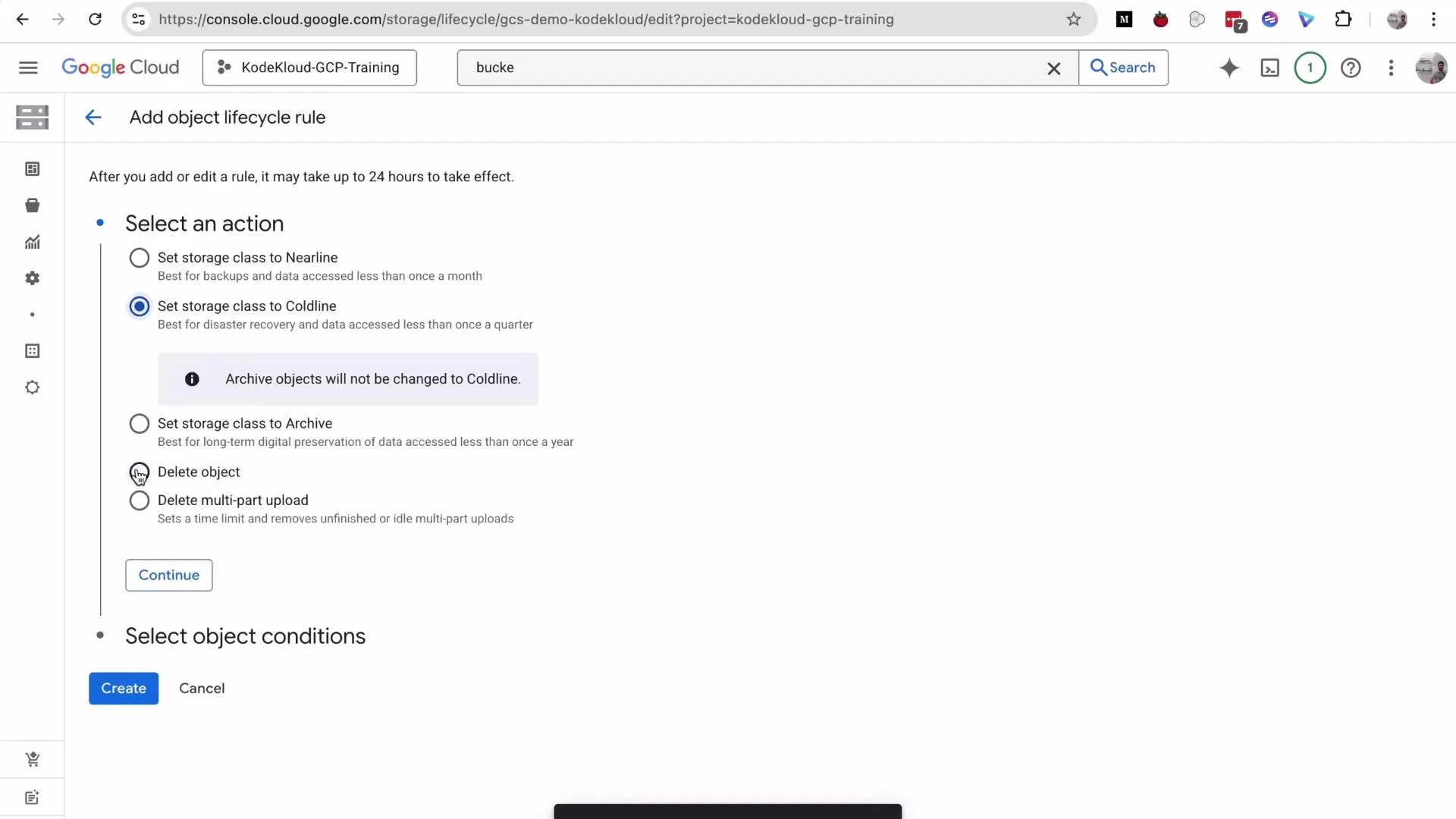
A screenshot of the Google Cloud Console "Add object lifecycle rule" page for a storage bucket. It shows radio options to set storage class (Nearline, Coldline—selected, Archive) or delete objects, with Continue/Create buttons visible.
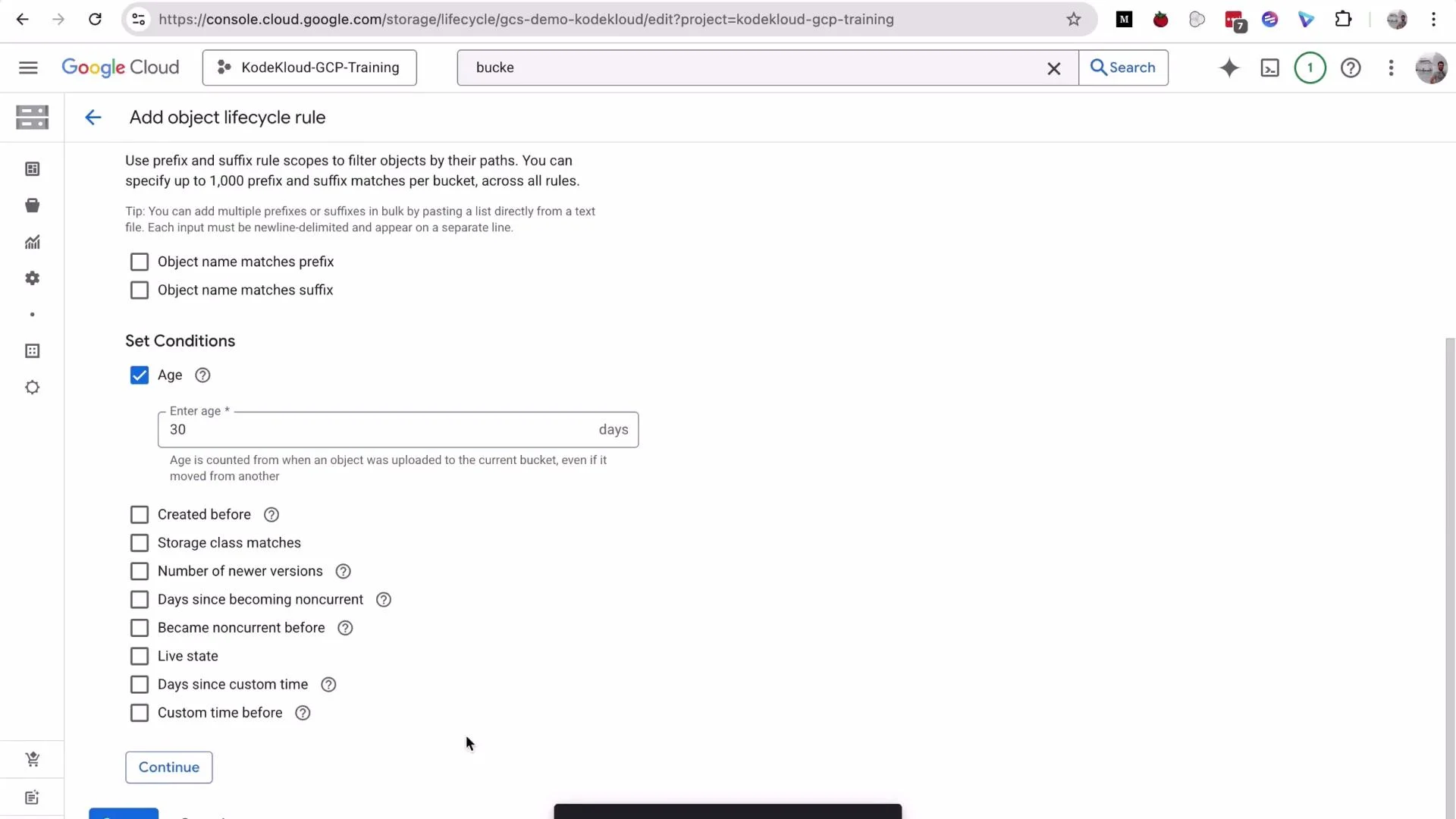
Set the Age condition to 30 days, then Continue and Create. The lifecycle will automatically remove objects older than 30 days (or older object versions if versioning is enabled).
A Google Cloud Console screenshot showing the "Add object lifecycle rule" page for a Cloud Storage bucket. The UI lists rule scopes and conditions (with "Age" checked and set to 30 days) and several other lifecycle options.
Lifecycle rule summary examples:
ActionTypical conditionWhen to use
DeleteAge = 30 daysTemporary files, staging objects
SetStorageClassAge = 90 days → ColdlineCost savings for infrequently accessed data
SetStorageClassAge = 365 days → ArchiveLong-term archival retention

Upload an object and view object details

Upload a file (for example, index.html) via drag-and-drop or the Upload files button. After upload, click Refresh to see the object listed.
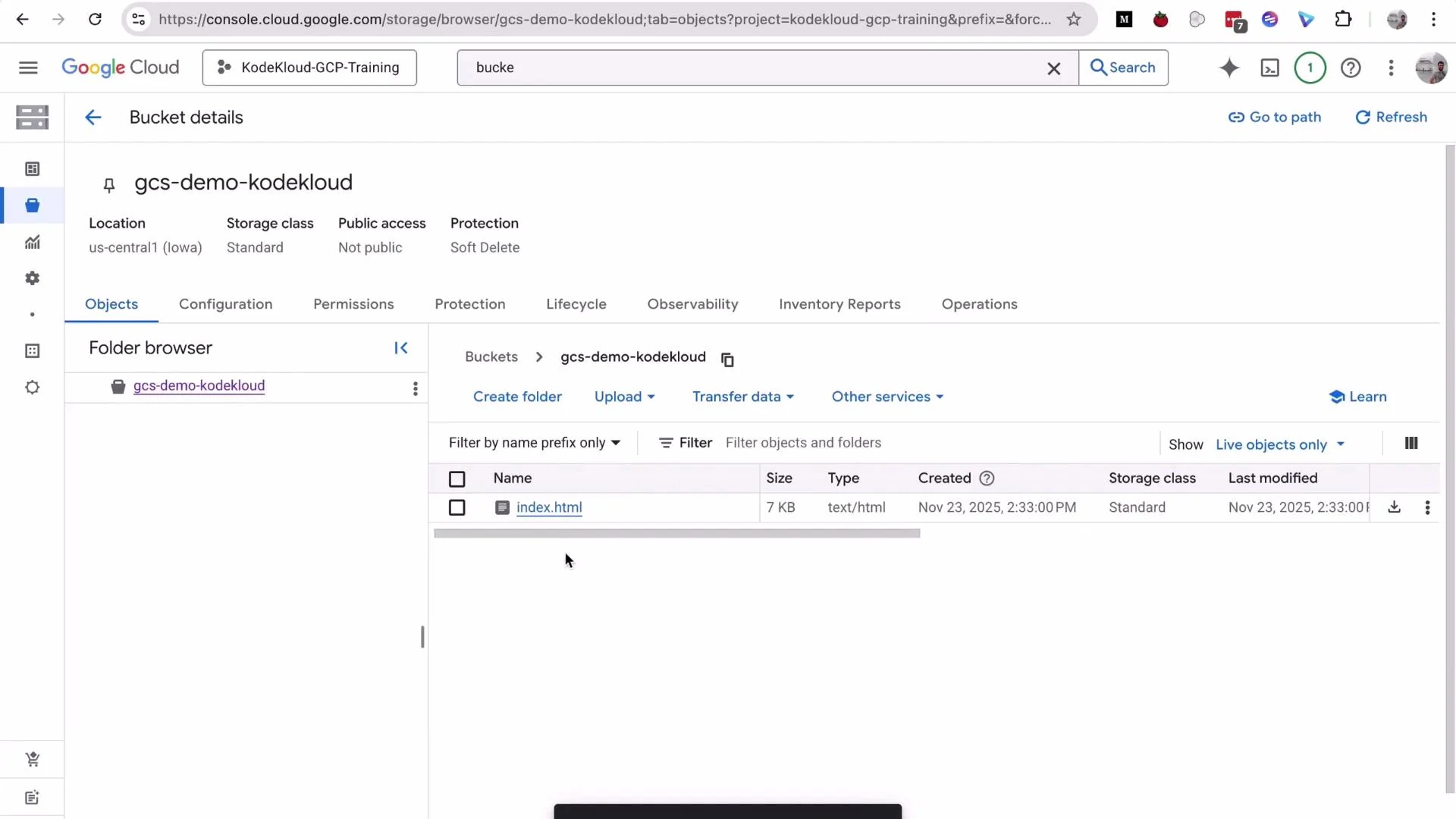
A Google Cloud Console screenshot showing the bucket details for "gcs-demo-kodekloud." The page displays bucket info (us-central1, Standard) and a listed object "index.html" (7 KB).
Click the index.html object to view its details. The object details pane shows two URL types:
  • Public URL — accessible by anonymous users when an object is publicly readable.
  • Authenticated URL — requires valid credentials or IAM permissions to access.
If public access prevention is enabled, the Public URL will return an access denied error when accessed anonymously. Example error returned when attempting to access an object publicly without permissions:
<Error>
  <Code>AccessDenied</Code>
  <Message>Access denied.</Message>
  <Details>Anonymous caller does not have storage.objects.get access to the Google Cloud Storage object. Permission 'storage.objects.get' denied on resource (or it may not exist).</Details>
</Error>

Manage permissions

To modify who can read or write objects:
  1. Open the bucket and go to Permissions.
  2. Use Grant access to add a user, group, or service account and assign roles such as Storage Object Viewer, Storage Object Creator, or Storage Admin.
  3. To make objects public (not recommended for sensitive data), you must first remove public access prevention and then bind the allUsers member to the Storage Object Viewer role — or enable ACL-based control and set object ACLs accordingly.
Do not make production data publicly accessible. Only remove public access prevention or grant public access in controlled, non-sensitive demos or for intentionally public sites.
In this demo I removed public access prevention to demonstrate public access mechanics. In real environments, follow your organization’s security policies and prefer IAM + uniform bucket-level access over ACLs.

Quick CLI alternative (gsutil)

To create the same bucket using the CLI (example):
# Create a single-region bucket with Standard storage class
gsutil mb -p YOUR_PROJECT -l us-central1 -c STANDARD gs://gcs-demo-cloud/
To upload an object:
gsutil cp index.html gs://gcs-demo-cloud/index.html
To set a lifecycle configuration (example JSON file lifecycle.json):
[
  {
    "action": { "type": "Delete" },
    "condition": { "age": 30 }
  }
]
Apply it:
gsutil lifecycle set lifecycle.json gs://gcs-demo-cloud

Typical GCS use cases

  • Static website hosting (public frontend assets)
  • Staging/landing zones for ETL and data pipelines
  • Intermediate or persistent storage for data lakes
  • Storing artifacts (build outputs, backups)
GCS is a flexible, low-maintenance option well-suited to these patterns and integrates tightly with BigQuery, Dataflow, and other GCP services. That concludes this lesson on creating and configuring a GCS bucket. See you in the next lesson.

Watch Video