

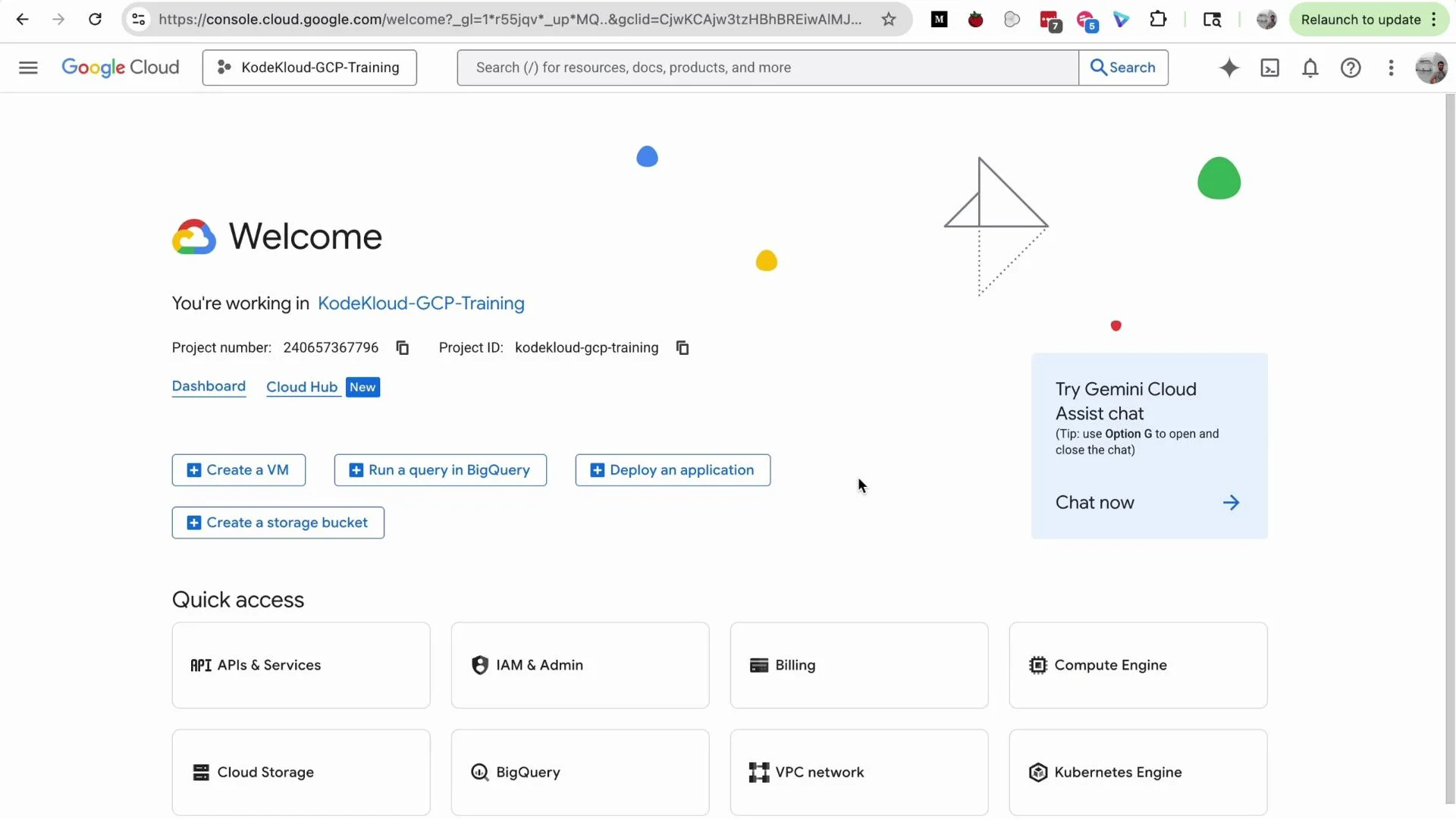
1) Identify the active project
The project selector at the top of the Console shows which project is active. In the screenshot above the current project is KodeKloud GCP Training. Always verify the selected project before creating or modifying resources. Click the project selector to open the “Select a project” dialog. In larger organizations you will typically see many projects, potentially arranged under an Organization and grouped into Folders.- Click All to list every project you can access.
- Choose the correct project based on its name, ID, or purpose.
- Ensure you have the necessary IAM permissions for the project you select.
A project’s human-readable name is for display only. For programmatic access (APIs, SDKs,
gcloud CLI, BigQuery jobs, Terraform, etc.) always use the project ID, which is globally unique within GCP. See the APIs documentation and BigQuery docs for examples.2) Project name vs project ID vs project number
Common commands and usage examples:
- Set active project for
gcloud:
- Specify a project when running a BigQuery command:
- Example Python client instantiation for BigQuery:
3) Creating and managing projects
To create a new project:- Click New Project from the project selector.
- Enter a project name.
- Select a parent Organization or Folder (if applicable).
- Click Create.
4) Finding services and documentation
Use the top search bar to quickly locate services, documentation pages, and resource types. For example, typeVPC to find the VPC service page and relevant docs. This integrated search returns both Console pages and links to official documentation.
If you prefer browsing, open the main navigation menu (the “hamburger” icon). Services are grouped by use case and include categories such as:
- Recently visited
- Solution-based groupings
- Cloud Overview and Cloud Hub
5) Built-in AI assistance
The Console integrates AI features, such as the Gemini Code Assist chat pane. Click the Gemini icon to open an assistant that can help with tasks like creating a VPC, listing steps for granting IAM roles, or generating example CLI commands. Close the pane when you finish to free screen space.6) Organization-level view and Dashboard
From the navigation menu go to Cloud Overview → Dashboard to see an organization-level summary. What you see depends on your IAM role:- Admins may view all projects under the Organization.
- Non-admins only see projects they have access to.
Quick reference: Console elements
Summary
This overview covered how to:- Identify and select the active project
- Distinguish between project name, ID, and number
- Create new projects and understand their role in resource isolation
- Quickly find services using search or the navigation menu
- Use the Console’s AI assistant and organization dashboard