

Why Looker Studio is widely used
-
Direct data connectors
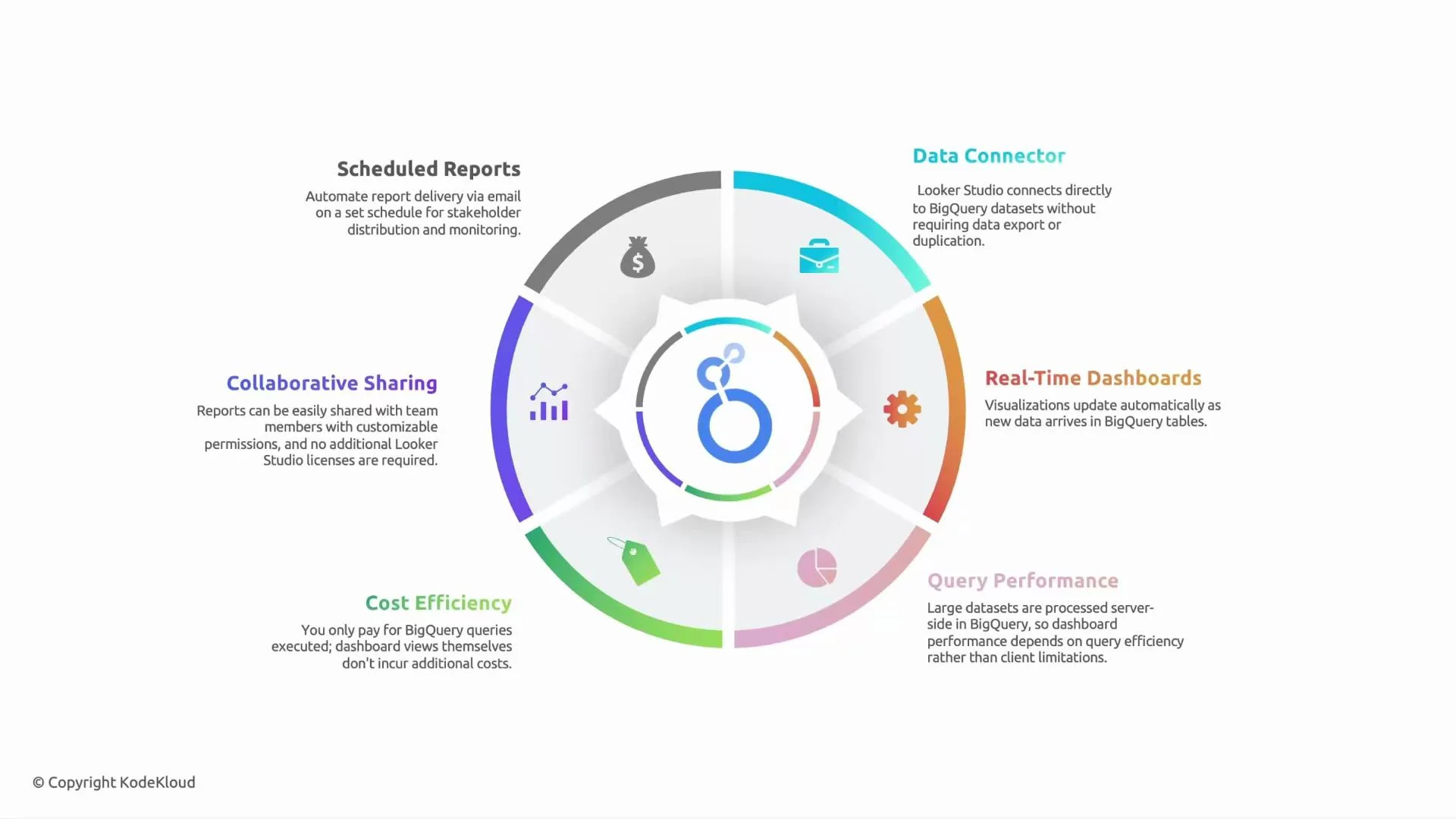
Looker Studio provides native connectors to data platforms like BigQuery, Google Sheets, and many third-party sources. Dashboards read data directly from the source, eliminating manual exports to CSV or spreadsheets and reducing the chance of data drift or errors. -
Real-time and near-real-time dashboards
Visualizations can refresh automatically according to connector and cache settings, so dashboards can reflect recent changes—useful for monitoring website traffic, operational metrics, or SLA alerts. -
Server-side processing and performance
Query execution is delegated to BigQuery (or the connected source). Looker Studio fetches only the data needed for each visualization, so performance depends mainly on query design, BigQuery slot availability, and connector caching. Optimize queries and pre-aggregate when possible to keep latency and query costs down. -
Cost efficiency and billing model
Looker Studio does not require per-viewer licenses in the free tier. Billing is typically driven by the underlying data platform (for example, BigQuery query costs). This can be attractive for startups, education, and teams that want broad report access without licensing fees. However, poorly optimized dashboards can generate large query volumes and increase costs. -
Sharing, permissions, and collaboration
Looker Studio uses Google’s sharing model (view, comment, edit). You can share dashboards with individuals, groups, or publicly while controlling access. Scheduled email delivery and embedded reports make distribution straightforward. -
Scheduled delivery and automation
Reports can be scheduled for email delivery (daily, weekly, monthly) or exported automatically, making it easier to circulate regular summaries without manual intervention.
Feature summary
Looker Studio is lightweight and integrates smoothly with Google Cloud services — particularly BigQuery — enabling rapid dashboard delivery and easy collaboration. For best results, pair direct queries with aggregation tables, extracts, or scheduled refreshes to reduce latency and cost.
Be mindful of BigQuery query costs: visualizations execute queries. Frequent or unoptimized queries can increase your bill. Use query optimization, aggregated tables, extracts/caching, and scheduled refresh intervals to control costs.
Typical use cases and comparison
Looker Studio fits well in many reporting scenarios but is not a one-size-fits-all solution. Use the table below to decide when to choose Looker Studio and when to consider alternatives.
Common enterprise patterns:
- Use Looker Studio for broad distribution of standardized reports and executive dashboards.
- Use Tableau, Power BI, or Looker (platform) for deep-dive analytics, complex visualizations, or enterprise governance.
- Combine Looker Studio dashboards with BigQuery scheduled aggregations or materialized views to minimize per-report query cost.
Best practices for performance and cost control
- Pre-aggregate large datasets in BigQuery using scheduled queries or materialized views.
- Limit the number of charts on high-traffic report pages; each chart can trigger queries.
- Use extract-based connectors or cached data sources for views that don’t require real-time freshness.
- Apply filters and data range controls to restrict scanned data.
- Monitor BigQuery usage and set cost alerts or quotas for service accounts used by Looker Studio.
Quick review question
Which Looker Studio feature allows dashboards to always show updated numbers from BigQuery without exporting the data? Options:- A) CSV uploads
- B) Real-time data connectivity
- C) Offline storage
- D) Shared drives