

- Identity — who is making the request: users, groups, or service accounts.
- Role — what actions that identity can perform: a collection of permissions.
- Resource — which Google Cloud resource the role applies to: projects, buckets, datasets, VMs, etc.
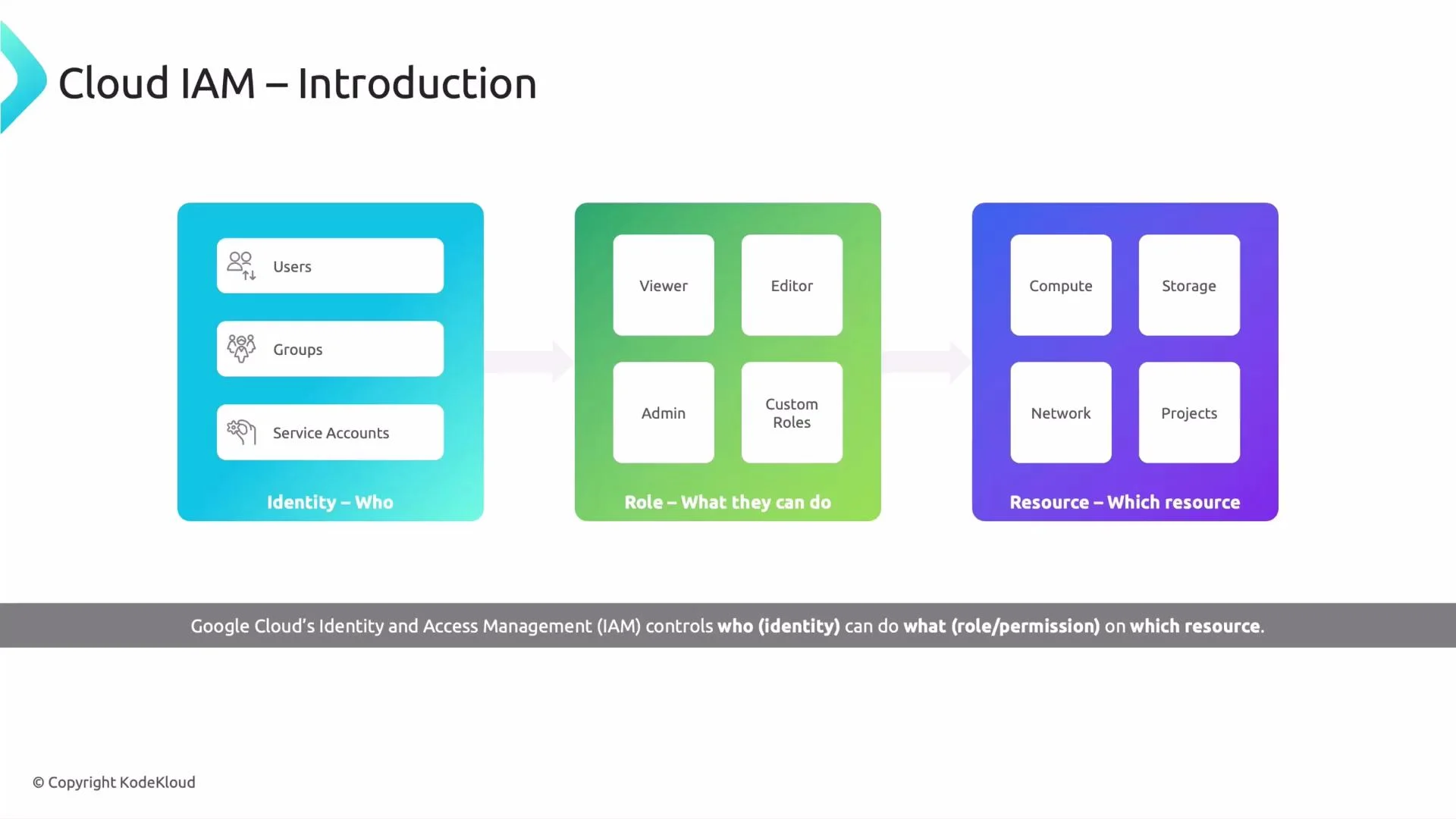
Key IAM elements
- Identities
- Users: individual people with Google accounts.
- Groups: logical collections of users that simplify team-level access management.
- Service accounts: machine identities for applications, VMs, CI/CD pipelines, or workloads that act programmatically.
- Roles Roles are collections of permissions. Google Cloud provides three role types:
Use the principle of least privilege: grant only the permissions required for a task. Prefer predefined or custom roles over broad basic roles.
- Policies An IAM policy binds one or more identities (members) to roles on a resource. Policies are attached to resources in the Google Cloud resource hierarchy:
bindingsis a list of entries.roleis the IAM role identifier.memberslists identities in the formuser:,group:,serviceAccount:, ordomain:.
Why IAM matters for data engineers
IAM regulates every read/write action on datasets, start/stop operations on Compute Engine instances, and deployments of workflows like Dataflow or Dataproc. When you see a “permission denied” error, check these components:- Identity: is the caller (user or service account) the expected identity?
- Role: does the role assigned include the specific permission required?
- Policy/resource: is the policy attached at the correct level (project vs. resource) or inherited as expected?
- Validate the caller identity (audit logs or
whoamibehavior). - Inspect the effective permissions using IAM Recommender or
gcloud iam roles describe. - Confirm policy inheritance and overrides at organization/folder/project/resource levels.
Always apply the principle of least privilege: grant the minimal roles required, prefer predefined or custom roles over broad basic roles, and manage access with groups and service accounts to keep policies consistent and auditable.
Practical tips and next steps
- Use groups to manage team access and avoid per-user bindings.
- Use service accounts for non-human access; rotate keys and use workload identity when possible.
- Audit IAM changes with Cloud Audit Logs and use IAM Recommender to identify overly broad permissions.
- Consider automation (Terraform, Deployment Manager) to enforce consistent IAM policies across environments.