

- The full buildspec structure and common patterns
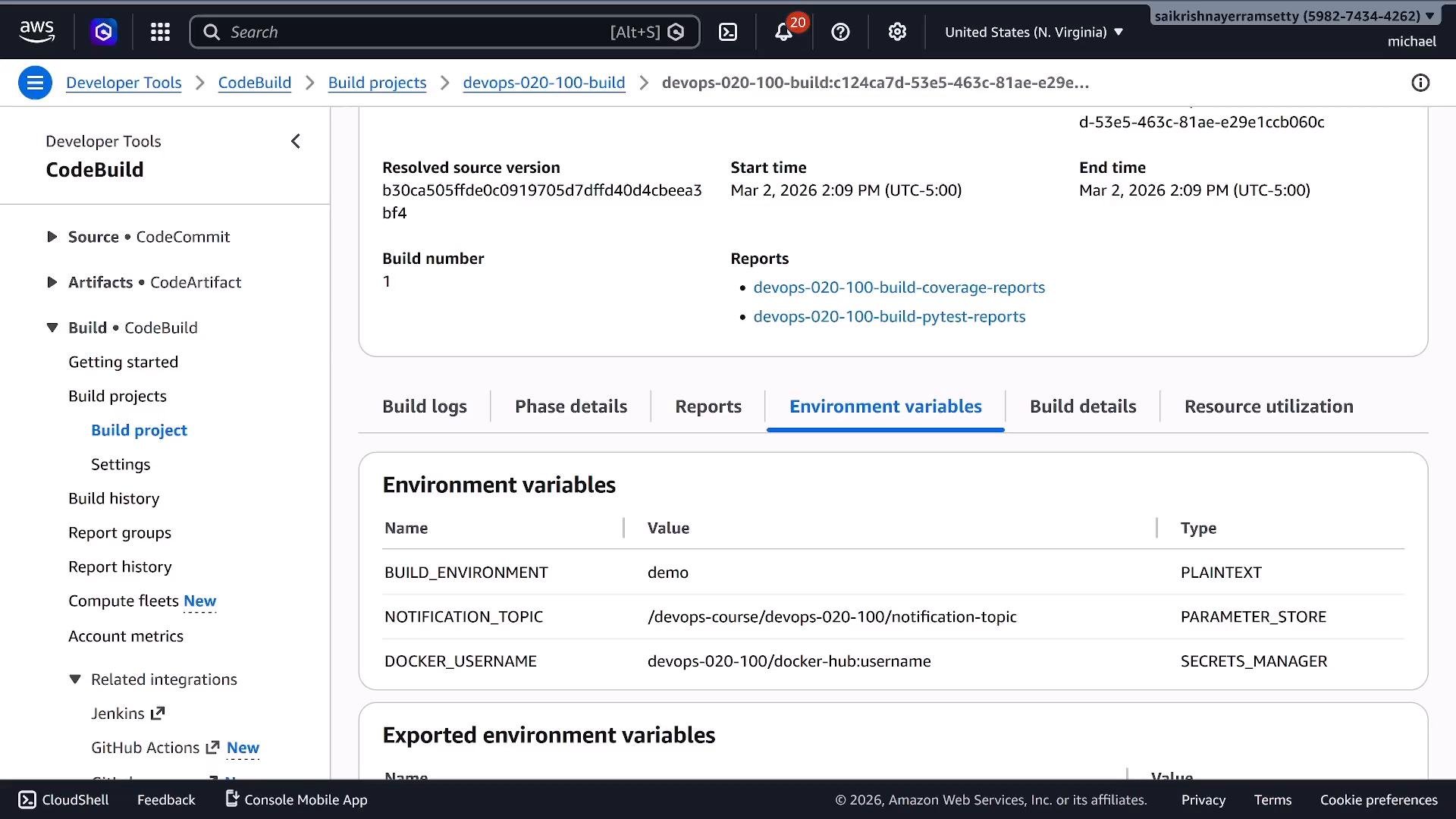
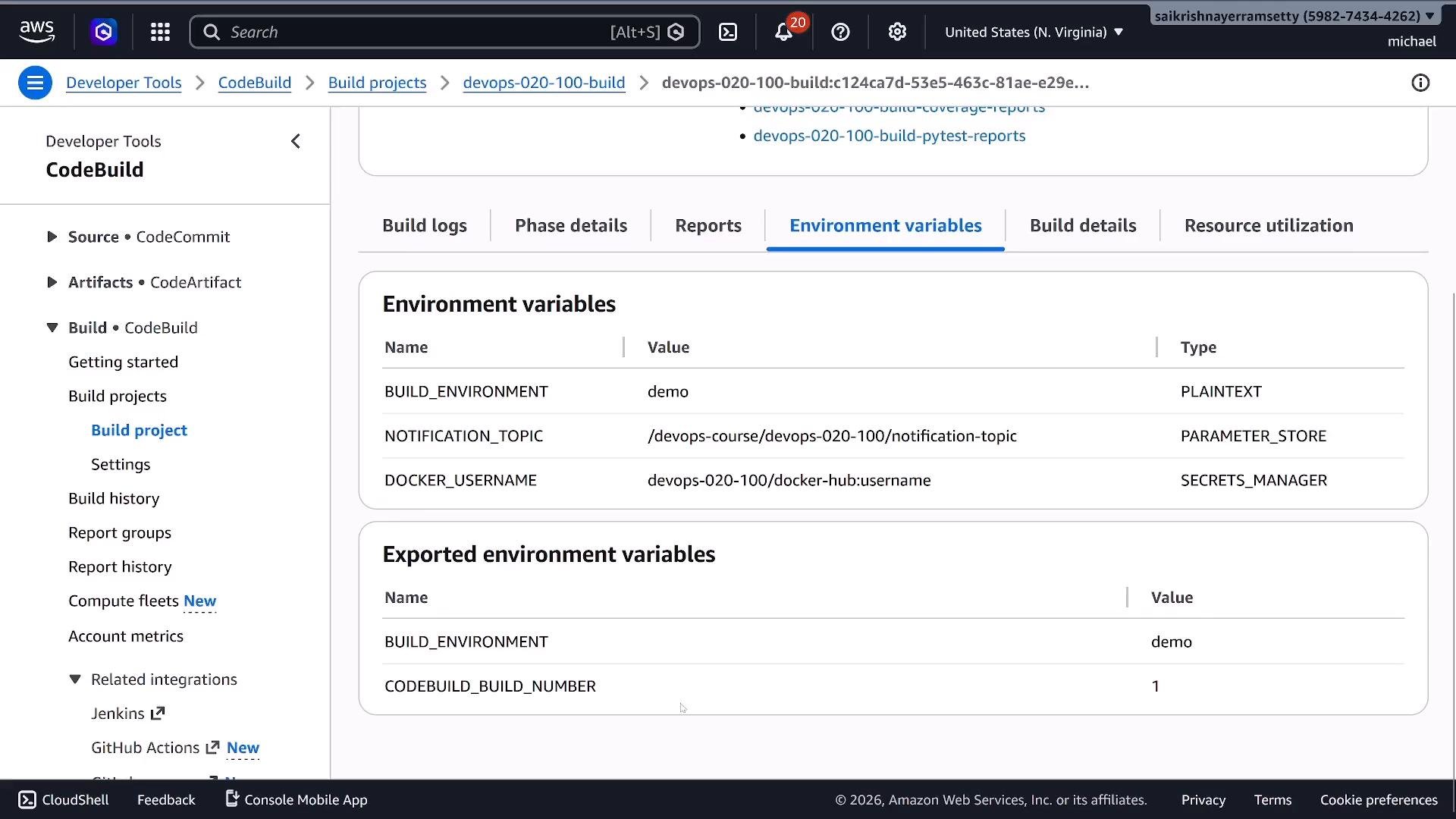
- Environment variables from inline definitions, Systems Manager Parameter Store, and Secrets Manager
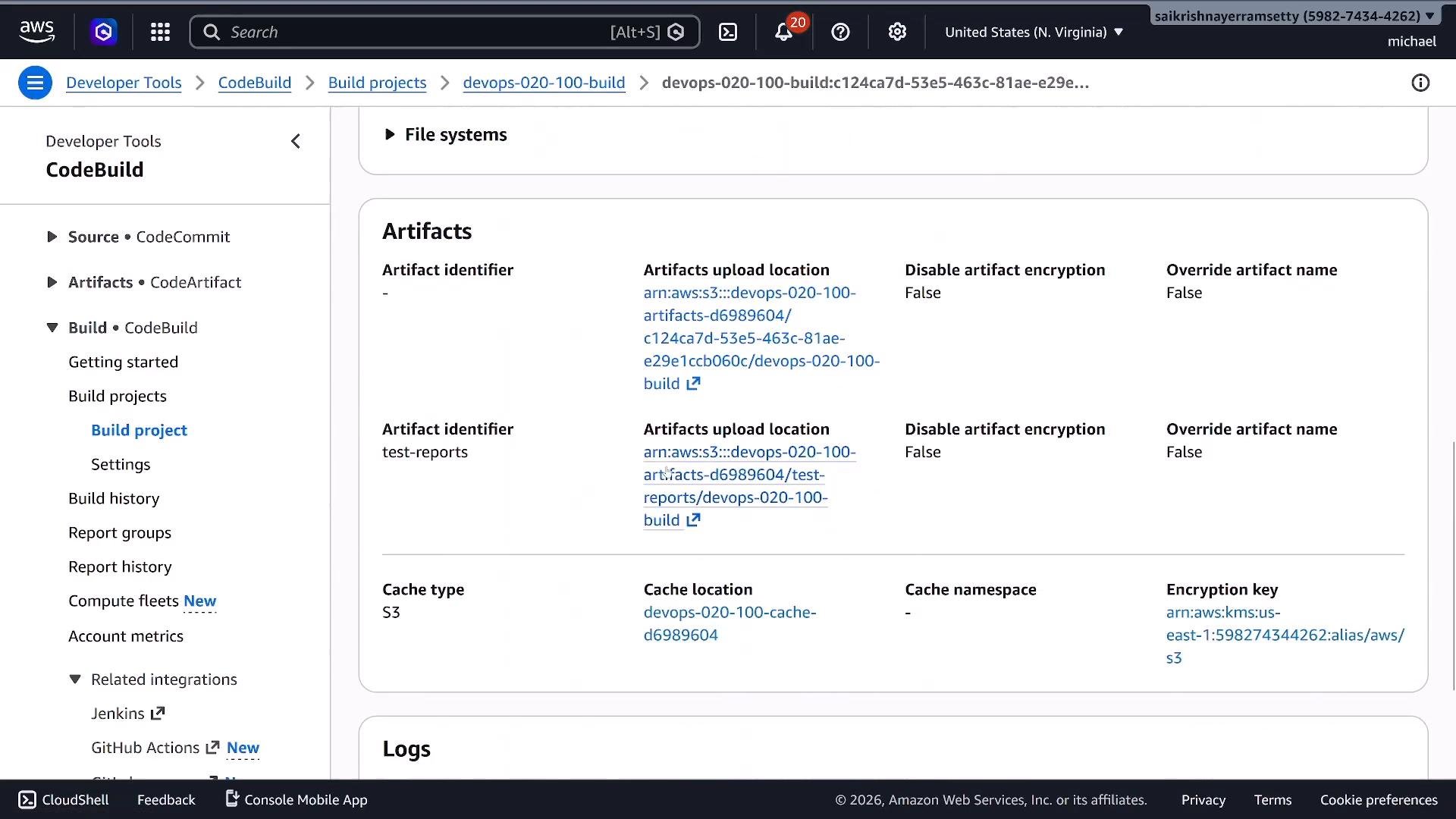
- How to publish primary and secondary artifacts
- Integrating test reports (report groups)
- Effective caching strategies to reduce build time
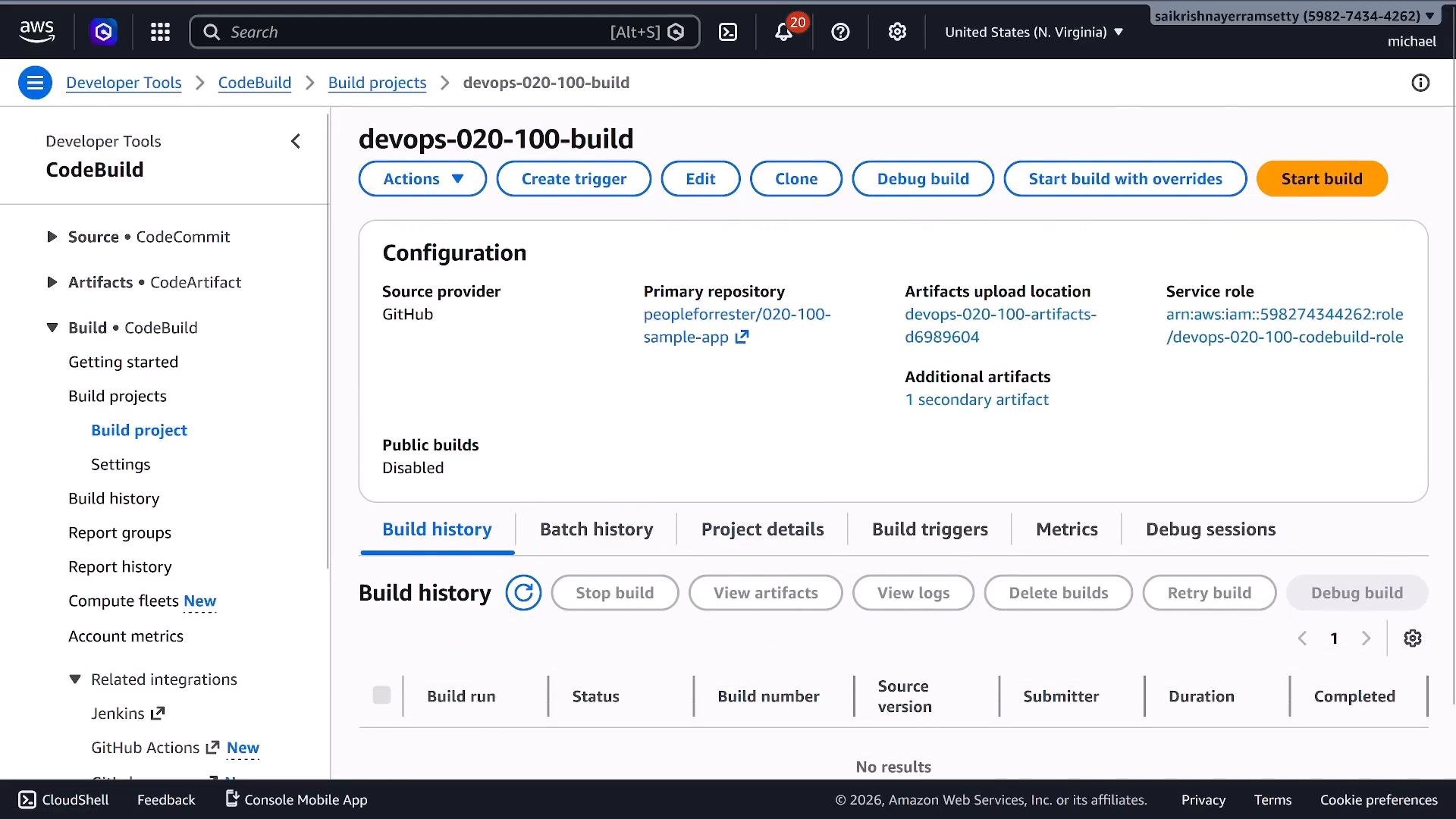
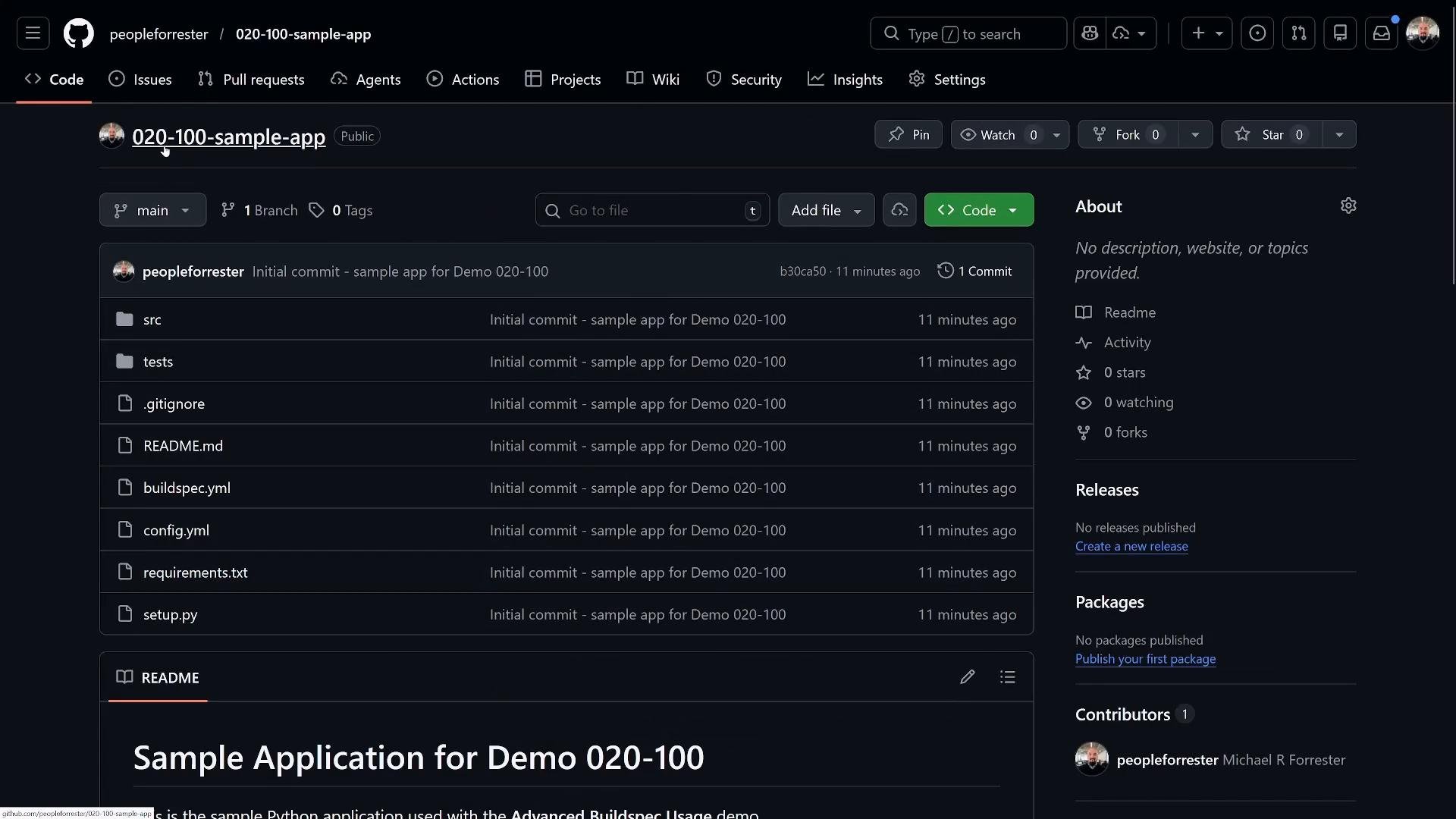
version: 0.2 to access reports, cache, exported variables, and improved phase semantics. The primary top-level keys you’ll see and use are:
Environment (
env) keys explained
shell: Choose shell (e.g.,bash) to select the execution environment for build commands.variables: Plain-text inline environment variables available to phases.parameter-store: Systems Manager Parameter Store keys or paths; CodeBuild will decrypt and add them to the env. Learn more: https://docs.aws.amazon.com/systems-manager/latest/userguide/systems-manager-parameter-store.htmlsecrets-manager: Secrets Manager references. Format supportssecret-idorsecret-id:keyto fetch JSON fields. See: https://docs.aws.amazon.com/secretsmanager/latest/userguide/intro.htmlexported-variables: List variables to export for downstream CodePipeline actions.
Important:
install.finally always runs regardless of earlier failures (similar to try/finally). Use on-failure when you want a phase to continue even if one of its commands fails.
Set
on-failure: CONTINUE when you want later phases to execute even if the current phase returns a non-zero exit code. The default ABORT stops the build when a phase fails. Check the AWS CodeBuild docs for current retry and failure behaviors: https://docs.aws.amazon.com/codebuild/latest/userguide/welcome.html- Inline variables (fast, visible in console): defined under
env.variables. Example:BUILD_ENVIRONMENT: "demo". - Systems Manager Parameter Store: defined under
env.parameter-store, pass parameter names or paths. Ensure the CodeBuild service role hasssm:GetParameters. - Secrets Manager: defined under
env.secrets-manager. You can referencesecret-idorsecret-id:keyto extract a field from a JSON secret. Ensure the CodeBuild role has Secrets Manager read/decrypt permissions.
Tip: Grant minimal IAM permissions to the CodeBuild service role:
ssm:GetParameters for Parameter Store entries and secretsmanager:GetSecretValue for Secrets Manager entries. Missing permissions will cause environment variable decryption to fail at the start of the build.CODEBUILD_ prefix. Commonly used ones include:
CODEBUILD_BUILD_NUMBER— incremental build numberCODEBUILD_RESOLVED_SOURCE_VERSION— commit SHA or source versionCODEBUILD_BUILD_SUCCEEDING—1when the build is successful
env.exported-variables to make any of these available to downstream pipeline actions.
Inspecting env resolution in logs
When the build starts, CodeBuild logs environment resolution and decryption. Example log excerpt:
reports/ directory and configure the reports block in buildspec. CodeBuild captures these and surfaces them under Report groups in the console.
- pytest example flags used in the buildspec:
--junitxml=reports/test-results.xml(JUnit-style test report)--cov-report=xml:reports/coverage.xml(coverage XML)
- Configure
reportsin buildspec withbase-directoryandfile-format, for exampleJUNITXMLorCOBERTURAXML.
files: Glob patterns that specify which files to bundle into the artifact (e.g.,dist/**/*).base-directory: Folder that acts as the root for artifacts.discard-paths:nopreserves directory structure inside the artifact;yesflattens it.name: Artifact name supports variable interpolation, e.g.,"myapp-${CODEBUILD_BUILD_NUMBER}".secondary-artifacts: Define additional named artifacts (e.g., test reports).
cache.paths block inside the buildspec and S3-based caching configured on the project.
Typical cache entries:
- Python pip cache:
/root/.cache/pip/**/* - Node dependencies:
node_modules/**/*
- Full build logs (console or download)
- Report groups (test and coverage reports in the console)
- Exported environment variables accessible to downstream pipeline actions
- Artifacts stored in S3 (downloadable bundles or expanded files)
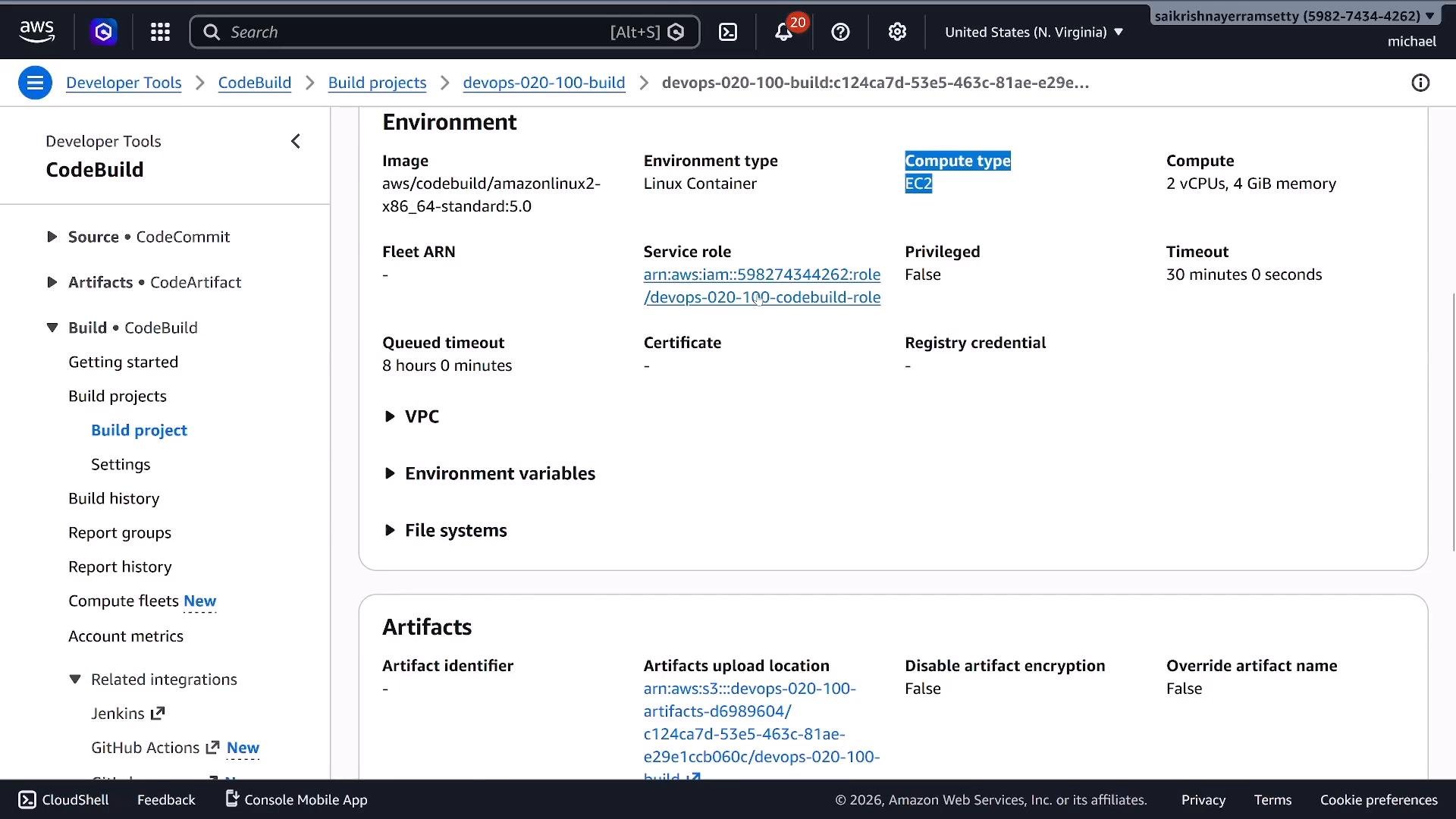
- Use
version: 0.2to leveragereports,cache,exported-variables, and improved phases. - Choose env sources appropriately: inline variables, SSM Parameter Store, and Secrets Manager. Ensure the CodeBuild role has
ssm:GetParametersandsecretsmanager:GetSecretValueas needed. - Keep phase structure:
install→pre_build→build→post_build. Useinstall.finallyfor guaranteed cleanup andon-failureto control continuation. - Integrate test reporting using
reportswithJUNITXMLand coverage formats; store outputs under areports/base-directory. - Configure primary and secondary artifacts intentionally and use
discard-pathsaccording to how you want the archive structured. - Enable caching for dependency directories to speed up iterative builds — consider S3 caching for longer-lived caches.
- extract a minimal buildspec tailored for a single runtime (e.g., Node.js-only),
- convert this buildspec for Docker image builds,
- or produce a variant that uses S3 caching instead of local container caching.