

Open CloudWatch Log Analytics
- In the AWS Console, open the CloudWatch service.
- In the left-hand navigation, under “Logs”, select Log Analytics.
- Set the data source to Log groups, then choose the Lambda log group you want to inspect (for this demo it is
/aws/lambda/xray-demo).
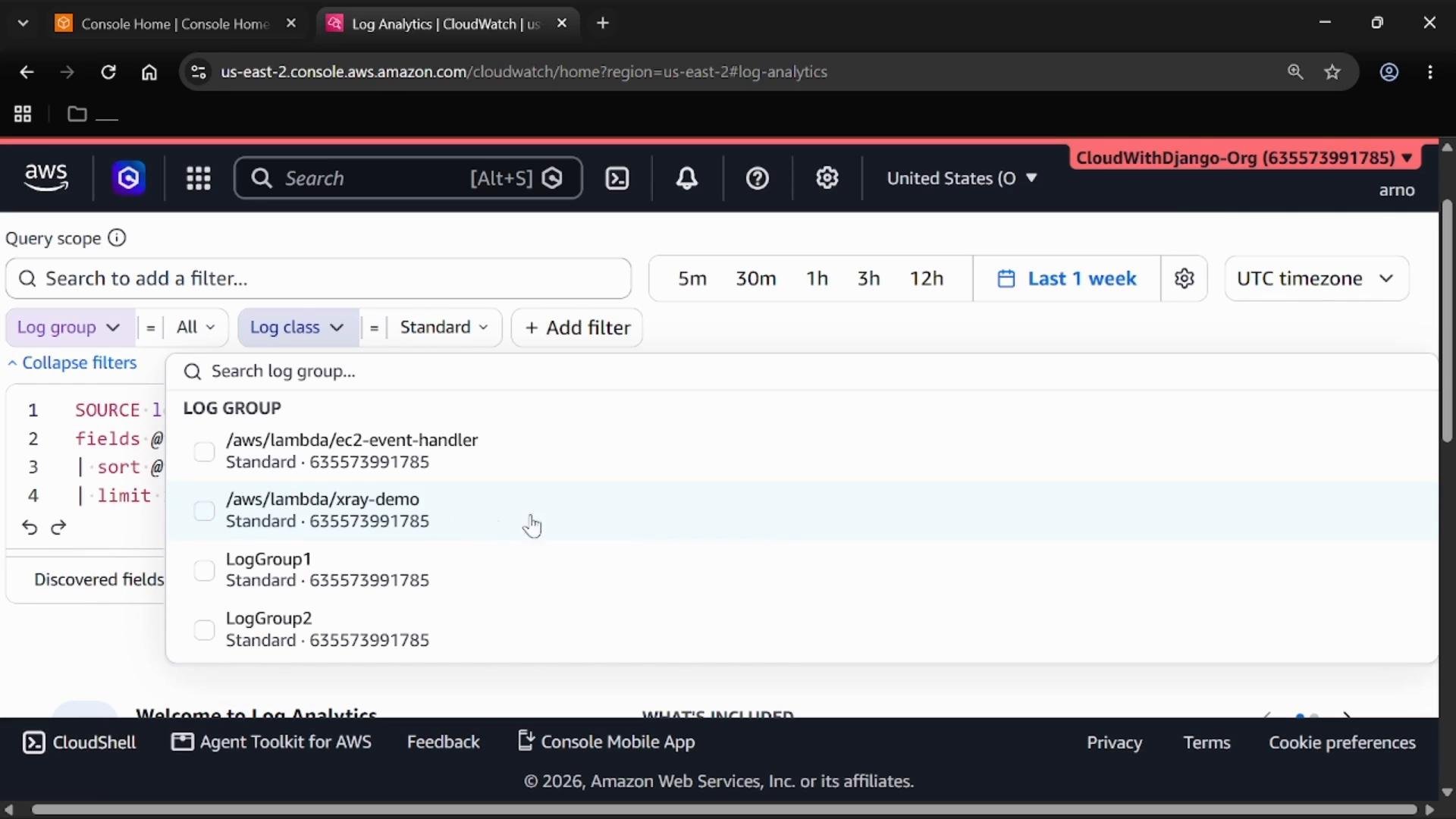
Start Live Tail (near real-time)
Live Tail streams new log events as they are ingested into CloudWatch Logs so you can observe activity in near real-time. With the Lambda log group selected, start Live Tail and then invoke the function (for example, via the Lambda console Test button) to generate new events — they should appear immediately. CloudWatch provides a SOURCE block to scope the Live Tail session. Example SOURCE query used internally by the console:Live Tail is best for immediate troubleshooting (errors, cold starts, runtime diagnostics). Use it to validate deployments or reproduce issues in real time. For historical analysis, aggregates, or large-scale searching, switch to Logs Insights.
Analyze logs with Logs Insights
Open Logs Insights in a new tab so Live Tail can continue running while you query stored log events. Make sure your Logs Insights query is scoped to the same log group and the correct time range. Basic query to list recent events (timestamp and message), newest first, limited to 20:Common Logs Insights clauses and examples
Filtering for specific events
Filter for LambdaSTART lines:
Ensure your IAM principal has the required CloudWatch Logs permissions (e.g.,
logs:StartQuery, logs:GetQueryResults, logs:FilterLogEvents, and logs:Tail) to run Logs Insights queries and Live Tail. Live Tail streams recent ingestion — if no events appear, check Lambda invocation, log retention, and permissions.Quick reference and takeaway
- Live Tail: near real-time streaming of log events as they are ingested — ideal for immediate troubleshooting and validation.
- Logs Insights: interactive query language to search, filter, and aggregate stored logs for historical analysis and dashboards.
- Build concise queries with
fields,filter,sort, andlimit. Addstatsandbin()for aggregations over time.
START, and list recent matches:
Links and references
- AWS CloudWatch Logs Insights Overview: https://docs.aws.amazon.com/AmazonCloudWatch/latest/logs/AnalyzingLogData.html
- CloudWatch Logs Insights Query Syntax: https://docs.aws.amazon.com/AmazonCloudWatch/latest/logs/CWL_QuerySyntax.html
- CloudWatch Live Tail documentation: https://docs.aws.amazon.com/AmazonCloudWatch/latest/logs/live-tail.html